Configure Bot Sources
Bot Sources in BEP execution mode
On the scheme below, you can see bot sources within the execution framework.
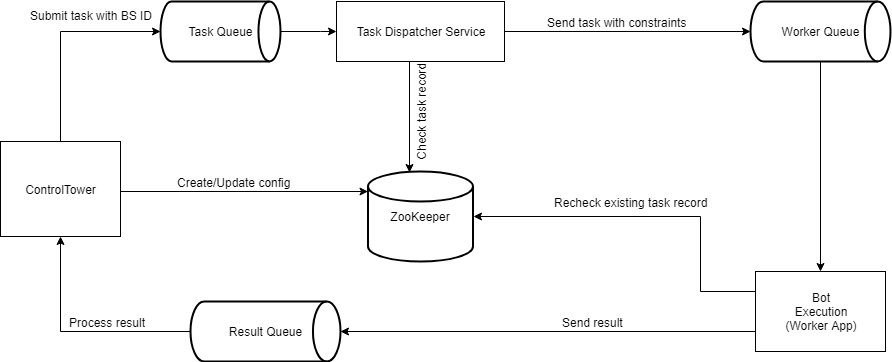
The interaction with BEP components occurs on three levels, involving Control Tower, Task Dispatcher Service, and Bot Worker.
- Control Tower is used to perform Bot Source configurations. On the Control Tower side, a specific Bot Source marker allows to task messages and channels of business process steps using constraints.
- Task Dispatcher Service checks the Bot Source capacity availability in task metadata. From Task Dispatcher Service, tasks go to the Bot Worker queue according to Bot Source limitations from ZooKeeper.
- Bot Worker rechecks the task node status if it is a Bot Task. In case the check fails, the failure result for this task is sent to Control Tower, and an exception occurs.
Configuration
Control Tower provides the capability to create or edit Bot Source configurations, giving a business process developer full control over the Bot Task concurrency settings as well as exercising control over the execution flow and access to resources. The best practice is to set a specific Bot Source for each Bot Task within a Business Process. Tuning of Concurrency Settings is crucial for optimal process performance and working with limited resources like Bot Manager.
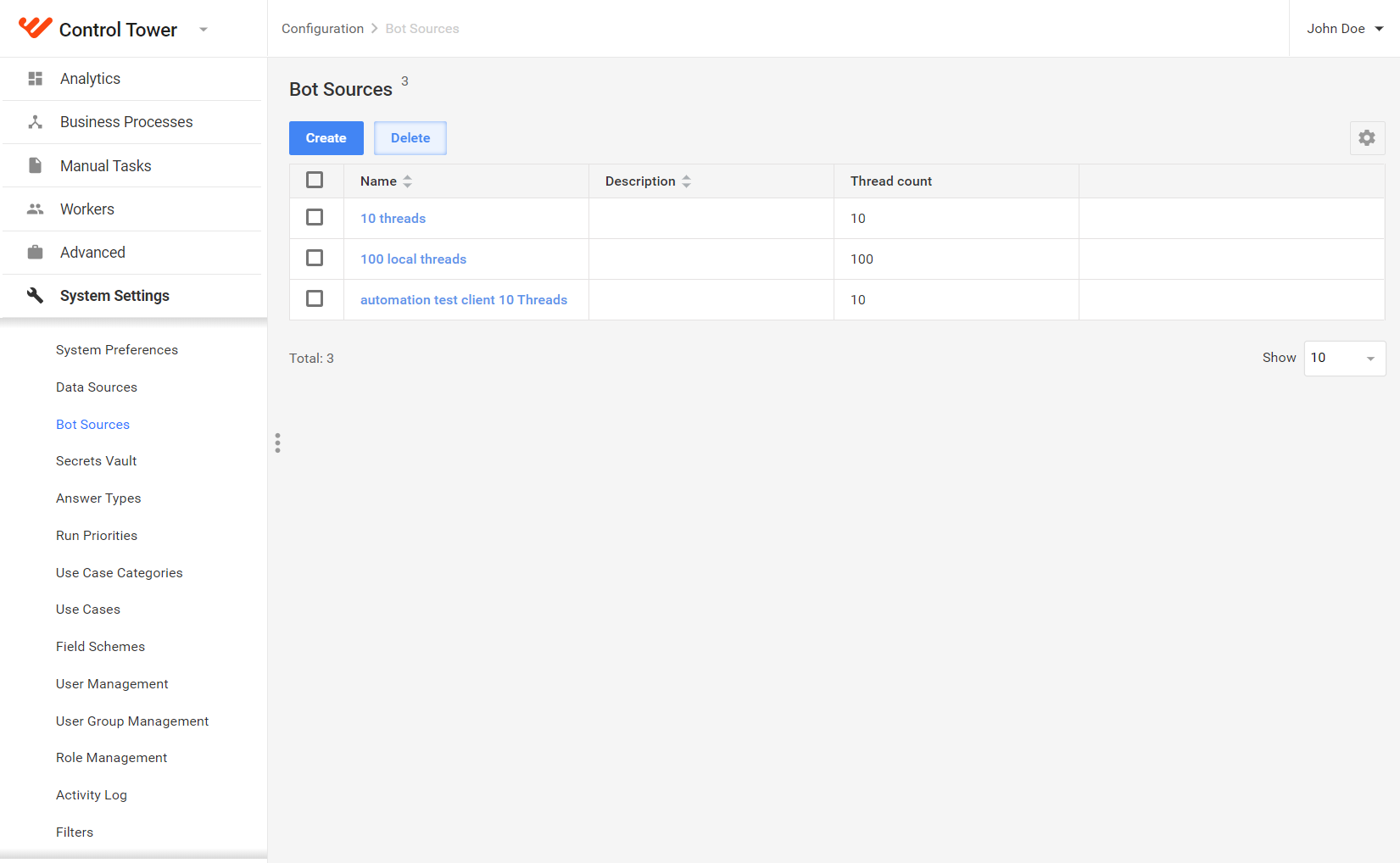
To set up bot sources, go to System Settings > Bot Sources.
note
Mind that you should link each Bot Source to a Bot config.
Add Bot Source
See the instruction to create a new Bot Source below.
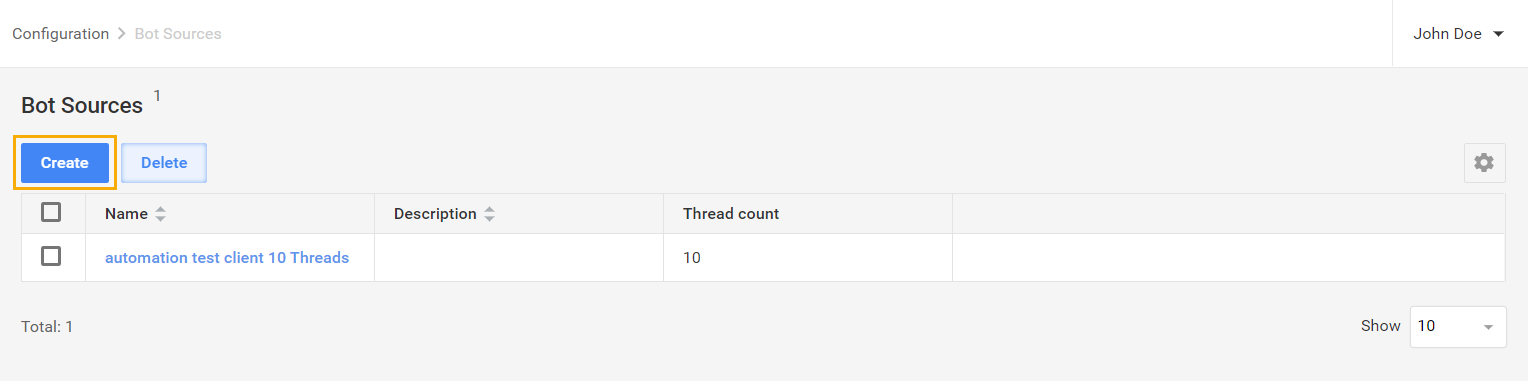
Within System Settings > Bot Sources, click Create.
Enter information about your Bot Source in the fields provided.
- Name: Bot Source name and a required value to fill in.
- Description: general Bot Source description and can be up to 1,000 characters long.
Both Name and Description simplify further Bot Source lookup and usage.
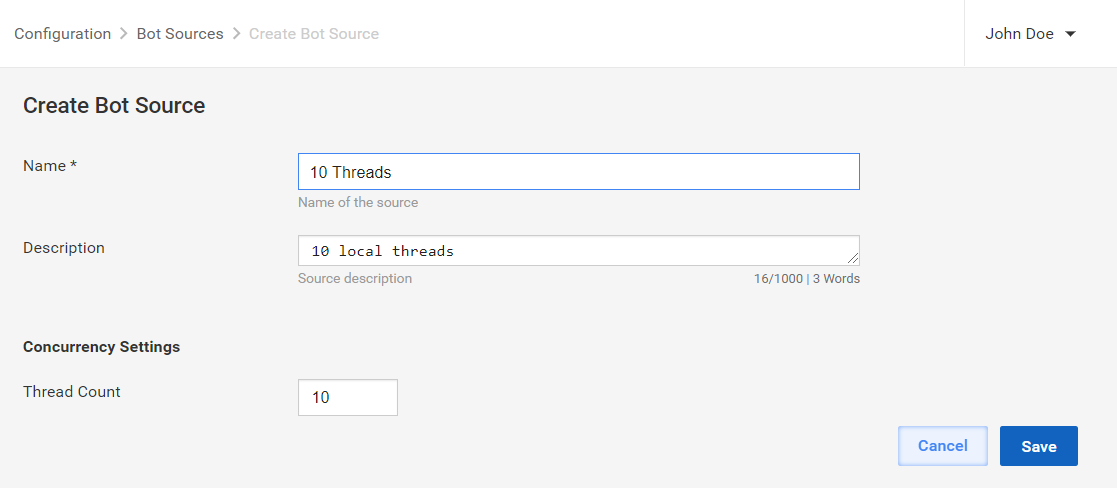
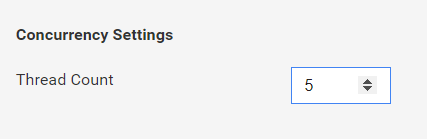
Specify Thread Count for Concurrency Settings. Thread count describes how many Bot tasks will be executed in parallel across the same Bot Source. By default, Bot Source has 5 threads.
note
Concurrency Settings setup is crucial for optimal process performance. These settings allow you to limit the number of threads that will access the data source. The feature is useful if the data source allows a certain number of requests from one server.
Click Save. The success message confirms that the Bot Source is created.
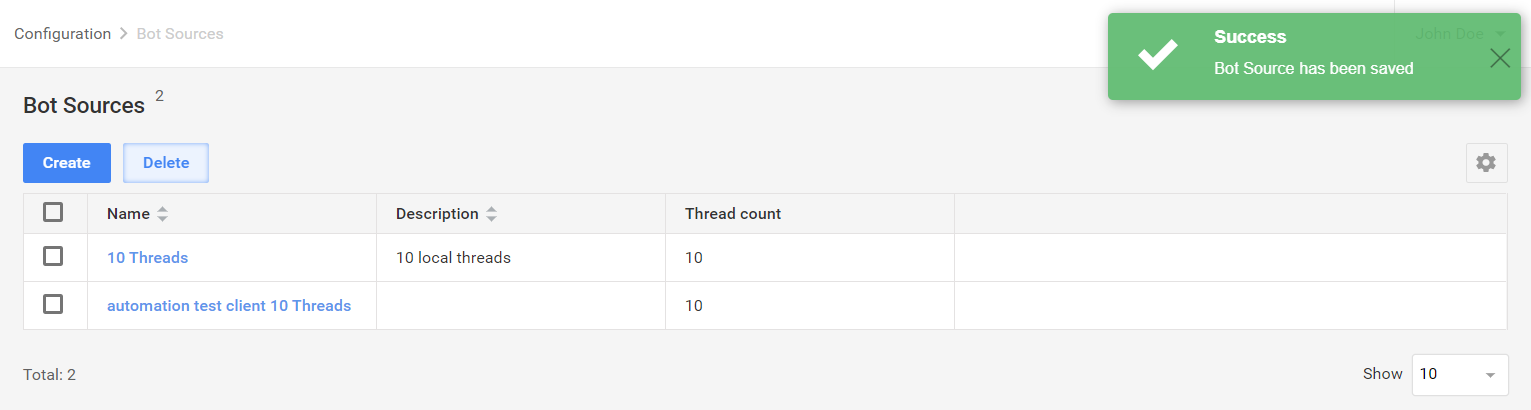
All the created bot sources are available in System Settings > Bot Sources, where you can either edit or delete them.
Edit Bot Source
Go to System Settings > Bot Sources and click on the Bot Source you need to edit.
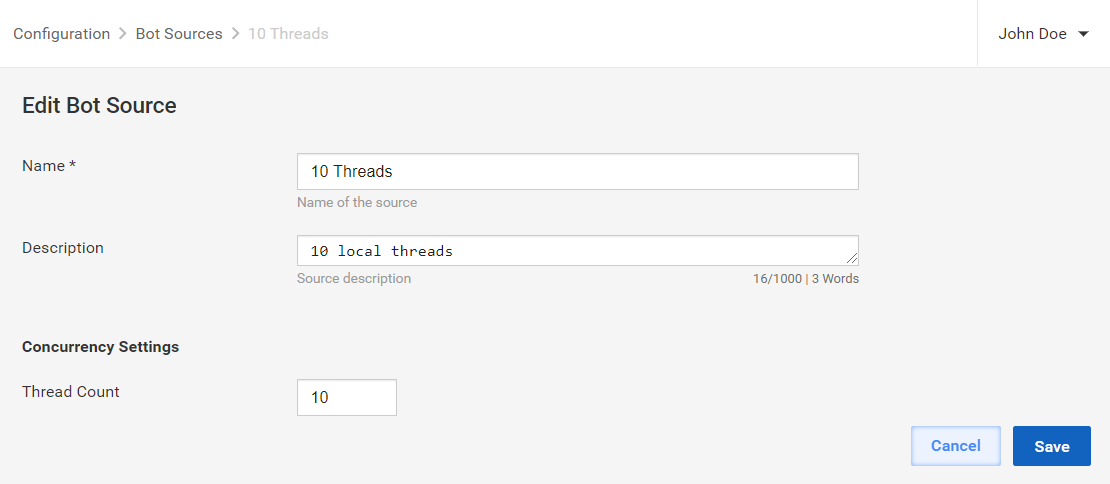
Enter all the needed changes and click Save.
caution
Due to synchronization issues, when you update a Bot Source, more or less (depending on the previous value) tasks can be processed than specified in the updated value for some time.
Delete Bot Source
Go to System Settings > Bot Sources and select the Bot Source you need to delete.
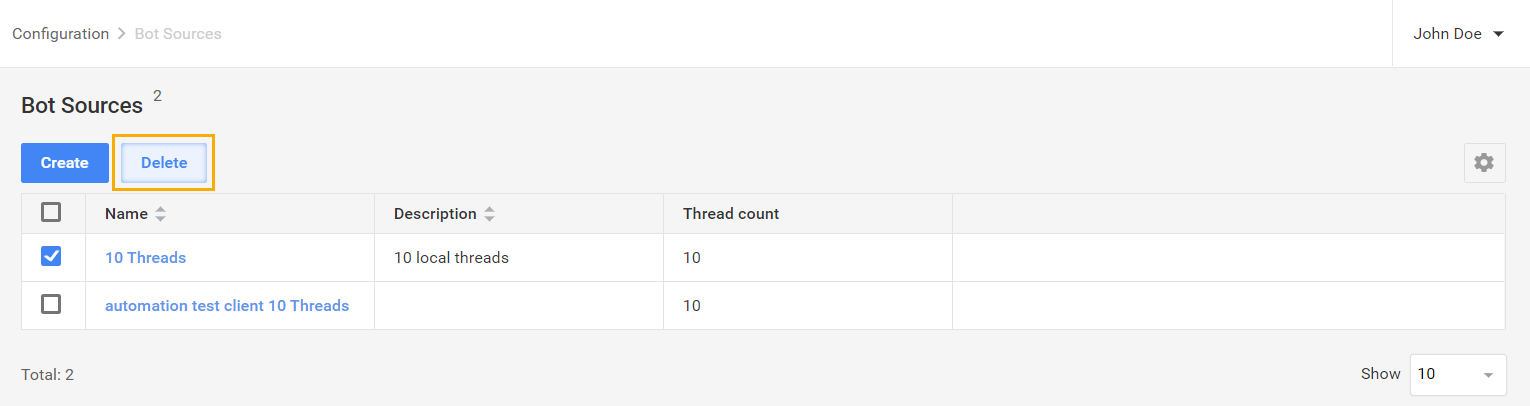
Click Delete.
On the window that follows, click Delete to confirm the deletion.

warning
You cannot remove a Bot Source if it is used at least in one bot config, even if a business process with that bot config is completed or deleted. To perform deletion in this case, you should unbind that Bot Source from each bot config where it is used
Apply Bot Source to Business Process
As soon as bot sources have been created and tuned, the best practice is to set a specific Bot Source for each Bot Task within a business process.
Go to Business Processes and select a business process to add a Bot Source to.
Proceed to Workflow of the selected business process and double-click a Bot Task to link to the Bot Source.
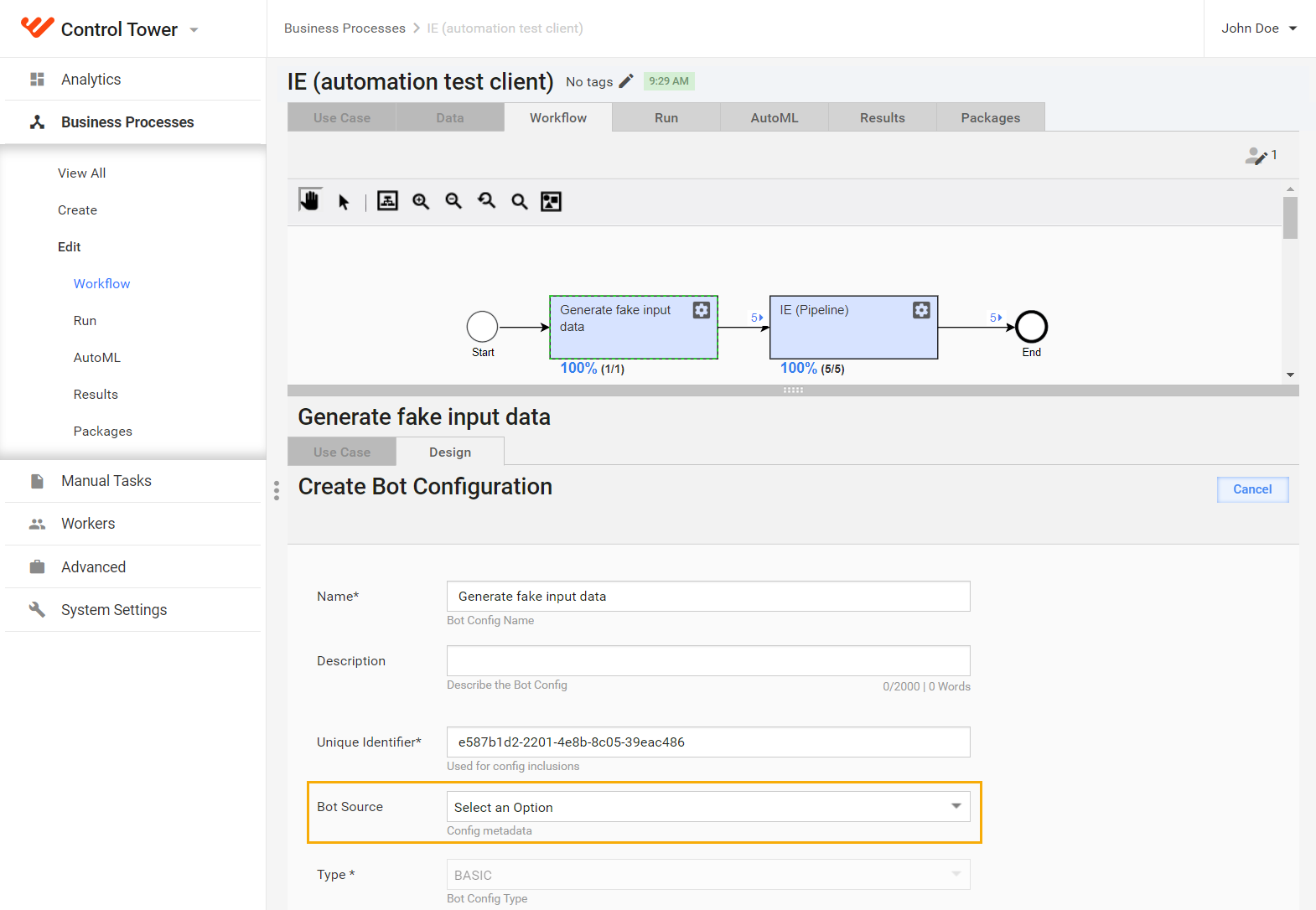
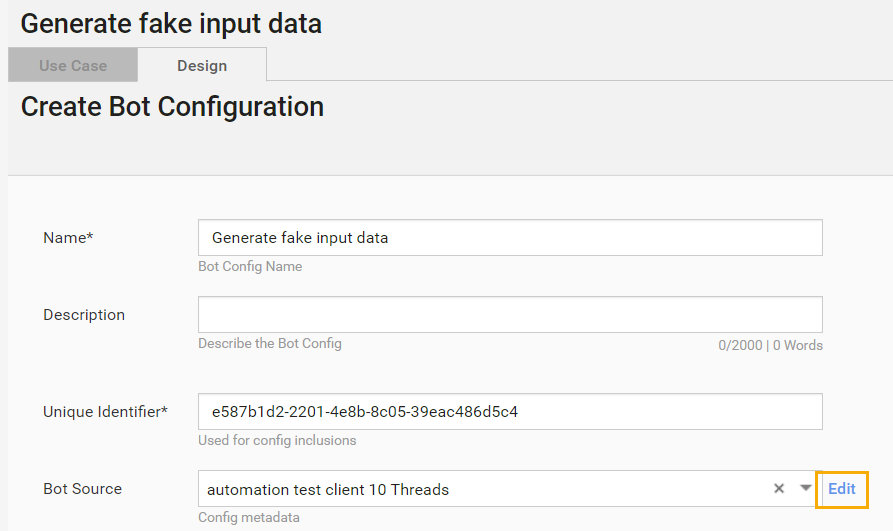
On the Design tab within the Create Bot Configuration options, select a Bot Source in the Bot Source dropdown.
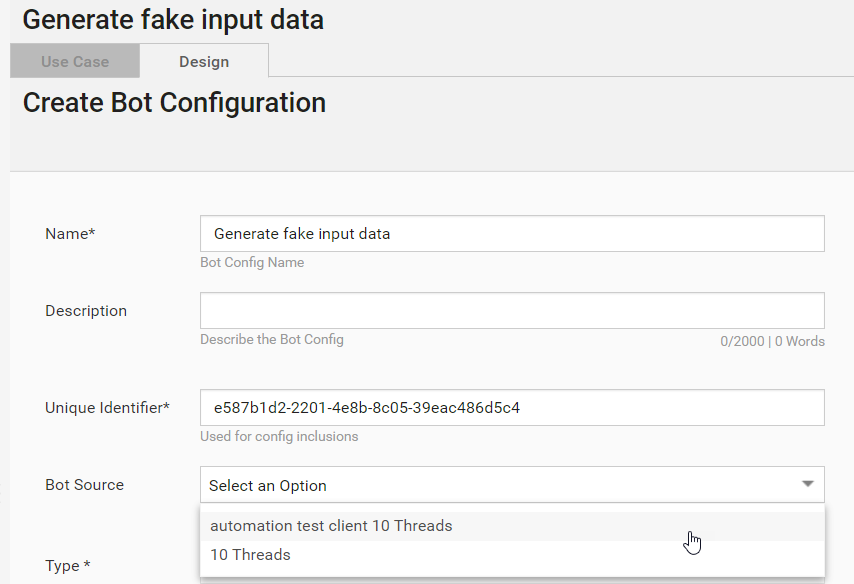
As soon as you select the Bot Source, you can proceed to its settings by clicking Edit next to it.