Deploy ODF components to IA Cloud environment
Although Intelligent Automation Cloud Enterprise and Intelligent Automation Cloud Developer have ODF components installed along with the environments, one may need to work with a different ODF version. Here are some scenarios of such cases.
Scenario 1
- A new ODF version compatible with the current platform version is released. This version is not automatically installed with the platform, and typically we do not release a new version of Intelligent Automation Cloud Enterprise or Intelligent Automation Cloud Developer just to update an ODF version.
Scenario 2
- Upgrade to a new minor or major platform version (for example, from 10.1.6 to 10.2.1 or from 9.2 to 10.2) and re-package a Use Case to address potential compatibility issues.
note
Within one major version, ODF and platform changes guarantee compatibility of all ODF-based code. For example, a Use Case that uses the ODF core library of the version compatible with IA Cloud Enterprise version 10.1.2 can also run on version 10.1.6 with no compatibility issues.
Deploy ODF components
Prerequisites
- Intelligent Automation Cloud Enterprise is installed on the remote environment and is running.
- Maven is installed on the machine from which ODF components deployment will take place.
- Local Maven is already configured to be able to work with https://repository.workfusion.com/ according to this guide. The Control Tower user, credentials of which are provided in the Maven settings, has Advanced Package Import and Export/Import permissions.
- You are logged in https://repository.workfusion.com/ using the credentials from the guide above.
Define ODF version to install
ODF related components come with a pre-packaged bundle known as ODF installation bundle or ODF install package. There are two ways to obtain an installation bundle:
- (Preferable): Open ODF releases. Find the required ODF version inside the table and download the ODF installation bundle you need.
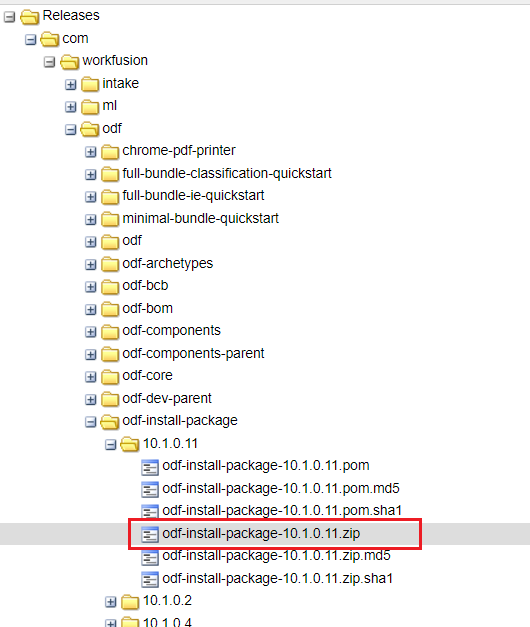
- (Additional): Go to https://repository.workfusion.com/ directly and download the
.zipfile from the Releases repository.
Prepare local environment
To deploy an ODF installation bundle to the environment, use bundle-maven-plugin, and therefore the pom.xml file is required. Download a suitable version and put it to a folder of your choice.
note
Here is pom.xml for 10.1.x versions.
<?xml version="1.0" encoding="UTF-8"?>
<project xmlns="http://maven.apache.org/POM/4.0.0"
         xmlns:xsi="http://www.w3.org/2001/XMLSchema-instance"
         xsi:schemaLocation="http://maven.apache.org/POM/4.0.0 http://maven.apache.org/xsd/maven-4.0.0.xsd">
    <modelVersion>4.0.0</modelVersion>

    <groupId>com.workfusion.odf</groupId>
    <artifactId>odf-package-install</artifactId>
    <version>1.0.0.0</version>
    <packaging>pom</packaging>

    <properties>
        <workfusion.environment.url>http://localhost:15280/</workfusion.environment.url>
        <!-- specify the path to ODF installation bundle -->
        <bundle.to.import.path>C:\Users\Some_User\Downloads\odf-install-package-10.1.0.7.zip</bundle.to.import.path>
    </properties>

    <repositories>
        <repository>
            <id>wf-dependencies</id>
            <name>WorkFusion Nexus Repository - dependencies</name>
            <url>https://repository.workfusion.com/content/groups/dependencies/</url>
            <releases>
                <enabled>true</enabled>
                <updatePolicy>daily</updatePolicy>
            </releases>
            <snapshots>
                <enabled>true</enabled>
                <updatePolicy>always</updatePolicy>
            </snapshots>
        </repository>
    </repositories>

    <pluginRepositories>
        <pluginRepository>
            <id>wf-dependencies</id>
            <url>https://repository.workfusion.com/content/groups/dependencies/</url>
        </pluginRepository>
    </pluginRepositories>

    <build>
        <plugins>
            <plugin>
                <groupId>com.workfusion.odf</groupId>
                <artifactId>bundle-maven-plugin</artifactId>
                <version>10.1.0.4</version>
                <configuration>
                    <server>
                        <id>control-tower</id>
                        <url>${workfusion.environment.url}</url>
                    </server>
                    <bundle>${bundle.to.import.path}</bundle>
                </configuration>
            </plugin>
        </plugins>
    </build>

</project>
Here, you can find two properties that require your attention. Make sure these properties are filled with suitable values:
workfusion.environment.url- the target Control Tower instance to deploy an ODF installation bundlebundle.to.import.path- the path to an ODF installation bundle that is going to be deployed
Also, ensure that settings.xml is updated with the valid Control Tower credentials as described in this guide.
<settings>
    <servers>
        <server>
            <id>control-tower</id>
            <username>user</username>
            <password>VeryStrongPassword</password>
        </server>
    </servers>
</settings>
Deploy ODF installation bundle
If everything is set up correctly, run the following command from the folder in which pom.xml is stored.
mvn bundle:import
Also, you can specify Control Tower and a bundle path from the command line if needed.
mvn bundle:import -Dworkfusion.environment.url=http://localhost:15280 -Dbundle.to.import.path=C:\Users\Some_User\Downloads\odf-install-package-10.1.0.7.zip
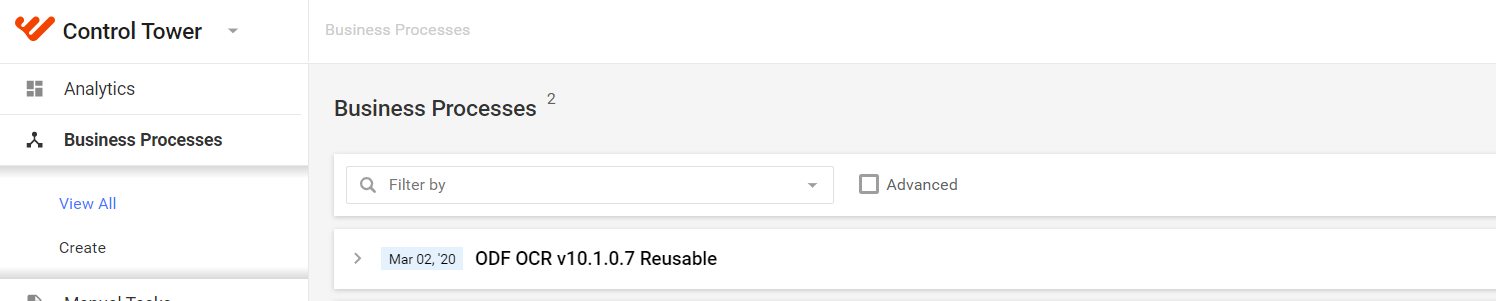
After the process is finished with the BUILD SUCCESS message, you can open Control Tower and observe that an ODF business process is created and all the related ODF components are available.