
Loops
Loops can be used:
- to repeat a sequence of actions until some condition is met (While, Retry) or a defined number of times (Repeat)
- to iterate through lists and tables (For Each)
and contain other actions (clicks, drags, keystrokes) as their children.

While
This loop keeps running until the indicated conditions become false.
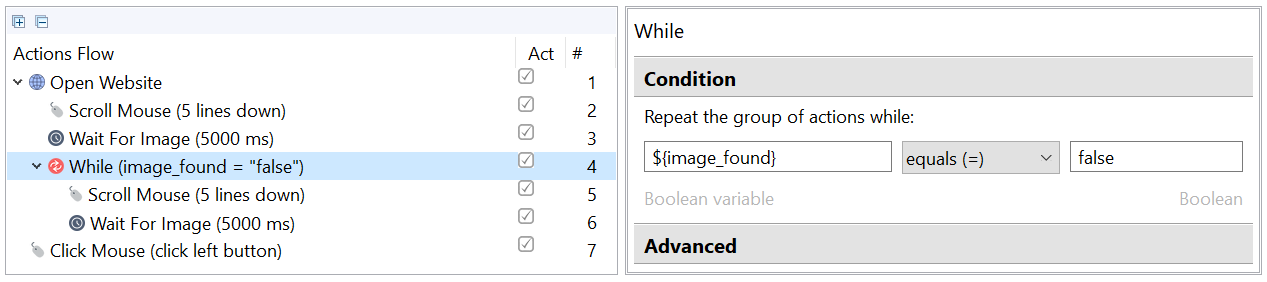
In the example above, the While loop is used to scroll a page until a specific button is found, afterwards the loop will be finished and the bot will execute a mouse click.
If the While condition contains a variable which value is not modified in the loop body, this can cause an infinite loop.
In the example above, the ${image_found} variable is modified in the Wait For Image action - it is used to save the action result
(true or false).
Parameters:
Boolean expression - compare values of two variables, or of a variable and a specific value. Actions nested in this loop will continue to be executed while this expression is true.
First operand - variable or string
Comparison operator:
- equals (=)
- not equals (!=)
- greater than (>)
- greater than or equals (>=)
- less than (<)
- less than or equals (<=)
- contains (substring)
- not contains (substring)
- empty value
- not empty value
- matches regexp
- not matches regexp
Second operand - variable or string (if available)
How to use comparison operators
String type
| Left operand | Comparison operator | Right operand | True result |
|---|---|---|---|
| String 1 | equals (=) | String 2 | String 1 is equal to String 2. |
| String 1 | not equals (!=) | String 2 | String 1 is not equal to String 2. |
| String 1 | greater than (>) | String 2 | String 1 is greater than String 2. |
| String 1 | greater than or equals (>=) | String 2 | String 1 is greater than or equal to String 2. |
| String 1 | less than (<) | String 2 | String 1 is less than String 2. |
| String 1 | less than or equals (<=) | String 2 | String 1 is less than or equal to String 2. |
| String 1 | contains | String 2 | String 1 contains String 2. |
| String 1 | not contains | String 2 | String 1 does not contain String 2. |
| String 1 | is empty | N/A | String 1 is an empty string value. |
| String 1 | is not empty | N/A | String 1 is not an empty string value. |
| String 1 | matches regular expression | Regular expression, e.g *[A-Za-z]* | String 1 matches the regular expression. |
| String 1 | not matches regular expression | Regular expression, for example, *[A-Za-z0-9]* | String 1 does not match the regular expression. |
- =and!=are case sensitive
- >, >=, <, <= operators compare strings' length. In case lengths are equal, each character is compared by its Unicode number from left to right
Number type
| Left operand | Comparison operator | Right operand | True result |
|---|---|---|---|
| Number 1 | equals (=) | Number 2 | Number 1 is equal to Number 2. |
| Number 1 | not equals (!=) | Number 2 | Number 1 is not equal to Number 2. |
| Number 1 | greater than (>) | Number 2 | Number 1 is greater than Number 2. |
| Number 1 | greater than or equals (>=) | Number 2 | Number 1 is greater than or equals Number 2. |
| Number 1 | less than (<) | Number 2 | Number 1 is less than Number 2. |
| Number 1 | less than or equals (<=) | Number 2 | Number 1 is less than or equals Number 2. |
| Number 1 | matches regular expression | Regular expression, for example, [0-9]* | Number 1 matches the regular expression. |
| Number 1 | not matches regular expression | Regular expression, for example, [1-5]* | Number 1 does not match the regular expression. |
List type
| Left operand | Comparison operator | Right operand | True result |
|---|---|---|---|
| List 1 | equals (=) | List 2 | Size of List 1 equals size of List 2 and all elements of List 1 are the same as in List 2. |
| List 1 | not equals (!=) | List 2 | Size of List 1 is not equal to size of List 2 or all elements of List 1 are not the same as in List 2. |
| List 1 | greater than (>) | List 2 | Size of List 1 is greater than size of List 2. |
| List 1 | greater than or equals (>=) | List 2 | Size of List 1 is greater than or equals size of List 2. |
| List 1 | less than (<) | List 2 | Size of List 1 is less than size of List 2. |
| List 1 | less than or equals (<=) | List 2 | Size of List 1 is less than or equals size of List 2. |
| List 1 | contains | String | List 1 contains text from String . |
| List 1 | not contains | String | List 1 contains text from String . |
| List 1 | is empty | N/A | Size of List 1 is 0. |
| List 1 | is not empty | N/A | Size of List 1 is greater than 0. |
Table type
| Left operand | Comparison operator | Right operand | True result |
|---|---|---|---|
| Table 1 | equals (=) | Table 2 | Number of columns, number of rows and content in cells are the same in Table 1 and Table 2. |
| Table 1 | not equals (!=) | Table 2 | Number of columns, number of rows and content in cells are different in Table 1 and Table 2. |
| Table 1 | is empty | N/A | Size of Table 1 is 0. |
| Table 1 | is not empty | N/A | Size of Table 1 is greater than 0. |
Date type
| Left operand | Comparison operator | Right operand | True result |
|---|---|---|---|
| Date 1 | equals (=) | Date 2 | Date 1 is equal to Date 2. |
| Date 1 | not equals (!=) | Date 2 | Date 1 is not equal to Date 2. |
| Date 1 | greater than (>) | Date 2 | Date 1 is greater than Date 2. |
| Date 1 | greater than or equals (>=) | Date 2 | Date 1 is greater than or equals Date 2. |
| Date 1 | less than (<) | Date 2 | Date 1 is less than Date 2. |
| Date 1 | less than or equals (<=) | Date 2 | Date 1 is less than or equals Date 2. |
Boolean type
| Left operand | Comparison operator | Right operand | True result |
|---|---|---|---|
| Boolean 1 | equals (=) | Boolean 2 | Boolean 1 is equal to Boolean 2. |
| Boolean 1 | not equals (!=) | Boolean 2 | Boolean 1 is not equal to Boolean 2. |
- Date, Table, List in operands should be defined as variables:
${invoice_date},${customer_table},${contact_list} - String, Number, Boolean in operands can be defined:
- explicitly: some text, 100500, false
- or as a variable:
${string_1},${account_number},${is_enabled}
Repeat
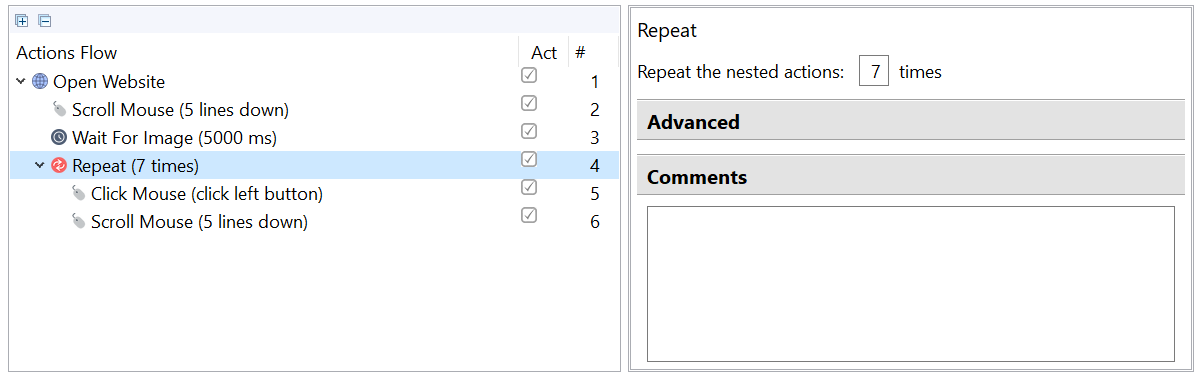
The Repeat loop is used to repeat a set of actions a given number of times.
note
The loop is used for click through pagination, repeat key press (DOWN_ARROW or TAB seven times), etc.
Parameters:
- Number of repeats - you need to know the exact number of repeats. If the exact number is unknown, use the While loop or For Each.
tip
If you input a series of data with the help of loops within the Open Website action and a popup window comes up, use a custom action in your script in order to switch between windows.
Retry
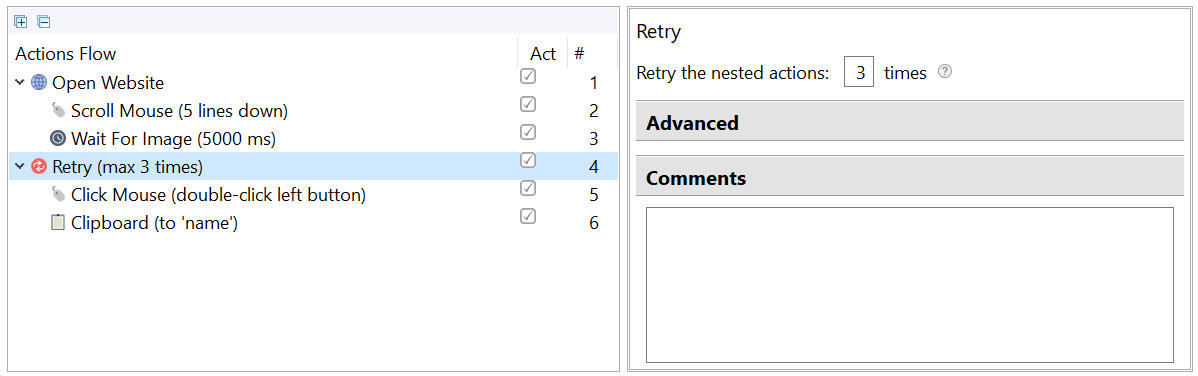
The nested actions are repeated until no exceptions occur or the maximum number of retries is reached.
Parameters:
- Maximal number of retries - the parameter is needed to avoid an infinite loop.
For Each
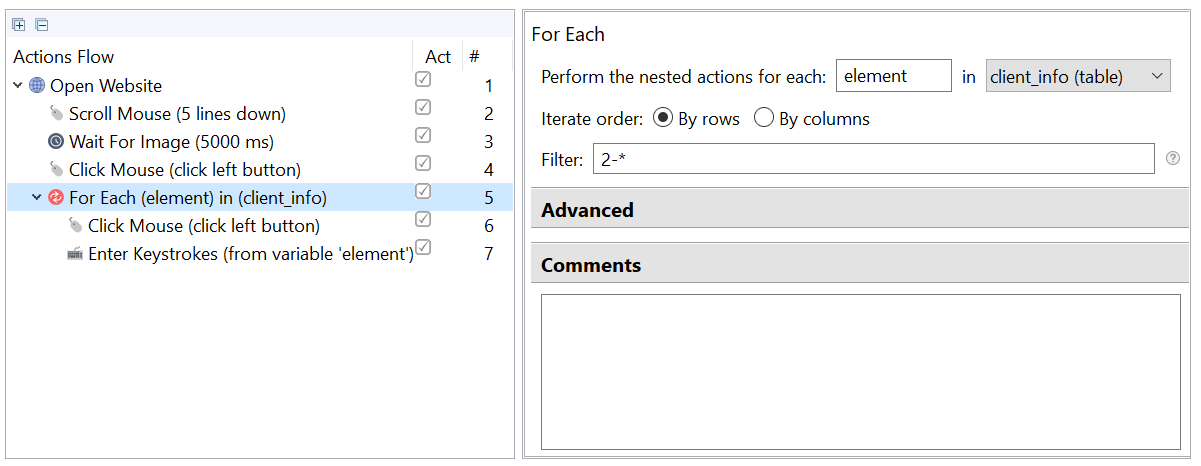
The For Each loop runs once for each element in a List or row/column in a Table.
Inside of the loop, you can use the ${element} variable which contains the current List or Table element.
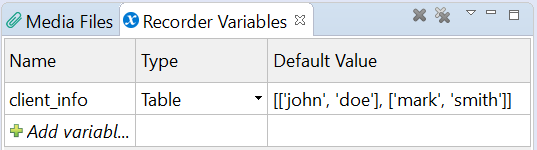
Parameters:
- Temporary variable name - default name is
${element}. You can choose any other name that differs from existing variables. - List or table variable - the variable will be used for iteration.
- Each column/each row (for tables only) -- choose whether to perform these actions on each column or each row of the table (iterate horizontally or vertically).
- Filter - enter one or more specific numbers or ranges. for example, 1, 5, 8-19. All items outside these ranges are excluded. If the number of items is unknown in advance, use (*) as the end filter element.
Use the ${element} variable defined in the For Each loop in its nested actions (for example, Enter Keystrokes) when you are iterating over a Table or List.
List use case
The example can be used to populate an Excel column with values from a List variable.
Variable: ${myList}: [Hydrogen, Helium, Lithium]
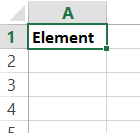
Excel initial state:
Actions Flow
For Each ${element} in ${myList}
   Enter Keystrokes (DOWN)
   Enter Keystrokes ${element}
Iterations:
- Arrow down
Hydrogen - Arrow down
Helium - Arrow down
Lithium

Table use case
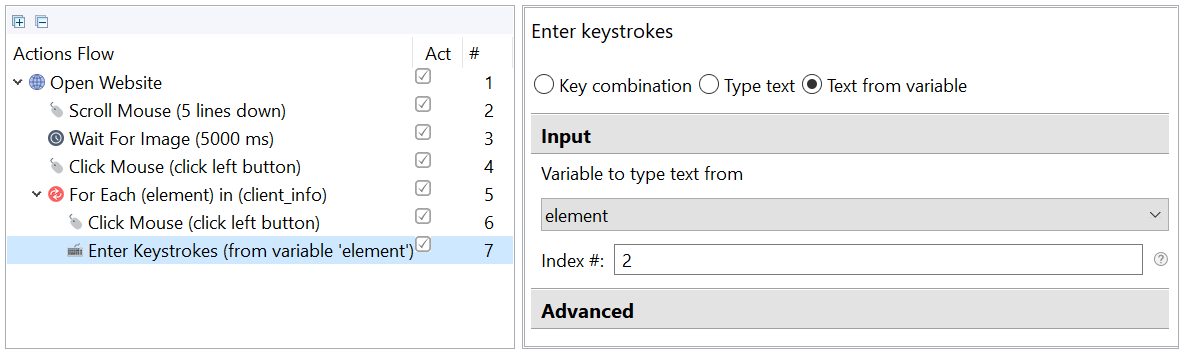
When using variables for actions inside the For Each loop with tables, an additional Index field is displayed. This happens because you are iterating by table rows or columns, which are Lists.
Excel use case
You can use For Each to iterate through Excel documents, extract data from them, and paste into your document. Download the folder with the script.
- Extract the folder and drop it into your WorkFusion Studio Workspace (C:\Users\%USERNAME%\workfusion-workspace\rpae_project).
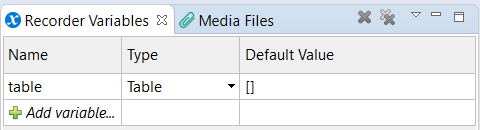
- Make sure to add a variable of the Table type that will be used for the output data.
- Specify the path to the file you have downloaded along with the folder in the Open Spreadsheet action.
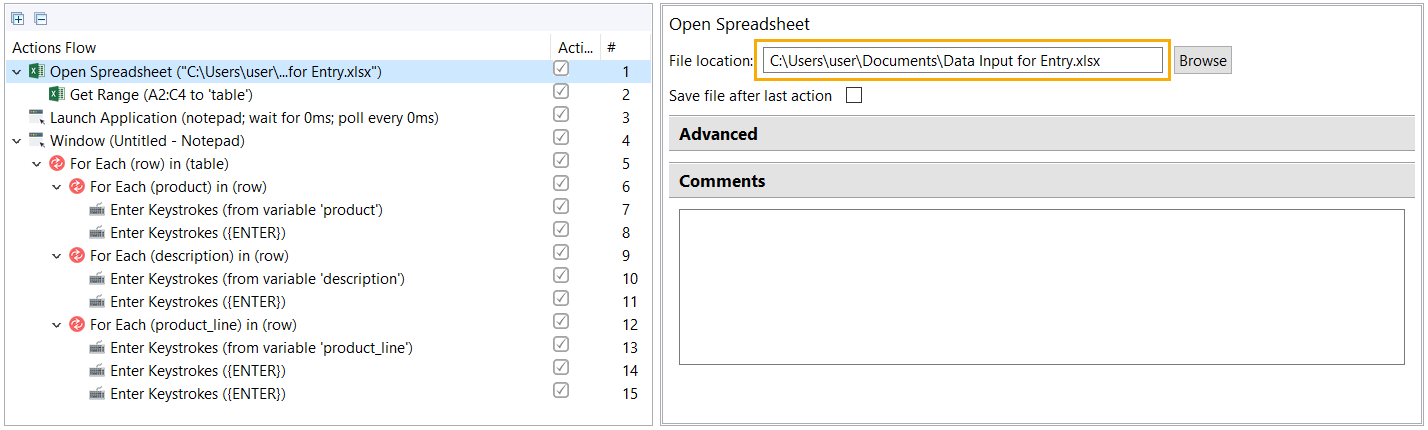
- Launch Application specifies an application you wish your data to be entered. In the script, we selected Notepad. You can choose any desktop or web application to save the extracted data into.
- There is one main loop used to loop through each row of the Excel file with a series of sub-loops nested -- one sub-loop for each data column. Here, you enter the value that becomes a list variable. Specify
rowfor Perform the nested actions for each and select the table variable you have created before.
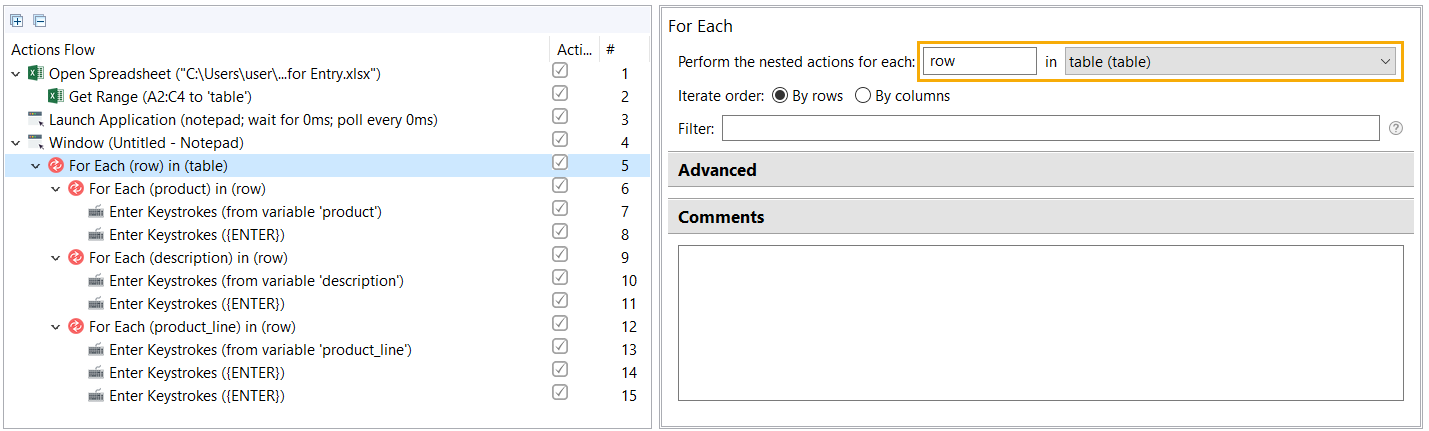
- Use
row (list)for each sub-loop. Define the string variable and enter the column number corresponding to the column in the Excel file (1, 2, 3 not A, B, C as it is) into the Filter field.
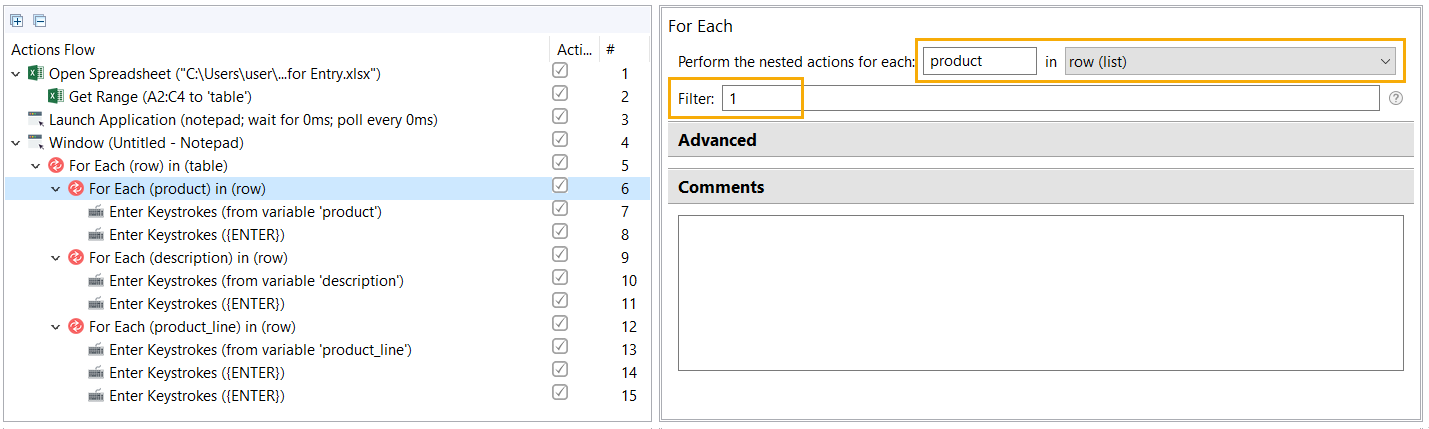
The defined string variable will be used to type text from.
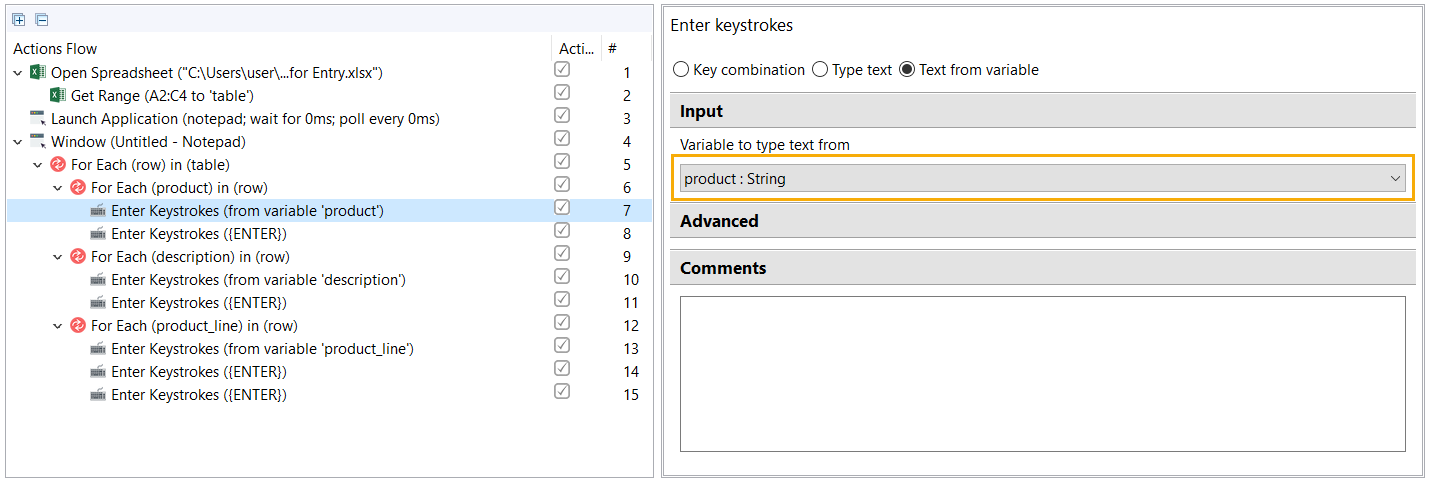
- Perform the same actions for each sub-loop depending on how many columns you need to extract information from.
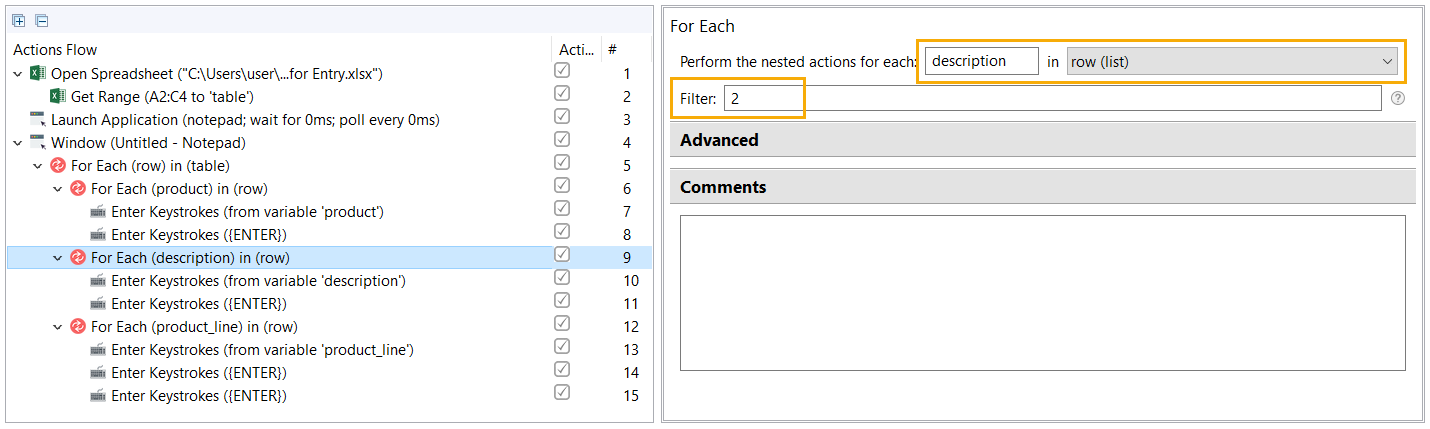
- On finishing, click on the Play Recording button to check results.