
Work with Bot Manager
Bot Manager is an application installed on the Application Server and used to:
- Manage RPA Units
- Maintain active RDP sessions
- Contain a cluster configuration
- Collect analytics data
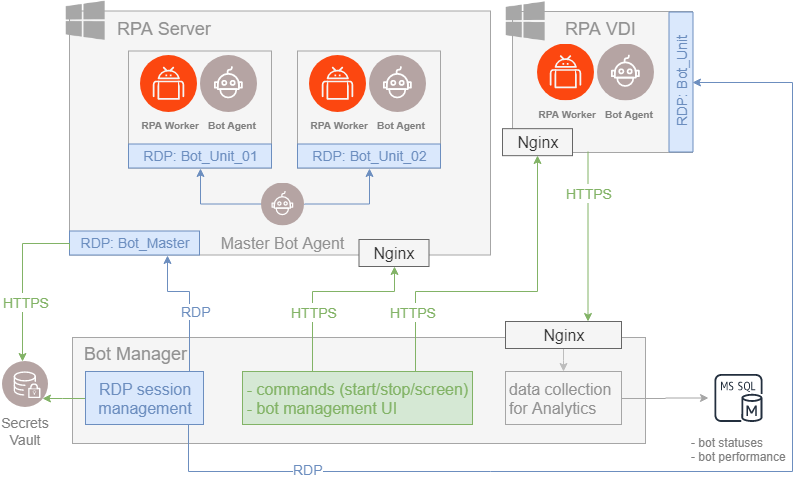
Get to know architecture
important
To see the interaction between RPA components, refer to RPA deployment.
The components act in the following way:
- Via an RDP connection, Bot Manager maintains active RDP sessions enabling Bot Master to autostart and RPA Units to click through the active UI. That also allows Bot Manager to receive data from Bot Agent, for example, fleet information, a Worker port, and so on.
- The Bot Manager UI allows sending commands to RPA Workers, viewing statistics, and tracking the number of RPA Units, servers, and processes. The communication is performed via the secured Nginx connection.
- Bot Manager gets data on RPA Unit statuses and performance from Bot Agent and transfers it to the MS SQL Server to be used by analytics.
- Bot Manager communicates with Secrets Vault to provide all RPA-related credentials. As soon as the credentials rotation is configured in Control Tower, new credentials are automatically applied to all RPA Units.
Access Bot Manager
To access the Bot Manager UI, log in to Control Tower and check that you have permissions to view and perform actions in Bot Manager:
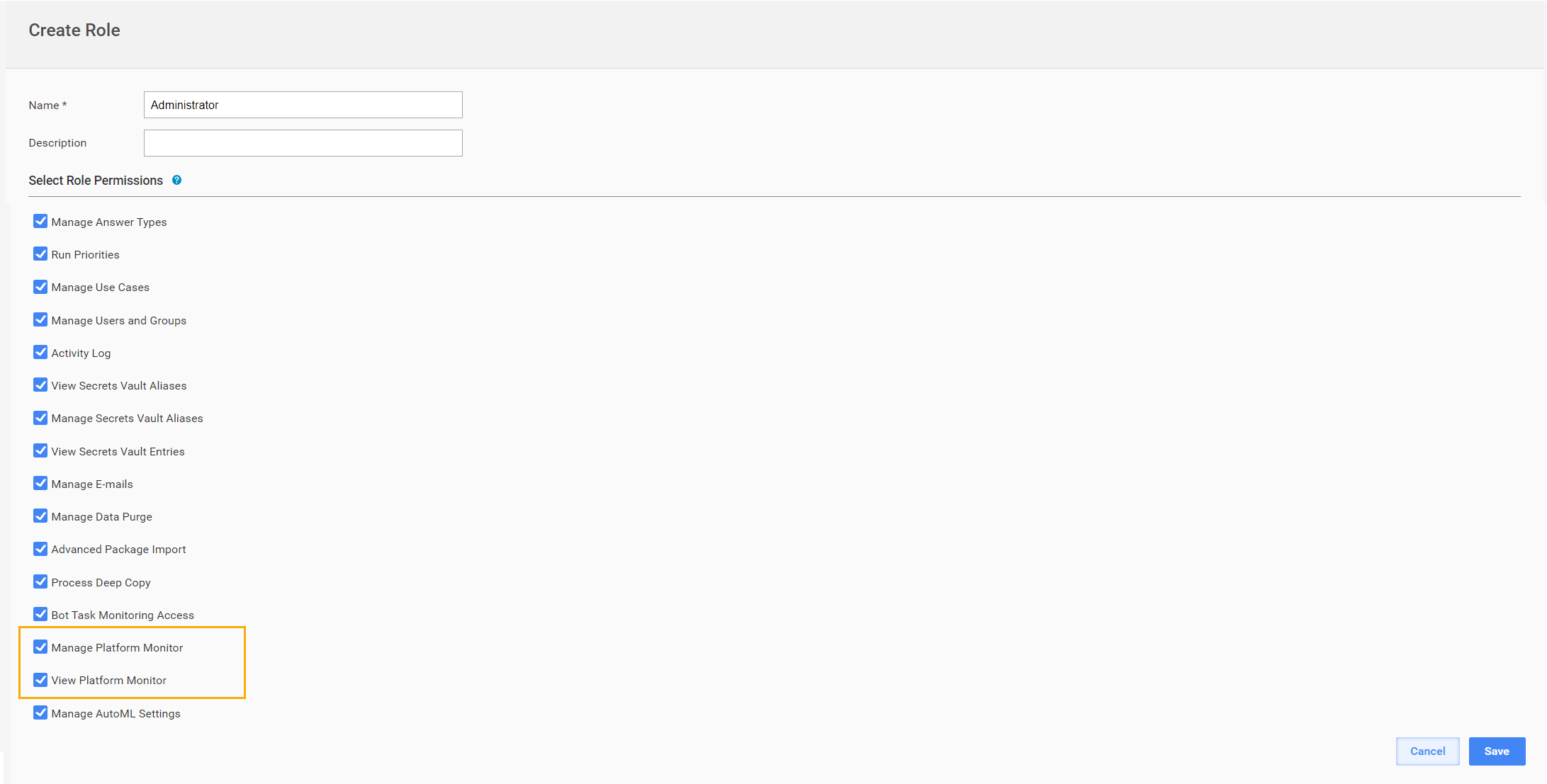
In Control Tower, go to System Settings > Role Management.
Select a user in the list or create a profile via the Create Role option. Make sure the following role permissions are selected: View Platform Monitor and Manage Platform Monitor.
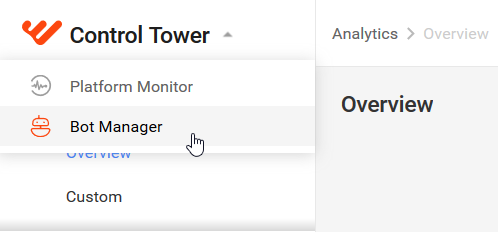
To open Bot Manager, click the dropdown in the upper left corner and select Bot Manager.
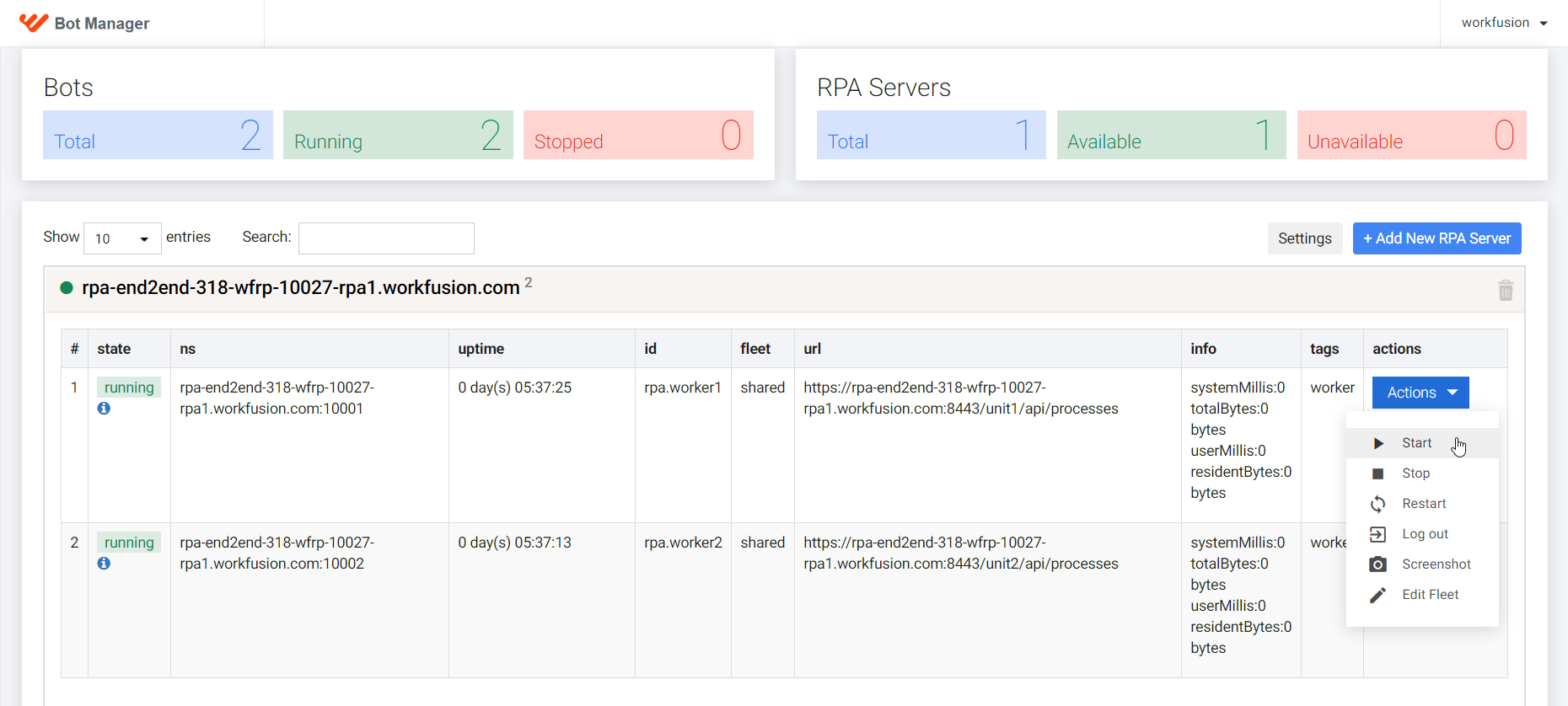
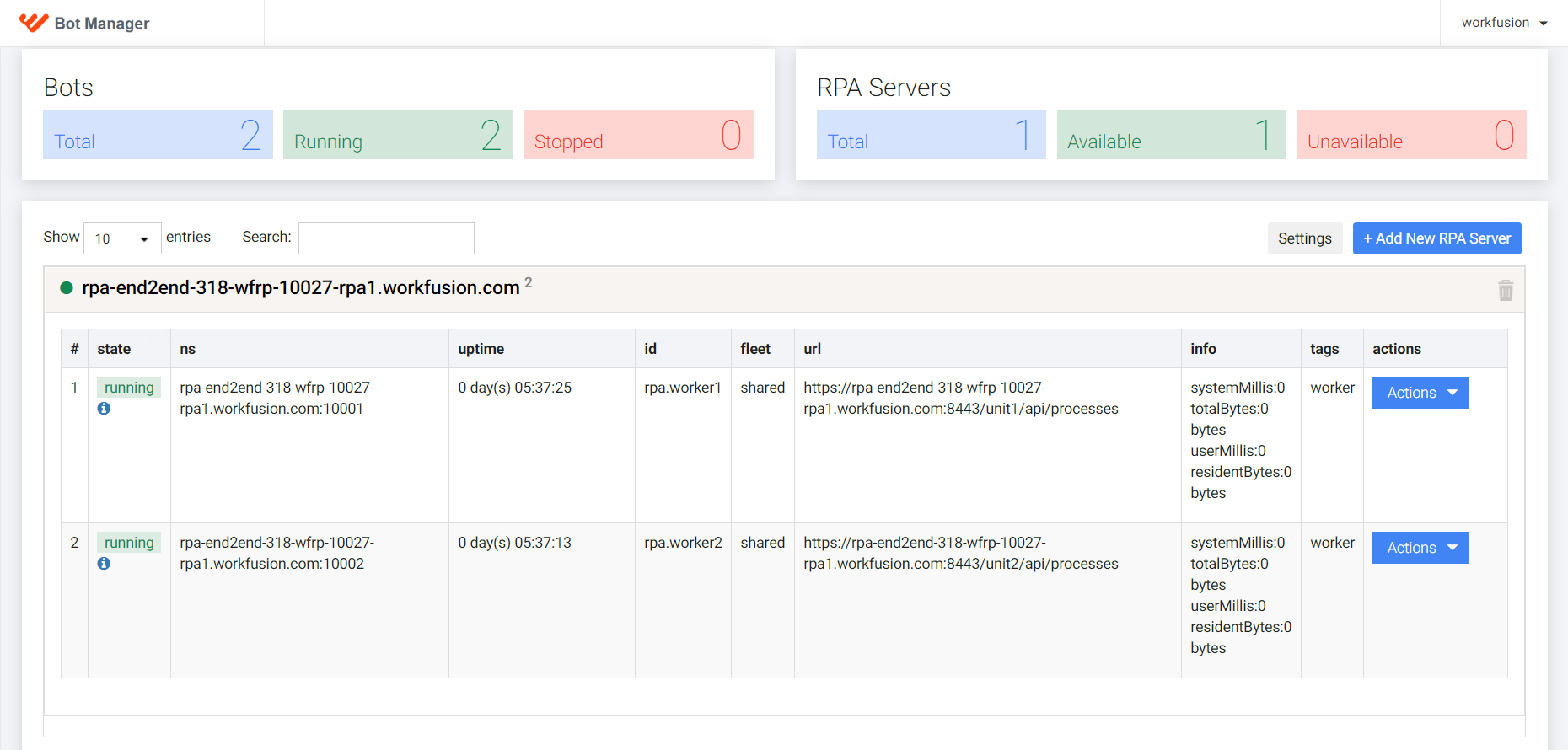
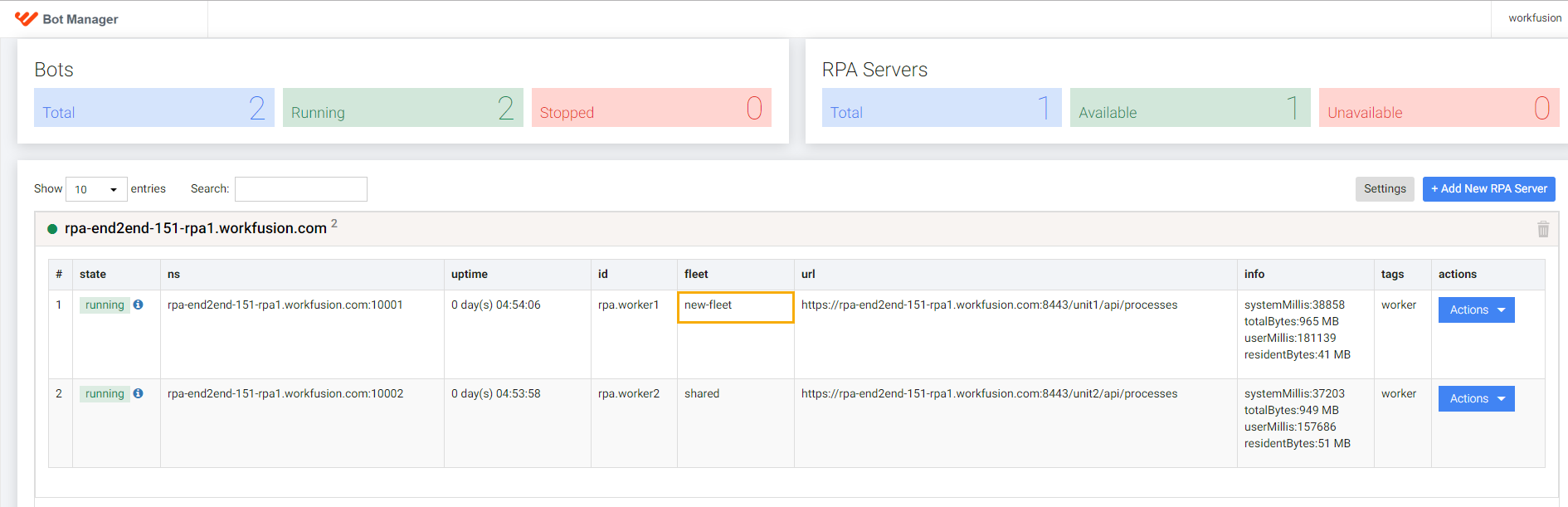
There are the following sections in the Bot Manager UI:
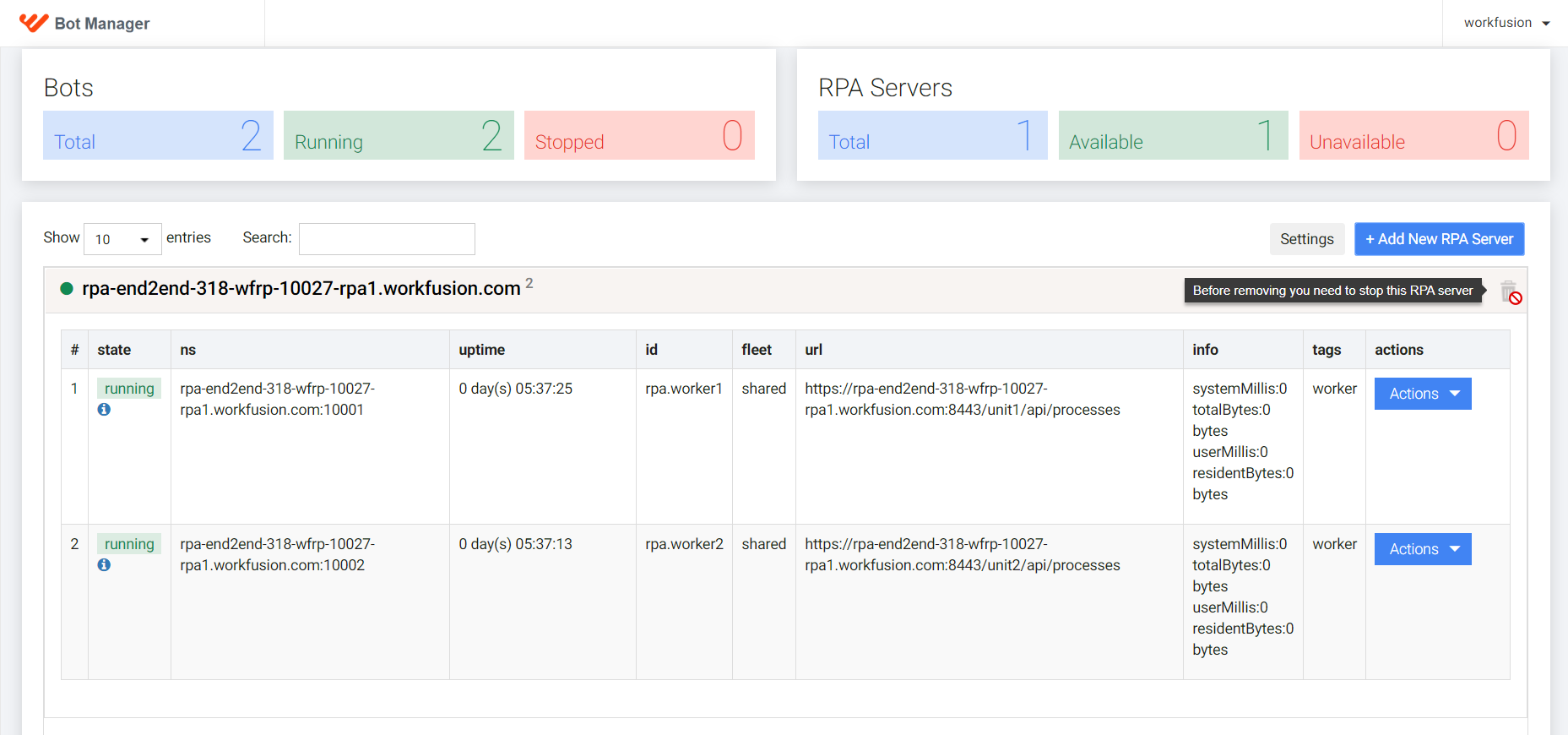
- Bots: statistics for all RPA Units: Total, Running, Stopped
- RPA Servers: each RPA server has a list of managed processes: Total, Available, Unavailable
- Process metrics: the state, ns, uptime, id, fleet, url, info, tags columns
- RPA Worker actions: Start, Stop, Restart, Log out, Screenshot, Edit Fleet
Set up RPA servers
To interact with an available RPA instance and perform actions on it, select the server in the list to expand and view available options:
To run an action for a selected instance, click Actions next to it and select a needed action.
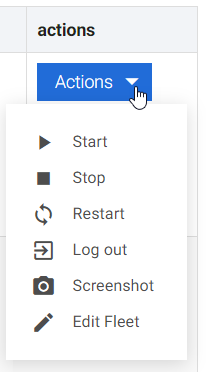
| Action | Description |
|---|---|
| Start | Launches a selected process. |
| Stop | Stops a selected process. |
| Restart | Stops and starts a selected process again. |
| Log out | Executes the logout command. The RDP session closes, and all processes are stopped. |
| Screenshot | Takes a screenshot. Works for active RDP sessions only. |
| Edit fleet | Edits a fleet for an RPA Unit. |
Add RPA server
To add a new RPA machine, click Add New RPA Server.
In the window that follows, enter your RPA Server hostname.
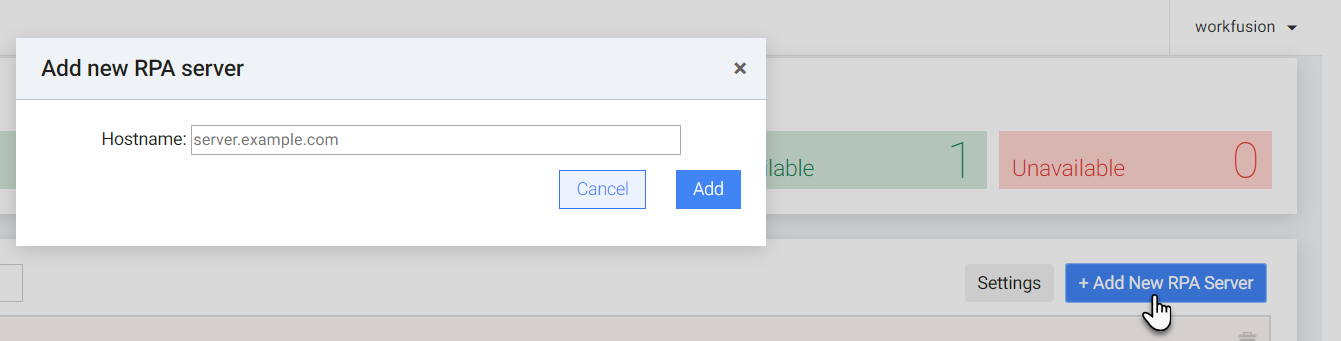
Click Add. The server appears in the list of servers.
Edit fleet
You can use the Bot Manager UI to edit a fleet for each RPA Unit. By default, each RPA Worker starts with the fleet defined on RPA Windows Server via the %RPAInstallDir%/bot-agent/conf/units/unit{unit_id} path:
fleet: shared
You can view the current fleet for each RPA Worker within the relevant section.
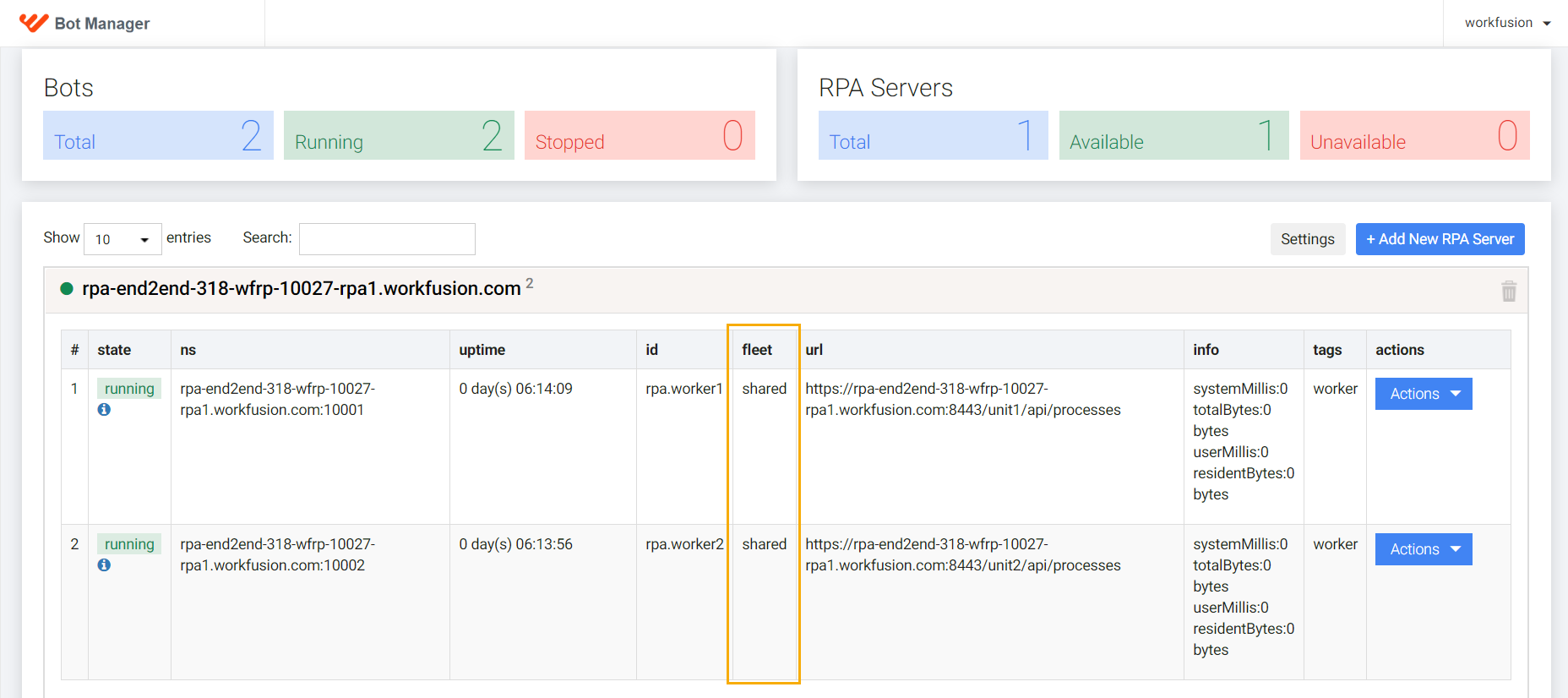
To change a fleet, do as follows:
Select the server in the list to expand and view available options. Click Actions next to the needed instance and select the Edit Fleet action.
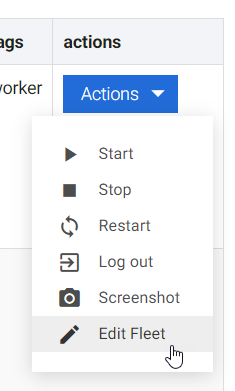
In the Edit Fleet window, select one of two available options:
- Select existing: to apply the already existing fleet
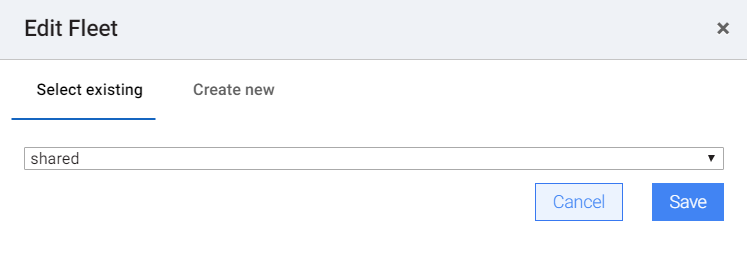
- Create new: to apply a new fleet
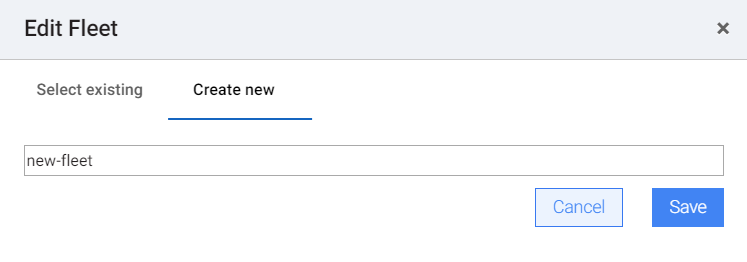
Select and enter the needed fleet value and click Save.
If the fleet updates successfully, the RPA Unit is restarted, with the pending update... value in the fleet column.
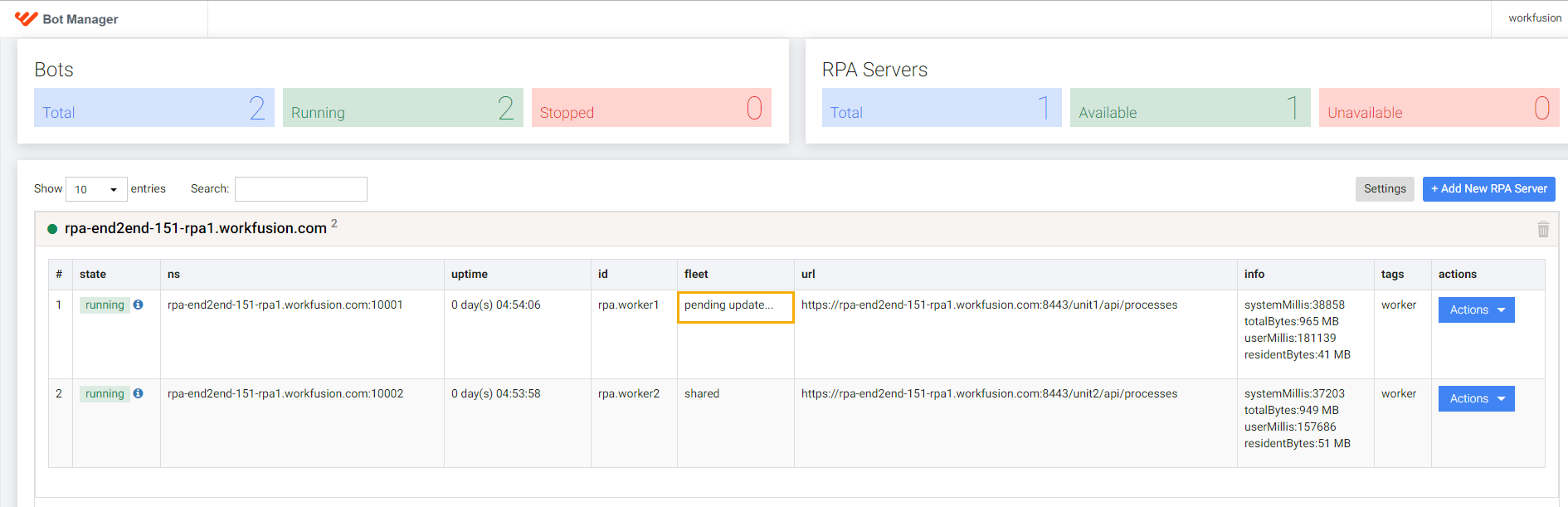
A new fleet value is displayed once the RPA Unit restarts, which can take several minutes. To see the updated fleet value, refresh the Bot Manager page.
Set up RDP auto-reconnect option
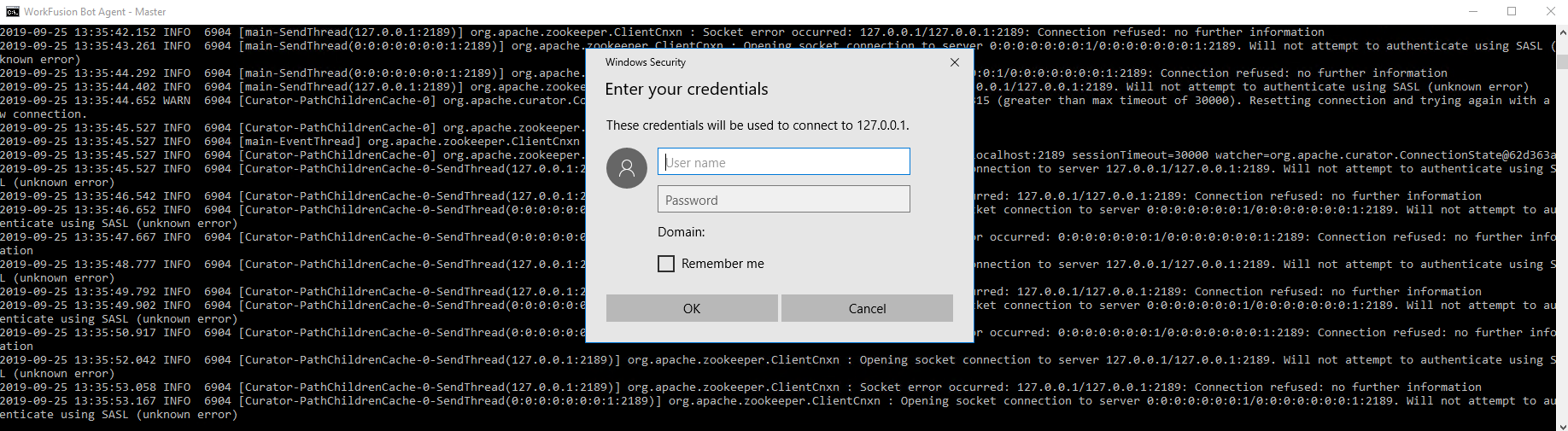
If you don't have a possibility to work with Windows Credential Manager, you cannot auto-reconnect, as Bot Agent Master cannot fill in credentials for auto-connect without typing them. As a result, when you start the RPA environment, you should connect to the Bot Agent Master session and fill in credentials manually to start each RPA Unit session.
If you don't set the auto-reconnect option as false, your RPA Unit tries to reconnect when starting an RDP session and cannot fill in credentials again. Thus, you get an exception.
To enable or disable the RDP unit session auto-reconnect directly in the Bot Manager UI, do as follows:
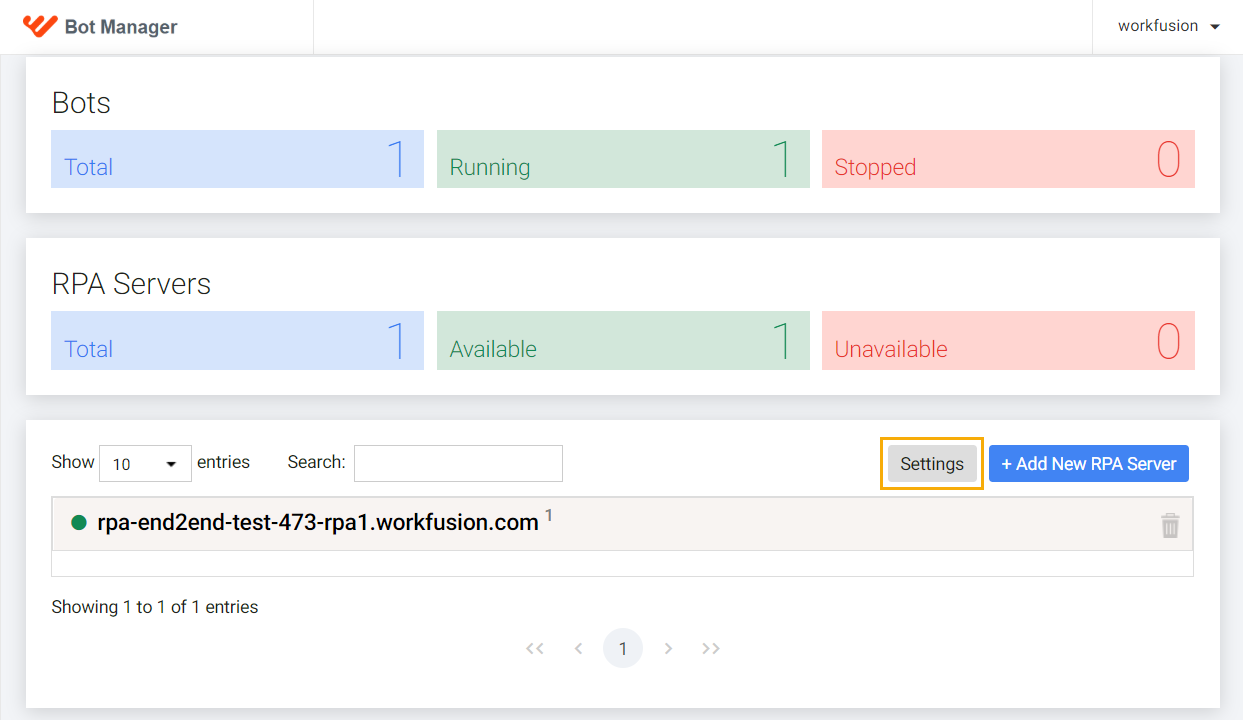
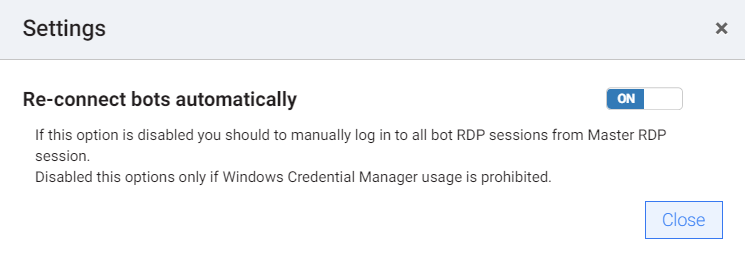
To disable the auto-reconnect option, click Settings.
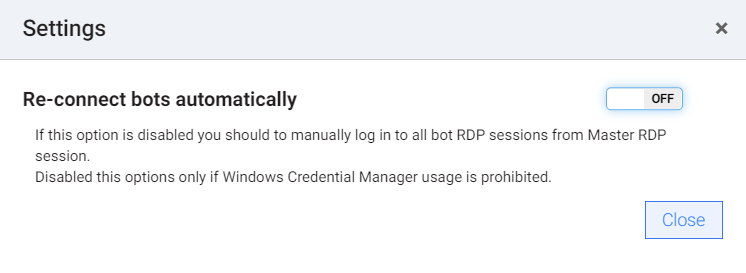
For Re-connect bots automatically, select OFF.
Connect to the Bot Agent Master session, fill in the RPA Unit credentials, and start unit sessions.
To enable the auto-reconnect option, click Settings and, for Re-connect bots automatically, select ON.
Remove RPA server
caution
Make sure the RPA server you are going to delete has no processes running at the moment. Otherwise, the bucket button is unavailable. If you have any active processes, stop them manually. For that, select the server to expand and, in the Actions list, click Stop.
To remove an RPA machine, do as follows:
Click the bucket button next to it. Mind to stop the RPA server before removing it.
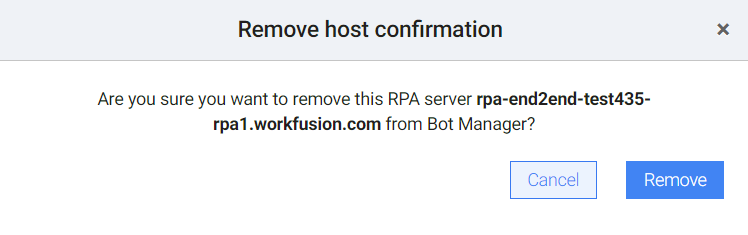
In the window that follows, click Remove to confirm.
View statistics
Bot Manager collects statistics on RPA Unit's statuses and server's performance and provides data storage for analytics.
Check RPA Units

| Statistics | Description |
|---|---|
| Total | Amount of stopped and running RPA Unit processes |
| Running | Up and running RPA Unit processes; it doesn't matter if an RPA Unit is executing a task or not |
| Stopped | Crashed or manually stopped RPA Unit processes |
Check RPA servers

| Statistics | Description |
|---|---|
| Total | All configured and available RPA servers |
| Available | RPA servers accessible through Bot Manager |
| Unavailable | Stopped or unavailable RPA servers |
tip
Available RPA servers have the green indicator next to the server name, and those unavailable–the red one.