
Technology. Basic troubleshooting
This section is a generic troubleshooting guide to help you diagnose issues in a Business Process (BP), analyze them, and decide on further actions. Here, you will learn about possible root causes that can affect performance and their impacts and the ways to detect and fix them.
Task: find and fix issues in Business Process
As a process owner, you're responsible for critical success metrics for your use case, which includes monitoring the overall throughput and transaction volume. If the number of transactions significantly increases or decreases for apparent reasons or otherwise fails to meet your expectations, you'll want to analyze to find the reasons.
Typically, when the volume goes down unexpectedly, your first assumption is that something is wrong with the technology. In some cases, you can handle the problems yourself. In other cases, you will need to involve IT specialists.
However, first, you'll need to do initial triage for the problem and figure out what's going on so that, if necessary, you can guide IT in the right direction.
Operations Managers should understand how technology impacts the process for many reasons, such as:
- In some cases, the business can eliminate or deliver a workaround for a technical root cause without involving the IT personnel.
- When owners triages problems, they can involve the right people from the very beginning.
- You can specify the problem and expectations in a more precise way, which makes resolving it easier.
- Some resources are too expensive to be involved too often or too early, for example, machine learning engineers.
Tools
Tools you can use to do basic troubleshooting include:
Speed dashboard, custom dashboards, and Reporting API
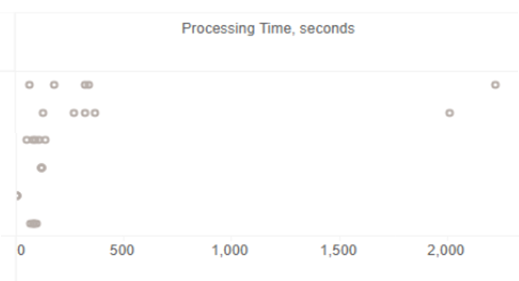
Identify the BP changes that impacted its efficiency.
-
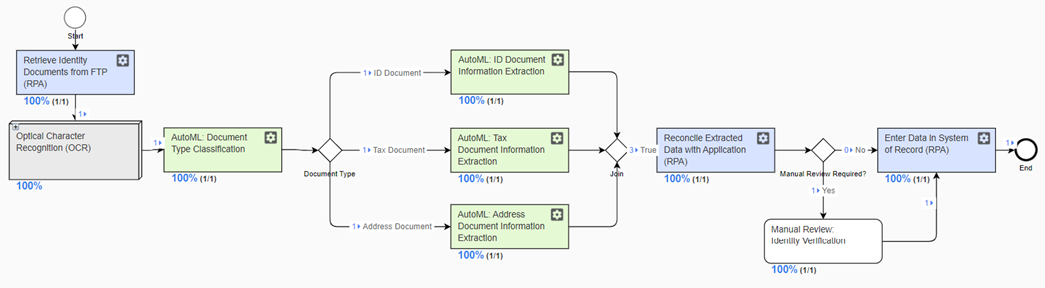
Identify BP errors and understand their impact.
-
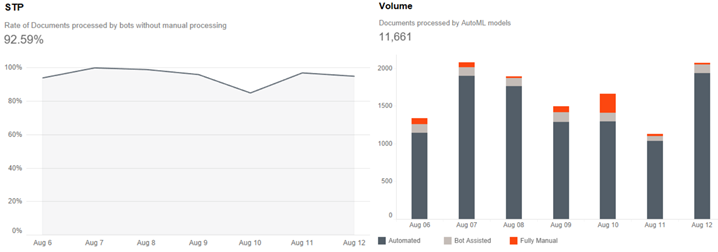
Identify Document Intelligence issues.
-
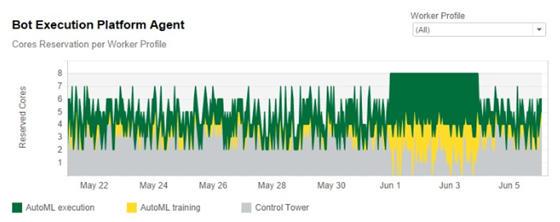
Understand whether the platform capacity is sufficient and the platform is used efficiently.
Solution: know your case
Below you can find the most typical cases, their symptoms, ways of locating issues, and your further troubleshooting actions.
Typical root causes of problems are:
- Errors in a BP and technology issues. See Case 1.
- New BP release causing slowness and bottlenecks. See Case 2.
- AutoML model performance causing exceptions and errors in the model. See Case 3.
- Infrastructure, for example, capacity is insufficient to handle the load. See Case 4.
- Impact of people, for example, human errors. See Case 5.
Case 1: impact of process issues
What is it?
The root cause type for Case 1 covers the following:
- Process issues, for example, wrong or unexpected flows, mistakes in automation
- Related technology issues, such as infrastructure problems, some internal resources cannot be connected, and so on
How does it impact process?
A transaction can be stuck or canceled if the issues are not appropriately processed. When addressed properly, the problems can impact the cycle time and quality.
How to find it?
To identify the root cause, act as follows:
Check the Issues Contribution chart in the Process dashboard.
Process dashboard: primary indicator of the error volume per task
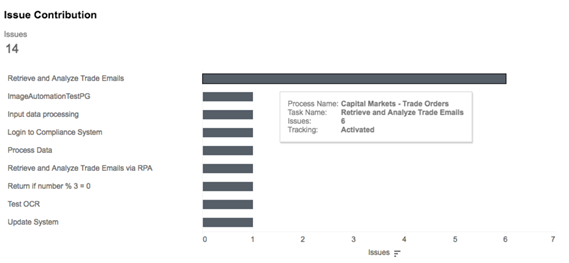
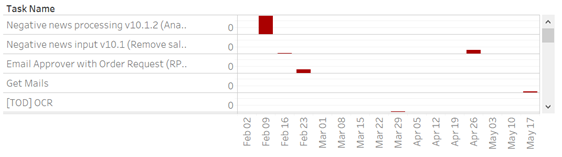
See if there is a correlation between the increased number of errors and adverse effects in the BP.
Custom report: the number of processing issues per task on a timeline
What to do?
To address a releaved root cause, proceed in one of the following ways:
- In a simple case, when third-party resources were not available, but they're available now, restart or continue the process.
- In advanced cases, if you suspect a process root cause, escalate the issue to the Automation team. Make sure the Automation team implements a proper exception handling protocol to minimize the impact.
- In advanced cases, when you suspect the technology or infrastructure is the root cause, escalate the issue to the IT team.
Case 2: impact of process changes
What is it?
The root cause type for Case 2 covers changes introduced in a BP by the Automation team or due to a re-configuration.
How does it impact process?
Additional or revised steps and changes in a BP configuration can affect its various aspects.
How to find it?
To identify the root cause, act as described below:
Analyze the process Gantt chart with tasks plotted on a timeline. Below, you can see a sample custom report based on Reporting API.
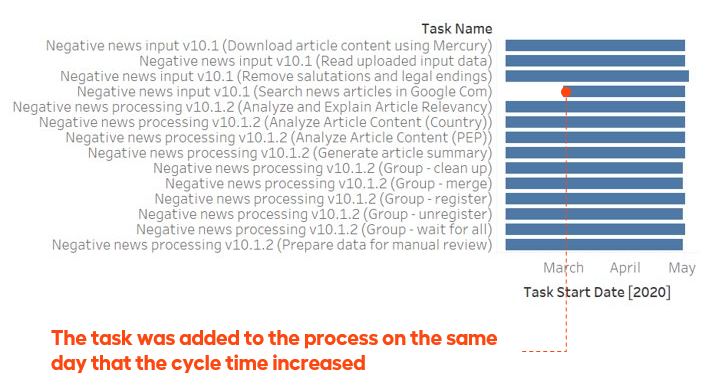
Check for tasks that might have started at the same time as when negative symptoms first occurred.
What to do?
You need to understand the cost vs. benefit of the introduced change. If the advantage is not clear, roll it back or modify it.
Case 3: impact of Document Intelligence (ML, OCR)
What is it?
The root cause type for Case 3 covers the following:
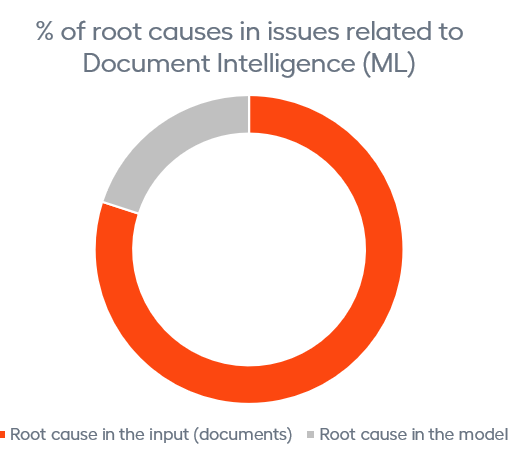
- Issues related to document intelligence: work with input documents, document extraction or classification, and so on.
- Problems caused by documents passed as input, not by how a model performs.
How does it impact process?
The number of exceptions you must handle manually and the volume of extraction or classification mistakes impact the time and volume of processed transactions.
How to find it?
To identify the root cause, act as described below:
There are several metrics to track in the AutoML dashboard on the model and document levels, such as Automation Accuracy, STP, Manual Work Reduction, Model Results. With them, you can understand the overall performance and trend.
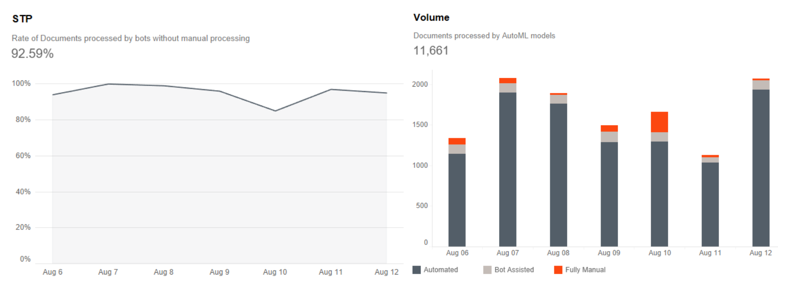
One level deeper, you can see how a model performs on the field level. If, on a week-over-week basis, Automation Efficiency, Accuracy, Automation Rate change by more than 5%, it indicates that the model performance is degrading.
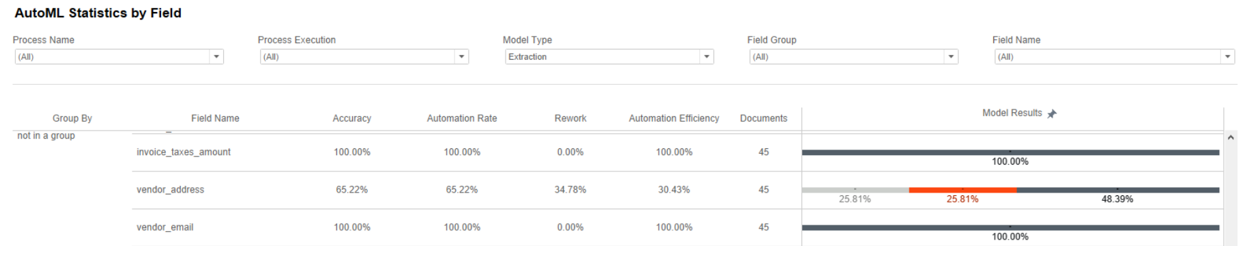
In the same dashboard, you can see how the model performs on the field level.
Review the documents and OCR parameters.
What to do?
Your exact actions depend on the root cause. See the details in the following table.
Main symptom: Automation Accuracy goes down, and Manual Handling Time goes up.
| Hypothesis | Analysis | What to do |
|---|---|---|
| Changes in the documents or templates |
| Re-train the model. |
| Changes in pre-processing |
| Request the MLE team to help. |
| Changes in a Manual Task (answers or their types changed; an answer removed) |
| Escalate the issue to the Automation team. |
| Changes in the OCR parameters |
| Analyze and tune OCR. |
| Upgrade of infrastructure, platform, or a library (for example, an update of the library for pre-processing before sending to OCR) |
| Request the IT OPS team to provide a resolution. |
| Upgrade of infrastructure, platform, or a library (for example, an update of the library for pre-processing before sending to OCR) |
| Re-train the model. |
Case 4: platform capacity
What is it?
The root cause type for Case 4 is related to the platform's capacity to handle BP executions (CPU, memory, disk, and so on).
How does it impact process?
Insufficient capacity leads to reduced process throughput, increased execution time, and violated Service Level Agreements (SLAs).
How to find it?
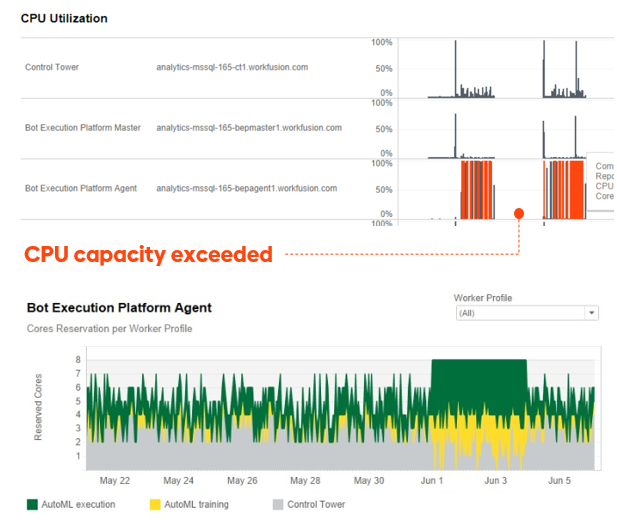
Color-coding in the Capacity dashboard helps you understand whether the execution platform and infrastructure have sufficient capacity or the limits are exceeded, and more resources are needed.
What to do?
If you see the platform capacity limits are exceeded, escalate the issue to the IT team.
Case 5: workforce performance and capacity
What is it?
The root cause type for Case 5 addresses the capacity and efficiency of the operators (people) involved in a process.
How does it impact?
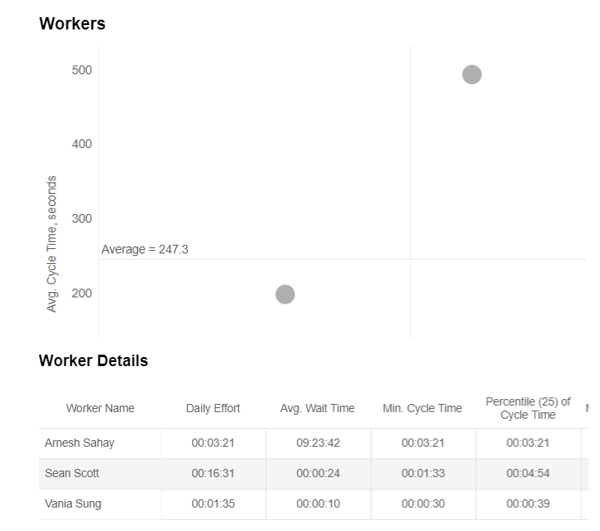
Operators' capacity and efficiences influences work accuracy, processing time, cycle time, and the volume of SLA violations.
How to find it?
Review Worker Details in the Manual dashboard.
What to do?
Actions depend on the root cause based on the Worker Details data. These can be a re-assignment of tasks on a worker-by-worker basis, additional training, so on.
Summary
Let's summarize:
- BP issues can be due not only to its implementation but also other factors, such as infrastructure, human errors, added process steps, and more.
- To detect these issues, analyze the BP on all dashboards.
- The solution for a particular case depends on the analysis results. You may want to change the BP itself or escalate the problem to IT Ops for fixes.