
Add Composite Rules
Create Composite Rule
Composite Rules are used to define the variant of BP flow depending on the Record column values.
Example: If the website_status of a Record equals to "VALID", then execute the "Rename the Company Contact Information" Task with this Record. Otherwise, go to End.
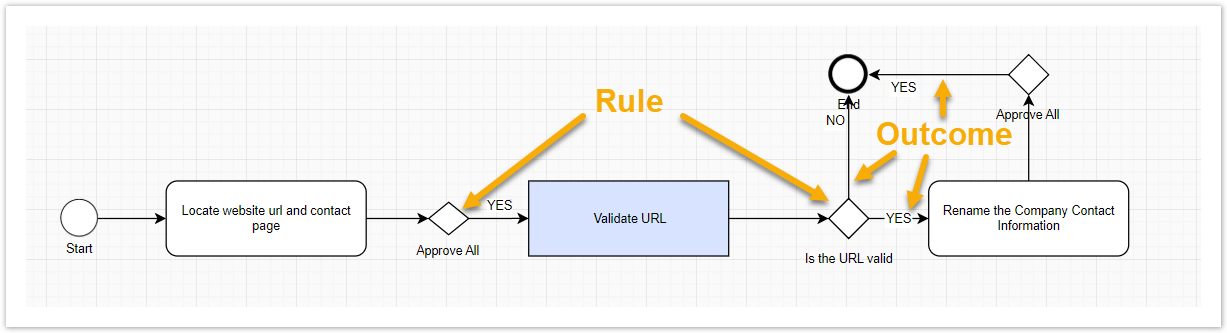
You can add a Composite Rule to a BP using one of the following methods:
- from the Toolbar or Canvas Context Menu. A blank Rule is created.
- from the Sidebar or Element Context Menu. In this case, the Rule will be copied from the source Rule. You can edit the Rule if needed.
Edit Composite Rule
To edit a Rule, double-click on the Rule figure or right-click and select Edit from the context menu.
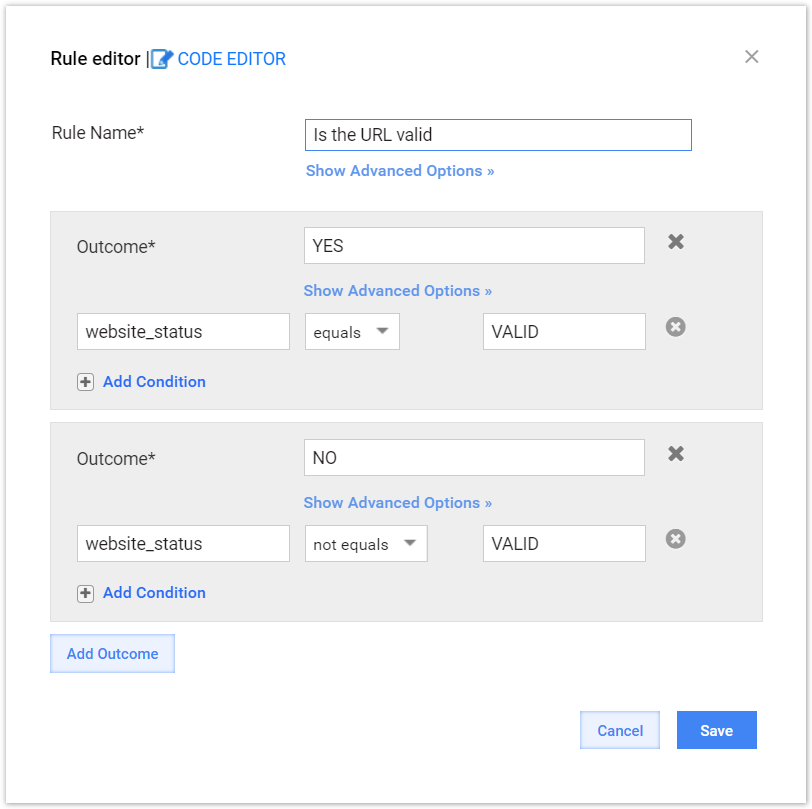
Enter a unique name for your Rule.
Click Add Outcome if there is not any. Each Rule must have at least one Outcome.
Click Add Condition to add a condition to an outcome.
You can add multiple conditions to Outcome. If you leave Outcome without any conditions, this will mean all other Records.
The logic of Rule elements is the following:
- AND between Conditions
- OR between Outcomes
Set up Conditions for your Outcomes. Each Condition contains three required fields. These are as follows.
- Answer Code (or the name of column in Data file). The field has an autocomplete.
- Logical Operator (i.e. equals, less than).
- Value (or regular expression – matches regexp, not matches regexp). RegExp allows you to use OR logic in Condition values by adding the pipe "|" symbol, e.g.: 1|2
Save the Rule by pressing Save.
Connect the newly created Outcomes to the target Tasks or Processes.
tip
To learn how to use the Code Editor and Advanced Options for Rules, see Rules and rule templates | Composite rules. You need to have programming background and Java, Drools knowledge.