
Basic flow and guidelines to set up Manual Task
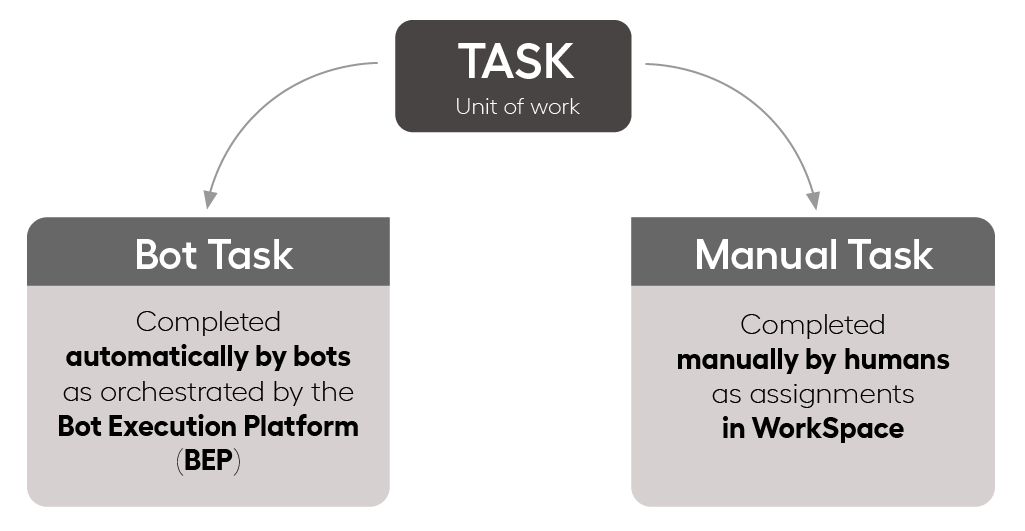
A task is a unit of work assigned to external or internal workers. The main goal of a task is to take the initial raw data (CSV file) and structure, enrich, or check the data according to specific rules.
IA Cloud Enterprise works with the following task types:
- Manual Tasks (MT) completed by a human who is either a cloud worker or an internal employee.
- Bot Tasks completed through computer automation, such as data parsing, extraction, transformation, and loading.
The topic details the basic flow to set up a Manual Task, data flow, and important considerations to keep in mind when creating or designing it.
Basic workflow to set up Manual Task
The basic MT workflow is as illustrated and described below:
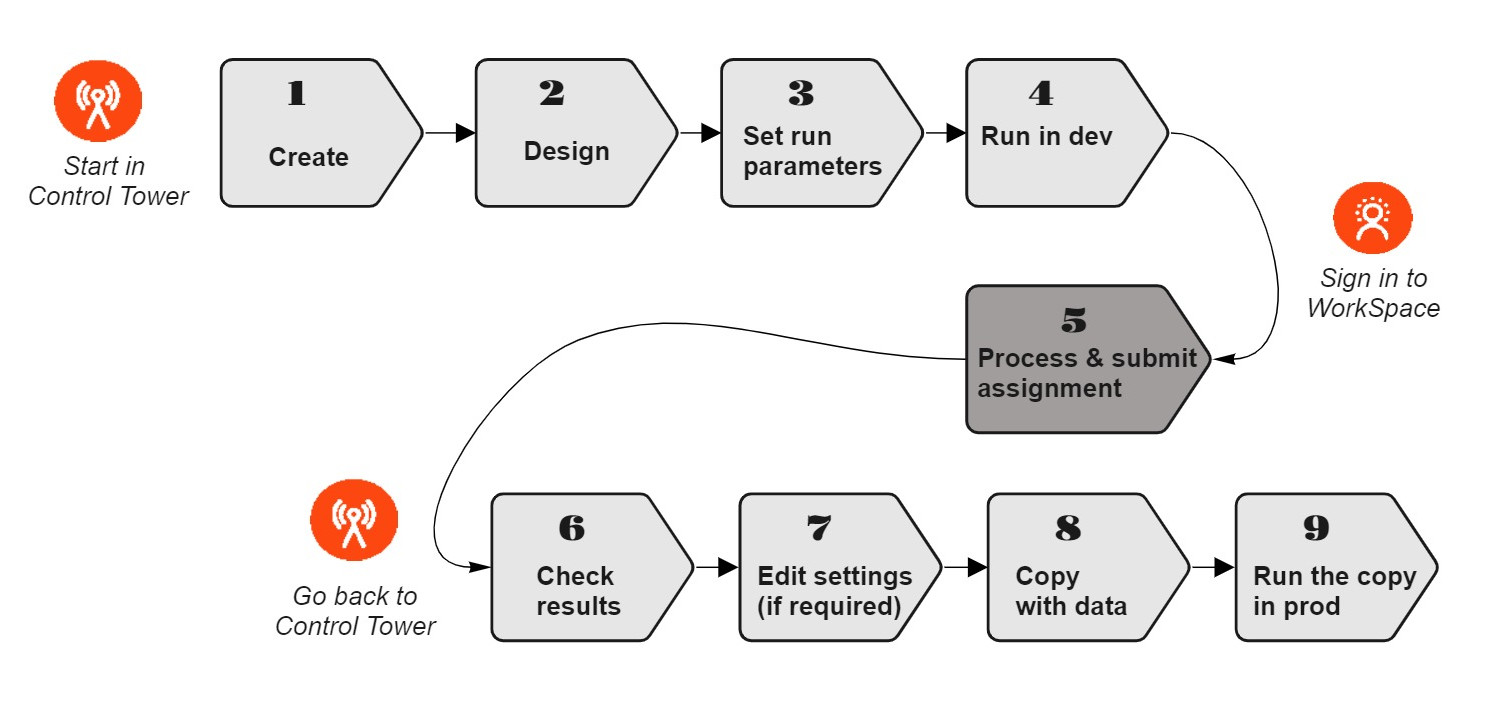
Create a Manual Task as described in the instruction. On the Manual Tasks list, the newly created MT appears with the Draft status.
Set up a design for the MT. The recommended method to design Manual Tasks is to use Task Designer available if you create the task using the Task Designer Operation. For instructions, refer to Create Manual Task from Task Designer Operation.
However, if you choose any other Operation to create the MT, proceed the old way to design it according to the instruction.
Configure the parameters to run the designed MT as described in the instruction. To prevent occasional data loss, save the MT from time to time.
Run the MT in a development environment according to the instruction. At the step, the MT status is Processing.
After you post an MT, log in to WorkSpace as a Worker, find, and complete the created task. Use the instructions in the Process Manual Tasks section.
For Workforce and Crowd management settings, refer to the guide.
Check the MT run result. For details, refer to the Run Manual Task and view results topic.
If required, edit the run settings based on the Set run parameters instruction.
Copy the MT with data as described in the Copy and migrate Manual Tasks topic.
Run the copied task in the production environment and monitor its execution.
From the Manual Tasks list, you can also pause, resume, or stop the MT execution. When the MT is no longer needed, you can delete it. For details, refer to the View Manual Tasks topic.
Data flow
As you are creating and processing a Manual Task, the data flows as described below:
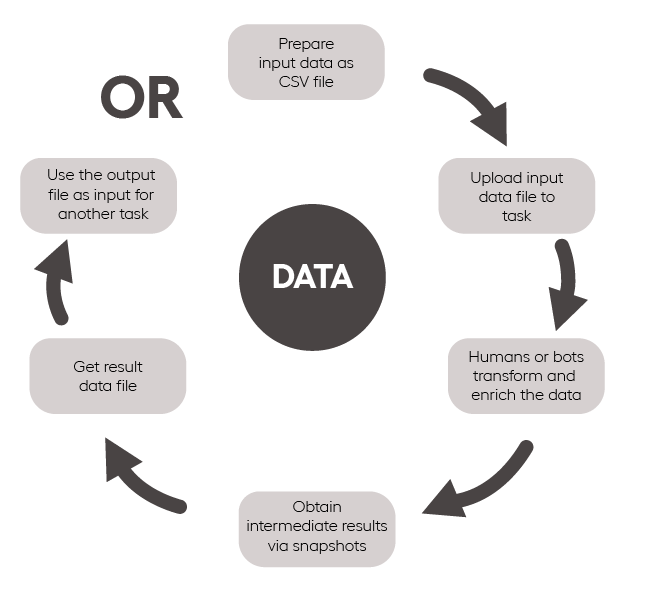
You prepare an initial input data file as described in the Upload data topic.
During the task execution, the data is enriched or transformed according to specific rules. Human workers or bots perform these actions.
(Optional) Intermediate results are obtained by generating snapshots.
The final result data file is obtained. You can use the file as input for another MT in the Business Process.
Implementation guidelines
Check input data
Check the following:
Is your input data file formatted correctly (CSV)? Check the separator and encoding.
Does the file contain relevant fields? If a warning is displayed, map the input file columns to the Manual Task variables.
For detailed instructions, read the Upload data topic.
Visualize task design
Ask proper questions
The following questions can be helpful in creating and designing Manual Tasks:
- What is the goal of the task?
- What type of workers are suited for the task?
- How long should the task take to complete?
- Are there many variables to find an answer?
- Is the task subjective?
- Is there a right or wrong answer?
Work through task on high level
Below is a high-level checklist to walk through while preparing a Manual Task:
- Use one or two data points.
- Define your input data: what do you already know?
- Define your output data: what are you trying to achieve?
- Determine the Workforce. For details, refer to the Set run parameters topic.
Double-check resulting task design
The recommended method to design Manual Tasks is to use the Task Designer Operation. For detailed instructions, refer to Create Manual Task from Task Designer Operation.
If you are designing a task the old way, pay attention to the following considerations:
- Are the instructions clear and concise?
- Are examples provided if needed?
- Are corner cases explained if needed?
- Are all necessary Data Points visible to workers?
- Do all hyperlinks function properly?
- Are all Answer Types formatted correctly?
- Are Answer Types the most efficient for the specific task?
- Generally, all Required Answers should have N/A allowed. If no information is available for a particular required field, workers select the N/A checkbox to submit the task since the task can't be left blank. If the N/A checkbox is not available, the worker won't be able to submit the task.
- Check if there are any hidden required fields that prevent submitting the task. Hidden answer fields appearing only if a particular option for another answer field is checked are called Sub answers. Look through the list of answers to find the sub answers with the required option enabled and disable it. You cannot use sub answers in every task, and thus they should not be required.
note
While designing, save the task periodically as autosave is NOT available at the stage.
Optimize task size
If an MT is too big, split it up into smaller tasks.
Validate run parameters
On the Run tab for a Manual Task, check whether the Workforce settings are up to your specifications. For additional information, read the Set Run parameters topic.
Advanced Options
In the Advanced Options popup (Manual Tasks > Run tab > Advanced Options button), check the tabs as described below.
Properties
- Verify the Task Expires in parameter. The recommended value is seven to 14 days.
- Do Keywords (searchable terms) fit the task?
- Does the Description explain your task briefly in a single- or two-sentence headline?
Availability
The functionality is obsolete starting from IA Cloud v10.2. To be deleted from the user interface with further releases.