
Schedule Business Process
Besides running Business Processes (BPs) manually, you can start them according to a schedule.
caution
Do not create multiple BPs with the same name as it might confuse you when scheduling.
To create a schedule, follow the instruction below:
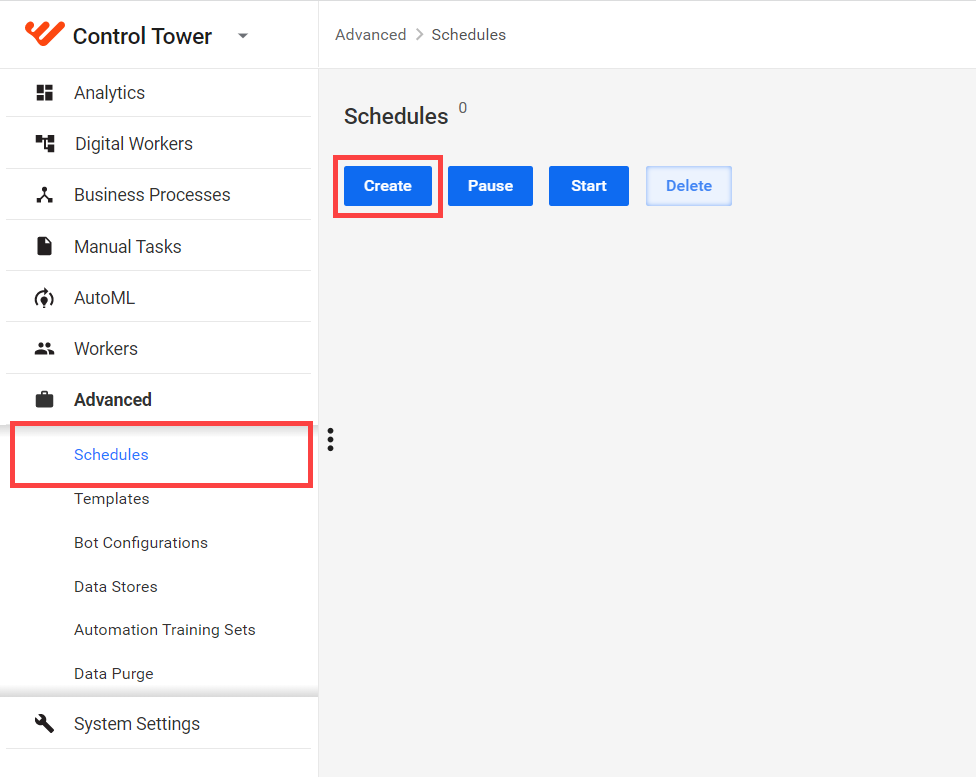
Go to Advanced > Schedule and click Create.
note
Using the Scheduler, you can run not only BPs but also standalone Bot Tasks. So, be careful when selecting the required item from the drop-down list.
On the Create Schedule page, select the BP you need to run.
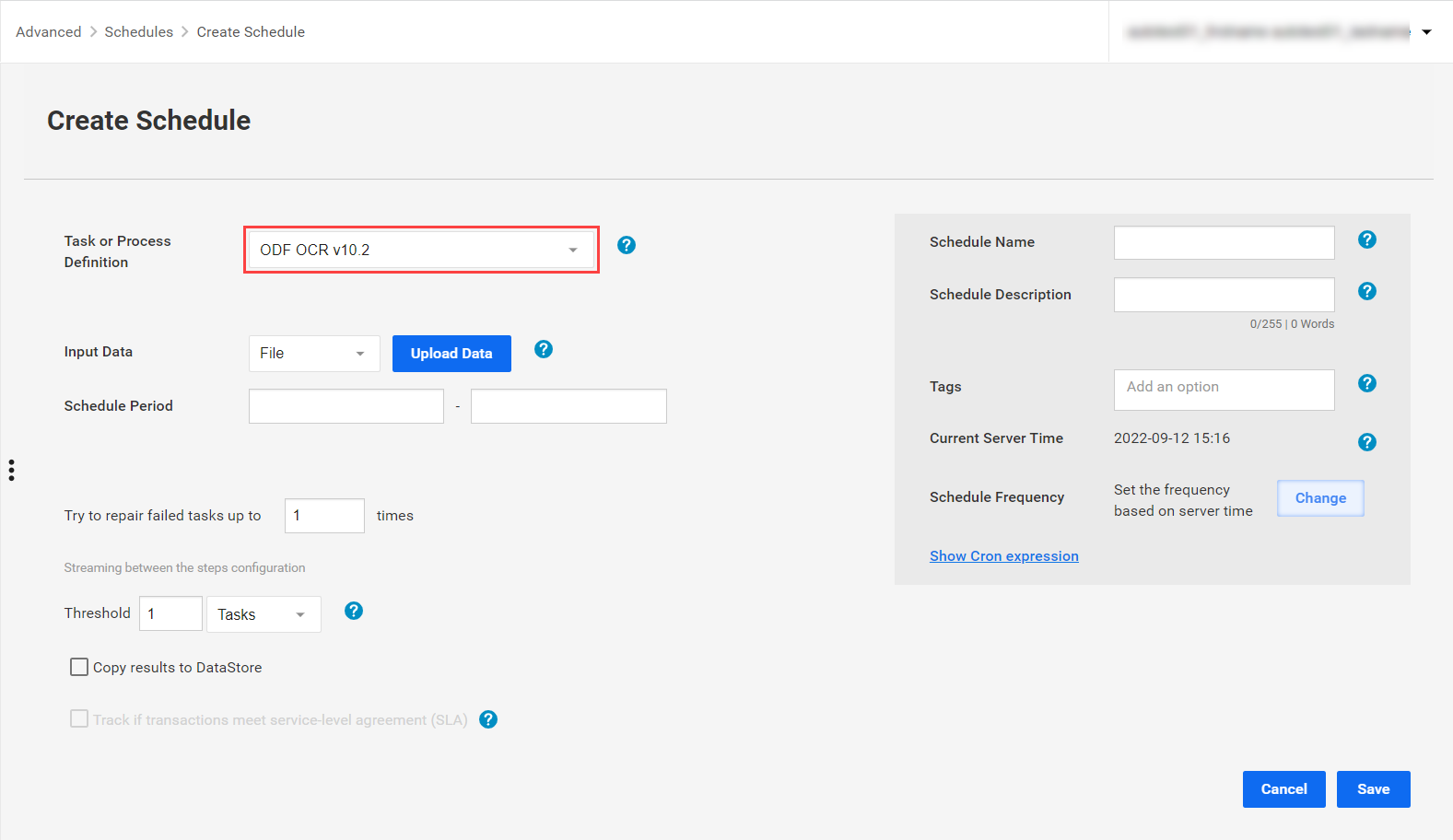
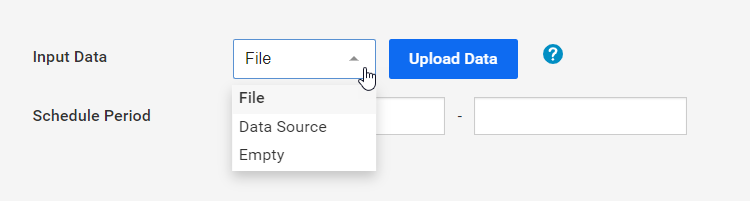
In the Input data drop-down list, select your input data type:
- File: upload a data file.
- Data Source: select a Data Source in the drop-down list that appears. For more details on the Data Source configuration, refer to Start task and Business Process from Data Source.
- Empty: set up the Scheduler to use the data from recorder variables.
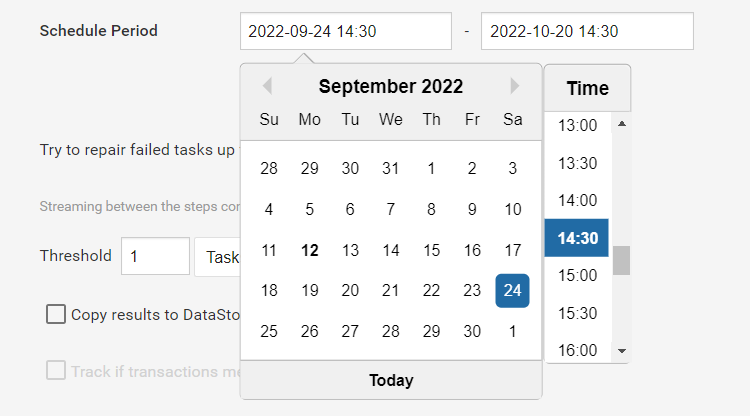
In Schedule Period, specify the schedule time.
note
The server time of the Scheduler is set to GMT, and all schedules are triggered according to GMT.
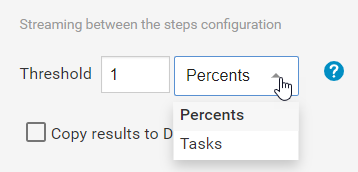
Set up the Streaming between the steps configuration option. In the Threshold field, specify the minimum completion required for streaming. In the field next to it, select Tasks or Percents.
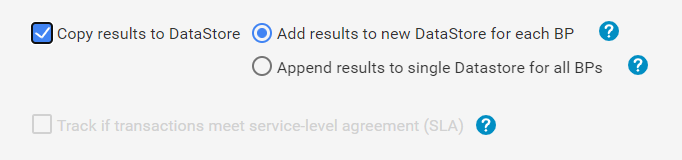
To copy results to a Data Store, check the appropriate box and specify a Data Store to be used:
- Add results to a new Data Store for each BP. The Data Store name's format is
[mm-dd-YYYY hg-mm-ss]-[BP-name]. - Append results to a single Data Store for all BPs. The Data Store name's format is [
BP name].
important
If SLA is used when Transactions Tracking is enabled, you can also check Track if transactions meet service-level agreement (SLA).
- Add results to a new Data Store for each BP. The Data Store name's format is
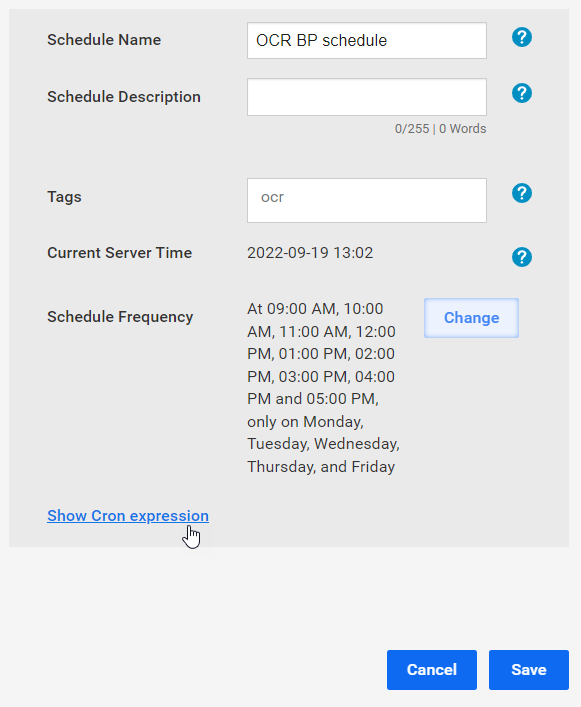
In the section on the left, add the title of the schedule, its description, and tags if required.
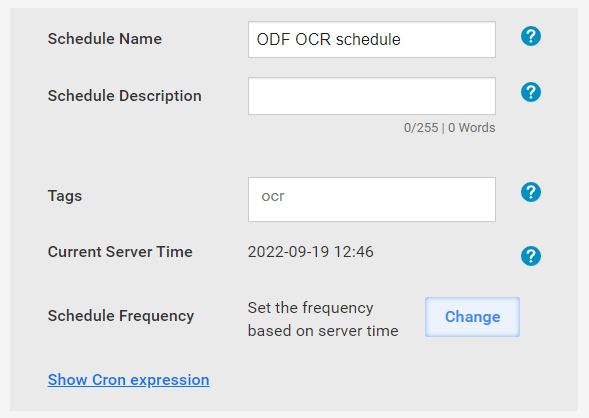
To set the schedule frequency, click Сhange and type in or select values in appropriate drop-down boxes. You can set the BP to start at particular time or run at specific intervals.
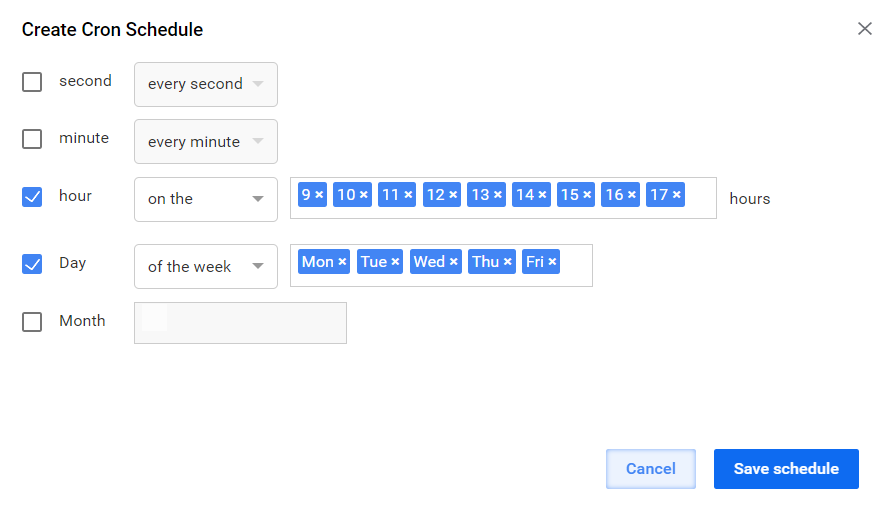
To view the specified schedule frequency as a Cron expression, click Show Cron expression.
note
The schedule is triggered according to the schedule frequency only within the schedule period configured in Step 3.
Click Save.
Once the schedule is saved, you cannot edit it. To edit a saved schedule, copy it and edit the copy.
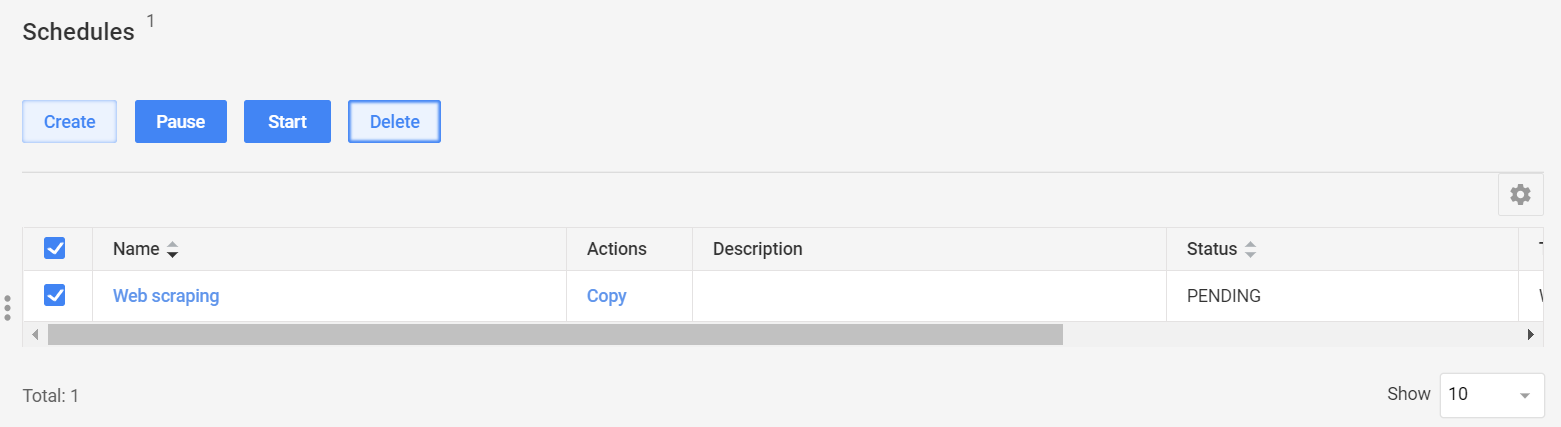
You can pause, start, or delete a running schedule. To do this, select the checkbox next to a schedule and click the appropriate button to initiate an action.
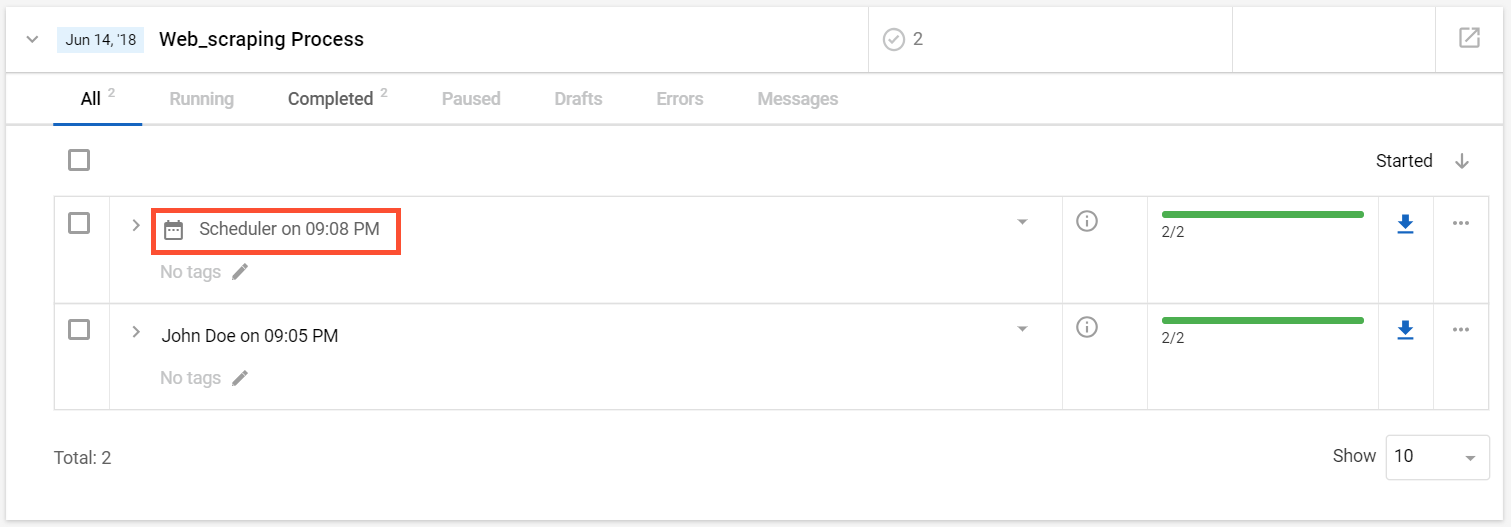
When the Scheduler starts a BP, it creates a separate instance. You can see all instances on the Business Processes > View all page.
caution
When you delete a BP from the BP list, its instance remains in Control Tower.