
Sort assignments
To manage your work conveniently, you can group assignments by priority, sort them by date, and create custom queues based on specific business criteria.
Sort assignments
You can arrange your assignments in several ways. Sorting options are available in the right-hand corner on the top panel.

Group by priority
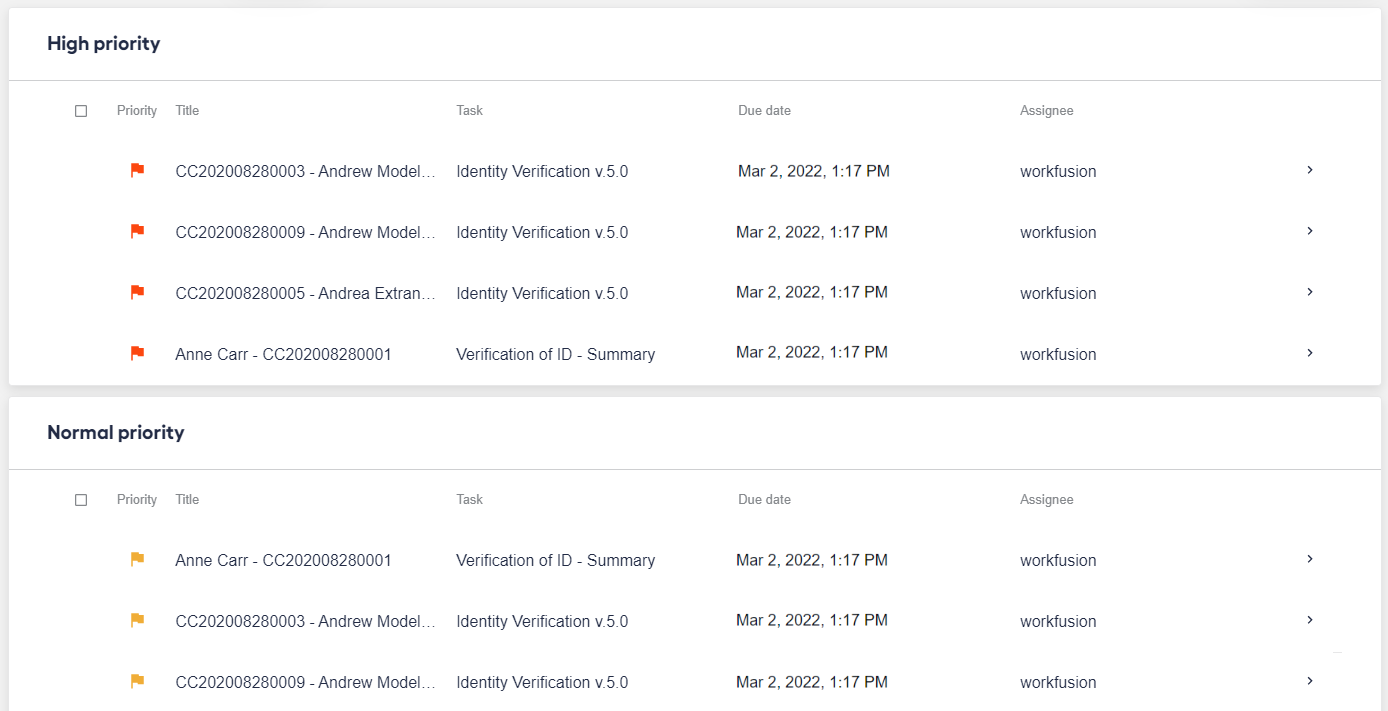
To sort assignments by priority, enable the Group by priority toggle button.

The assignments are arranged in the order of importance—the ones with the highest priority appear at the top of the list. To assign tasks grouped by priority, refer to View assignments | Select assignments.
Sort by date
You can sort assignments by date. Click the Sort by drop-down box and select a sorting option.
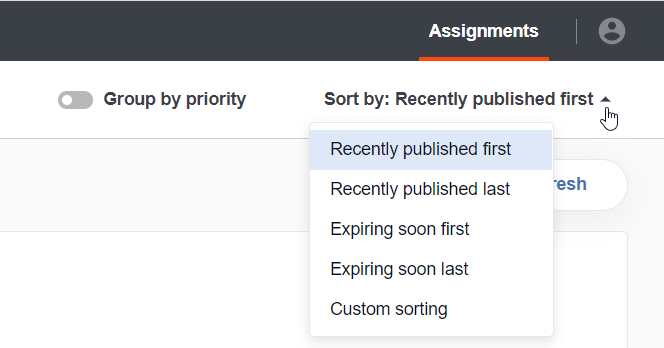
The options are as follows:
- Recently published first (the default sorting order). The assignments are sorted by the date of their creation, with the newest assignments displayed at the top of the list. Mind that some assignments can have a common date.
- Recently published last. The assignments are sorted by the creation date, with the latest ones at the top of the list.
- Expiring soon first. The assignments are sorted by their expiry date, with the closest due date shown at the top of the list.
- Expiring soon last. The assignments are sorted by their expiry date, with the latest due date shown at the top of the list.
- Custom sorting. The assignments are sorted based on the FIFO (First In, First Out) approach, with the oldest (first) ones located above others. The difference from the Recently published first option is that the custom sorting allows you to set the order for each assignment within the task.
caution
The Custom sorting option works only if you have set up FIFO in Control Tower. For more details on custom rendering, refer to FIFO.
Filter assignments
You can filter assignments by the task type, assignee, and assignment business attributes using the panel in the top left-hand corner.

By default, you have two filters—by the task type and assignee. Active filters are highlighted.
To apply the default filters, do as follows:
Click the Task drop-down box and select one or more checkboxes.
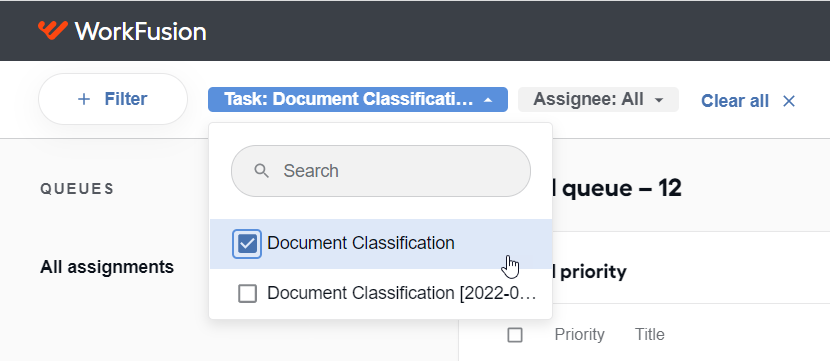
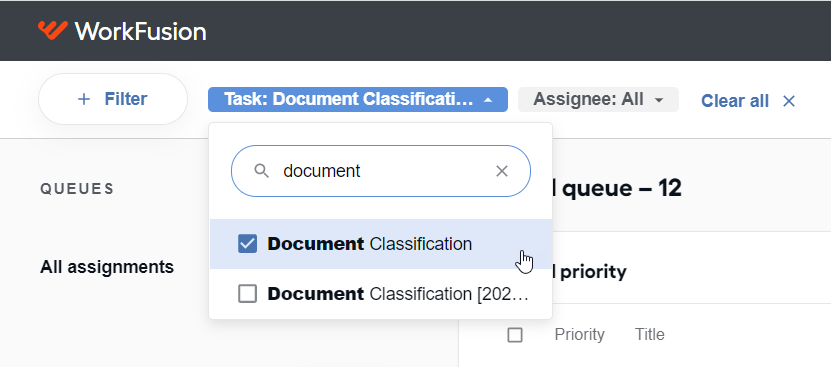
You can search for tasks using the Search field in the Task drop-down box. To find a task, start entering its type.
Click the Assignee drop-down box and select one or more checkboxes.
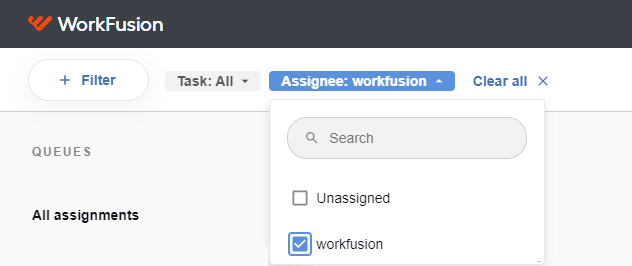
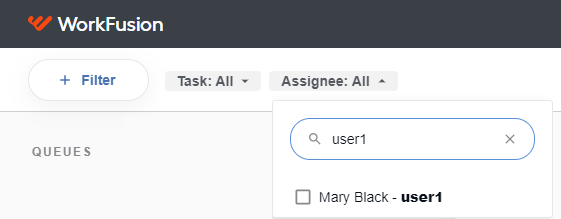
The Assignee search option allows you to search by the first or last name and username. To view available options, start entering the assignee's first or last name or username.
To set up more filters, follow the instruction below:
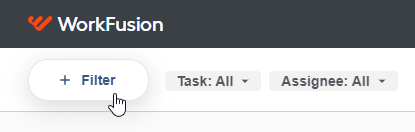
Click the + Filter button to view the available list of business attributes.
Select any business attributes to set them up as your filtering criteria. Automatically, the added filters appear on the top panel, and corresponding assignments are displayed in the queue.
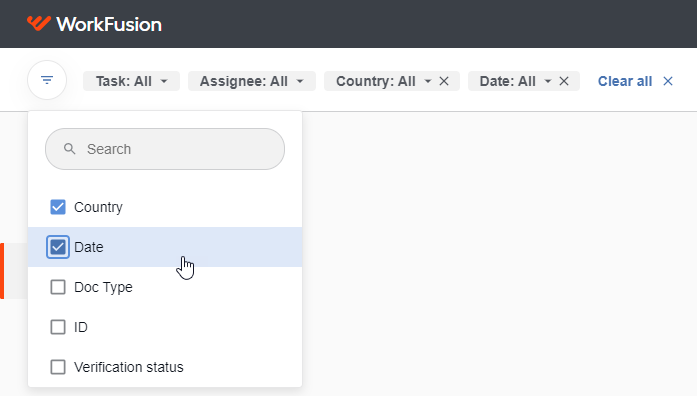
In the Search field under selected filters, you can search for business attributes. To find an attribute, start entering its name.
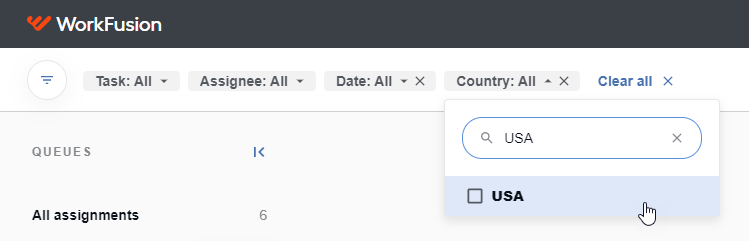
Proceed with further filtering by selecting business attributes from the newly added filters.
To discard filtering criteria, open the related drop-down list and deselect any business attributes you selected previously. The assignment list is changed accordingly.
To set all filters to the default state, click Clear all.

After filtering, you can still group your assignments by priority or sort by date.