
Design Business Process
On the Workflow tab, you can create a logic schema of your BP by connecting and editing Manual Tasks, Bot Tasks, BPs, and Rules.
To save and run a BP, you should upload initial Data file and validate the BP schema.
When creating a BP, we recommend to use tested Tasks and BPs only. Make sure that all Tasks within the BP have valid input Data and generate valid Answers.
Layout
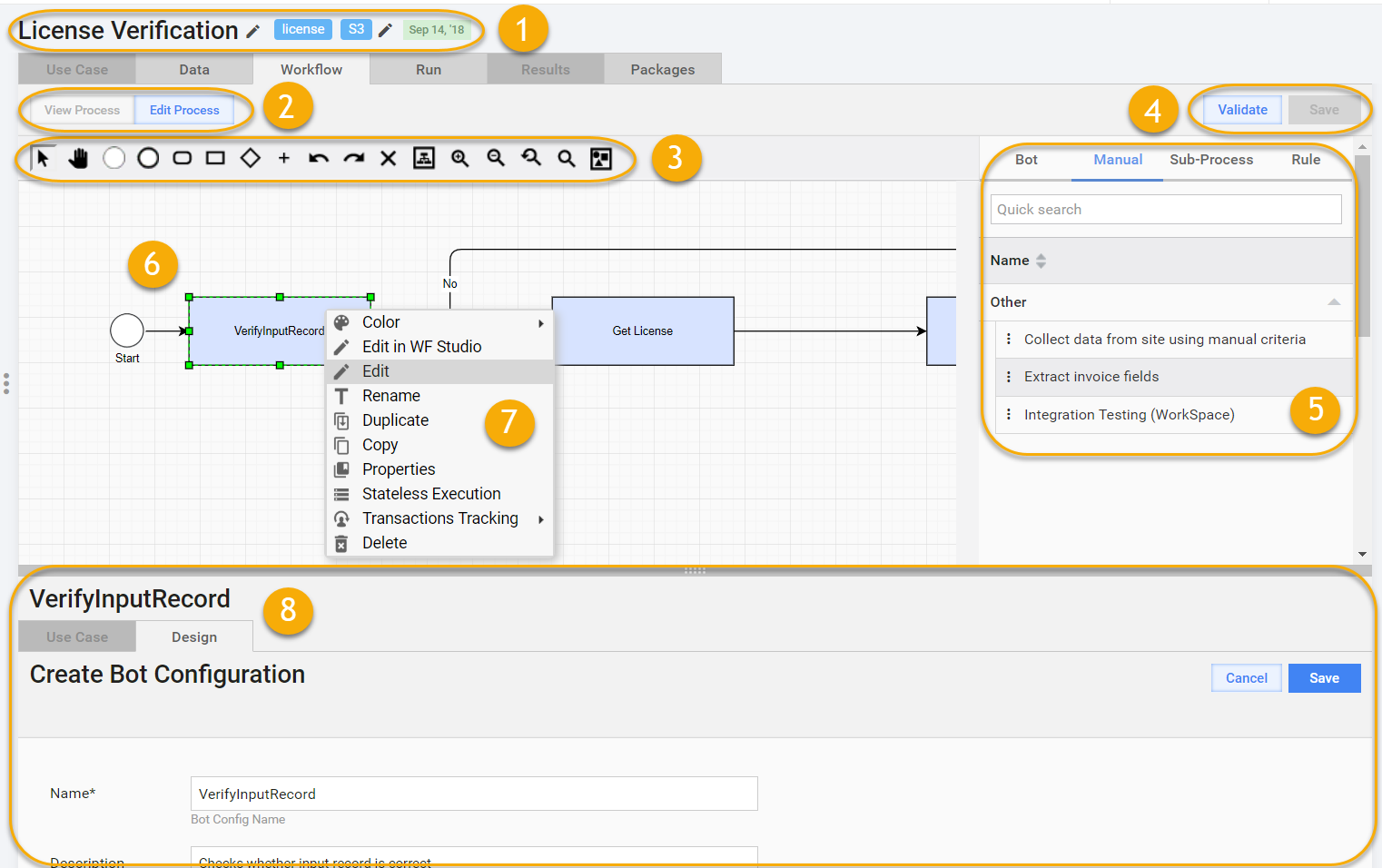
Title, Tags, Date. Enter a unique BP name and and Tags for better indexing. See the naming recommendations. The date is updated automatically depending on when you created/updated your BP.
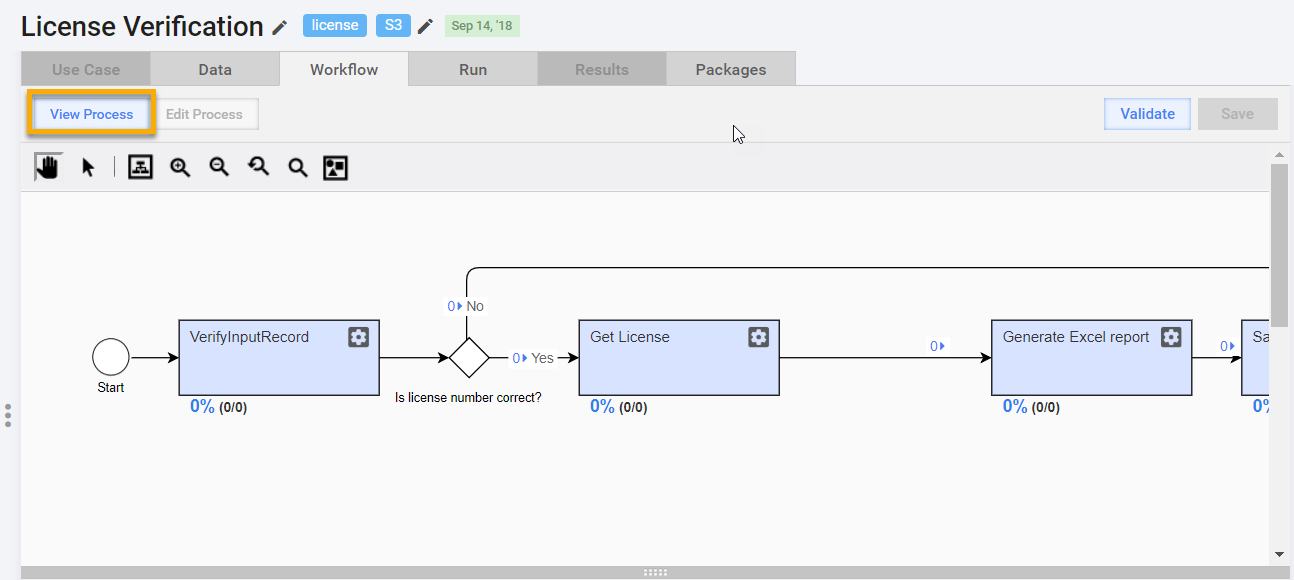
View Process, Edit Process. In the View Process mode, you can watch the progress of handled Records at each step or double-click Tasks and Rules to view their settings. In this mode, the BP cannot be modified.
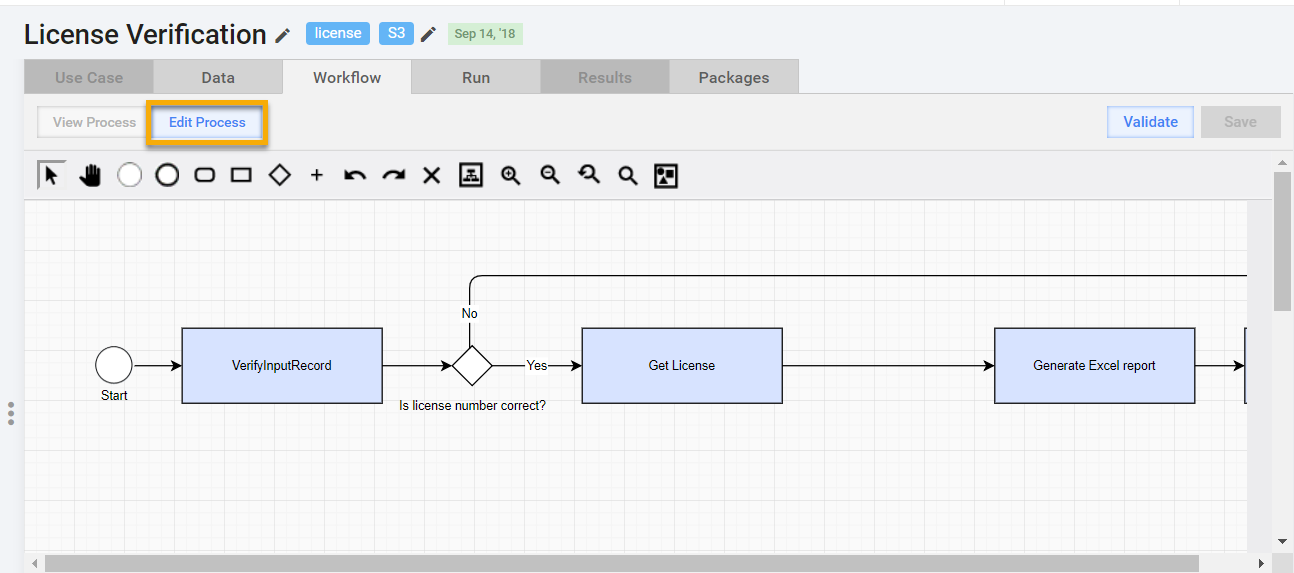
 In the Edit Process mode, any modifications are done.
Toolbar. The Toolbar is used to add elements to the canvas and manage viewing options.

Click actions: Select, Pan.
The Pan tool is used to shift the canvas by dragging in the empty space area.BP Scheme elements: Start, End, Manual Task, Bot Task, Rule, BP.
You can add elements to the canvas either by dragging them or by selecting the element icon in Toolbar and clicking the empty space of the canvas.Actions: Undo, Redo, Delete.
You can undo or redo the previous actions. To delete an element, select it and click the Delete icon or press the Delete key.View options: Fit screen, Zoom in, Zoom out, Actual size, Percent zoom, Outline.
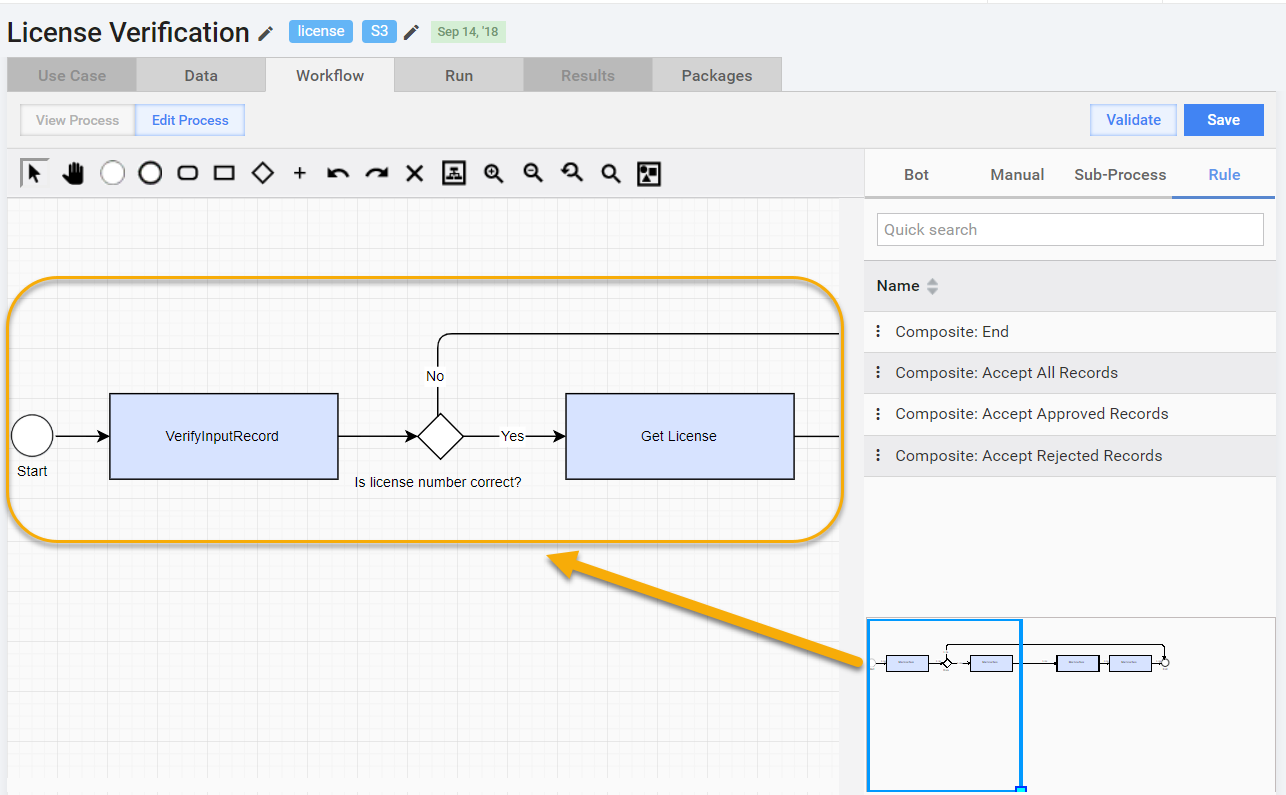
The set of options is intended for comfortable viewing of big BP schemes.Tip: To navigate between different parts of the BP scheme no matter how big and complicated it is, move the blue frame on the scheme miniature in the right bottom corner.
Validate, Save. You should validate a BP before saving it.
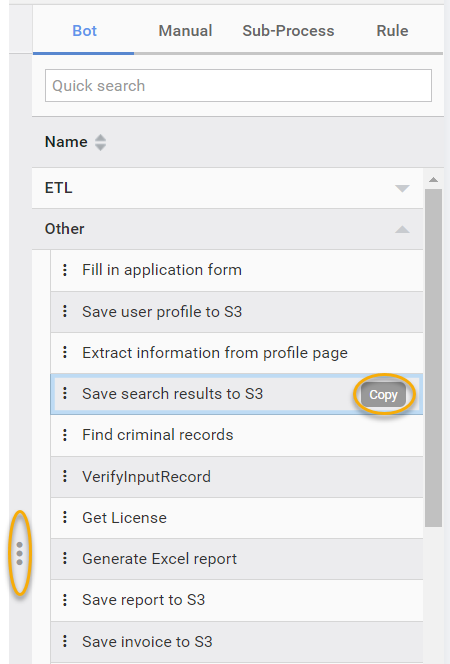
Side Panel. The side panel on the right contains all the existing Manual Tasks, Bot Tasks, BP Operations (used as nested processes), and Rules. To use these elements in your BP, drag them to the canvas. To hide the panel, click the left panel border. You can also copy Tasks and Rules by hovering over the element and clicking the Copy button.
Canvas. The canvas has a checkered background and is intended for placing the BP elements and connections between them.
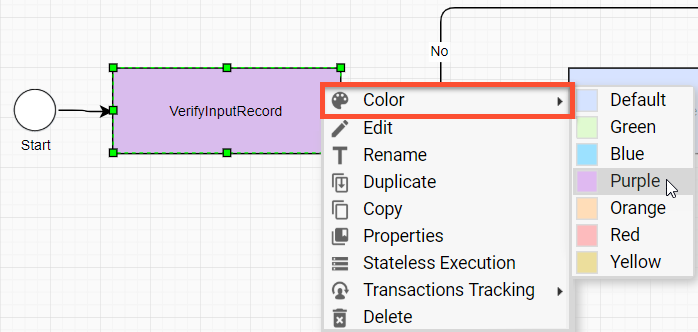
Context Menu. To call a context menu, right-click on an element.
If you duplicate a Task/BP, all subsequent changes in the source or duplicated Task/BP are synchronized.
If you copy a Task/BP, you are prompted to edit its name, and there is no synchronization between the source and the copy.
To improve scheme readability and logically group similar steps, you can add custom colors to any process step or sub-process.
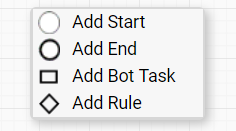
If you right-click on an empty space, the following context menu is displayed.
Bottom Panel. The panel is intended to view and edit BP Tasks. To call the bottom panel, double-click a Task, or right-click it and select Edit from the context menu. You can change the panel size by dragging its top border.
Business process design workflow
- Switch to the Edit Process mode.
- Add the Start and End elements.
- Add Tasks and Processes. Edit and save them.
- Add Rules between Tasks and Processes. Add Outcomes with Conditions and save them.
- Add connections between all elements in sequence.
- Validate the BP. Read error messages and warnings and edit the BP elements if needed.
- Save the BP and switch to the Run tab.