Manual Task is not shown in WorkSpace
When a Manual Task is not available in the WorkSpace application, take the following steps to investigate:
Check that the Manual Task was actually launched.
Check that the customer is searching in the relevant WorkSpace.
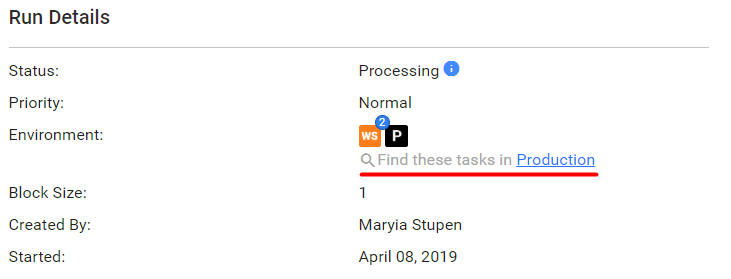
The easiest way is to open the launched task in Control Tower, navigate to the Results tab, and click the environment link:
Check that you have the qualification (if there is some) to view the task:
Open the task in CT > Advanced Options > Qualification. If the task has a set Workforce, open the relevant Workforce > View the relevant Crowd. The required qualifications will be displayed in the window.
To assign qualification(s), if needed, follow the steps in the Create and assign Qualifications to workers guide.
Check whether WorkSpace API is available:
Enter the following link in your browser:
- HOST_NAME/workspace-api/api if the environment is Production.
- HOST_NAME/workspace-api-sandbox/api if the environment is Sandbox.
The link should return XML results.
If the API is not available, restart the WorkSpace application:
wfmanager stop workspace
wfmanager start workspace
If the API is still not available after the restart, check
catalina.out / workfusion.outlogs for related errors.Check the current statuses of hits:
In the CT task link, replace the task/edit part with run, for example: HOST_NAME/workfusion/secure/run/UUID_OF_THE_TASK.Check the status of the hits. For feasible statuses and their explanations, refer to the Manual Task lifecycle article.
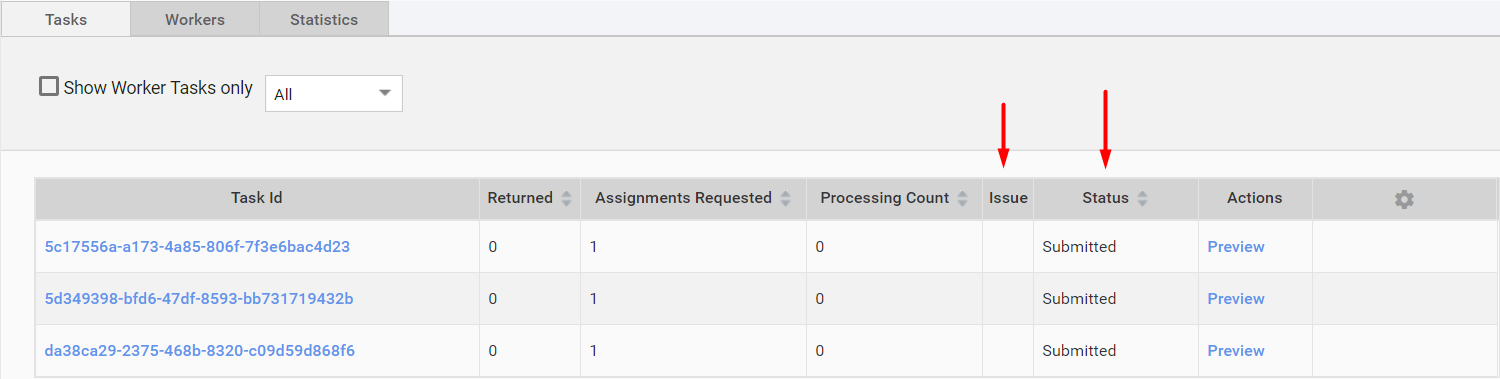
If the status is Fault to Submit, check
crowdcontrol.log. Most probably, you'll see the following message:2019-04-08 10:16:16 [bp-[c0b92dfd]-createHumanTasks-2045] MultipleEndpointStreamingService [ERROR] Failed to create endpoint tasks: Could not send Message.Also, you may see an exception nearby, indicating the reason of the failure, for instance:
Caused by: org.apache.cxf.transport.http.HTTPException: HTTP response '502: Bad Gateway' when communicating with https://wfinst-401-92-ct1.workfusion.com/workspace-api-sandbox/apiCheck that the category of the task is enabled.
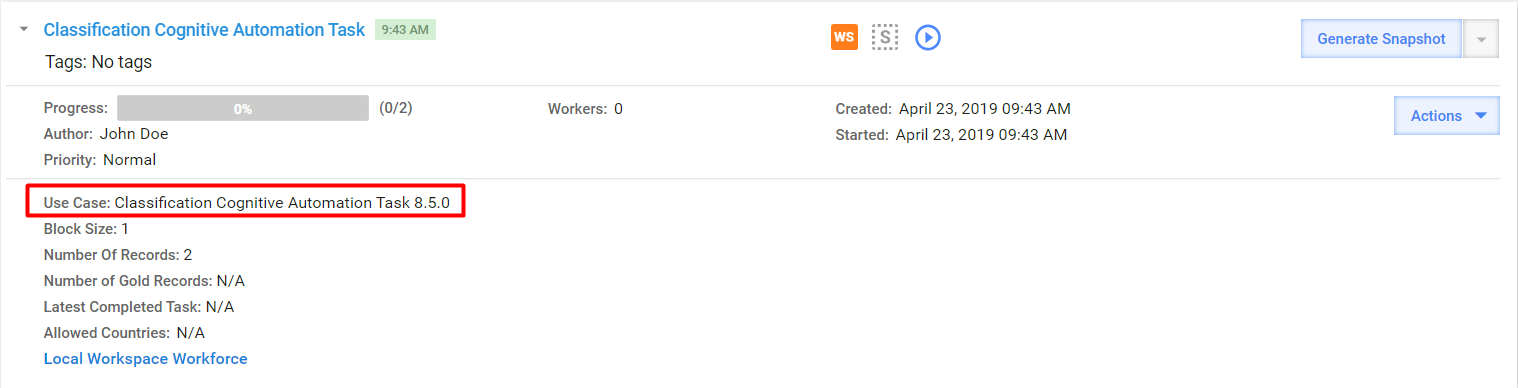
Expand the information about the task in Manual Tasks tab and copy the name of the Use Case:
Go to System Settings > Use Cases. Make sure that the Use Case is enabled. Copy the name of the category. Open the corresponding use case and check that the Private checkbox is unchecked.
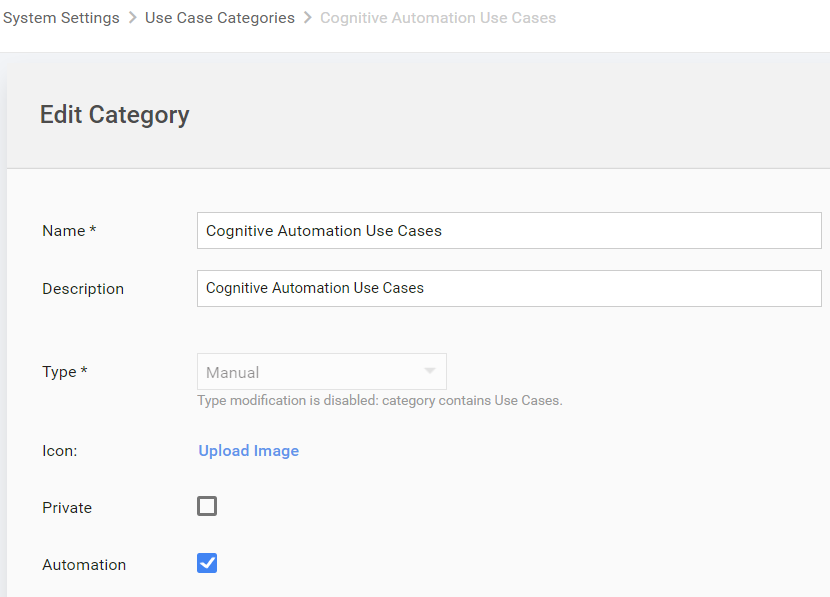
Go to System Settings > Use Case Categories. Find the corresponding use case category and check that it is enabled. Open the corresponding use case category and make sure that the Private checkbox is unchecked.