Administer RPA as service
Run RPA as service
To run RPA as a service without logging in Windows, you can use the AlwaysUp software. The software is not free and has a trial version for 30 days. With AlwaysUp, you can use RPA as a service in RDP session 0 in Windows. The approach was tested (RDP-in-RDP option, too), and no issues were found.
To run RPA as a service, do as follows:
Download and install AlwaysUp, if needed.
Run AlwaysUp and select Application > Add to open the Add Application window.
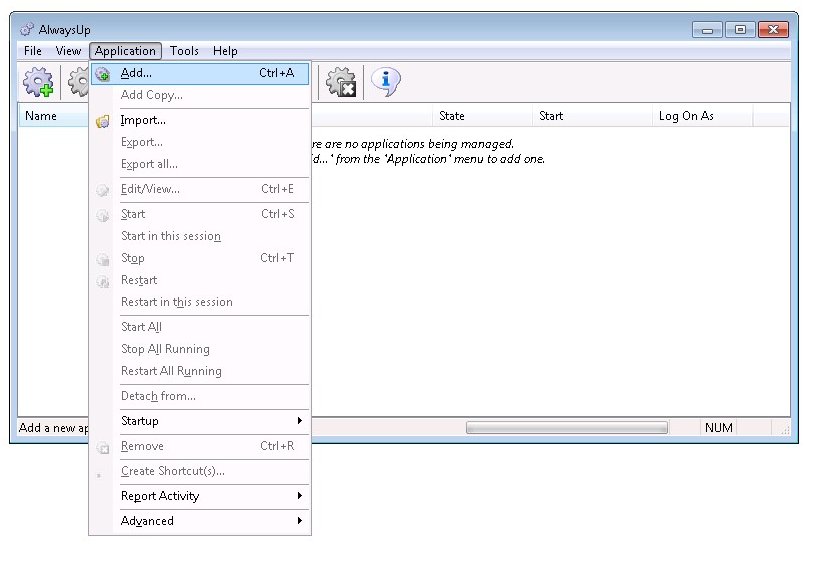
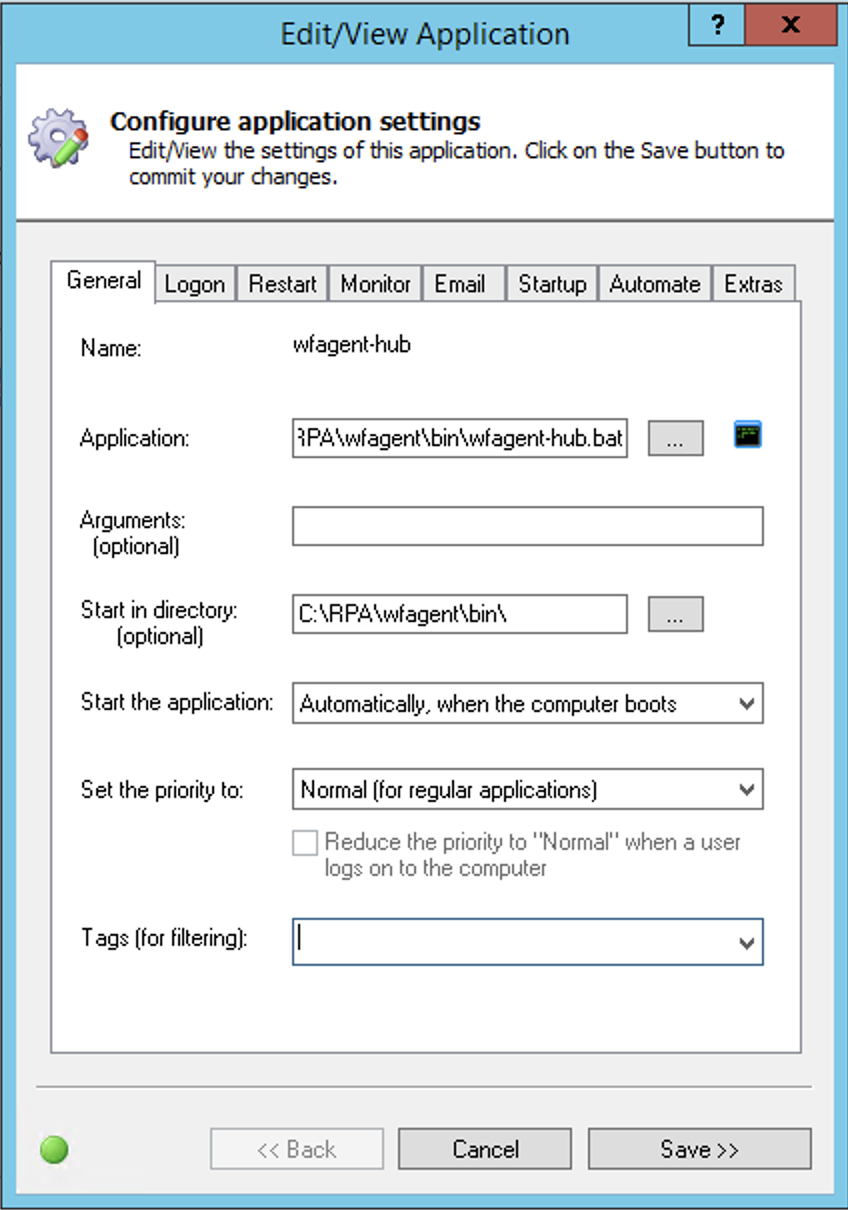
On the General tab in the Application field, enter the full path to the batch file, for example:
C:\RPA\wfagent\bin\wfagent-hub.batOn the General tab in the Start in directory field, enter the full path to the directory where the batch file should be started, for example:
C:\RPA\wfagent\bin\On the General tab in the Name field, enter the name that you will call the batch file application in AlwaysUp (for example, wfagent-hub).
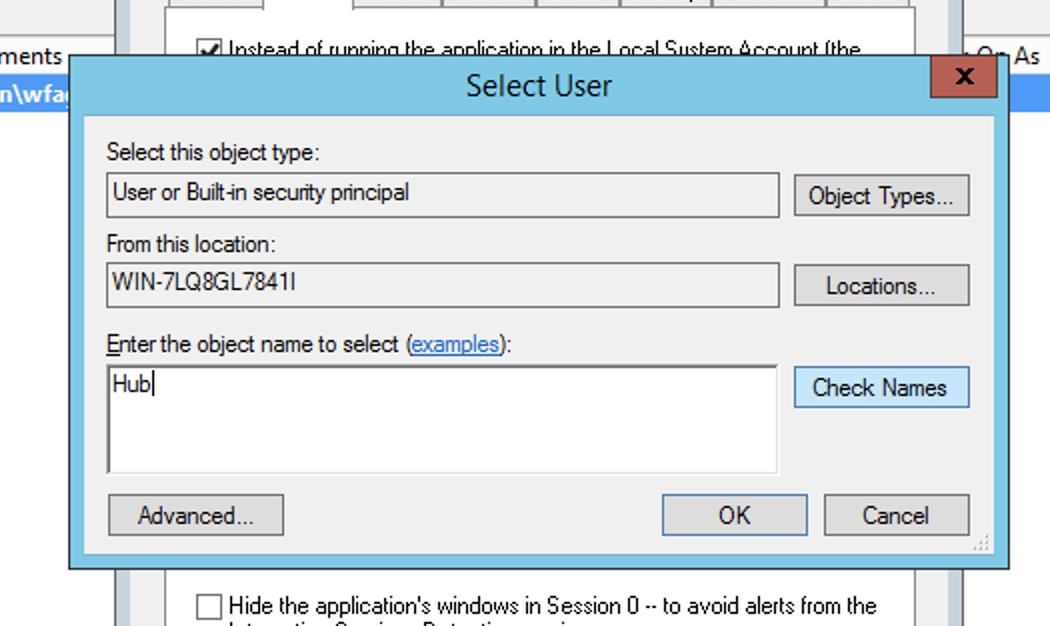
On the Logon tab, click the three dots next to the User Name field, enter your Bot relay username, and click Check names.
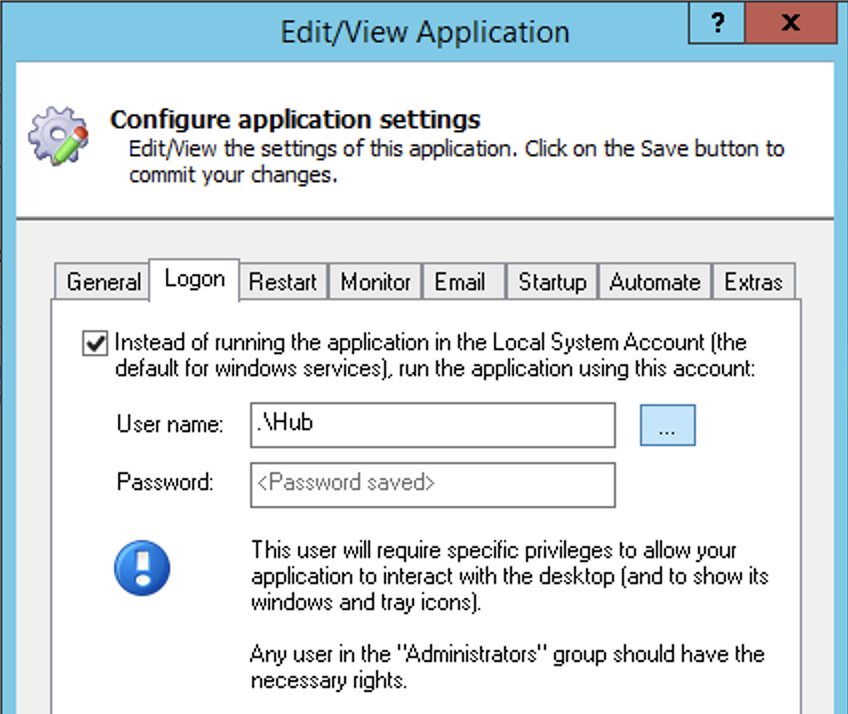
On the Logon tab in the Password field, enter the password for the Bot relay user.
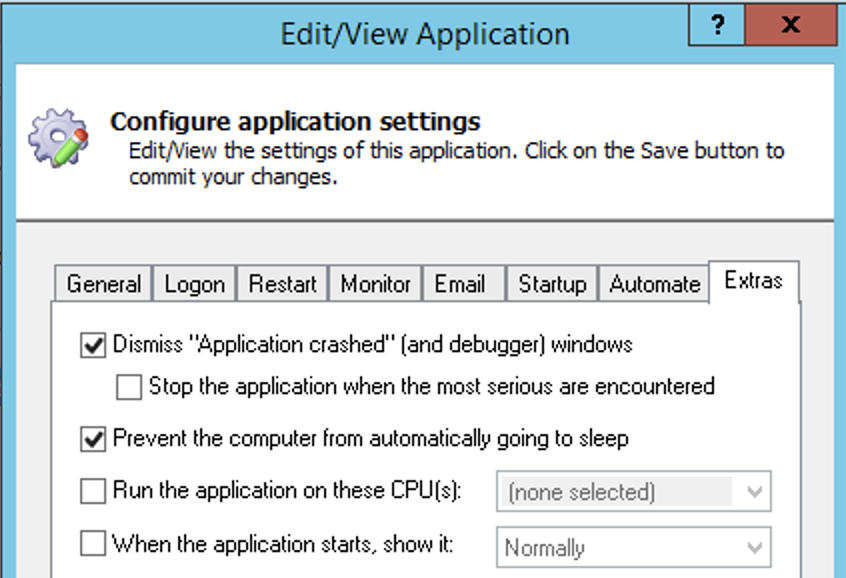
On the Extras tab, select Prevent the computer from automatically going to sleep.
Click Save. In a couple of seconds, the wfagent-hub application appears in the AlwaysUp window.
To run the wfagent-hub application, right-click the application and select Start "wfagent-hub".
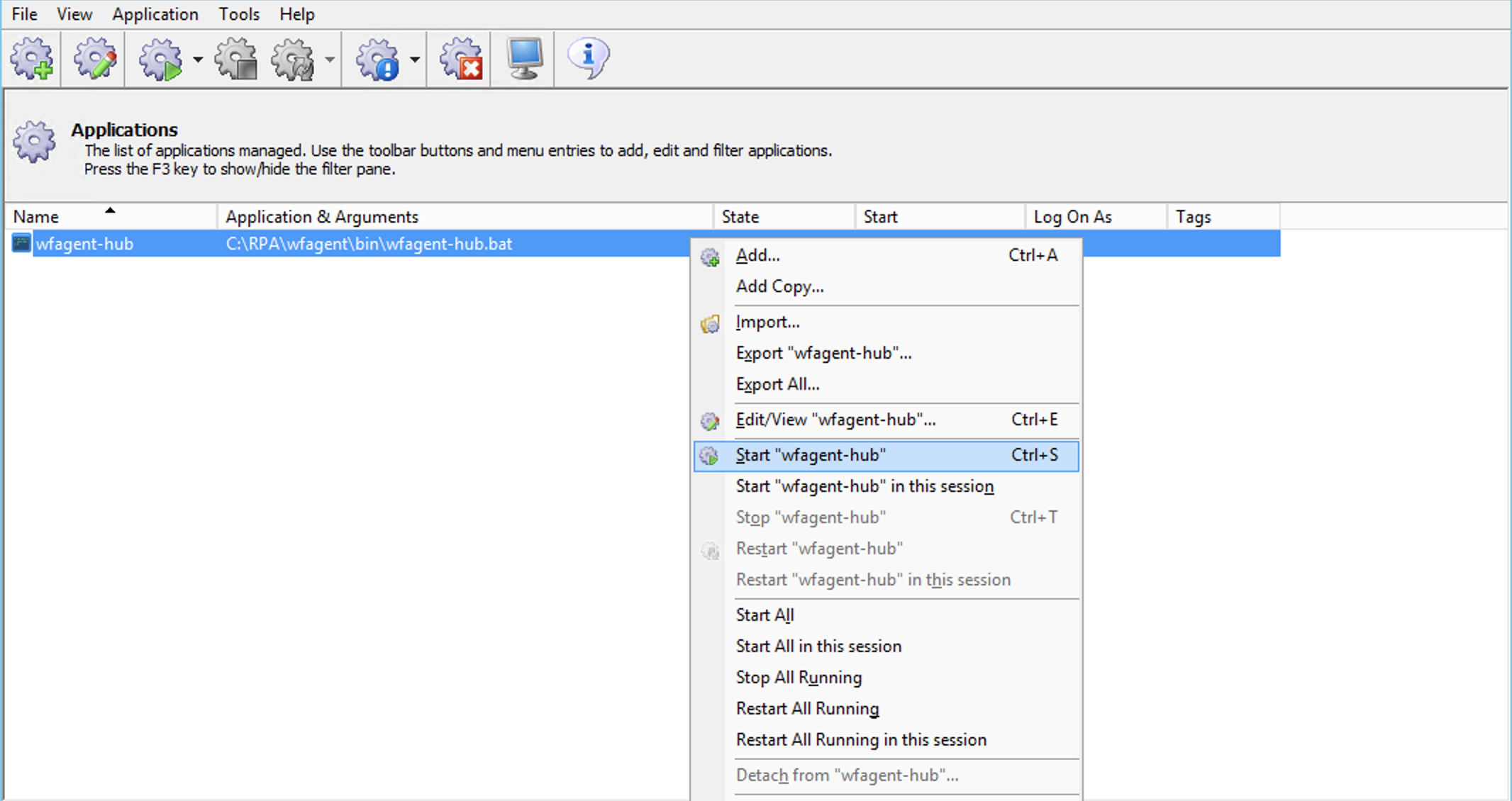
As a result, the batch file is running in Session 0. Next time, when your computer loads, the batch file will be launched immediately, before anyone logs on.
Restart RPA as service
The sequence to restart RPA as a service is as follows:
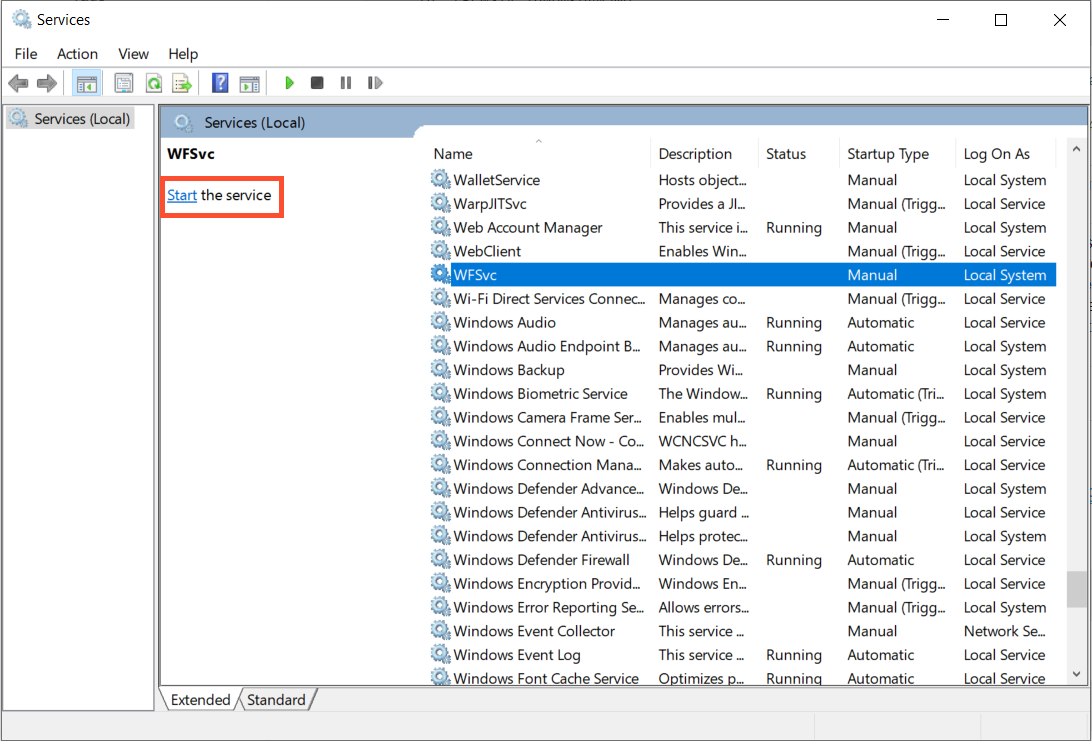
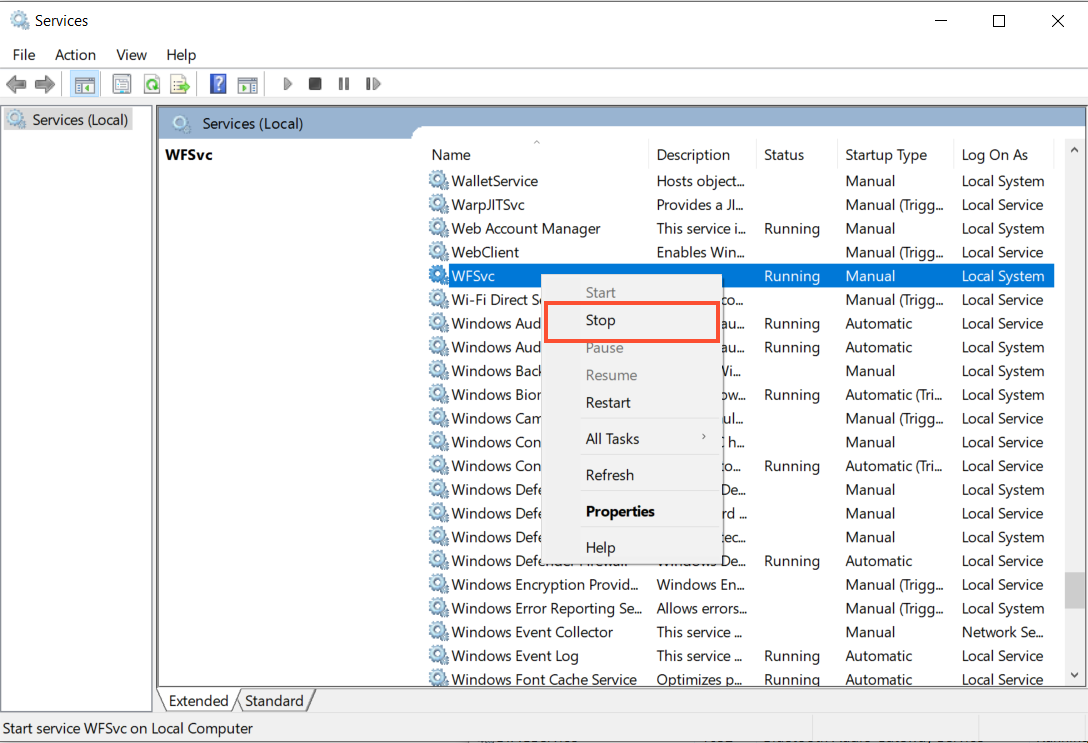
Open Services (
services.msc).Find the WFSvc service, right-click it, and select Stop.
tip
If the Stop button is disabled, wait a couple of minutes and right-click WFSvc again.
After the service is successfully stopped, right-click WFSvc and select Start. The service will start running again.