
Troubleshoot Analytics issues
Analytics page error: Cannot get trusted ticket
Expand to learn more
Symptoms
The Analytics page in Control Tower shows the Cannot get trusted ticket error.
Resolution
To fix the issue, follow the steps below:
- In the
\$WorkFusionServer\\config\\tabsvc.ymlfile, find thewgserver.trusted\_hostsrow. It should contain the Master server’s hostname (IP). - If not, change the row and restart the Tableau services to apply the configuration.
- If the row is configured properly, but the issue persists, restart the Tableau services.
Dashboards do not display data
Expand to learn more
Symptoms
Dashboards do not display data for a recent period (last days, weeks, and so on), whereas old data is displayed normally.
Resolution
It is necessary to check the Extracts status on the Tableau server.
- Log in to the Tableau Server via the browser (https://tableau_hostname/).
- Go to Status > Background Tasks for Extracts and check the Extracts status.
- In case it skipped the status, go to Workbooks > Refresh Schedules and run Extracts manually.
- In case of DB connection issues, check the connection settings and credentials in the Workbooks Data Sources.
No license found for Tableau Server during offline key activation
Expand to learn more
Symptoms
Unable to activate the Tableau Server key TSVR-xxxx in the offline mode.
Resolution
As a short-term workaround, the WorkFuison Support team can provide a temporary NFR Tableau license to the customer. The temporary license duration is 120 days.
The long-term solution is as follows: as the TSVR-xxxx key cannot be activated, most probably, due to its recent update, a request to the Tableau Support should be submitted to replace the existing license key with a new one. Request assistance of the WorkFusion Support Team to get an updated TSUH-xxxx key. After offline activation, the key should work without issues.
Some quick checks can confirm that the environment is licensed and operates as expected.
Tableau Data Sources could not connect to MS SQL with custom port
Expand to learn more
Symptoms
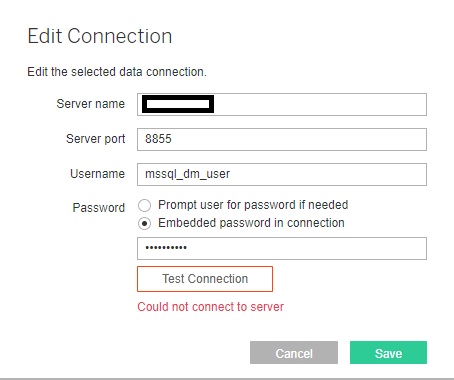
When a non-default (non-1433) MS SQL port is used in the environment, Tableau Data Sources cannot connect to the server.
Resolution
Remove the non-default port from the Port field and add it to the Server name field (comma-separated).
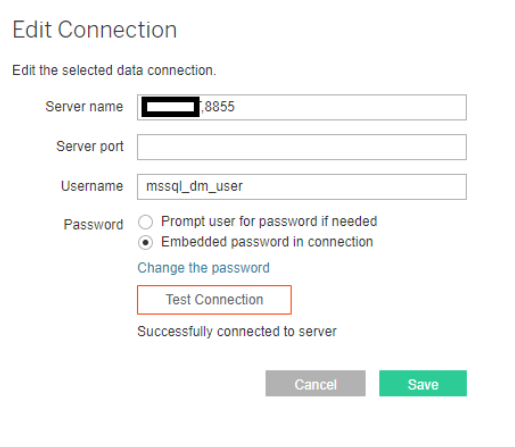
Tableau connection issues
Expand to learn more
Symptoms
When using highly loaded Tableau servers, logins to Control Tower can fail due to long response times from the Tableau service.
Resolution
To avoid the issue, new properties were introduced in the workfusion.properties file in the \${workfusion\_folder\_tomcat}/conf/ folder:
tableau.rest.api.connect.timeout: connection timeouttableau.rest.api.read.timeout: read timeout
These are the default values for the new properties:
# The underlying URLConnection's connect timeout (in milliseconds).
# A timeout value of 0 specifies an infinite timeout.
tableau.rest.api.connect.timeout=30000

# The underlying URLConnection's read timeout (in milliseconds).
# A timeout value of 0 specifies an infinite timeout.
tableau.rest.api.read.timeout=30000
Clean up disk
Expand to learn more
Symptoms
The logs of the Analytics component can take too much space and pile up. If you don't clean them up regularly, you can suddenly find yourself out of disk space, and with the services stopped.
Resolution
To avoid such a situation, it is recommended to schedule the cleaning script for running on the Analytics server:
tsm maintenance cleanup -l --log-files-retention <number-of-days-to-keep-logs> # for example, set "7" to keep logs for one week