
Implement role-based filtering on custom dashboards
The role-based access mechanism (RBAC) limits access to data through Analytics dashboards based on the following user and group filter types:
Group filter is a filter assigned to a group of users. Dashboards are filtered for all of them based on assigned restrictions.
User filter is a filter for a particular user. Dashboards are filtered only for the user according to assigned restrictions.
Any user can have both filters assigned. In this case, the user sees all Business Process-related data that both filters permit to see (combined, not intersecting).
You can create and assign filters in Control Tower. The Analytics component supports filtering by the following criteria:
- Author
- Tag
- Title
Database
To implement RBAC, add the User Name column to a view or source code that supplies data for a dashboard and is used as a data source.
To do this, join data from the wh_user_process_execution_link and wh_application_user tables using the LEFT JOIN operation like in the example below where we define the wb_process_t_v view to be used in the dashboard:
Expand to view example
create view [dm].[wb_process_t_v]
as
with wb_process_t_v_cte
as (
    select
          pe.uuid                                                      as 'Process Execution'
        , t.id                                                         as 'Task Id'
        , p.name                                                       as 'Process Name'
        , pe.start_date                                                as 'Process Execution Start Date'
        , pe.end_date                                                  as 'Process Execution End Date'
        , cast(pe.start_date as NVARCHAR(19)) +' - ' + pe.uuid         as 'Process Execution by Start Date'
        , pe.sla_type                                                  as 'SLA type'
        , upper(left(pe.status,1)) + lower(substring(pe.status,2,100)) as 'Process Status'
        , iif(pe.tracking_activated = 1, 'Activated', 'Not Activated') as 'Tracking'
        , t.name                                                       as 'Task Name'
        , t.has_processing_issues                                      as 'Task Issues'
    from (wh_process_execution pe
    join wh_process p
        on pe.process_id = p.id
    join wh_task t
        on t.process_execution_id = pe.id)
    where
         (pe.start_date >= dateadd(day,-30, getutcdate())
        or pe.status = 'Processing')
        and t.task_type != 'Single Task'
   )

select
      cte.[Process Execution]
    , cte.[Task Id]
    , cte.[Process Name]
    , cte.[Process Execution Start Date]
    , cte.[Process Execution End Date]
    , cte.[Process Execution by Start Date]
    , cte.[SLA type]
    , cte.[Process Status]
    , cte.[Tracking]
    , cte.[Task Name]
    , cte.[Task Issues]
    , u.user_name                      as 'User Name'
from wb_process_t_v_cte cte
join wh_user_process_execution_link l
    on cte.[Process Execution] = l.process_execution_uuid
join wh_application_user u
    on l.user_id = u.id and upper(u.status)='ACTIVE'
When a default user with all data visible is required and such user doesn't have filters assigned, define a default user. The main idea of adding the default user is to retrieve a single dataset with the hardcoded default user as User Name instead of duplicating the same data for all users that don't have restrictions set at the platform level.
Expand to view example
create   view [dm].[wb_process_t_v]
as
with wb_process_t_v_cte
as (
    select
          pe.uuid                                                      as 'Process Execution'
        , t.id                                                         as 'Task Id'
        , p.name                                                       as 'Process Name'
        , pe.start_date                                                as 'Process Execution Start Date'
        , pe.end_date                                                  as 'Process Execution End Date'
        , cast(pe.start_date as NVARCHAR(19)) +' - ' + pe.uuid         as 'Process Execution by Start Date'
        , pe.sla_type                                                  as 'SLA type'
        , upper(left(pe.status,1)) + lower(substring(pe.status,2,100)) as 'Process Status'
        , iif(pe.tracking_activated = 1, 'Activated', 'Not Activated') as 'Tracking'
        , t.name                                                       as 'Task Name'
        , t.has_processing_issues                                      as 'Task Issues'
    from (wh_process_execution pe
    join wh_process p
        on pe.process_id = p.id
    join wh_task t
        on t.process_execution_id = pe.id)
    where
         (pe.start_date >= dateadd(day,-30, getutcdate())
        or pe.status = 'Processing')
        and t.task_type != 'Single Task'
   )

select
      cte.[Process Execution]
    , cte.[Task Id]
    , cte.[Process Name]
    , cte.[Process Execution Start Date]
    , cte.[Process Execution End Date]
    , cte.[Process Execution by Start Date]
    , cte.[SLA type]
    , cte.[Process Status]
    , cte.[Tracking]
    , cte.[Task Name]
    , cte.[Task Issues]
    , u.user_name                      as 'User Name'
from wb_process_t_v_cte cte
join wh_user_process_execution_link l
    on cte.[Process Execution] = l.process_execution_uuid
join wh_application_user u
    on l.user_id = u.id and upper(u.status)='ACTIVE'
union
select
      cte.[Process Execution]
    , cte.[Task Id]
    , cte.[Process Name]
    , cte.[Process Execution Start Date]
    , cte.[Process Execution End Date]
    , cte.[Process Execution by Start Date]
    , cte.[SLA type]
    , cte.[Process Status]
    , cte.[Tracking]
    , cte.[Task Name]
    , cte.[Task Issues]
    , cast('default' as nvarchar(138)) as 'User Name'
from wb_process_t_v_cte cte
Tableau
The final step to utilize the filters at the dashboard level requires additional modifications on the Tableau side. Follow the steps below:
Open the dashboard in Tableau Desktop.
Add the wh_application_user data source from Tableau Server. The [username] parameter is added.
Refresh data sources. The User Name field appears on the list.
Go to the menu path: Data > Edit Relationships.
Add custom relationships with the wh_application_user for all data sources and set User Name = Default User.
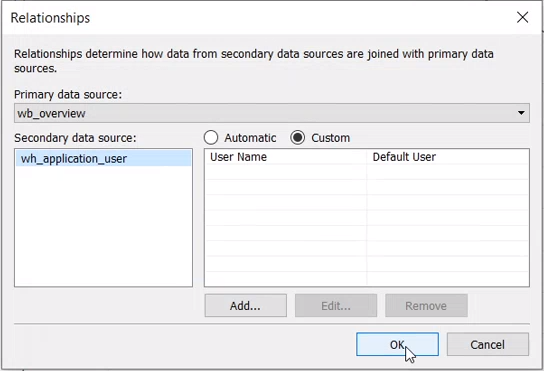
Blend data sources on these fields.
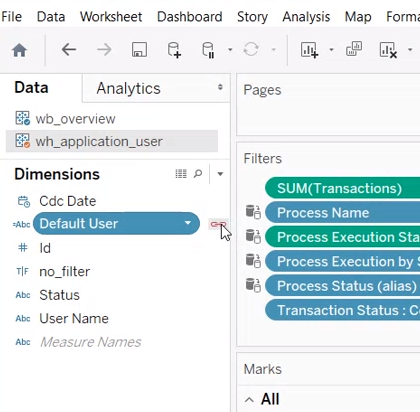
Add the User Name field from wh_application_user to the Filters panel.
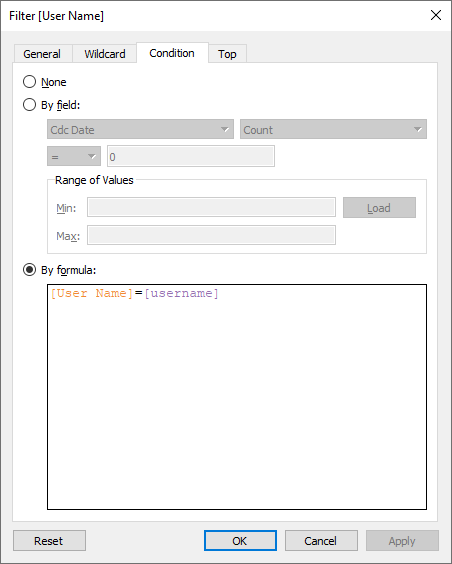
On the General tab, exclude NULL values.
On the Condition tab, select the By formula option and enter the following rule: [User Name]=[username].
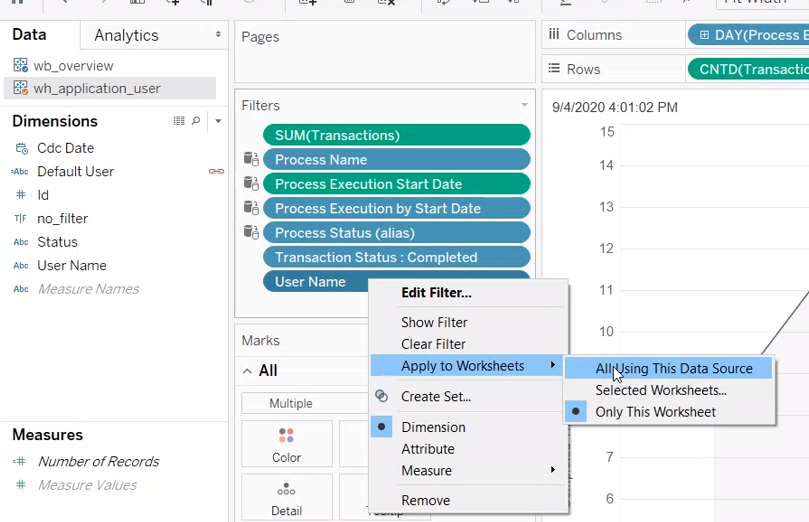
Apply the filter to all worksheets, open the context menu, and select Apply to Worksheets > All Using This Data Source.
Repeat the steps for all the lists that use different data sources and require limited permissions.
Apply Blend for each worksheet that uses primary data source.
Save and publish the workbook using Server > Publish Workbook.
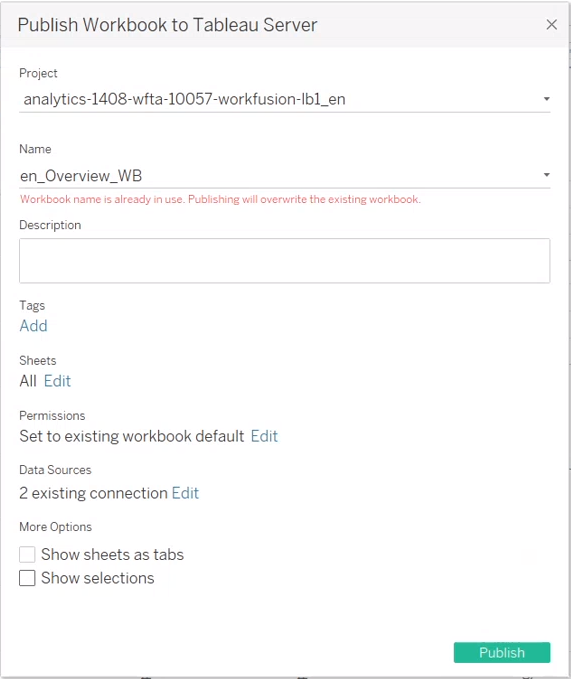
Validating dashboard and permissions
To validate the outcome and dashboard behavior, log in as:
- User with no filters, and verify what data is available or not. Depending on the default user approach, it will be either all data or nothing.
- User with a target filter that enables data visibility on the dashboard and includes related processes.
- User with a different filter that does not include required processes, and the user should see no data.
note
Be aware that in cases when a user is a member of a group with filters and has individual filters assigned, they can see all Business Processes that satisfy the criteria defined by all filters (combined, not intersecting).