
Upload files to S3 MinIO storage
There are several ways how to upload files to MinIO. You can upload files to the storage in a web browser or via the Master Server.
Upload files in web browser
note
You can upload files only. It is not allowed to upload folders.
To upload files in a web browser, do as follows:
Open S3 MinIO storage, for example, https://app-s3.example.com/minio.
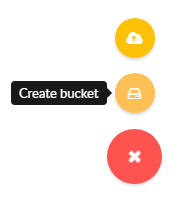
In the bottom right corner, click the + button and select Create Bucket.
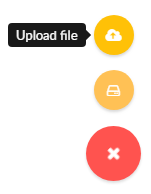
In the bottom right corner, click the + button and select Upload file.
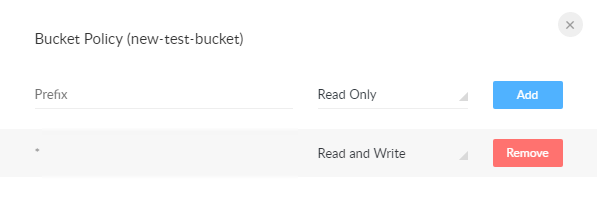
Set a public policy for the bucket and files:
Click the three-dot button next to the bucket name and select the Edit policy option.
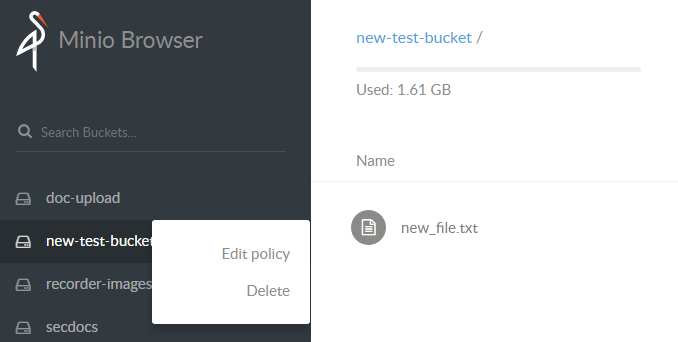 .
.Add a new policy with the Read and Write permission.
Check the results in your web browser, for example, https://app-s3.example.com/minio/new-test-bucket. You can access uploaded files from Business Process tasks.
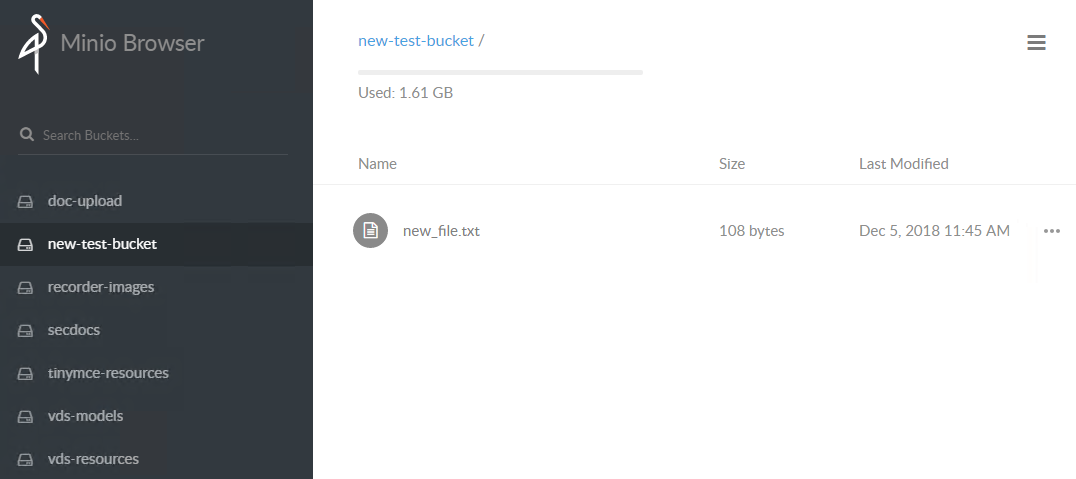
Upload files to Linux server
To upload files to the Linux server, follow the steps below:
Log in to the Master Server.
Go to
INSTALL_DIR/minio/dataand create a directory.tip
Do not use the
.and_symbols in the directory name.mkdir -p INSTALL_DIR/minio/data/new-test-bucketCopy the needed files to the created directory.
cp -a new_file.txt INSTALL_DIR/minio/data/new-test-bucketSet a public policy for the bucket and its files.
s3 is an alias for MinIO. You can find it at INSTALL_DIR/minio_client_conf/config.json:
"s3": {
"url": "http://localhost:9000",
"accessKey": "access_key",
"secretKey": "secret_key",
"api": "s3v4",
"lookup": "auto"
}
INSTALL_DIR/tools/mc -C INSTALL_DIR/minio_client_conf/ policy --recursive public s3/new-test-bucketExample:
/opt/workfusion/tools/mc -C /opt/workfusion/minio_client_conf/ policy --recursive public s3/new-test-bucket
Access permission for `s3/new-test-bucket` is set to `public`
Check the results in your web browser, for example, https://app-s3.example.com/minio/new-test-bucket. You can access uploaded files from Business Process tasks.