Simple Email Connector
Simple Email Connector is a component you can integrate into your Business Process to retrieve emails from Microsoft Exchange mailboxes. It is based on MS Graph API and has no Work.AI platform dependencies.
Simple Email Connector supports any platform version with isolated class-loading (the PF4J class loader).
When called, Simple Email Connector performs the following operations:
Fetches all new emails from a configured inbox folder.
Stores attached files in the specified S3 location.
Provides email data with S3 links in the output data structure.
Moves emails to a configured folder with processed data.
You can also filter emails to be processed by the connector or limit the number of fetched emails. For more details, refer to the Configuration section.
Installation
Simple Email Connector is distributed as an asset bundle (a zip archive). You can download it from the public Nexus repository or Solution Catalog (if available).
To get the connector from Solution Catalog, perform the following steps:
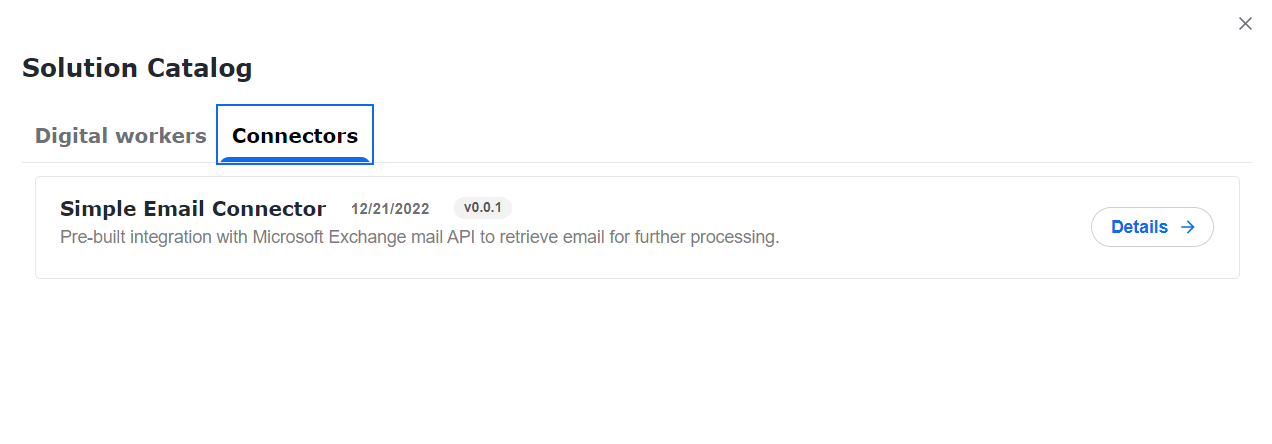
In Control Tower, go to the Digital Workers tab and click the Solution Catalog button.
In the window that follows, go to the Connectors tab, select Simple Email Connector, and click Details.
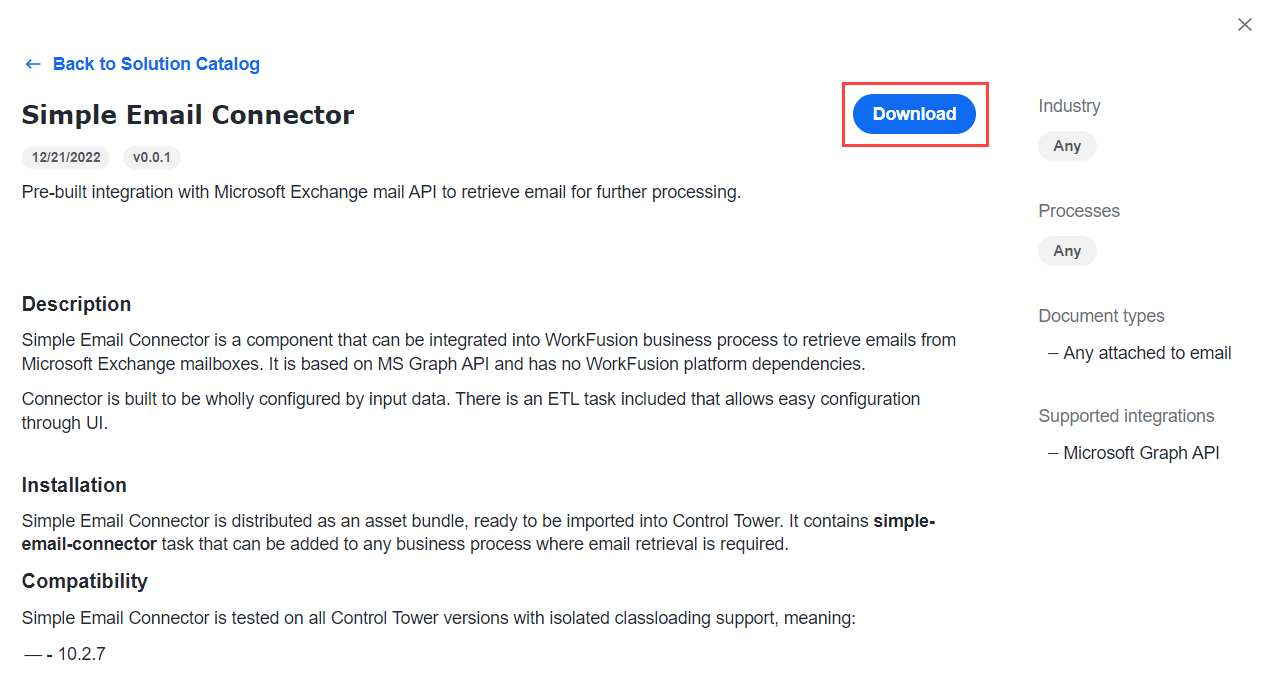
Click the Download button.
To install the connector from the downloaded archive, see the instructions at Install AI Agents.
Usage
The essential part of the connector is the simple-email-connector Bot Task. The ETL Simple Email Connector Settings task offers an easy way to configure the connector.

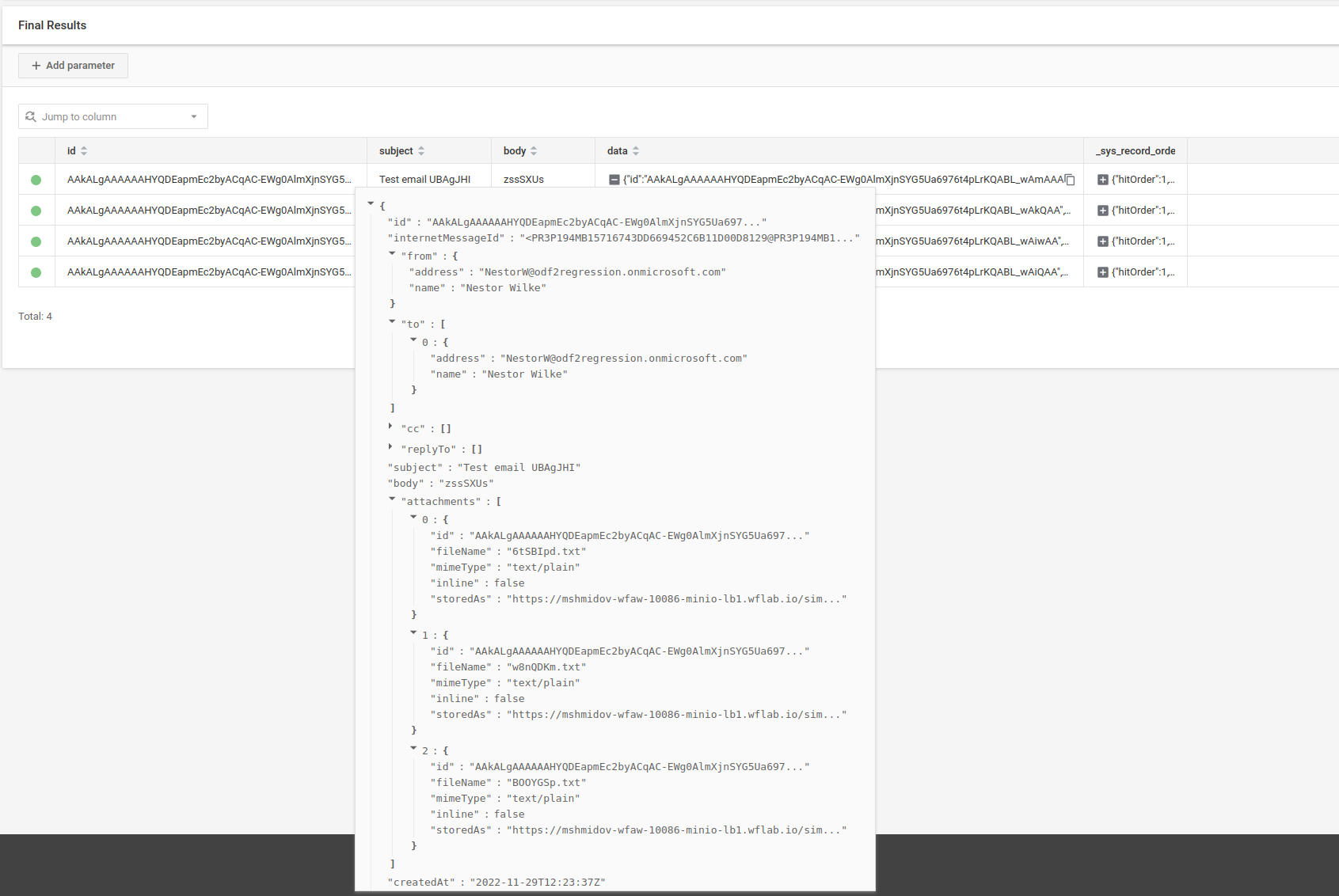
Retrieved emails are stored in S3 and are described by data returned in the task output.
Configuration
The connector is configured by the task input. It does not interact with any Data Stores.
To configure the connector's settings, do as follows:
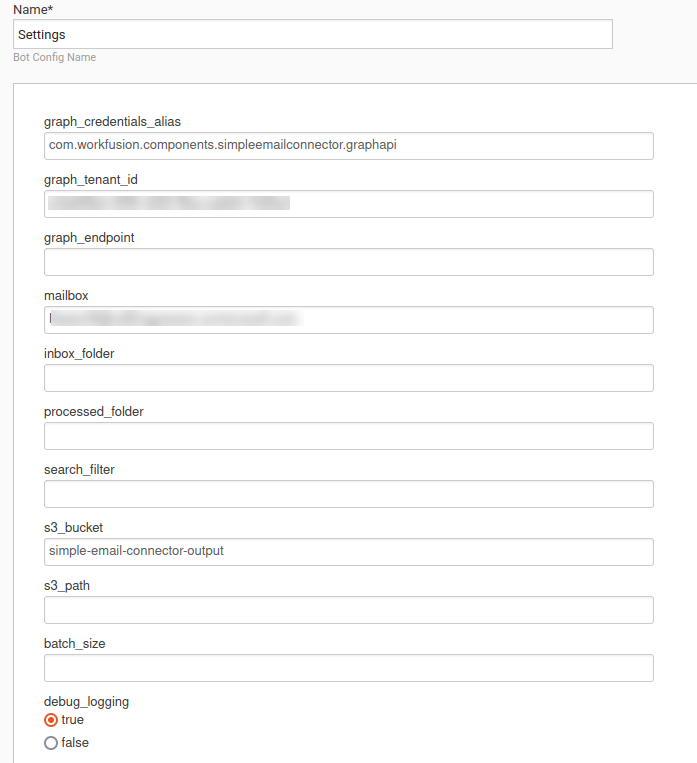
Go to the Business Process that contains the Simple Email Connector Settings Bot Task and click the Settings icon on the task.
In the Create Bot Configuration menu, specify the following configuration properties:
| Property | Required | Default value | Description |
|---|---|---|---|
graph_credentials_alias | Yes | Alias of a Secrets Vault entry that stores Client ID and Secret for the Graph API authentication. | |
graph_tenant_id | Yes | UUID of the tenant for the Graph API authentication. | |
graph_endpoint | No | https://graph.microsoft.com/.default | Graph API endpoint. Do not configure unless you understand how to apply it. |
mailbox | Yes | Email address from which emails are retrieved. | |
inbox_folder | No | Inbox | Mailbox folder from which emails are retrieved. |
processed_folder | No | Inbox/Processed | Mailbox folder to which emails are moved after processing. |
search_filter | No | Graph API filter expression used to select emails to be retrieved. If left empty, all emails are fetched. For details, see Use the $filter query parameter and Message resource type. | |
batch_size | No | infinite | Maximum amount of emails that the connector retrieves. By default, all existing emails are retrieved. |
s3_bucket | Yes | S3 bucket where retrieved emails are stored. | |
s3_path | No | Path in the S3 bucket where retrieved emails are stored. If left empty, emails are stored at the root of the bucket. | |
json_field_size_limit | No | 102400 | Length (in bytes) to which email subject and body are trimmed in the connector output. Email content in S3 is not affected and is always stored fully. |
debug_logging | No | false | If set to true, enables verbose logging for the Graph API client and the Secrets Vault client. |
Output
The connector produces multiple records on its output (split data). Each row of the task output corresponds to one email fetched and processed.
Each row contains the following columns.
| Column | Description |
|---|---|
id | Unique and immutable id of an email message as returned by the Graph API. |
subject | Subject of email message trimmed to length configured by the connector input. |
body | Body of email message trimmed to length configured by the connector input. |
data | JSON object with all the data of an email message. |
Additionally, any input columns simple-email-connector received (excluding its configuration properties) are passed to the output replicated in each row.
Example structure of a data object created for an email message
{
  "id": "AAkALgAAAAAAHYQDEapmEc2byACqAC-EWg0AlmXjnSYG5Ua6976t4pLrKQABL_wIrgAA",
  "internetMessageId": "\u003cPR3P194MB157106490B38EAB85AA9268FD8129@PR3P194MB1571.EURP194.PROD.OUTLOOK.COM\u003e",
  "from": {
    "address": "NestorW@odf2regression.onmicrosoft.com",
    "name": "Nestor Wilke"
  },
  "to": [
    {
      "address": "NestorW@odf2regression.onmicrosoft.com",
      "name": "Nestor Wilke"
    }
  ],
  "cc": [],
  "replyTo": [],
  "subject": "Test email 4h6odjK",
  "body": "ffUyRrF",
  "attachments": [
    {
      "id": "AAkALgAAAAAAHYQDEapmEc2byACqAC-EWg0AlmXjnSYG5Ua6976t4pLrKQABL_wIrgAAARIAEAAzkT5Q1qylRLH3wgkkbZ2h",
      "fileName": "6toLVYq.txt",
      "mimeType": "text/plain",
      "inline": false,
      "storedAs": "https://mshmidov-wfaw-10086-minio-lb1.wflab.io/simple-email-connector-output/bot-task-test/AAkALgAAAAAAHYQDEapmEc2byACqAC-EWg0AlmXjnSYG5Ua6976t4pLrKQABL_wIrgAA/AAkALgAAAAAAHYQDEapmEc2byACqAC-EWg0AlmXjnSYG5Ua6976t4pLrKQABL_wIrgAAARIAEAAzkT5Q1qylRLH3wgkkbZ2h-6toLVYq.txt"
    }
  ],
  "createdAt": "2022-11-29T13:04:09Z",
  "sentAt": "2022-11-29T13:04:09Z",
  "receivedAt": "2022-11-29T13:04:10Z",
  "importance": "NORMAL",
  "unread": true,
  "storedAs": "https://mshmidov-wfaw-10086-minio-lb1.wflab.io/simple-email-connector-output/bot-task-test/AAkALgAAAAAAHYQDEapmEc2byACqAC-EWg0AlmXjnSYG5Ua6976t4pLrKQABL_wIrgAA/AAkALgAAAAAAHYQDEapmEc2byACqAC-EWg0AlmXjnSYG5Ua6976t4pLrKQABL_wIrgAA.eml"
}
In this object, subject, body and html fields are trimmed to the length configured by the connector input. You can find the original content of the email message on S3 by the URL specified as the storedAs JSON attribute and stored as an EML file. The content of each attachment is kept on S3, the URL specified as the storedAs JSON attribute.
The Java class serialized to this JSON is called com.workfusion.components.simpleemailconnector.service.graph.loader.CompleteMessage. You can inspect it for further details.