Environment health check
The WorkFusion infrastructure requires periodic validation. There are various factors that can make certain WorkFusion components or target applications non-functional or non-automatable.
The idea is to identify the checklist and automate the validation process as much as possible.
You can extend the recommended Business Process with your specific requirements. Make sure you understand the idea and approach. Then, you can use the recommended BP as a starting point for your implementation environment check.
Version 7
The steps are as follows:
Import
Installation Integration Testing with ML Master Process V7.zip.Configure input parameters using one of the options:
Option 1: Upload the
test_configuration.csvinput file with required validations:test_cognitive_botis a fully-automated validation of AutoML training and Extract for the Presentation Company Classification model and default bot workflow. Mind that Train and Extract can take up to twenty minutes.test_rpa,test_ie_driver,test_chrome_driver,test_firefox_driver,test_desktop_driverrefer to validation of appropriate RPA drivers.test_ocris a validation of the OCR component.test_workspacedefines whether a Manual Task should be submitted to WorkSpace. In this case, an Answer from the WorkSpace worker is required to complete the Business Process.s3_bucketspecifies a bucket used for S3 validation.
Option 2: In the Settings V3 step, set ETL form parameters.
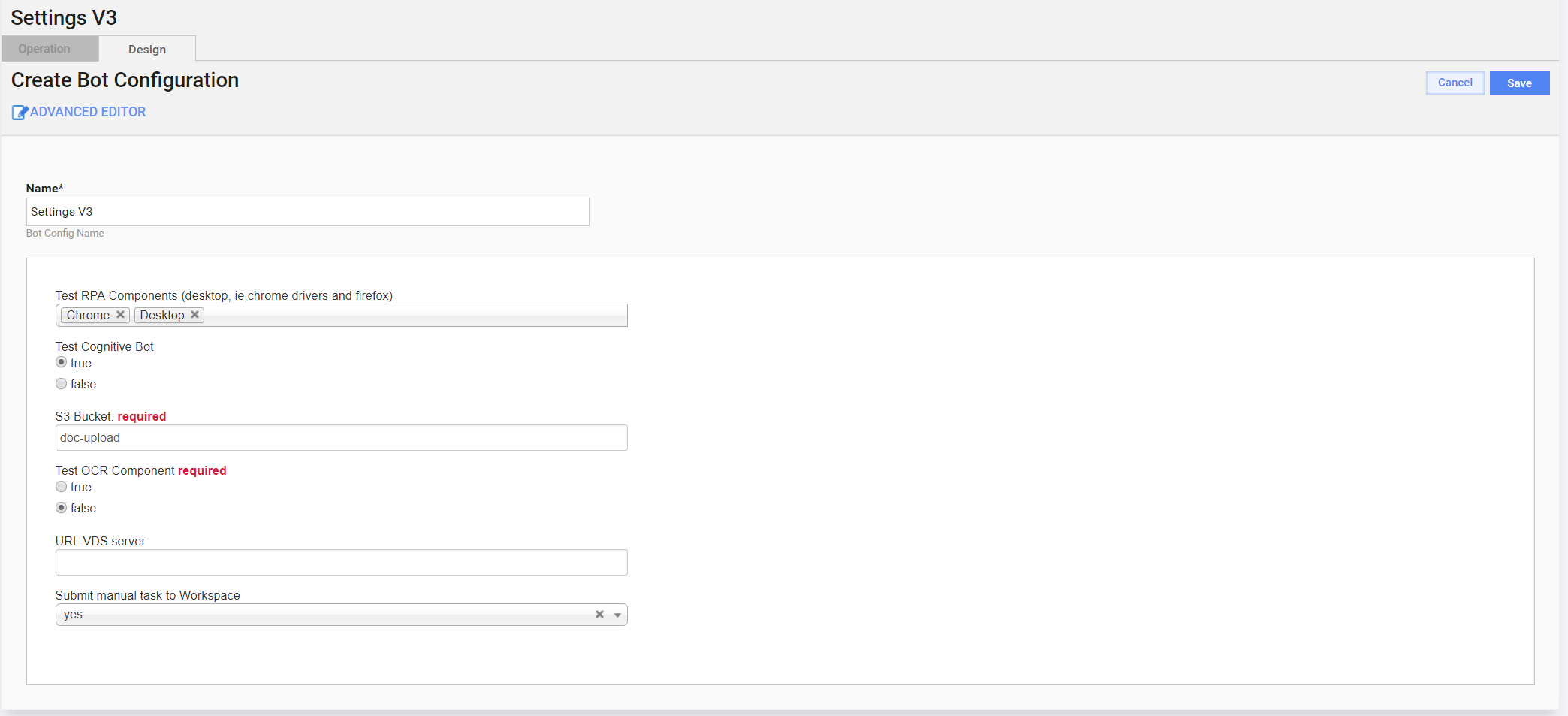
Run the configured BP and wait for its completion.
In case of unsuccessful completion (the issue marker appeared), check the BP instance event log for failure details.
Version 5
The steps are as follows:
Import
Installation Integration Testing version 5.zipBusiness Process.Open the Settings step and fill in the form, indicating the functionality you need to test.
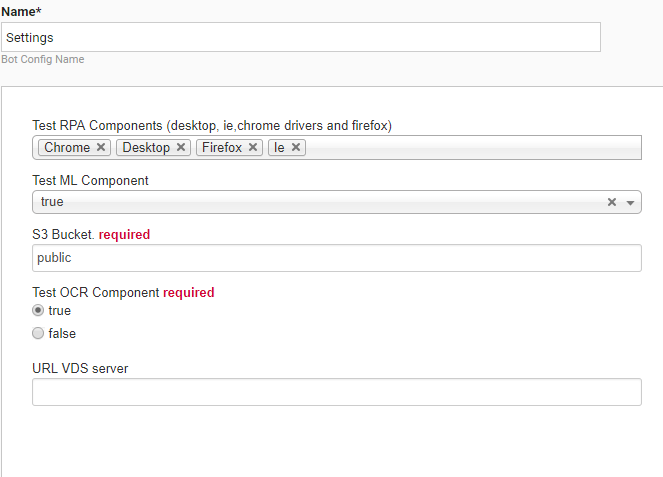
If you don't want to test ML, go to step 7. If you choose the Test Ml Component step, set up the trained ML model to be used.
Go to the Classification Cognitive Automation Task BP > select a Manual Task > Task Properties > Advanced Options.
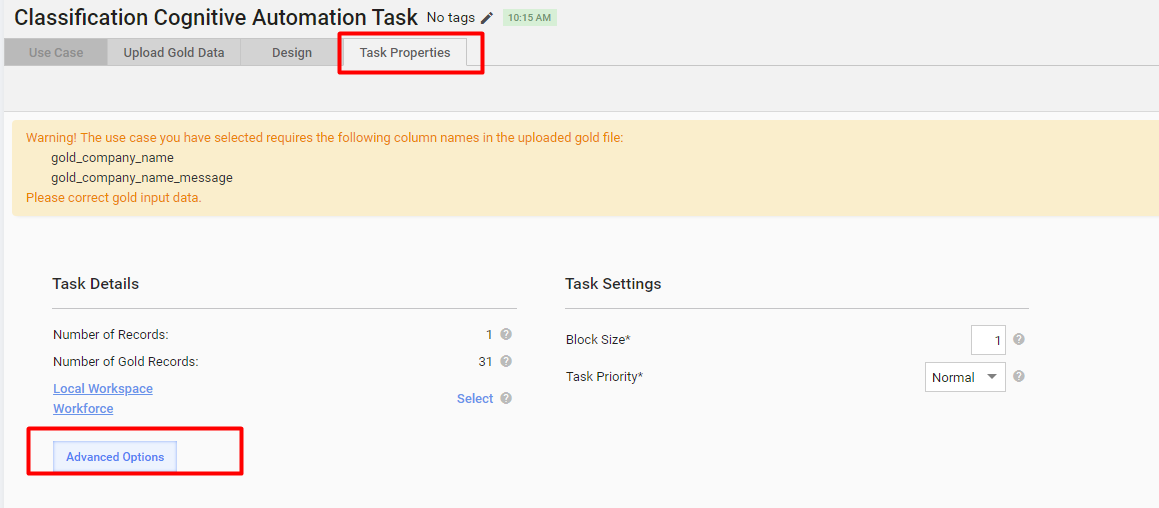
Choose a trained model.
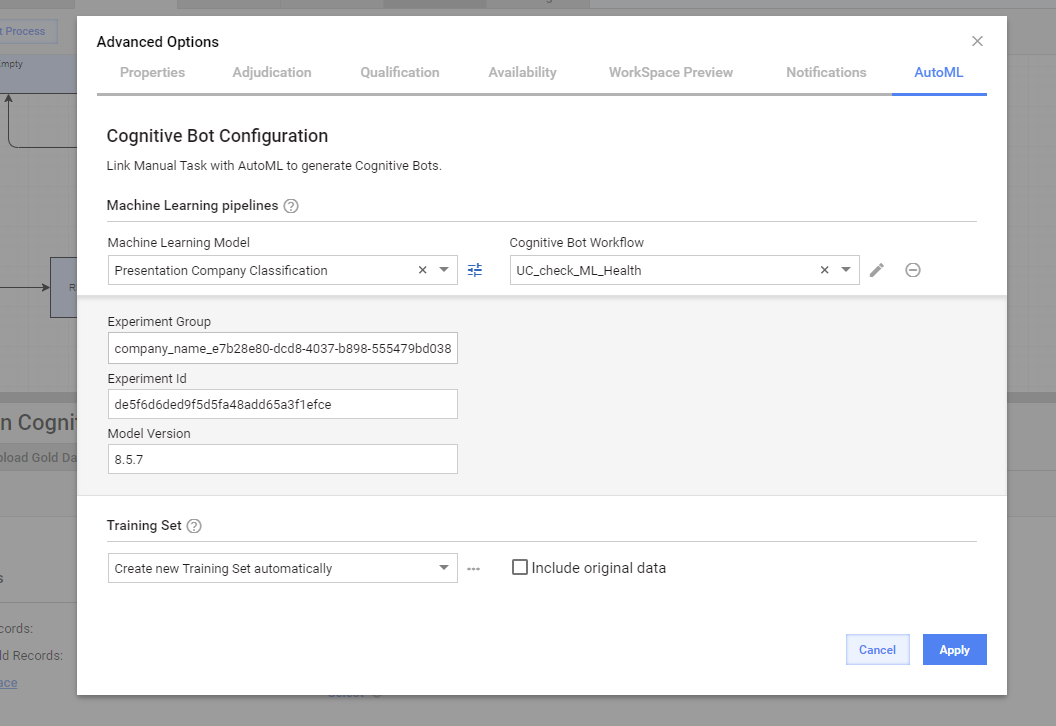
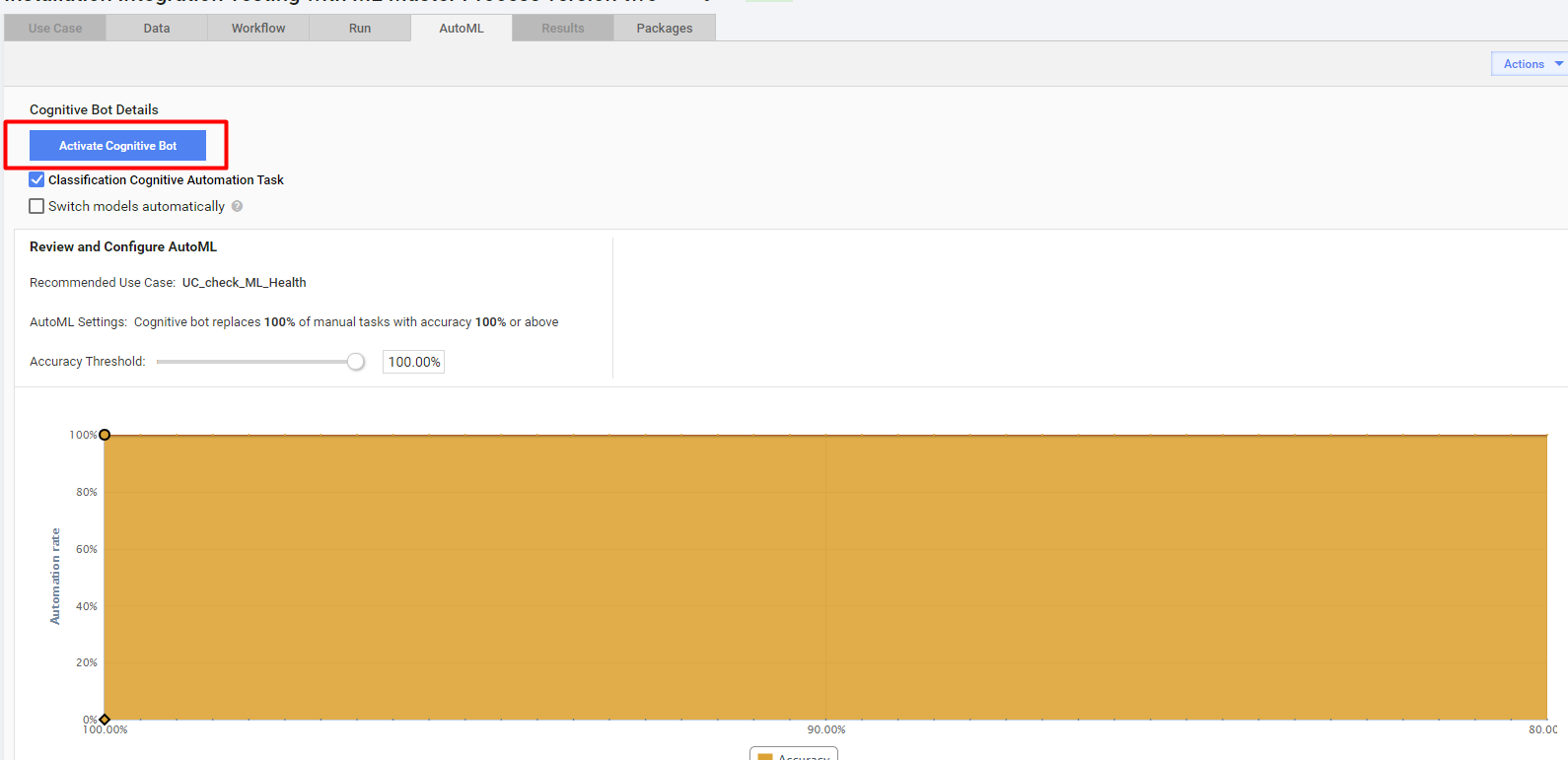
Open the AutoML tab in the BP. Select Activate Cognitive Bot to create a new automation BP.
The following steps are the same as if you do not choose to test ML. Though, instead running the original process, run a new automated one.
Run the BP.
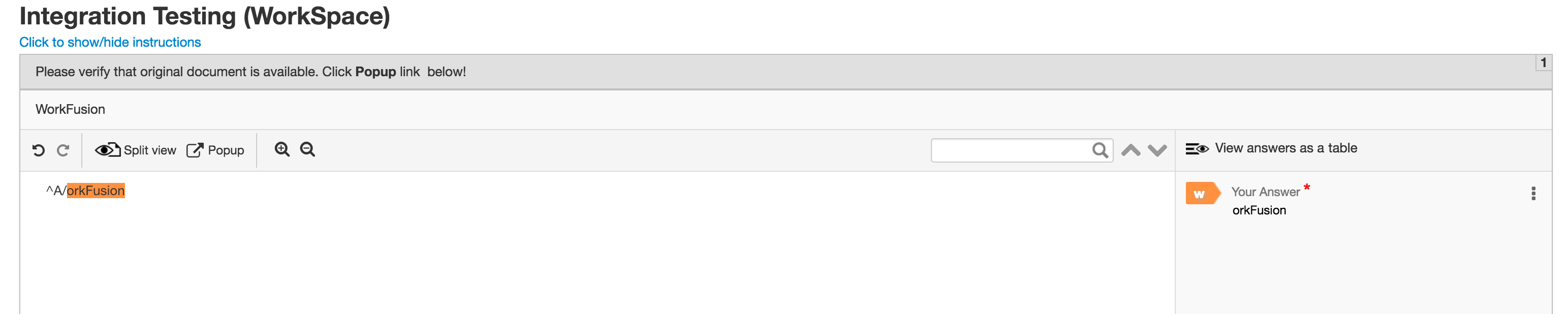
When it comes to the Integration Testing Manual Task, go to WorkSpace and submit the task. Make sure the text on the left is displayed, and you can preview the original document by clicking the Popup button.
During the execution, check if all the steps are completed successfully. The environment is ready only when the Business Process is successfully completed.
Checked components
| Component | Comments |
|---|---|
| Data Store | Checks all basic operations, for example, create ds, insert, update, select. |
| S1 | Checks put, get, and HTTP access by a generated link. |
| SSL connection | Checks an SSL connection between WF-WF, WF-S3, WF-OCR, WF-RPA. |
| File Storage | Checks put and read. |
| Manual Task | Completing this task guarantees that the license is set up, the connection between WF and WS is established, Information Extraction (IE) is working fine, for example, docs are downloaded from S3. |
| OCR Ghostscript | Checks PDF-to-TIFF conversion. |
| OCR service | Checks TIFF-to-TXT, XML, and HTML conversions and ensures that OCR works fine. |
| RPA | IE, Firefox, Chrome, AutoIt. |
| ML | Checks that the trained model is applied to the task. |