Configure Internet Explorer
Before making any changes to Internet Explorer settings, make sure no Java processes are running.
On the previous step, you should have already run RPA Installer delivering all the necessary changes to your Internet Explorer browser.
Refer to the screenshots below and check that all the settings have been set correctly.
Security settings
Open Internet Explorer Browser and go to Tools > Internet options.
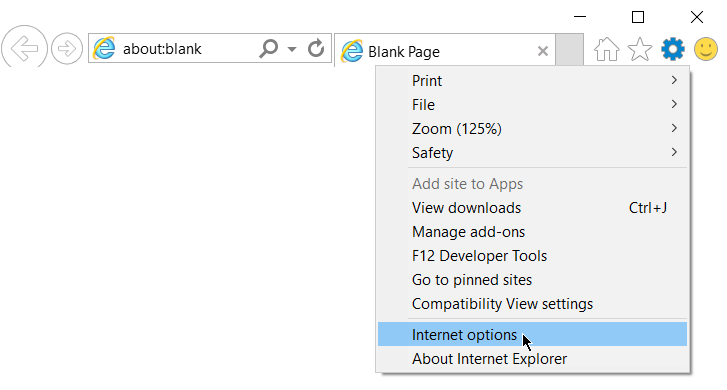
The Internet Options dialog appears.
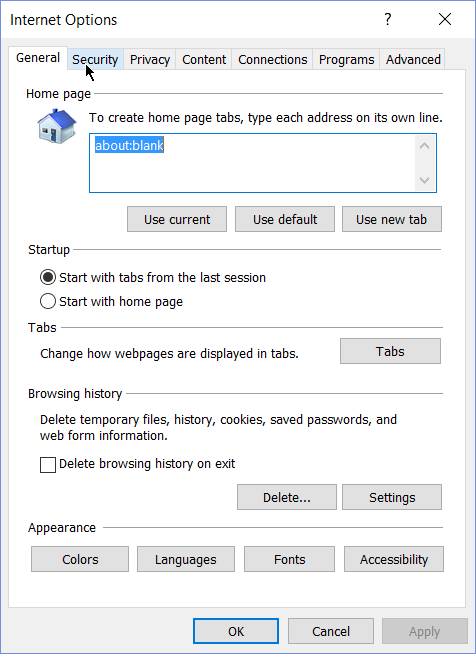
Open the Security tab and check that the Enable Protected Mode option is disabled for each security zone.
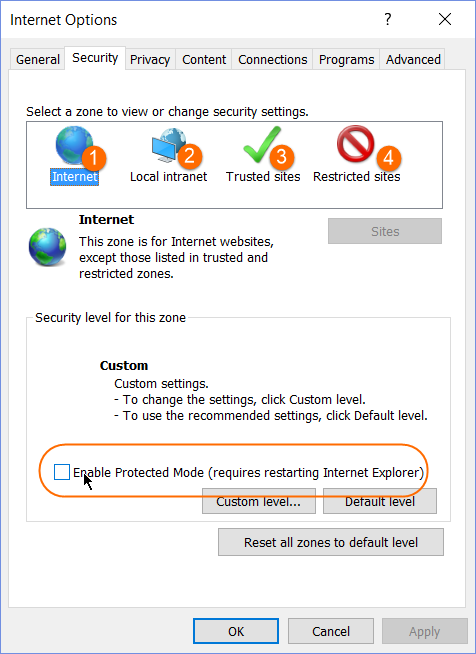
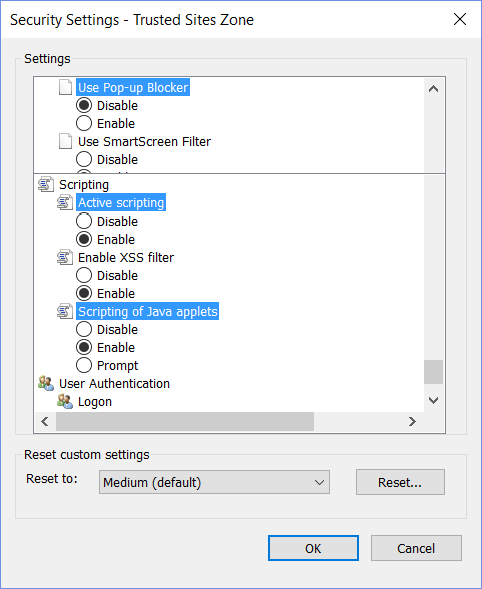
On the Security tab, select Trusted sites and click the Custom Level button.
- Disable the Use Pop-up Blocker option.
- Scroll down and check that the Active scripting option is enabled.
- Scroll down and check that the Scripting of Java applets option is enabled.
Pop-ups and extensions in private mode
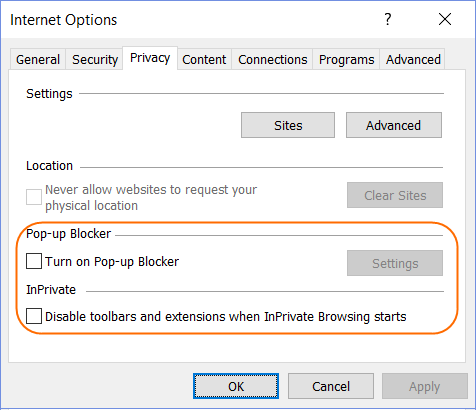
Close the Security Settings window. On the Internet Options window, switch to the Privacy tab.
The Turn on Pop-up Blocker and Disable toolbars and extensions when InPrivate Browsing start options should be disabled.
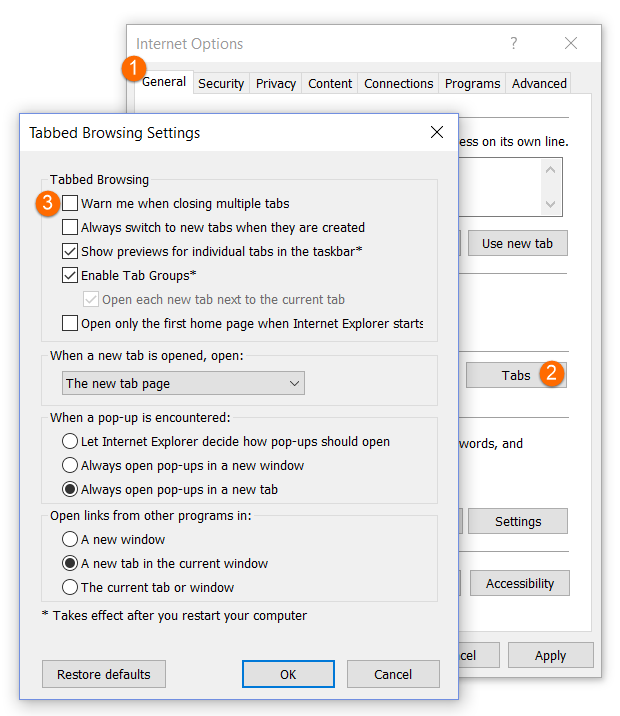
Switch to the General tab.
Click the Tabs button.
Check that Warn me when closing multiple tabs is disabled.
Zoom level
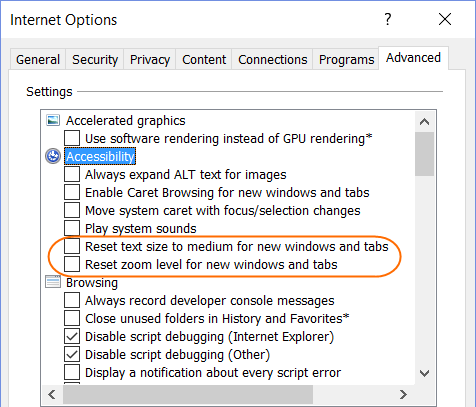
To set up zoom, do as follows.
Switch to the Advanced tab > Accessibility and uncheck the options Reset text size to medium for new windows and tabs and Reset zoom level for new windows and tabs.
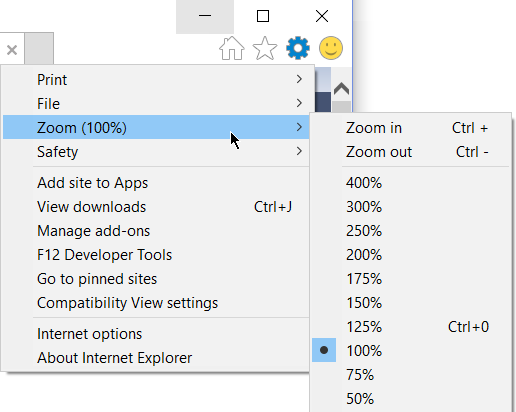
Set browser Zoom to 100% and close Internet Explorer.
Java add-ons
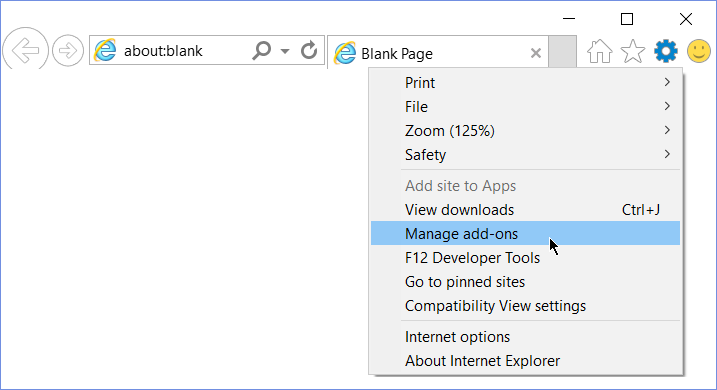
Open the Internet Explorer browser, go to Tools, and click on Manage Add-ons.
In the opened popup window, select the Toolbars and Extensions menu item (on the left side) and find Java add-ons. If they are disabled, click Enable.
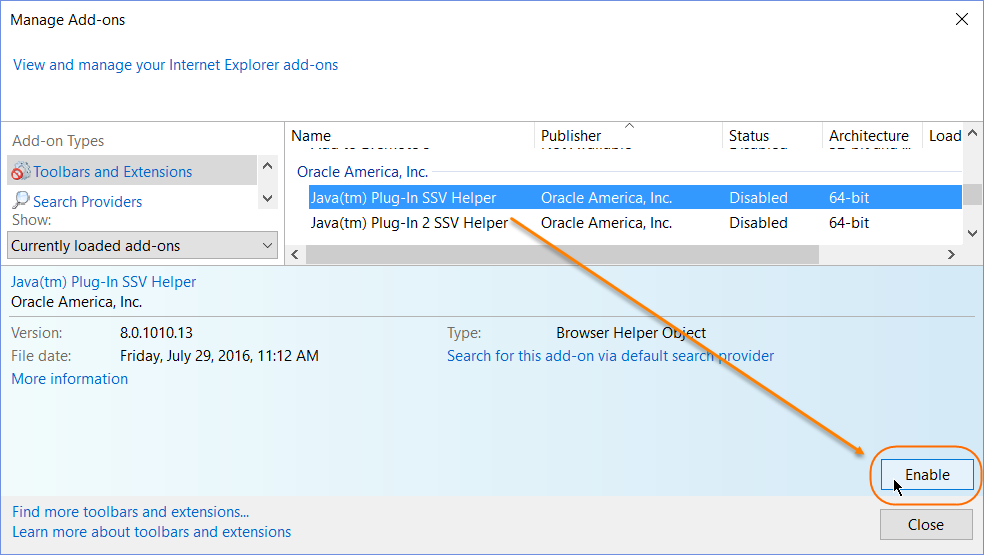
If you don’t have these Java add-ons, most likely you don’t have Java run-time environment in your system, and you won’t be able to run Java applets inside the browser.
In this case, refer to this guide and install Java on your machine. Make sure you install Java x86/64 the same as your Windows. After Java is installed, enable IE Java add-ons as described above.
If you see that Java add-ons are enabled but you are not able to start any Java applet in Internet Explorer, restart your machine.
User Account Control settings
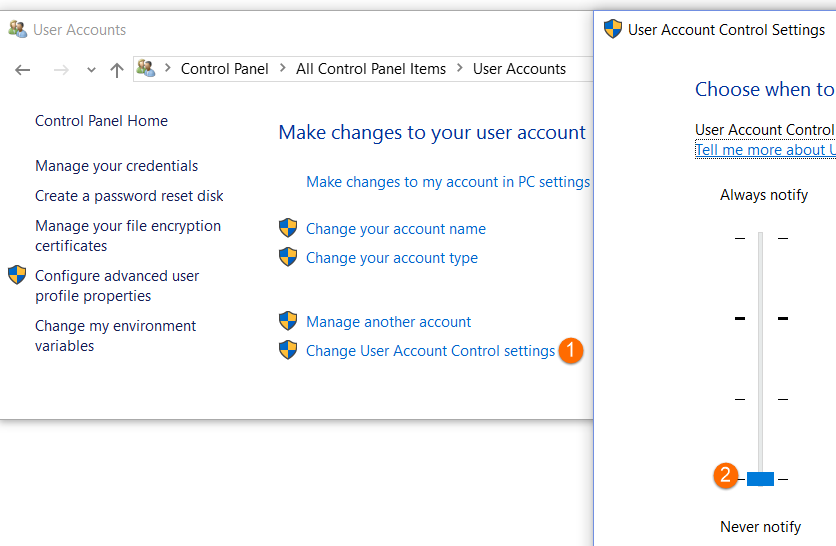
Set User Access Control to the lowest level in Control Panel > User Accounts > Change user Account Control settings.
Proxy usage in IE
If your IE browser is configured to use proxy, see Robotics plugins.
For troubleshooting tips, refer to the following support guides: