Upload Manual Task data
Task data is a CSV file with source input data required to run a Manual Task (MT). The column headers in the file must be the same as the variables used within the Manual Task design. You can also remap them if needed.
Each row of the task data file defines a Record. To download a template file in the CSV format, go to Manual Tasks > Data and click the Download Sample File button. The column headers within each template correspond to the variables (Data Points) configured in the MT design.
Create data file
Before you begin creating your data file, revise your knowledge about the CVS format. For useful tips, see the guide on how to create a CSV file.
Default settings
By default, the items (fields) are to be delimited by a comma (","), and the encoding is UTF-8. If you want to use another delimiter or encoding, specify the settings in the input data options.
Header line
Your data file should contain a header line where you define the names for the columns in the input data.
The column headers can contain alphabetical characters in the lower case, numerical characters, and underscore only. Any other characters can break the created input data.
Links to files
The files used in an MT are to be kept in an online or cloud storage supporting the HTTP access protocol, for example, S3, Dropbox, or Google Drive.
Local files are not allowed!
Upload data file
Complete the following steps to upload and set a data file:
On the Data tab for a specific Manual Task, click the Upload Data button or anywhere within the tab.
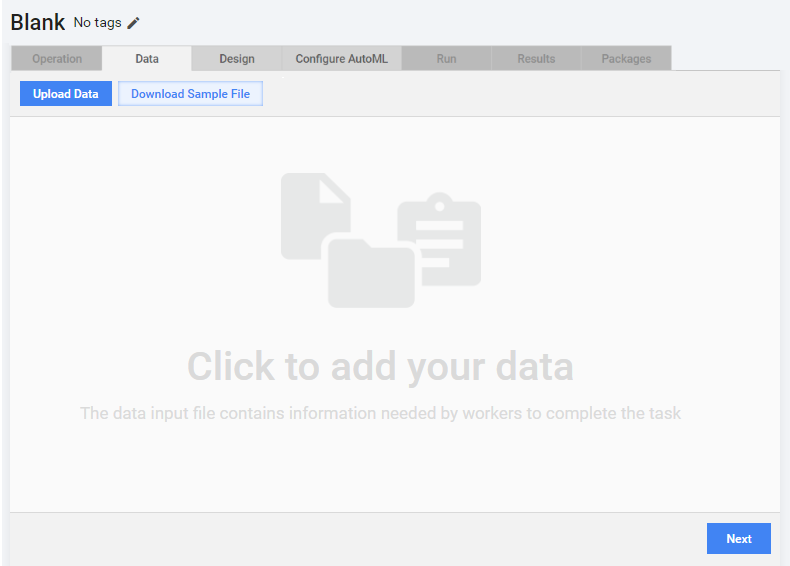
In the popup window, click the Add button, select an input data file, and click Upload.
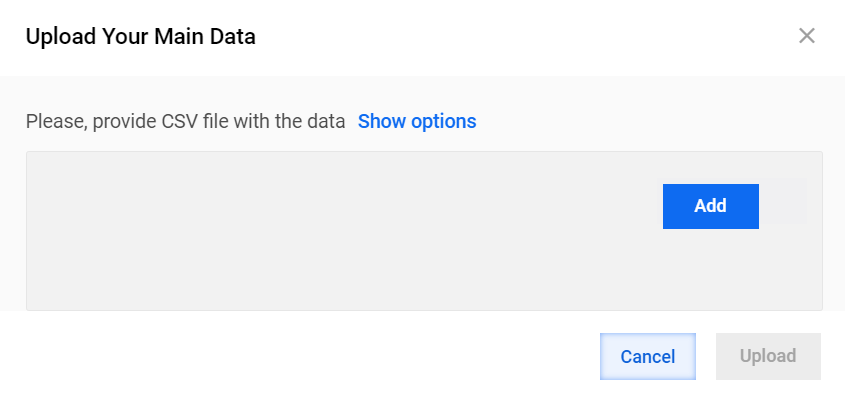
Work.AI automatically determines the File Separator and File Encodingparameters. To change the parameters, click Show options and select the File Separator and the File Encoding from the respective drop-down menus.
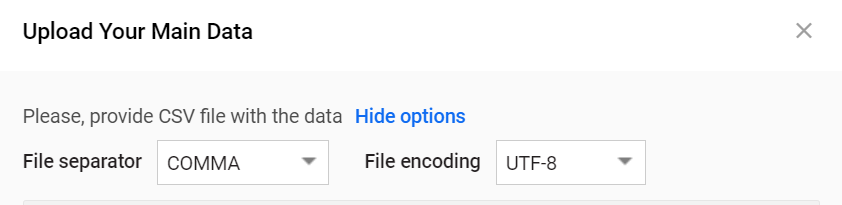
To remove the selected file and select another one to upload, click Clear.
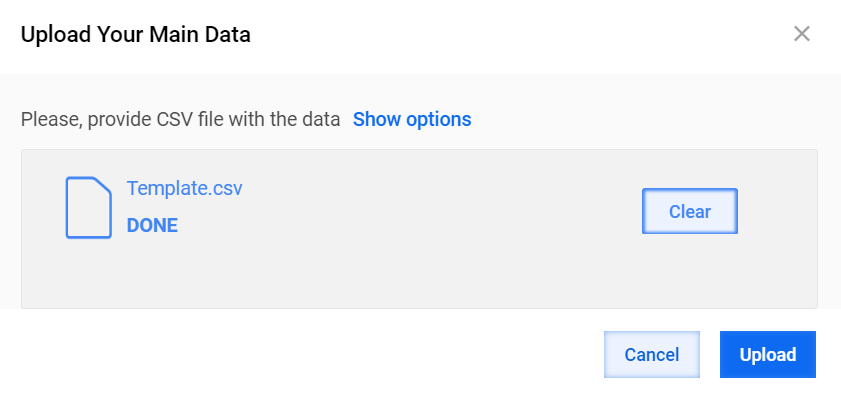
The input file content is displayed along with the file's existing column headers. Click the Preview eye-icon associated with a data row to preview the task using the corresponding data.
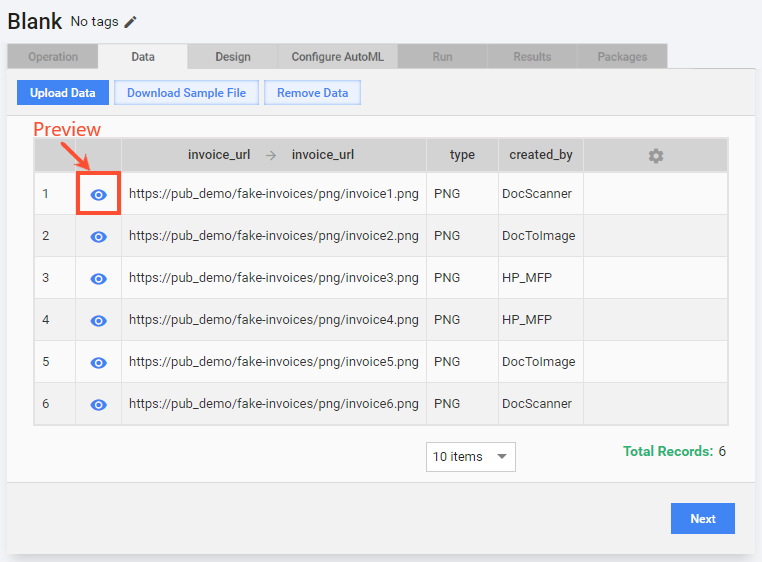
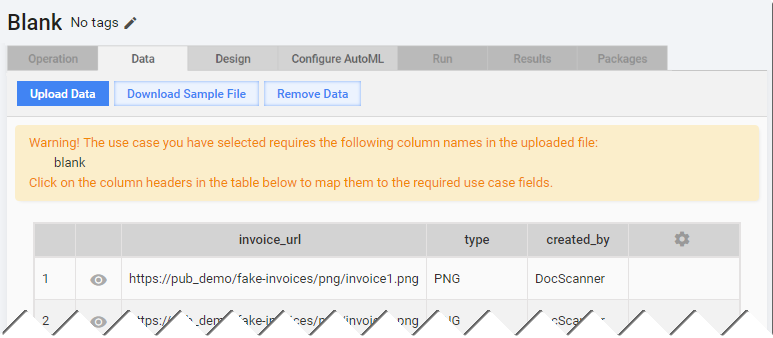
If the column headers do not match the variables in the MT design, a warning message is displayed alerting you which column names are to be remapped. To map or remap a column to a variable, click the column header from the table and select an item from a drop-down list.
After you mapped a column header to a task variable (for example, URL > picture_address), you cannot use the column name to create another variable (
${question.data['url']}is an invalid variable).You can also remove the uploaded data by clicking the Remove Data button.
Click Next to proceed to the Design tab if you are satisfied with the uploaded data.
While you are designing a task, you can go back to this step from the Design tab and upload new data or remap column headers.