Upload data
Task: upload data from a Data Store in Control Tower or a local CSV file.
Jupiter Notebook: Data Stores or any other notebook where data is uploaded
Input:
- Data from Data Store
- A CSV file saved locally
When data is uploaded from a Data Store in Control Tower, the da-pipelines.ini file must include the link and credentials to Control Tower. Also, turn on VPN if applicable.
Upload data from Data Store
The steps specified below are common for all notebooks in Jupiter Notebook where data is downloaded from a Data Store:
Launch all the dependencies and prerequisites.
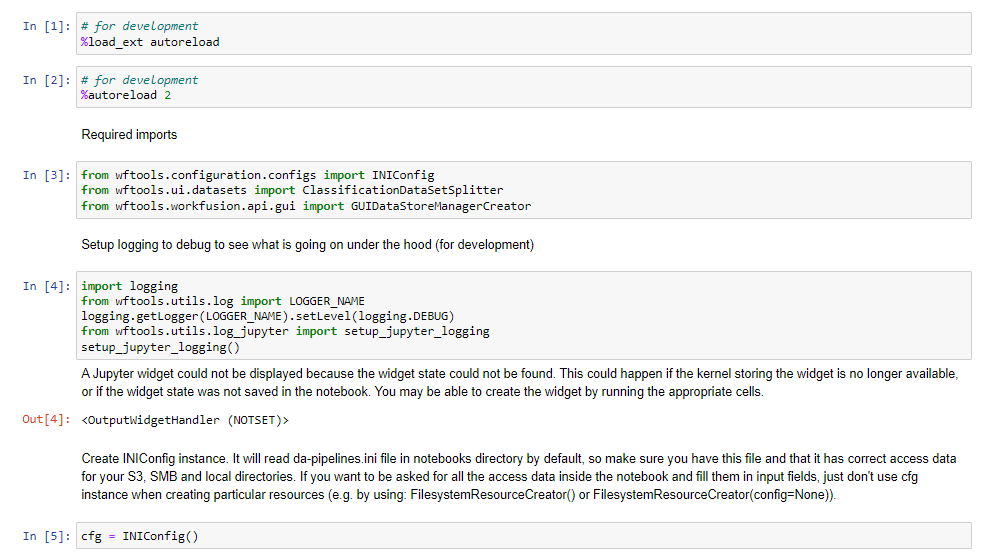
Run the next step.

ds_managerstarts downloading.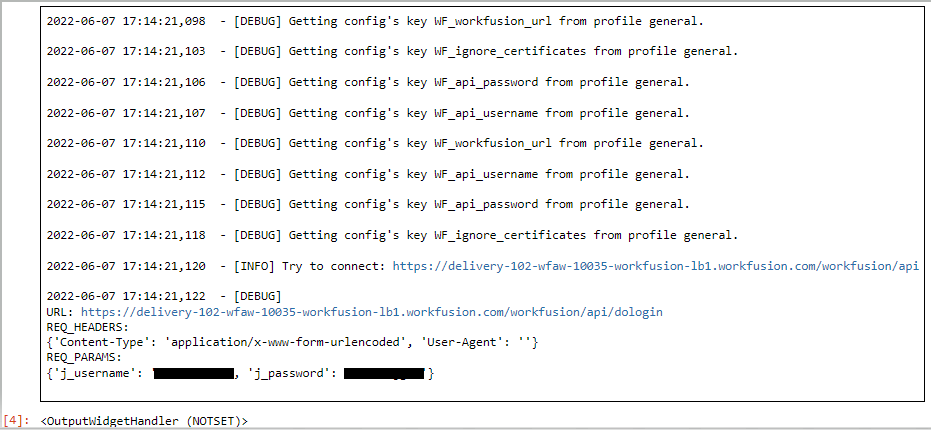
Once you see
ds_managerloaded, select a Data Store in the appropriate drop-down box. The Data preview section displays data from the Data Store.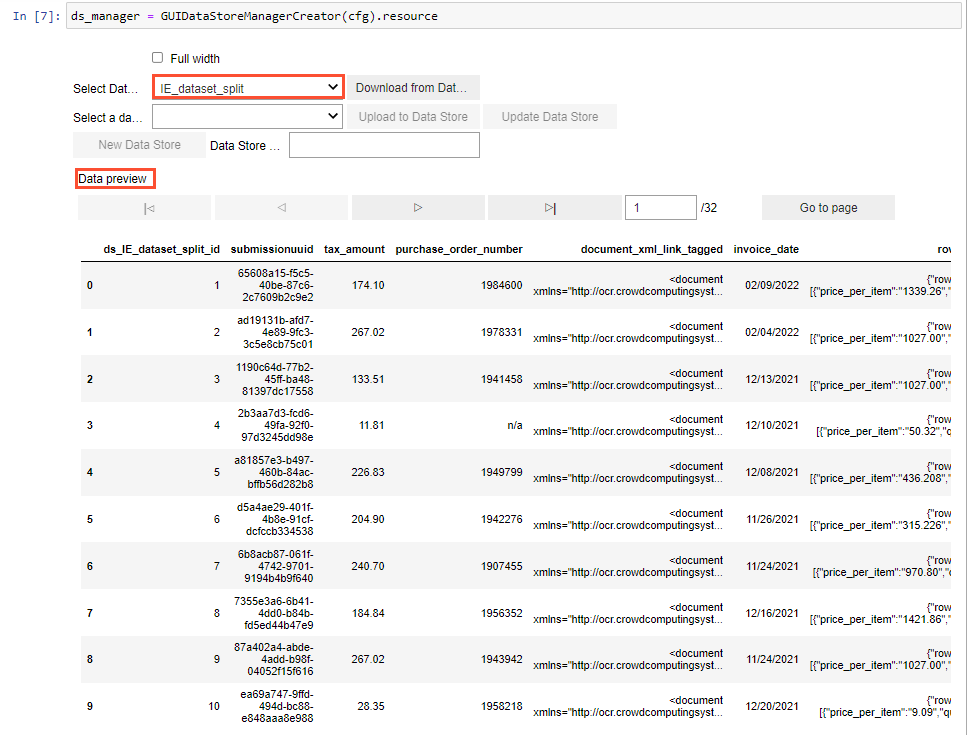
To use the date from the Data Store in the dataframe, click Download from Data Store.

Run the next step to assign the data from the selected Data Store to a dataframe.

After that, the dataframe with the data from the selected Data Store becomes available for use.
Upload data from local CSV file
To upload data from a local CSV file, add a cell and paste the code that imports the pandas library and reads your file. Specify the path and file name with an extension.
