Manage file storages via Resource Manager
Resource Manager enables you to work with different files storages similarly to how it's done in two-panel file browser (Total Commander, Far, Volkov Commander, Midnight Commander).
Notebook name: Resources_Manager_GUI
Resource Manager allows you to do the following:
Select a storage for each panel.
Get a list of items
See items as a tree of directories and files (even for S3 (key-based)).
Navigate through the tree.
Select files and directories.
Copy selected items from one place to another (even from different storages).
Create an empty directory (for S3, it is a fake directory if it is empty)
Delete selected resources.
Get access to dataframes.
Generate links to S3: direct for public buckets and presigned for private. Autodetection is available.
Supported storages include the following:
AWS S3
S3 Manager
Samba (Windows shares)
Local directory
Be careful with harmful operations, such as Delete selected items. Rollback is unavailable.
Explore UI elements
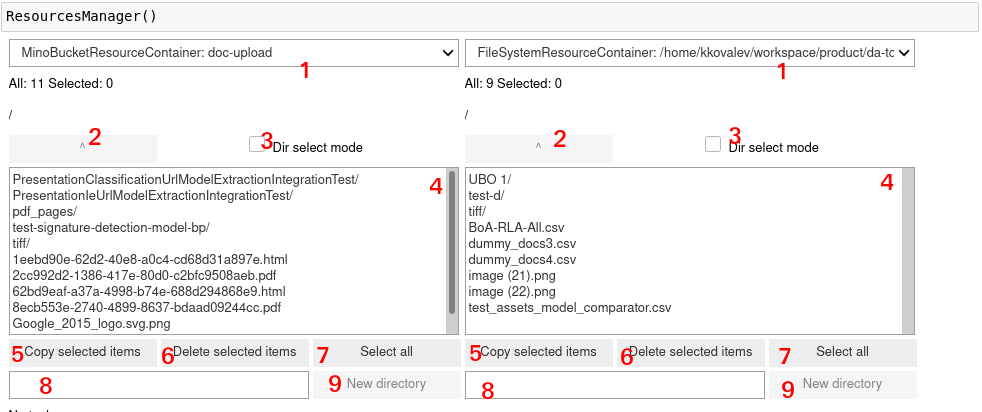
The items in the list below correspond to the numbers in the Resource Manager UI screenshot above:
Select a storage. You can configure it in the config file or create before instantiating Resource Manager.
Go to the parent directory in the tree.
Check the box so that a click would select a directory instead of navigating inside. This is useful if you want to select an entire directory for copying or deleting. By default, the checkbox is disabled, so clicking a directory will open it, not just select.
List of items in directory. Sub-directories have the / character after their name, files are displayed with their extension included.
Start transferring selected items (recursively) to the storage in the opposite panel.
Delete selected items (recursively).
Select all items in the list.
Name of the directory to create.
Create an empty directory (fake for S3).
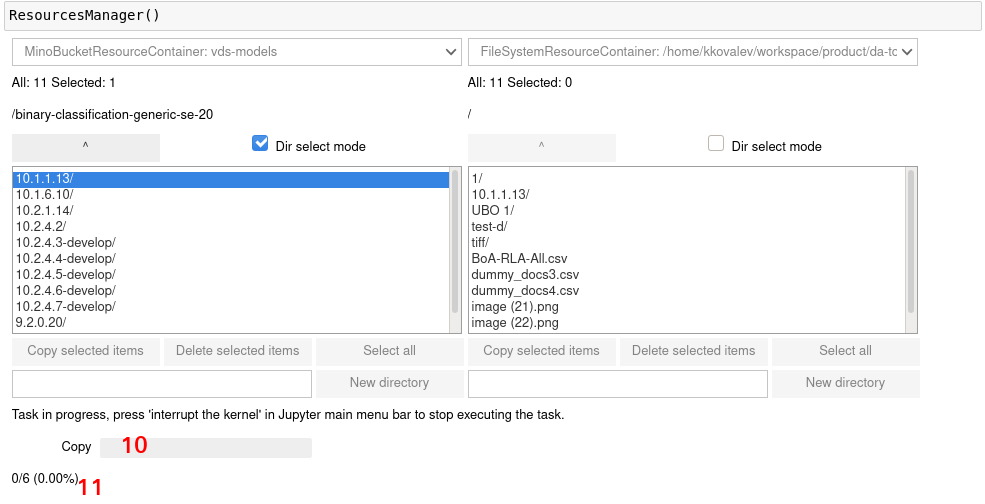
Progress bar.
Progress in percentage.