Import data management configurations via Asset Bundle
The article details how to import data management configurations as part of an Asset Bundle.
Import database data management configuration
In an Asset Bundle, the database data management configuration is located in the db-data-purge folder as shown below. For the complete Asset Bundle structure, refer to the guide.
├── db-data-purge
│   ├── config1.json
│   └── config1.sql
└── meta-info.json
A database data management configuration is a JSON file containing the following parameters. The required ones are marked with an asterisk (*):
name*: data management configuration name.description: any additional information to describe the configuration.cronExpression: cron expression for scheduled execution.active: iftrue, the data management configuration is enabled and ready to be started.customSQL: custom SQL script with cleanup logic. The parameter is applicable only for Data Store purging. It is mutually exclusive with thestoredProcedureNameparameter, meaning you either setcustomSQLorstoredProcedureNamewithparameters.Alternatively, you can save the custom SQL script in a separate file and specify the filename in the
customSQLfield in thefile://config1.sqlformat. For Data Stores, specify full table names with the schema name. For instance, if a Data Store name isdocument, the custom SQL should have it likeds.ds_document.storedProcedureName: name of the stored procedure. The parameter is mutually exclusive with thecustomSQLone, meaning you either setstoredProcedureNamewithparametersorcustomSQL.parameters: list of parameters for the stored procedure. Populate it only if the data management configuration is based on a stored procedure.
For Asset Bundle import instructions, refer to the following topics:
Important considerations
To import a database data management configuration successfully, pay attention to the following considerations:
If a data management configuration is based on a stored procedure, a Database Analyst should create the procedure in advance.
If a data management configuration with the same name already exists, it is overwritten with the new one from the imported Asset Bundle.
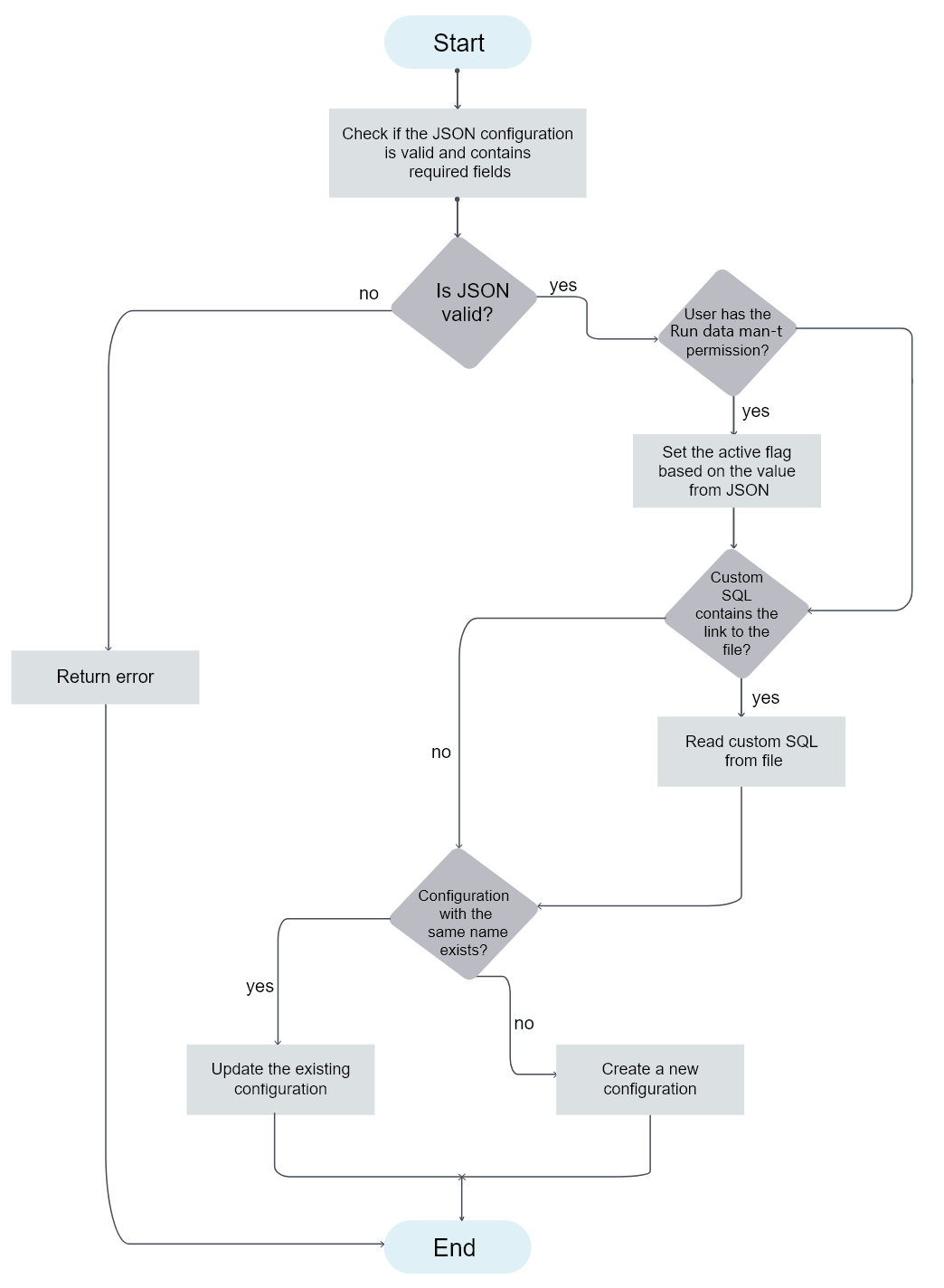
If the user who imports the Asset Bundle has the Run Data Management Configurations permission, the data management configuration is enabled or disabled as specified in the file imported with the bundle (see the
activeparameter in JSON). Otherwise, the imported data management configuration is disabled. For details about permissions, refer to the Manage Control Tower roles and permissions topic.
Import diagram
The following diagram illustrates the import of a database data management configuration:
Configuration file examples
Database data management configuration based on custom SQL with an included script:
{
  "name": "Test Data Purge SQL Inline",
  "description": "Should clear data store 'test_dp_import_ds2' using inlined script",
  "cronExpression": "* * */1 * * ? *",
  "active": true,
  "customSql": "delete from ds.ds_test_dp_import_ds2;"
}
Database data management configuration based on custom SQL with a script in a separate file:
{
  "name": "Test Data Purge SQL File",
  "description": "Should clear data store 'test_dp_import_ds1' using script from 'first_db.sql'",
  "cronExpression": "* * */1 * * ? *",
  "active": true,
  "customSql": "file://config1.sql"
}
Database data management configuration based on a stored procedure:
{
  "name": "Test Data Purge SQL File",
  "description": "Should clear data store 'test_dp_import_ds1' using script from 'first_db.sql'",
  "cronExpression": "* * */1 * * ? *",
  "active": true,
  "storedProcedureName": "dp#custom_purge_sp",
  "parameters": [{name: "i_session_duration_min", value: "60"}]
}
Import S3 data management configuration
In an Asset Bundle, the S3 data management configuration is located in the s3-data-purge folder as shown below. For the complete Asset Bundle structure, refer to the guide.
├── s3-data-purge
│   └── config1.json
└── meta-info.json
An S3 data management configuration is a JSON file containing the following parameters. The required ones are marked with an asterisk (*):
name*: data management configuration name.description: any additional information to describe the configuration.cronExpression: cron expression for scheduled execution.active: iftrue, the data management configuration is enabled and ready to be started.bucket*: S3 bucket to clean up.path*: path prefix for the cleaned S3 bucket.fileNamePattern*: Unix-like pattern to filter the files to clean up.recursive*: iftrue, the configuration cleans up sub-directories.maxFileAge*: parameter specifying that the configuration is to delete files older than its value.sessionDuration*: the maximum purging session duration.accessKeyAlias: S3 access key alias in Secrets Vault.secretKeyAlias: S3 secret key alias in Secrets Vault.
For Asset Bundle import instructions, refer to the following topics:
Important considerations
To import an S3 data management configuration successfully, pay attention to the following considerations:
If
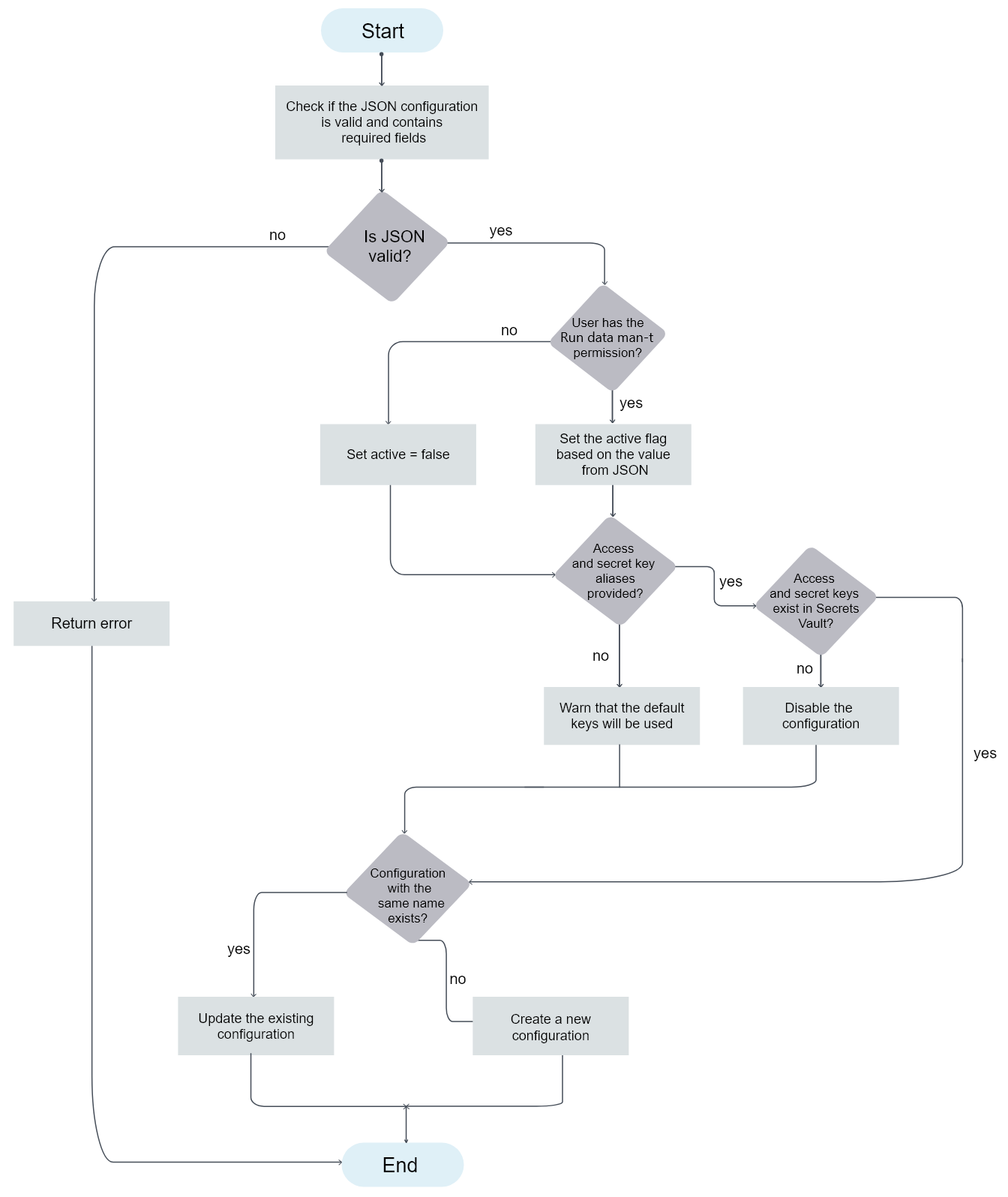
accessKeyAliasandsecretKeyAliasare not provided for S3, the default system values are used.If there is no entry for
accessKeyAliasorsecretKeyAliasin Secrets Vault, the data management configuration is disabled.If a data management configuration with the same name already exists, it is overwritten with the new one from the imported Asset Bundle.
If the user who imports the Asset Bundle has the Run Data Management Configurations permission, the imported configuration is enabled or disabled as specified in the file imported with the bundle (see the
activeparameter in JSON). Otherwise, the imported data management configuration is disabled. For details about permissions, refer to the Manage Control Tower roles and permissions topic.
Import diagram
The following diagram illustrates the import of an S3 data management configuration:
Configuration file example
The configuration file example is as follows:
{
  "name": "Test S3 Data Purge",
  "description": "should cleanup test bucket",
  "cronExpression": "* */1 * * * ? *",
  "active": true,
  "bucket": "test",
  "path": "/",
  "fileNamePattern": "*",
  "recursive": true,
  "maxFileAge": "PT1M",
  "sessionDuration": "PT10M",
  "accessKeyAlias": "myKey",
  "secretKeyAlias": "mySecret"
}
Import database data archive configuration
In an Asset Bundle, the database data archive management configuration is located in the db-data-archival folder as shown below. For the complete Asset Bundle structure, refer to the guide.
├──db-data-archival
   ├── archive_schema_migration
   ├── dp_schema_migration
   └── db-archival.json
where:
archive_schema_migrationis a folder with migrations for the archive schema. Those are XML files comprising migrations in the Liquibase format. The archive schema is a schema in the WorkFusion database used by the data management capability for storing archived data. In addition, the schema contains a procedure to purge the data from the archive tables.dp_schema_migrationis a folder with migrations for the dp schema. Those are XML files containing migrations in the Liquibase format. The dp schema is a schema in the WorkFusion database used by the data management capability to purge process data and push it into the archive tables.db-archival.jsonis a JSON file containing the parameters of the database data archive management configuration.
The db-archival.json has the following content and structure. The required parameters are marked with an asterisk (*):
name*: configuration name.description: any additional information to describe the configuration.cronExpression*: cron expression for scheduled execution.bucket*: the Ceph bucket to store archived data.storedProcedureName*: name of the stored procedure underlying the configuration.active: iftrue, the database data archive management configuration is enabled and ready to be started.parameters: list of parameters for the stored procedure.
For Asset Bundle import instructions, refer to the following topics:
Important considerations
To import a database data archive management configuration successfully, pay attention to the following considerations:
If a database data archive management configuration with the same name already exists, it is overwritten with the new one from the imported Asset Bundle.
If the user who imports the Asset Bundle has the Configure Data Archival and Restoration permission, the imported configuration is enabled or disabled as specified in the
db-archival.jsonfile imported with the bundle (see theactiveparameter). Otherwise, the imported database data archive management is skipped. For details about permissions, read Manage Control Tower roles and permissions.Bundle import does not fail when the archival schema is not present or the archival feature is disabled at installation.
Configuration file example
The configuration file example is as follows:
{
"name": "DB Archival Multiple Bundle",
"description": "DB Data Archival Bundle",
"cronExpression": "0 0 0 2 * ?",
"bucket": "data-archival",
"storedProcedureName": "dp#purge_archive_obsolete_runs_sp",
"active": true,
"parameters": [
        {
        "name": "i_session_duration_min",
        "value": "240"
        },
        {
        "name": "i_archive_period_days",
        "value": "90"
        },
        {
        "name": "i_batch_delay_ms",
        "value": "100"
        },
        {
        "name": "i_batch_size",
        "value": "5000"
        },
        {
        "name": "i_purge_unlinked_events",
        "value": ""
        },
        {
        "name": "rootRunUUID",
        "value": ""
        }
    ]
}
Import database data restoration configuration
In an Asset Bundle, the database data restoration management configuration is located in the db-data-restoration folder as shown below. For the complete Asset Bundle structure, refer to the guide.
├──db-data-restoration
   └── db-restoration.json
The db-restoration.json is a JSON file containing the parameters of the database data restoration management configuration. The required parameters are marked with an asterisk (*):
name*: configuration namedescription: any additional information to describe the configurationarchiveFile*: the path to the restored archive in Ceph
Important considerations
To import a database data restoration management configuration successfully, pay attention to the following considerations:
If a database data restoration management configuration with the same name already exists, it is overwritten with the new one from the imported Asset Bundle.
If the user has no Configure Data Archival and Restoration permission, the imported database data restoration configuration is skipped. For details about permissions, read Manage Control Tower roles and permissions.
Configuration file example
The configuration file example is as follows:
{
"name": "Restoration Bundle",
"description": "DB Data Restoration",
"timestamp": "2025-04-22 15:00",
"archiveFile": "data-archival/[dp#purge_archive_obsolete_runs_sp_2025_04_17_12_41_13_FROM_2025_04_08_20_17_42_TO_2025_04_08_21_11_16.zip]"
}
For troubleshooting tips, refer to the following support guides: