Deploy Asset Bundle with Maven
After creating an ODF 2 project from the Simple Archetype, deploy it to a Control Tower instance.
Publish Asset Bundle with Maven
A project created from the ODF 2 Archetype already includes bundle-maven-plugin. You can use the tool to automate packing Asset Bundles and building RESTful POST requests to deploy the Bundles to Control Tower.
There are four timeout parameters that can be configured for the underlying HTTP client. All parameters are set in milliseconds. The 0 value means no timeout. Otherwise, the value must be between 1 and Integer.MAX_VALUE:
readTimeoutsets the read timeout for new connections. The default value is0that imposes no timeout.writeTimeoutsets the write timeout for new connections. The default value is0that imposes no timeout.callTimeoutsets the timeout for complete calls. The call timeout spans the entire call: resolving DNS, connecting, writing the request body, server processing, and reading the response body. The default value is0that imposes no timeout.connectTimeoutsets the connection timeout for new connections. The connect timeout is applied when connecting a TCP socket to the target host. The default value is60seconds.importTimeoutsets the timeout for importing Asset Bundles. The connect timeout is applied when posting an Asset Bundle zip to Control Tower. The default value is 10 minutes.
The Maven plugin is preconfigured in the pom.xml file of the package module as shown below:
<plugin>
    <groupId>com.workfusion.odf</groupId>
    <artifactId>bundle-maven-plugin</artifactId>
    <configuration>
        <server>
            <id>${workfusion.server.id}</id>
            <url>${workfusion.environment.url}</url>
            <readTimeout>10000</readTimeout>
            <writeTimeout>10000</writeTimeout>
            <callTimeout>60000</callTimeout>
            <connectTimeout>20000</connectTimeout>
            <importTimeout>20000</importTimeout>
        </server>
        <metaInfoFile>src/main/resources/meta-info.json</metaInfoFile>
        <bundle>target/${project.build.finalName}.zip</bundle>
    </configuration>
</plugin>
Refer to Maven plugins for more details on bundle-maven-plugin.
Configure access to Control Tower
Before publishing Asset Bundles with the plugin, you need to configure Control Tower settings. For that, in your project generated with the ODF 2 Archetype, perform the following actions:
Specify the Control Tower URL to publish Asset Bundles. For that, modify the project's root
pom.xml:<profiles>
<profile>
<id>local</id>
<activation>
<activeByDefault>true</activeByDefault>
</activation>
<properties>
<workfusion.server.id>control-tower</workfusion.server.id>
<workfusion.environment.url>http://localhost:15280</workfusion.environment.url>
</properties>
</profile>
<profile>
<id>remote</id>
<activation>
<activeByDefault>false</activeByDefault>
</activation>
<properties>
<workfusion.server.id>remote-control-tower</workfusion.server.id>
<workfusion.environment.url>https://ct.instance.workfusion.com</workfusion.environment.url>
</properties>
</profile>
</profiles>You can also configure the URL when you start a project from an archetype.
noteThere are two properties named
workfusion.environment.urlin the rootpom.xml:localpoints to the Control Tower instance from the Work.AI Developer installationremoteis for Control Tower on the remote server
Specify the Control Tower user credentials. Modify the
USER_HOME/.m2/settings.xmlfile as shown below. The role set up for the user must have the Export/Import and Advanced Package Import permissions in Control Tower. For details, refer to the Role management section.<!-- Control Tower user credentials -->
<server>
<id>remote-control-tower</id>
<username>username_value</username>
<password>password_value</password>
</server>noteThe
idvalue insettings.xmlmust be the same as theidvalue of the profile configuration in the rootpom.xml.
Deploy Asset Bundle to local Control Tower
bundle-maven-plugin features a Maven goal to publish an Asset Bundle to Control Tower.
To deploy an Asset Bundle to a local Control Tower, follow the instructions below:
- Open the Work.AI Developer's Launcher and start the Control Tower group. Wait for the indicator to light up. This is essential to ensure Control Tower is launched since the service accepting and processing imported Asset Bundles starts with Control Tower.
- Run
mvn clean packageto build the project. The command creates a Bundle packed as a zip archive in the[ARTIFACT]-package/targetdirectory. The build should complete with the[INFO] BUILD SUCCESSmessage. - Go to the [ARTIFACT]-package module folder and run
mvn bundle:importfrom it. When the operation is completed, there is the[INFO] BUILD SUCCESSmessage.
Executing the mvn bundle:import command for the main pom.xml file in the root directory leads to the following error code: "No plugin found for prefix 'bundle' in the current project and the plugin groups".
Deploy Asset Bundle to remote Control Tower
To deploy an Asset Bundle to a remote Control Tower, follow the instructions below:
Run
mvn clean packageto build the project. The command creates a Bundle packed as a zip archive in the[ARTIFACT]-package/targetdirectory. The build should complete with the[INFO] BUILD SUCCESSmessage.Go to the [ARTIFACT]-package module folder and run
mvn bundle:import -Premotefrom it. When the operation is completed, there is the[INFO] BUILD SUCCESSmessage.noteTo deploy to a remote Control Tower, add
-Premoteto your command. The parameter tells Maven to activate the remote profile. By default, the local profile is used.Open Control Tower and check your Business Processes. When deploying a project created from the Simple Archetype, you should see an example Business Process named [uc-name v1.0] Example BP.
Troubleshooting
Typical issues encountered when importing an Asset Bundle to a Control Tower instance are as follows:
The user account on which the import is happening lacks Import/Export and Advanced Package Import permissions.
The authentication to the Work.AI instance is SSO-based, and deployment happens not on behalf of a specially created API user. For more details, refer to Use REST API with SSO.
No AI Agent code is found in the package metadata. Typically, this happens when a project was started in 10.1.x or older platform versions. Both AI Agent code and version, or none of them, should be presented in the
pom.xmlfile in the root directory of your project.

If you see the error related to the missed code or version, open the pom.xml file in the root directory of your project and check if both <usecase.code> and <usecase.version> tags are present. If one of them is missed, add the missed tag and rebuild your project. If the previous solution didn't help, add the missed value in the meta-info.json file inside the AI Agent bundle.
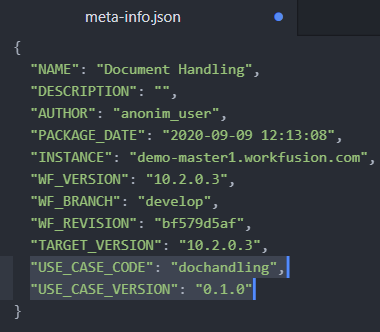
If both code and version are missed, the bundle is imported, but it does not appear on the AI Agents page.
Check bundle import details
If the import runs longer than the timeout for a Maven deploy job or import scripts, check the bundle details manually. If you lost your import UUID, look for it in the database.
If you know the import UUID and can execute the rest API, check the bundle status via {{host_url}}/workfusion/api/v1/bundle-import/{uuid}. This request requires an X-CSRF-TOKEN to authorize.
If you're unable to execute the rest API call, but you can check the database, look for the bundle import details in the database. The main table is bundle_import, where you can find an ID by bundle_name and created_date. Then you can check for imported components within this bundle in the bundle_asset_import_log table by bundle_import_id. Check individual messages in the bundle_asset_import_log_message table using asset log IDs.
Check bundle import logs in Kibana
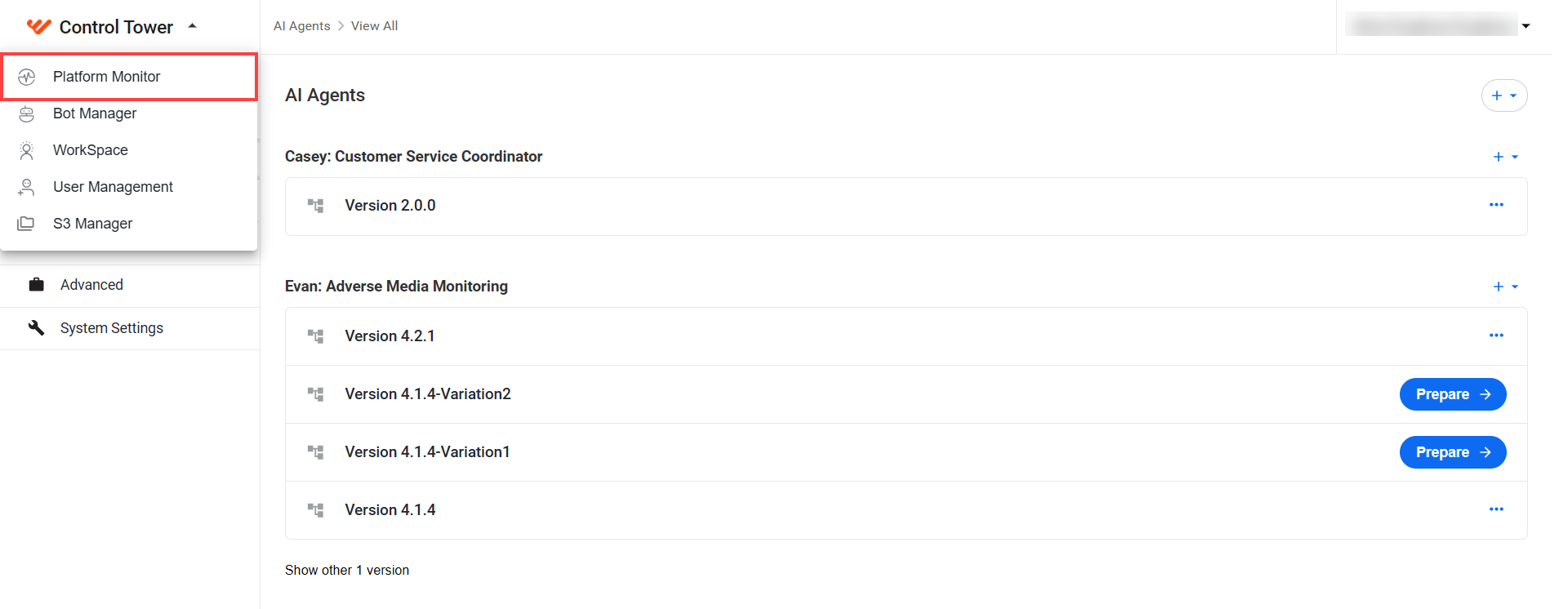
To check import logs, go to Control Tower > Platform Monitor.
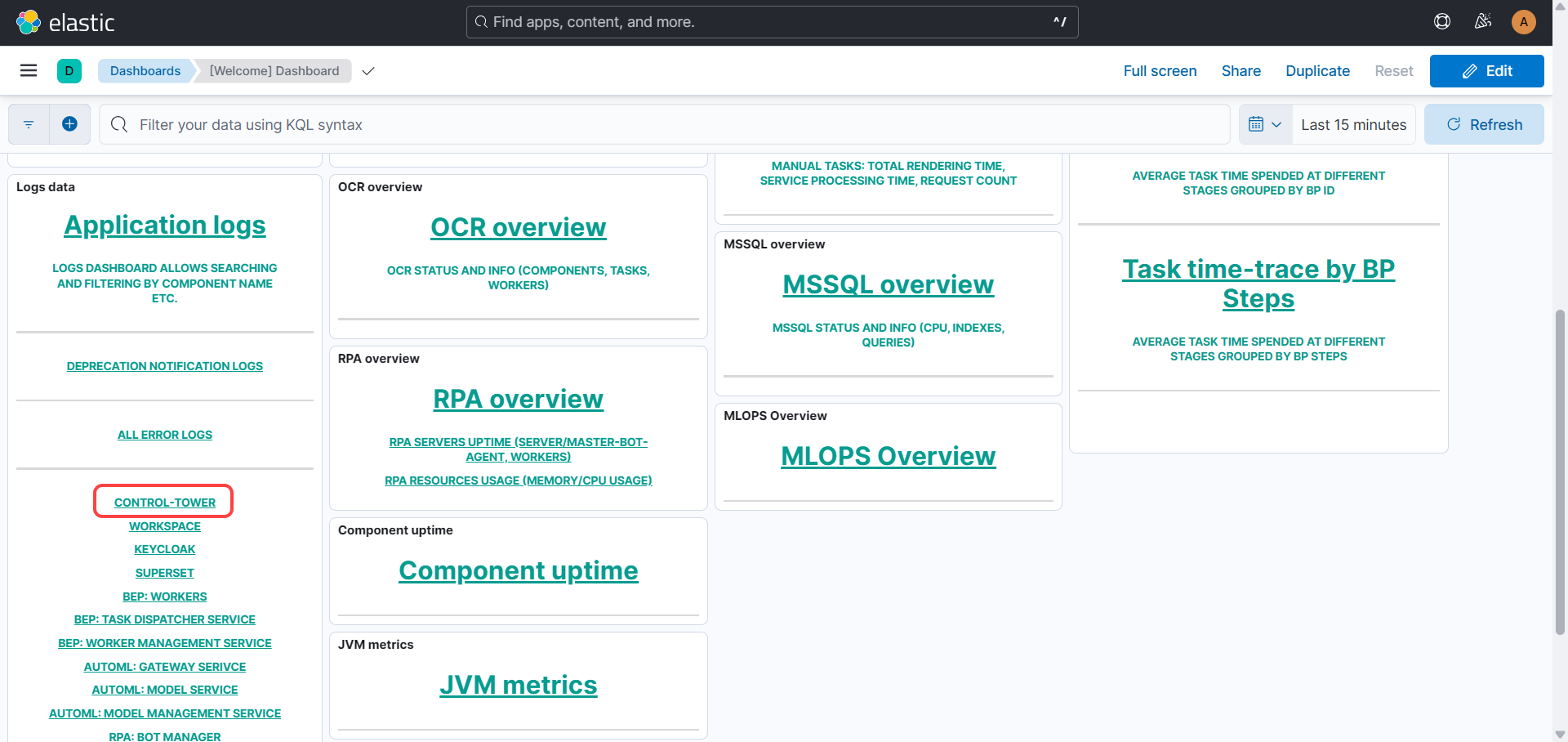
Bundle import threads have the following naming pattern: bundle-import-[${COMPONENT_NAME}]-${BUNDLE_UUID}, where:
${COMPONENT_NAME}is a name of a specific component from the bundle, for example,MIGRATION_DATA_STOREorBUSINESS_PROCESS.${BUNDLE_UUID}is a UUID of a concrete bundle import. Seebundle-import-[MIGRATION_DATA_STORE]-eafd2aa7-9984-4021-a8fa-8f29be50f365as an example.
To look for all bundle import messages, use the following search:
thread_name : "bundle-import-["
To look for messages of all components within a specific bundle import, use the following search:
thread_name : "bundle-import-[" and thread_name :"${BUNDLE_UUID}"
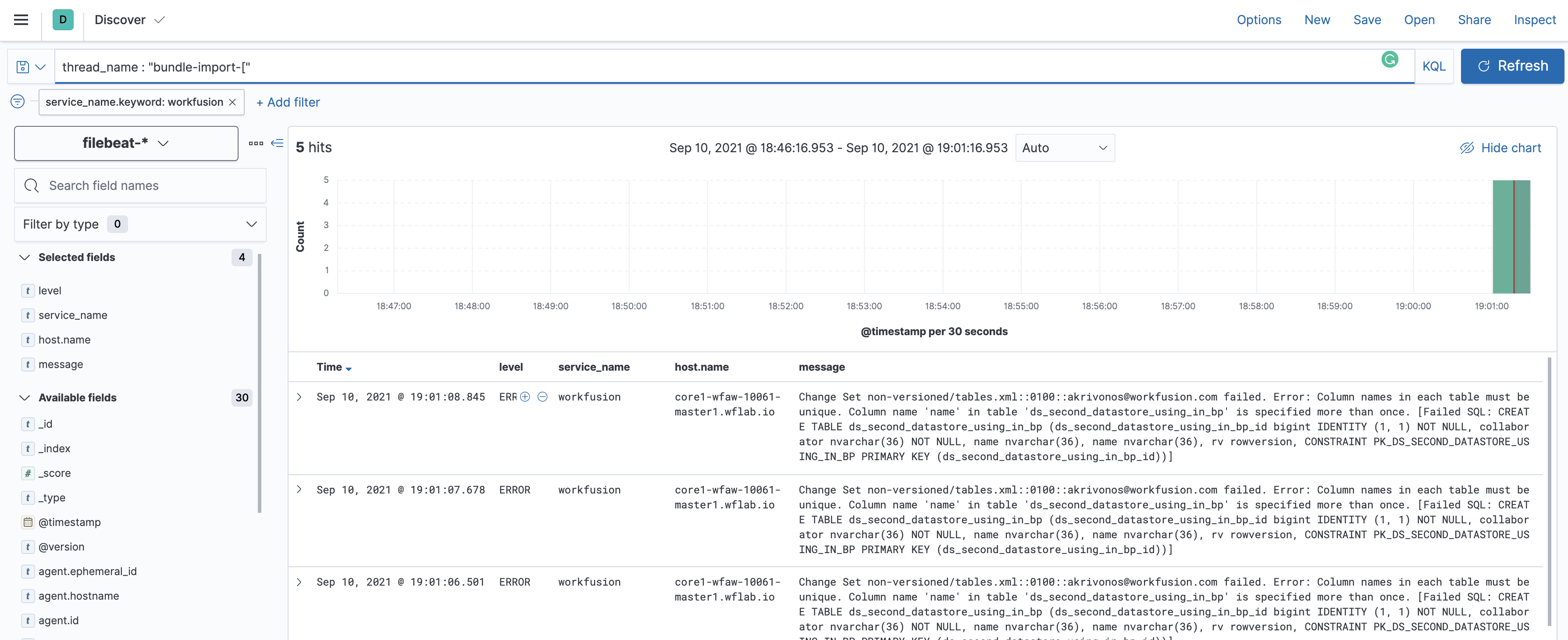
To change the log level to see not only error messages, refer to Change component's log level.
Kibana doesn't show WorkFusion logs
On dev instances going to sleep at night or on weekends, it is possible to freeze some indexes in Kibana for you not to observe logs for these components. To unfreeze, do as follows:
Go to Kibana > Dev Tools.
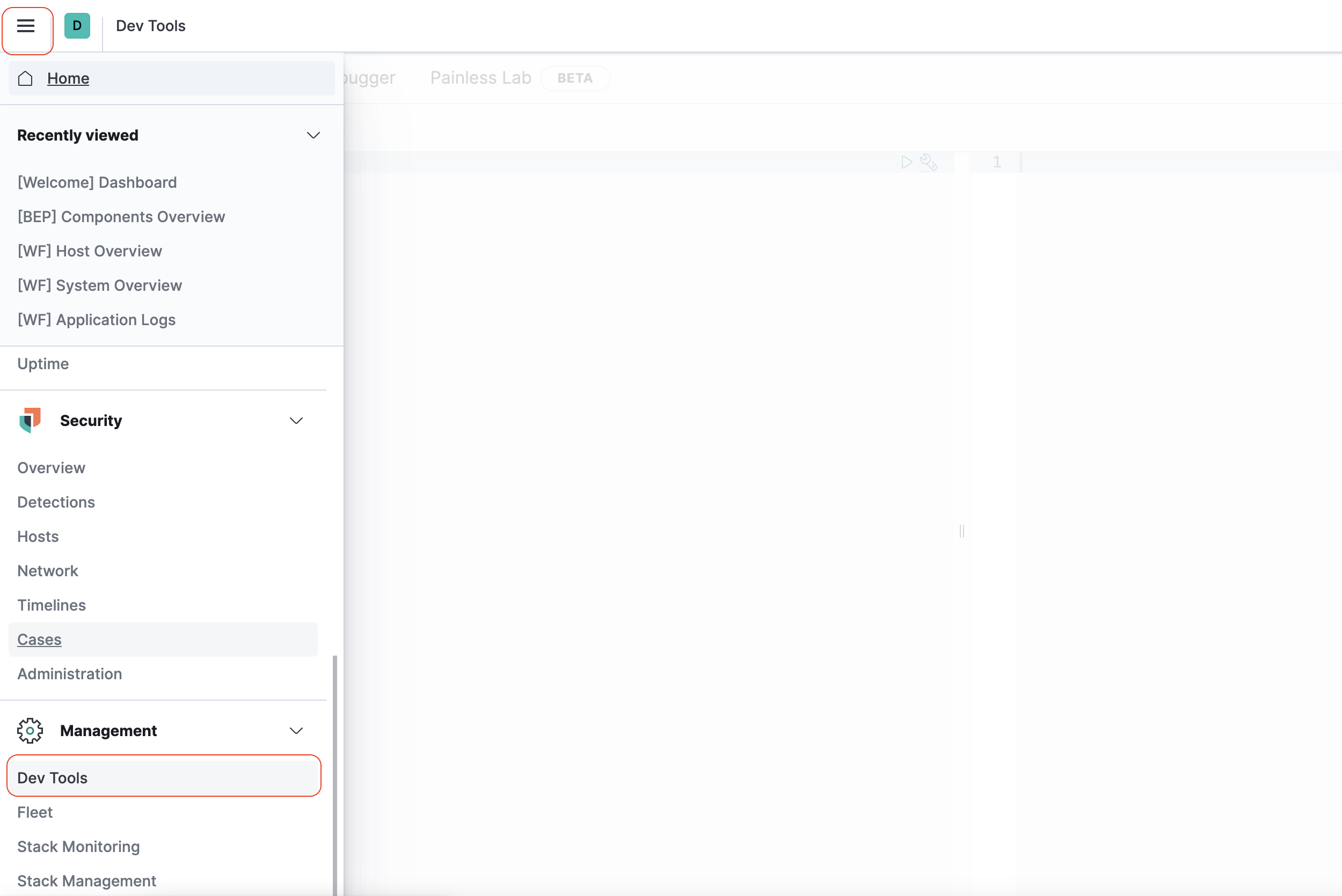
Put the following query in the Dev Tools console and execute the
POST */_unfreezecommand: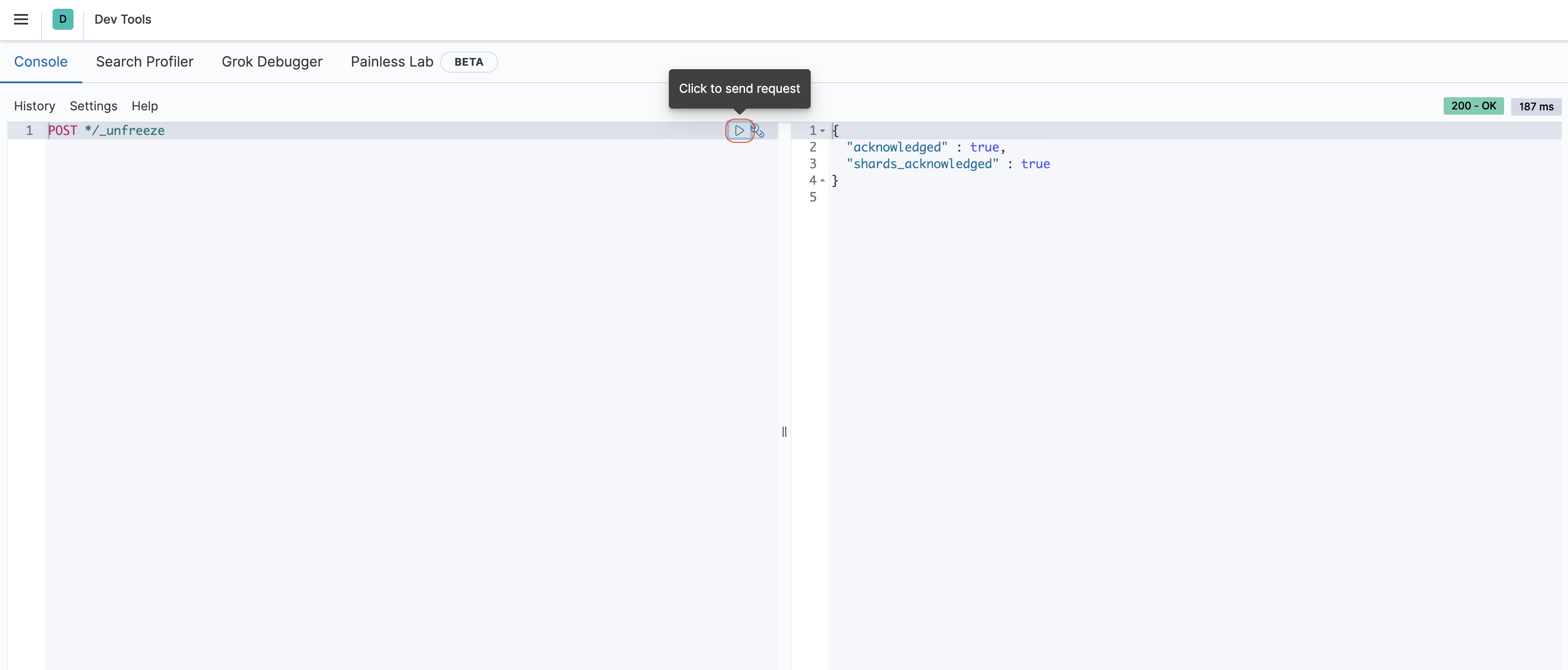
Import is failed with a message like: Problems during Liquibase migration apply occurred
The exception is Could not acquire change log lock. Currently locked by autotest1 since 9/9/21 4:41 PM. The cause is the Liquibase lock that is not released within the configured timeout.
If you use a Maven job for import, you may not see this error since the timeout is greater than the timeout for the Maven import goal. To see this message, check logs or import messages in the database.
The reason for the error is as follows. Liquibase allows only sequential applying of migrations, so it creates a lock in the DATABASECHANGELOGLOCK table. Any migrations started after the processing migration should wait for the lock to be removed.
If the Liquibase import process didn't end gracefully, for example, the process is killed with the kill -9 <PID> command, the lock will never be removed. Therefore, all further imports fail with this error.
It's actual for any Liquibase migrations, Data Store migrations, and dashboard migrations.
To fix the issue, manually remove the lock record in the DATABASECHANGELOGLOCK table. For Data Store migrations, check the ds.DATABASECHANGELOGLOCK table, and for dashboard migrations—the dm.DATABASECHANGELOGLOCK table.
Error detected in Liquibase migration files
The possible reasons are as follows:
- The file structures are invalid.
- The database already exists but does not match the imported definition checksum.
In this case, drop current database objects related to the AI Agent with the mvn bundle:drop-data-stores command or rewrite the migrations to differ from the current database state. To keep an older database structure with data, which is typical for the production environment, consider upgrading the AI Agent version. For details, refer to the Deploy Asset Bundle guide.
To use the mvn bundle:drop-data-stores command, you should have the Erase Use Case Datastores permission disabled for every role by default. To enable the permission on the development environment, go to Control Tower > System Settings > Role Management and turn it on for your role.
The Maven goal should be used for development purposes only, so enable it for the production environment. The recommended approach for the production environment is to raise the AI Agent version for every candidate for the production deployment. This helps avoid collisions with Data Stores and other assets in your project.