Import Asset Bundle via Control Tower UI
With the Asset Bundle import feature, everything required for a Business Process (BP) delivery is now conveniently wrapped in a self-sufficient package, which can be ported to a target environment in few simple steps. The import mechanism supports large files and is less error-prone than traditional methods. Successful import is asynchronous—meaning fast—and verified by a checksum. This accelerates BP delivery, decreases the total cost of development, and eventually contributes to continuous integration.
For development teams, the recommendation is to follow publish with the Maven approach.
Check before import
- Prepare an Asset Bundle for your AI Agent. It can be provided to you by WorkFusion or created in-house. If you don't have an Asset Bundle, you can create one manually or using Maven and ODF 2.
- Be careful when including Global Variables into the Asset Bundle
datastoredirectory. Global Variables typically contain environment-specific data. Doing so, you will re-write Global Variables for the entirety of Business Processes (BPs) on a target instance. - The maximum allowed Asset Bundle size is 3 GB. If an Asset Bundle is larger, split it into several bundles and import them one by one.
- In case an asset from an imported Asset Bundle already exists on a target environment with the same key attribute (for example, name), the default SKIP import strategy is applied. The imported asset is skipped during import, and the target environment continues to use the already existing asset.
- In case an asset from an imported Asset Bundle does not exist on a target environment with the same key attribute (for example, name), the target environment will use the imported asset as defined in the imported Asset Bundle.
Import Asset Bundle with SSO enabled
Whether you are using SSO or not, it determines which username and password is utilized for import. When importing an Asset Bundle with SSO enabled, you cannot use your SSO ID and password. The recommended approach is as follows:
Disable SSO. In the console, run the following command:
wf.sso.saml.enable=falseRestart Control Tower:
wfmanager restart workfusionLog in to WorkFusion with the pre-SSO ID and password.
Create a special REST API user and enable the Advanced Package Import and Import/Export permissions.
Enable SSO by running:
wf.sso.saml.enable=trueRestart Control Tower by running:
wfmanager restart workfusion
Now, SSO is enabled, and you can use that REST API user ID/password for REST API authentication.
Deploy Asset Bundle
Make sure you have the necessary permissions in Control Tower: Advanced Package Import and Import/Export. If a Business Process with the same name exists on the target instance, stop the BP to update it. Then, complete the following steps:
In Control Tower, select AI Agents. The list of available AI Agents and installed Asset Bundles appears on the right.
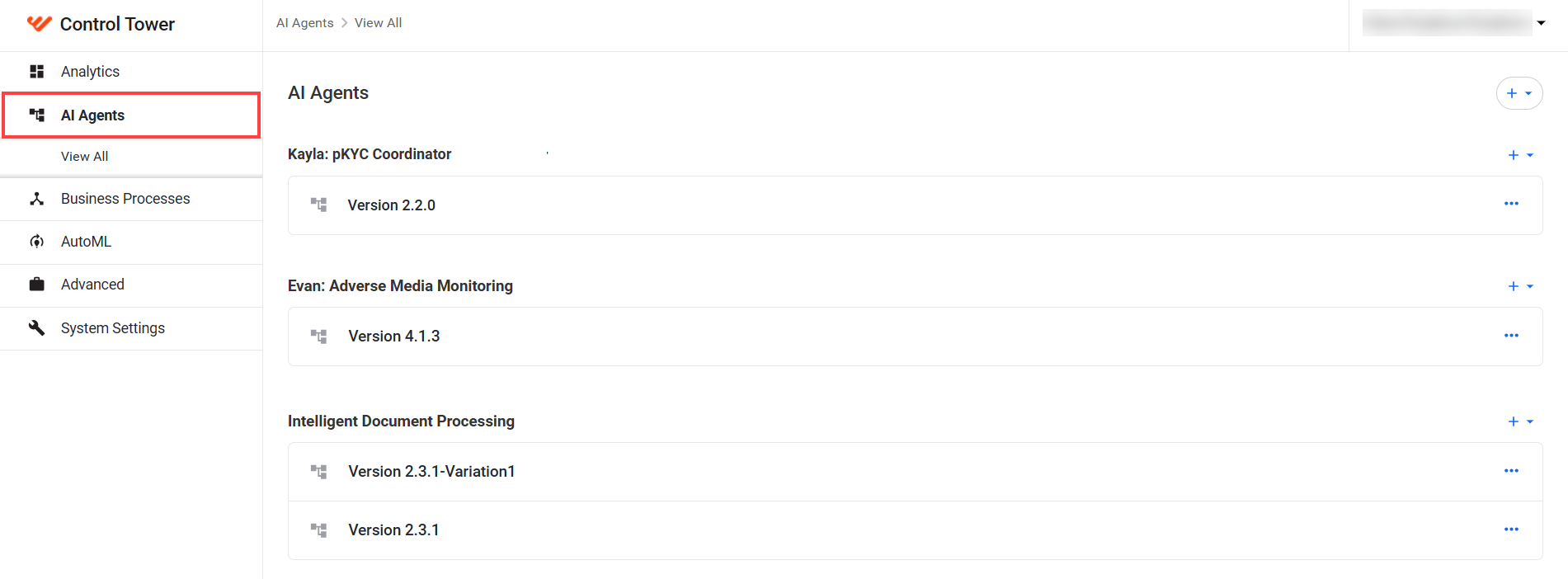
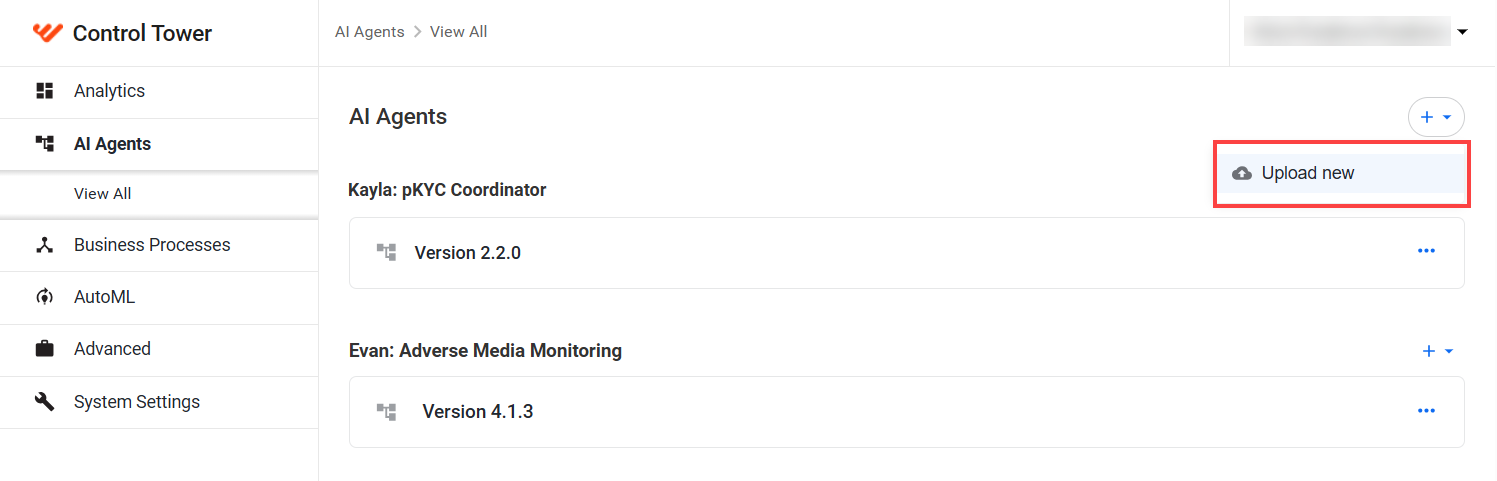
Click the plus (+) icon in the top right corner, then Upload new.
In the Add new AI Agent popup, click Add and select an archive to upload. The installation starts automatically.

Once installed, the imported Asset Bundle appears as an AI Agent in the corresponding group.
If the installation fails, download the import log by clicking View import log file and open it to find out the problem causing the failure.
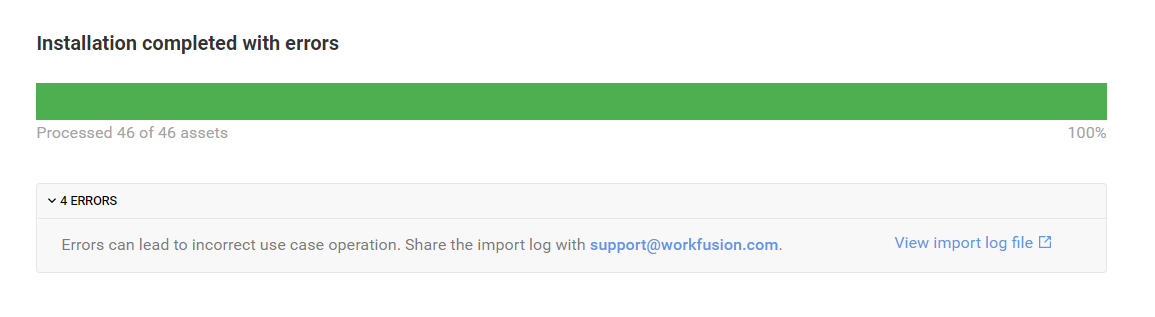
If you prefer to import an Asset Bundle using REST API endpoints, refer to Asset Bundle Migration API.
Check after import
- Check the BP and its structure, workflow, and components.
- If your BP uses Global Variables and these Global Variables are not present in the Asset Bundle, configure them manually on the target environment.
Known issues
In case a datastore file contains BOM, you cannot import the Data Store as part of an Asset Bundle. The workaround is to drop a table in the database, for example:
drop table ds_country_risk_may_2018 cascade;