Grid
The Grid Answer Type allows workers to enter answers in a grid with a defined column structure and a dynamic number of rows. This feature is useful when the exact number of answers is unknown.
Task: "Find all events with their parameters (event name, date, time, place, cost) from news articles". Each event corresponds to a new row; columns are named as event parameters: event name, date, time, place, cost.
The Grid Answer can be substituted with another dynamic Answer Type—Correlated Fields.
How to use
Click a cell in a corresponding column and enter the answer.
- If you need to pick a date from the calendar, double-click the cell.
- If the row you click is the last one, a new row is appended automatically.
- When you hover over a cell, a tooltip with the answer description is displayed.
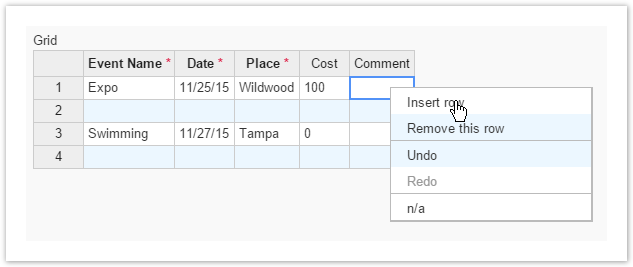
Right-clicking a cell, opens the Context Menu where you can choose one of the following options:
- Insert row
- Remove row
- Undo
- Redo
- n/a, if you need to mark a question as Not available
Excel functionality:
- Fill cells (fill data): select an area, drag the bottom right corner down. As a result, the selected pattern is copied.
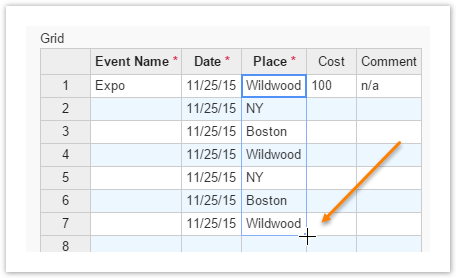
- Copy (CTRL + C), cut (CTRL + X), paste (CTRL + V).
- Table navigation using arrow keys, as well as the Home, End, Page Up, Page Down keys.
- Use SHIFT + click (SHIFT + arrow keys) for selection.
How to set up
To set up the Answer Type, follow the instruction below:
- Add a new Answer with the Grid Answer Type.
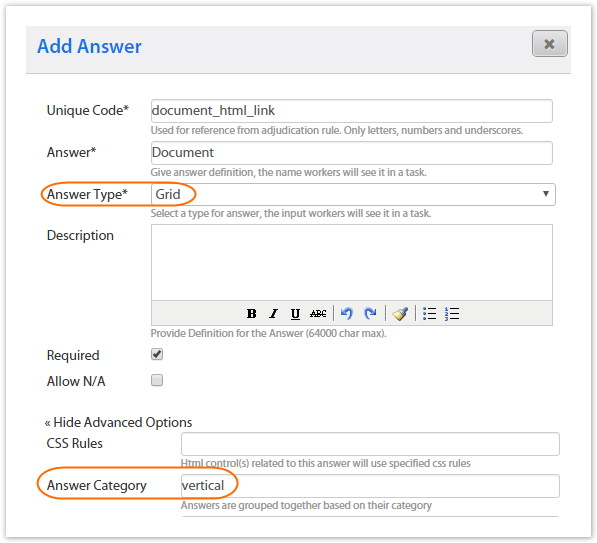
(Optional) You can rotate grid the to display columns as rows by entering vertical in the Answer Category field.
Add sub-answers to the Answer. See the list of supported Answer Types below. These sub-answers will be displayed as grid column headers. The sub-answer descriptions will be shown as a tooltip as you hover over a cell.
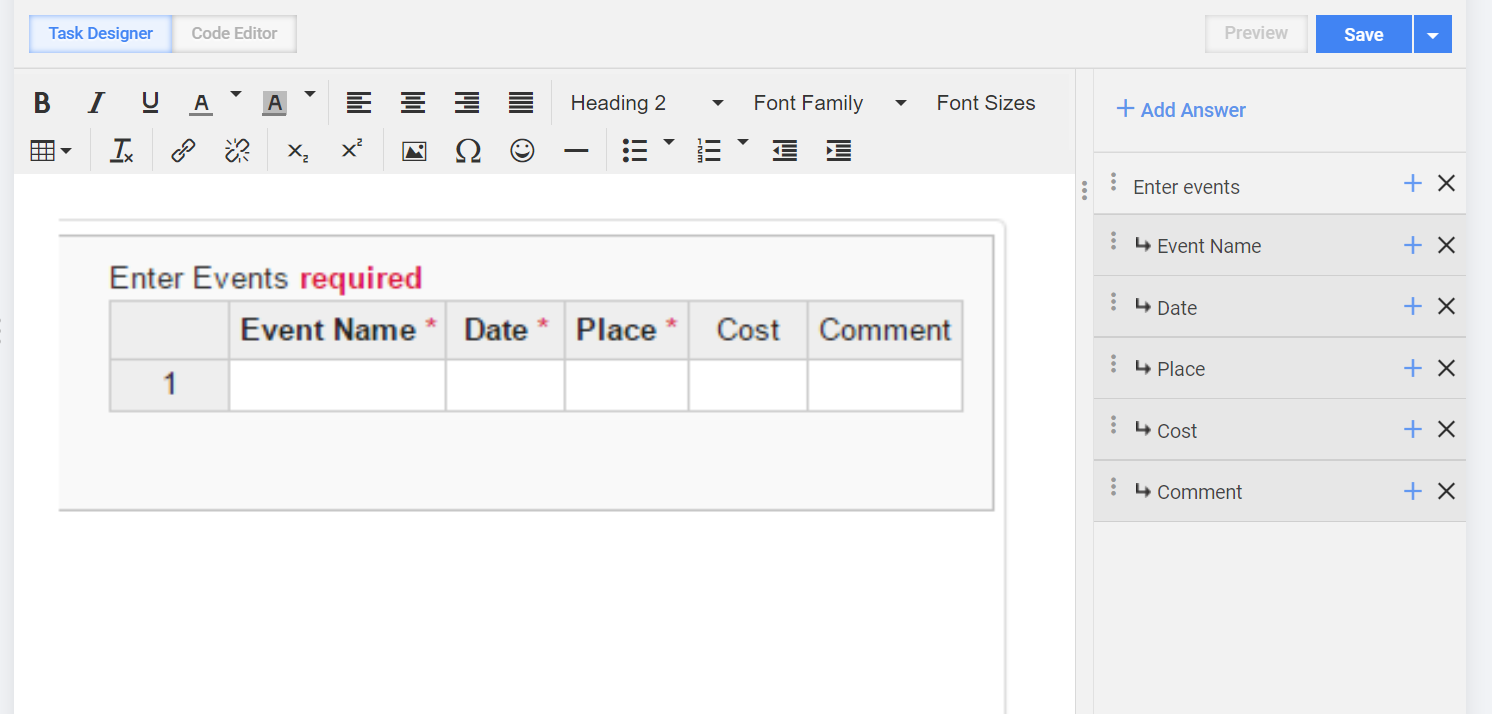
The following sub-answers are supported for the Grid Answer Type:
- FREE_TEXT
- MASKED_TEXT
- NUMBER
- SELECT_ONE
- SELECT_MULTI (supported for the Answer Category = Vertical only)
- DATE (normalized to mm/dd/yyyy)
- TIME (normalized to hh:mmtt)
- DAYSOFWEEK (normalized to the two-letter format)
Output format
The Grid Answer Type provides an output value in the JSON format and records it in one column:
Grid output example
{
  "grid":[
      {
        "event_name":"Expo",
        "date":"11/25/15",
        "place":"Wildwood",
        "cost":"100",
        "comment":""
      },
      {
        "event_name":"Swimming",
        "date":"11/27/15",
        "place":"Tampa",
        "cost":"0",
        "comment":""
      }
  ]
}
Limitations and notes
Pay attention to the following important limitations and considerations that apply to the Grid Answer Type:
- One Grid Answer Type is possible per Manual Task.
- All empty cells are normalized to n/a on submission. Sub-answers are not submitted.
- If a Grid is restored from a default value, all edited cells are marked with a red triangle in the top right corner.