Use migration templates
For Data Model management, the ODF 2 framework provides an integrated migration mechanism based on Liquibase. Each time an AI Agent bundle is deployed to the Work.AI platform environment, Asset Bundle Import API launches the Liquibase migration mechanism to apply the changes that are new to the environment.
Starting from Work.AI v10.2.8, the ODF 2 framework allows you to manage Liquibase migrations for the Standard Data Model automatically using migration templates.
Overview
The ODF 2 framework, and its core module in particular, are equipped with a range of Data Model objects, including Transaction, MonitorStateEntity, ConfigEntity and more.
These objects play a crucial role in facilitating out-of-the-box functionalities, enabling users to focus on business logic.
For each Data Model object, like Transaction, it's imperative to incorporate a corresponding Liquibase migration changeset within the -package module of an AI Agent project.
Given the potential evolution of these Data Model objects over time, it becomes essential to ensure that any modifications to the objects are addressed within the Liquibase migration scripts as well.
This becomes especially crucial during the AI Agent migration to a more recent version of the ODF 2 framework.
Prior to the 10.2.8 framework version, users had to manage such migration changes manually, resulting in various issues:
- The manual process was prone to errors that were rather frequent and difficult to fix.
- To navigate the process successfully, users needed to understand the internal Data Model structure and keep in mind the changes between different framework versions.
To address these issues, the ODF 2 framework introduces migration templates. The new feature enables the following:
- Each component of the framework is bundled with its individual migration template.
- Templates include all essential details regarding the Data Model structure and the implemented chronological changes.
- Within a migration template, all necessary changesets are provided for related Data model objects. Any changes accumulate over time, ensuring that existing changesets remain unaltered.
Let's take the odf2-core module as an example. The model includes the Transaction data object. The migration template packaged alongside the odf2-core artifact provides necessary changesets to create a corresponding table for the Transaction object.
As any changes are made to the Transaction data object over time, the migration template is adjusted accordingly. The synchronization enables the Data Model consistency between Java objects and their associated Liquibase scripts.
When a component containing a migration template is incorporated into an AI Agent project, the template is automatically employed during the project's build process. The migration template is applied to the project's Liquibase migrations inside the -package module.
Migration templates are identified within the project's classpath and integrated into the actual migration script by the Bundle Maven plugin. The underlying process unfolds as described below:
- During an AI Agent project build, the
bundle-maven-pluginscans the project's classpath for migration templates. - Upon detection, the identified file is copied into the project and registered within the
_changelist.xmlfile. - The template is transformed into a Liquibase script by applying the AI Agent code and version.
- Changes are propagated both within the source code and the target artifact. This allows users to validate and commit the applied modifications to version control systems.
- Upon transitioning to a new version of a component, newly identified changesets are appended to the relevant file.
As a result, users can be sure that any modifications made to the Standard Data Model are seamlessly applied to the AI Agent project's Liquibase migrations without manual intervention.
Sample project
Let's create a project based on the ODF 2 Simple Archetype, utilizing version 10.2.8 or higher. Once the project is established and successfully built, the migration structure should look as follows:
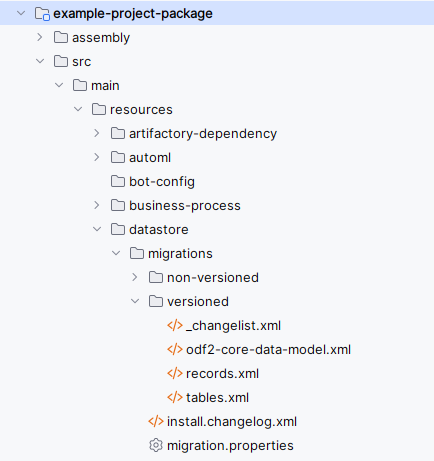
In this structure, you'll notice the odf2-core-data-model.xml file responsible for odf2-core module's Data Model. Inside the file, you can find all the changesets relevant to the Java entities coming from the odf2-core module.
Note that the file is supposed to be updated exclusively by bundle-maven-plugin. Manual changes to the file can cause instability and unpredictable behavior. The framework updates the file automatically whenever changes are made to the odf2-core module.
Now, let's explore the _changelist.xml file:
<?xml version="1.1" encoding="UTF-8" standalone="no"?>
<databaseChangeLog xmlns="http://www.liquibase.org/xml/ns/dbchangelog"
                   xmlns:xsi="http://www.w3.org/2001/XMLSchema-instance"
                   xsi:schemaLocation="http://www.liquibase.org/xml/ns/dbchangelog http://www.liquibase.org/xml/ns/dbchangelog/dbchangelog-3.6.xsd">

    <include file="odf2-core-data-model.xml" relativeToChangelogFile="true"/>
    <include file="tables.xml" relativeToChangelogFile="true"/>
    <include file="records.xml" relativeToChangelogFile="true"/>

</databaseChangeLog>
This file showcases how the odf2-core-data-model.xml file takes precedence as the first entry. The framework manages the order of inclusions to ensure that the project's scripts always come after the Standard Data Model scripts.
The tables.xml and records.xml files are empty. They pertain solely to the AI Agent project migrations.
As the next step, let's add the odf2-multiprocess module to the project and observe the changes. To achieve this, modify the pom.xml file of the BCB's module:
<dependencies>
    <dependency>
        <groupId>com.workfusion.odf2</groupId>
        <artifactId>odf2-multiprocess</artifactId>
    </dependency>
</dependencies>
Once the modification is made and the project is built again, the migration structure is updated as follows:
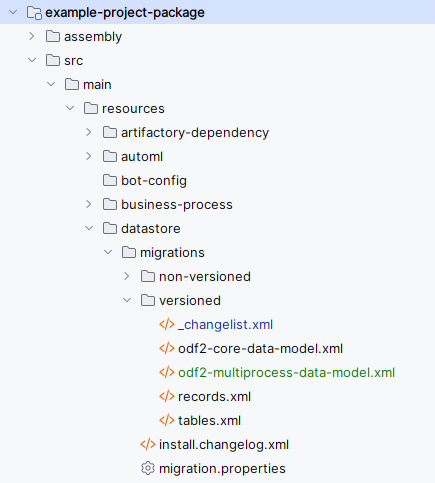
In this structure, you can see the odf2-multiprocess-data-model.xml file added. This file manages Data Model entities from the odf2-multiprocess module.
Let's revisit the _changelist.xml file:
<?xml version="1.1" encoding="UTF-8" standalone="no"?>
<databaseChangeLog xmlns="http://www.liquibase.org/xml/ns/dbchangelog"
                   xmlns:xsi="http://www.w3.org/2001/XMLSchema-instance"
                   xsi:schemaLocation="http://www.liquibase.org/xml/ns/dbchangelog http://www.liquibase.org/xml/ns/dbchangelog/dbchangelog-3.6.xsd">

    <include file="odf2-core-data-model.xml" relativeToChangelogFile="true"/>
    <include file="odf2-multiprocess-data-model.xml" relativeToChangelogFile="true"/>
    <include file="tables.xml" relativeToChangelogFile="true"/>
    <include file="records.xml" relativeToChangelogFile="true"/>

</databaseChangeLog>
Here, you can notice the odf2-multiprocess-data-model.xml file is registered and positioned immediately after the odf2-core-data-model.xml file. This ordering is crucial because the odf2-multiprocess Data Model builds upon the foundation of the odf2-core Data Model.
Adjusting automatic execution
When it comes to finding and applying new migration templates for an AI Agent project, the process is managed by bundle-maven-plugin. For projects built using the ODF 2 archetype, this happens automatically during the prepare-package phase of the Maven build.
Let's explore the default bundle-maven-plugin configuration:
<plugin>
    <groupId>com.workfusion.odf</groupId>
    <artifactId>bundle-maven-plugin</artifactId>
    <configuration>
        <server>
            <id>${workfusion.server.id}</id>
            <url>${workfusion.environment.url}</url>
        </server>
        <metaInfoFile>src/main/resources/meta-info.json</metaInfoFile>
        <bundle>target/${project.build.finalName}.zip</bundle>
    </configuration>
    <executions>
        <execution>
            <id>apply-migrations</id>
            <phase>prepare-package</phase>
            <goals>
                <goal>apply-migration-templates</goal>
            </goals>
        </execution>
    </executions>
</plugin>
This configuration sets the apply-migration-templates goal to run during the prepare-package Maven phase. Therefore, whenever you build an AI Agent project, bundle-maven-plugin checks for new templates or changes in existing ones.
If, for some reason, you find this automatic process inconvenient for your project and want to manage migration templates manually, remove the execution section containing the apply-migrations ID and turn the configuration into this:
<plugin>
    <groupId>com.workfusion.odf</groupId>
    <artifactId>bundle-maven-plugin</artifactId>
    <configuration>
        <server>
            <id>${workfusion.server.id}</id>
            <url>${workfusion.environment.url}</url>
        </server>
        <metaInfoFile>src/main/resources/meta-info.json</metaInfoFile>
        <bundle>target/${project.build.finalName}.zip</bundle>
    </configuration>
</plugin>
A more effective solution is to create a separate profile for the apply-migration-templates goal. This allows you to run the goal only when needed:
<profiles>
    <profile>
        <id>migration-templates</id>
        <build>
            <plugins>
                <plugin>
                    <groupId>com.workfusion.odf</groupId>
                    <artifactId>bundle-maven-plugin</artifactId>
                    <executions>
                        <execution>
                            <id>apply-migrations</id>
                            <phase>prepare-package</phase>
                            <goals>
                                <goal>apply-migration-templates</goal>
                            </goals>
                        </execution>
                    </executions>
                </plugin>
            </plugins>
        </build>
    </profile>
</profiles>
For the migration-templates profile shown above, the build command is as follows:
mvn clean package -P migration-templates
Adapting existing project to migration templates
If your AI Agent project was created before the 10.2.8 version of the ODF 2 framework and you want to adopt the new migration templates approach, here's what you need to do:
- Extract the migrations associated with existing Standard Data Model entities (
Transaction,MonitorStateEntity,ConfigEntity, and so on) to a dedicated file. - Enlist the file as the first entry within
_changelist.xml. - Configure the file’s name in the bundle-maven-plugin settings to ensure appropriate ordering of migrations.
- The
apply-migration-templatesgoal is incorporated into thebundle-maven-pluginconfiguration.
As an example, let's take an AI Agent project utilizing the Transaction object where Liquibase migrations contain changesets related to the Transaction table.
Begin by segregating these changesets into a distinct file, for instance, naming it standard-data-model.xml:
<?xml version="1.1" encoding="UTF-8" standalone="no"?>
<databaseChangeLog xmlns="http://www.liquibase.org/xml/ns/dbchangelog"
                   xmlns:xsi="http://www.w3.org/2001/XMLSchema-instance"
                   xsi:schemaLocation="http://www.liquibase.org/xml/ns/dbchangelog http://www.liquibase.org/xml/ns/dbchangelog/dbchangelog-3.6.xsd">

    <changeSet author="dw-project" id="dw_project_0001" objectQuotingStrategy="LEGACY">
        <createTable tableName="uc_dw_project_transaction_v1_0">
            <column defaultValueComputed="NEWID()" name="uuid" type="NVARCHAR(36)">
                <constraints nullable="false" unique="true"/>
            </column>
            <column name="parent_uuid" type="NVARCHAR(36)"/>
            <column name="start_time" type="datetime2"/>
            <column name="end_time" type="datetime2"/>
            <column name="status" type="NVARCHAR(36)"/>
            <column name="error_status" type="NVARCHAR(36)"/>
            <column name="start_bp_uuid" type="NVARCHAR(36)"/>
            <column name="is_stp" type="int"/>
            <column name="split_status" type="NVARCHAR(36)"/>
        </createTable>
    </changeSet>

</databaseChangeLog>
Next, register this file as the first entry within _changelist.xml:
<?xml version="1.1" encoding="UTF-8" standalone="no"?>
<databaseChangeLog xmlns="http://www.liquibase.org/xml/ns/dbchangelog"
                   xmlns:xsi="http://www.w3.org/2001/XMLSchema-instance"
                   xsi:schemaLocation="http://www.liquibase.org/xml/ns/dbchangelog http://www.liquibase.org/xml/ns/dbchangelog/dbchangelog-3.6.xsd">

    <include file="standard-data-model.xml" relativeToChangelogFile="true"/>
    <include file="tables.xml" relativeToChangelogFile="true"/>
    <include file="records.xml" relativeToChangelogFile="true"/>

</databaseChangeLog>
After that, adjust the bundle-maven-plugin settings as follows:
<plugin>
    <groupId>com.workfusion.odf</groupId>
    <artifactId>bundle-maven-plugin</artifactId>
    <configuration>
        <server>
            <id>${workfusion.server.id}</id>
            <url>${workfusion.environment.url}</url>
        </server>
        <metaInfoFile>src/main/resources/meta-info.json</metaInfoFile>
        <bundle>target/${project.build.finalName}.zip</bundle>
        <standardMigrationsFile>standard-data-model.xml</standardMigrationsFile>
    </configuration>
    <executions>
        <execution>
            <id>apply-migrations</id>
            <phase>prepare-package</phase>
            <goals>
                <goal>apply-migration-templates</goal>
            </goals>
        </execution>
    </executions>
</plugin>
The standardMigrationsFile setting is crucial for compatibility with the Control Tower instances where you already deployed the AI Agent project.
Alternatively, if your AI Agent project allows increasing the data model version, you can simplify the process:
- Remove completely the changesets related to the Standard Data Model entities from your migration files.
- Include the
apply-migration-templatesgoal in the bundle-maven-plugin configuration as explained above. - Increase the data model version of your project to prevent any conflicts with the Liquibase cache in the Control Tower instances where your AI Agent project is already operational.
Custom migration template
When developing a component extending the ODF 2 framework, it can be beneficial to incorporate a custom migration template to manage Liquibase migrations for your entities.
To create a custom migration template, create a file in the src/main/resources/migration-templates directory of your component's project.
Choose the file name wisely as it must not conflict with the names of other migration templates.
For instance, let's create a new table for an entity named MyEntity. This table would have two columns: name and value. A custom template could be structured as follows:
<?xml version="1.1" encoding="UTF-8" standalone="no"?>
<databaseChangeLog xmlns="http://www.liquibase.org/xml/ns/dbchangelog"
                   xmlns:xsi="http://www.w3.org/2001/XMLSchema-instance"
                   xsi:schemaLocation="http://www.liquibase.org/xml/ns/dbchangelog http://www.liquibase.org/xml/ns/dbchangelog/dbchangelog-3.6.xsd">

    <changeSet author="custom-template" id="${uc_code}_v${dm_version}_${unique_key}_0001" objectQuotingStrategy="LEGACY">
        <createTable tableName="${datastore:my_entity}">
            <column name="value" type="NVARCHAR(2048)"/>
            <column name="name" type="NVARCHAR(256)"/>
        </createTable>
    </changeSet>
</databaseChangeLog>
Essentially, a template follows the standard structure of a Liquibase changelog file while incorporating specific placeholders:
${uc_code}to be replaced with the target project's AI Agent code.${dm_version}to be replaced with the AI Agent data model version of the target project.${unique_key}to be replaced with a unique key preventing changeset collisions when the template is applied to a project.${datastore:my_entity}to be replaced with the name of the table for theMyEntityentity (for example,uc_dw_code_my_entity_v1_0).
To register a migration template, specify the following information inside the META-INF file of your component:
Migration-Template: path to the migration template file, relative to thesrc/main/resourcesdirectory.Migration-Template-Key: a unique key preventing changeset collisions when the template is applied to a project.Migration-Template-Requires(optional): a comma-separated list of required templates, used when a template depends on other ones.
If you use Maven to build a project, you can adapt the manifest by employing maven-jar-plugin. See the sample listing below:
<plugin>
    <groupId>org.apache.maven.plugins</groupId>
    <artifactId>maven-jar-plugin</artifactId>
    <configuration>
        <archive>
            <manifest>
                <addDefaultImplementationEntries>true</addDefaultImplementationEntries>
                <addDefaultSpecificationEntries>true</addDefaultSpecificationEntries>
            </manifest>
            <manifestEntries>
                <Migration-Template>migration-templates/custom-template-data-model.xml</Migration-Template>
                <Migration-Template-Key>d38969e5-954f-4a7e-b1e7-eeb7f9d46352</Migration-Template-Key>
            </manifestEntries>
        </archive>
    </configuration>
</plugin>
After your component's artifact is added to an AI Agent project's classpath, bundle-maven-plugin automatically applies the migration template during the build process.