Create schemaless Business Process in 20 minutes
After reading this guide, you will know how to prepare and run a schemaless Business Process (BP) with a trained model and a Manual Task (MT).
Prerequisites
- You have an installed Work.AI instance.
- Control Tower is running.
- You have obtained a BP bundle from ITOps. Alternatively, you can download the sample package and import it to Control Tower.
Prepare source documents
To process documents, upload them to S3 Manager:
Log in to S3 Manager. To access it, request the URL, login, and password from your system administrator.
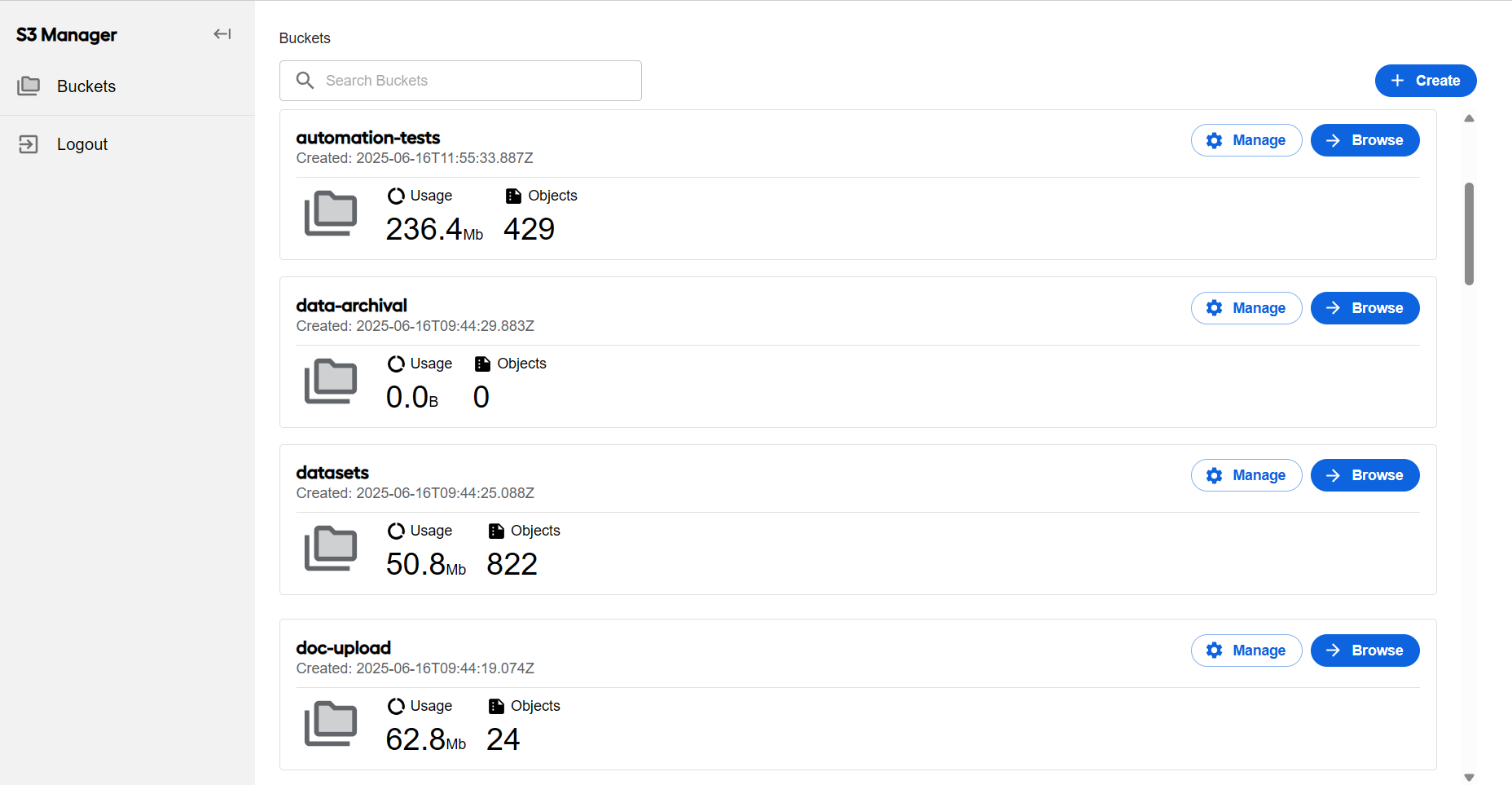
In the Buckets list, find the doc-upload bucket, and click Browse next to it.
tipEach bucket is a separate folder that stores data.
Inside the bucket, click Upload to add your documents.
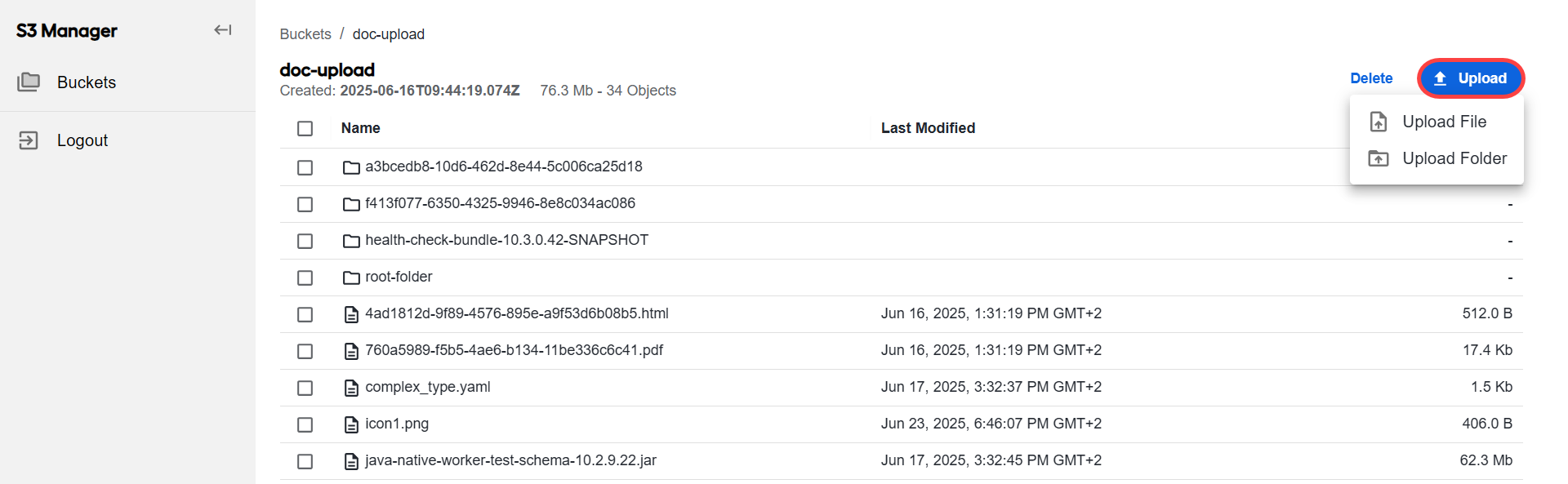
You can now close S3 Manager and go back to Control Tower.
To pass the links to the uploaded files to a Business Process, do the following:
Create a CSV file and populate it manually with the links to the documents added to the S3 bucket earlier. Download the sample file to see how it should look.
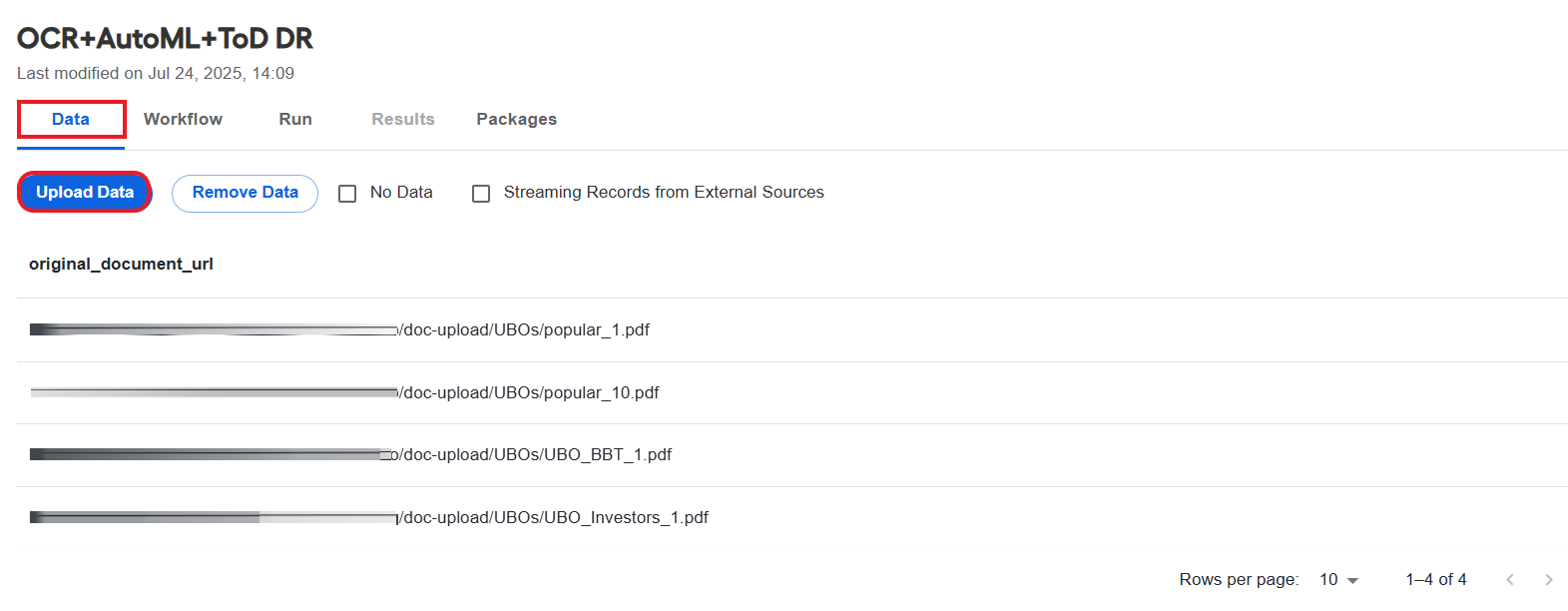
In Control Tower, go to Business Processes, select your process, and go to the Data tab.
Click Upload Data and add the CSV file with the links you have just created.
Configure Business Process
In this example, you will be running a BP consisting of the following steps:
- OCR
- OCR-to-model adapter
- Extraction or classification model (AutoML)
- Model-to-Manual Task adapter
- Manual Task
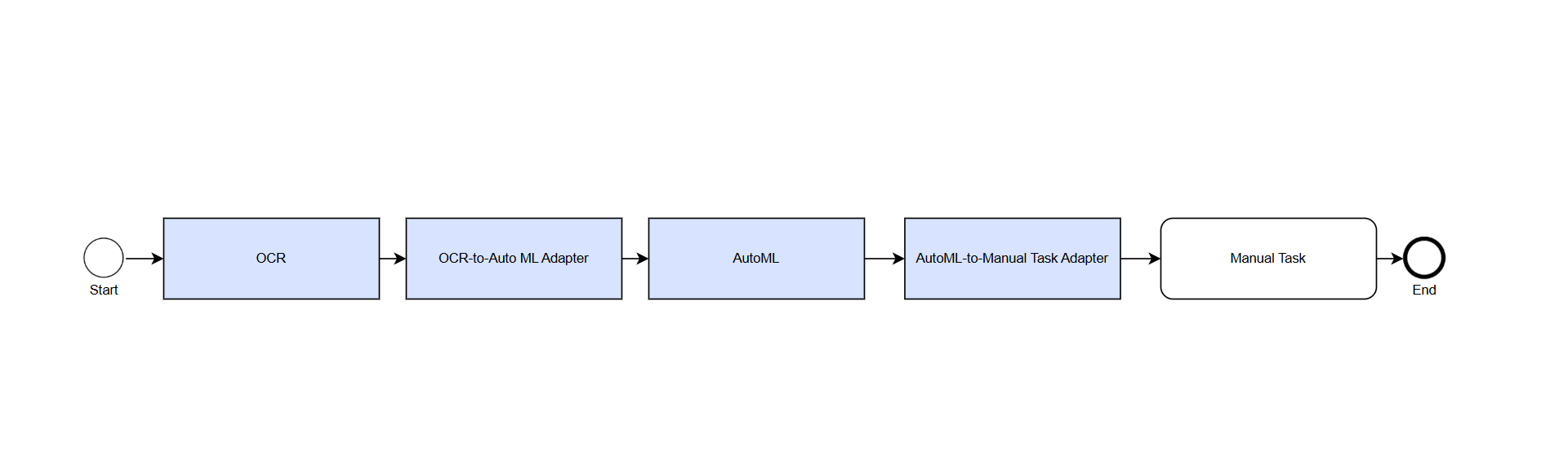
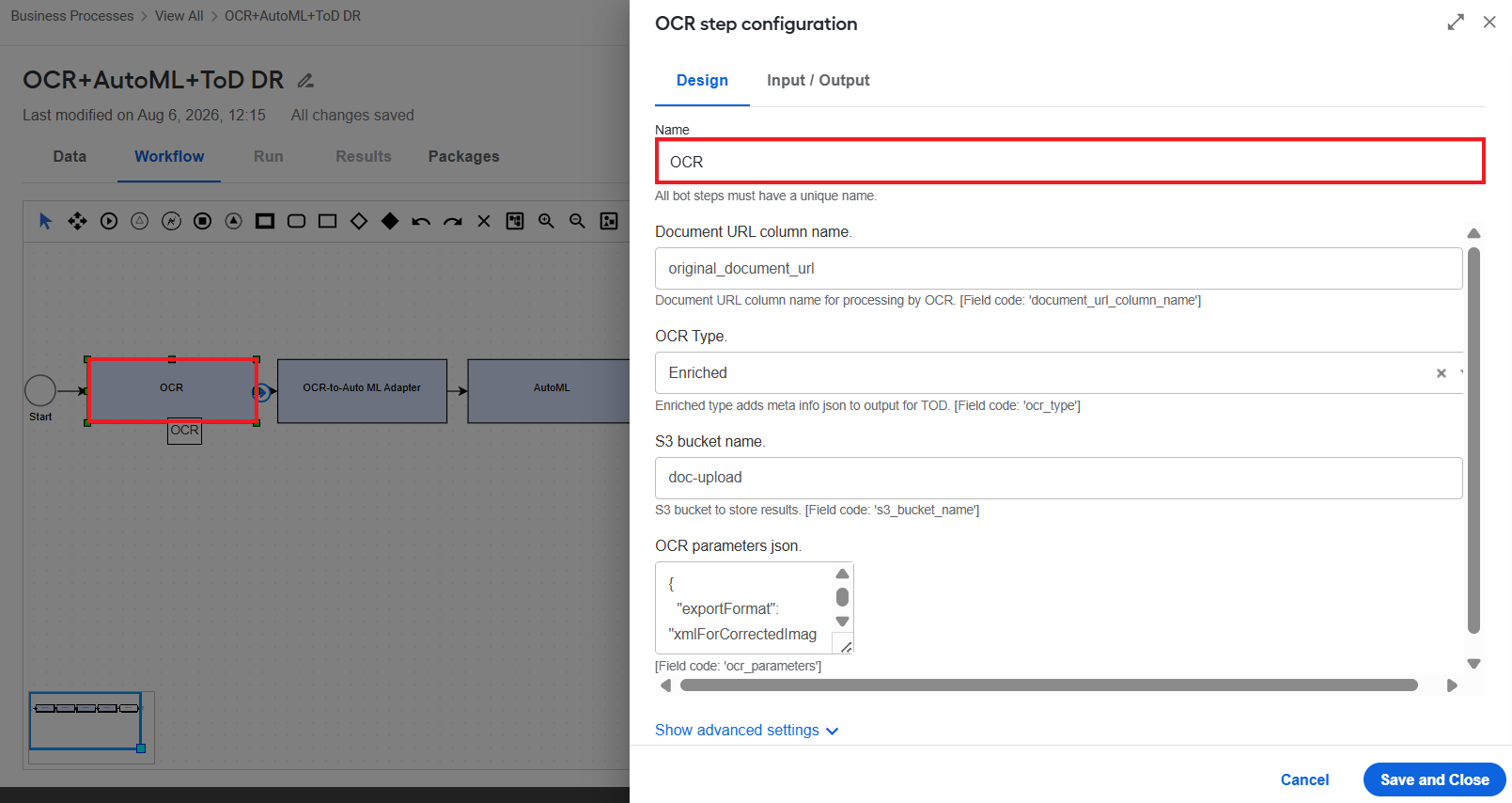
To adjust the settings of BP steps, open the BP, go to the Workflow tab, and double-click each step. The configuration panel appears to the right of the workflow.
OCR
Here, you can leave the settings as they are.
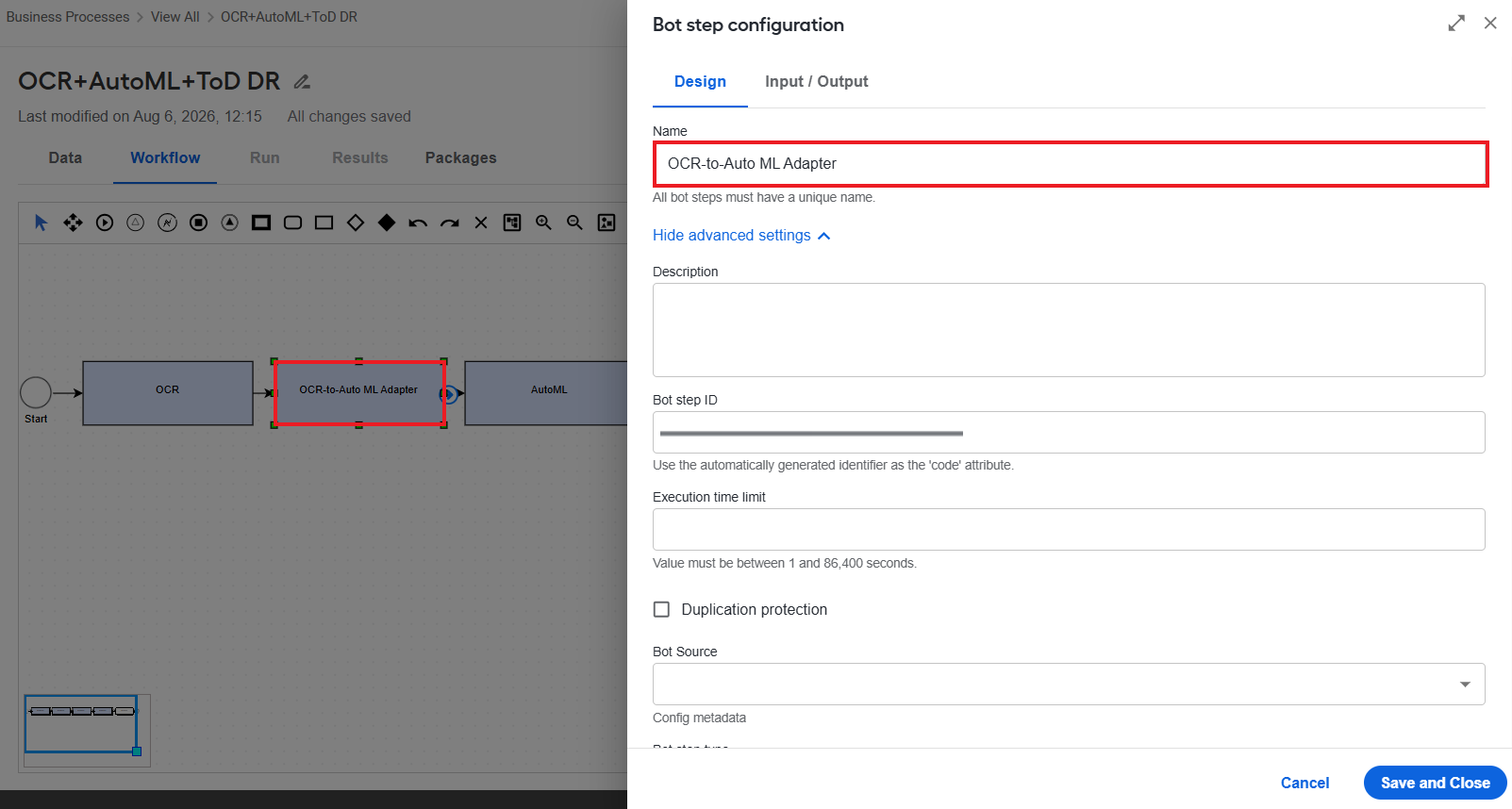
OCR-to-AutoML adapter
Adapters communicate input and output between OCR and a model or a model and a Manual Task. They are needed as the outputs of each step are slightly different, so they have to be aligned to be processed in the next step.
Here, you can also leave the settings as they are.
AutoML
Here, you configure a document processing model previously trained in the AutoML UI.
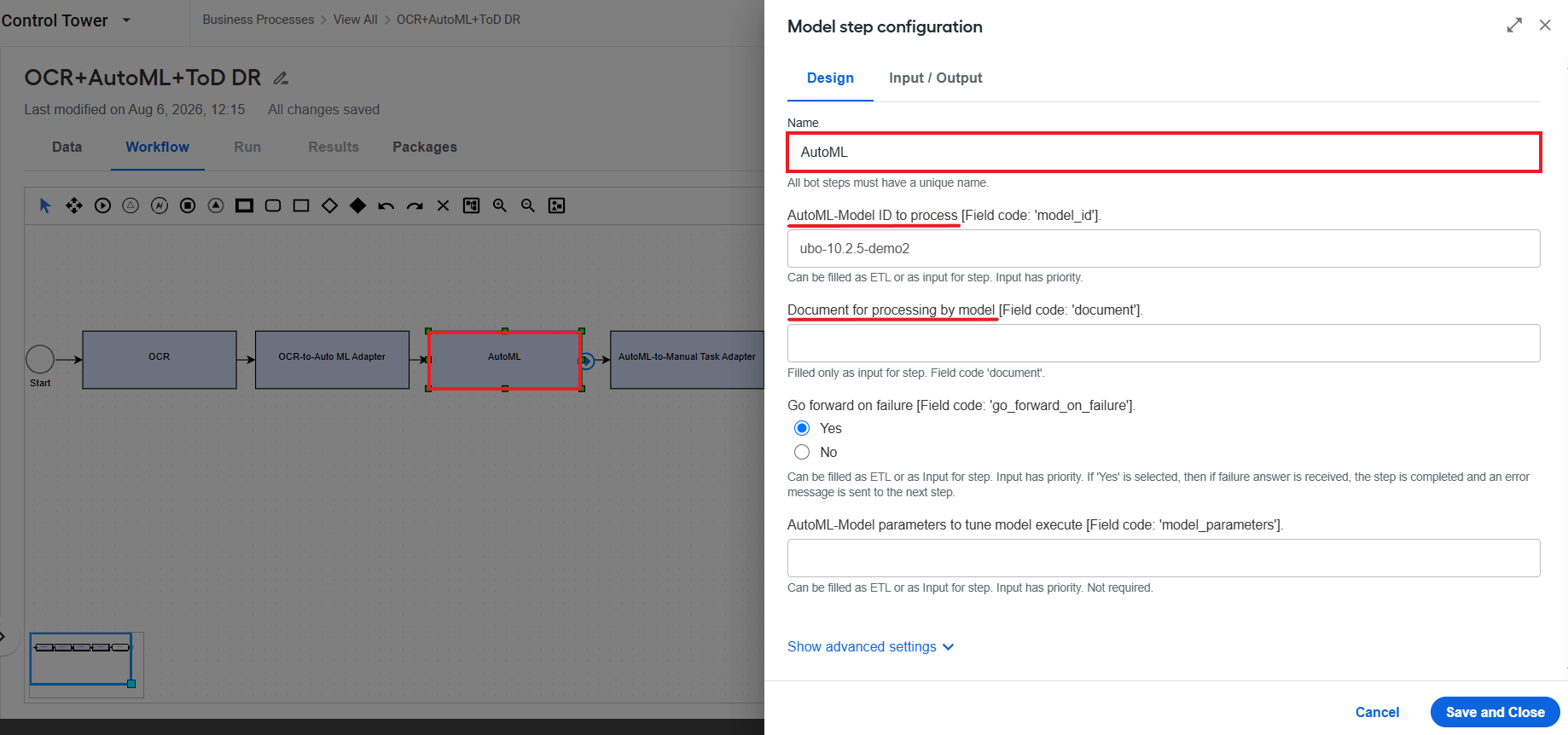
On the configuration panel, you can change the following settings:
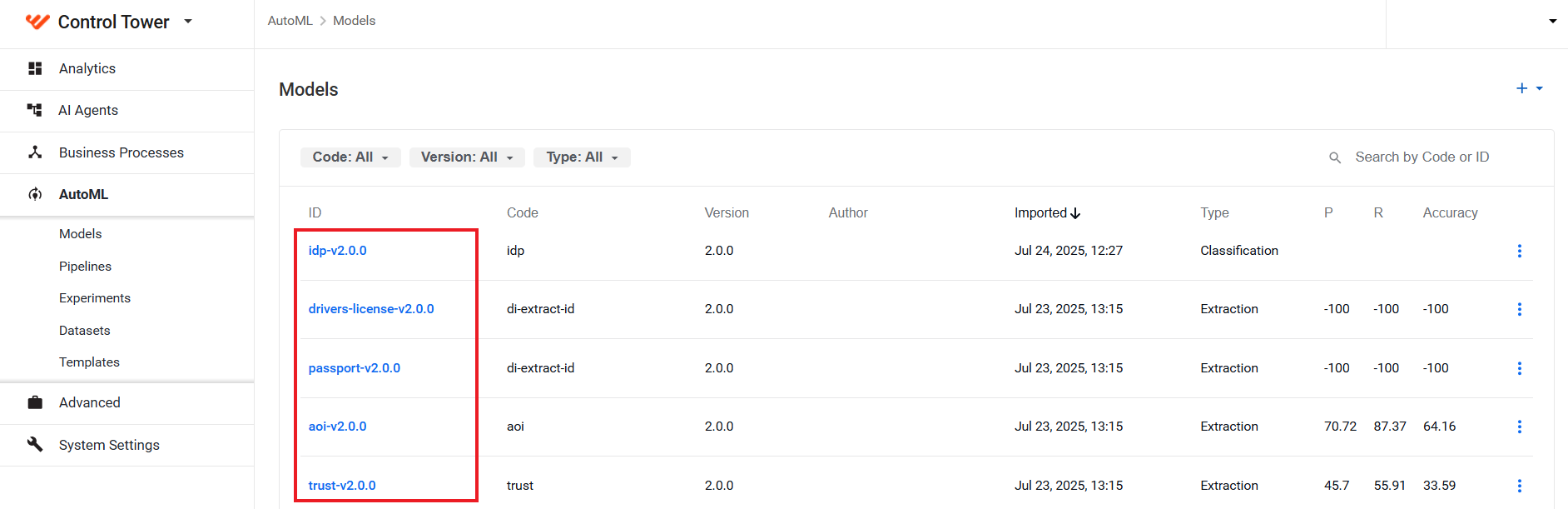
AutoML-Model ID to process
To get this value, in Control Tower, go to Models, find a required model you want to integrate into your Business Process and copy its ID.
Document for processing by model
Specify the document.
For the AutoML step, you can use a model developed in your other environments. For example, to apply a model from staging to production, do the following:
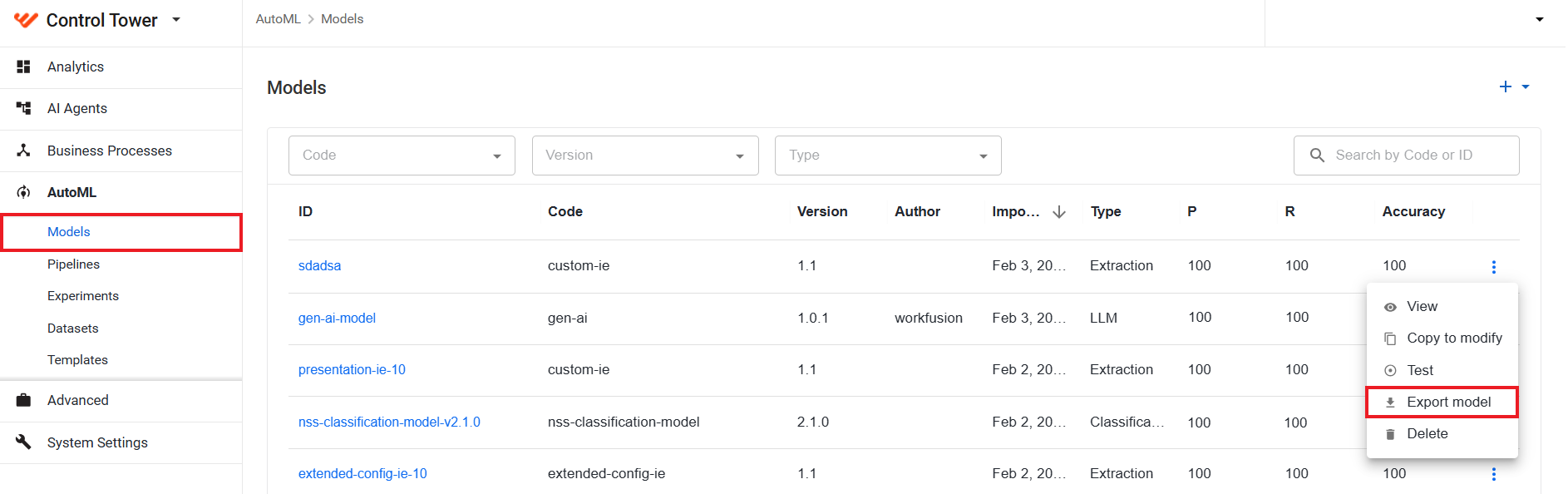
In Control Tower in a staging environment, go to Models, find the required model, open the Actions menu, and then select Export model to save it.
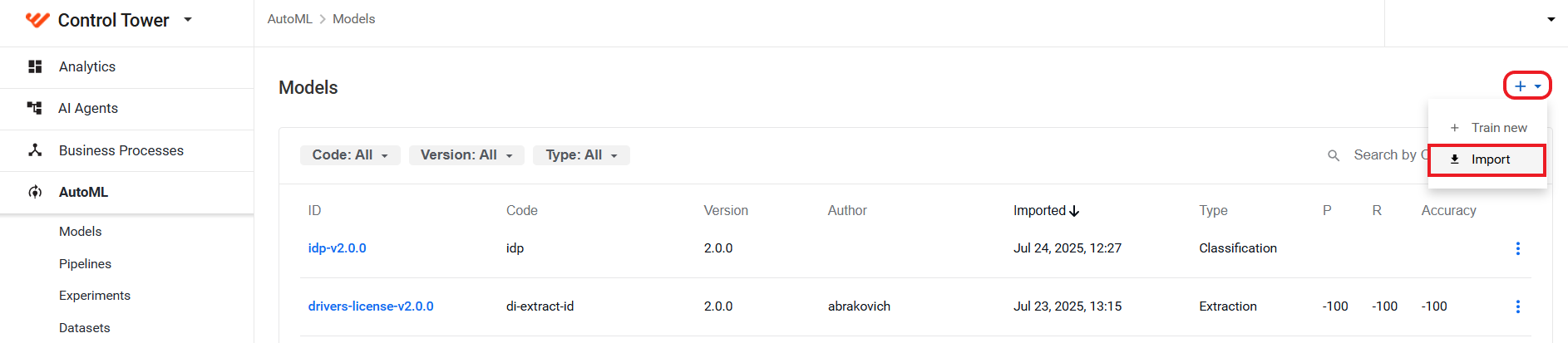
Go to Control Tower in a production environment, open Models > the Plus sign > Import, and import the exported model.
Add the imported model to the Business Process.
AutoML-to-Manual Task adapter
The adapter retrieves output from the AutoML engine and converts it into two types of parameters. These steps are universal regardless of the data or model type.
meta_info_json. This data is passed to new Manual Tasks.message_tagged. The parameter is required for Manual Tasks created from Operations other than Task Designer Operation to make them compatible with the new flow.
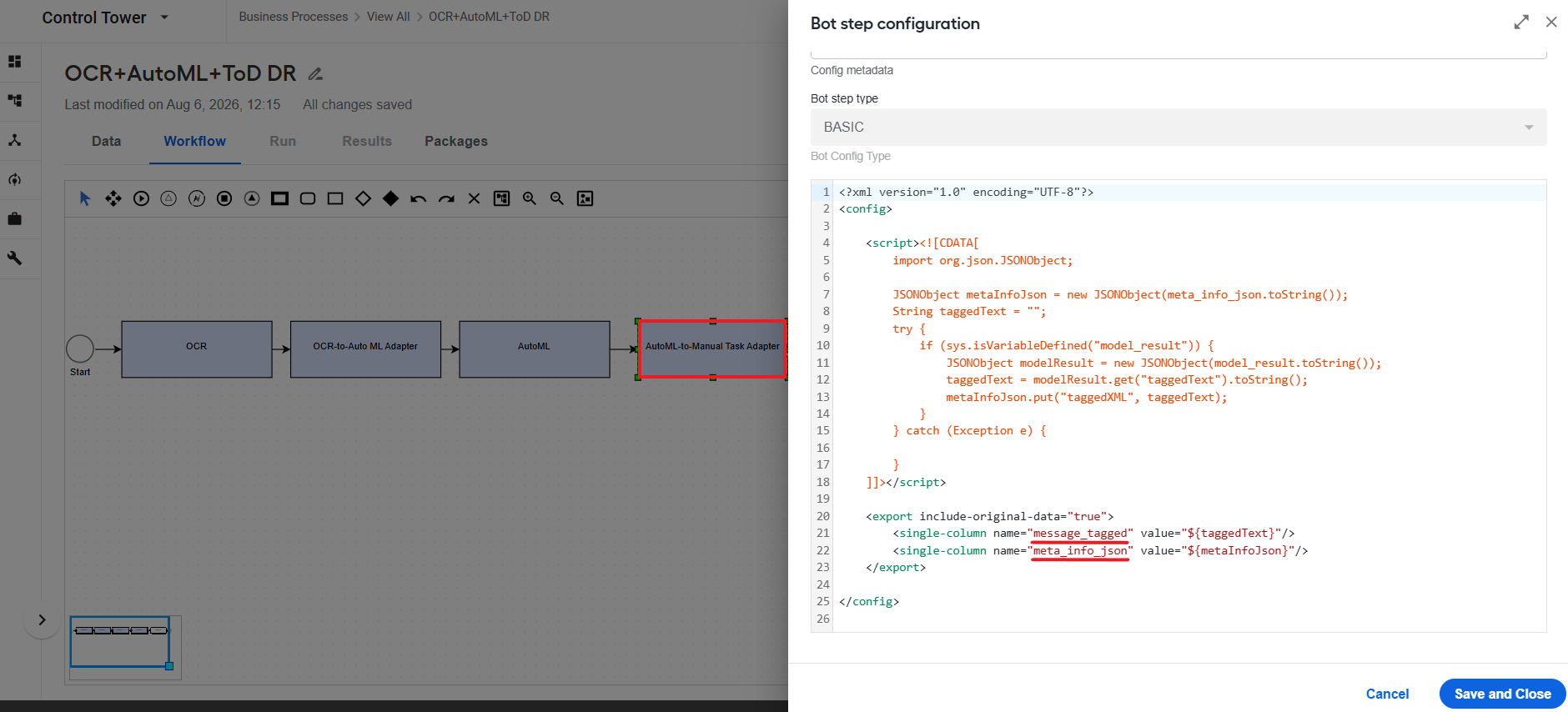
Here, you can leave the settings as they are and don't change the step when the Manual Task is changed.
Manual Task
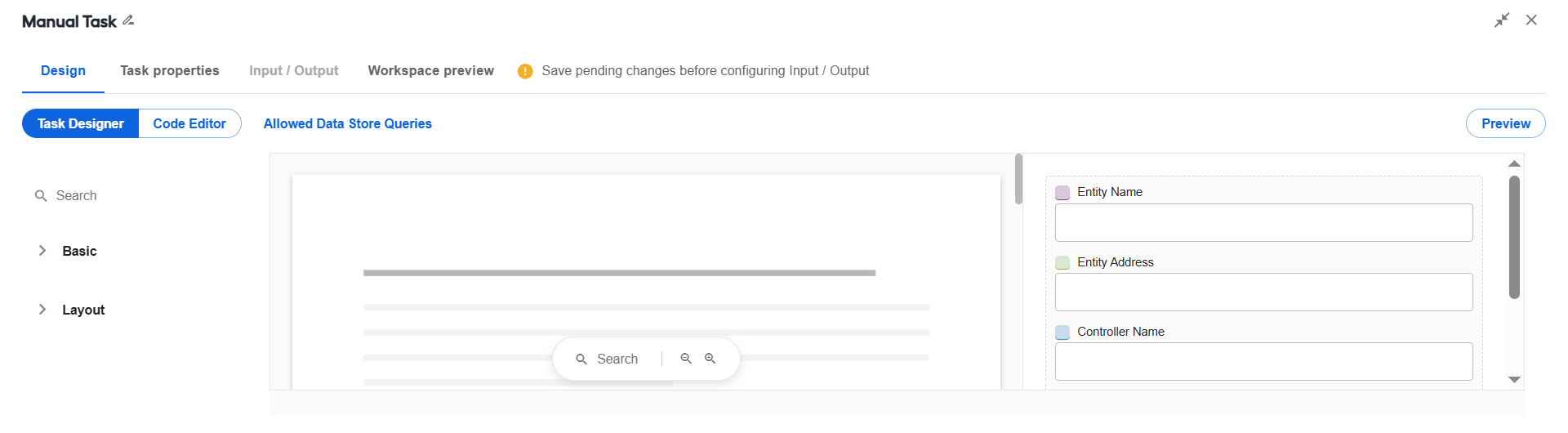
Generally, a Manual Task is created in the Manual Task Designer and does not require customization or adding extra JavaScript code. Its configuration window usually reflects the data pulled from the model.
notePay extra attention when aligning your Manual Tasks in the BP and MT Designer. You must label the fields manually. Note that the set of fields must be the same. You don't have to cover all the fields, but you can add only as many fields as you have from the model.
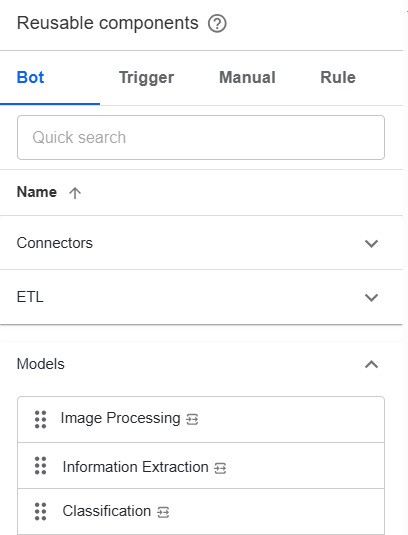
Besides these steps, you can also add others. For that, find a required step in the Reusable components panel on the Workflow tab. After adding a step, you can rename it to clean up your workflow.
Run Business Process
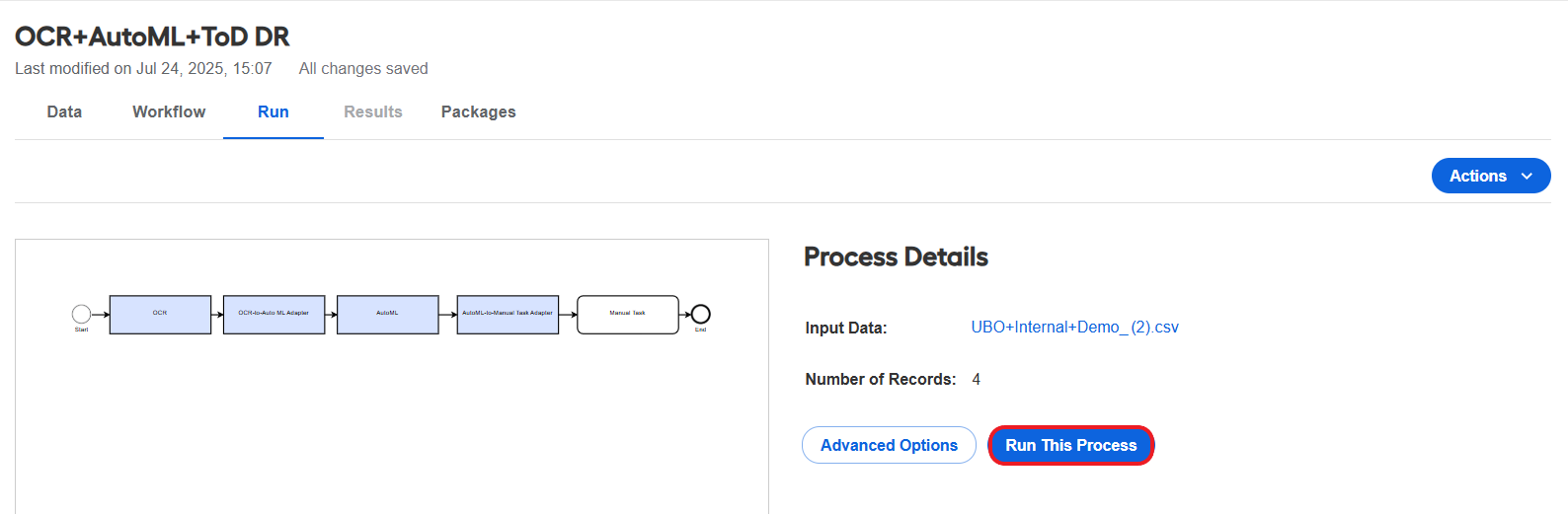
Once the configuration is complete, you are ready to run the Business Process:
Go to the Run tab and click Run This Process.
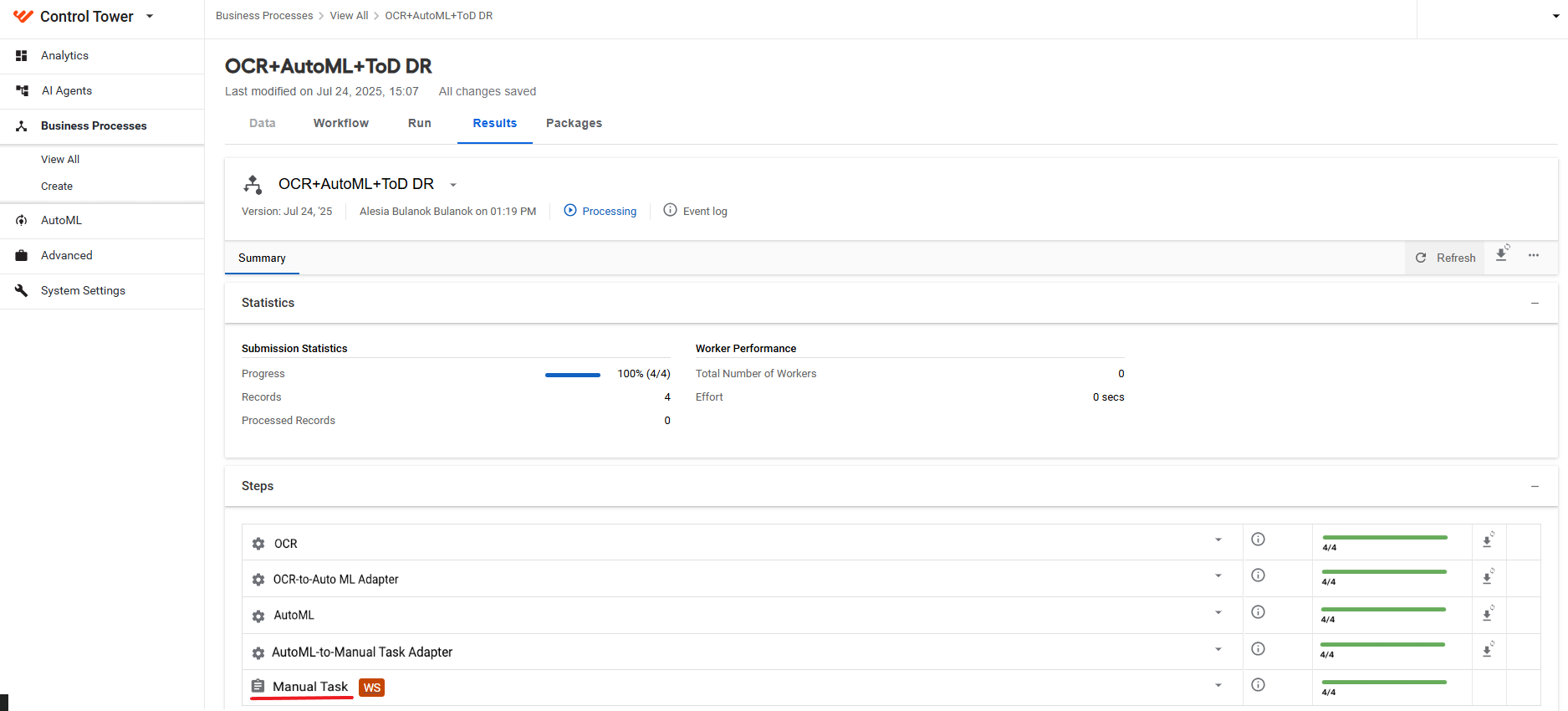
On the Results tab, track the BP operation.
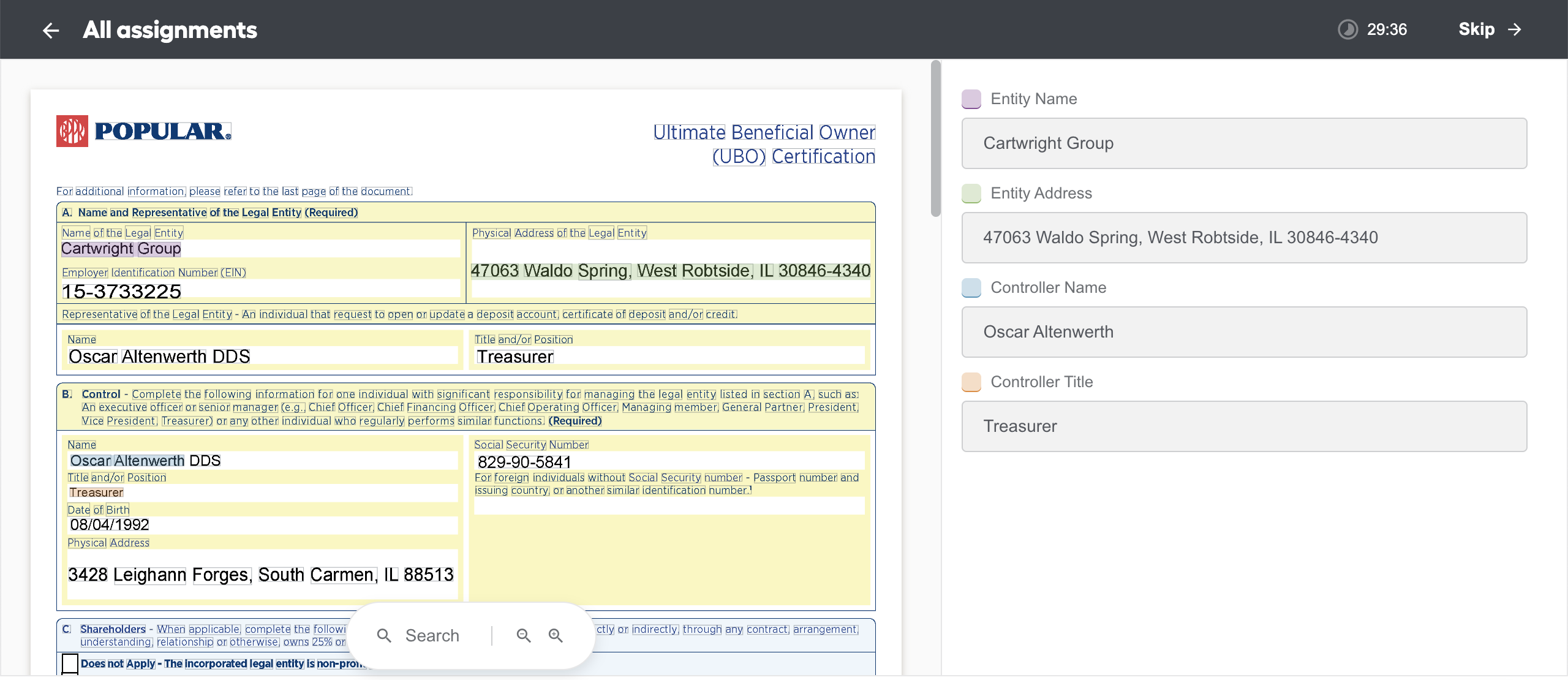
In the Steps panel, find the Manual Task icon. Once the BP completes, click the ws link next to it to go to the available assignments in the Workspace application.
See the assignment in Workspace:
Q&A
Can I use AutoML UI to change ML model?
A machine learning model is an immutable artifact that is locked for changes. To fine-tune a model, you need a new artifact with a different unique ID. However, you can change the pipeline.
By default, the WorkFusion platform contains several pre-uploaded pipelines, for example, Information Extraction (IE), designed to train IE models. These pipelines have basic pre- and post-processing capabilities and feature extraction. When you train a model in the AutoML UI, some of those capabilities for the post-processing are available in the user interface.
For example, when adding complex processors or feature extractors in more advanced cases, you have to customize them with JavaScript code. After doing so, you upload the pipeline to the platform to make it visible in the Pipelines menu. The general process remains the same: create a dataset > have a custom pipeline > train a model > view the results.
What is Modify Model for?
Imagine that you want to create a model with custom post-processors. Instead of setting the model's configuration anew, select an existing model and click Modify Model. A new model is created, and all the steps in it are taken from the previous version. For details, see the Manage models guide.
What is best practice to train model in AutoML UI?
For model training, it is recommended to get as many different vendor formats as possible. The model focuses on the vendor-provided document layouts or how the data is displayed in documents. So for your goals, it is best to train a model on a maximum possible number of unique layouts or page variations. For example, for training, you can use documents containing but not limited to:
- Tables with borders
- Tables without borders
- Tables on top and bottom
- Two, three, and more tables
- Different header variations
- Other elements
The general recommendation is to have at least ten different vendors. If you have fewer, most probably, your model won't work. Having 20-25 vendors is a reasonable compromise, while 100 of them is the most effective solution.
The most common errors in ML models taken into production are caused by data drift. This happens when the model is trained on one data type, but it faces slightly different data in other environment. The difference leads to incorrect predictions. So, make sure that vendors' layout is similar in all environments.
Do I need to have various file types for successful model training?
Additional reading
In case a Business Process becomes non-operational or its performance degrades, look for troubleshooting tips in the following support guides:
When you have trouble creating a BP, read the following guide: