RPA Unit disconnect and console crash issues
RPA Unit disconnect
RPA Unit disconnect is possible due to several issues:
Incorrect credentials
Issues related to group policies
Internal bugs
When a disconnect occurs, check Bot Agent logs. When the credentials are incorrect, the logs can contain the following message:
2022-08-19 16:15:02.369 WARN 43932 [pool-6-thread-1] c.w.mfw.bridge.internal.NativeLogger : WinServiceServer::ListenForLogs. WLUICusto status report: Username and password applied. Incorrect password or username.
When you get a message similar to the one above, this means the username or password is incorrect, or the username in the Secrets Vault lacks the domain part.
When the customer uses a native RDP client other than that provided by WorkFusion, disconnect issues can be due to group policies. In this case, Bot Agent logs can include the following message:
‘CMDKEY: Credentials cannot be saved from this logon session.’
When you use Windows Native RDP, the login action requires the Master Agent to push user credentials to Windows Credential Manager. When there's an issue, the following policy blocks the push:
‘Computer Configuration\Windows Settings\Security Settings\Local Policies\Security Options'
Network access: Do not allow storage of passwords and credentials for network authentication’
.
When the Agents' logs don't have any messages related to the issues with credentials, collect the following information and contact the WorkFusion support:
Exact time when the issue occurred
Possible steps to reproduce the issue
DEBUG logs of the Master and Unit Agent about the time when the issue occurred
Memory, crash, and heap dumps (if any)
Version file from the RPA installation directory
Data about any patches provided
Windows events
Console crash in Windows Server 2022 due to Spanish symbol
The issue root cause is a bug in the Windows Server 2022 console. When the console is in the Legacy mode and the font is set to raster, copying the ñ character causes a console crash.
To fix the issue, perform the following steps:
In Windows Server 2022, open Command Prompt.
Right-click Properties.
On the Font tab > Font True Types, change the font type to Consolas.
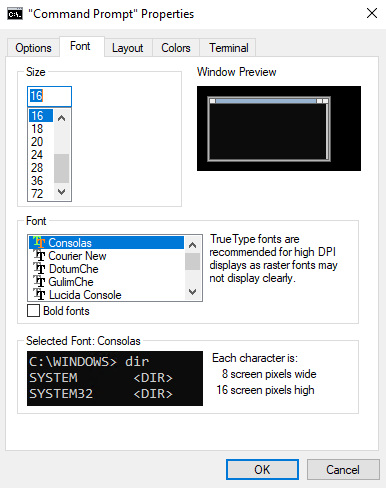
Click OK.
View also: