
How to check Tomcat logs rotated in Business Edition
note
The how-to guide describes basic steps that need to be checked to make sure whether Tomcat logs are rotated automatically.
Problem
Business Edition logs occupy a lot of space drive. This article contains information about one part of logs - Tomcat logs.
Statement
When Control Tower works, it logs a lot of internal information. You can find these files in the folder %INSTALL_DIR%\Workfusion\tomcat\logs\ (by default, C:\IntelligentAutomationCloud\Workfusion\tomcat\logs\). These logs should be removed by the Windows scheduled task usually created during the Business Edition installation on a specific PC. Below, you find steps needed to be checked to make sure that logs are rotated.
Solution
- Make sure that the Windows scheduled task named WorkfusionLogRotate is created in the WorkFusion Task Scheduler folder. See how a task looks like on the non-server machine.
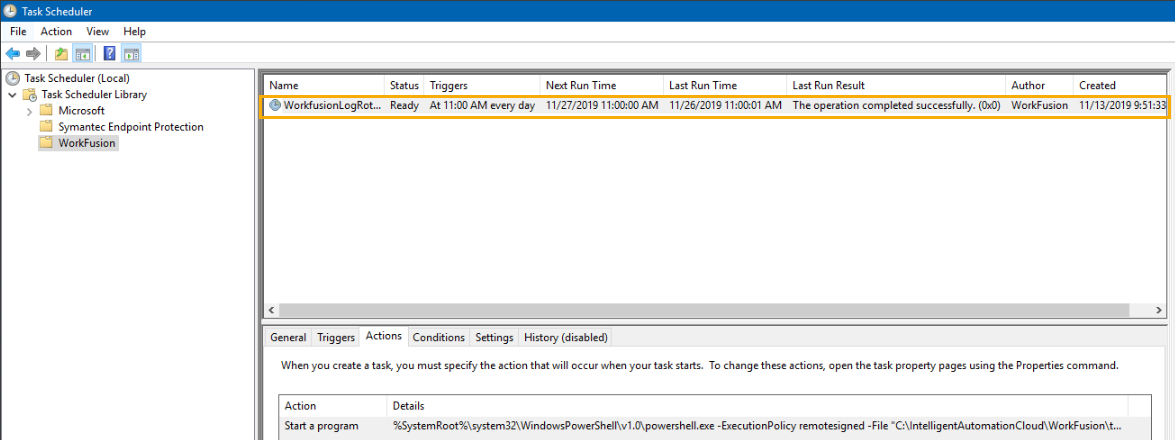
- See if the task executes successfully. You can check it using two options.
- Check Last Run Result. If a task works, it should show as on the screenshot above: "The operation completed successfully. (0x0)".
- If a task is a new one and hasn't been executed yet, you can run this manually via Windows Task Scheduler by pressing the Run button.
- If the task is executed successfully, you can check whether any rotated files were created in a folder with the Tomcat logs. Rotated files have the extension in the DateTime format: YYYYMMDD-HHmmss.
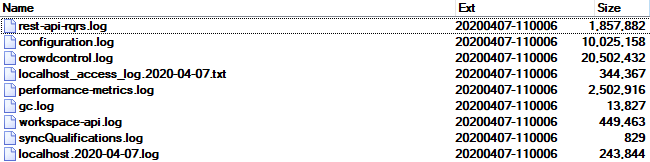
- Files with such extension will be removed automatically in 7 days. Thus, it helps to keep more or less stable file size in the folder with Tomcat logs.
- If the task failed, check the error code in Windows Task Scheduler. Log a support ticket with all the details in WorkFusion Service Desk for the support team.
- Describe your initial issue and your steps before submitting a ticket.
- Make a task screenshot with the result code and attach it to the ticket.
- If necessary, provide a full error text from Windows Task Scheduler.
- Follow further support instructions.