How to remove outdated logs manually
The guide describes how outdated Business Edition logs can be removed.
Problem
The Business Edition folder can occupy a lot of drive space, specifically by logs.
Statement
Currently, old logs are not removed automatically and remain on the drive, decreasing free space. As there is no need to collect outdated logs, we can safely remove them manually.
Solution
There are two options to delete unnecessary log files:
- periodical manual removing
- scheduling a job that will remove logs automatically
caution
Do not remove any other files, except for the mentioned logs, as it may affect your Business Edition performance.
Remove manually
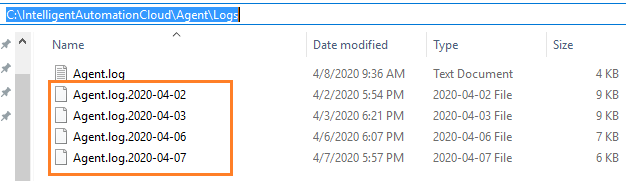
- Go to the folder C:\IntelligentAutomationCloud\Agent\Logs\ and remove all the logs with a date less than today. In the example below, all the highlighted files can be safely removed.
- Go to the folder C:\IntelligentAutomationCloud\OCR\logs\process\archived\. Here, you can safely remove all the files.
- Go to the folder C:\IntelligentAutomationCloud\OCR\logs\rest\archived\ and remove all the files.
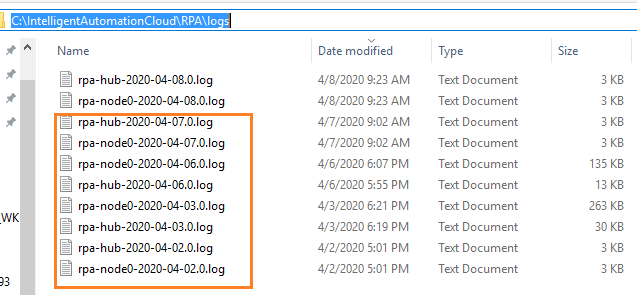
- Go to the folder C:\IntelligentAutomationCloud\RPA\logs\ and remove all the logs with a date less than today. See the example below.
- For the next two folders, you need to switch off server components and exit the application. If you don't have an option to do it now, do it in the maintenance window. After closing the application, go to the folder C:\IntelligentAutomationCloud\Studio\logs\ and remove all the logs.
- Do the same for the folder C:\IntelligentAutomationCloud\Vault\logs\.
Schedule job to remove automatically
As an alternative, it is possible to create a separate script that will remove outdated logs with some frequency, and schedule it using Windows Task Scheduler. One possible variant is provided below. It includes a PowerShell script and small changes in the Business Edition configuration file. Mind that this is a custom solution that you may use. You can try with your own script and even not use Windows Task Scheduler, but some other software.
Copy a script below to the Intelligent Automation Cloud Business Edition installation folder. By default, it is C:\IntelligentAutomationCloud . If the application was installed to a non-default folder, it may differ.
tip
The script will remove log files in specific folders in 7 days since they are created. You can change this parameter if required.
rotate_common_logs.ps1
$install_path = "C:\IntelligentAutomationCloud"
$rpa_path = $install_path + "\RPA\logs\"
$agent_path = $install_path + "\Agent\Logs\"
$studio_path = $install_path + "\Studio\logs\"
$ocr_process_path = $install_path + "\OCR\logs\process\archived\"
$ocr_rest_path = $install_path + "\OCR\logs\rest\archived\"
$vault_path = $install_path + "\Vault\logs\"

$rpa_logs_pattern = "\-\d{4}-\d{2}-\d{2}\.\d{1}\.log$"
$agent_logs_pattern = "Agent\.log\.\d{4}-\d{2}-\d{2}$"
$studio_playback_pattern = "rpa-playback\.\d{4}-\d{2}-\d{2}\.log$"
$studio_rest_pattern = "(studio|rpa-recording)\.log$"
$ocr_logs_pattern = "\.\d{4}-\d{2}-\d{2}\.\d{1}\.log$"
$vault_logs_pattern = "vault_\d{8}-\d{6}\.log$"

$rotated_files_pattern = "\.log\.\d{8}-\d{6}$"

$limit = (Get-Date).AddDays(-7)
$timestamp = $(Get-Date -Format yyyyMMdd-hhmmss)

#Deleting old files (simple removing without rotation)
echo "!---------------------- $timestamp -----------------------!`r`n  "
echo "!--------------------- Files clean-up -------------------------!  "
echo " --- Delete files older than the $limit"
echo " --- RPA logs"
Get-ChildItem -Path "$rpa_path" -Recurse -Force | Where-Object { $_.CreationTime -lt $limit } | ForEach-Object {
    $_.Refresh()
    $log_fullname = $_.FullName
    if ($_.Name -match $rpa_logs_pattern) {
       echo "`tRemoving file $log_fullname"
       Remove-Item -Force -Path "$log_fullname" -ErrorAction Continue
    }
    elseif ($_.Length -eq 0) {
        echo "`tRemoving empty file $log_fullname"
        Remove-Item -Force -Path "$log_fullname" -ErrorAction Continue
    }
    else {
        echo "`tFile is not matched pattern $log_fullname"
    }
}

#Deleting old Agent logs (simple removing)
echo "  --- Agent logs"
Get-ChildItem -Path "$agent_path" -Recurse -Force | Where-Object { $_.LastWriteTime -lt $limit } | ForEach-Object {
    $_.Refresh()
    $log_fullname = $_.FullName
    if ($_.Name -match $agent_logs_pattern) {
       echo "`tRemoving file $log_fullname"
       Remove-Item -Force -Path "$log_fullname" -ErrorAction Continue
    }
    elseif ($_.Length -eq 0) {
        echo "`tRemoving empty file $log_fullname"
        Remove-Item -Force -Path "$log_fullname" -ErrorAction Continue
    }
    else {
        echo "`tFile is not matched pattern $log_fullname"
    }
}

#Delete Studio playback logs (simple removing)
echo "  --- Studio playback logs"
Get-ChildItem -Path "$studio_path" -Recurse -Force | Where-Object { $_.CreationTime -lt $limit } | ForEach-Object {
    $_.Refresh()
    $log_fullname = $_.FullName
    if ($_.Name -match $studio_playback_pattern) {
       echo "`tRemoving file $log_fullname"
       Remove-Item -Force -Path "$log_fullname" -ErrorAction Continue
    }
    elseif ($_.Length -eq 0) {
        echo "`tRemoving empty file $log_fullname"
        Remove-Item -Force -Path "$log_fullname" -ErrorAction Continue
    }
    else {
        echo "`tFile is not matched pattern $log_fullname"
    }
}

#Delete archived OCR logs (simple removing)
echo "  --- OCR process logs"
Get-ChildItem -Path "$ocr_process_path" -Recurse -Force | Where-Object { $_.LastWriteTime -lt $limit } | ForEach-Object {
    $_.Refresh()
    $log_fullname = $_.FullName
    if ($_.Name -match $ocr_logs_pattern) {
       echo "`tRemoving file $log_fullname"
       Remove-Item -Force -Path "$log_fullname" -ErrorAction Continue
    }
    elseif ($_.Length -eq 0) {
        echo "`tRemoving empty file $log_fullname"
        Remove-Item -Force -Path "$log_fullname" -ErrorAction Continue
    }
    else {
        echo "`tFile is not matched pattern $log_fullname"
    }
}
echo "  --- OCR REST logs"
Get-ChildItem -Path "$ocr_rest_path" -Recurse -Force | Where-Object { $_.LastWriteTime -lt $limit } | ForEach-Object {
    $_.Refresh()
    $log_fullname = $_.FullName
    if ($_.Name -match $ocr_logs_pattern) {
       echo "`tRemoving file $log_fullname"
       Remove-Item -Force -Path "$log_fullname" -ErrorAction Continue
    }
    elseif ($_.Length -eq 0) {
        echo "`tRemoving empty file $log_fullname"
        Remove-Item -Force -Path "$log_fullname" -ErrorAction Continue
    }
    else {
        echo "`tFile is not matched pattern $log_fullname"
    }
}

#Delete Studio rotated logs
echo "  --- Studio rotated logs"
Get-ChildItem -Path "$studio_path" -Recurse -Force | Where-Object { $_.CreationTime -lt $limit } | ForEach-Object {
    $_.Refresh()
    $log_fullname = $_.FullName
    if ($_.Name -match $rotated_files_pattern) {
       echo "`tRemoving file $log_fullname"
       Remove-Item -Force -Path "$log_fullname" -ErrorAction Continue
    }
    elseif ($_.Length -eq 0) {
        echo "`tRemoving empty file $log_fullname"
        Remove-Item -Force -Path "$log_fullname" -ErrorAction Continue
    }
    else {
        echo "`tFile is not matched pattern $log_fullname"
    }
}

#Delete Vault rotated logs
echo "  --- Vault logs"
Get-ChildItem -Path "$vault_path" -Recurse -Force | Where-Object { $_.CreationTime -lt $limit } | ForEach-Object {
    $_.Refresh()
    $log_fullname = $_.FullName
    if ($_.Name -match $vault_logs_pattern) {
       echo "`tRemoving file $log_fullname"
       Remove-Item -Force -Path "$log_fullname" -ErrorAction Continue
    }
    elseif ($_.Length -eq 0) {
        echo "`tRemoving empty file $log_fullname"
        Remove-Item -Force -Path "$log_fullname" -ErrorAction Continue
    }
    else {
        echo "`tFile is not matched pattern $log_fullname"
    }
}

echo "`n"
echo "!---------------------- Rotation -----------------------------!  "

#Rotate Studio and rpa-recording logs
echo "  --- Rotate Studio logs"
Get-ChildItem -Path "$studio_path" -Recurse -Force | Where-Object { $_.Name -match $studio_rest_pattern } | ForEach-Object {
    $_.Refresh()
    $log_fullname = $_.FullName
    if ( -not ($_.Name -match $rotated_files_pattern) -And ($_.Length -gt 0) ) {
        echo "`tCreate copy $log_fullname.$timestamp"
        Copy-Item -Force "$log_fullname" -Destination "$log_fullname.$timestamp" -ErrorAction Continue
        echo "`tClear content of $log_fullname"
        Clear-Content "$log_fullname" -ErrorAction Continue
    }
}

echo "!---------------------- End of script ------------------------!  "
echo "`r`n"
Correct the
$install_pathvariable in the first row of the script (you can open the file in any text editor). You need to set the full path to the installation folder, for example,$install_path = "C:\IntelligentAutomationCloud".Save the file and close it.
Switch off server components and exit Business Edition completely.
Go to the folder C:\IntelligentAutomationCloud\Vault\ and open the start_vault.bat file in any text editor.
Replace its content to the following:
start_vault.bat
echo off

set CUR_YYYY=%date:~10,4%
set CUR_MM=%date:~4,2%
set CUR_DD=%date:~7,2%
set CUR_HH=%time:~0,2%
if %CUR_HH% lss 10 (set CUR_HH=0%time:~1,1%)

set CUR_NN=%time:~3,2%
set CUR_SS=%time:~6,2%
set CUR_MS=%time:~9,2%

set SUBFILENAME=%CUR_YYYY%%CUR_MM%%CUR_DD%-%CUR_HH%%CUR_NN%%CUR_SS%

md logs 2>nul
vault.exe server -config=config.hcl >>logs\vault_%SUBFILENAME%.log 2>>&1
- Save the file and close it.
- Open Windows Task Scheduler under the same user who will use the Intelligent Automation Cloud.
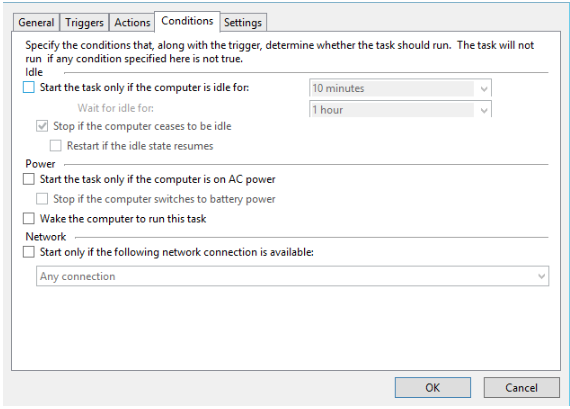
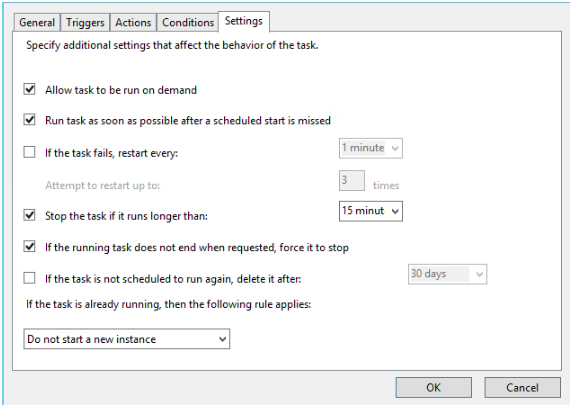
- Go to the WorkFusion folder under the root folder and create a new task manually with the parameters below (scheduled time can be different).
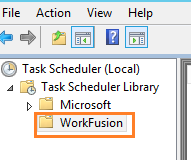
- Save the task, restart your PC, launch Business Edition, and run the new task manually to check how it works. If it works successfully, a new file named rotate_result.txt should appear in the same folder where the PowerShell script is located. You can check it and see which files were removed and which ones not.
Scheduled task parameters are as follows.
Task name can differ, this is just an example.
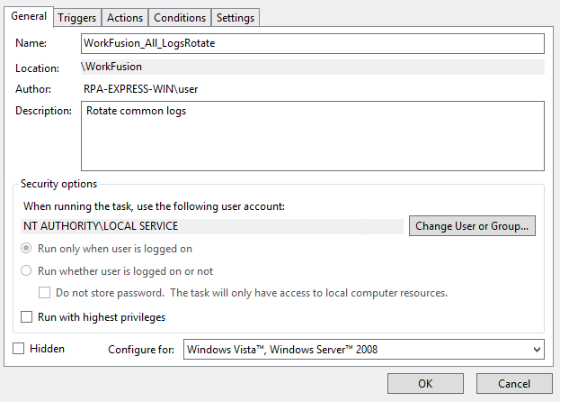
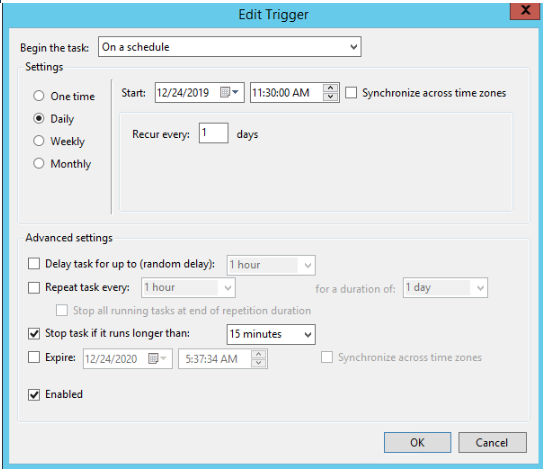
Time can differ. In the case below, it will run every day at 11:30 AM.
In the case below, there are settings for the default installation folder C:\IntelligentAutomationCloud.
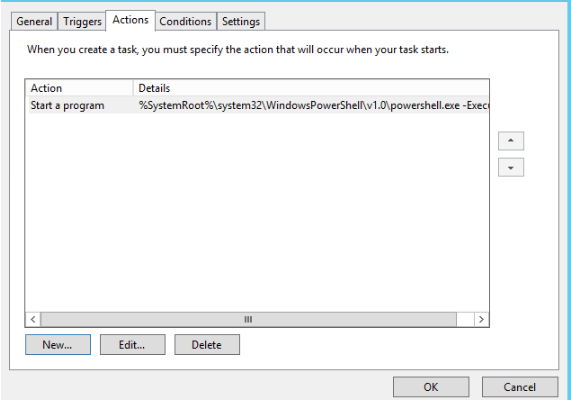
- Program/script:
%SystemRoot%\system32\WindowsPowerShell\v1.0\powershell.exe - Add arguments:
-ExecutionPolicy remotesigned -command "C:\IntelligentAutomationCloud\rotate_common_logs.ps1" 2>&1 > "C:\IntelligentAutomationCloud\rotate_result.txt" - Start in:
C:\IntelligentAutomationCloud\