
Troubleshooting
caution
Before you proceed with looking for a solution to your issue, double-check that your machine meets our system requirements.
tip
For tips and common practices, refer to Tips and Tricks and Best Practices. If you still don't find your solution there, check the community forum or log a support ticket in WorkFusion Service Desk.
Installation
The section describes how you can solve issues that may occur during installation.
Error code 0x80070661
Expand to learn more
note
Valid up to version 2.1.0
Symptoms
Installation failed with error code 0x80070661.
Resolution
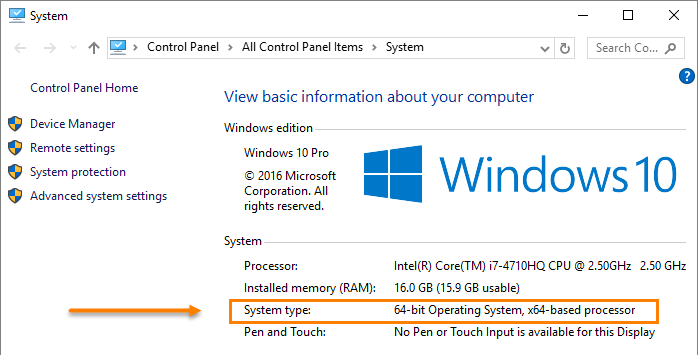
- Your target machine has 32-bit operating system installed.
- Check that you have 64-bit operating system (32-bit is not supported).
Error code 0x80070643
Expand to learn more
Symptoms
Installation failed with error code 0x80070643. This exception can have different causes, see several solutions below.
Resolution 1
- Some of .msi files can be moved to quarantine by anti-virus or anti-malware software.
- Disable your antivirus or anti-malware software temporarily, restore file, and run IntelligentAutomationCloudInstaller.exe once again.
- If this doesn't help, collect and zip installation log files as described here and log a support ticket in WorkFusion Service Desk.
Resolution 2
- Some of ports on your PC are blocked by your organization policy or Firewall. You can find more information here.
- Check with your local IT department and after fixing the issue, run IntelligentAutomationCloudInstaller.exe once again.
- If this doesn't help, collect and zip installation log files as described here and log a support ticket in WorkFusion Service Desk.
Resolution 3
- If you have a policy that prevents to install software on the C:\ drive, try to use another folder or another drive instead of default while installing. For example,
- C:\Test\
- D:\IntelligentAutomationCloud\
- C:\Program Files\IntelligentAutomationCloud (or alternatively C:\Program Files (x86)\IntelligentAutomationCloud depending on your system)
- Run IntelligentAutomationCloudInstaller.exe again and check the results.
- If this doesn't help, collect and zip installation log files as described here and log a support ticket in WorkFusion Service Desk.
Error code 0x80070570
Expand to learn more
Symptoms
Installation failed with error code 0x80070570.
Resolution
- Make sure you have completely extracted the content of the installation archive (IntelligentAutomationCloudInstaller.zip) on your local drive.
- Disable your antivirus or anti-malware software.
- If this doesn't help, collect and zip installation log files as described here and log a support ticket in WorkFusion Service Desk.
Error code 0x80070005
Expand to learn more
Symptoms
Installation failed with error code 0x80070005.
Resolution
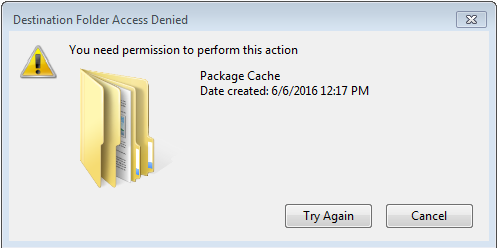
In most cases it means that you don't have access to the folder C:\ProgramData\Package Cache. To check it, perform the following steps.
- Create a folder in C:\ProgramData\Package Cache, e.g., C:\ProgramData\Package Cache\test, then try to copy any file from your PC, and paste to this folder.
- If you get the message below, ask to obtain an appropriate permission from your local IT department in order to resolve the issue.
- If you are able to create folder in C:\ProgramData\Package Cache, but the issue still occurs, collect and zip installation log files as described here and log a support ticket in WorkFusion Service Desk.
Admin user update in PostgreSQL database failed
Expand to learn more
Symptoms
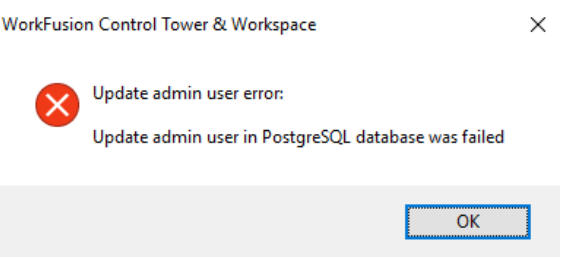
The following window is being displayed during installation.
Resolution
- Check whether your system meets the system requirements.
- If it does, check with your local IT team whether port 15423 is blocked. In case it is blocked, ask to unblock it, and run the installation once again.
- If the port is not blocked and installation still fails with the same error, collect and zip installation log files as described here and log a support ticket in WorkFusion Service Desk.
Launch
The section describes how you can solve issues that may occur during launch of Business Edition.
Application shortcut doesn't start: pop-up window is showing
Expand to learn more
note
Valid up to version 2.1.5
Symptoms
After clicking on the application shortcut, the following window is shown.

Resolution 1
- Right-click on the shortcut on your desktop.
- Press Change and find the application file wscript.exe in C:\Windows\System32 on your PC.
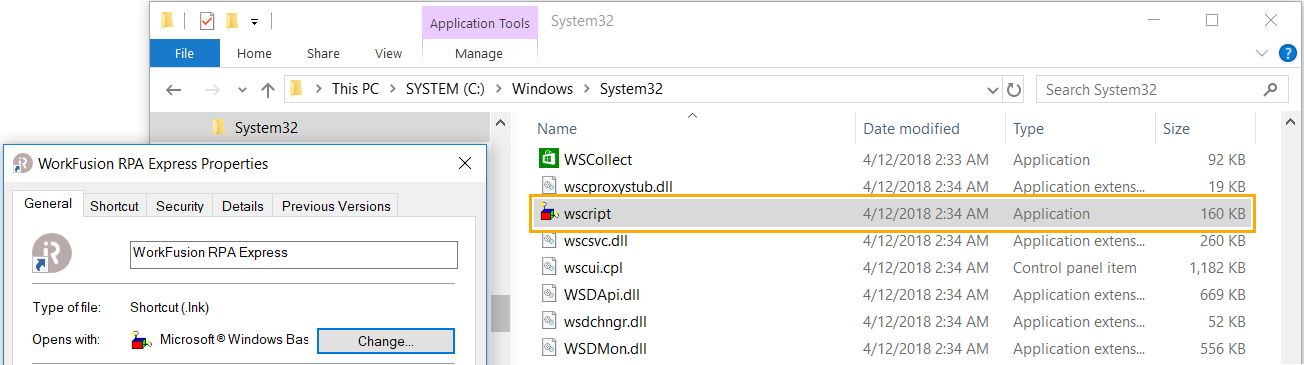
- Select this file, click Apply, and close shortcut properties.
- Run the application.
Resolution 2 (if Microsoft Windows Based Script Host is removed from PC)
Open folder C:\RPAExpress\RPA\wfagent.
Create a file with the name express.bat and add content as below.
START /B ..\..\Applications\Java\bin\javaw -Dagent.showIntro=true -Dloader.path=lib -Dhttp.nonProxyHosts="localhost|127.0.0.1" -Djava.awt.headless=false -Dagent.desktopType=RPA_EXPRESS -Dfile.encoding=UTF-8 -Xmx500m -jar status-agent.jar --spring.config.location=./express.ymlOpen the shortcut properties and change attributes as shown below.
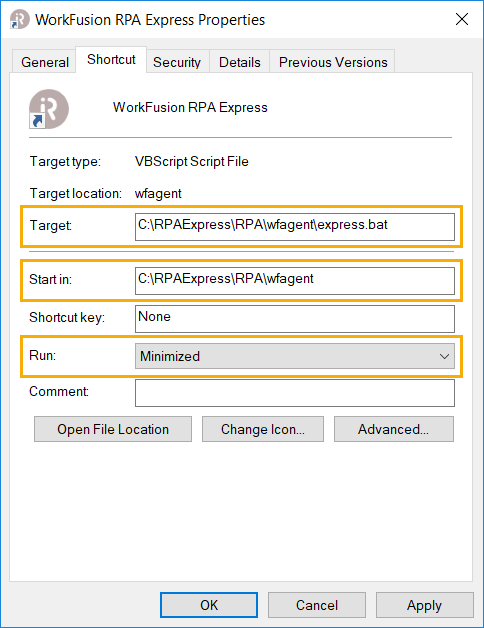
Launch the application.
Application shortcut doesn't start: Windows Script Host access is disabled
Expand to learn more
note
Valid up to version 2.1.5
Symptoms
After clicking on the application shortcut, the following window is shown.
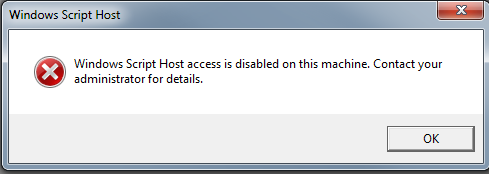
Resolution
caution
If you don't have permissions to change registry, contact your IT department.
- Type regedit in the Run box and press Enter to open the Registry Editor.
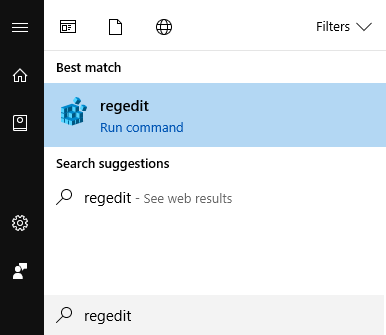
- Navigate to the following key: HKEY_CURRENT_USER\Software\Microsoft\Windows Script Host\Settings
- On the right panel, Value name is Enabled. If you see the entry 0, the Windows Script Host access is disabled on your Windows machine. To enable, double-click it and set Value data to 1.
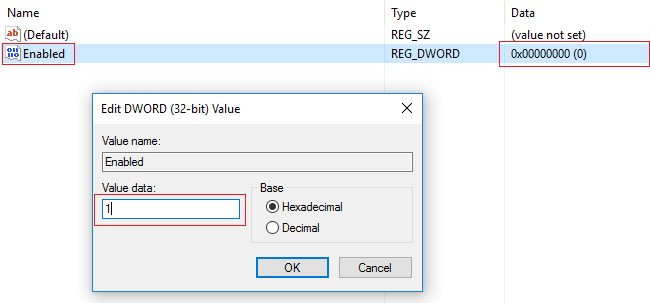
- A value of 1 enables Windows Script Host
- A value of 0 disables Windows Script Host
- Click OK and exit the Registry.
tip
If you don't see this entry, go to HKEY_LOCAL_MACHINE\Software\Microsoft\Windows Script Host\Settings and repeat the steps above.
Platform Monitor page is unreachable
Expand to learn more
note
Valid up to version 2.3.0
Symptoms
Connection to Platform Monitor via localhost cannot be established.
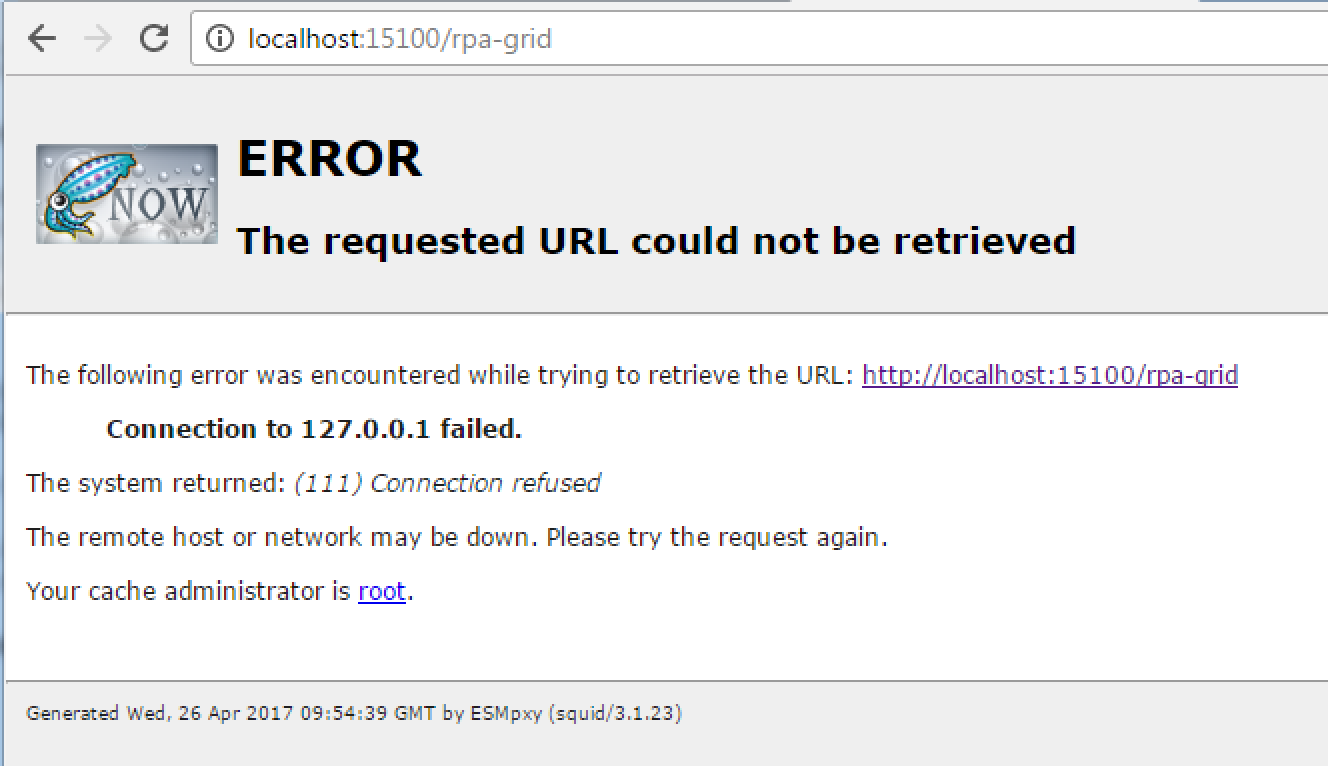
Resolution
Your computer is connected to the network via a proxy server, and the connection is managed by network administrators.
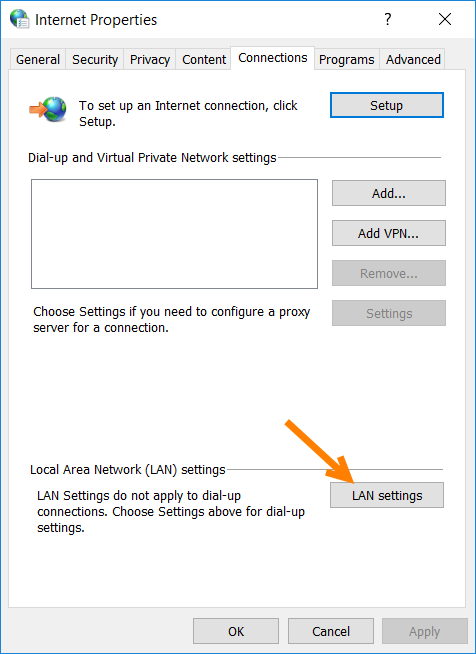
- Go to Control Panel > Internet Options and click LAN settings.
- Check if there is a proxy specified in Automatic configuration (it cannot be changed).
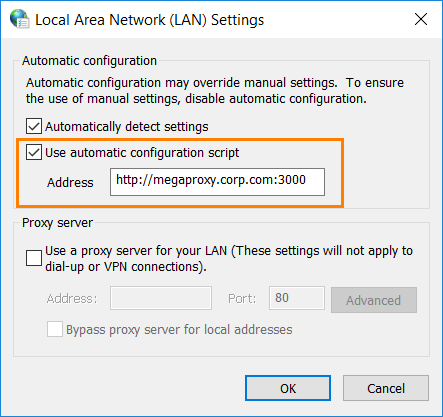
- Contact your network administrator and request to add the following resources to exceptions:
- localhost
- 127.0.0.1
Control Tower cannot be started
Expand to learn more
note
Valid up to version 2.3.0
Symptoms
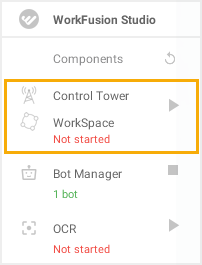
You tried to start Control Tower from the tray menu, but the status is Not started after several tries.
caution
Mind that the tray menu is deprecated since version 2.3.0. Starting from 2.3.0, Control Tower is enabled on the Components tab in WorkFusion Studio.
Resolution
Check whether your PC meets the system requirements. Note that Control Tower takes a lot of RAM, so you may need to close other active applications while Control Tower is starting.
note
It can take up to 10-15 minutes, depending on the machine's properties, to start Control Tower.
If your machine meets the system requirements, but Control Tower still hasn't started, try starting it using Platform Monitor.
- Open Platform Monitor from the tray menu. Mind that the tray menu is deprecated since version 2.3.0 as well.
- Go to System Processes and check components:
- mysqld
- postgress
- tomcat
- They should have status stopped as on the screenshot below.
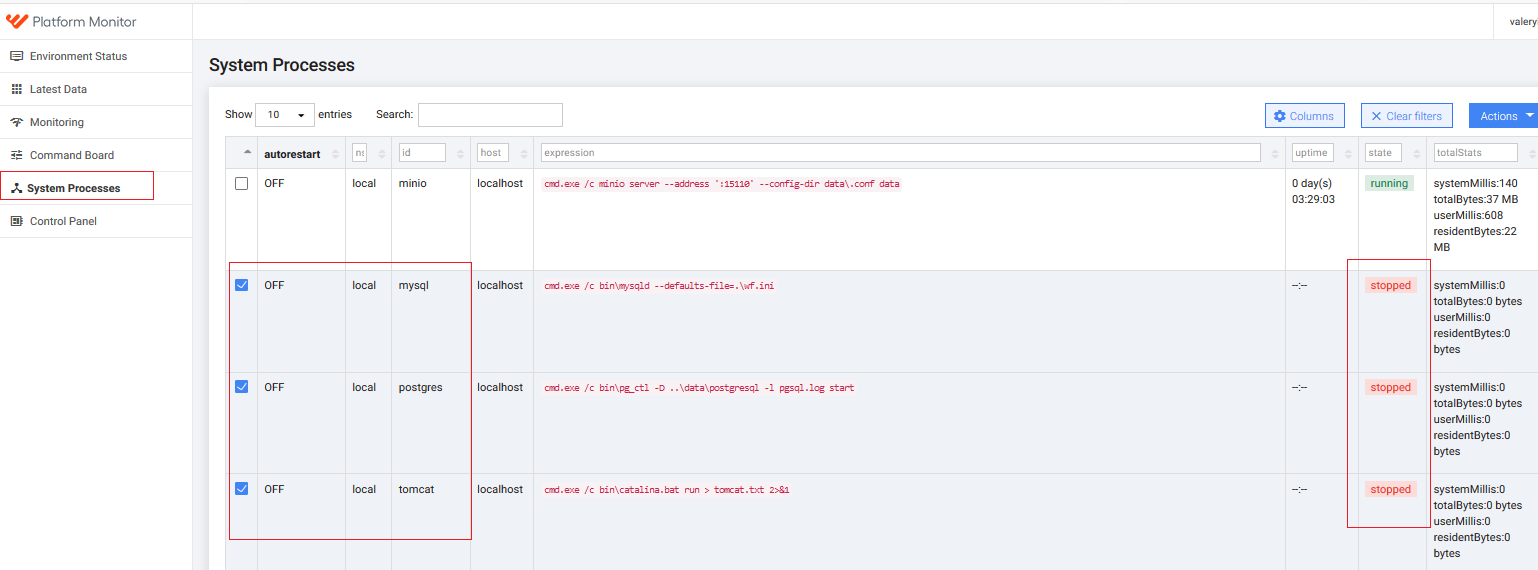
- Press Actions > Start for each of these components.

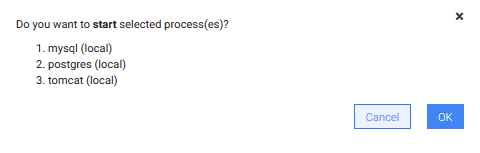
- In the window below, click OK and wait till the status of the components changes to running.
After that, you can log into Control Tower by opening this link in your browser: http://localhost:15280/workfusion/login
caution
If the above steps are of no help, log a support ticket in WorkFusion Service Desk with a detailed description of your issue.
Bot Manager cannot be started
Expand to learn more
note
Valid up to version 2.3.0
Symptoms
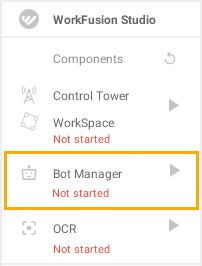
Bot Manager is stopped and cannot be started from the tray menu, while your machine is not connected to the network either by Ethernet or Wi-Fi.
Resolution
Enable a Network interface.
important
It does not mean you should have access to Internet.
Exit the application.
Install Microsoft Loopback Adapter as described on the Microsoft TechNet website or follow the instruction below (for Windows 10).
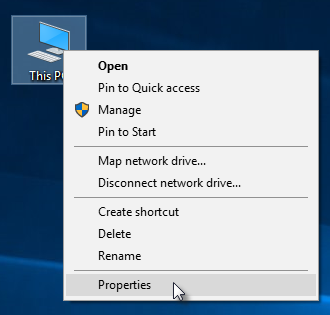
- Open My Computer > Properties.
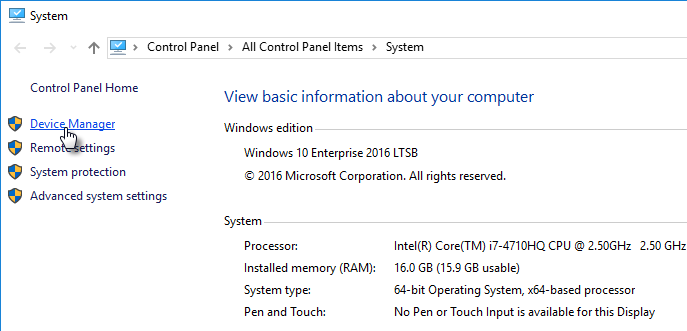
- Open Device Manager.
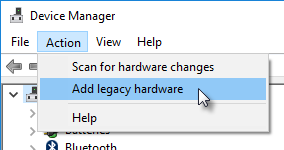
- Go to Action and select Add legacy hardware.
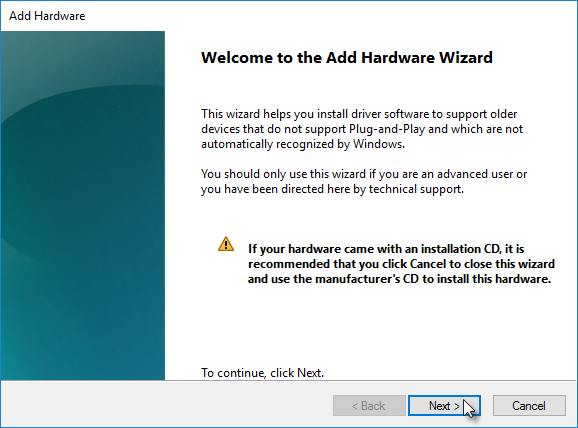
- Click Next in Add Hardware Wizard.
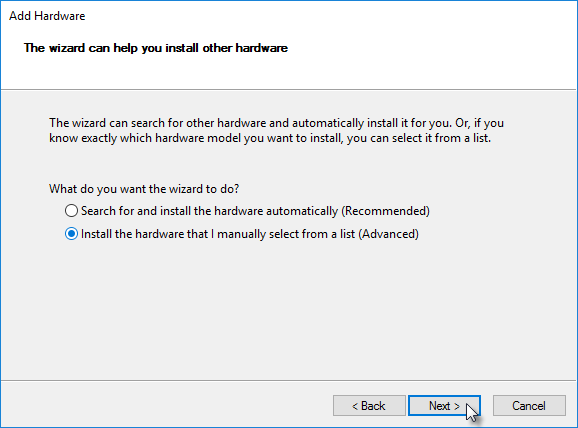
- Choose Install the hardware that I manually select from a list (Advanced) and click Next.
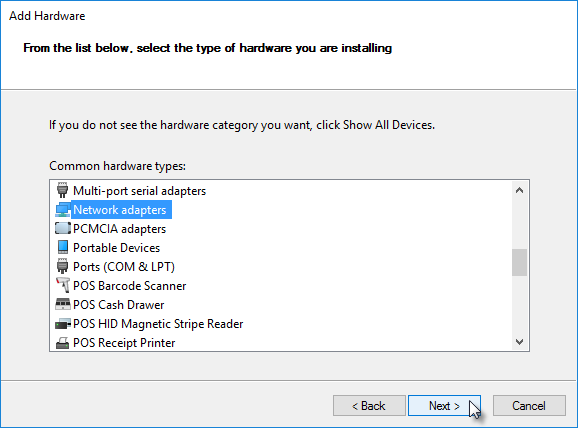
- Select Network adapters in the hardware types and click Next.
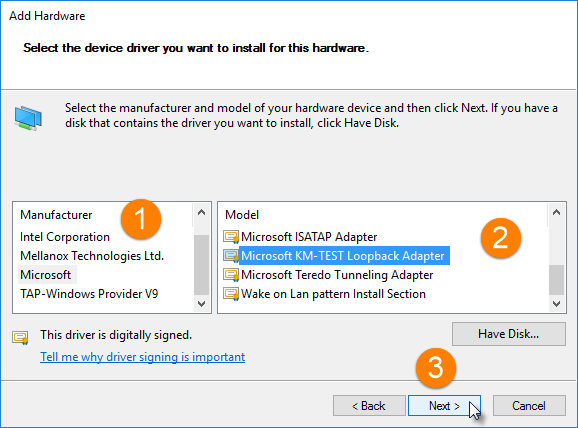
- In the Select the device driver dialog, choose:
- Manufacturer - Microsoft
- Model - Microsoft KM-TEST Loopback Adapter
and click Next.
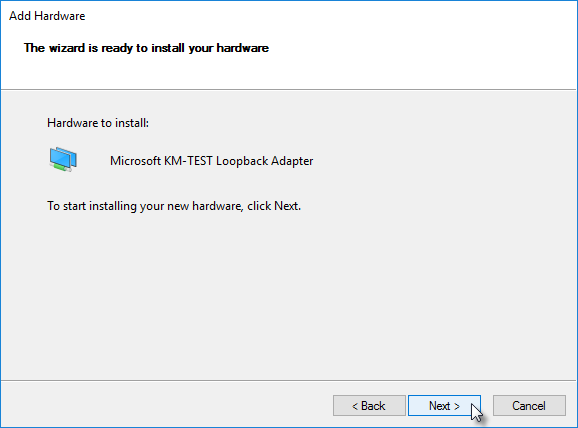
- Click Next to install.
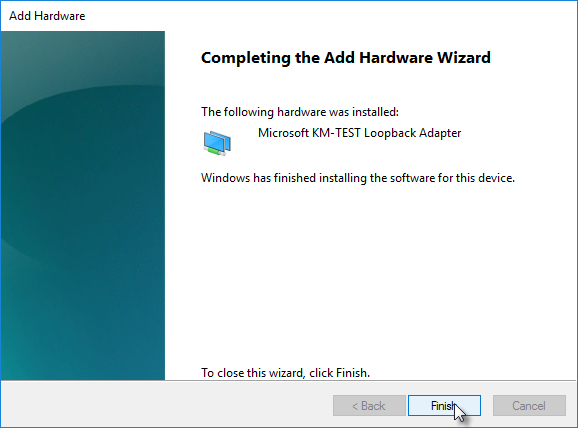
- Wait until the installation ends and click Finish to complete.
- Open Device Manager to make sure Lookback Adapter is installed and enabled.
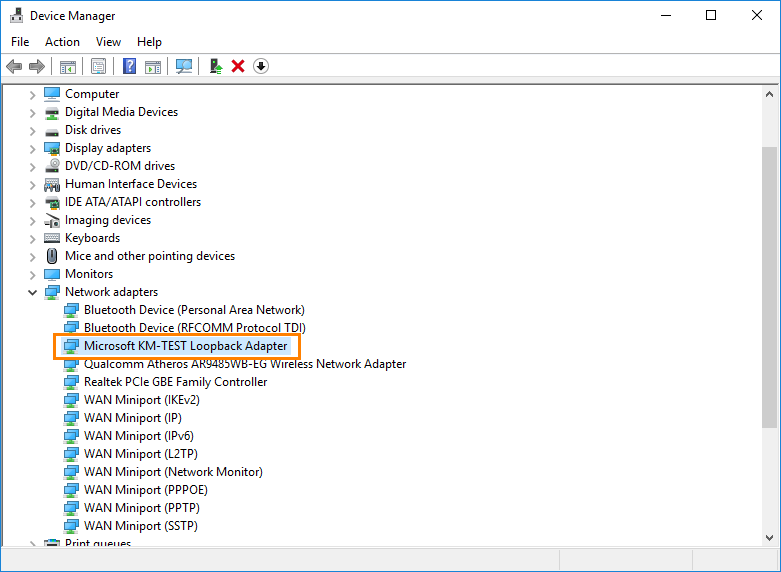
- Open My Computer > Properties.
Wait until the connection is established.
Open Command Prompt and use ipconfig to check the status of all network interfaces. Make sure Loopback Adapter has got the ip-addresses.
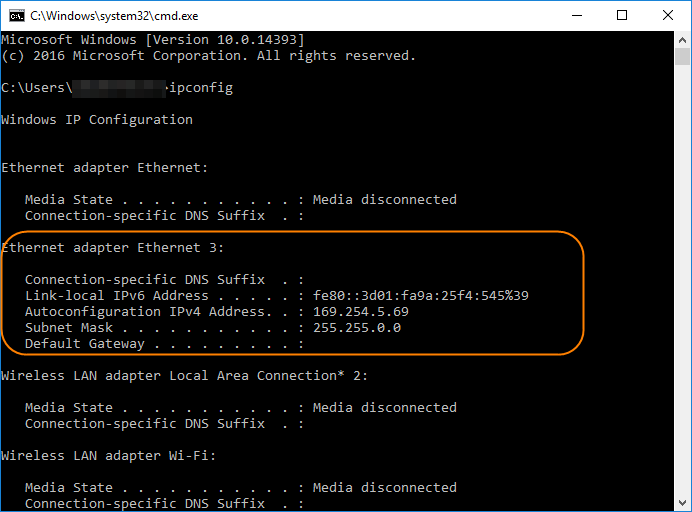
Start the application.
Check Bot Manager status in the tray menu.
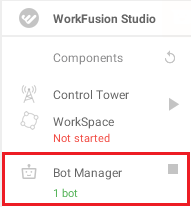
note
Mind that the tray menu is deprecated since version 2.3.0
Unable to load default server profile
Expand to learn more
Symptoms
On the first launch, the "Unable to load default server profile" error appears. The reason is: "Unable to store preference for key datastores.database.password in secure storage".
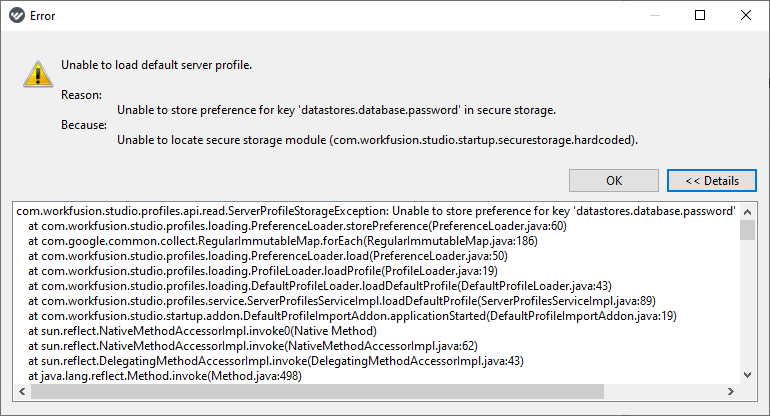
When accessing Server Profiles, you see the "Unable to access secure storage" and "Unable to locate secure storage module (com.workfusion.studio)" messages.
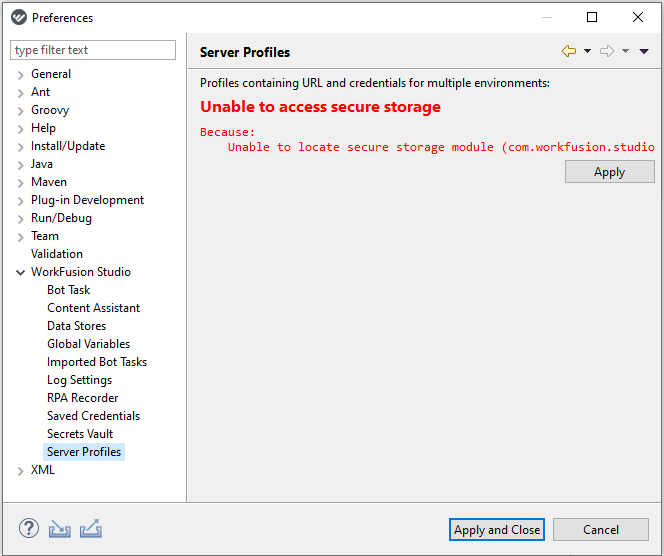
Resolution
- Close Intelligent Automation Cloud Business.
- Go to C:\Users%username% and delete the .eclipse folder.
- Launch the application. No errors appear this time.
Components
The section describes how you can solve issues, that may occur while working with Business Edition.
Application does not respond
Expand to learn more
Symptoms
Intelligent Automation Cloud Business has got non-responsive and stays so for a long time.
Resolution
You should end all the processes manually.
For that purpose, we recommend to use Process Explorer (Windows Sysinternals tool), as the standard Windows Task Manager is not convenient to handle multiple processes.
- Go to the Process Explorer page. There, you can find a description of the tool and the download link.
- Download Process Explorer and unpack it to a local folder on your computer.
- Start Process Explorer (procexp.exe or procexp64.exe) and accept EULA. Process Explorer opens.
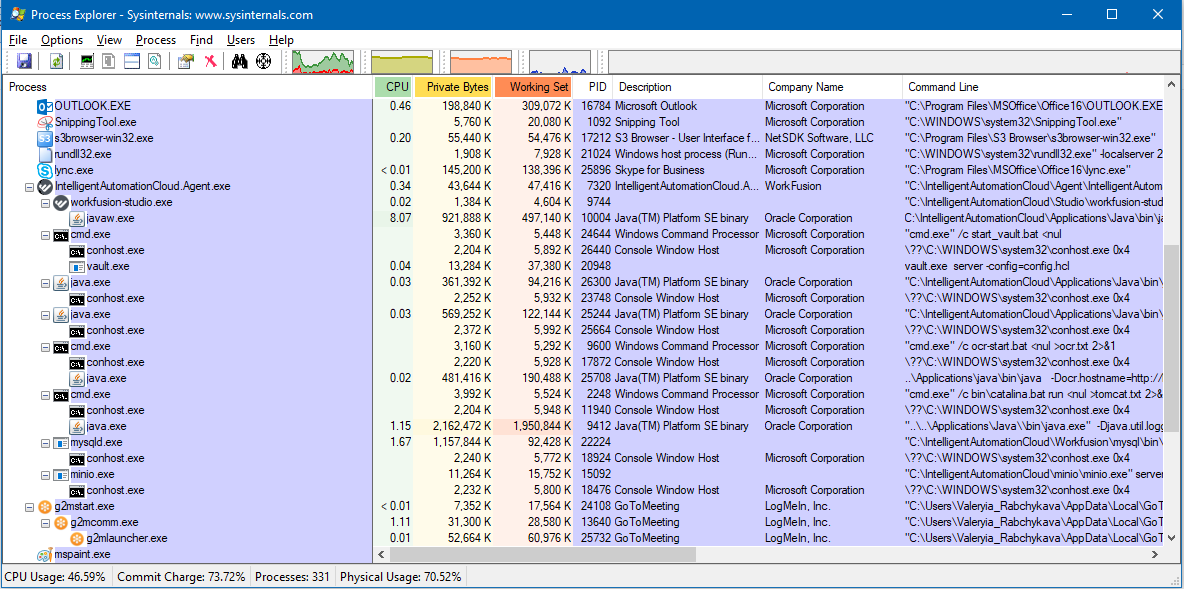
- Find the following tasks:
- IntelligentAutomationCloud.Agent.exe with multiple sub-tasks (workfusion-studio.exe, java.exe, mysqld.exe, minio.exe, cmd.exe)
- cmd.exe with sub-tasks postgres.exe
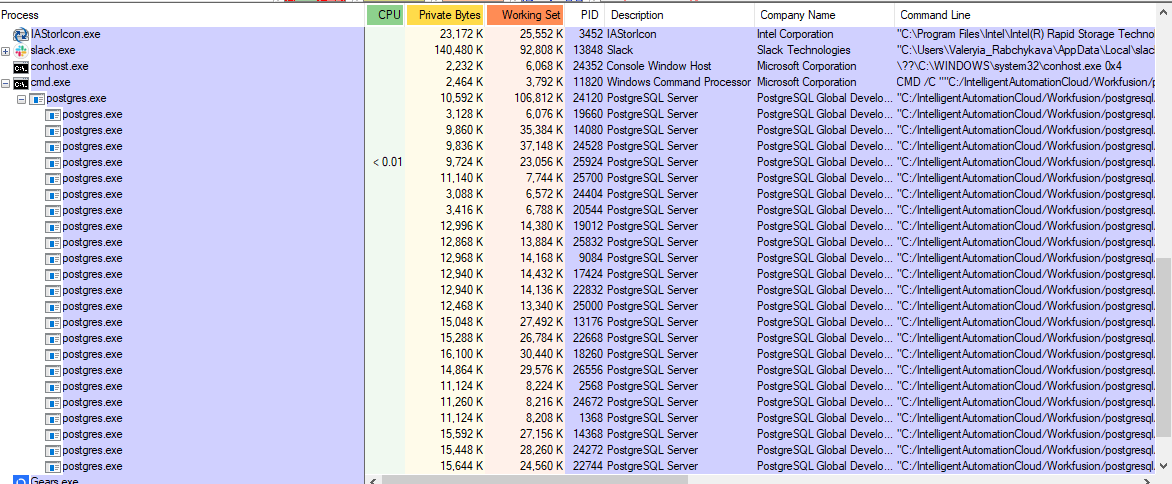
- Select the task, right-click, and choose Kill Process Tree in the context menu.
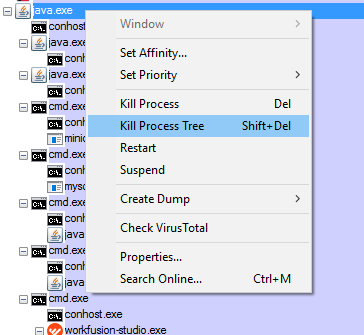
- Do the same for the second task.
Components links do not open in default browser
Expand to learn more
Symptom 1
Intelligent Automation Cloud Business looks launched successfully and doesn't show any warnings, but when clicking on links on the Components tab, nothing happens.

Symptom 2
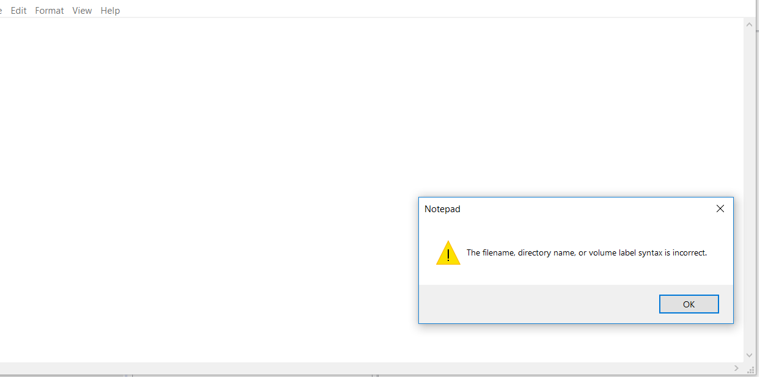
While clicking on the Control Tower link on the Components tab, the exception occurrs.
Resolution
Check whether the following links are not working as well.
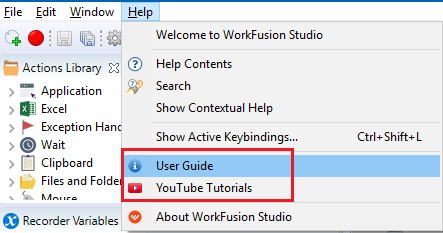
If the links above are not working, change your default browser (for example, from Chrome to Firefox, or Internet Explorer) and check the links once again.
If the links work in another browser, check which extensions or plugins you have in your usual default browser. Try to switch them one by one and check how the links work.
When you found an extension that prevents to open the links, switch it off or configure to allow Intelligent Automation Cloud Business links to launch in the browser.
note
Known case: Norton Safe Web extension for Chrome prevents to launch Business Edition links.
Server components are not found
Expand to learn more
note
Valid since version 2.3.0
Symptoms
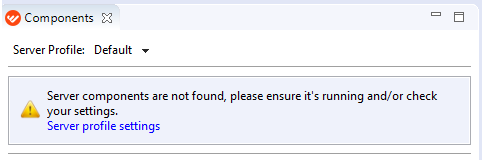
After launching the application, you may see the message like below.
Resolution 1
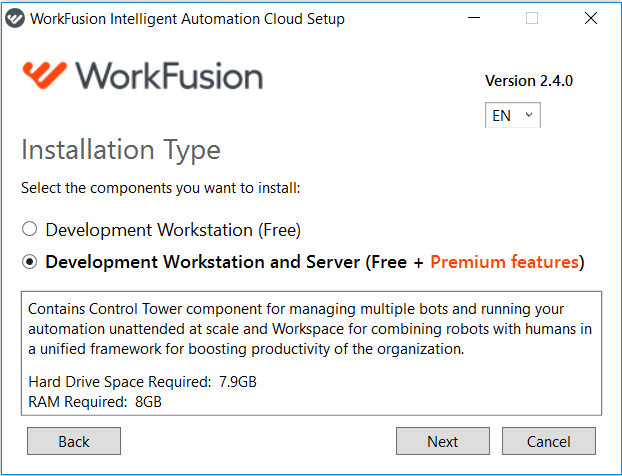
- Make sure you have selected Development Workstation and Server option during installation.
- If you downloaded the right version and selected Development Workstation and Server, but the issue still persists, check your default server profile settings in Window > Preferences > WorkFusion Studio > Server Profiles. For non-server local installation, they should be like on the screenshot below. For more details about this window, see here.
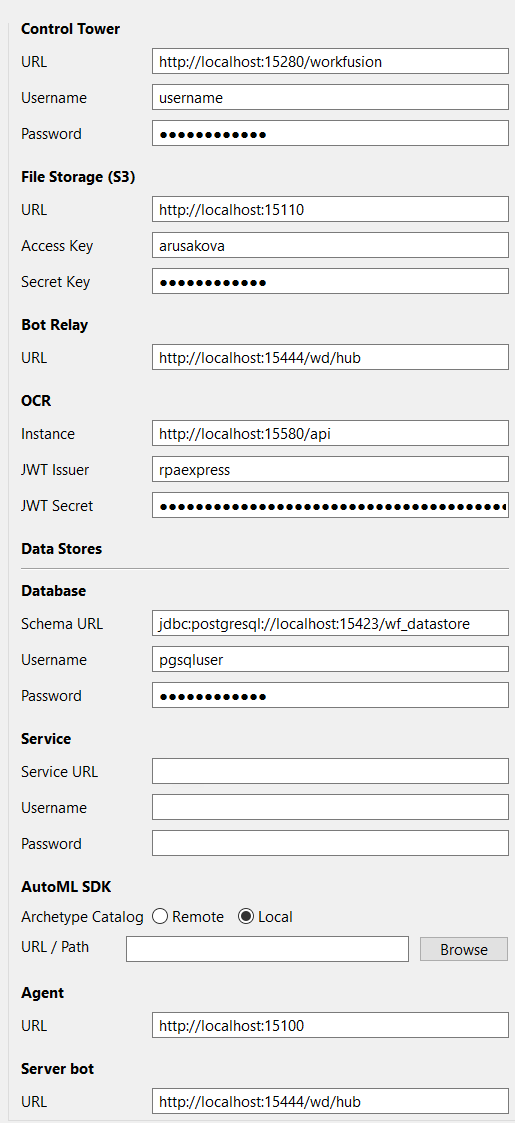
- If the Preferences settings are correct, there are several scenarios to follow.
- Open Control Tower URL from the profile in browser. In case it shows the Control Tower login page, it means that your components work. Reopen Studio, it should show Components as usual.
- Close all unnecessary applications and exit Intelligent Automation Cloud Business. Make sure that it closes completely. Reboot your PC and launch Business Edition only, wait till it loads, and after that wait for 5-10 minutes for the components links to appear.
- If it doesn't work, collect Agent logs and WorkFusion Studio logs and log a support ticket in WorkFusion Service Desk.
Resolution 2
Close Intelligent Automation Cloud Business.
If you are using a proxy, turn it off and run Intelligent Automation Cloud Business once again.
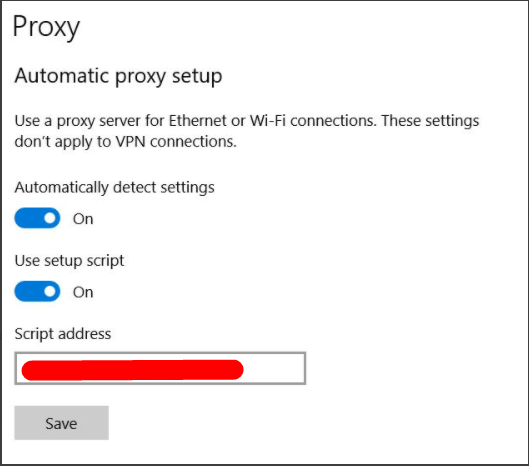
Resolution 3
If Resolutions 1 and 2 didn't help, close Intelligent Automation Cloud Business.
- Go to the folder C:\Users\%username%.
- Find the folder named workfusion-workspace.
- Create the new folder with the name workfusion-workspace2 and copy all the files from the previous one.
- Start the application, wait for several minutes, and check the Components tab.
- If this doesn't help as well, collect and zip the Studio log files as described here and log a support ticket in WorkFusion Service Desk.
Control Tower
No samples of business processes in Control Tower
Expand to learn more
Symptoms
You see empty Business Processes list in Control Tower, though there should be samples with business processes.
Resolution
- Run your Control Tower if it is not started and open it.
- Go to the Business Processes list and click on the button next to Create New, and press Import package.

- Press Add in order to upload files.
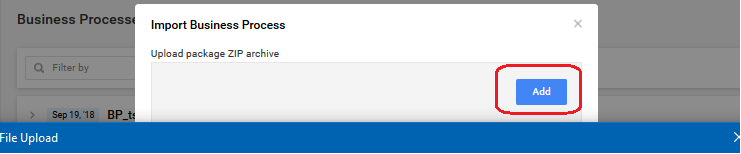
- Find in the dialog window C:\Users\<user_name>\ControlTower\Samples. You should see several .zip archives and .csv files.
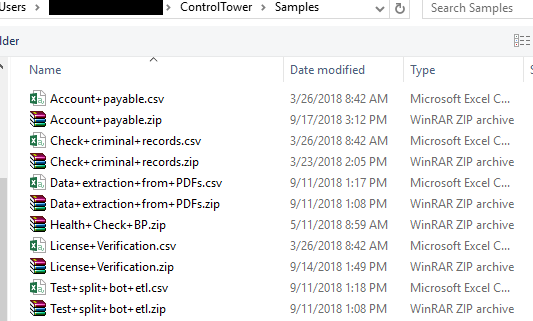
- Choose one of archives and press Open. You should see the following screen.
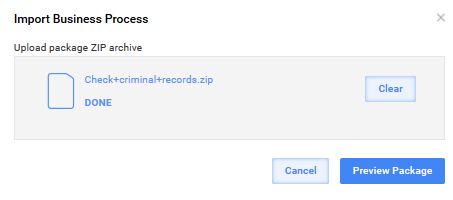
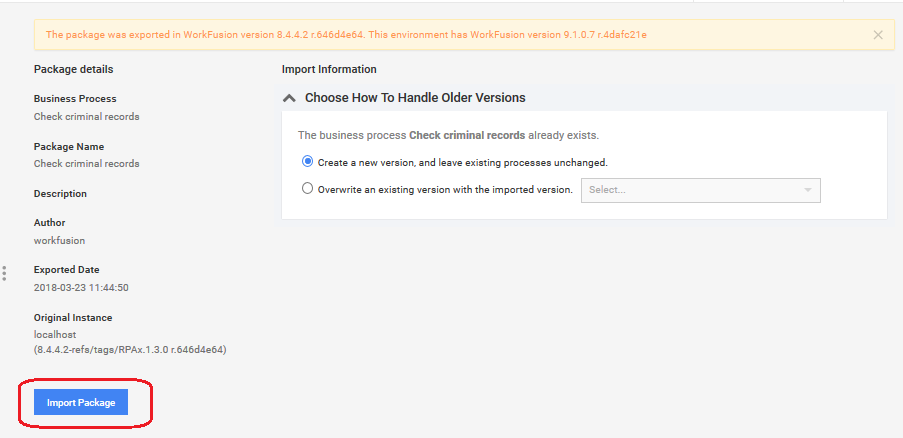
- Press Preview Package, wait a bit while the Import package button becomes available, and press it.
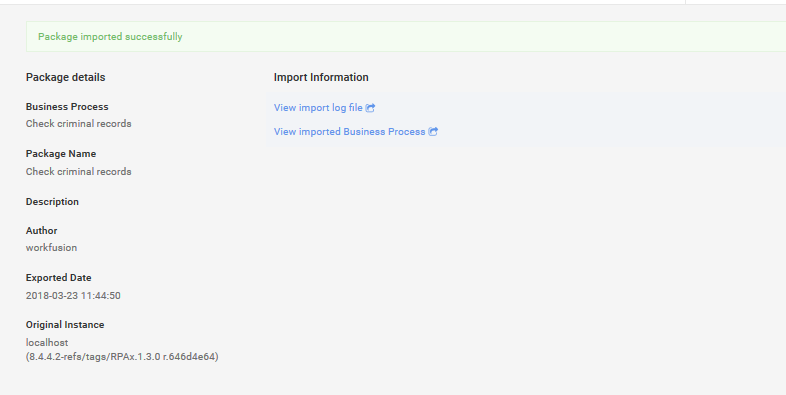
 After that, you can see sample business process in the list.

Scheduled process doesn't appear in Business Processes list in Control Tower
Expand to learn more
Symptoms
When you set up schedule for some process it doesn't appear on the Business Processes tab.
Resolution
- Check that you have chosen the whole business process while scheduling, not a task.
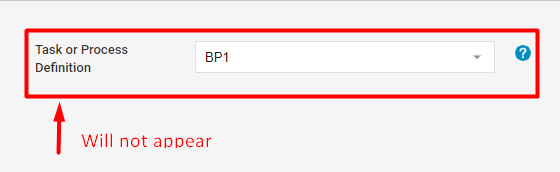
- Correct the schedule for the whole business process, and you will see it in the list of all business processes.
Remote device or resource won't accept connection
Expand to learn more
Symptoms
You cannot access Control Tower and WorkSpace. The message "The remote device or resource won't accept the connection" appears.
Resolution
This happens because of the use of proxy. Close your Intelligent Automation Cloud Business completely and follow these steps.
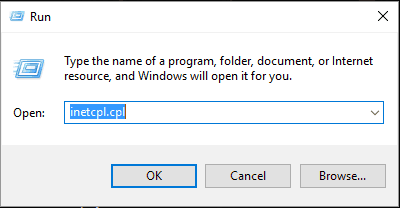
- Press Win+R.
- Type in inetcpl.cpl.
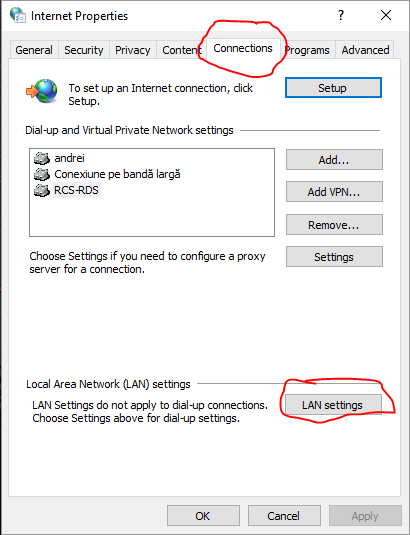
- As soon as Internet properties open, switch to the Connections tab and select LAN settings.
- In the Local Area Network Settings window, uncheck the Use a proxy server for your LAN option. Automatically detect settings must be still checked though.
- Apply the changes.
Recording is playing in RPA Recorder but not in Control Tower
Expand to learn more
Symptoms
You play the recording in WorkFusion Studio and it runs without errors. But after publishing the recording to Control Tower, it is not playing.
Resolution
If you use paths to files in your actions (Enter Keystrokes, Launch Application), make sure all backslashes are doubled, for example: C:\\Program Files\\Your Super Software\\Installer.msi
Expected BEGIN_OBJECT but was STRING exception in Business Process
Expand to learn more
Symptoms
Business Process fails in Control Tower in the very beginning with the exception robotics-flow executePlugin exception: [nodeId=null] java.lang.IllegalStateException: Expected BEGIN_OBJECT but was STRING at line 1 column 1 path $.
Resolution
- Check your Business Process name. For correct work, it should contain only standard English letters and numbers and some special characters like underscore or dash.
- If your Business Process name contains letters of other alphabet (Swedish, Spanish, German, etc.), check that it does not contain any diacritic marks like á, ä, å, etc.
- In case the Business Process name is correct, check the First Name and Last Name fields in Control Tower User Settings. They should contain English letters without diacritic marks only.
- Replace symbols if needed, save changes, and re-run the Business Process.
Recording with Custom Actions is playing in WorkFusion Studio but not in Control Tower
Expand to learn more
Symptoms
You play the recording in WorkFusion Studio which contains two or more custom actions, and it runs without errors. But after publishing the recording to Control Tower, it is not playing.
Resolution
- Check that your Custom Script syntax is correct. If there are more than one Custom Script in the recording, make sure you have a different definition name for each of them.
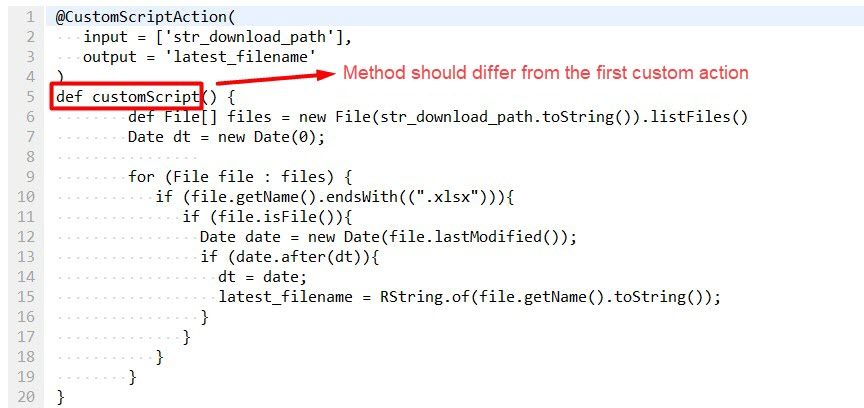
- Add some meaningful name for your Custom Script, for example, CheckLastDate, RenameFolder, etc.
- If all looks correct, but the exception is still in place, collect event logs from Control Tower, attach your code, and log a support ticket in WorkFusion Service Desk.
WorkFusion Studio
Unable to open recording
Expand to learn more
Symptoms
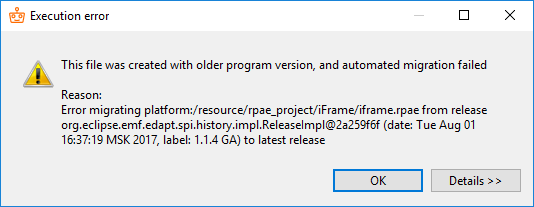
While opening a recording created with a older version of Intelligent Automation Cloud Business, migration fails with the following error.
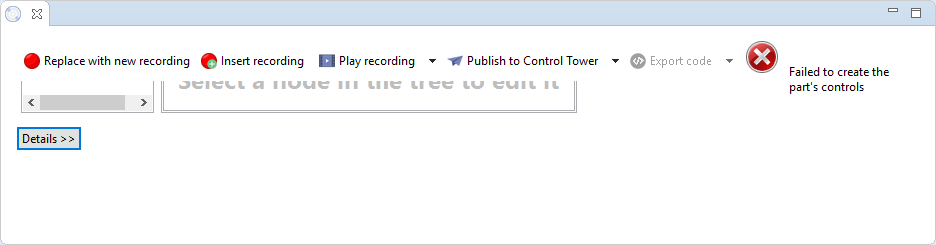
When you click OK, RPA Recorder cannot open the recording.
Resolution
Your recording is created with an older version of Intelligent Automation Cloud Business and cannot migrate automatically due to changes in the action model.
Close the tab that shows the error and close Studio.
Go to your workspace folder (by default C:\Users\%username%\workfusion-workspace\rpae_project).
Find the .rpae file you want to run.
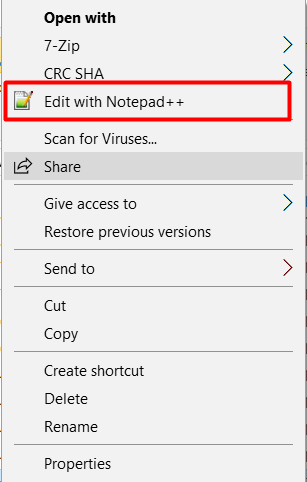
Open it with any text editor, e.g., Notepad.
Find the string in the XML header which contains a wrong version number (see example below).
xmlns:recorder="http://www.workfusion.com/recorder/v1.0.0"Change the namespace manually to the version of Business Edition currently installed on your machine.
important
From version 2.3.0 to 2.4.2, the namespace should be 2.3.0.1:
xmlns:recorder="http://www.workfusion.com/recorder/v2.3.0.1".Save your changes and close the text editor.
Start Studio and open the recording.
Repeat the procedure for all the recordings created with an older version, which fail to migrate automatically.
Model does not contain namespace URI
Expand to learn more
Symptoms
When you launch a recording, you get this error, as RPA Recorder does not support migration from later to earlier versions.
Resolution
Open your recording with any text editor and manually change the version of Intelligent Automation Cloud Business to the one installed on your machine. Follow the same steps described above for Unable to open recording.
Error executing WebElementAction
Expand to learn more
Symptoms
Error executing TemplateAction

\...

Caused by: org.openqa.selenium.WebDriverException: unknown error: call function result missing \'value\'
Resolution
If your RPA scripts stopped working after browser update, you need to do the following steps.
Chrome Driver
- Download the latest driver here.
- Replace the old driver in IntelligentAutomationCloud\RPA\rpa-grid\drivers\windows\x32.
Firefox Driver
- Download the latest drivers (both x32 and x64) here.
- Replace old drivers in the following directories:
- geckodriver-vx-win32.zip > in IntelligentAutomationCloud\RPA\rpa-grid\drivers\windows\x32
- geckodriver-vx-win64.zip > in IntelligentAutomationCloud\RPA\rpa-grid\drivers\windows\x64
Bot cannot click on needed element in Internet Explorer
Expand to learn more
Symptoms
You use Internet Explorer as your browser for automating, but a Bot cannot click on the needed element, no matter what mouse click option you select.

Resolution
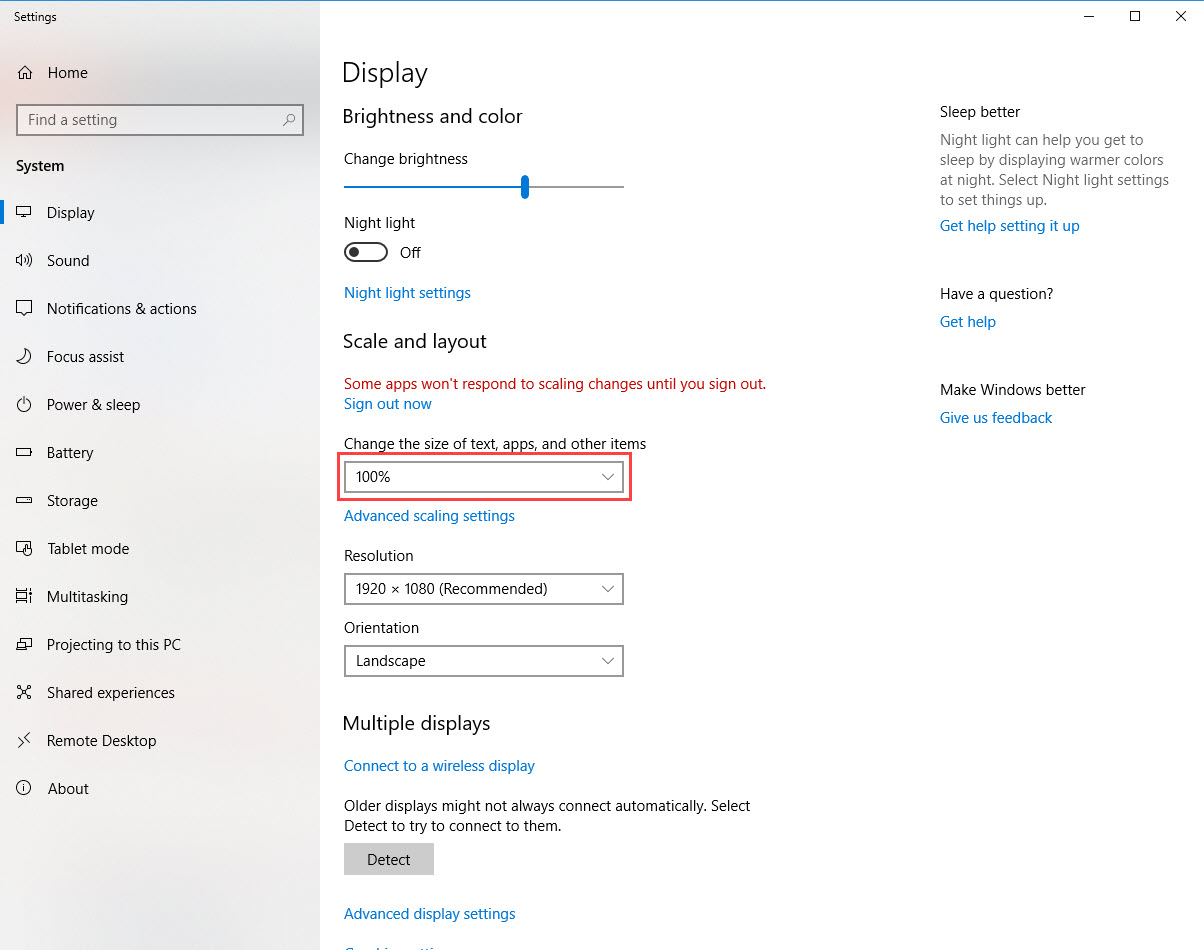
Make sure your Windows display scaling is set up to 100%. To perform the needed changes, do as follows.
- Go to Start > Settings > System > Display.
- In Scale and Layout, select 100% for Change the size of text, apps, and other items. The changes apply automatically.
Recording is not playing: Unable to connect with Robot
Expand to learn more
note
Valid up to version 2.3.0
Symptoms
You click Play recording, but the Unable to connect with Robot message emerges.
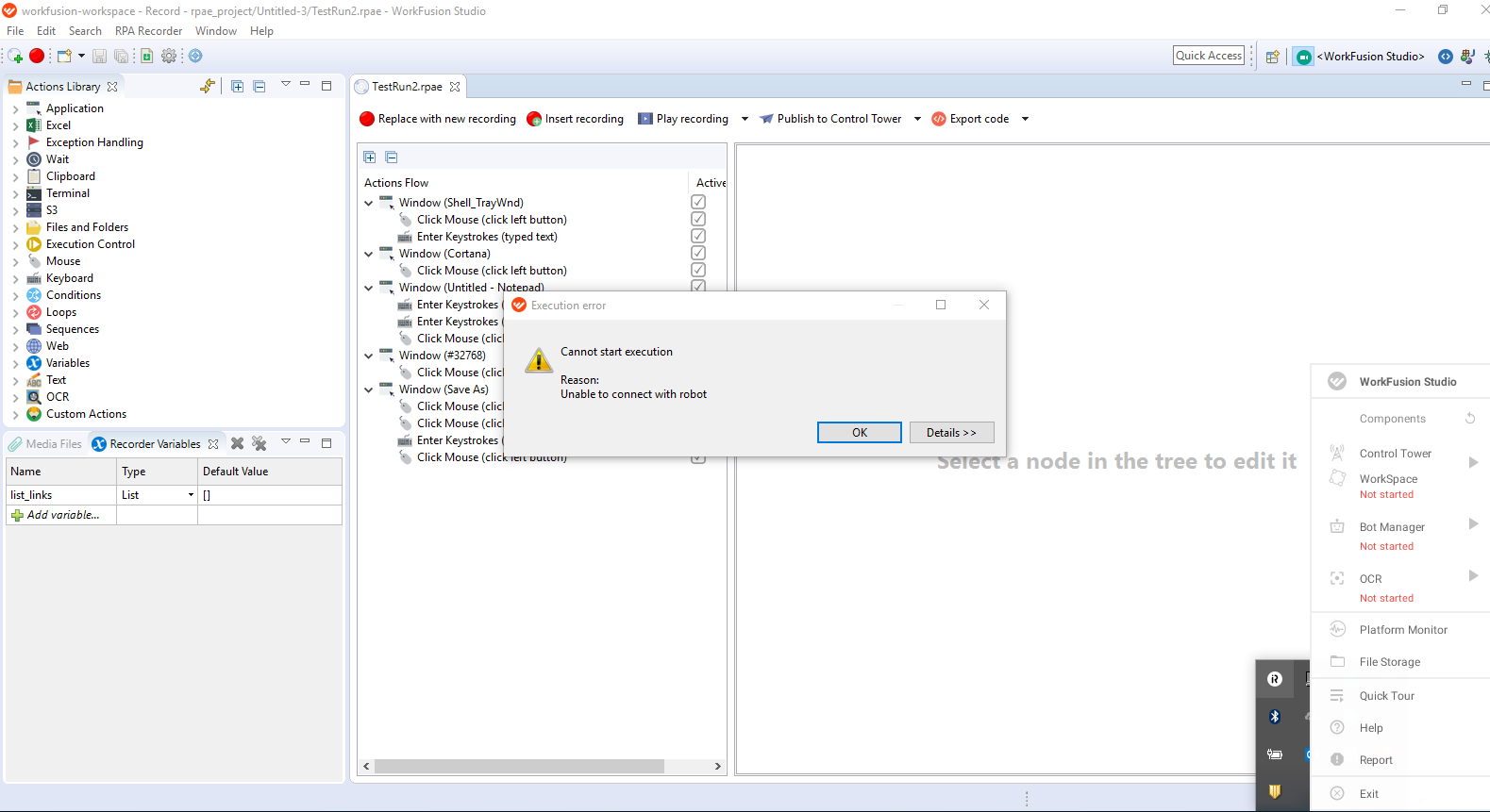
Resolution 1
Check Bot Manager status. Perhaps, it is not started.
To start Bot manager, open the tray menu and click Start in the Bot Manager section.
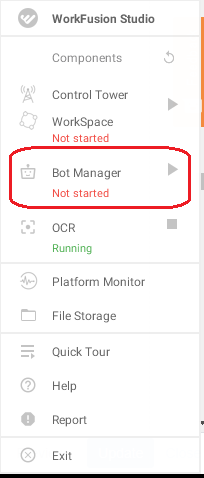
note
Mind that the tray menu is deprecated since version 2.3.0.
If it does not help, choose All Components > Restart.
Resolution 2
If the status of Bot Manager is Started, do as follows.
- Click Details>> on the window with the error message. If the error text contains "Caused by: org.openqa.selenium.WebDriverException: Unable to parse remote response: <!DOCTYPE html>", open Server Profiles. For that, go to Window > Preferences > WorkFusion Studio > Server Profiles.
- Check the value of Bot Relay URL. The URL should be: http://localhost:15444/wd/hub.

- If it is wrong or missing, edit/insert it manually.
- Click Apply, then OK.
- If the URL is correct, but exception occurs, please check whether you use proxy. You may find some settings in your Internet Explorer browser like below.
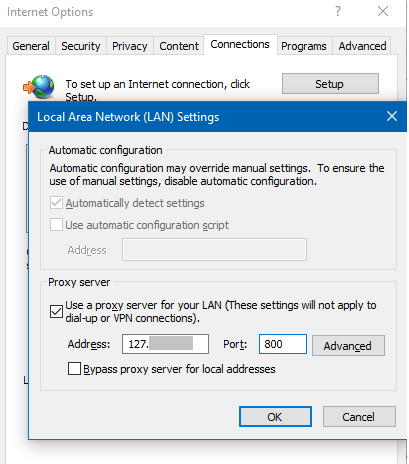
- If you don't use proxy and still get this exception, refer to your local IT team in order to provide access to the URL.
Recording is not playing: java.net.MalformedURLException: no protocol
Expand to learn more
Symptoms
You click Play recording, but it fails with the following exception.
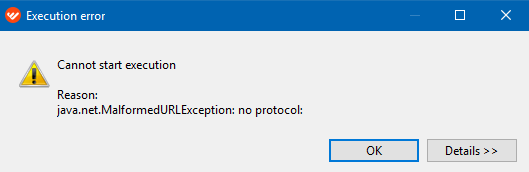
Resolution
- Open Window > Preferences > Workfusion Studio > Server Profiles, or click Server Profile: Default > Manage Profiles on the Components tab in Studio.
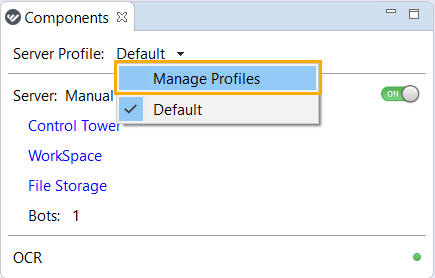
- Check whether default profile settings are populated according to the following guide: Preferences.
- If not, populate all the necessary fields, then press Apply and Close.
Recording is not playing: Cannot find active server profile
Expand to learn more
Symptoms
You click Play recording, but it fails with the following exception.
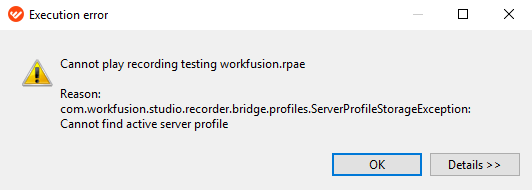
Resolution
Open Window > Preferences > Workfusion Studio > Server Profiles, or click Server Profile: Default > Manage Profiles on the Components tab in WorkFusion Studio.
If you see the error Cannot find active server profile in Server Profile (see below), you need to delete folder C:\Users\%USER_NAME%\.eclipse and check whether the server profile has been found and is not empty.
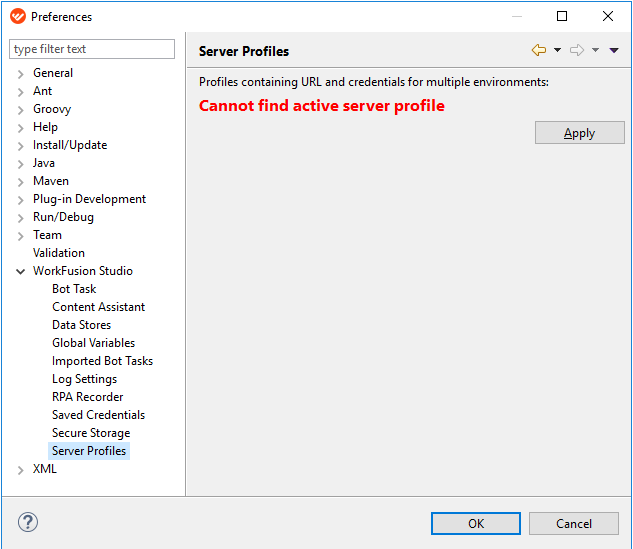
If the server profile is empty, populate the fields as described in this guide: Preferences.
note
Do the next steps only in case of the folder C:\Users\%USER_NAME%\.eclipse is absent. In case you have it and can remove, see steps 1-3 above.
If the folder C:\Users\%USER_NAME%\.eclipse is absent, and/or the server profile is not saved even after manual entering the data, do as follows.
- Open Window > Preferences > General > Security > Secure Storage.
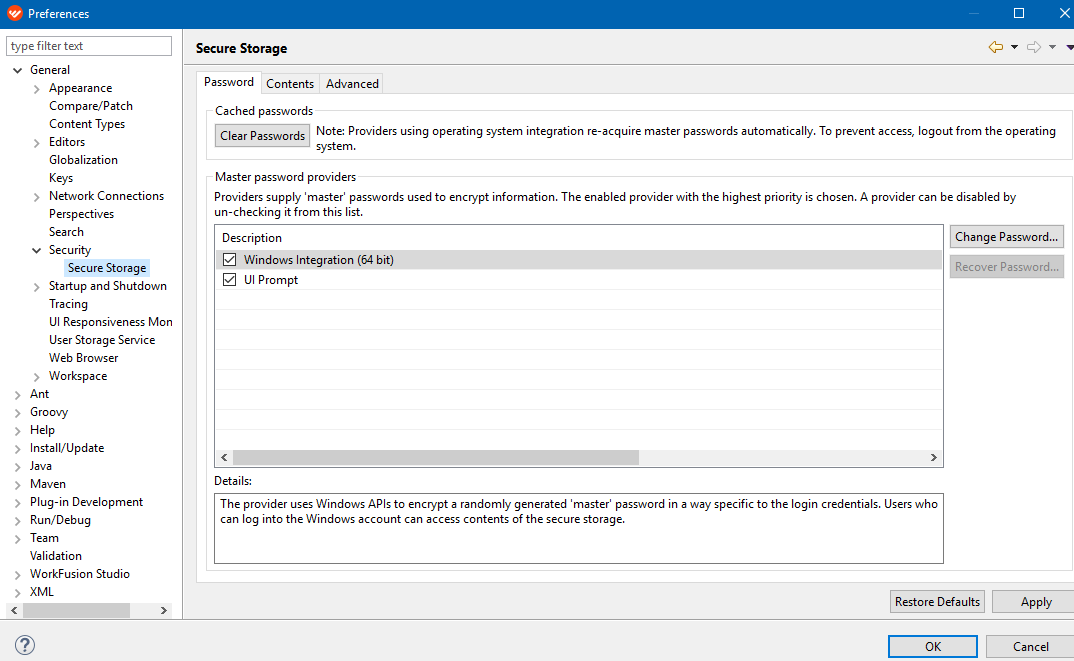
- Uncheck Windows Integrated (64 bit), press Apply, and then OK.
caution
Do not click on the Change Password button.
- Enter your own password and hints for recovering password as shown below.
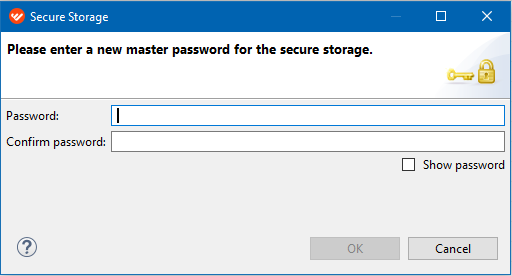
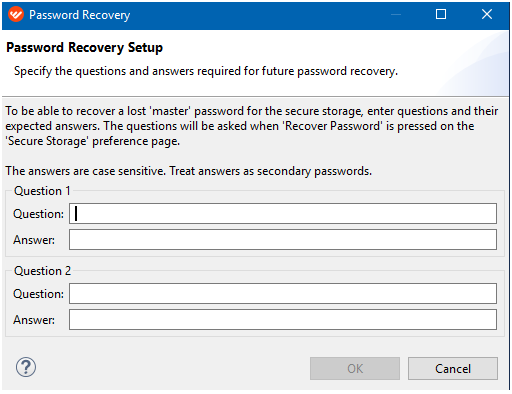
- Restart Intelligent Automation Cloud Business and launch WorkFusion Studio.
- In the password window that appears, enter the password you have previously set, go to WorkFusion Studio, and check whether default server profile is filled in.
- Open Window > Preferences > General > Security > Secure Storage.
Recording is not playing: Unable to read file
Expand to learn more
Symptoms
You click Play recording, but the message "Unable to read file" appears.
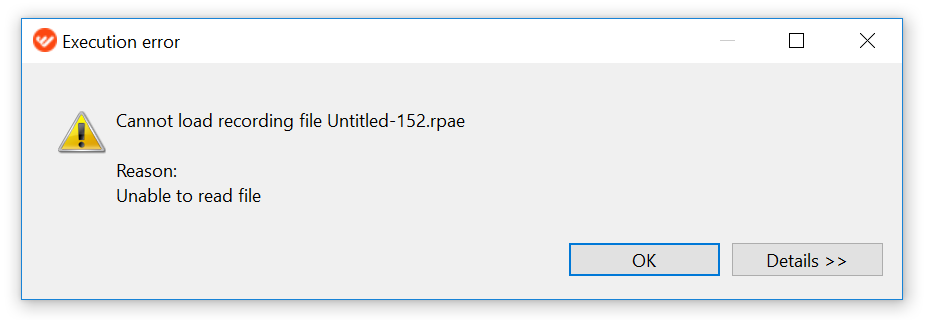
Resolution
Check that the details in all actions are filled in completely and there are no empty drop-downs, paths to files/folders or conditions. You can see which element is missing in the error log by clicking the Details>> button.
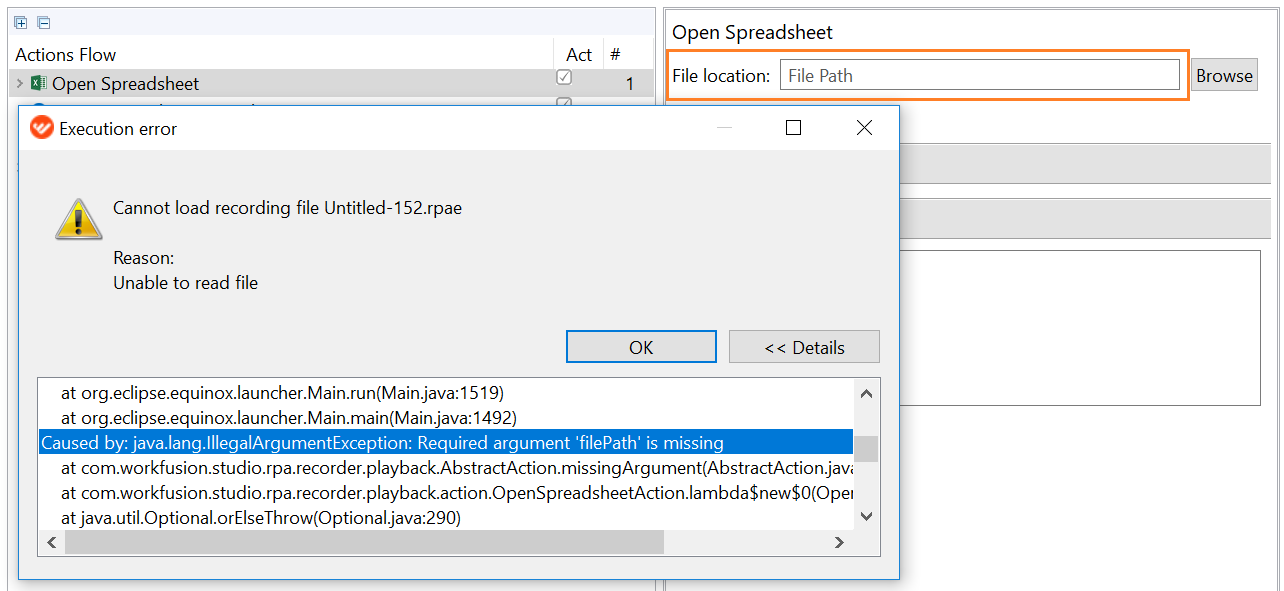
Recording is not playing: Unexpected error during execution. Secret entry not found
Expand to learn more
note
Valid since version 2.1.0
Symptoms
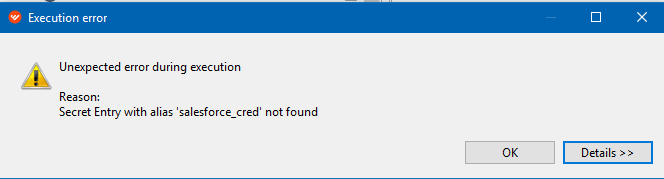
After a bot starts playing, it fails with the following exception.
Resolution
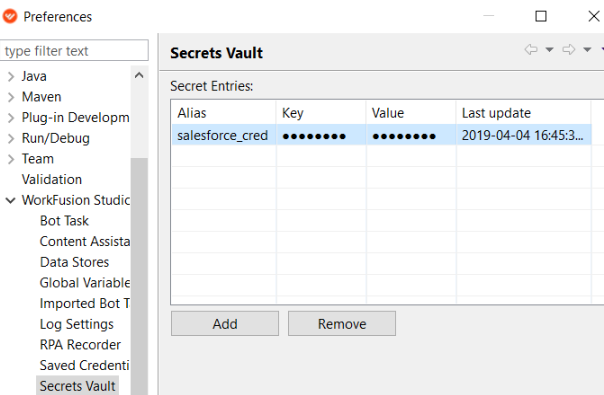
This exception means that there is no secret entry for Secrets Vault variables in your script. Before playing your script, make sure you have the required secret entry in the guide. Pay attention that the secret entry name should be the same as in the exception. In this case, you should have the salesforce_cred secret entry as shown below.
Recording is not playing: Unexpected error during execution
Expand to learn more
note
Valid since version 2.1.0
Symptoms
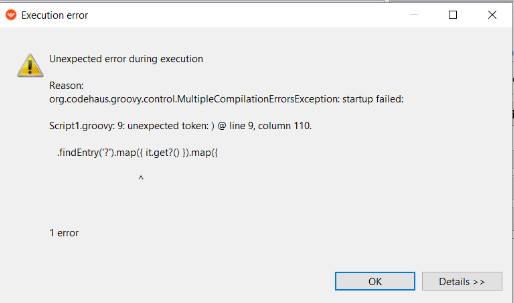
After a bot starts playing, it fails with the following exception.
Resolution
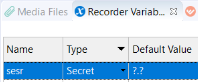
This exception means that a secret variable doesn't have any default secret entry. Before playing your script, make sure you have the required secret entry as described here. Alternatively, you can remove this variable from the script.
Recording is not playing: Chrome driver must be >= version
Expand to learn more
Symptoms
The exception occurs on the Open website action in Google Chrome during playing a recording: Caused by org.openqa,selenium.SessionNotCreatedException: session not created: Chrome version must be >=69.0.3497.0
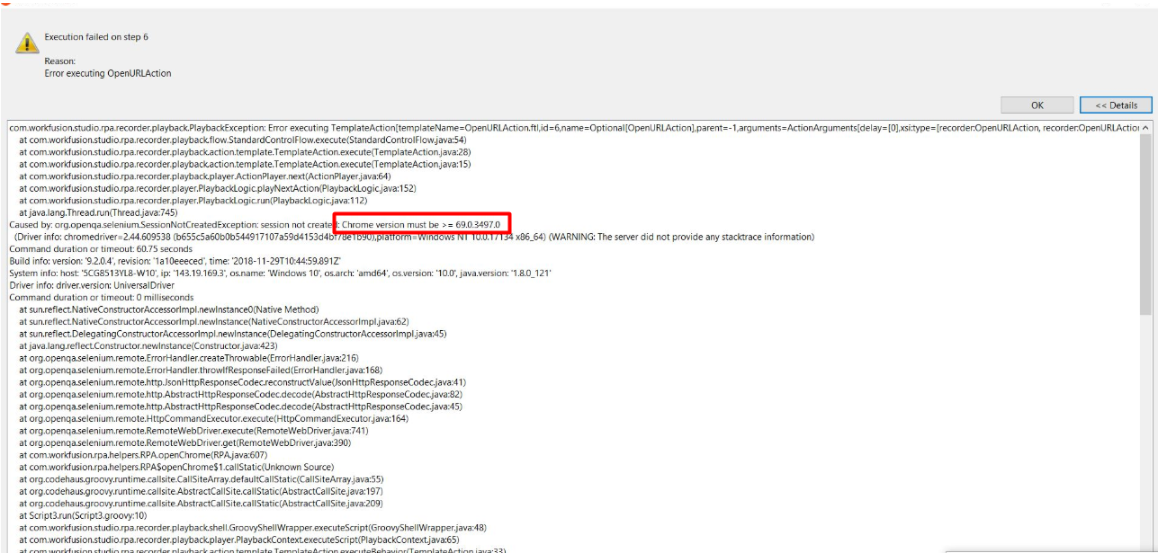
That means the Chrome driver is not compatible with your Chrome version.
Resolution
- Find out your Google Chrome version.
- If the Google Chrome version is less than 69.0.3497.0, update your Google Chrome.
note
The browser version can differ depending on your browser.
- If you don't have permission to update Google Chrome (due to the company policy restrictions, etc.), follow this link and find ChromeDriver compatible with your Chrome version.
- Download the compatible ChromeDriver from this storage.
- Unzip the archive on your PC.
- Go to C:%INSTALL_DIR%\RPA\rpa-grid\drivers\windows\x32 (C:\RPAExpress\RPA\rpa-grid\drivers\windows\x32 by default) and replace the existing chromedriver.exe with the unzipped .exe file (chromedriver.exe).
RPA Recorder gets too slow
Expand to learn more
Symptoms
WorkFusion Studio is working extremely slow.
Resolution
The maximum memory allocation pool for Java Virtual Machine (JVM) has been exceeded by Studio.
- Make sure that WorkFusion Studio is closed.
- Go to Studio folder (by default C:\IntelligentAutomationCloud\Studio\).
- Find and open the Studio configuration file (workfusion-studio.ini).
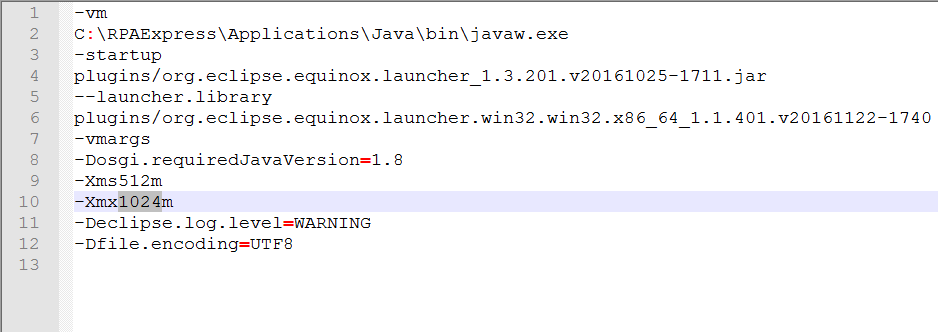
- Find the Xmx property. Default value is 1024m that equals to 1024 MB of memory.
- Change the value of the flag to 2048m to double the size of the memory pool.
- Save and close the configuration file.
- Start WorkFusion Studio.
"Ctrl+Enter" keystroke combination not working
Expand to learn more
note
Valid up to version 2.3.0
Symptoms
Keystroke combination "Ctrl + Enter" is neither accepted nor shown in the Key combination box.
Resolution
By default, the "Ctrl + Enter" keystroke is accepted with all the windows minimized. Do as follows.
- Add Keystrokes to your Actions Flow.
- Click Change and minimize all windows.
- Hit Ctrl + Enter for the combination to appear in the details.
There is also a workaround to make it work without minimizing all the open windows. You can record "Ctrl + Enter" using RPA Recorder.
- Click Insert recording.
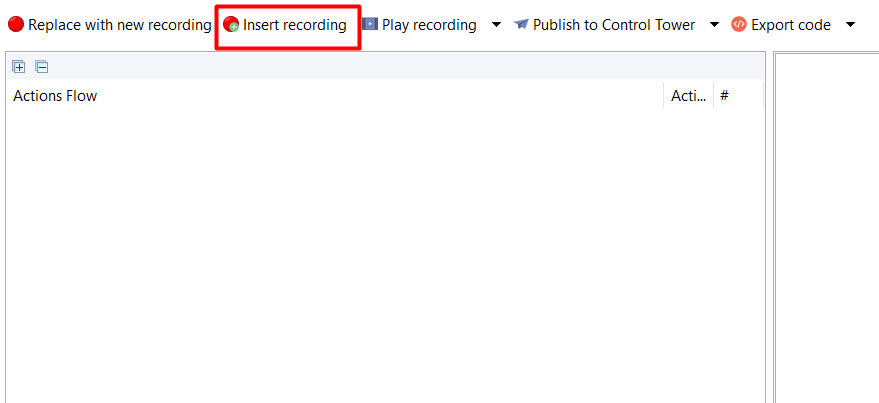
- After recording starts, click "Ctrl + Enter" and stop the recording. You will get the Enter Keystrokes "Ctrl + Enter" action.
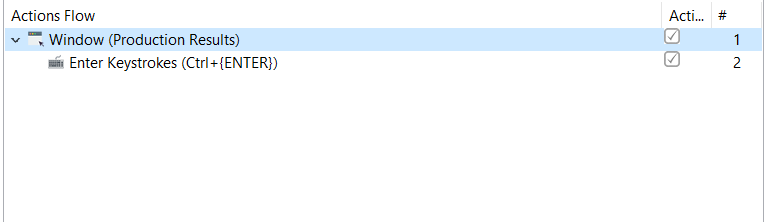
After that, you can use this recording anywhere you need to insert the "Ctrl + Enter" keystroke.
Error executing OCR action: URL is not absolute
Expand to learn more
Symptoms
OCR action fails and returns an error "Error executing OCR action: URL is not absolute".
Resolution
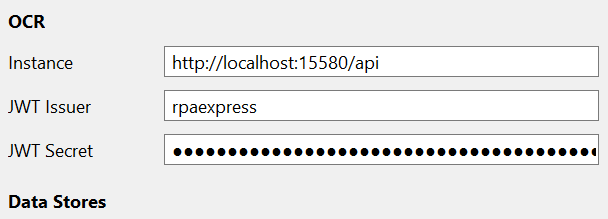
- First you need to check if the server profile is filled in. If not, you can fill it in manually using this guide.
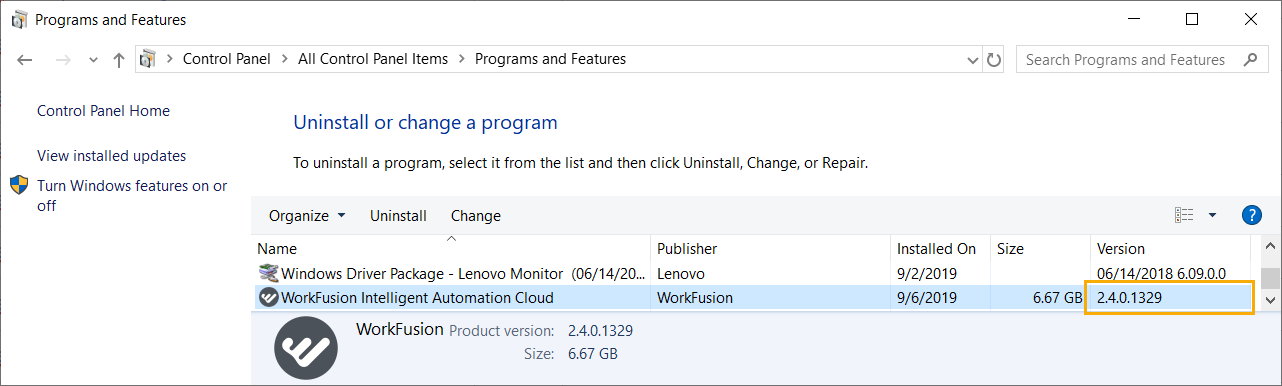
- If this does not help, check your Intelligent automation Cloud Business version as it might require an update. Go to Control Panel > Programs > Programs and Features as seen here.
- If you have the latest version (no update available) you'll need to proceed with the investigation. Log a support ticket in WorkFusion Service Desk.
Error executing OCR action: OcrException cannot be found
Expand to learn more
Symptoms
An execution error occurs.
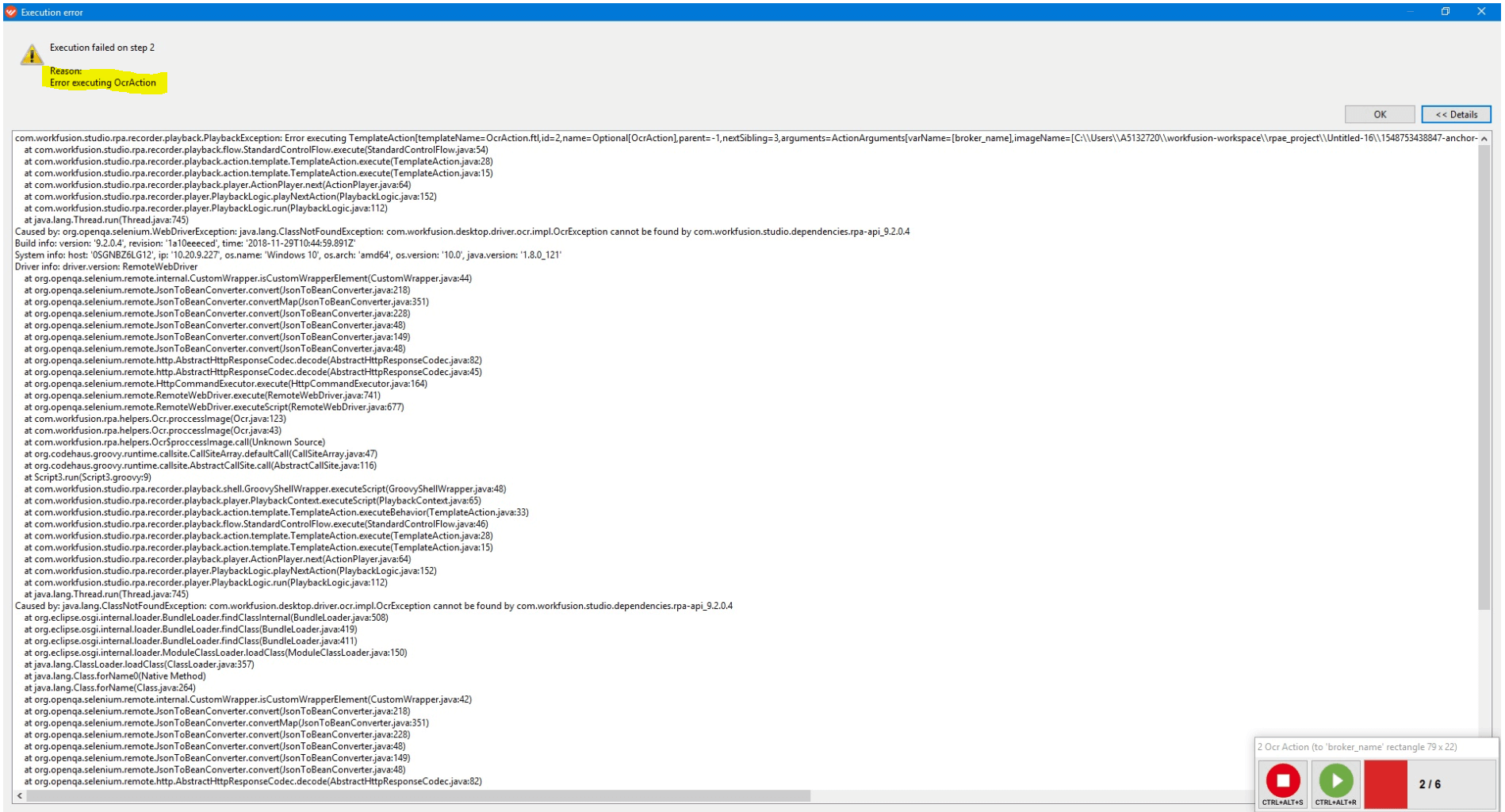
Resolution
- First, check if the OCR status and the remaining number of pages to be processed under the current OCR license on the Components tab.
- If you see 0 pages left, you'll need to purchase an OCR license.
- If you still have pages remaining, check your Intelligent Automation Cloud Business version, as it might require an update. Go to Control Panel > Programs > Programs and Features as seen on the picture below.
- If you have the latest version (no update available), you'll need to proceed with the investigation. Log a support ticket in WorkFusion Service Desk.
Window cannot be recognized in SAP GUI
Expand to learn more
note
Valid since version 2.3.0
Symptoms
While automating SAP GUI and using the Window action, it cannot be recognized. For example, you entered the selector of the Save As window using Inspector.
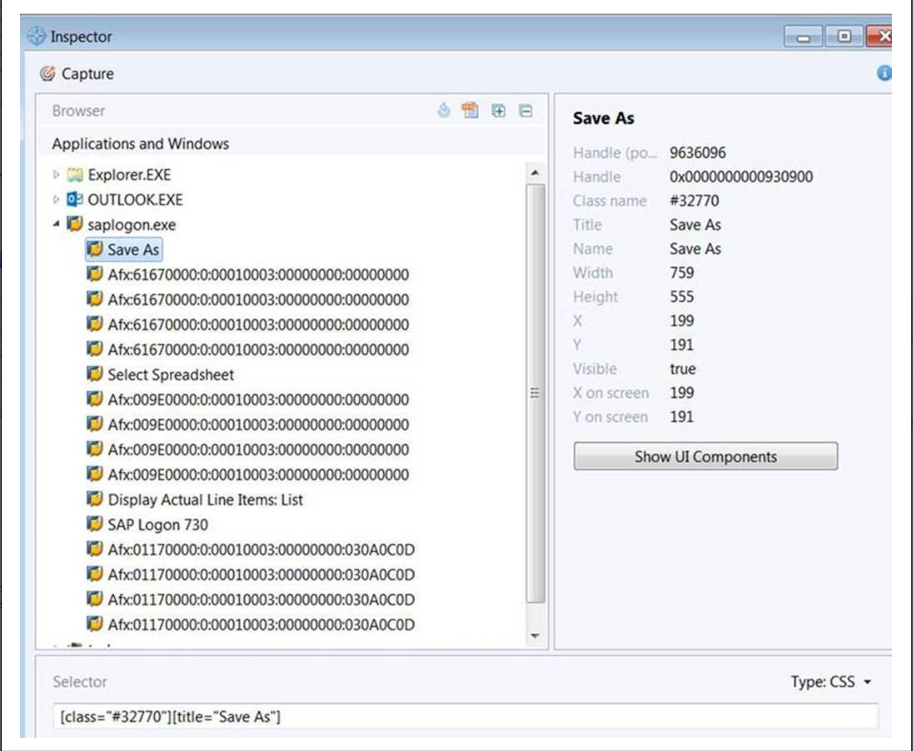
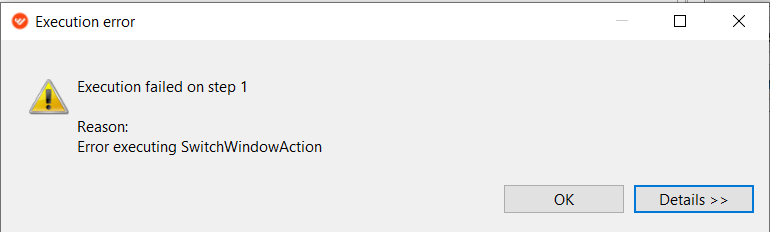
While script execution, an exception occurs.
Resolution
- Check your SAP GUI UI theme.
- Change your UI theme to Blue Crystal or Classical if you use any other theme.
- In case you use one of these themes or this solution doesn't help, collect and zip the Studio log files as described here and log a support ticket in WorkFusion Service Desk.
Exception on opening execution-result.log.csv in WorkFusion Studio
Expand to learn more
Symptoms
While trying to open execution-result.log.csv in WorkFusion Studio in Excel after script execution, the following exception appears.

That happens due to the total length of the file name and path.
Resolution
Make sure the whole file path to the execution-result.log.csv file is not less than:
- 200 characters for OneDrive (including spaces and slashes)
- 260 characters in case of local drive (including spaces and slashes) In case it exceeds these values, move your project or the whole Workspace to a short path, and remove unnecessary folders hierarchy.
Oracle JInitiator version is too low. Please install version 1.1.8.2 or higher
Expand to learn more
Symptoms
While trying to log in to some servlet (Oracle Form), a similar exception occurs.
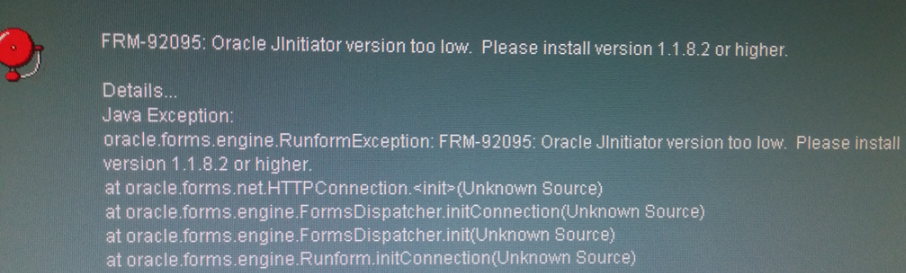
Resolution
Usually, the exception means that the Java version is old, e.g., 7. But our application has its own Java package with version 1.8, so this is not an issue with it. To fix this exception, do as follows.
- Open Java Control Panel and select the Java tab.
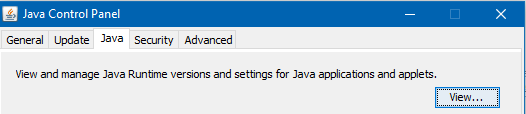
- Open View and enter
-Djava.vendor="Sun Microsystems Inc."in the Runtime Parameters field.
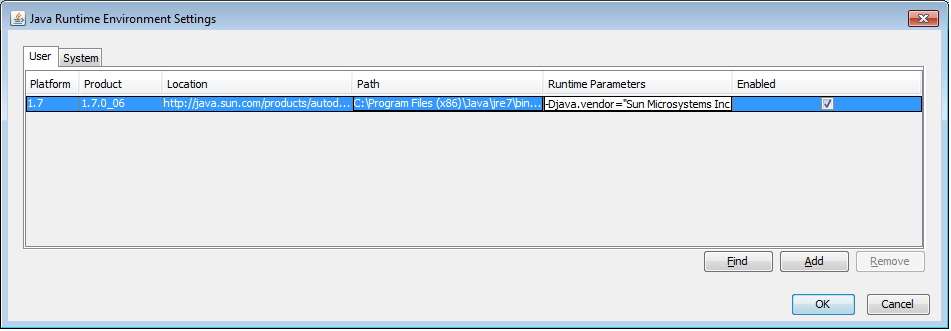
- Click OK and close Java Control Panel.
- Run your script.
Secure storage password: Incorrect password or data is corrupted
Expand to learn more
Symptoms
After launching WorkFusion Studio and entering the Secure Storage password, you receive the following message.
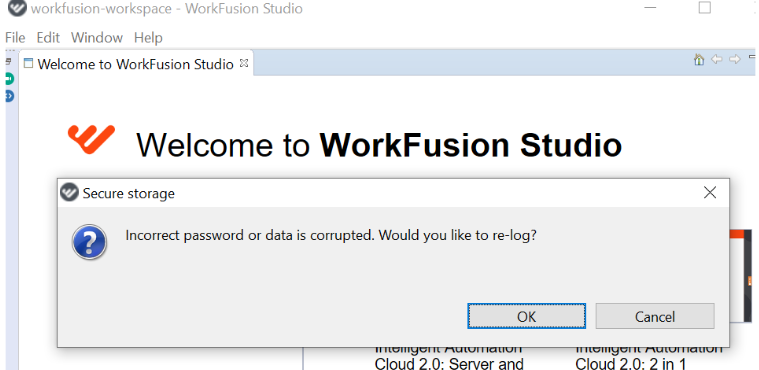
Resolution
- Close this message window and Studio completely. It may require several clicks on the message window.
- Go to the folder C:\Users\your_user_name and remove folder .eclipse.
- In the same folder, remove the profiles.properties file.
- Run the application again, enter a new password and hints if needed.
Unable to create a new recording
Expand to learn more
Symptoms
While creating a new recording, the exception occurs.
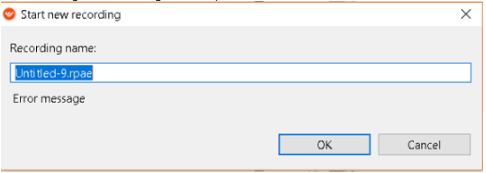
Resolution
- Go to the Media Files tab in Studio, right-click on the rpae_project folder and press Open Project.
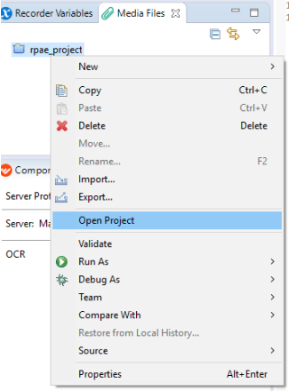
- If this does not help, change the default WorkFusion Studio workspace to another folder, or re-create it as described in Resolution 2 in this guide: Server components not found.
- If this still does not help, collect Studio logs and submit a support ticket in WorkFusion Service Desk.
Exception on the Open website action in Google Chrome during playing a recording
Expand to learn more
note
Valid since version 2.2.1
Symptoms
The error executing OpenURLAction is caused by @org.openqa,selenium.SessionNotCreatedException: session not created: Chrome version must be >=69.0.3497.0".
That means the Chrome driver is not compatible with your Chrome version.
Resolution
- Find out your Google Chrome version.
- If the Google Chrome version is less than 69.0.3497.0, update your Google Chrome.
- If you don't have permission to update Google Chrome (due to the company policy restrictions, etc.), follow this link and find ChromeDriver compatible with your Chrome version.
- Download the compatible ChromeDriver from this storage.
- Unzip the archive on your PC.
- Go to C:%INSTALL_DIR%\RPA\rpa-grid\drivers\windows\x32 (C:\RPAExpress\RPA\rpa-grid\drivers\windows\x32 by default) and replace the existing chromedriver.exe with the unzipped .exe file (chromedriver.exe).
Open Website action fails with unknown error: cannot find Chrome binary
Expand to learn more
Symptoms
The exception occurs on the Open Website action during playing a recording.
Error executing OpenURLAction
com.workfusion.studio.rpa.recorder.playback.PlaybackException: Error executing TemplateAction[templateName=OpenURLAction.ftl,id=2,name=Optional[OpenURLAction],parent=-1,children=[3, 4, 16, 22, 30, 35, 41],arguments=ActionArguments[delay=[0],timeoutMs=[10000],xsi:type=[recorder:OpenURLAction, recorder:OpenURLAction],pollingInterval=[300],waitTimeout=[120000],active=[true],comment=[Open Web Outlook and sign in. Two slighly different routines in Exception
handling to ensure successful log-in.],type=[CHROME],url=[${str_mail_url}],awaitTimeout=[5000]]]
at com.workfusion.studio.rpa.recorder.playback.flow.StandardControlFlow.execute(StandardControlFlow.java:54)
at com.workfusion.studio.rpa.recorder.playback.action.template.TemplateAction.execute(TemplateAction.java:28)
at com.workfusion.studio.rpa.recorder.playback.action.template.TemplateAction.execute(TemplateAction.java:15)
at com.workfusion.studio.rpa.recorder.playback.player.ActionPlayer.next(ActionPlayer.java:81)
at com.workfusion.studio.rpa.recorder.player.PlaybackLogic.playNextAction(PlaybackLogic.java:154)
at com.workfusion.studio.rpa.recorder.player.PlaybackLogic.run(PlaybackLogic.java:112)
at java.lang.Thread.run(Thread.java:745)
Caused by: org.openqa.selenium.WebDriverException: unknown error: cannot find Chrome binary
(Driver info: chromedriver=2.44.609538 (b655c5a60b0b544917107a59d4153d4bf78e1b90),platform=Windows NT 6.3.9600 x86_64) (WARNING: The server did not provide any stacktrace information)
Command duration or timeout: 27 milliseconds
Build info: version: '9.4.0.3', revision: 'abf2ebe0f1', time: '2019-05-29T13:21:06.482Z'
System info: host: 'SANC-MINE-01-PP', ip: '10.15.162.168', os.name: 'Windows Server 2012 R2', os.arch: 'amd64', os.version: '6.3', java.version: '1.8.0_121'
Resolution
- Make sure that the Chrome browser is installed on your machine. If not, install it by the default path.
- Check the Chrome browser version. Find the actual web driver for your Google Chrome version here.
- Download the needed web driver if it differs from yours.
- Replace chromedriver.exe located in C:\IntelligentAutomationCloud\RPA\rpa-grid\drivers\windows\x32 with the one you have downloaded.
- Launch Business Edition and re-run the recording.