Review deferral requests
As part of its workflow, Isaac can create an assignment for exception handling related to deferral requests in the Workspace application. One assignment is created per case or entity. The step, also known as Human-in-the-loop, is optional, and you can enable or disable it per variation.
To review the results and details of deferral requests, take the following steps:
If the Human-in-the-loop step is disabled, a batch summary report is created instead and sent to a specified email (if any). For more information, read the Review output topic.
Locate results
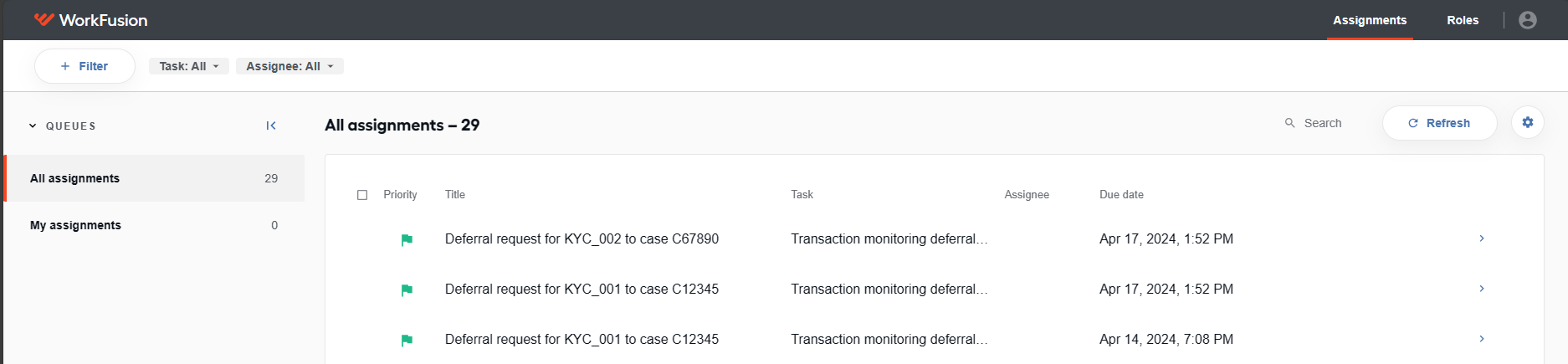
Once the Transaction Monitoring Investigator Business Process is completed and its results are ready, you can review them in the Workspace application. Just like in other cases, you can add assignments to a custom queue or assign them to a specific user.
Review deferral request
As you open an assignment, you see a deferral request with a structure similar to the one shown below:
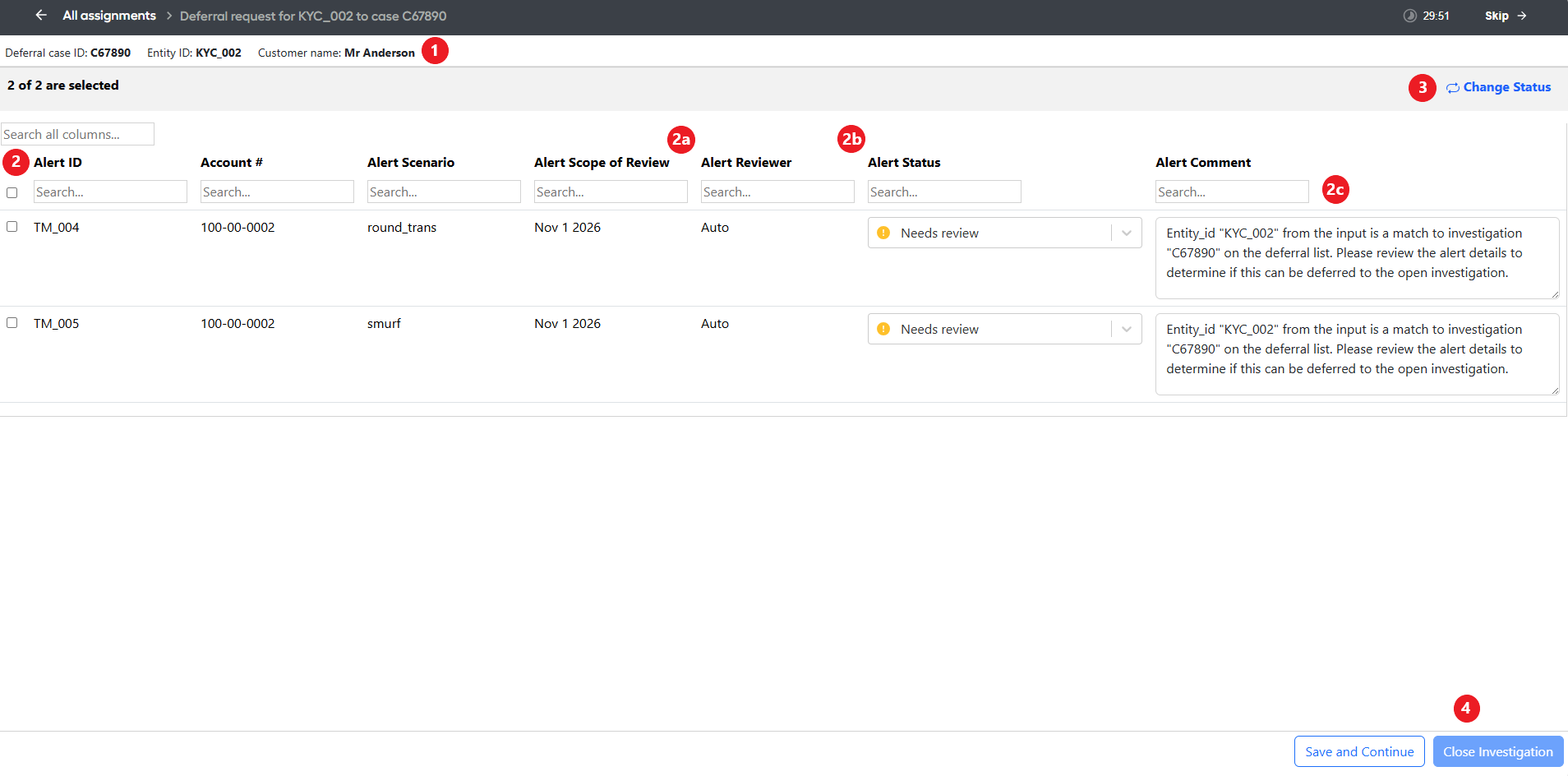
The following numbers correspond to those in the image above:
Header information: contains information about the open case for a specific entity or customer.
Alert information: contains information about the new alert.
a. Reviewer: the last user who edited the status or comment.
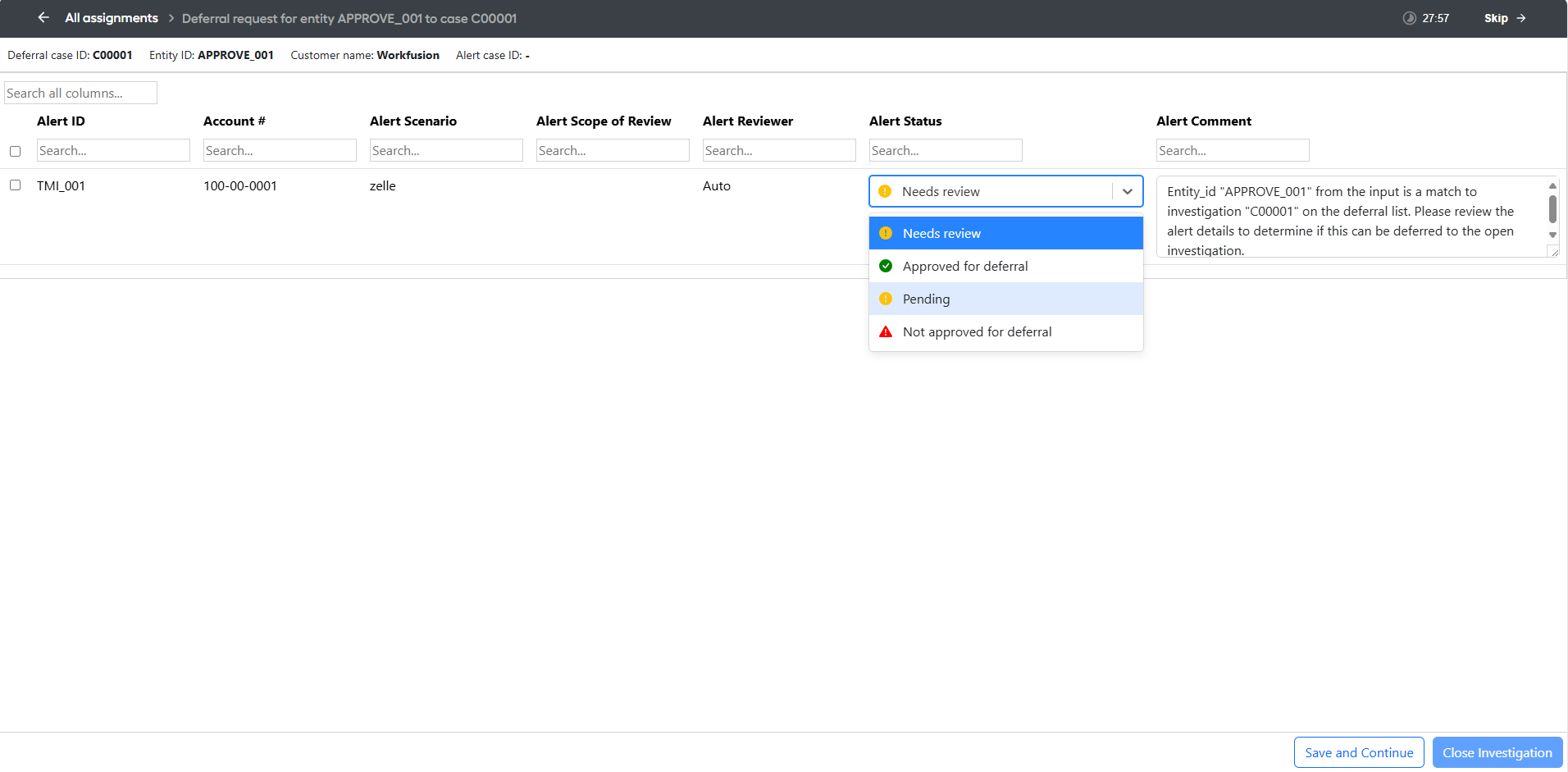
b. Status
- Needs review: assigned to each alert by default.
- Approved for deferral
- Not approved for deferral
- Pending: use to approve a task conditionally based on the outcome of another investigation.
c. Comment: an editable comment for the alert.
Bulk change: allows users to update more than one alert at a time with the same status and decision comment.
Close Investigation: closes the investigation and completes the task. Upon clicking the button, users can select a status for the entire investigation and enter a comment.
From the screen, you can also choose to Skip the assignment.
Close investigation
Once you finish your review, you can click Close Investigation to complete the task. You are then prompted with a dialogue box to confirm the email address you want to use to receive the final report.
The Close Investigation button is disabled if requirements are not completed.
Upon completion of the assignment, the final decision is saved to a dedicated Data Store for analytics purposes. Additionally, an optional report is available to be emailed once the entire batch is completed.
If, prior to generating the report, you wish to escalate the review so that comments from another analyst can be included, click Save and Continue. Then, your progress is saved, and the task is reassigned to another user in Workspace.