Install and configure
The page provides instructions on installing and configuring the Kayla AI Agent for coordinating the perpetual Know-Your-Customer (pKYC) process.
Check requirements
WorkFusion offers the following options to install and run Kayla:
- On your premise
- In your cloud
- In the private cloud hosted by WorkFusion
System requirements
The server requirements for Kayla, the pKYC Coordinator, are the same as for the IA Cloud Enterprise Platform. For details, refer to the Hardware and OS article.
Hardware
No RPA bots required
Proxy for high-availability installations
No server for analytics required
Software
IA Cloud Enterprise v10.2.7 or higher
No machine learning or analytics component used
Install Kayla
To install Kayla, upload it manually as an Asset Bundle in accordance with the guide.
Once the installation is complete, you can proceed to configure Kayla's settings.
Users can configure multiple variations, or sets of parameters, for a single AI Agent. For example, different departments can set up and manage different requirements or input methods per variation. For details, refer to Manage AI Agent variations.
Configure Kayla
There are two possible ways to start the configuration flow for Kayla:
If you install Kayla without a preset configuration, wait for the installation to complete. Once you are redirected to the AI Agent version details page, open the Actions menu and click Settings.
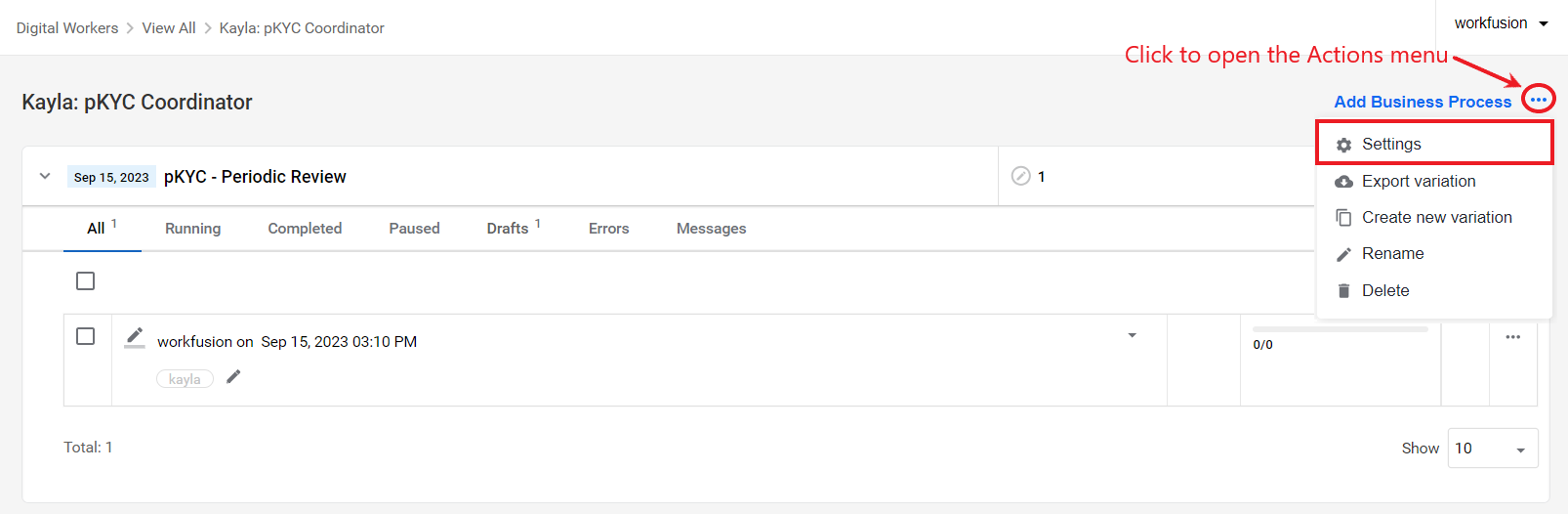
If you install Kayla as an Asset Bundle with a preset configuration, wait for the installation to complete, and click the Show digital worker button. Then, find the installed variation in the Digital Workers list and click Prepare.

After you complete any of the flows described above, you are redirected to the AI Agent configuration page. To prepare Kayla to handle your tasks, complete the following steps:
Configure the input settings.
Specify data enrichment sources.
Configure third-party data sources.
Set the review process rules.
Define the way to receive Kayla's output.
When you configure your AI Agent variation for the first time, you must complete the below steps one by one. Once you are in the last step, you can go back and make changes to any previous steps.
Input
In the Input step, you set the input source that Kayla monitors for updates and the rules for how Kayla does that. The input source can be a MinIO bucket, an email box, or both. In any case, the expected input format is a CSV file corresponding to specific requirements.
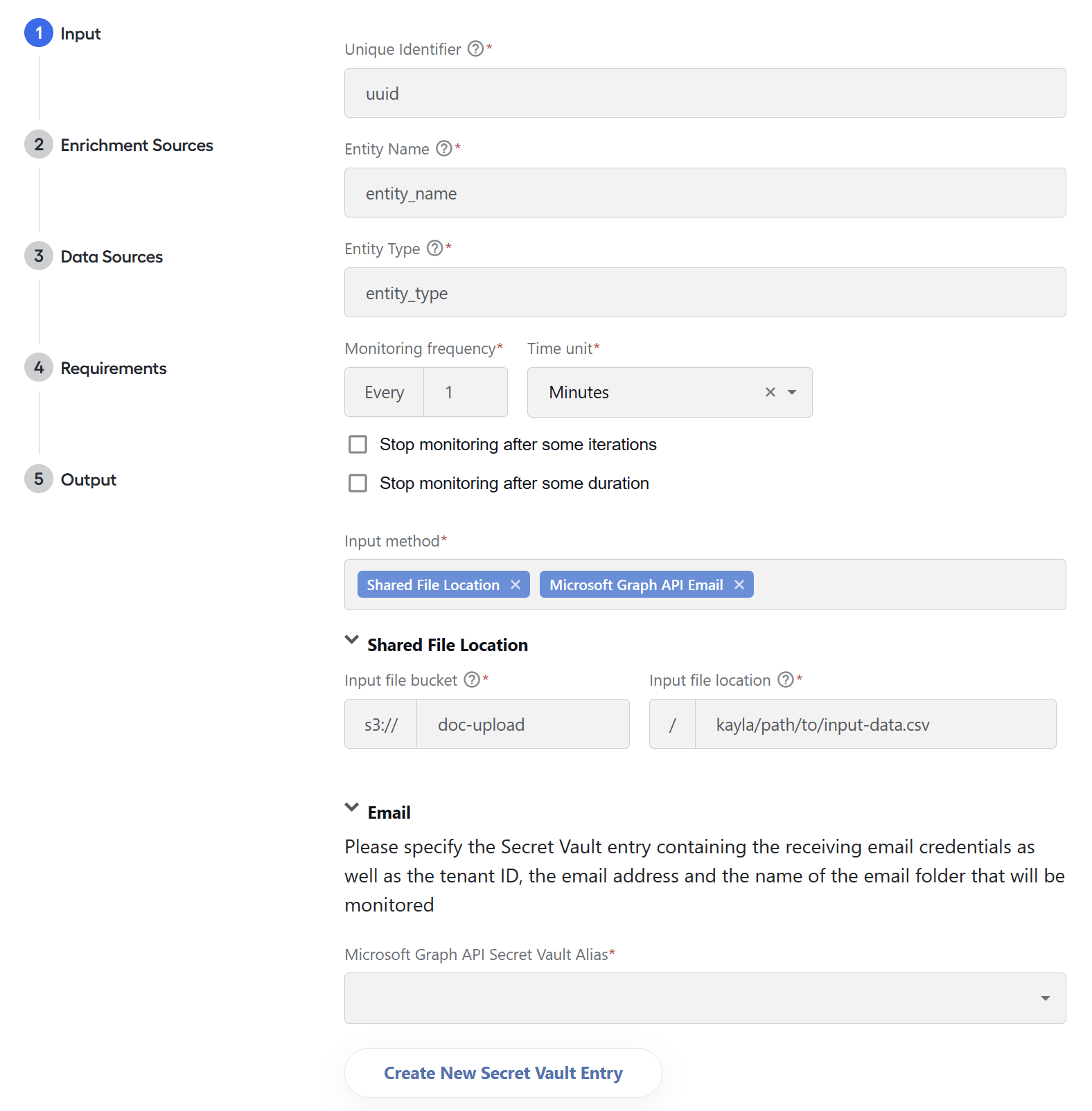
To configure the input source and rules, follow the steps below:
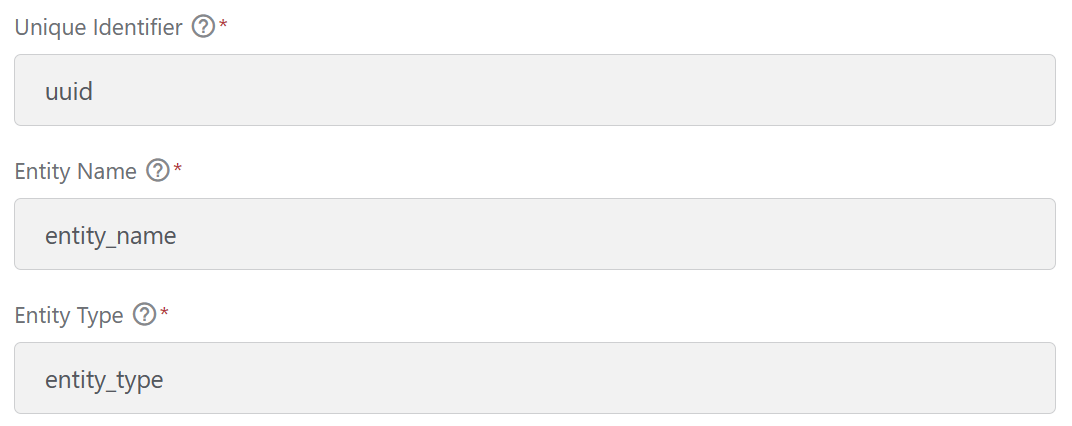
Specify the header names to match the three required columns from the input CSV file: Unique Identifier, Entity Name, and Entity Type.
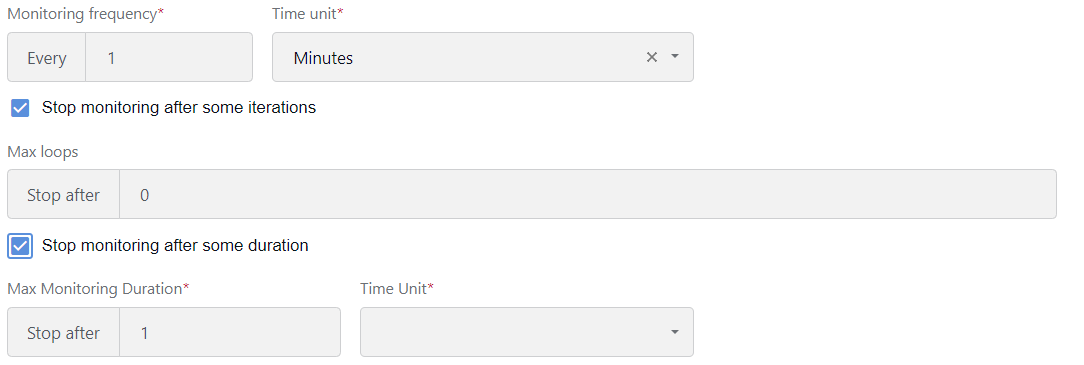
Configure the monitoring settings:
Specify how frequently, in hours or minutes, Kayla polls the input source for new files.
If needed, select the Stop monitoring after some iterations checkbox. In the displayed Max loops field, specify the number of iterations.
Optionally, select the Stop monitoring after some duration checkbox. In the displayed Max Monitoring Duration and Time Unit fields, set the period duration.
Choose one or both input methods and specify required settings:
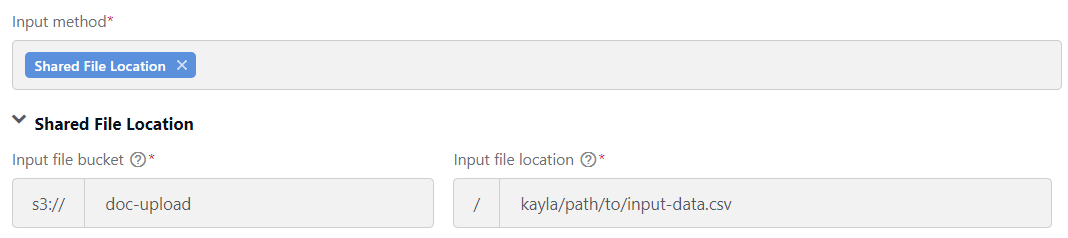
Shared File Location: set the input S3 bucket and file path.
Microsoft Graph API Email: specify such SMTP settings as the monitored email address, email folder, and Tenant ID.
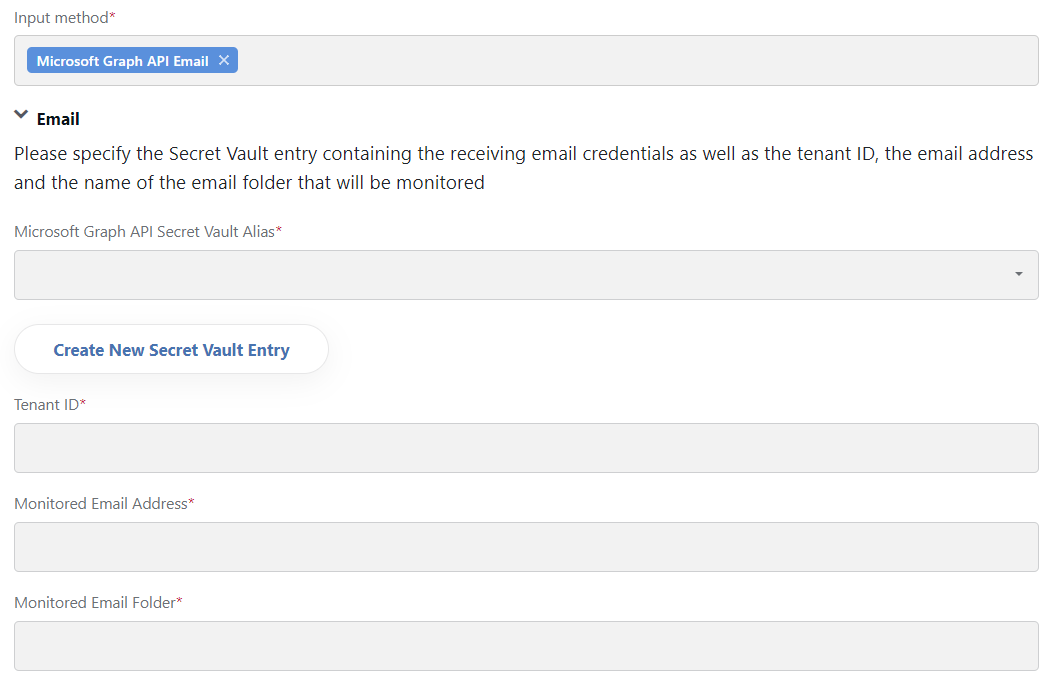
SMTP credentials are stored in Secrets Vault, so you need to choose a Secrets Vault alias from the drop-down list in the Microsoft Graph API Secret Vault Alias field.
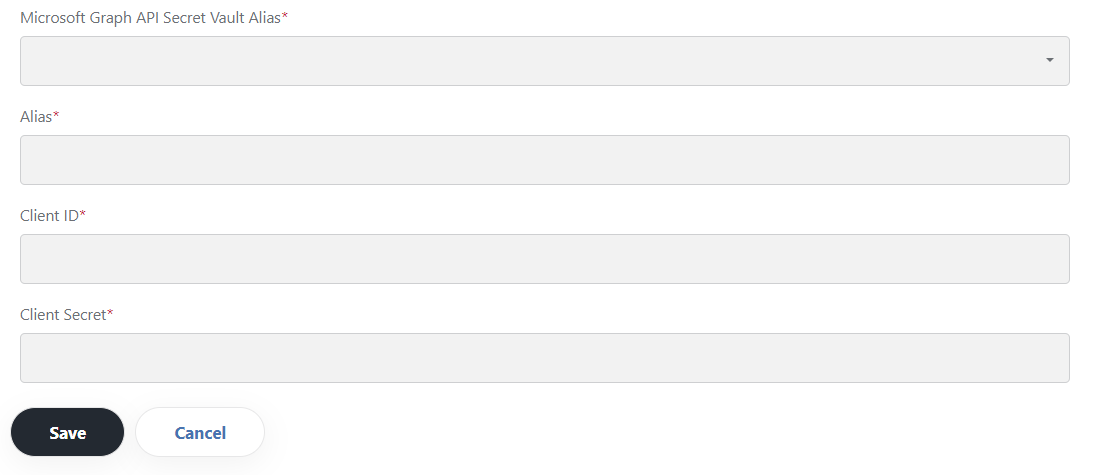
To create a new alias, click the Create New Secret Vault Entry button, set the alias up, and save it. For detailed instructions, refer to Set up secret entries in Secrets Vault.
Click Next. The step settings are saved, and you switch to the Enrichment Sources step.
If, for some reason, you cannot finish the configuration, click Save & continue later. This way, the entries you made are saved, and you can go back and complete the process later.
Enrichment Sources
The step is designed to supplement the input data without direct integration with a third-party tool. In this case, an enrichment source is a CSV file uploaded to an S3 (MinIO) bucket. You can set up as many enrichment sources as you need.
To configure an enrichment source, follow the steps below:
On the Enrichment Sources step, click Add Another.
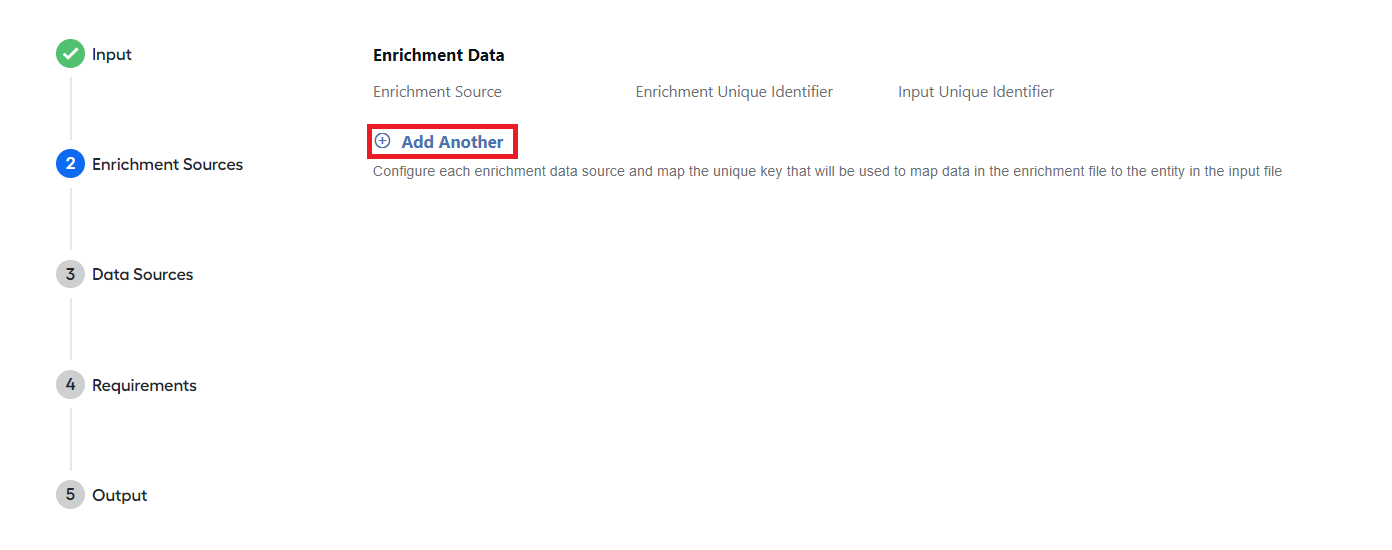
Specify the location of the file with enrichment data in S3 (MinIO).
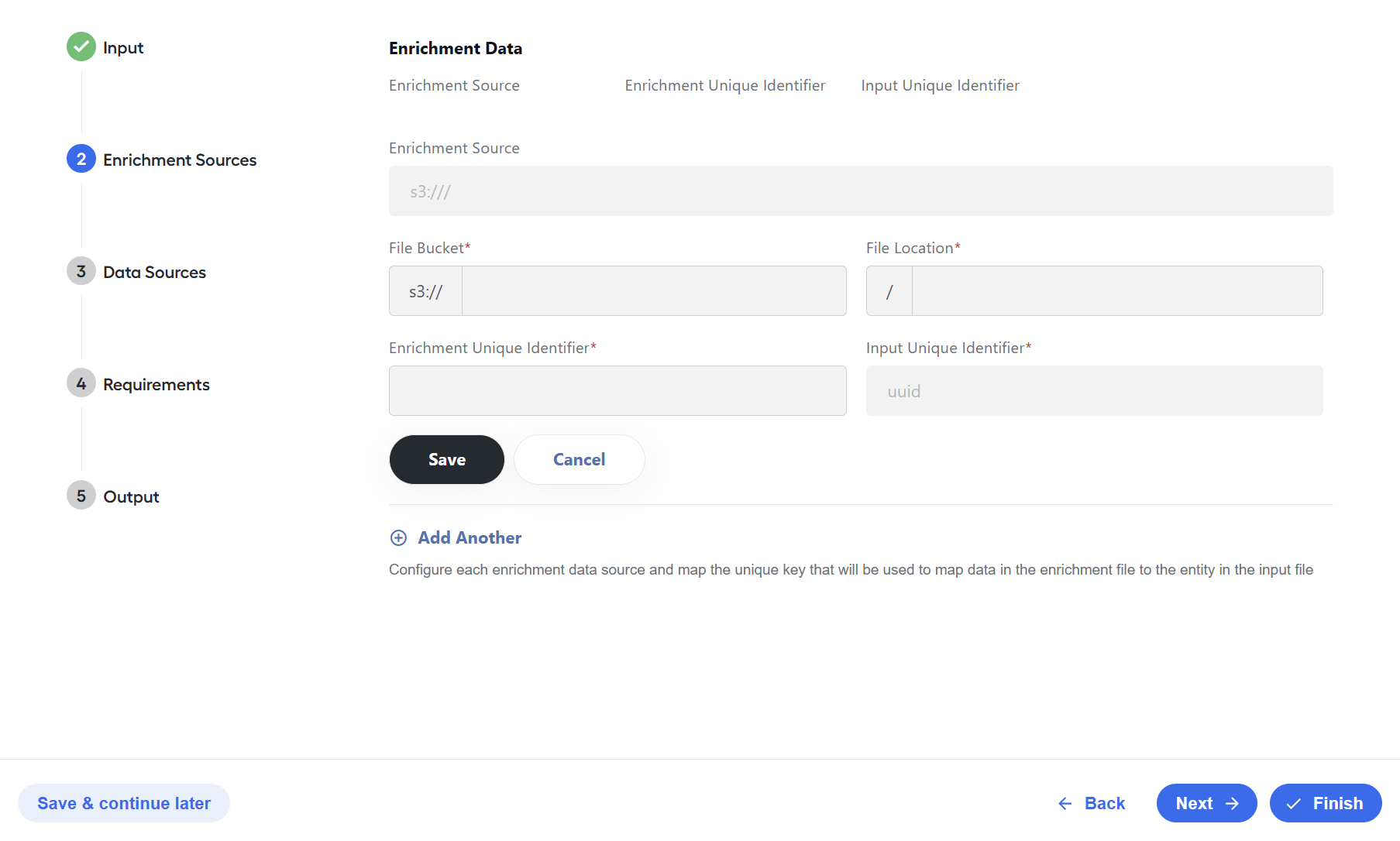
Map the unique identifier in the input file to the unique identifier in the enrichment file so that the AI Agent can link the information correctly.
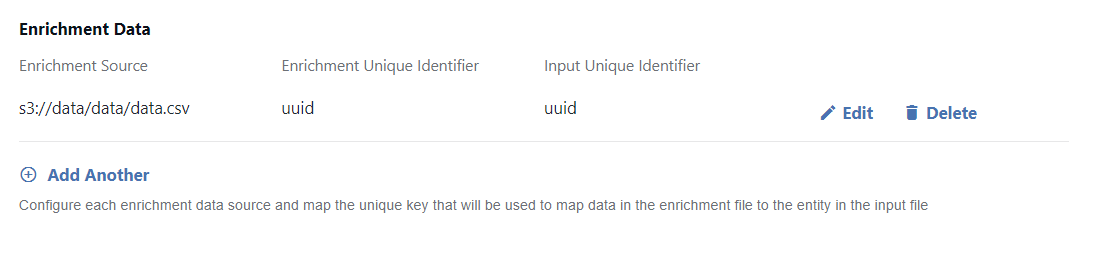
The specified enrichment source becomes visible in the Enrichment Data table from where you can edit or delete it. To add more enrichment sources, click Add Another and repeat the steps above.
Data Sources
Kayla can retrieve information from a variety of data sources out of the box:
Companies House
Department of Labor (DoL) EFAST 5500
NASDAQ
NYSE
Sayari Graph
SEC Edgar
TwelveData
On the Data Sources page, choose one or more of these sources in the drop-down list and specify their settings.
The figure below illustrates how the step looks with all available sources chosen:
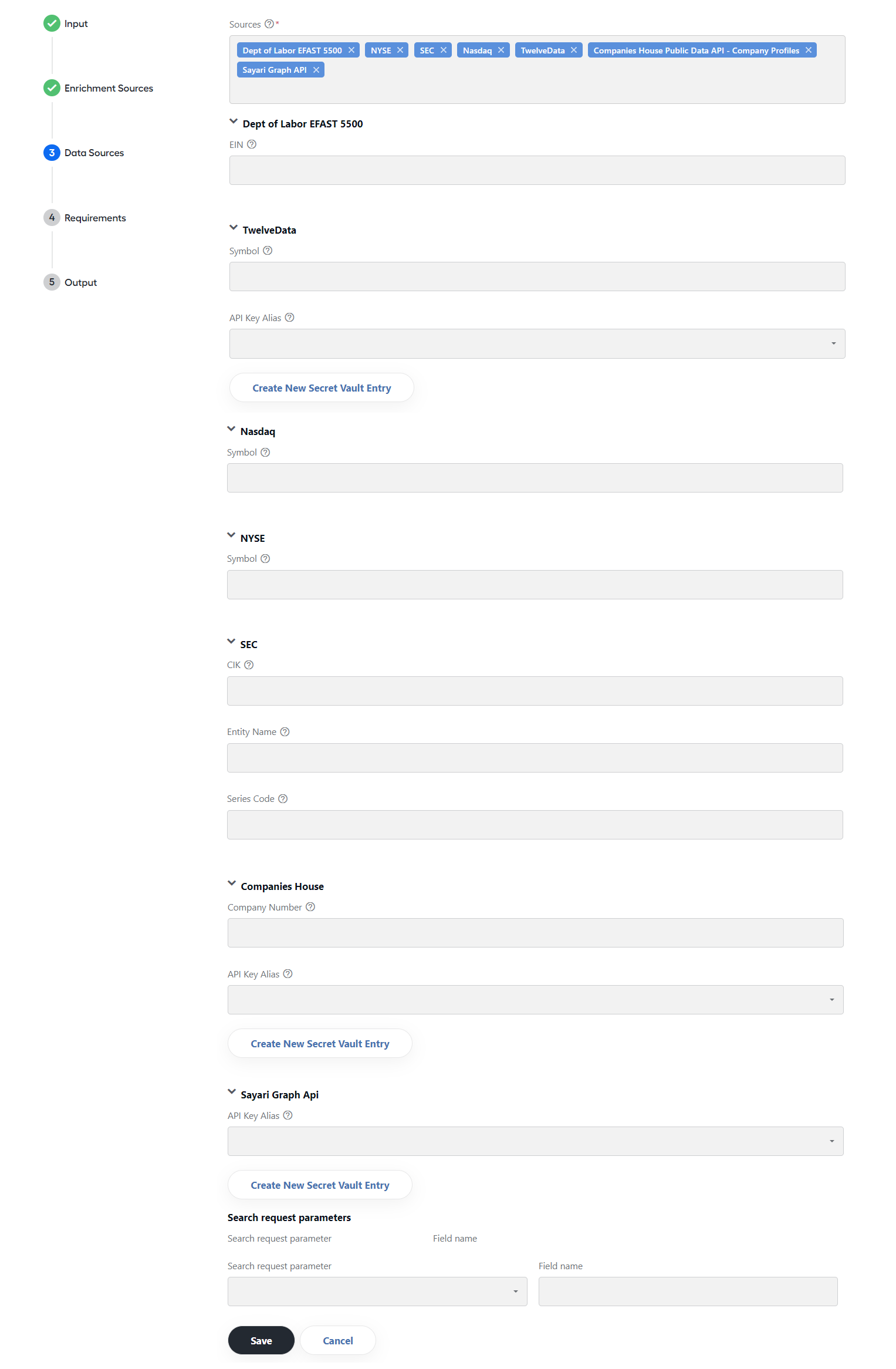
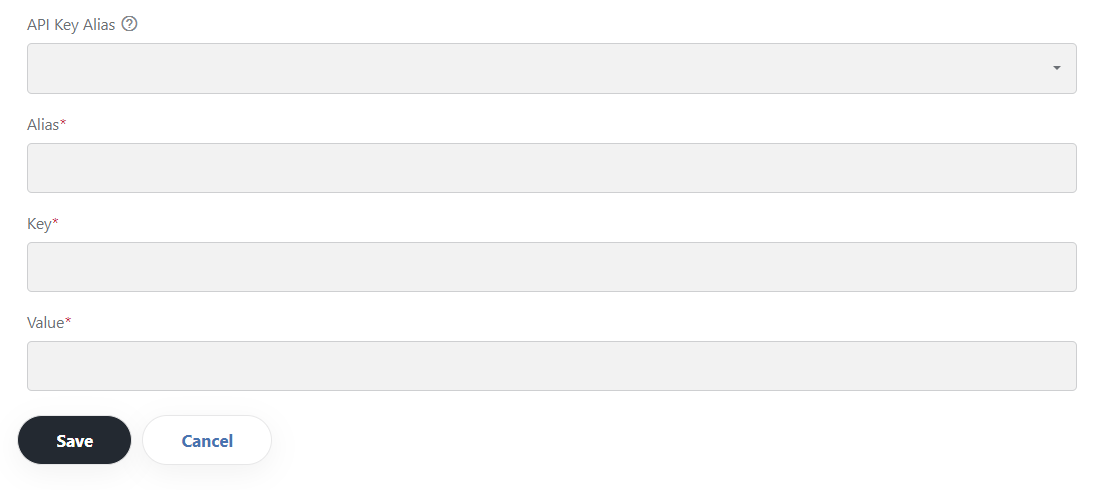
For the TwelveData, Companies House, and Sayari Graph data sources, you need to provide a Secrets Vault alias. Choose one from the API Key Alias drop-down list. To create an alias, click the Create New Secret Vault Entry button, set the alias up, and save it. For detailed instructions, refer to Set up secret entries in Secrets Vault.
Once you configured all sources as required, click Next to proceed to the Requirements step.
Requirements
When Kayla processes input, it reviews each row in a file and verifies if the KYC data has changed. All data from the input file is passed through to the periodic review form. However, only the input file fields configured on the Requirements page are reviewed and flagged for manual review.
To configure a requirement, follow the steps below:
On the Requirements step, click Add Another.
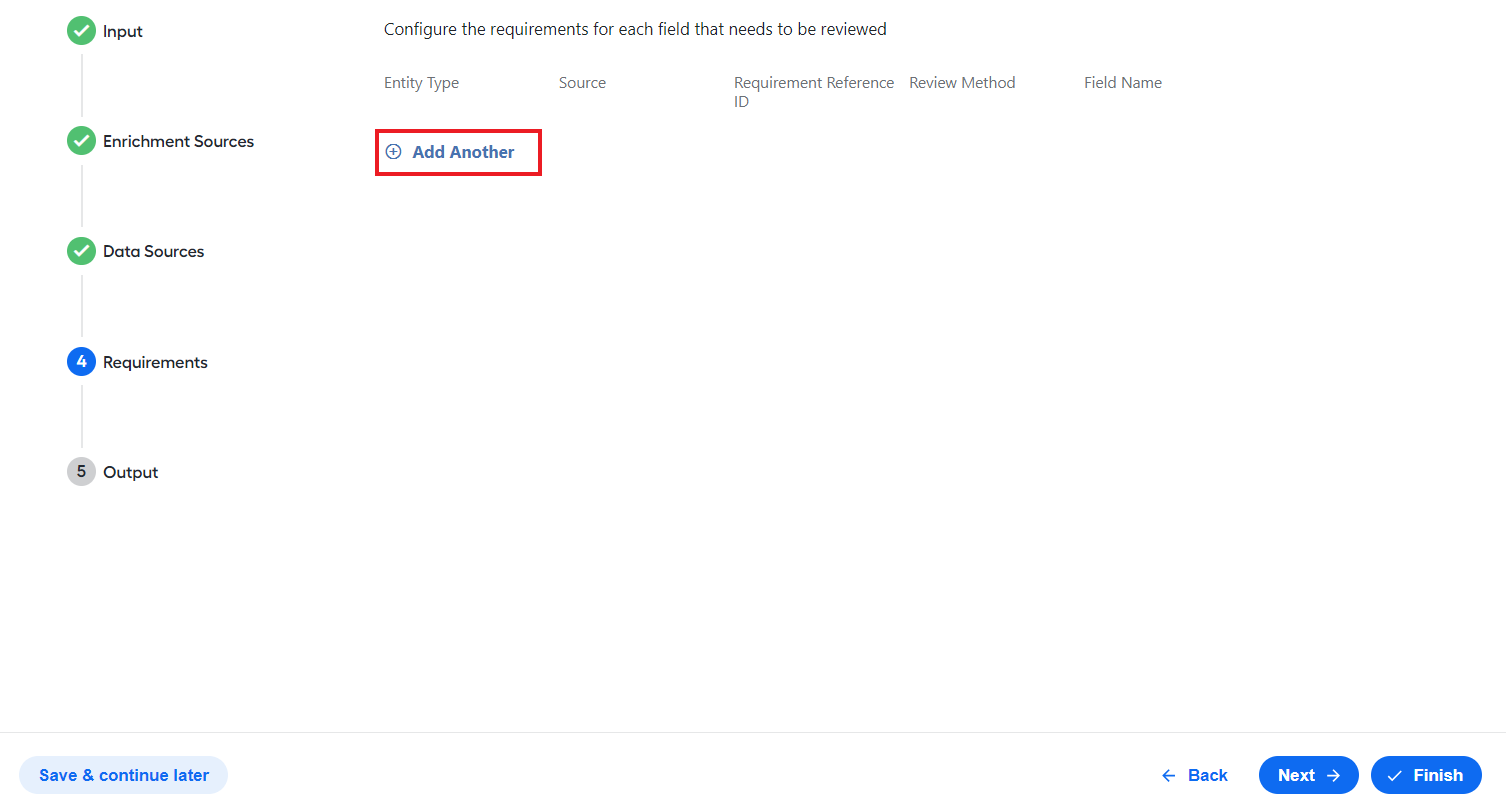
Specify the rules that Kayla should follow when reviewing KYC data for an entity:
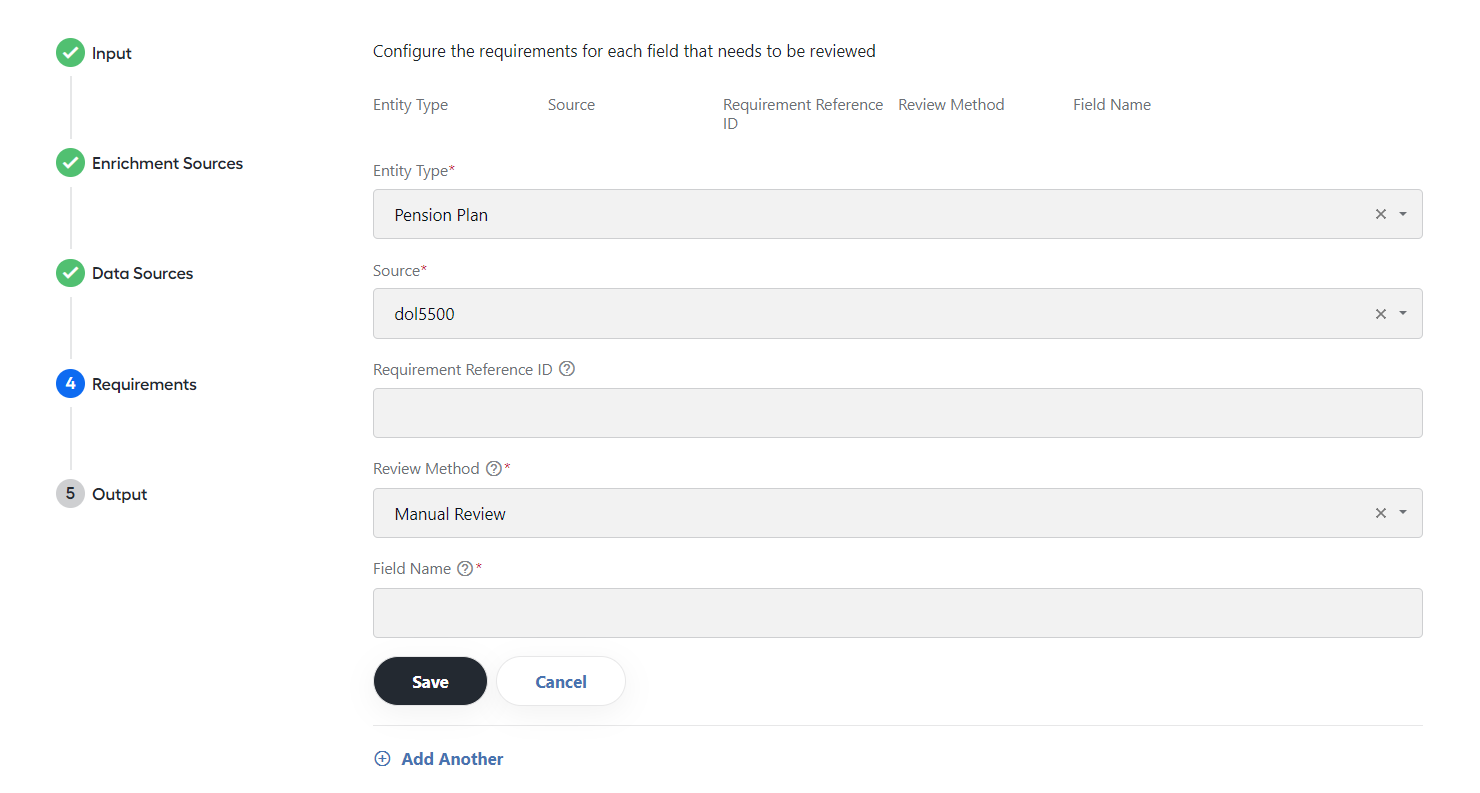
In the table below, you can find more details about the rules you need to set:
Field Description Values Required Entity Type The type of the screened entity Pension Plan, Mutual Fund Yes Source The external source from where input data is retrieved As configured in the Data Sources step Yes Requirement Reference ID A key or reference to the KYC requirement matrix Free-text field No Field Name The field name to be reviewed in the input file Depends on the input file Yes Review Method The method used to complete the review - Exact Match: the Field Name value is a direct check against a value in the API response from the configured source.
- Information Extraction Model: the Field Name value is validated using an information extraction model.
- Manual Review: the Field Name value is not reviewed. Used if an information extraction model or API is not available or if a data point requires additional scrutiny.
- Verify Status: used to verify the Field Name status. For example, whether the entity is regulated and found in a regulator's database and whether the status is a specific value.
- Verify Address: used to verify full normalized addresses.
- Name Match: functions similarly to Exact Match, except that it does not consider punctuation, extra spaces, or other special characters that are inadvertently entered in a name. This ensures that minor discrepancies (- vs. : or extra spaces) do not get flagged for manual review.
Yes Model The machine learning model to be used Available pre-trained models Yes, if the review method is set to model Source Field Name The field from the specified source to be compared to the Field Name from the input file Varies, depending on the source Yes, if the Review method is set to Exact Match or Information Extraction Model. Click Save to save the rules for the entity.
The resulting page looks similar to this:
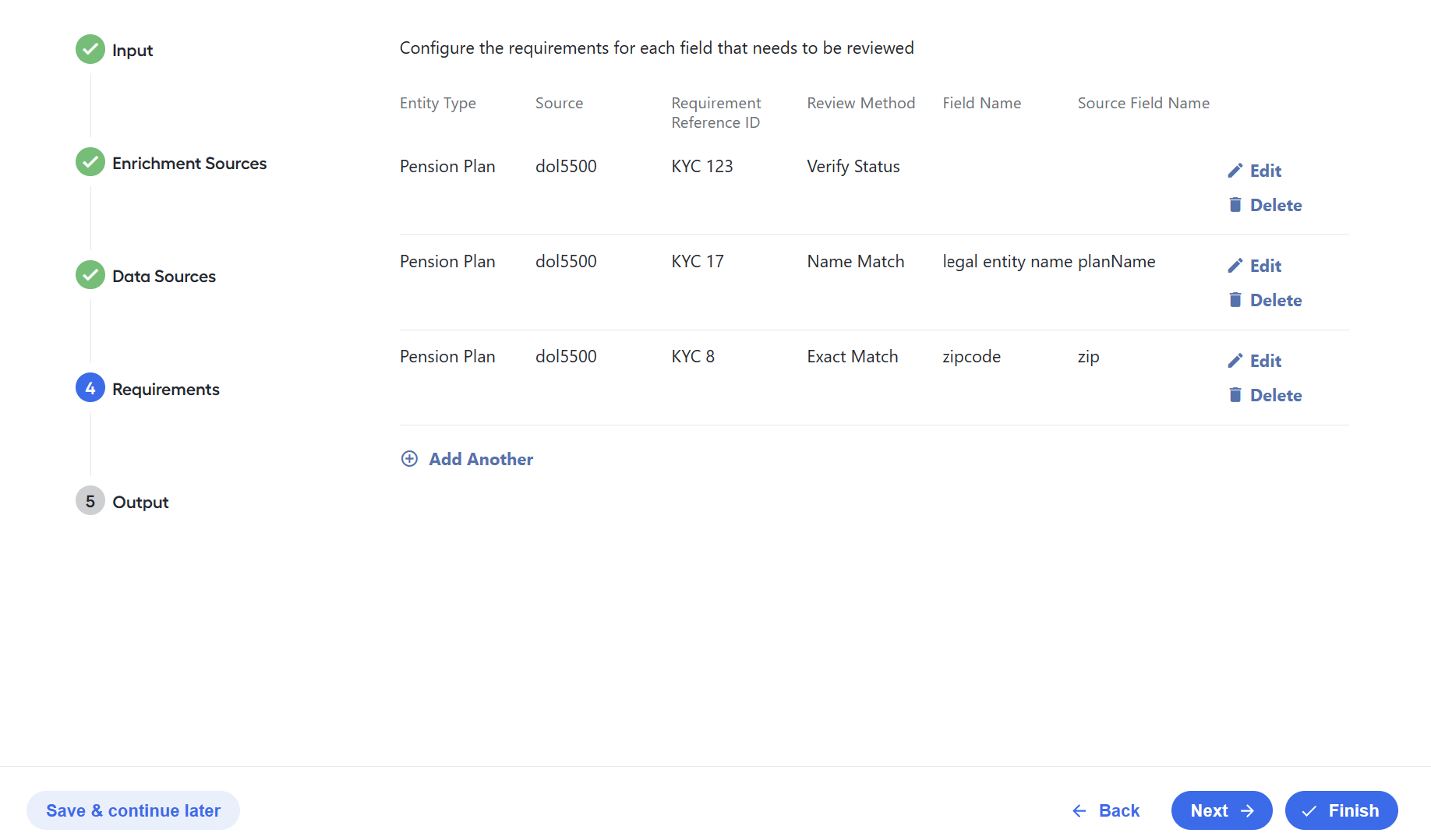
Repeat Steps 1 to 3 to add as many entities as you need to review and click Next to proceed to the Output step.
Output
In the Output step, you set where Kayla should send its output, which includes an entity periodic review and a batch summary report. For details about the reports, refer to Input and output data.
To complete the output setup for Kayla, configure the email address where the summary report is to be sent:
If Email is configured as an input method (see the Input step), reuse the same setup as for the Input step or specify a different email to receive reports.
If Shared File Location is used as the only input method, set the email for receiving Kayla's reports on the Output page.
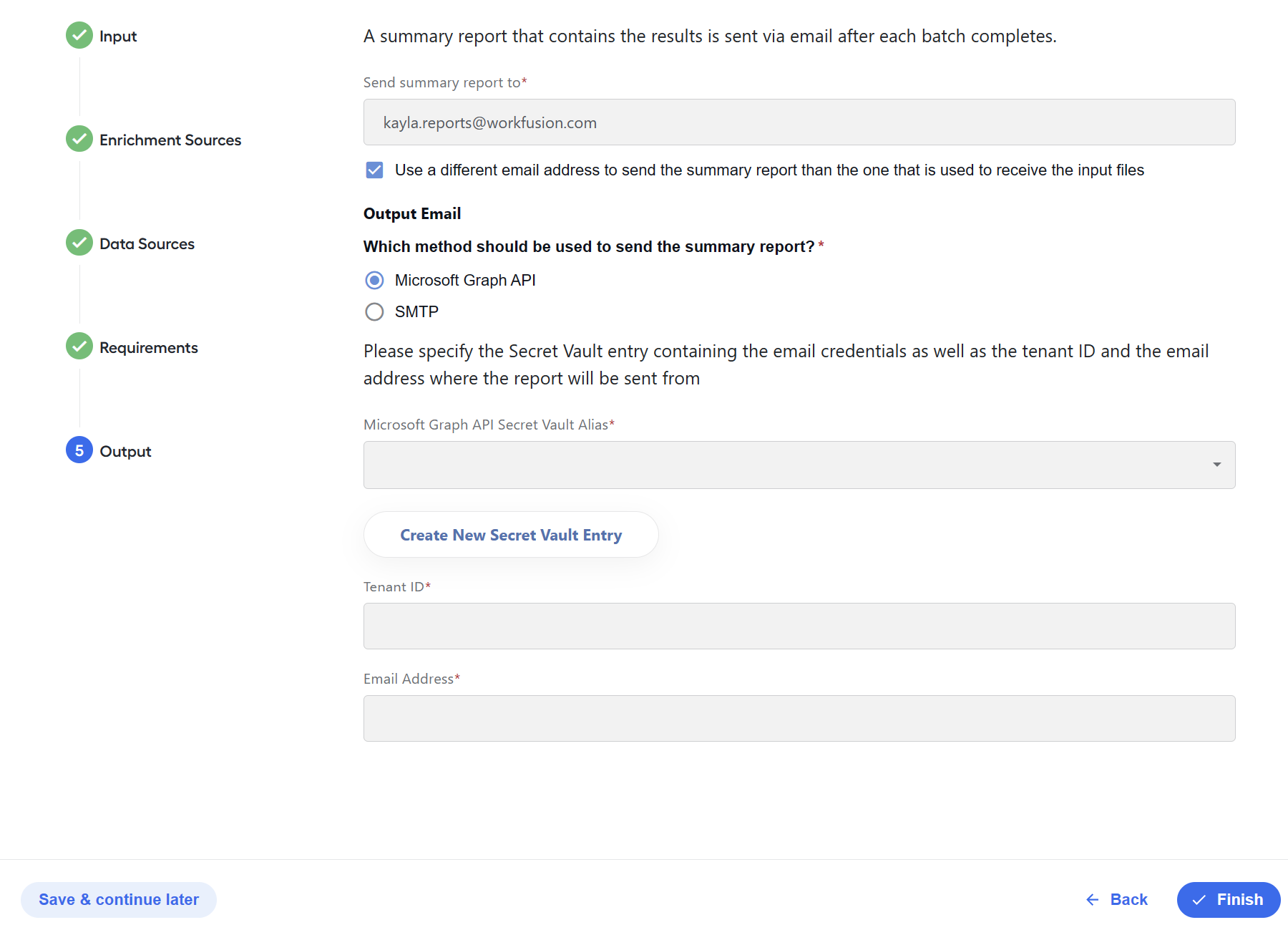
When setting the output email, choose a Secrets Vault alias from the drop-down list. If you don't have one, click the Create New Secret Vault Entry, set the alias up, and save it:
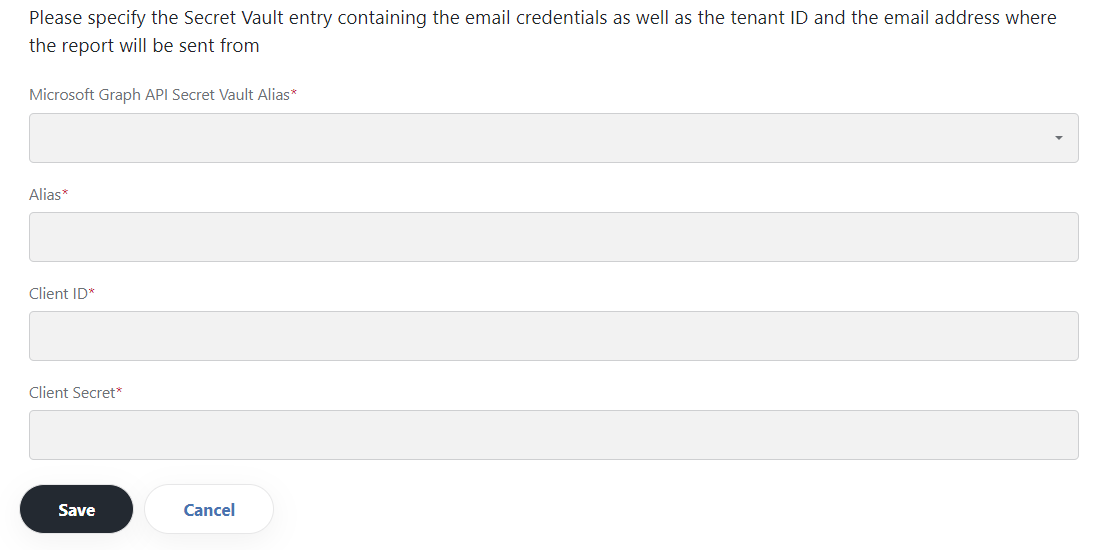
Once you have set up the above, click the Finish button to save the configuration.
Update configuration
To update Kayla's configuration, follow the steps below:
Go to the Digital Workers tab.
Choose the Kayla's version you are working with.
On the version details page, open the Actions menu and select Settings.
On the displayed configuration screen, make changes in each step as required and click Finish to save the configuration.