Run screening
The following guide shows you how to start the screening from Control Tower.
Start screening
To start Transaction Screening, do the following:
In the Digital Workers list, click the installed AI Agent (variation).
On the AI Agent variation's details page, open the process definition and click a Business Process (BP) instance name.
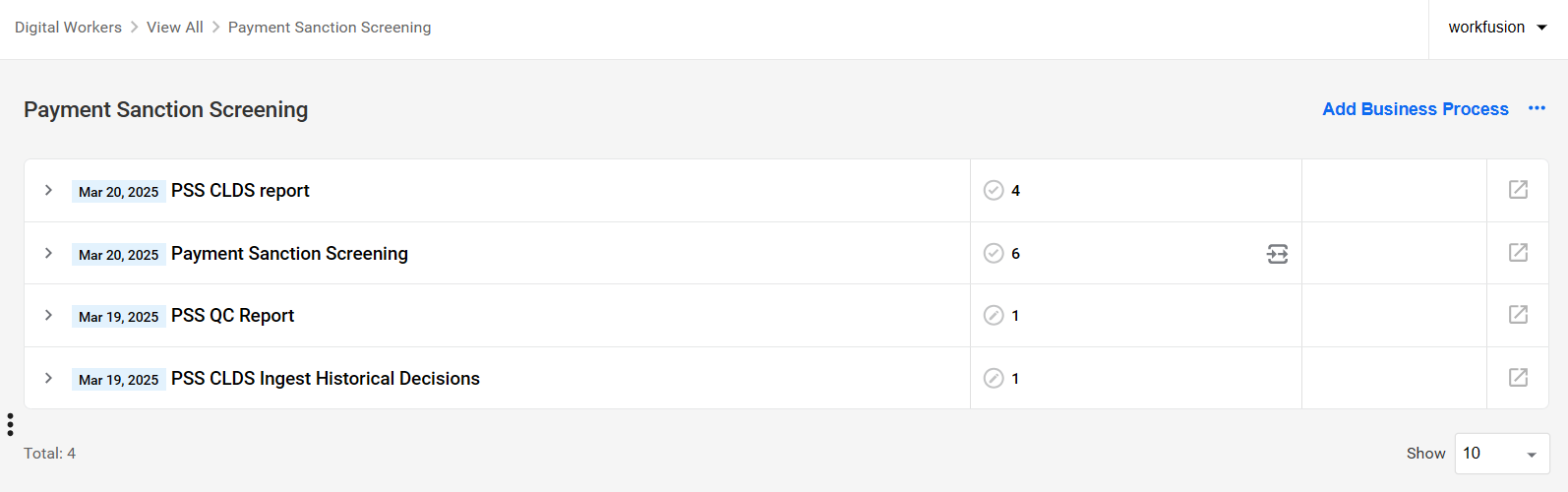
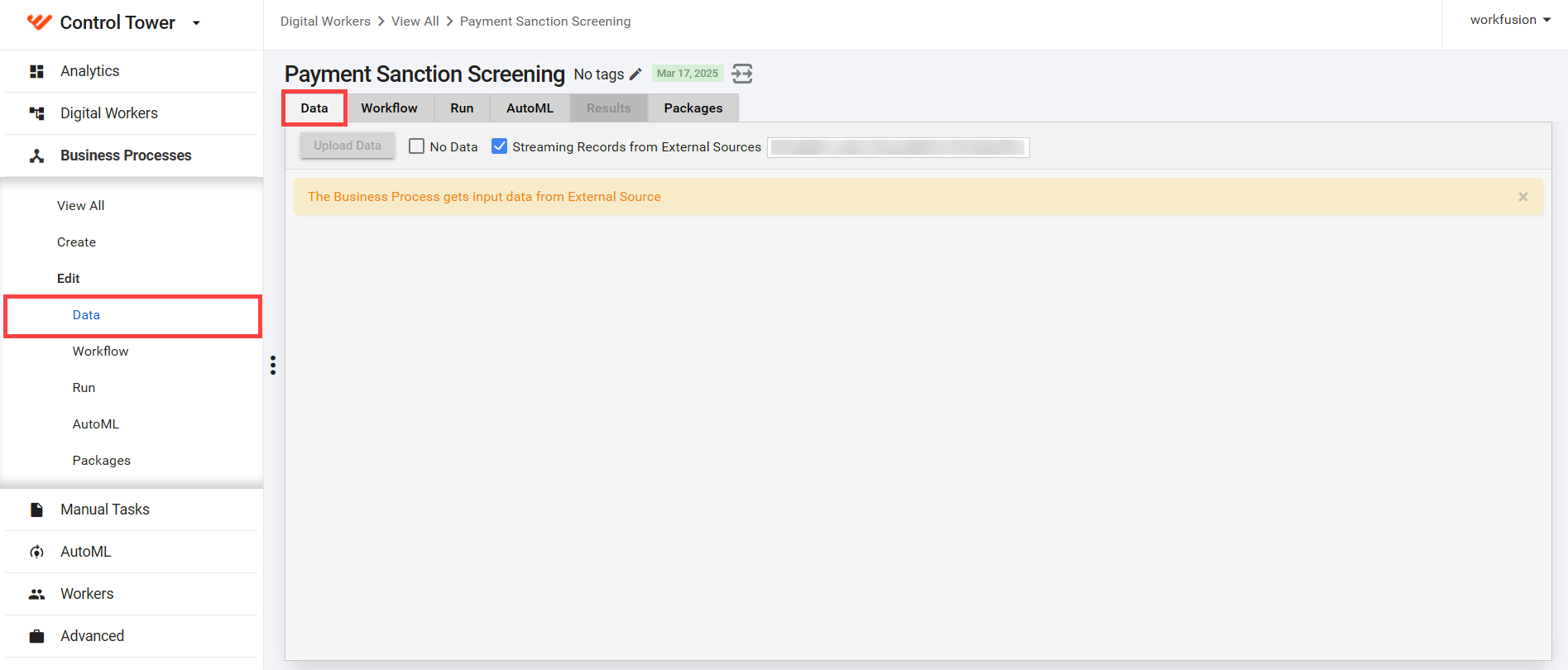
Click the name of the required BP, navigate to the Data tab, and add your input data in one of the ways:
- Upload a CSV file.
- Use the streaming API input option.
- Get data from a connector.
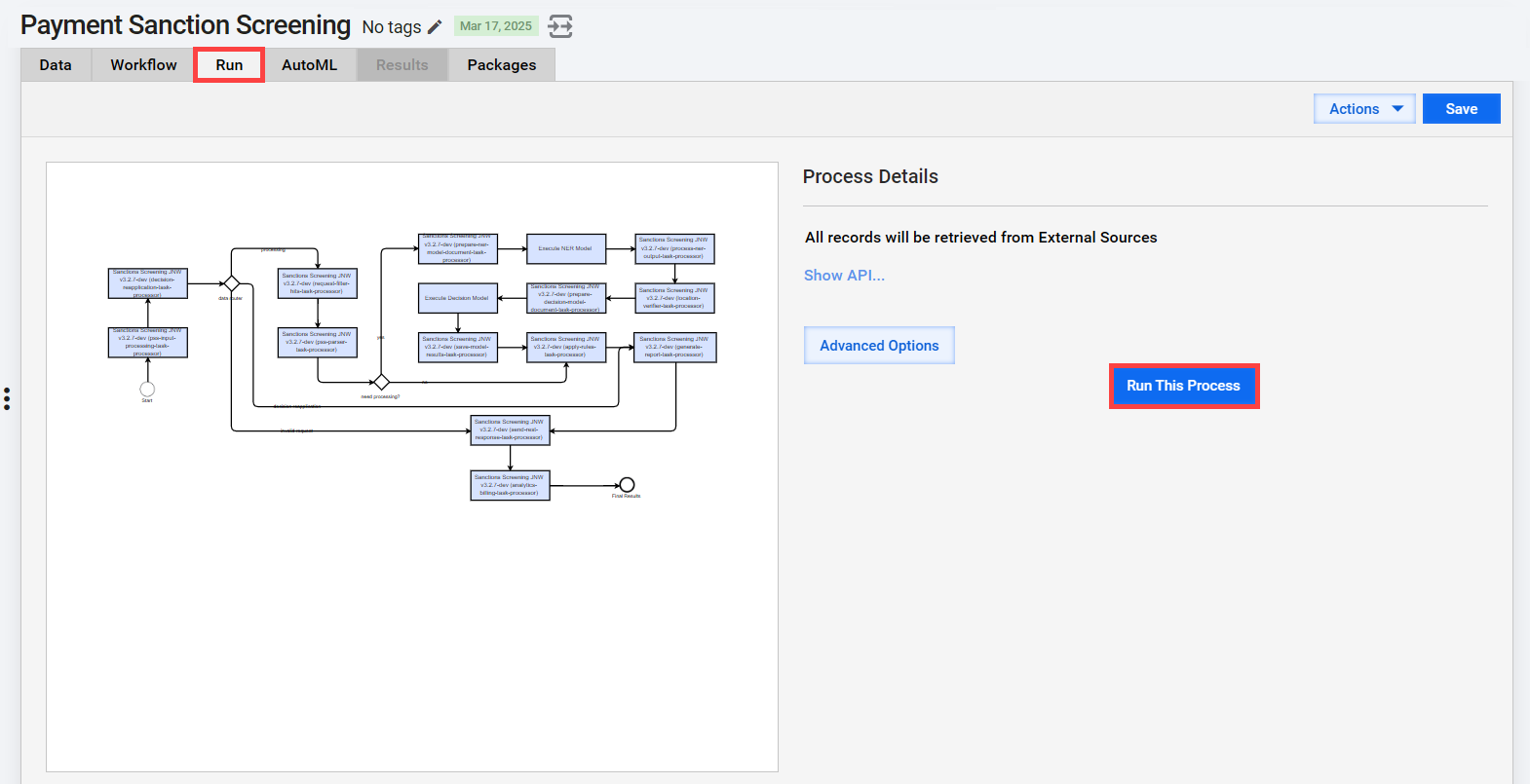
Go to the Run tab and click Run This Process.
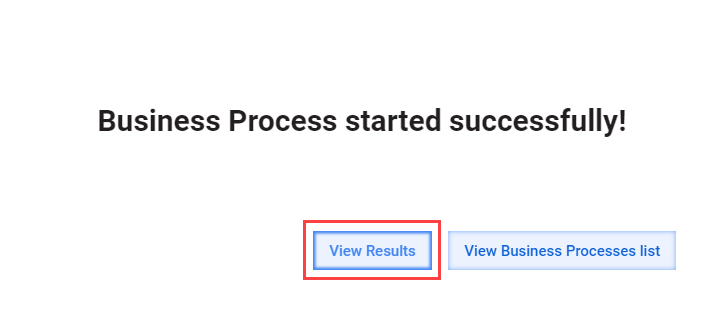
The Business Process started successfully window appears. Click View results to see the Results tab.
View results
You can view the results of a BP run on the Results tab. If HTML reports are available in S3 MinIO, you can also access them as described below:
On the Results tab, go to Steps and select the Sanctions Screening (Generate report) step.
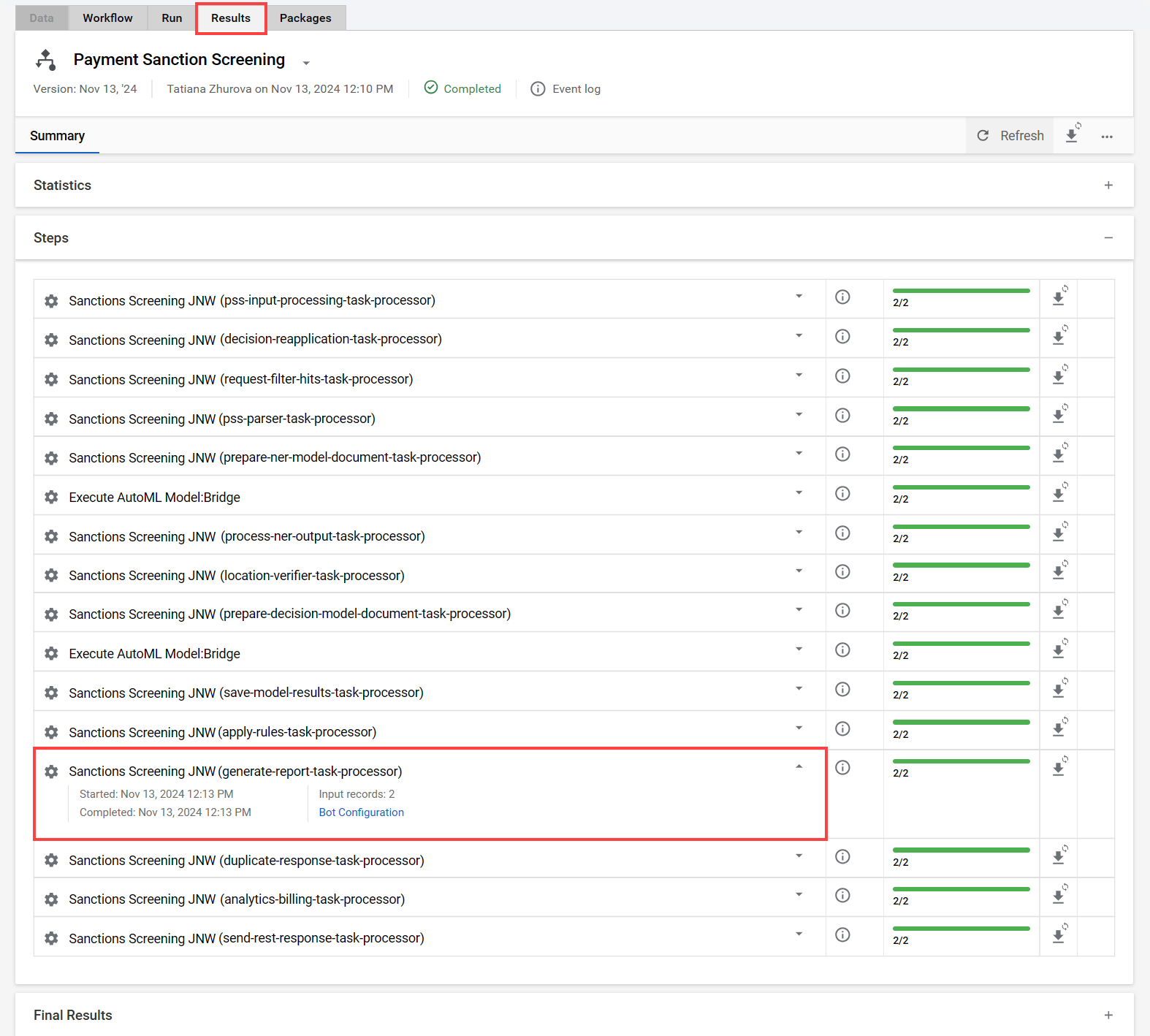
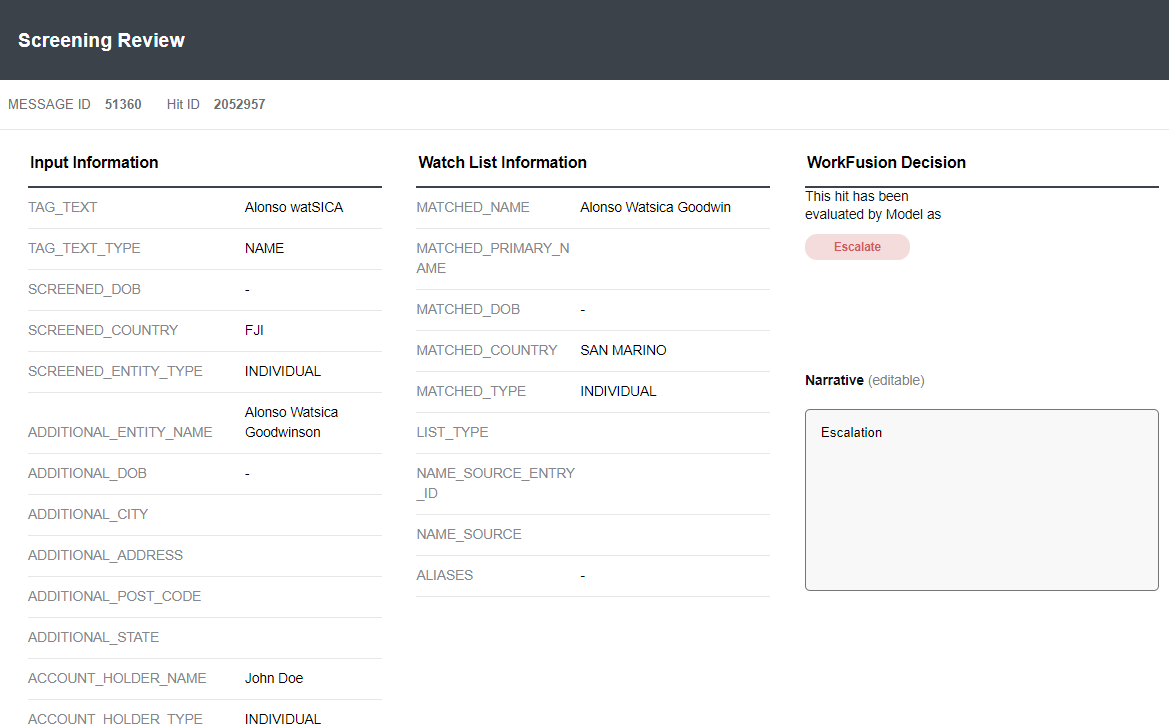
On the Data tab, see the message_decision and links_to_report columns for results.
To review detailed screening results, click the report link. The Screening Review report opens in a separate window.
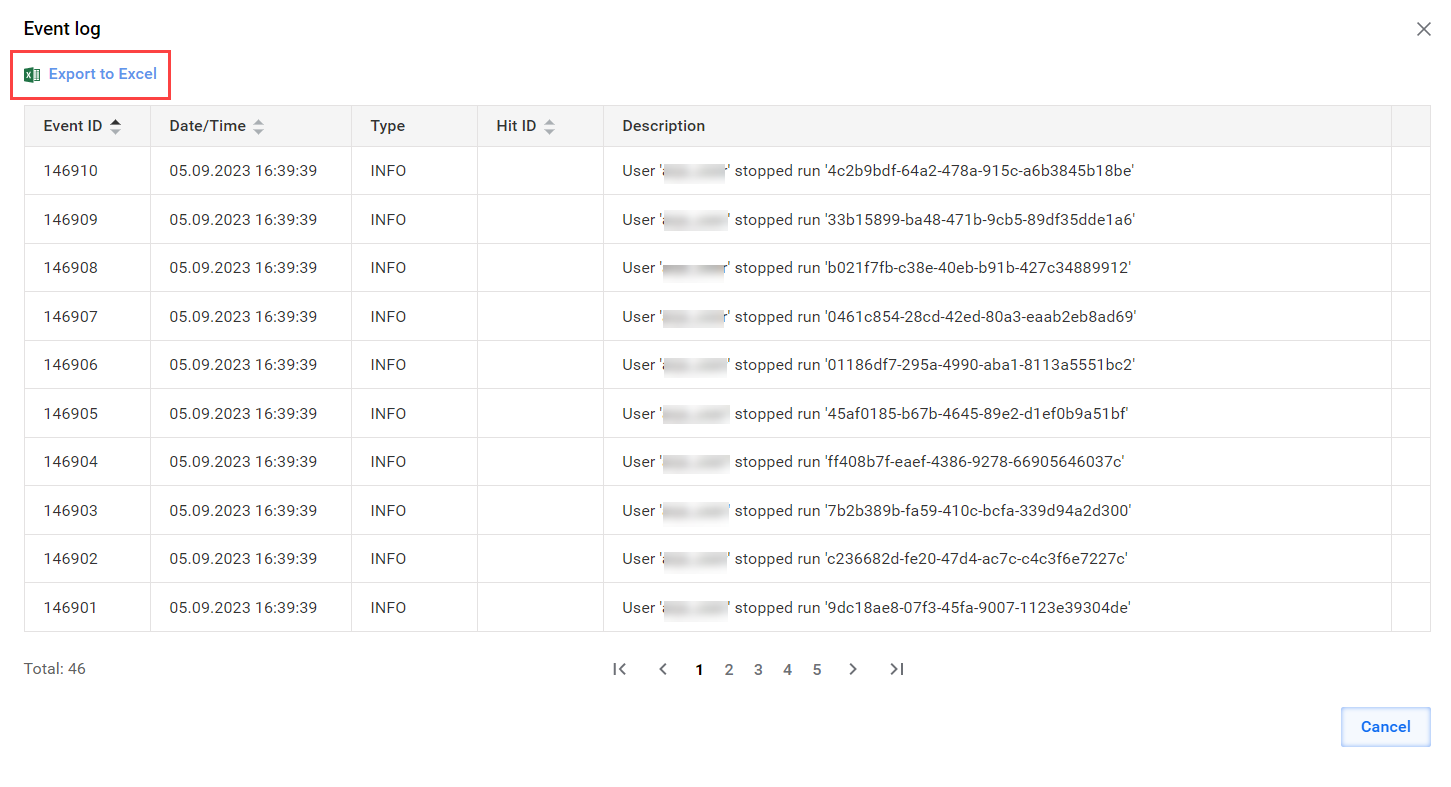
If there are any issues during the BP execution, an exclamation mark is displayed. To view the errors, click the View event log option.
The event log opens in a separate window. To download the report, click Export to Excel.
To view reports, you can also go directly to the MinIO S3 locations:
- HTML reports:
doc-upload/payment_sanctions_screening/reports/html - QC reports:
doc-upload/payment_sanctions_screening/reports/qc - CLDS reports:
doc-upload/payment_sanctions_screening/reports/clds
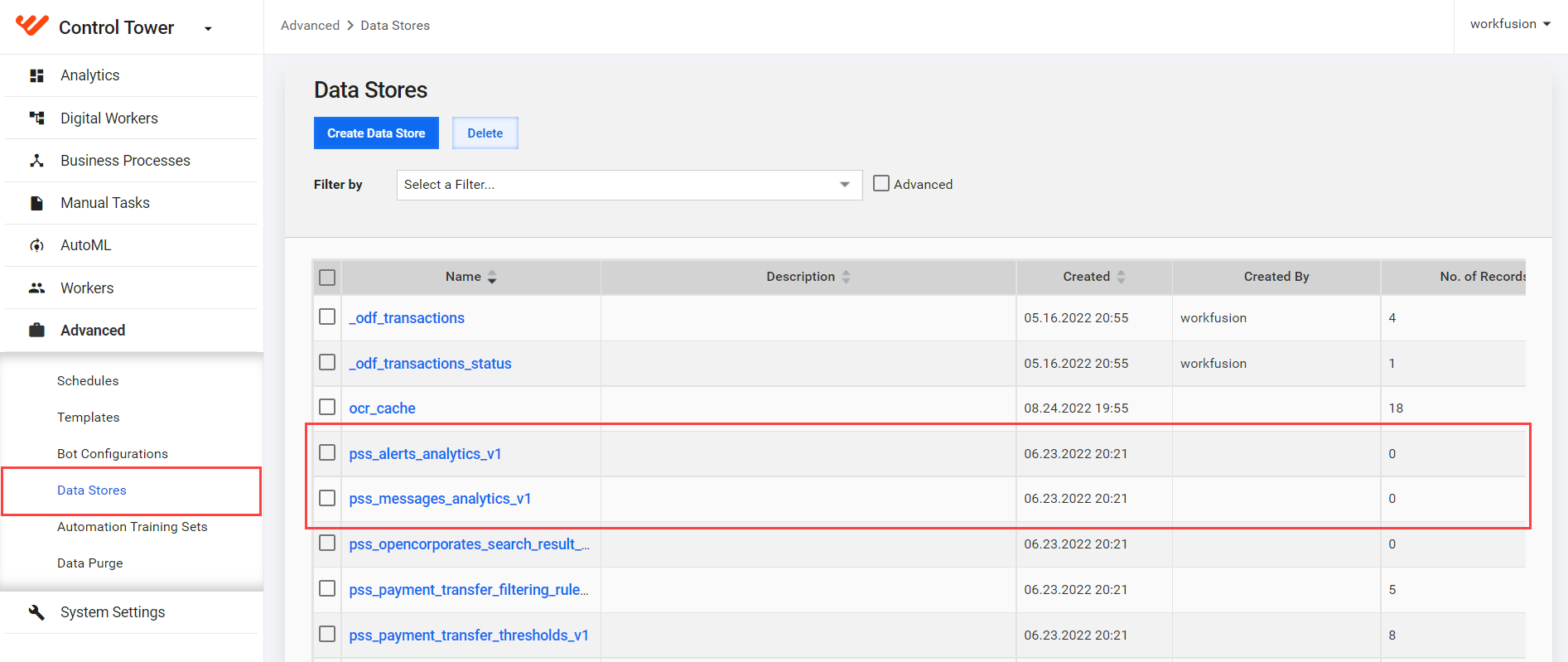
Execution results are also recorded in the message and hit analytics tables.
To view the result tables, go to Advanced > Data Stores and select:
- pss_messages_analytics-v1 for message tables that contain message decisions
- pss_alerts_analytics-v1 for alert tables that contain hit-level decisions
Analyze results
To analyze results, you need access to original requests. All requests are saved into the request processing Data Store.
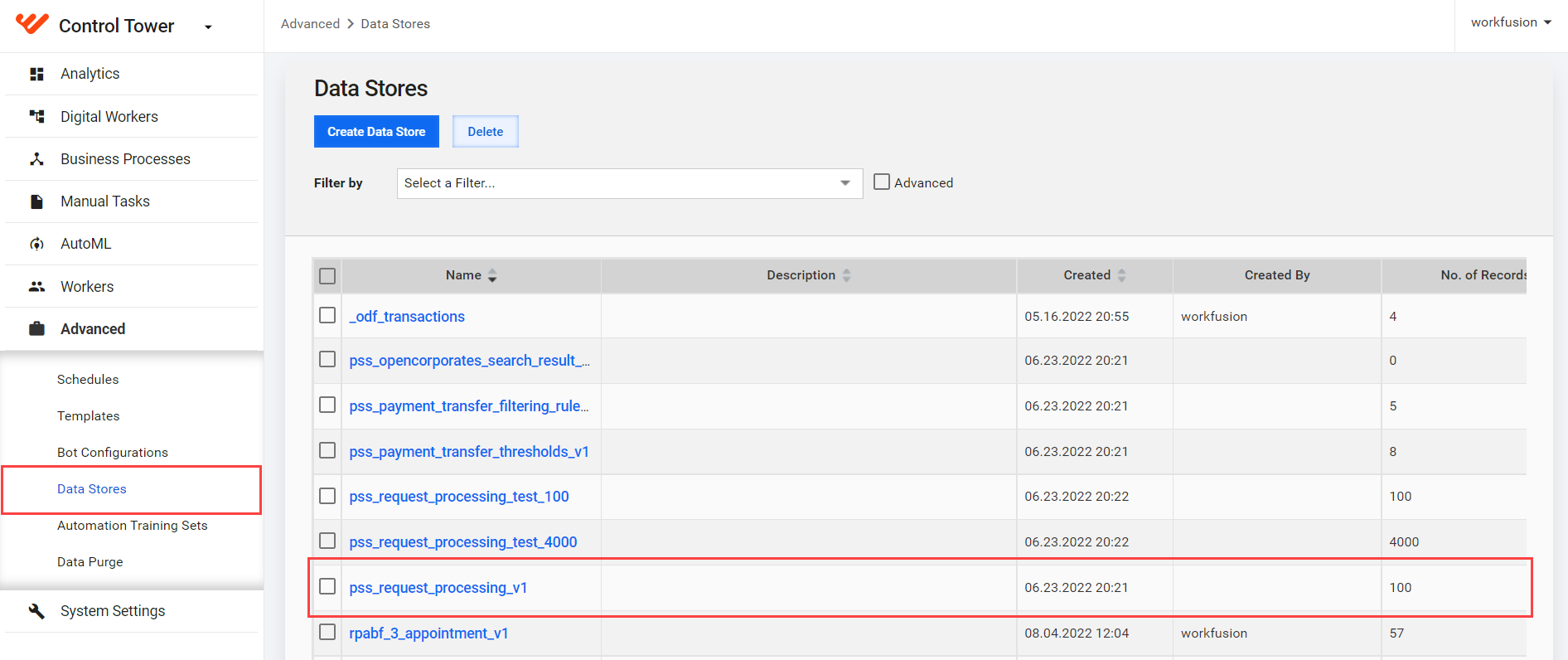
Go to Advanced > Data Stores and open the pss_request_processing_v1 Data Store.
Click Download data and download All Records as a CSV file.
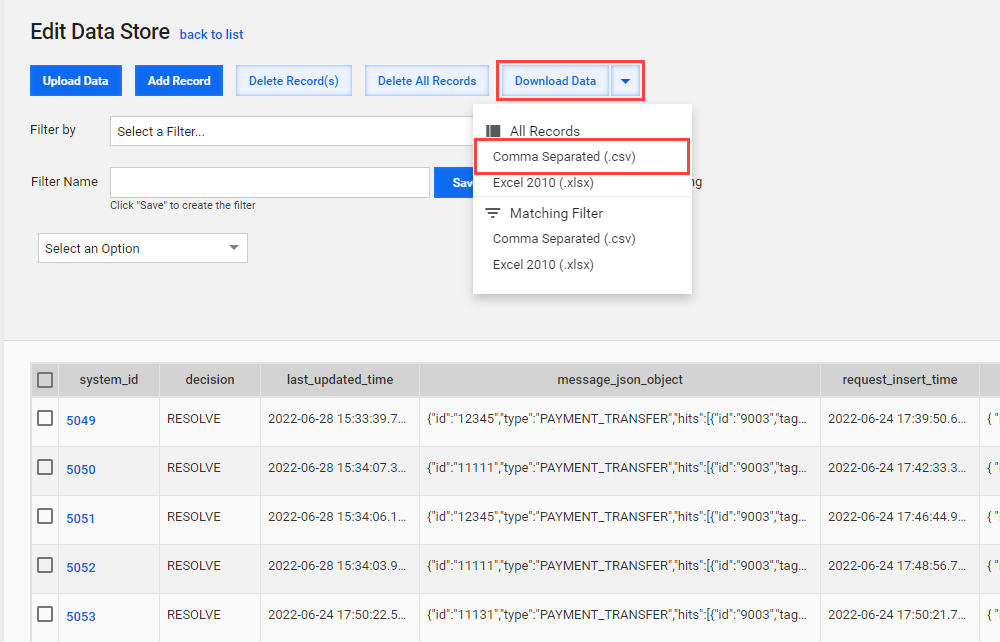
Open the downloaded file and review requests and responses to check the decisions.
Also, use the Payment sanction screening overview dashboard for the analysis.