
Share Folder connector
High-level description
Share Folder Connector is a pre-defined template to extract files from Share Folder using Samba (SMB) protocol and store the files on the shared storage (S3) to be further used in a Business Process.
note
The connector currently supports the SMB v1 protocol only as the embedded JCIFS library supports this version of the SMB protocol.

Mind that the step before Share Folder Connector must be the Share Folder Connector settings step created from the ShareFolderConnector v0.4 settings Use Case.
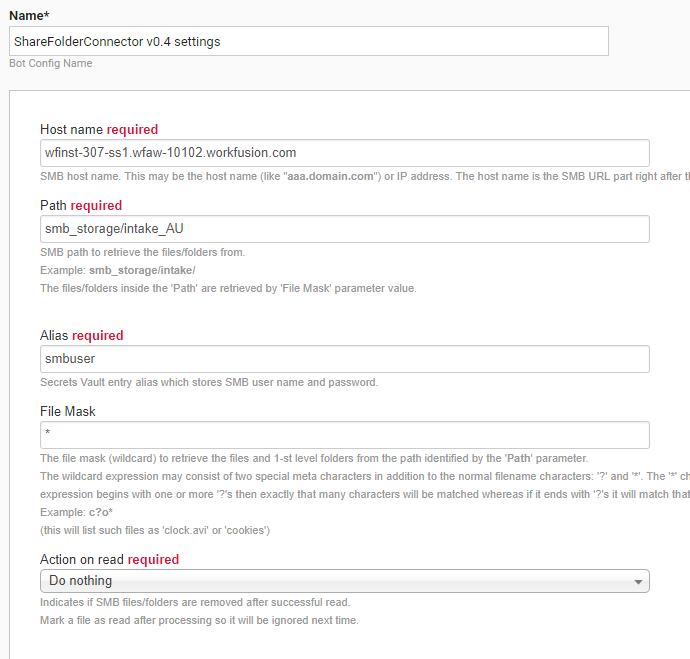
Parameters
- Hostname (required) – SMB network hostname
- Path (required) – path inside the given host used as the home path to extract files from
- Alias (required) – Secrets Vault entry alias that stores SMB network user name and password.
tip
The username (the Secret Entry key value) can be a username or domain\user combination in the DOMAIN\USERNAME format.
- File Mask – file mask (wildcard) used to retrieve the files from Path. The wildcard expression may consist of two special metacharacters in addition to normal filename characters. The
*character matches any number of characters in part of a name. If the expression begins with one or more?s, that number of characters will be matched, whereas if it ends with?s, it will match that number of characters or less.
note
The *.* wildcard will match only files/folders which have an extension: that is the specifics of the JCIFS library used. Only one file mask may be specified in the field, i.e., you are not allowed to specify, for example, *.gif, *.jpg. The File Mask field is optional: if it is omitted, the * mask will be used.
- Action on read – action to be performed after the SMB file/folder is successfully read. Available options are as follows:
- Mark file as read – marks a file as read after processing, so it will be ignored next time
- Delete file on read – indicates if SMB files/folders are removed after successful read
- Do nothing – does nothing with SMB files/folders (this is the default value)
How to use
- Create the first step as a Bot Task.
- Double-click on it on the diagram.
- Select ETL Use Cases > ShareFolderConnector v0.4 settings Use Case.
- Double-click on it again and populate with parameter values properly.
- Go to the side panel on the right > the Bot tab (Other). Drag-n-drop the Share folder connector Bot Config from the Intake Bots BCB. Its name is Intake Bots v0.4-dev (Share folder connector).
How it works
- Share Folder Connector reads files from the SMB path specified by the Path parameter (or home path), using File Mask. A single transaction is created for each file from the home path.
- Share Folder Connector reads files from the immediate child sub-folders of the home path. In that case, a single transaction is created per a sub-folder and all the files in the sub-folder. Mind that the files are read from the sub-folders using a
*wildcard. - Share Folder Connector logs some actions during its work. The logs are available in the Business Process Results tab > Event log.
See the example of transactions created after Share Folder Connector processing (two files are read from the SMB path) below.
{
  "meta": {
  },
  "id": "5e05d02c-8e64-42e1-9338-56fd7d5101d1",
  "docs": [
    {
      "meta": {
      },
      "id": "3ea6c683-e066-408a-83c6-f99d777f0db6",
      "name": "Document1.txt",
      "type": null,
      "textLink": null,
      "taggedTextLink": null,
      "originalDocumentLink": "https://wfinst-307-92-ct1-s3.workfusion.com:443/intake-bucket/shared-folder/d1b93d2d-97b7-4472-8012-4c41703427a5.txt",
      "extractedFields": {
      },
      "origin": null,
      "merged": false
    }
  ]
}