
Manage WorkSpace roles and permissions
To access any WorkSpace functionality, each user must have a role and permissions assigned to them.
WorkSpace roles
The roles for WorkSpace users are assigned via the single user management system implemented based on Keycloak. You can assign a default role or create a custom one.
In Keycloak, there are three default roles pre-configured for the wf-workspace client:
- Administrator
- Manager
- Worker
The roles have different sets of permissions assigned to them by default as described in the Explore default permissions section.
Create roles
To create a custom role, follow the steps below:
Sign in to Keycloak and choose the WorkFusion realm.
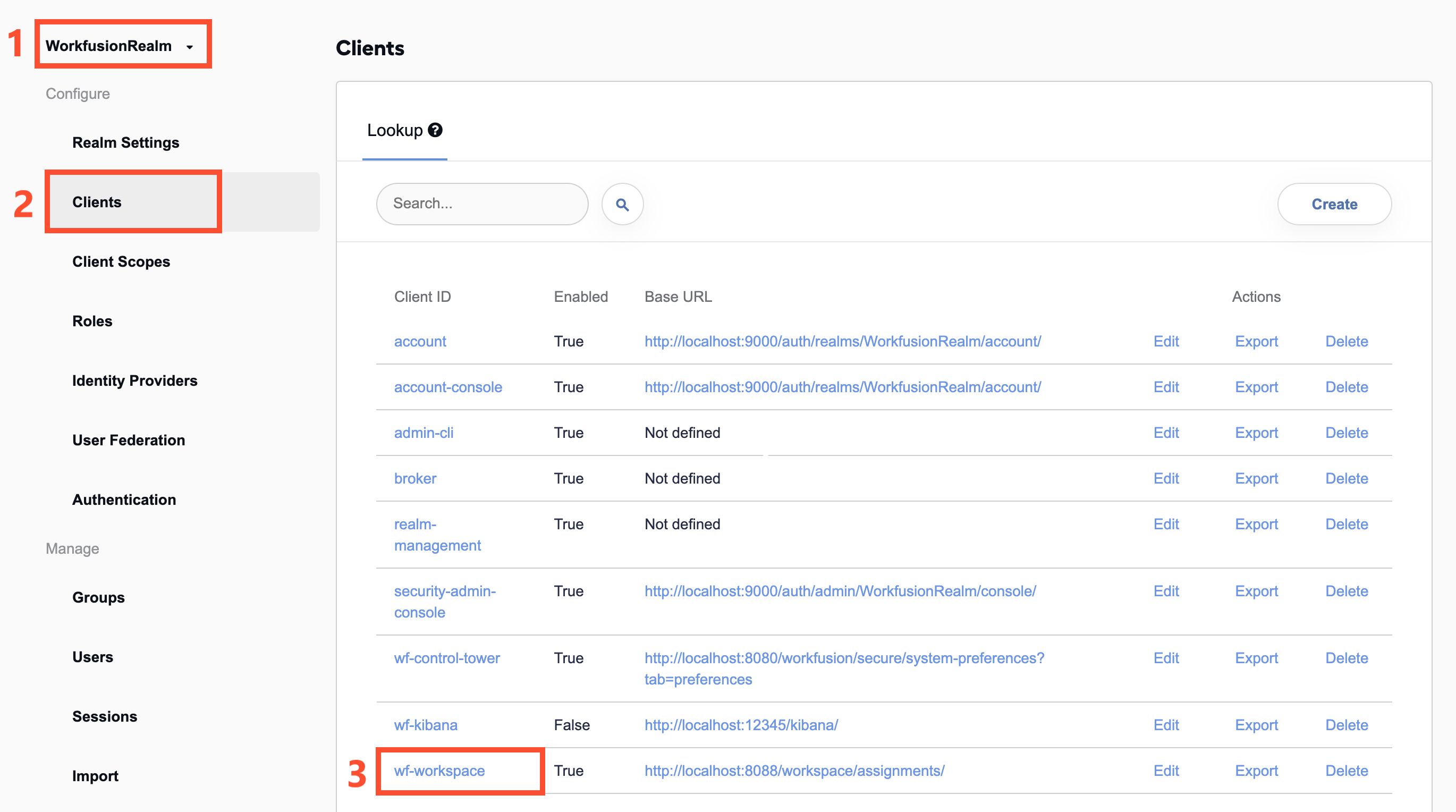
Click Clients.
In the list on the right, select the wf-workspace client.
Follow the steps to add a role as described in the instruction.
note
It takes five minutes for any role created in Keycloak to be synchronized with WorkSpace.
Map roles to users
To assign a role to a user, follow the steps below:
Sign in to Keycloak and choose the WorkFusion realm.
Follow the standard role mapping procedure.
User migration and roles
If you upgrade from a previous IA Cloud version where users have WorkSpace roles assigned to them, the migration tool will migrate the roles together with the users. Otherwise, you must assign roles to users manually as described in the Map roles to users section.
WorkSpace permissions
Each default or custom role from Keycloak must have permissions assigned to them in WorkSpace.
note
By default, managing permissions in WorkSpace is available only for users under the Administrator role.
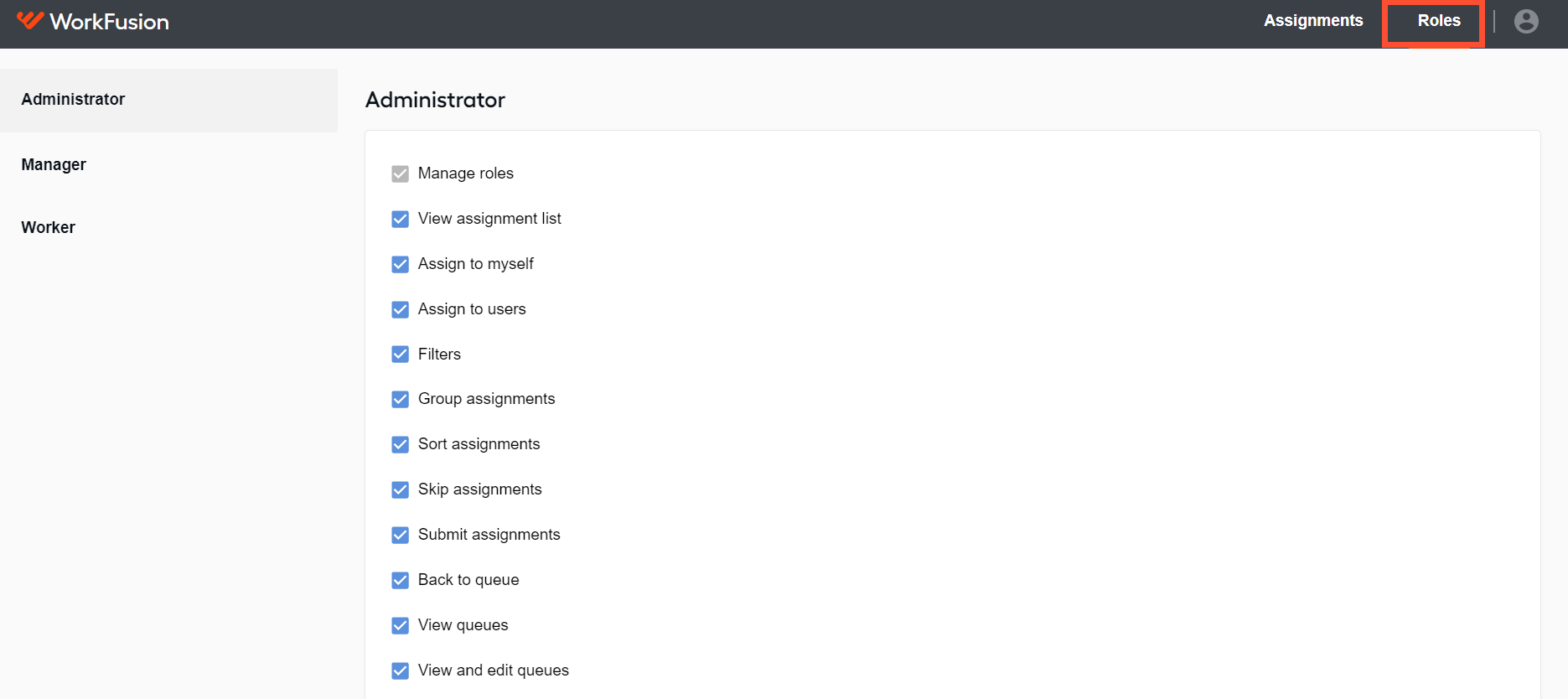
To see the list of available WorkSpace permissions, go to the Roles tab and, in the menu on the left, choose one of the roles. The figure below illustrates the default set of permissions for the Administrator role.
Explore default permissions
The table below is the default permission matrix. For in-depth understanding of the roles, read the Study permission descriptions section.
| Permission | Administrator | Manager | Worker |
|---|---|---|---|
| Manage roles | ✓ | ||
| View assignment list | ✓ | ✓ | ✓ |
| Assign to myself | ✓ | ✓ | ✓ |
| Assign to users | ✓ | ✓ | |
| Filters | ✓ | ✓ | ✓ |
| Group assignments | ✓ | ✓ | ✓ |
| Sort assignments | ✓ | ✓ | ✓ |
| Skip assignments | ✓ | ✓ | ✓ |
| Submit assignments | ✓ | ✓ | ✓ |
| Back to queue | ✓ | ✓ | ✓ |
| View queues | ✓ | ✓ | ✓ |
| View and edit queues | ✓ | ✓ | ✓ |
Set permissions
To set permissions for a role, follow the steps:
Go to the Roles tab and, in the menu on the left, select a role.
Select or deselect any of the permission checkboxes.
Click the Save button.
Study permission descriptions
Manage roles
The permission lets you assign WorkSpace permissions to any default or custom roles. By default, it is enabled only for the Administrator role.
For security reasons, the permission is locked in the enabled state. When the permission is disabled, the Roles page becomes unavailable: no such tab is displayed in the WorkSpace UI, and, by a direct link, users get "Access denied."
View assignment list
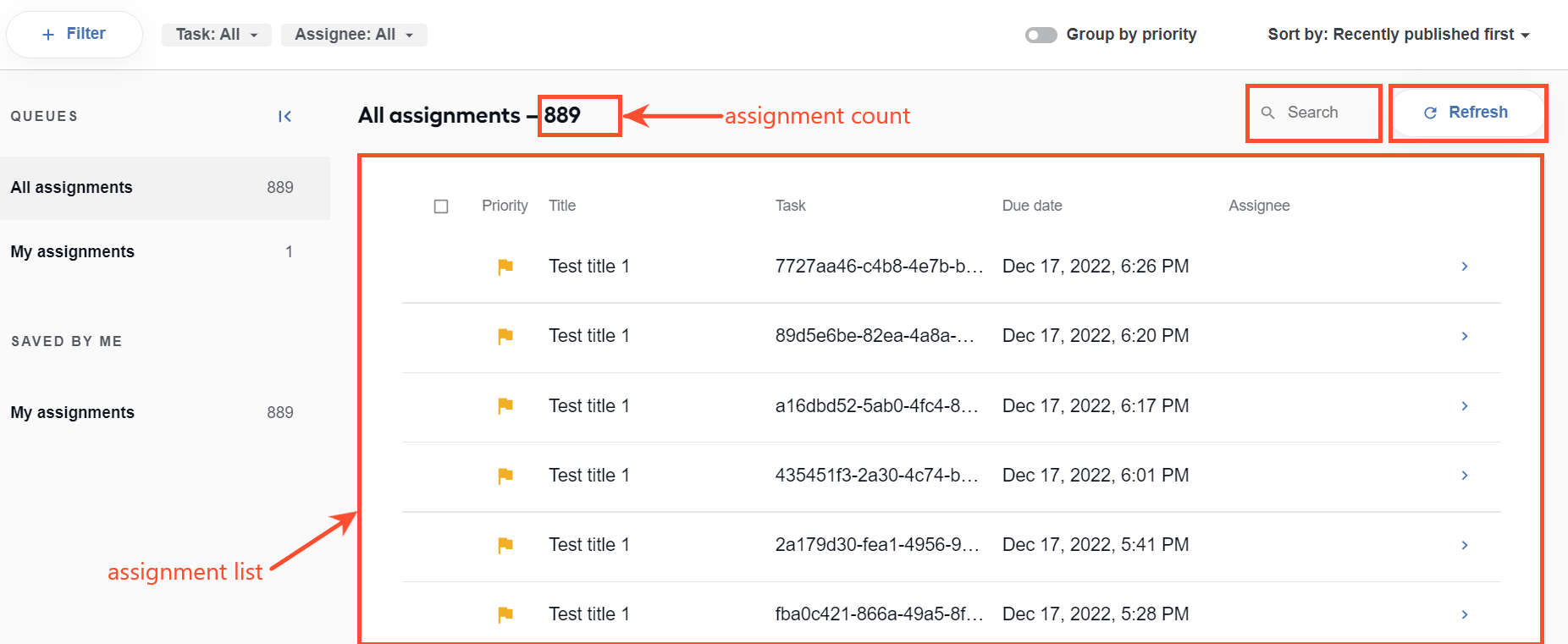
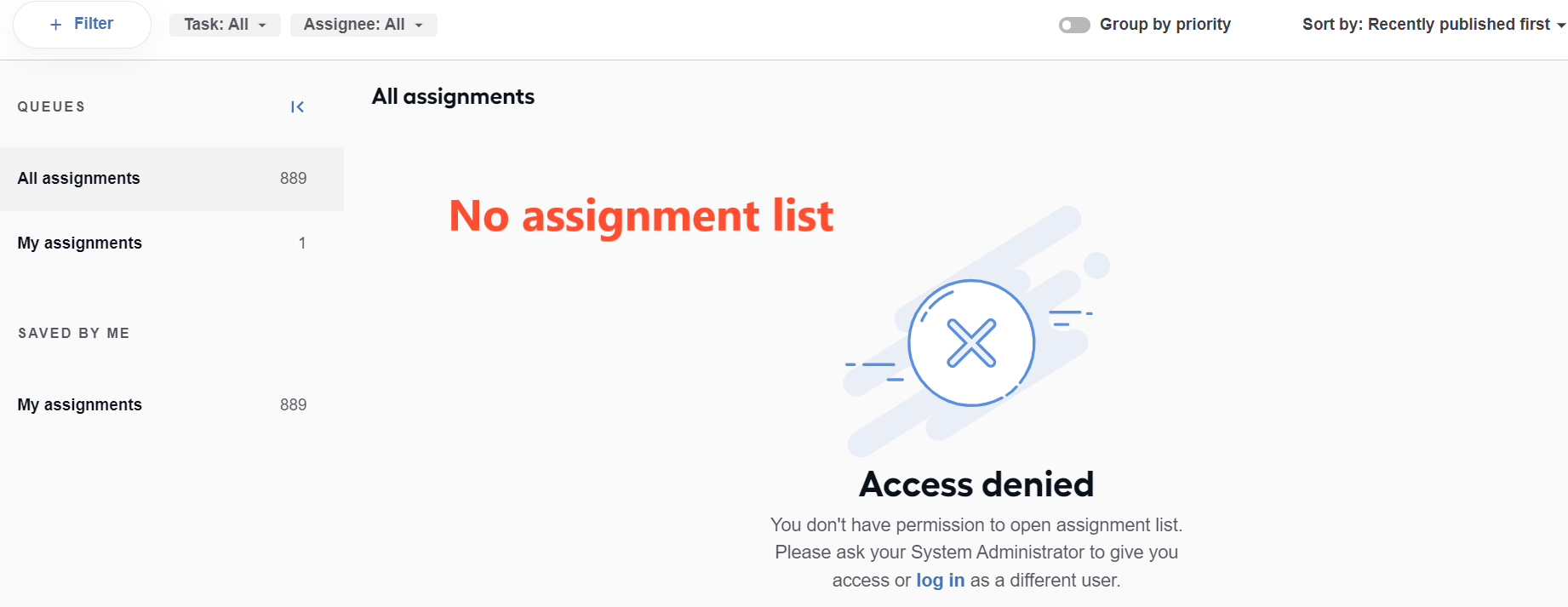
The permission lets you view the full assignment list and the total count of available assignments, as well as apply the Search and Refresh buttons.
Without it, assignments are available only via direct links, and you cannot see their total count. The Assignments list, the Search and Refresh buttons are not visible.
| Permission enabled | Permission disabled |
|---|---|
 |  |
Assign to myself
The permission lets users assign tasks from the Assignment list to themselves. When it is disabled, the Assign to me button is not visible, and the user is not shown among the options in the Assign to dialog.
| Permission enabled | Permission disabled |
|---|---|
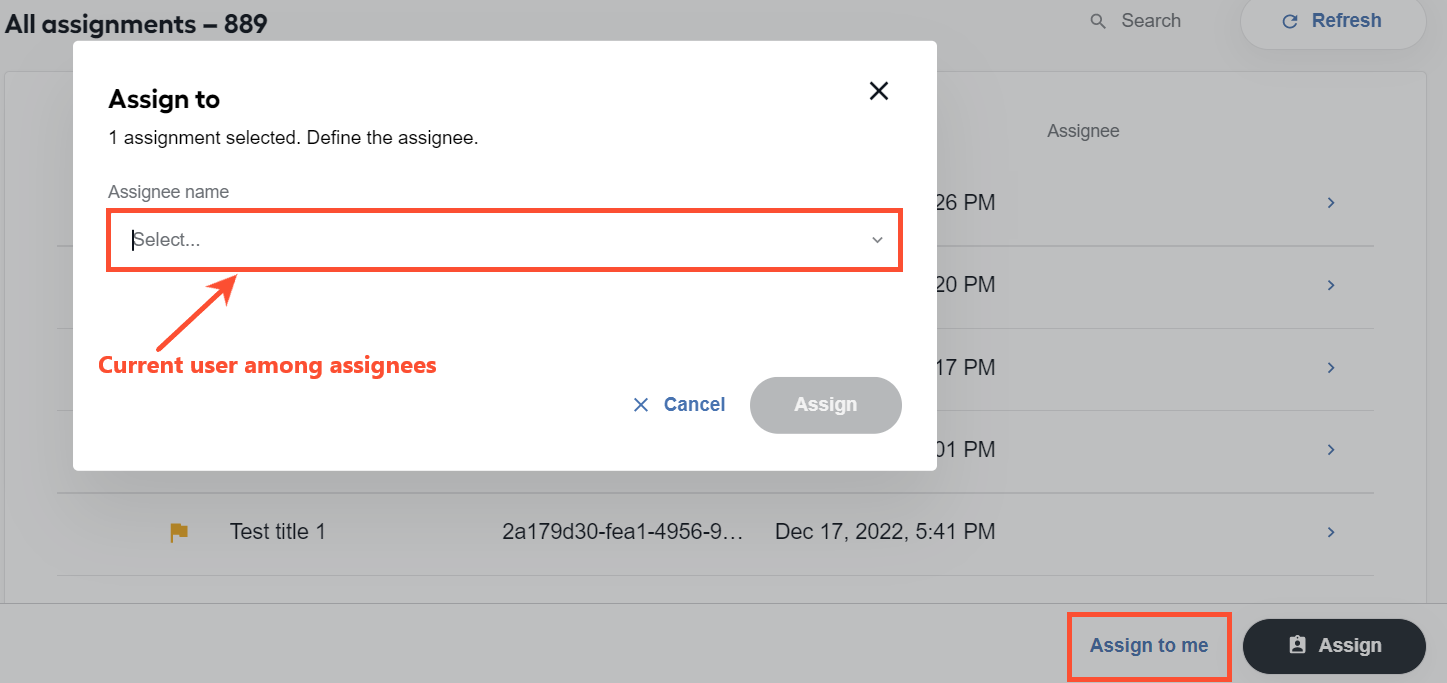 | 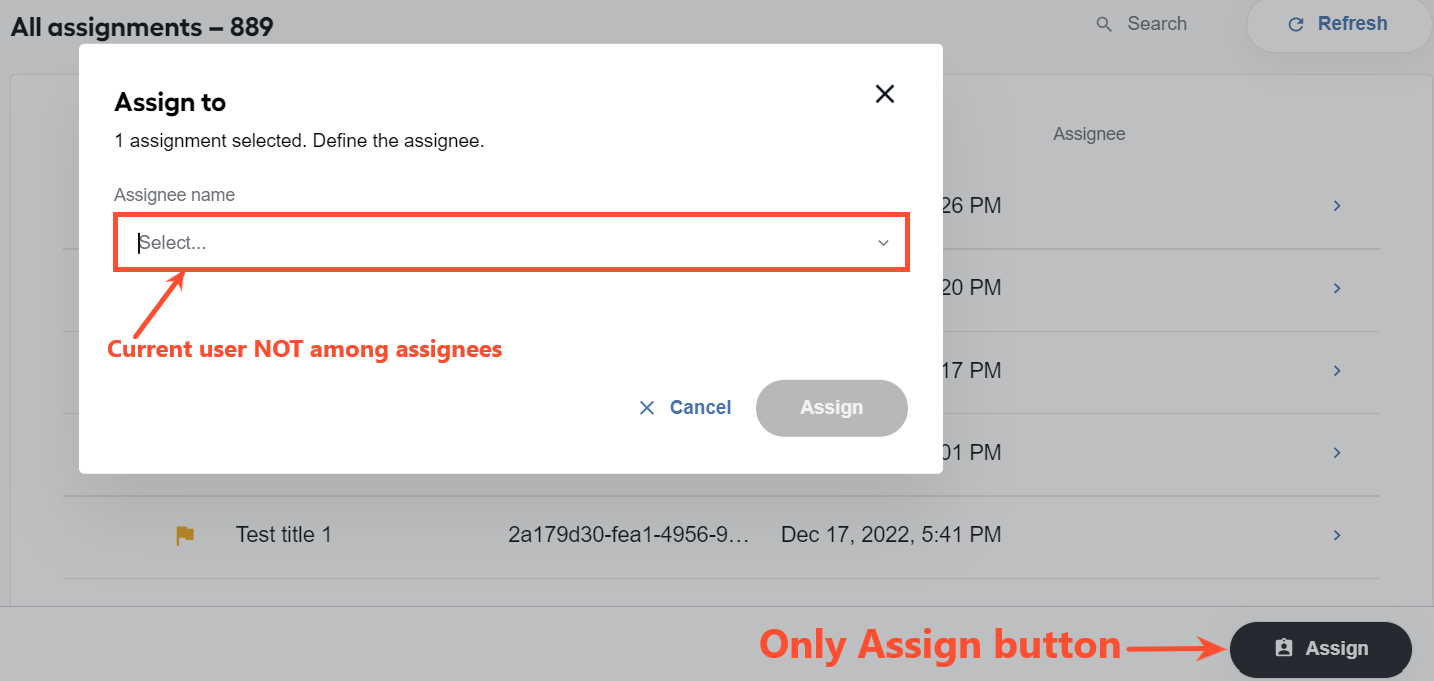 |
Assign to users
The permission allows you to assign tasks from the Assignment list to other users. Without it, only Assign to me button appears after you select an assignment from the list.
| Permission enabled | Permission disabled |
|---|---|
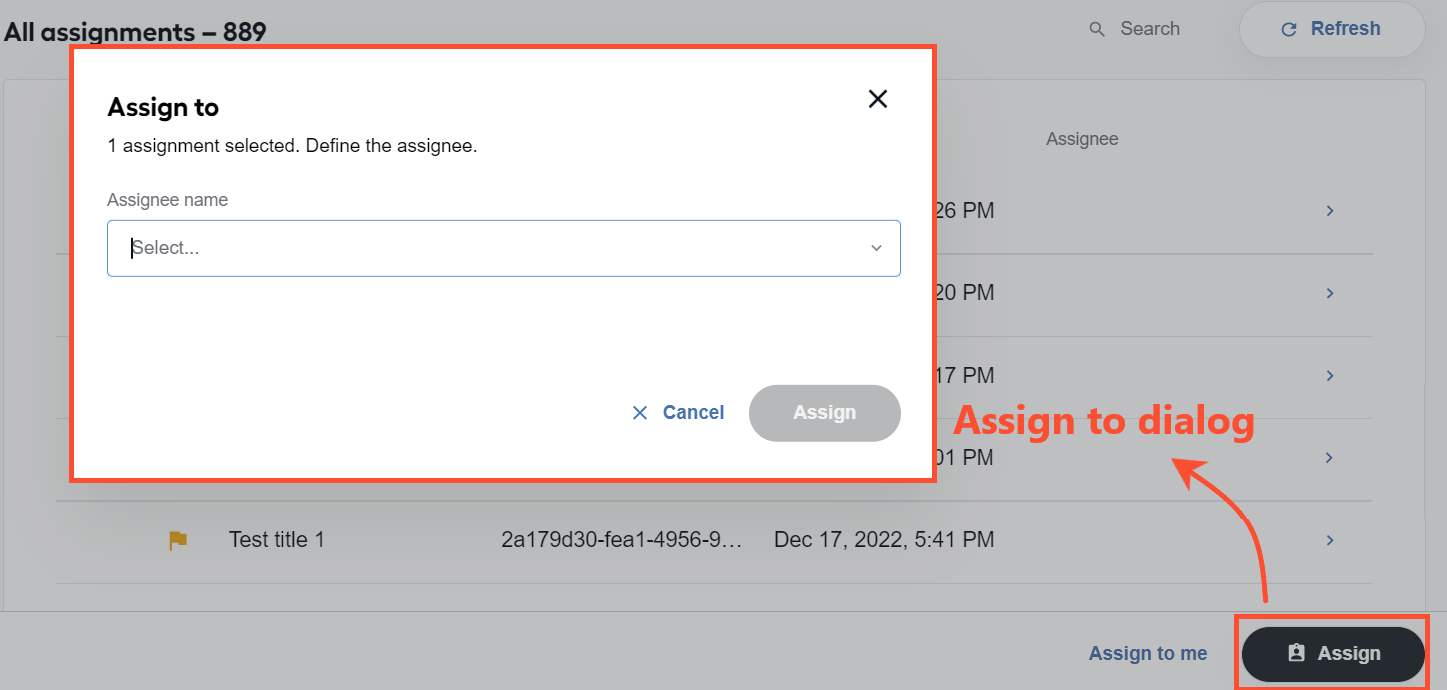 | 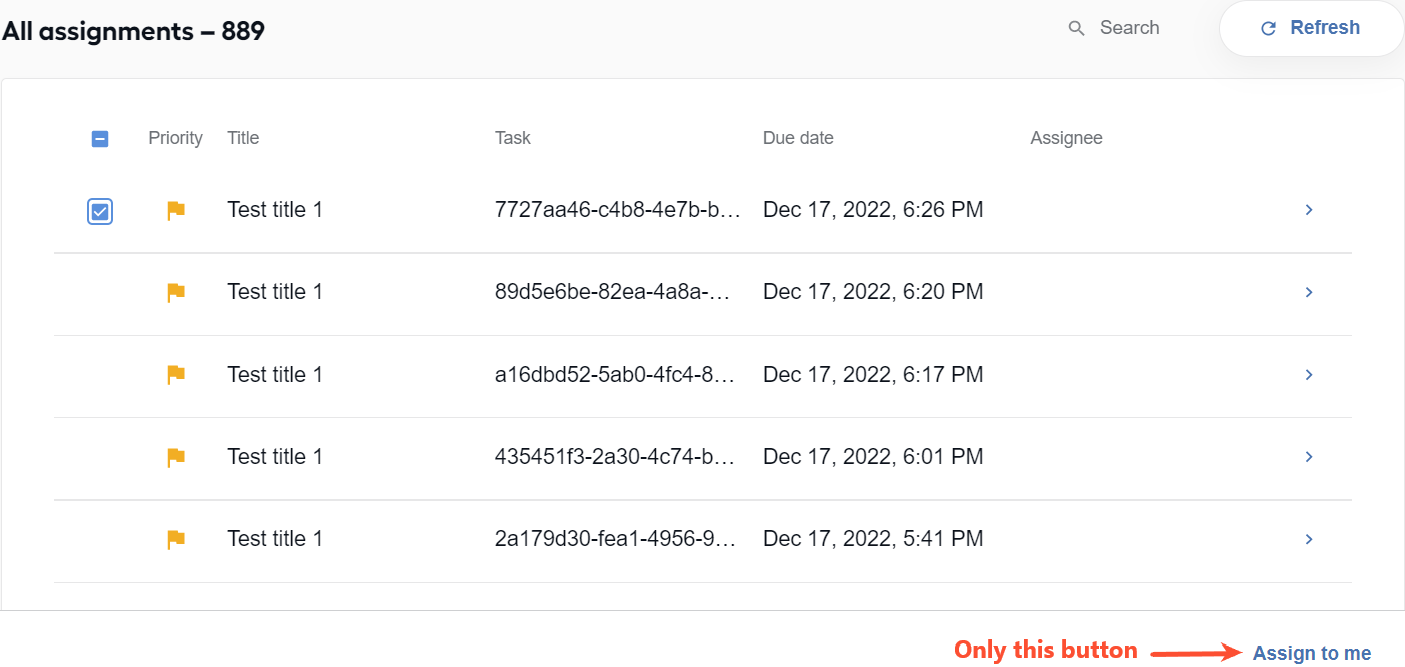 |
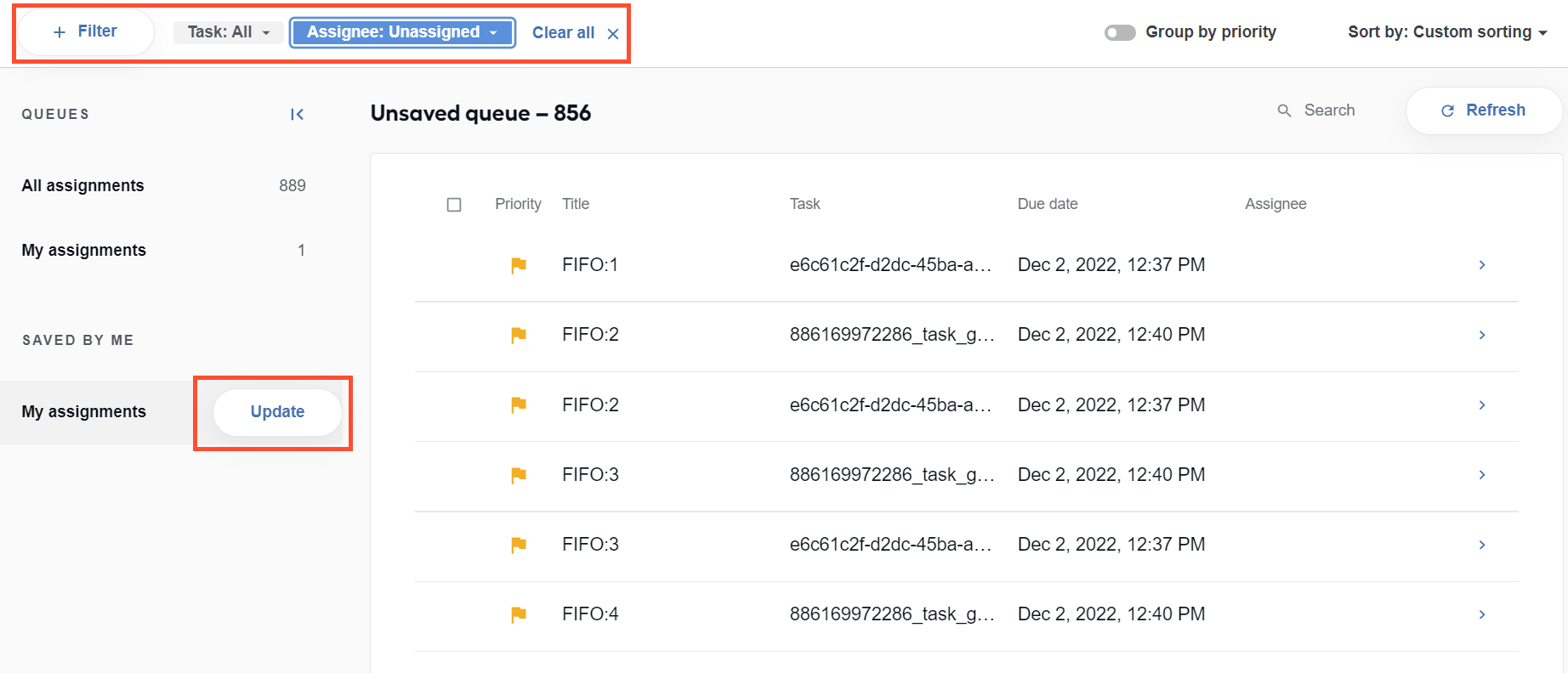
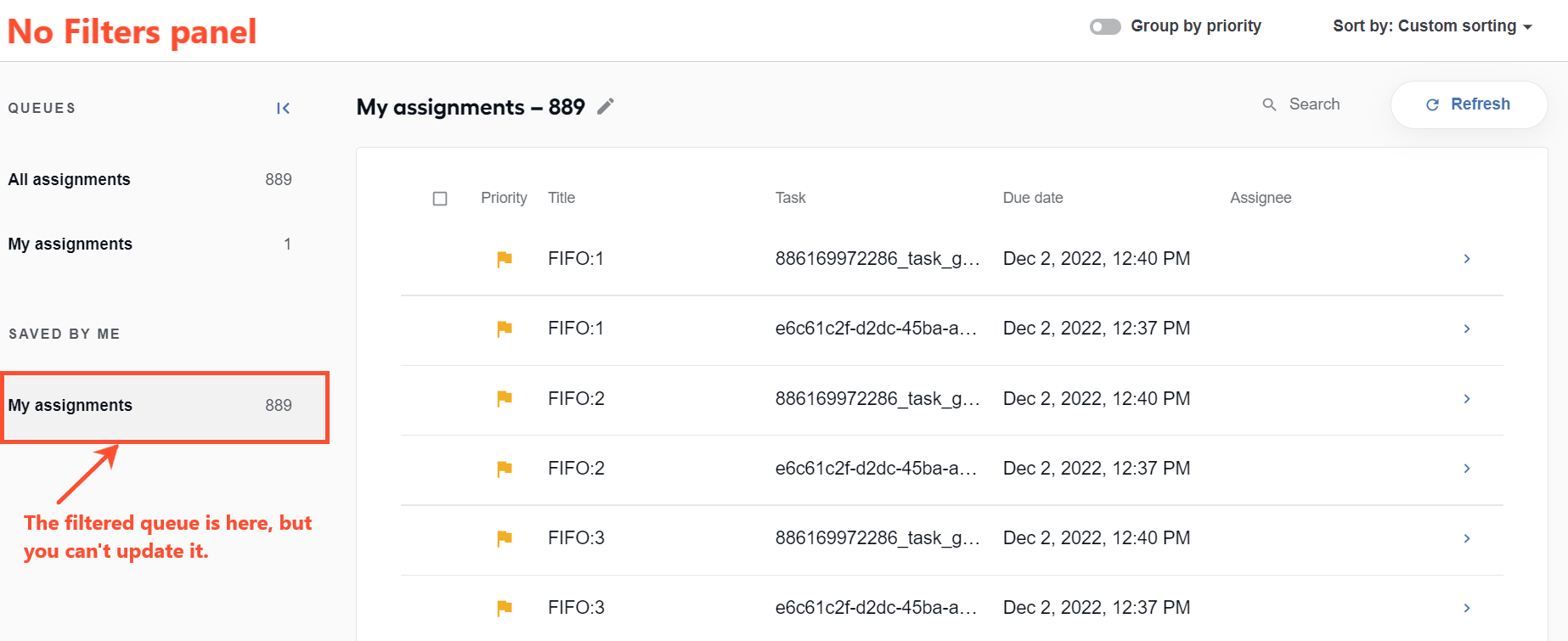
Filters
The permission lets you apply filters to assignment queues. Without it, filters are hidden. You can still view and work with any filtered queues, but you cannot update them.
| Permission enabled | Permission disabled |
|---|---|
 |  |
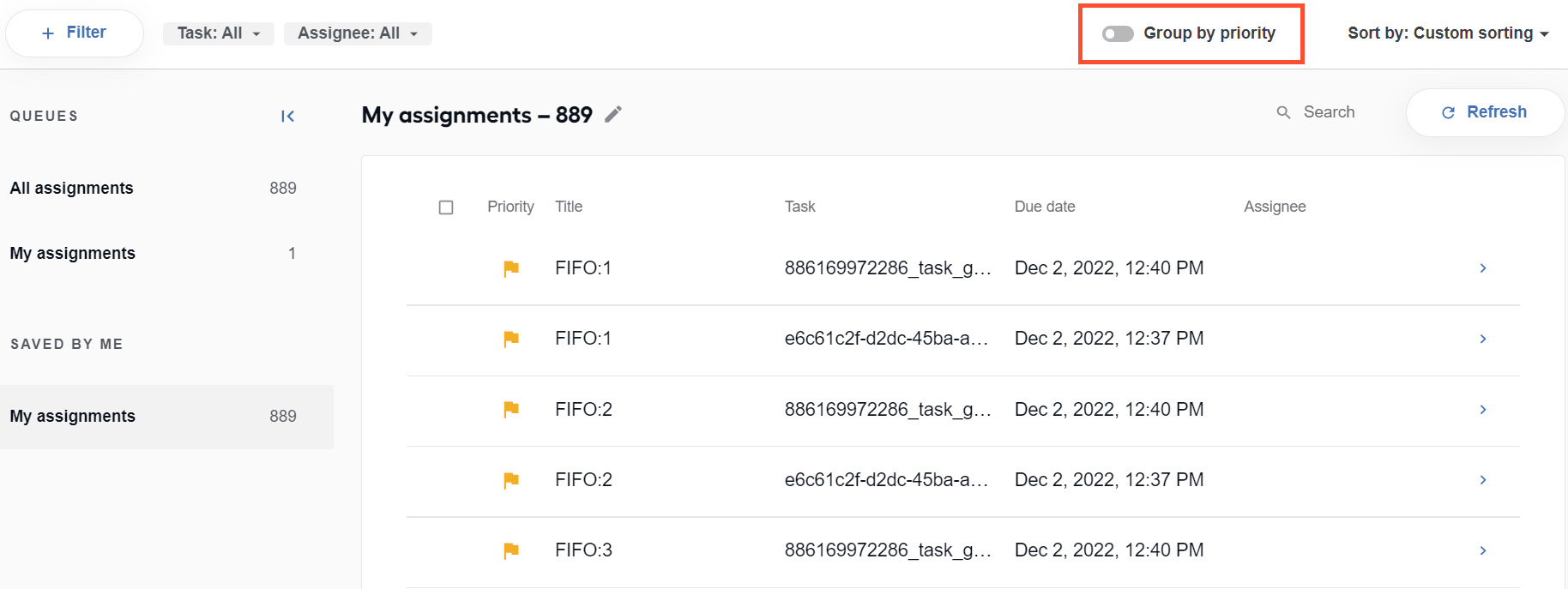
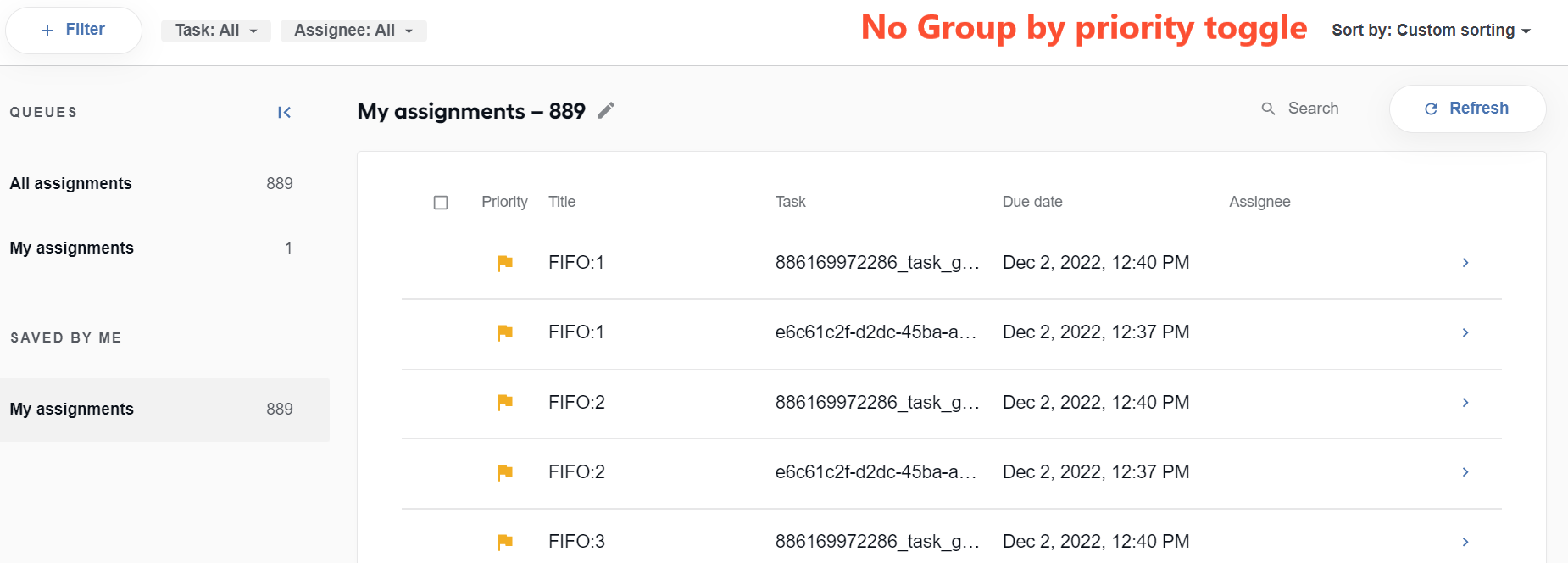
Group assignments
The permission makes it possible to group assignments by priority. When you do not have it, the Group by priority toggle is not visible.
| Permission enabled | Permission disabled |
|---|---|
 |  |
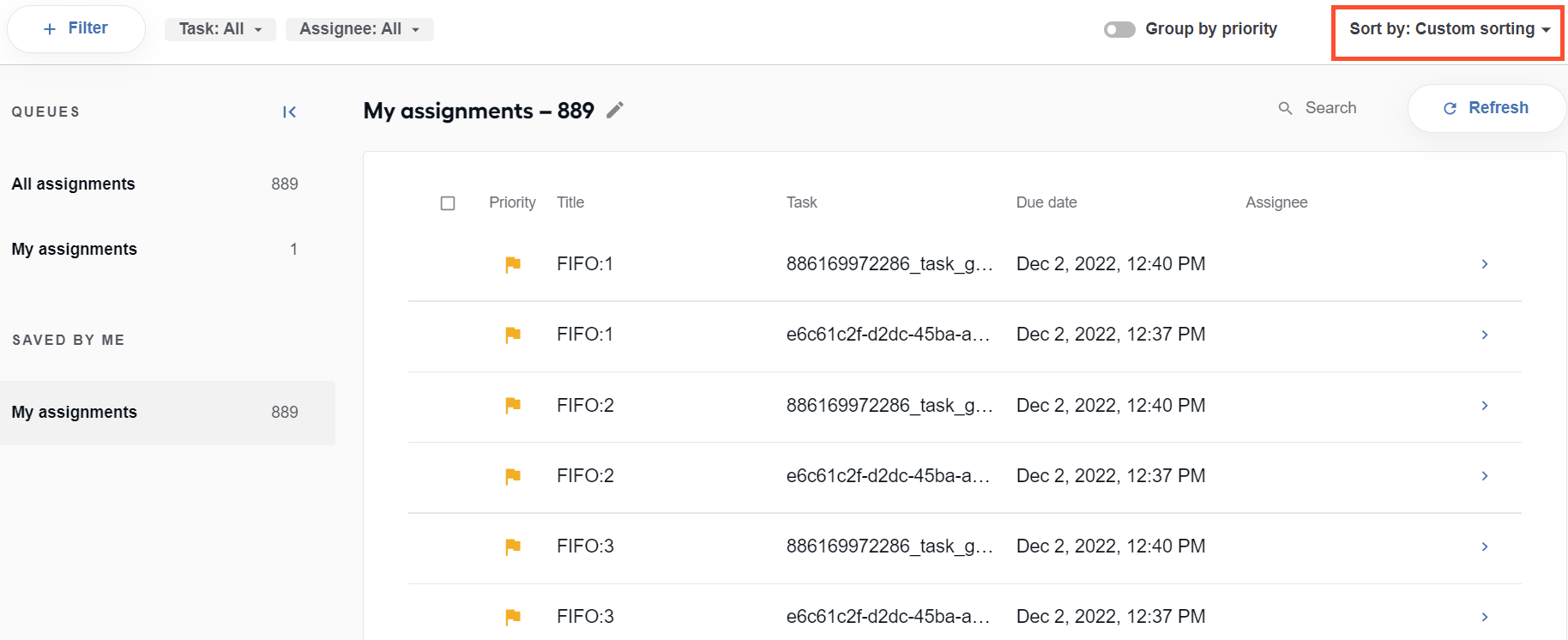
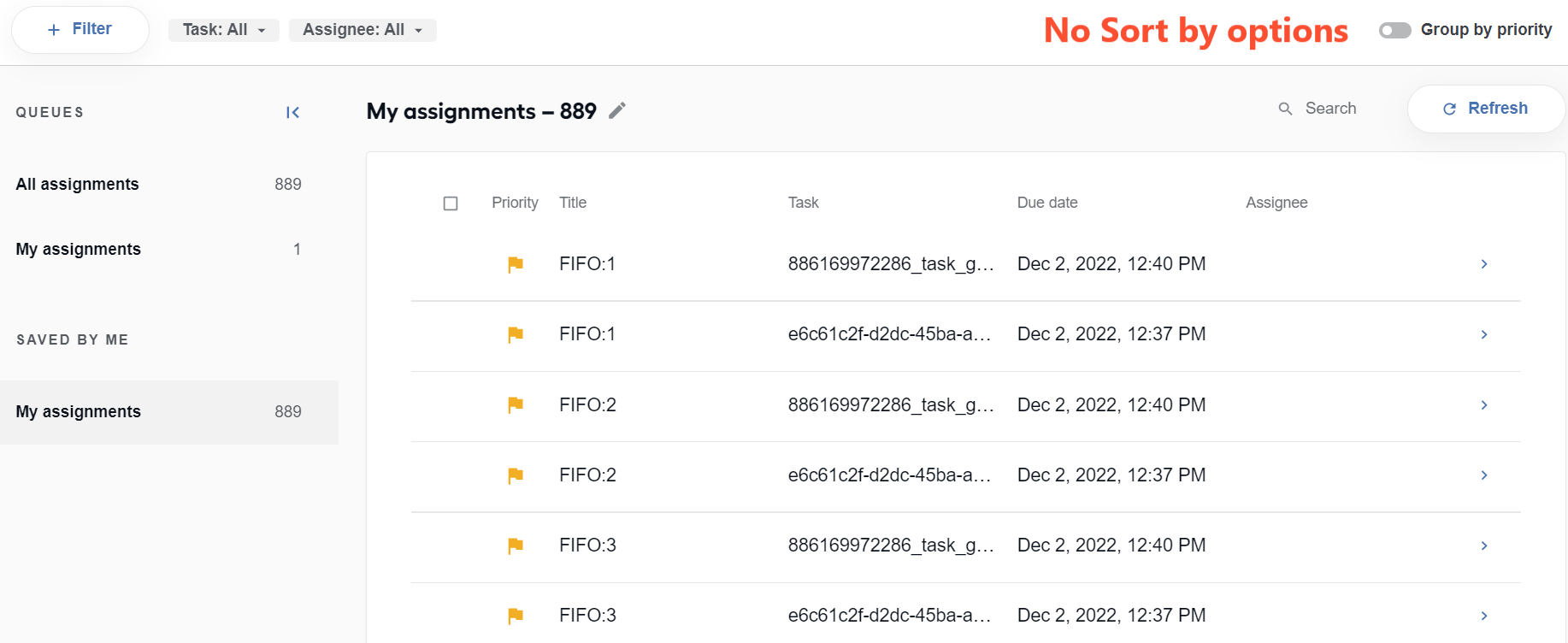
Sort assignments
The permission lets you sort the assignments in the list by a number of criteria. Without it, the Sort by drop-down field is not visible.
| Permission enabled | Permission disabled |
|---|---|
 |  |
Skip assignments
The permission lets you to skip assignments. When it is disabled, the Skip button inside your assigments is no longer visible.
| Permission enabled | Permission disabled |
|---|---|
 |  |
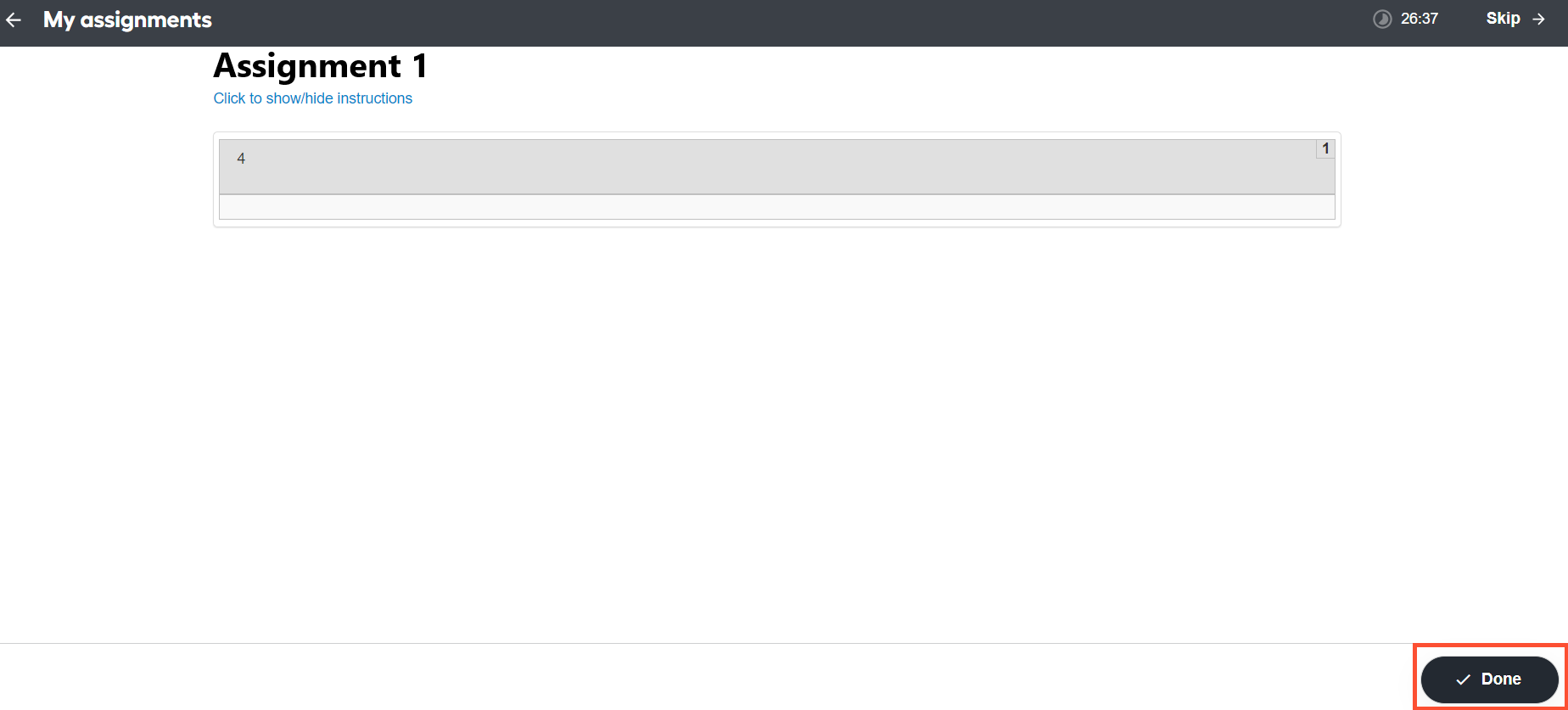
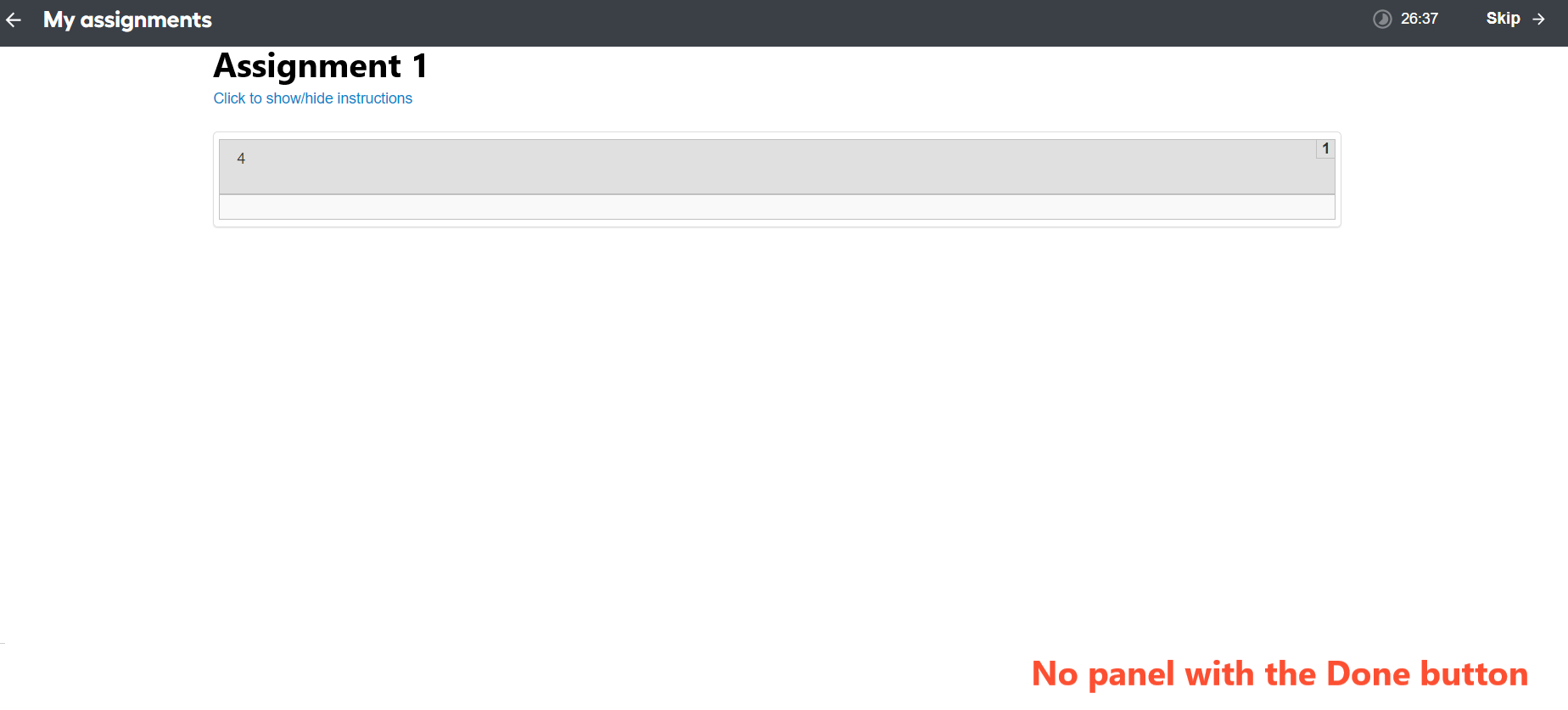
Submit assignments
The permission lets you submit completed assignments. Without it, the Done button inside your assignments is no longer visible. Users can only view assignments.
| Permission enabled | Permission disabled |
|---|---|
 |  |
Back to queue
The permission makes it possible to go back to the queue from an individual assignment. Without it, there is no button to go back to the assignment list of the queue you are working on.
| Permission enabled | Permission disabled |
|---|---|
 |  |
View queues
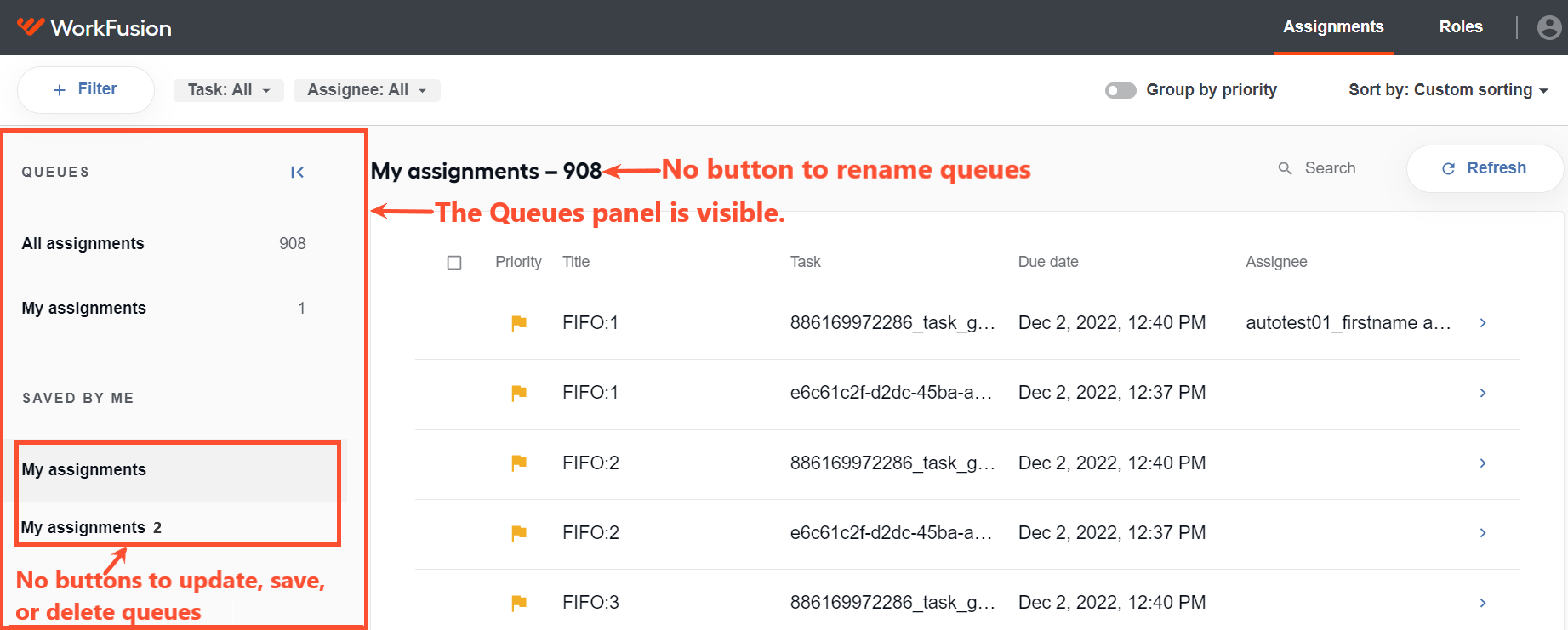
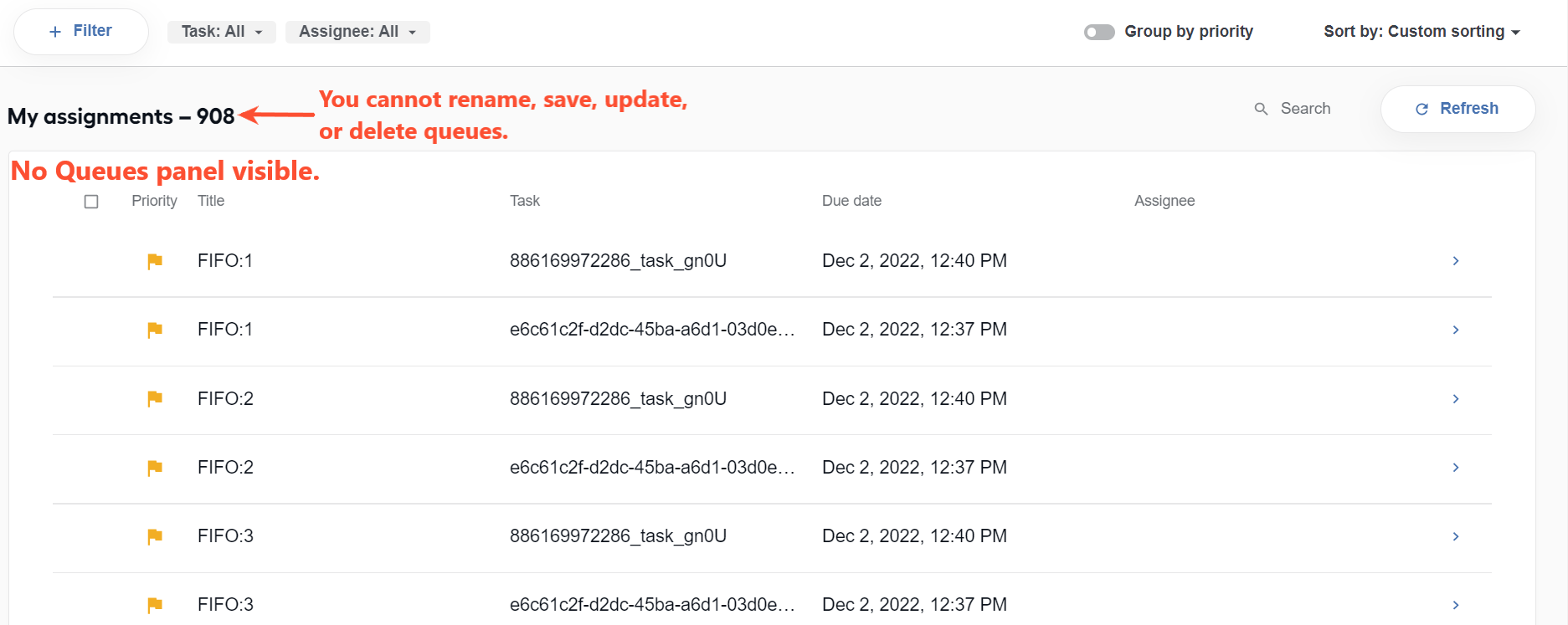
The permission lets you view the assignment queue panel. However, when only View queues is disabled, the assignment queue panel still remains visible in the user interface. To hide the assignment queue entirely, you have to disable both the View queues and View and edit queues permissions.
| View queues disabled + View and edit queues enabled | Both View queues and View and edit queues disabled |
|---|---|
 |  |
View and edit queues
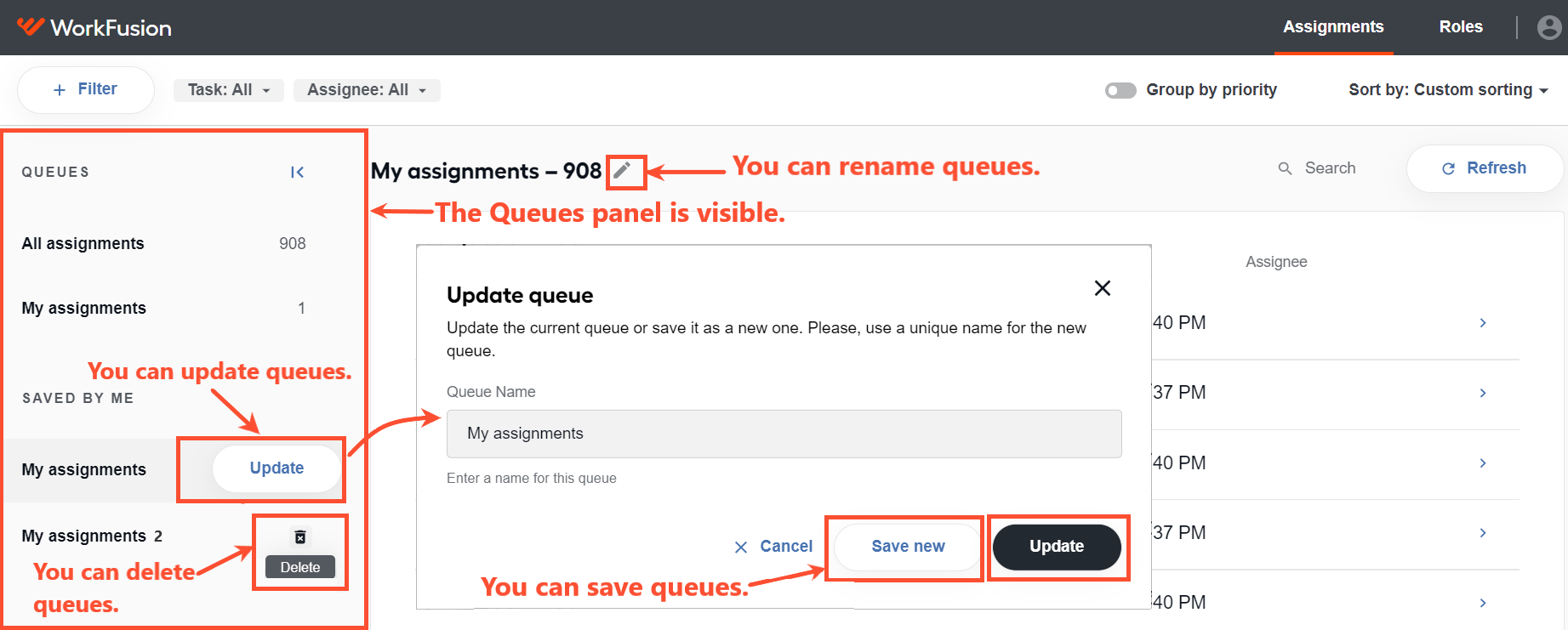
The permission lets you view and manage assignment queues. Without it, you cannot save, update, rename, or delete queues, and the associated buttons are not visible.
The View and edit queues and View queues permissions correlate in the following way:
When both View and edit queues and View queues are enabled, you can view assignment queues, as well as rename, update, save, or detele them. Associated buttons are visible.
When View and edit queues is disabled and View queues is enabled, you can view assignment queues, but you cannot rename, update, save, or detele them. Associated buttons are not visible.
When the View and edit queues is enabled and View queues is disabled, you can view, rename, update, save, or detele assignment queues. Associated buttons are visible.
When both View queues and View and edit queues are disabled, you cannot view, rename, update, save, or delete assignment queues. Associated buttons are not visible.