Design Manual Task for labeling
Goal of the step: design a Manual Task with the business logic of all documents and fields applied.
Output of the step: a functional Manual Task to be used for labeling.
You can create a Manual Task for one of the following most common use cases:
- Information extraction (IE)
- Classification
For model training, you need to find and label entities (fields) in an XML document. They are to become values for the model to train on.
To create a quality Manual Task, analyze the logic behind the documents, document types, and their layouts in each AI Agent. Pay special attention to the field logic and appearance in IE use cases. The data analyst reviews the set of fields in a document and defines which fields have only one value and which have several of them—in other words, identifies a field as a single-value or multi-value one.
A single-value field is a field that has only one result value in each document. Typical examples are supplier_name, total, date.
A multi-value field is a field that can have multiple result values. Typical examples are product_name, product_price, product_quantity, and so on.
It's necessary to identify clearly in advance single-value and multi-value fields and all cases for each of the types. Otherwise, in later stages, extra effort will be required to redesign a Manual Task and retrain the model.
Answer Types
The instructions are valid only for legacy Manual Tasks.
Answer Type is a parameter defining the input field type and format. It's essential to select a correct Answer Type for each extraction field as it affects model training. Appraise your decisions in terms of the AI Agent business logic.
It's advisable to select corresponding answer types, for example, number for the corporate_number field (if this field is always numeric), zip for the zip_code field, and so on. The most commonly used answer type is Free Text, but you should avoid applying it to all cases. To learn more, refer to the Answer types topic.
Most common Answer Types
| Answer Type | Description | Field example |
|---|---|---|
| Free Text | Allows entering a single-line text string. | Entity type, Company name |
| Number | Allows entering integers only. | Quantity, Bank account number |
| Price | A combined input field used to enter monetary values. | Total, Price |
| Date | Allows entering a date in the mm/dd/yyyy format. | Date |
| Country | A drop-down list of countries to select. To speed up the selection, you can start typing a country name. | Country |
| Select one | A drop-down list that allows you to select a single option. | Classification |
| Check one | A radio button group that allows you to select a single option. | Classification |
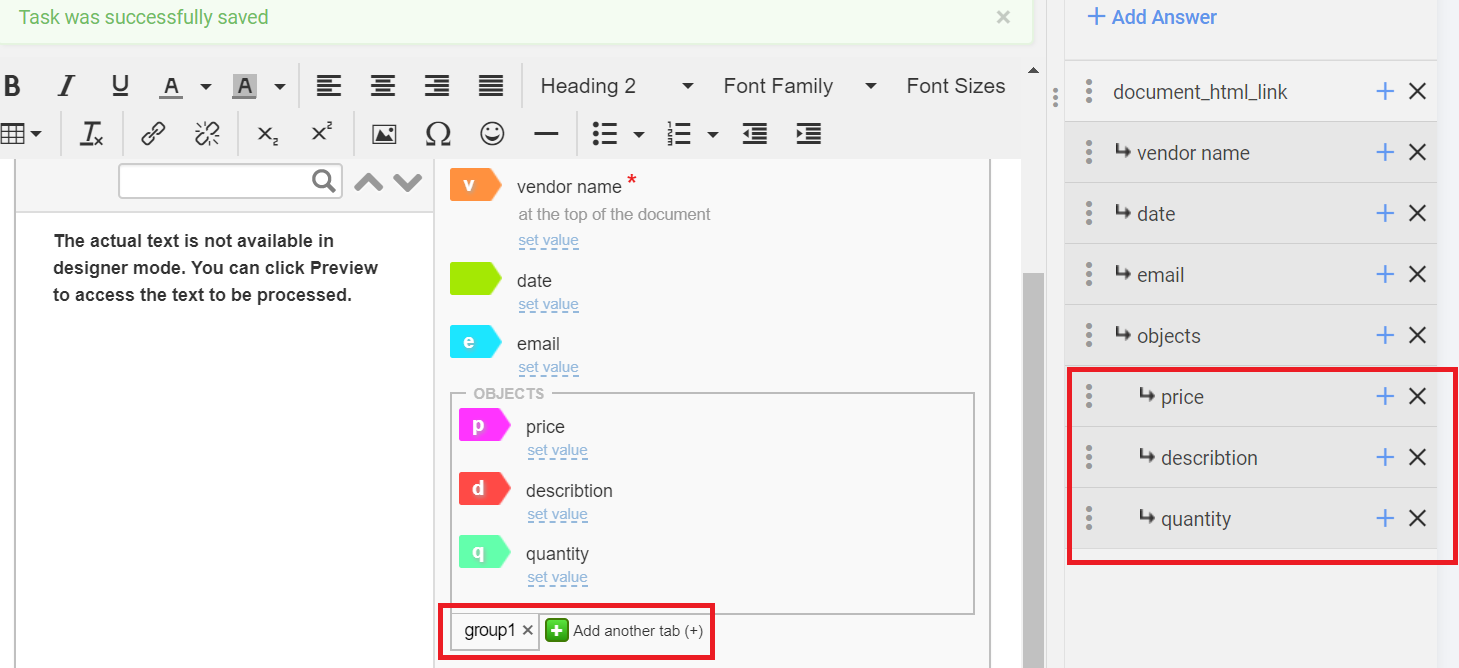
| Group of Answers | Allows labeling multiple similar combinations of values that are supposed to be grouped together. | Product name, Price |
In a group of answers, multi-value fields make up a single sub-answer. So SMEs should label repeatable information blocks, for example, information about products, such as name, price, quantity, and so on. The answer is displayed as a multi-tab panel containing associated sub-answers.
Required or optional
A required field is a field present in all documents from all batches. For example, invoice_number, invoice_date, and so on.
An optional field is a field present only in certain documents or in specific batches. These fields usually have special additional logic.
Required and optional fields need to be considered together with SMEs. However, if the number of fields is 10 or higher, it's strongly recommended to make it impossible to submit a task without validating that all necessary values are labeled.
Best practices
Apply hot keys
Hot keys are helpful for quick labeling. To increase speed, assign each field a hotkey and teach SMEs how to use them.
There are two approaches to assigning convenient hot keys:
- Assign intuitively understandable and memorable letters, for example, the first letters of fields: d = date, p = price, n = invoice number, and so on.
- Assign the letters and figures that are close to each other on the keyboard: 1, 2, 3 = first three fields; q, w, e = another three fields; a, s, d = yet another three fields; and so on.
Use N/A
It's better to mark optional fields as required and make a N/A selection available to minimize SMEs' mistakes due to inattentiveness.
Split long entities
Check whether a value can be split into independent parts, for example, the entire address line can be very difficult to extract as address formats usually differ from country to country or even within different document templates.

It's recommended to split the value into shorter entities located within the same XML tree element: street address, city, state, postal or zip code, and so on.
Be careful with value splitting. For instance, you cannot split values, such as company_name as their parts are not independent, and the value only makes sense with the whole name.
Add link to original document
The instructions are valid only for legacy Manual Tasks.
There are different ways to provide an original document: as a separate link or in a pop-up view. Make sure that at least one is provided and require SMEs to compare it with the XML document when they have questionable values.
Enable additional fields
If necessary, for a more informative output, you can enable additional fields, such as:
- A drop-down list to classify documents: for example, if you have a combined dataset in five different languages, add a special field with a drop-down list of the languages to simplify the further analysis of the dataset and its grouping.
- A checkbox to mark bad OCR: even after OCR tuning, there can still be documents with bad OCR. To avoid labeling such documents and easily find them later, it's recommended to include a special checkbox for OCR.
Use reference data
The instructions are valid only for legacy Manual Tasks.
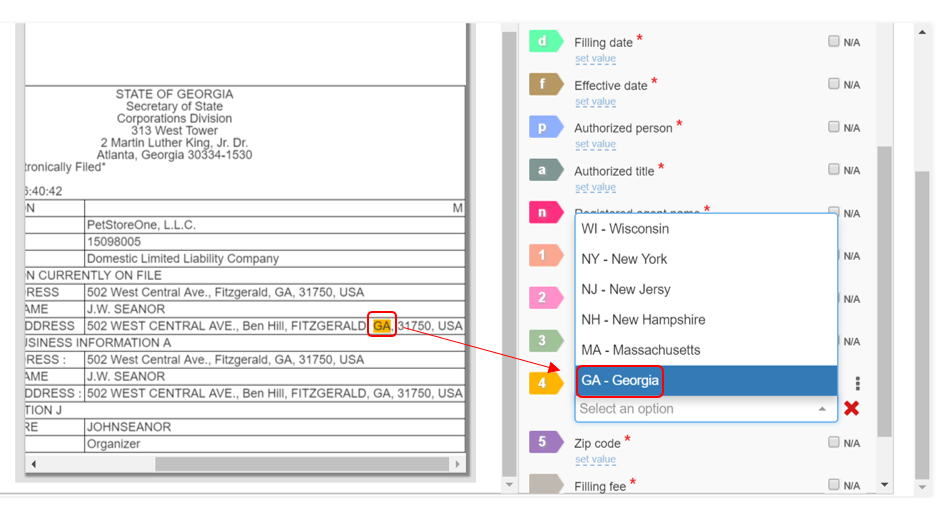
When applicable, reference data lets us use drop-down lists for certain fields. It means that, during labeling, a specific value from the list corresponds to a labeled piece of information. There are two main reasons to include reference data in a Manual Task:
Normalize values
For example, you want all extracted company names and have a single format to save them in SAP: WorkFusion, Inc. However, in your dataset, you can encounter different formats for the same company: WORKFUSION, WF, Workfusion Incorporated. Not to change the data value manually every time, label the value as it is represented in the document and then choose the full version of the same value from the drop-down list.
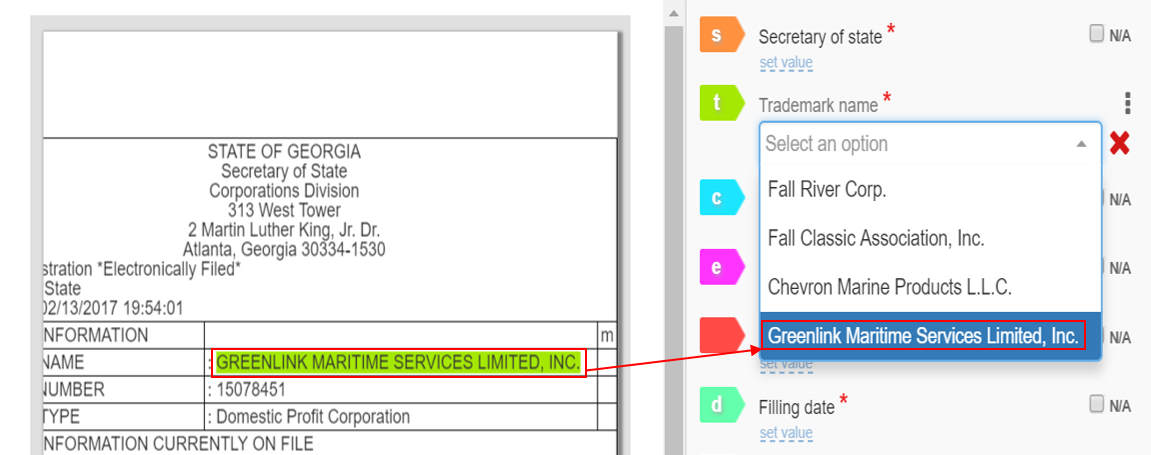
Match the information about an entity in a document with additional data from the database that is not presented (or corrupted) in the document. Specific fields can be connected with the values from other fields. Thus, if you know the approver_id value, you can figure out the approver's_name as well. For example, the option can be helpful when you have trouble with the OCR quality.
You can use the reference data when you have a limited number of values in the database. The latter should be up to date and match the corresponding values from the documents. Otherwise, the information from the document will not match the reference data, and the field value will be empty or N/A.
To enable reference data, follow the steps below:
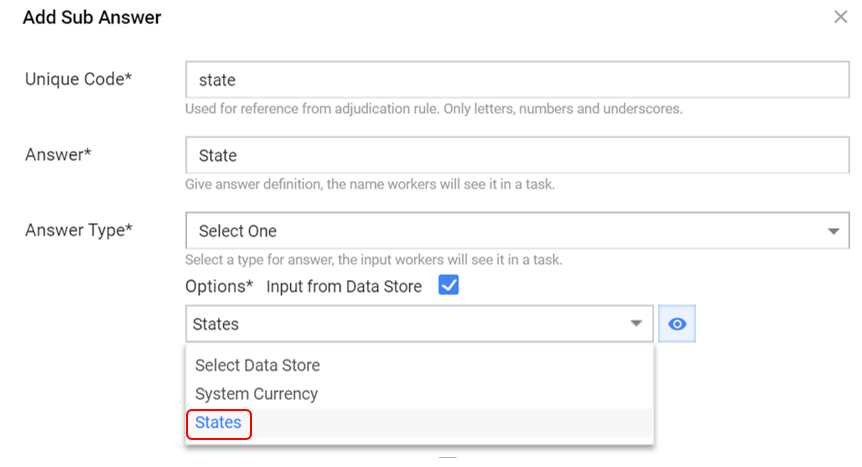
Create a Data Store for the field where you’d like to use the reference data. Below is an example of the case when the reference data is about states:
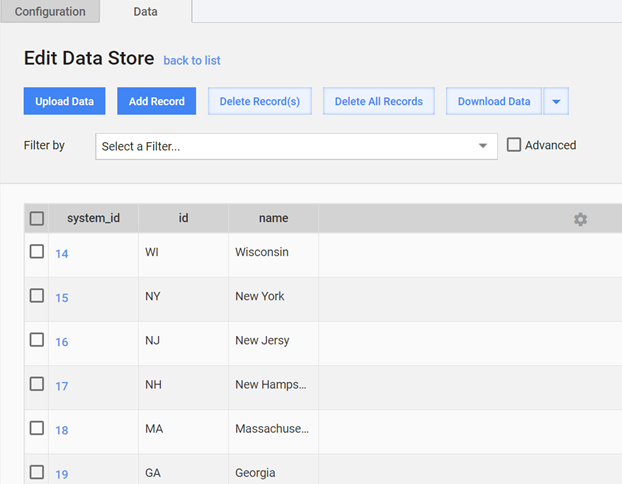
To be used as reference data, the Data Store should have two obligatory columns: ID and name.
In the Manual Task, open the field settings and choose Answer Type > Select One.
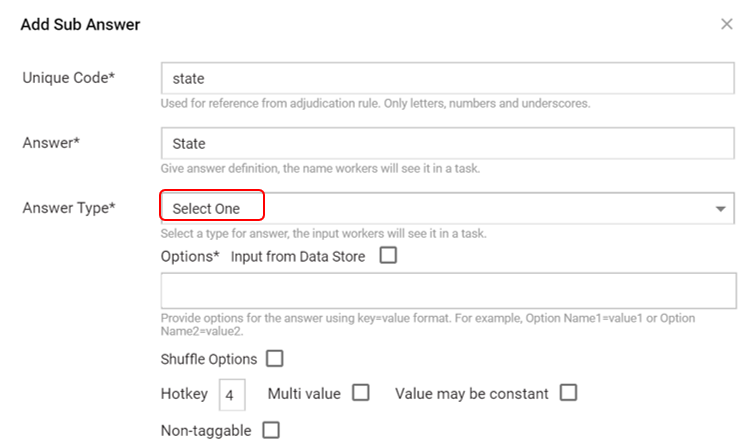
Select Input from data store and select the relevant Data Store from the drop-down list.
In the Manual Task, this looks as shown below:
Avoid making Manual Task too big
It is recommended to include 7–10 fields in a single Manual Task. If an AI Agent implies the extraction of a larger number of fields, it's better to create several tasks.
For example, if you need to extract 30 fields, create three separate tasks with three different sets of fields in each. This way, your dataset is processed three times through three different Manual Tasks.
Otherwise, too many fields in a task may lead to lower concentration and, consequently, lower quality of the dataset.