Define Answer Types
When adding or editing an Answer, you must set an Answer Type. The parameter defines the type and format of the input field.
Depending on the selected Answer Type, you may need to configure additional options or provide a Data Store source.
In general, Answer Types can be divided into the following groups:
- Single-value: the Answer is a single string containing one value, for instance, text, number, date, and so on.
- Multi-value: the Answer is a string containing multiple values. Note that multi-value input fields do not store duplicated values.
- Combined: the Answer consists of multiple values with different answer codes.
Currently, two standard delimiters are supported: comma (,) and pipe (|).
| Field Type | Value Type/ Separator | Can be n/a |
|---|---|---|
| Free text | Single | Yes |
| Long text | Single | Yes |
| Rich text | Single | Yes |
| Check One | Single | No |
| Check Multi | Multi/Pipe | No |
| Select One | Single | No |
| Select Multi | Multi/Pipe | No |
| Number | Single | Yes |
| Price | Combined | Yes |
| Date | Single | Yes |
| Time | Single | Yes |
| Phone | Single | Yes |
| Single | Yes | |
| URL | Single | Yes |
| Address | Combined | Yes |
| Country | Single | Yes |
| Map | Single | No |
| Calendar | Combined/Pipe | No |
| Masked Text | Single | Yes |
| Tags | Multi/Comma | Yes |
| Slider | Single | Yes |
| Limitation text | Single | Yes |
| File upload | Single | Yes |
| Label | Single | Yes |
| Select Date | Single | Yes |
| Correlated Fields | Multi/Pipe | No |
| Information Extraction | ||
| Group | Multi/Pipe | No |
| Taxonomy | Multi | Yes |
| Grid | Single (JSON) | Yes |
| Invoice Answer Types | Yes |
The most common Answer Types are as follows:
| Answer Type | Description | Field example |
|---|---|---|
| Select one | A drop-down list from that allows selecting a single option. | Classification |
| Price | A combined input field for entering monetary values. | Total, Price |
| Number | Allows entering integers only. | Quantity, Bank Account Number |
| Line Item | Allows tagging multiple similar combinations of values that should be grouped together. | Product Name, Price |
| Free Text | Allows entering a single-line text string. | Entity Type, Company Name |
| Date | Allows entering a date in the mm/dd/yyyy format. | |
| Country | A country drop-down list with type-ahead support. | Country |
| Check one | A radio button group for selecting a single option. | Classification |
Free text
The Answer Type allows entering single-line text strings.
As an option, you can select an autocomplete source from a Data Store.
To enable autocomplete, create a Data Store with the following columns:
- id: unique identifier
- name: label displayed in the drop-down list

Long text
The Answer Type allows entering multi-line text strings. You can resize the text box by dragging its bottom-right corner.
As an option, you can set the number of rows displayed by default.

Rich text
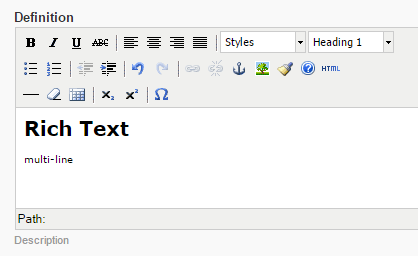
The Answer Type allows entering multi-line text with the rich text formatting and HTML source code.
Formatting rules are as follows:
- To apply character formatting (such as bold, italic, or underline), select the text and apply the desired function.
- To apply styles, hover over the target line and select a style from the drop-down list.
- To delete text, highlight it and press Backspace or Delete.
You can also switch to editing the HTML source.
Check One
The Answer Type is a radio button group that allows selecting one option.
Available options are as follows:
- name=value list or Input from Data Store
- Shuffle Options
Options for multi-variant answers follow the Option_Name1=Value1 format. You can also use dynamic expressions.
To add a new option, press Enter or Tab. You can delete or reorder options by dragging them.

Check Multi
The Answer Type is a checkbox group control that allows selecting multiple options.
Available options are the same as for Check One.

Select One
The Answer Type is a drop-down list allowing the selection of a single option.
If no default value is set, the Description field appears above the options.
Available options are the same as for Check One.
If you enable Input from Data Store, you can display both the id and name values in the drop-down list by selecting Append Data Store options.
If the SELECT_ONE Answer is a sub-answer (tag) in Information Extraction and its options are loaded from a Data Store, you can enable Let workers select custom values. This allows users to tag a text chunk and add it to the list (Add to list) if it does not exist:
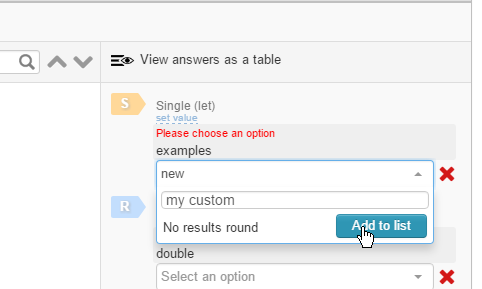
Once the task containing a custom value is submitted, the Answer is stored to Results > Data in the <answer_code> column, along with a true flag in a corresponding <answer_code>_custom_value column.

Select Multi
The Answer Type is an expanded list box that allows selecting multiple options.
Selected options appear as tags and are removed from the drop-down list.
Available options are the same as for Check One.

Number
The Answer Type is an input field that allows entering integers only.

Price
The Answer Type is a combined input field used to enter monetary values. To configure it, follow the steps below:
Select a currency from the drop-down list.
Enter a number. Supported formats include real numbers, integers, and negative values.

Date
The Answer Type is an input field for entering a date in the mm/dd/yyyy format.

Time
The Answer Type is an input field for entering time in the hh:mm (AM/PM) format.
You can enter a time value manually or adjust it using the arrow buttons. Keyboard arrow keys are also supported.

Phone
The Answer Type is an input field for entering phone numbers in the following format: (three-digit Area Code) three-digit prefix-four-digit line number.
By default, it accepts US phone numbers. To enter a non-US number, click the link below the field.

E-mail
The Answer Type is an input field for entering an email address in the username@host_or_domain format:

URL
The Answer Type is a text input field for entering a URL that follows the standard URI scheme (http:// or https://).
If you enter a URL without a protocol, http:// is automatically added at the beginning.
Answer comparator options are as follows:
Domain only compares Answers by domain only; the path and port are ignored.
Domain and path compares domain and path, but ignores everything after ? and #, and ignores the port.

Address
The Answer Type is a set of text input fields for entering address details: Address, City, State, and ZIP. You can add or remove an additional address line using the link provided.
By default, the address format is US-based. To change the country, click the link and select a country from the drop-down list. Type-ahead search is supported.

Country
The Answer Type is a drop-down list of countries. Type-ahead search is supported.

Map
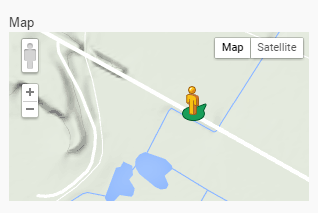
The Answer Type is an interactive control that allows selecting an address by dragging the human icon onto a location on the map. You can drag and drop the icon only onto streets highlighted in blue.
Available options are as foolows:
With Streetview
Without Streetview
Calendar
The Calendar field allows creating events within a specific time range:
Click on a time slot to create an event.
Click an existing event to edit or delete it.

Masked Text
The Answer Type restricts input to predefined combinations of letters and digits.
You can define a mask using the following rules: 9 = any digit; a = any letter; * = any letter or digit.

Tags
The Answer Type is a text input field for entering tags. To create a tag, follow the steps below:
Start typing the tag.
When finished, press Enter or Tab.
Repeat as needed.

Slider
The Answer Type is a slider control for selecting values within a defined range.
Available options are as follows:
Enter comma-separated values, for example,
1,10,20,30,40,50.Enter a bottom and top range, for example,
1-100.
Limitation text
The Answer Type is a text input field that restricts the number of input characters or words. The counter in the bottom-right corner shows the number entered or the allowed limit.
You can configure limits for characters, words, or both, using the characters=n|words=n format.

File upload
This Answer Type allows users to upload a file. After uploading, the filename appears below the progress bar.
In Workspace, uploaded file names must not exceed 60 characters.
Available options are as follows:
- File
- Photo, Camera, Microphone (mobile devices only)

Label
This Answer Type provides a field for displaying descriptive text and is not used for training.
Available options are as follows:
Text
Image
Select Date
The Answer Type uses three drop-down lists to select a date in the mm/dd/yyyy format.

Correlated Fields
The Answer Type provides a dynamic answer block. For more details, see Correlated Fields.
Information Extraction
The Answer Type is used for extracting structured information from unstructured text. For more details, see Information extraction.
Group
The Answer Type is used to create Tag Groups and is added only as a sub-answer of the Information Extraction Answer.
Taxonomy
The Answer Type is used for classifying items such as products, businesses, or articles. For more details, see Taxonomy.
Grid
This Answer Type allows entering answers in a grid with a predefined column structure and a dynamic number of rows. For more details, see Grid Answer Type.

Invoice Answer Types
Invoice-specific Answer Types can only be used as sub-answers of the Information Extraction Answer to support invoice tagging.