Add ODF Data Store index
Introduction
A database index allows a query to retrieve data from a database efficiently. Indexes are related to specific tables and consist of one or more keys. A table can have more than one index built from it.
The keys are a term for the values we want to look up in the index. The keys are based on the tables' columns. By comparing keys to the index, it is possible to find one or more database records with the same value.
Since an index drastically speeds up data retrieval, the correct indexes must be defined for each table. Missing indexes won't be noticed for small databases, but rest assured that queries will take much longer once your tables grow in size.
Indexes in WorkFusion Data Stores
Data Stores are user schemas where automation projects define tables needed. This is why there are no Data Store indexes introduced by the platform.
Data Store functionality is implemented using a relational database under the hood. To optimize performance for a significant amount of data, developers need to think about indexes. There are two ways of managing Data Store indexes. These are as follows.
- Set up indices within Bot Task code. An example can be found in Data Store plugins.
- Contact your Operations team to create an index in MSSQL with the given table and index details.
When dealing with the Production volumes, you can see some performance degradations related to the Data Stores access. We recommend applying indexes on:
- ODF Data Stores
- other project Data Stores expected to store large amounts of data with frequent access
Index names for MSSQL are public, so make sure there is no duplication (suggested naming: ds_DataStoreName_ColumnName_idx). The name cannot start from a digit.
Skip creating indexes issues
Projects using ODF under high load faced some issues related to missed indexes. The following two steps can cause this problem.
- Run a BP which inserts/updates records in a Data Store.
- Process 100,000+ records at a time.
The actual result will be BP slowness and even deadlocks on Data Store operations:
Caused by: com.microsoft.sqlserver.jdbc.SQLServerException: Transaction (Process ID 425) was deadlocked on lock | communication buffer resources with another process and has been chosen as the deadlock victim. Rerun the transaction.
    at com.microsoft.sqlserver.jdbc.SQLServerException.makeFromDatabaseError(SQLServerException.java:254)
    at com.microsoft.sqlserver.jdbc.SQLServerStatement.getNextResult(SQLServerStatement.java:1608)
    at com.microsoft.sqlserver.jdbc.SQLServerStatement.doExecuteStatement(SQLServerStatement.java:859)
    at com.microsoft.sqlserver.jdbc.SQLServerStatement$StmtExecCmd.doExecute(SQLServerStatement.java:759)
    at com.microsoft.sqlserver.jdbc.TDSCommand.execute(IOBuffer.java:7240)
.....
Solution
Option 1
As stated before, it is possible to get direct access to WorkFusion MSSQL and execute few SQL queries against the ds schema:
ALTER TABLE ds.ds__odf_transactions ALTER COLUMN transaction_id VARCHAR(36);
CREATE INDEX ds_odf_transactions_idx_uuid ON ds.ds__odf_transactions(transaction_id);
The first query will optimize the varchar data type for transaction_id field. The best practice is to avoid using the VARCHAR(MAX) data type because of its big size for no reason. Use limited in size instead, as you know your data is definitely possible.
The second query creates an index on the single transaction_id field as a search against ODF Data Store is performed using this field only.
Option 2
In many cases, it is not possible (and not recommended) to get direct access to the MSSQL database. In this case, it is possible to create a simple bot task that will run the required SQL to create index(es).
Create a simple BP containing one bot task.
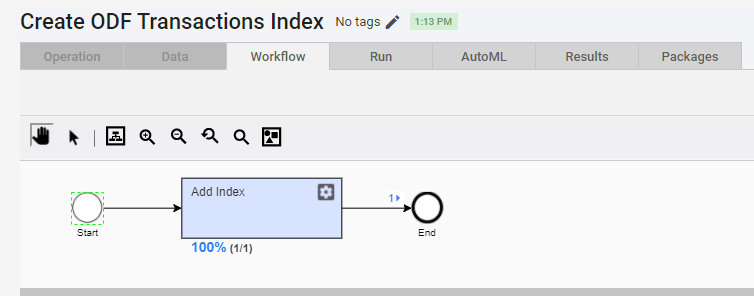
Use the following bot task code:
<?xml version="1.0" encoding="UTF-8"?>
<config xmlns="http://web-harvest.sourceforge.net/schema/1.0/config" scriptlang="groovy">
    <script><![CDATA[
        errorLog = new String();
     ]]></script>
    <try>
        <body>
            <datastore name="_odf_transactions">
                alter table ds.ds__odf_transactions alter column transaction_id nvarchar(36);
            </datastore>
        </body>
        <catch>
            <script><![CDATA[
                  log.debug("Exception occurred during changing transaction_id to nvarchar(36)");
                  errorLog = errorLog + ";" + _exception_message.toString();
                  log.warn(_exception_message.getWrappedObject(), _exception.getWrappedObject());
                  log.error(_exception_stacktrace.getWrappedObject());
            ]]></script>
        </catch>
    </try>
    <try>
        <body>
            <datastore name="_odf_transactions">
                create nonclustered index ix_ds__odf_transactions_transaction_id on ds.ds__odf_transactions(transaction_id);
            </datastore>
        </body>
        <catch>
            <script><![CDATA[
                  log.debug("Exception occurred during adding indexes to _odf_transactions");
                  errorLog = errorLog + ";" + _exception_message.toString();
                  log.warn(_exception_message.getWrappedObject(), _exception.getWrappedObject());
                  log.error(_exception_stacktrace.getWrappedObject());
            ]]></script>
        </catch>
    </try>
    <export include-original-data="true">
        <single-column name="modifying_ds_status" value="success"/>
        <single-column name="error_log" value="${errorLog.toString()}"/>
    </export>
</config>
Run this BP with no input data and make sure there are no errors. Check log output for that as the bot task is designed to catch exceptions and print them in the log. BP may fail if an index with this name already exists or
_odf_datastoredoes not exist in this Control Tower.
Verify indexes creation
Use the DBeaver RDBMS client and connect as described in this guide.
Navigate to ds > ds__odf_transactions > DDL to see the index you have created.
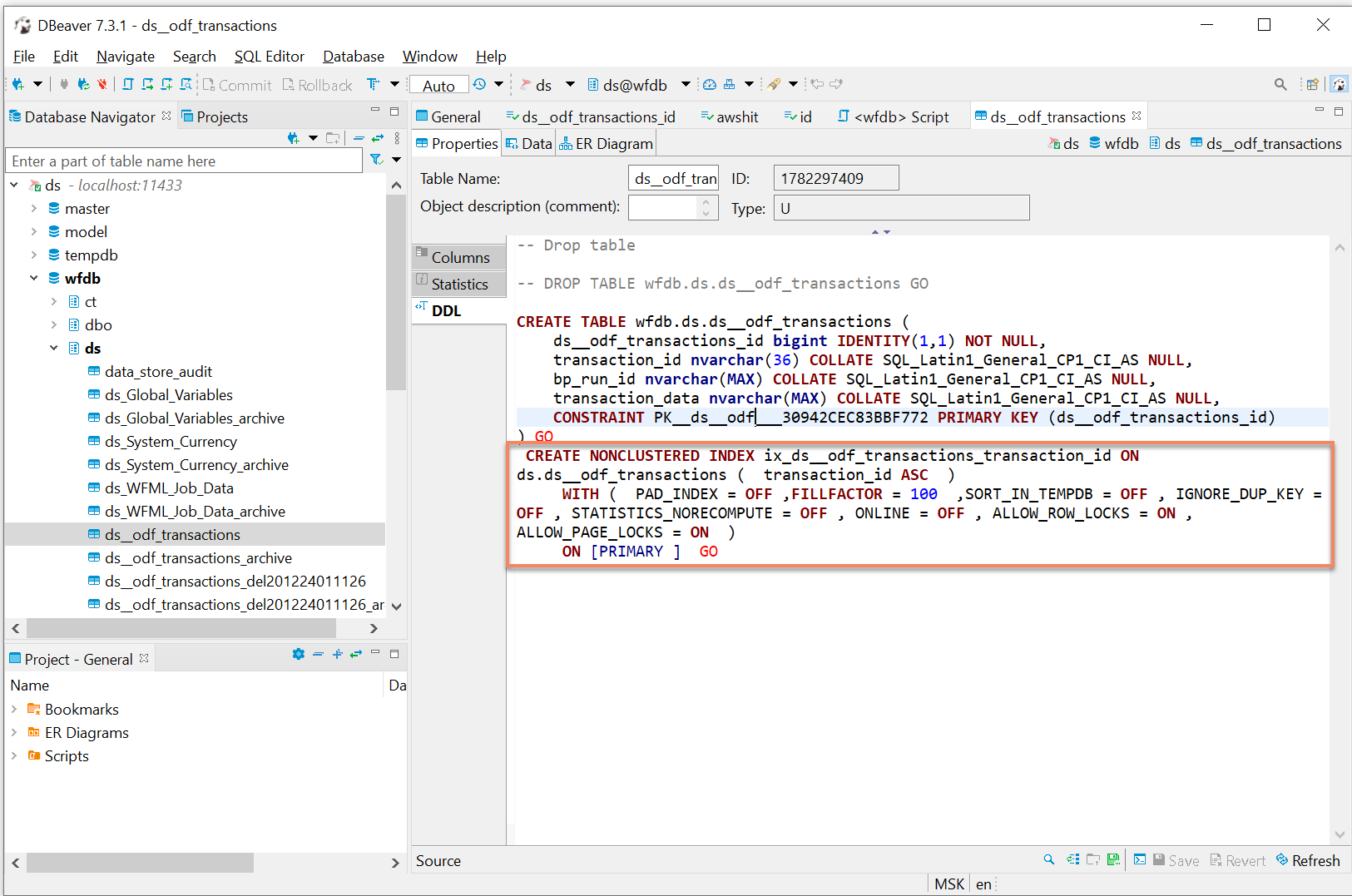
It is just one of the possible ways to look at actual indexes in the database. You are welcome to use the one you know.