Apply Data Store practices
The guide covers major aspects of storing data in ODF, focusing on the ODF Data Store structure.
ODF Data Store
The local development environment based on Work.AI Developer contains a workstation version of the WorkFusion user database—the ds schema in MS SQL RDMS.
The Data Store used for ODF transactions has a specific name—_odf_transactions. The general structure looks as follows:
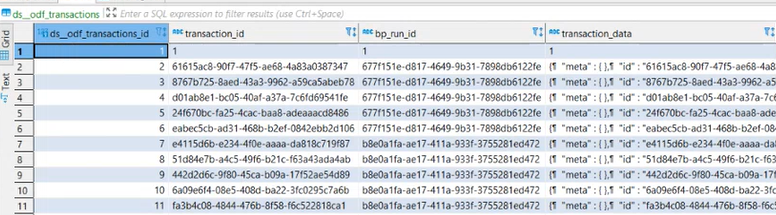
It includes the following fields:
ds__odf_transactions_idis an automatically incremented primary keytransaction_idhas a unique ID generated by the ODF framework for each transactionbp_run_idhas a unique ID of a Business Process that runs this transactiontransaction_datahas a serialized JSON transaction object that consists of transaction metadata and an array of documents; this array can contain 10 or even more documents depending on a business case: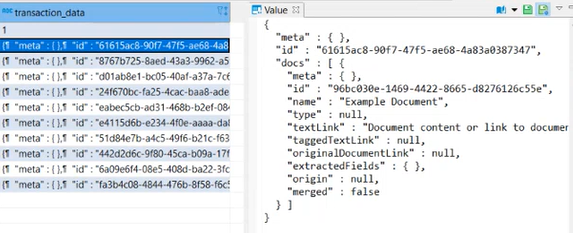
JSON structure
JSON is a serialized transaction object and a collection of documents. Note that all this information is stored in a single cell on the database level.
The simplicity of this approach is obvious. No matter what type of information you have, you can put it into one cell.
You should be careful with some cases, for example, when you make parallel transactions during splitting and update a document at the end of its processing. In this case, you have to update a lot of documents in one cell in parallel. If the last record erases the previous ones and only the last one is stored in the cell, wrap the update code with the pool plugin that doesn't allow parallel code execution in multiple records.
JSON samples
A serialized transaction JSON in case a bot sends an email with an attachment
    {
      "meta" : { },
      "id" : "c7b8d2d7-4a1d-4cdc-a753-6e0479ccb6b0",
      "docs" : [ {
        "meta" : {
          "cc" : "",
          "subject" : "Email One",
          "from" : "** ** <***@gmail.com>",
          "to" : "****@gmail.com"
        },
        "id" : "ce696247-95ba-4659-87f2-a0c04e7549bf",
        "name" : "Email One",
        "type" : "Message",
        "textLink" : "http://localhost:15110/doc-upload/89ebf189-de31-4f0a-b551-8577ba9a6523.html",
        "taggedTextLink" : null,
        "originalDocumentLink" : null,
        "extractedFields" : { },
        "origin" : null,
        "merged" : false
      }, {
        "meta" : { },
        "id" : "a61d005c-9401-4ea0-a139-92da3b0a769b",
        "name" : "odf-input-1.xlsx",
        "type" : "Attachment",
        "textLink" : null,
        "taggedTextLink" : null,
        "originalDocumentLink" : "http://localhost:15110/doc-upload/591fbd06-ebeb-4e40-bef2-bf3d869d8c6c.xlsx",
        "extractedFields" : { },
        "origin" : null,
        "merged" : false
      } ]
    }
A JSON file containing data about two products in one cell
    {
      "meta" : { },
      "id" : "5255c503-7dae-48a0-83b0-ee5a43509e80",
      "docs" : [ {
        "meta" : { },
        "id" : "3ccdc4af-0c0f-4da6-81de-696a3e927725",
        "name" : "iPhone X",
        "type" : "com.ibank.automation.system.invoiceplane.to.ProductTO",
        "textLink" : null,
        "taggedTextLink" : null,
        "originalDocumentLink" : null,
        "extractedFields" : {
          "price" : {
            "singleValue" : "1500.0"
          },
          "description" : {
            "singleValue" : "hipsters dream"
          },
          "family" : {
            "singleValue" : "Phones"
          },
          "sku" : {
            "singleValue" : "220120.0"
          },
          "product_name" : {
            "singleValue" : "iPhone X"
          },
          "tax_rate" : {
            "singleValue" : "None"
          }
        },
        "origin" : null,
        "merged" : false
      }, {
        "meta" : { },
        "id" : "a41413b0-e4b3-4e1c-851f-d2e880657143",
        "name" : "Google Nexus",
        "type" : "com.ibank.automation.system.invoiceplane.to.ProductTO",
        "textLink" : null,
        "taggedTextLink" : null,
        "originalDocumentLink" : null,
        "extractedFields" : {
          "price" : {
            "singleValue" : "800.0"
          },
          "description" : {
            "singleValue" : ""
          },
          "family" : {
            "singleValue" : "Phones"
          },
          "sku" : {
            "singleValue" : "221121.0"
          },
          "product_name" : {
            "singleValue" : "Google Nexus"
          },
          "tax_rate" : {
            "singleValue" : "None"
          }
        },
        "origin" : null,
        "merged" : false
      } ]
    }
_odf_transactions Data Store in Control Tower
Go to Control Tower > Advanced > Data Stores to find the _odf_transactions Data Store.
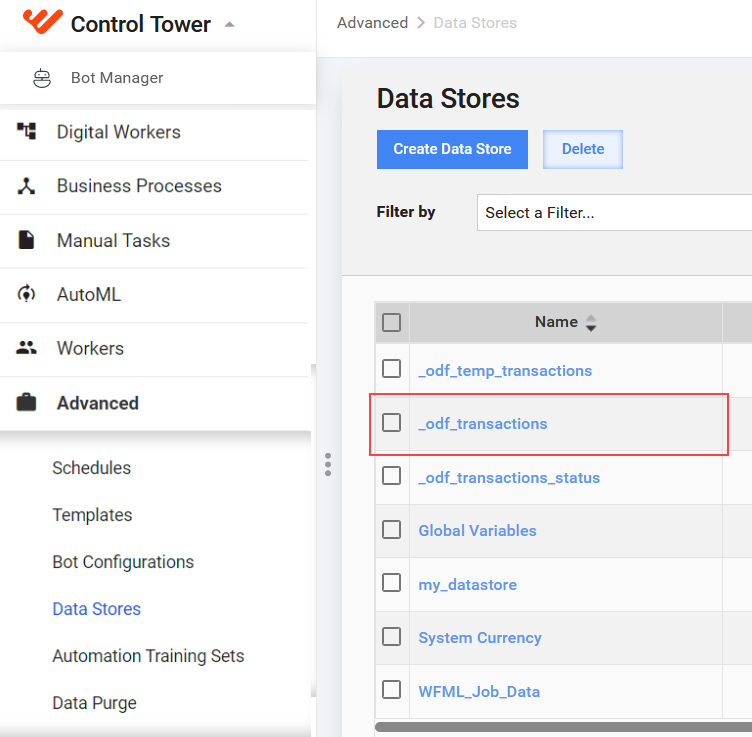
Mind that the JSON file contains the transaction data in a single string. Unfortunately, that makes reading and understanding the data quite tricky, especially when you have a significant amount of data.
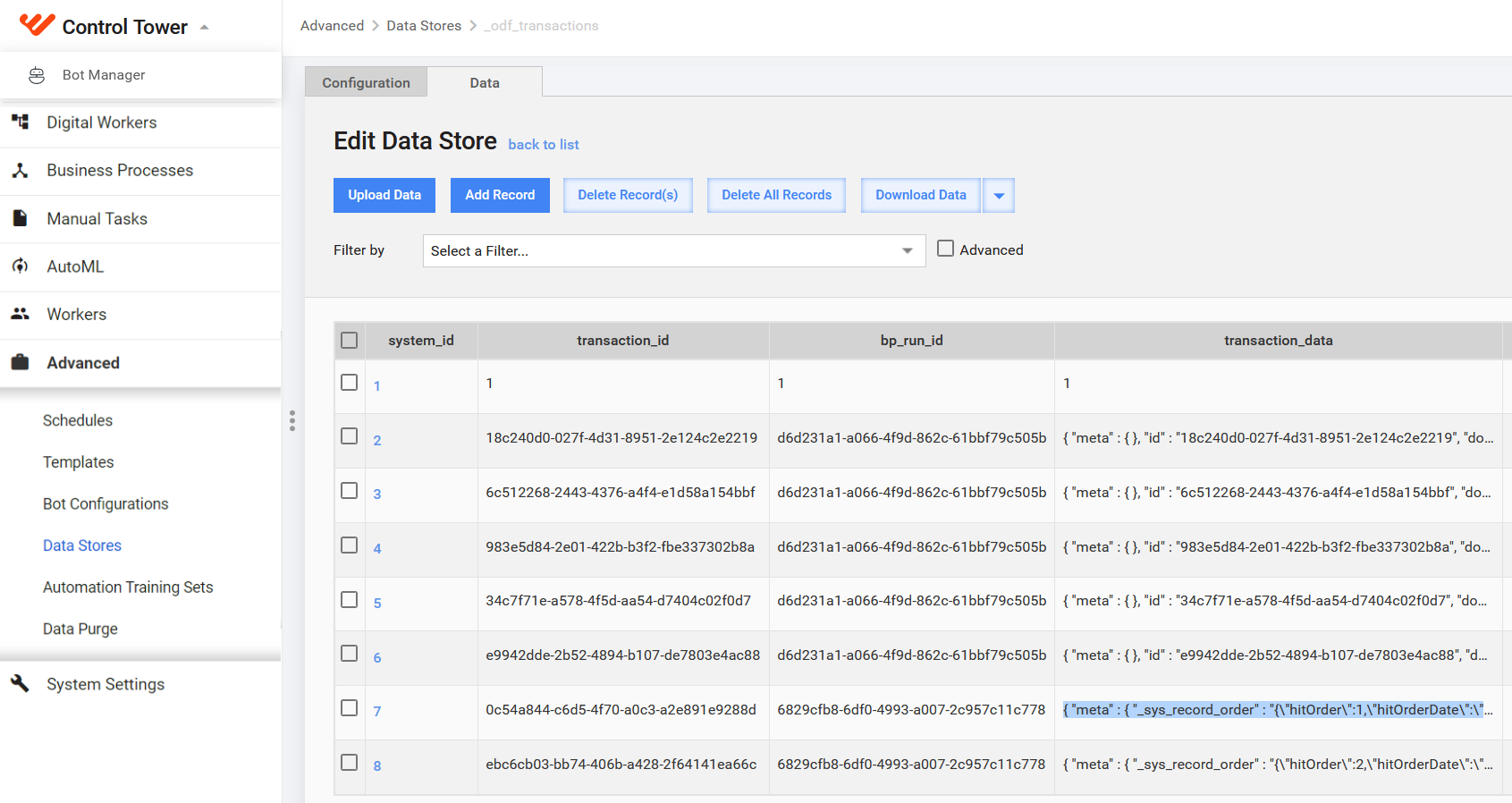
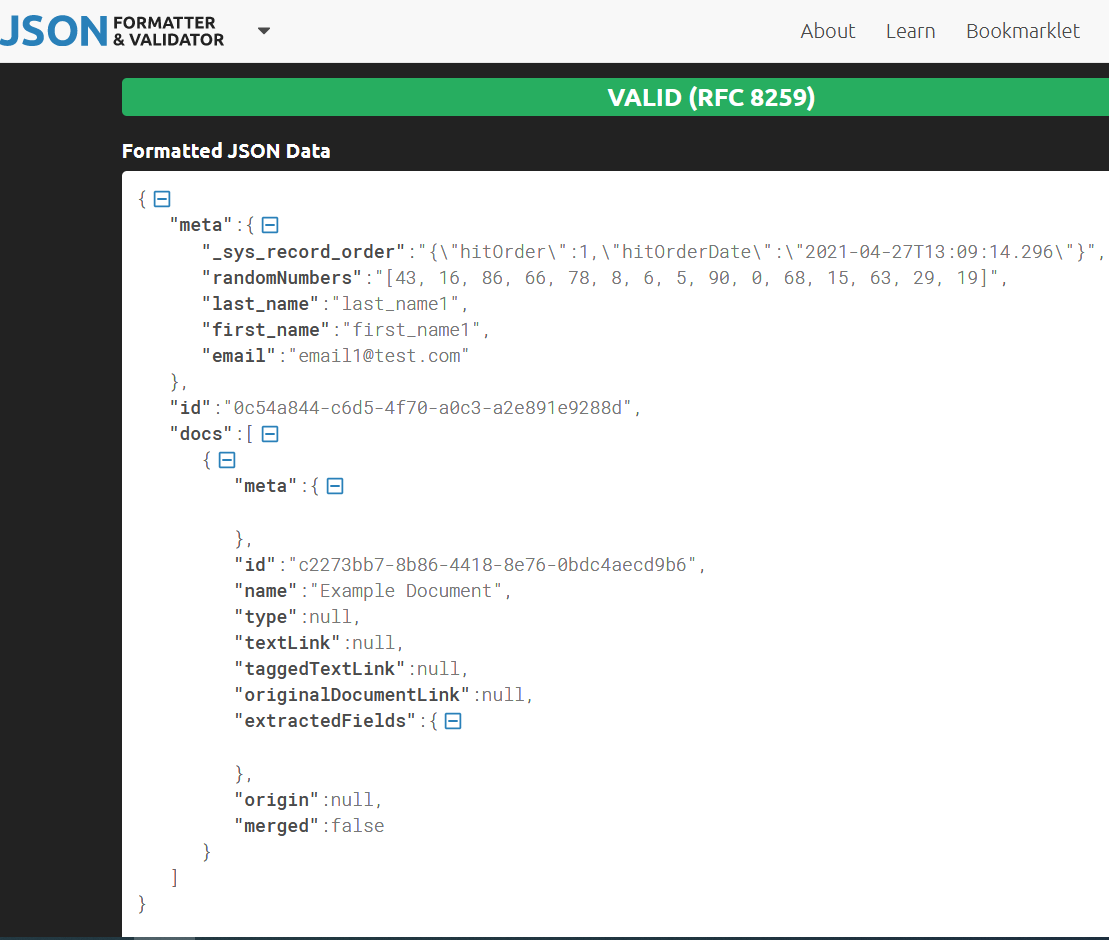
To solve the problem, use any online tool for beautifying your JSON. The current example with the seventh record looks like this:
Before:
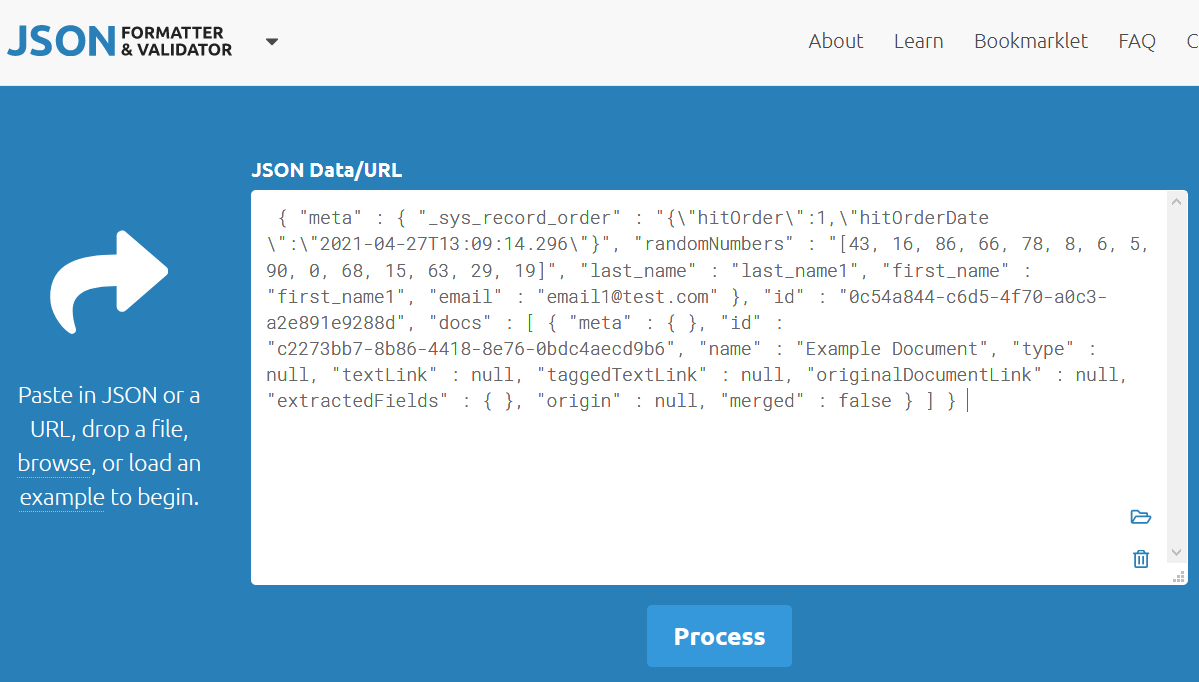
After: