Run Business Process
After you uploaded the input data, designed the Business Process (BP) flow, validated it, and set run options, it is recommended to test the Business Process and then run it in production.
Test and run Business Process
To test and run a BP, perform the following actions:
On the Run tab, click Run This Process to run the BP.
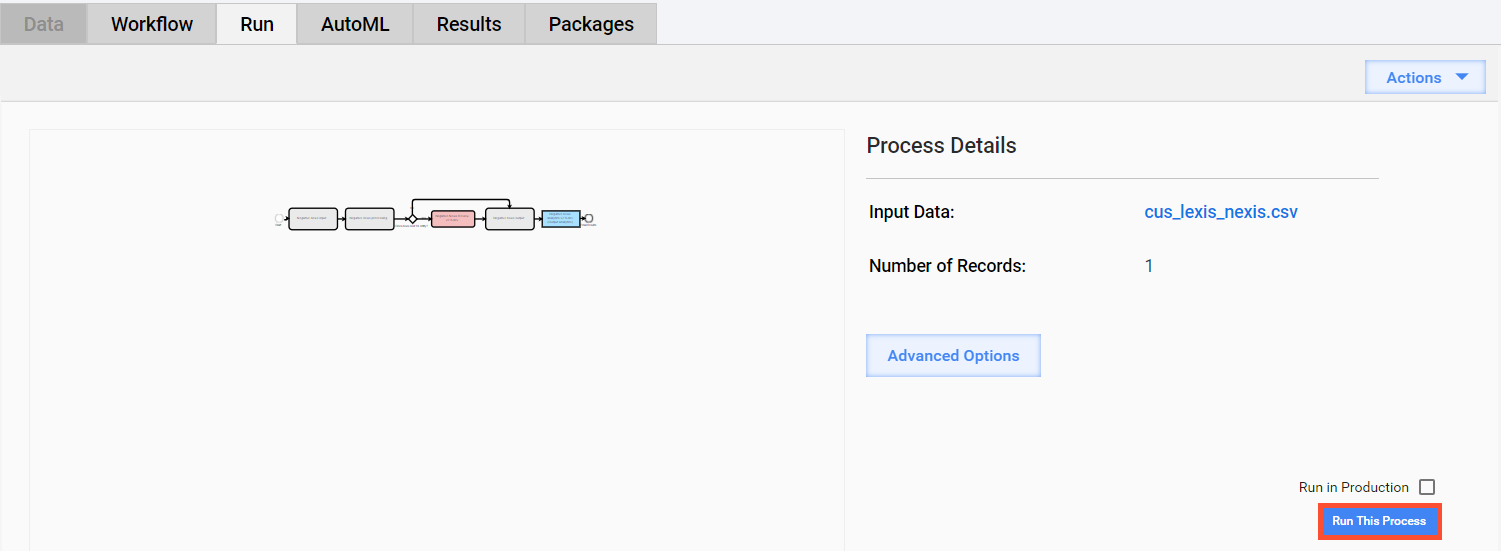
If the BP is valid and started successfully, you will see the following message: Business Process started successfully! You can view the results of the BP, or view the BP you have just created via the BP List.
Log in as a worker to Workspace. On the assignment list, find the Manual Tasks from the BP by names or tags and complete them.
Go back to Control Tower. If needed, edit the BP run options as well as parameters on the Design and Data tabs.
Copy the BP with data. You can optionally stop or delete the original BP if you do not need it.
If the test run is successfull, you can run the same BP in production by selecting the appropriate checkbox above the Run This Process button.
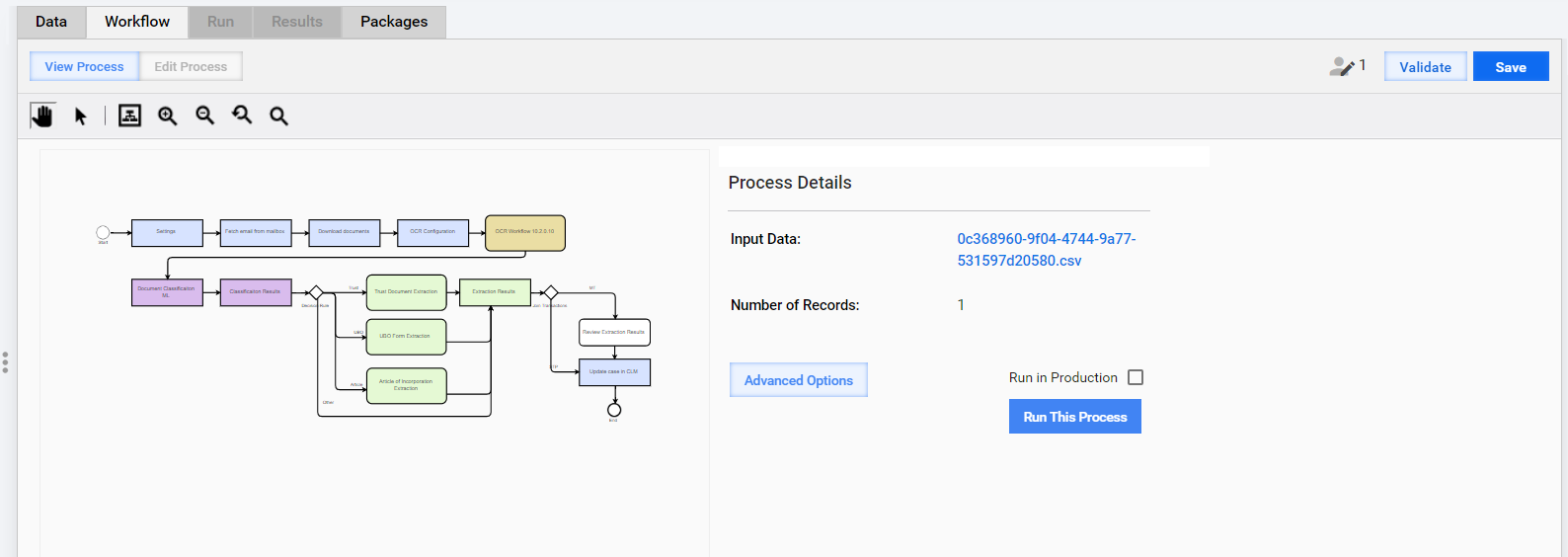
If you have more than one bot working in a BP execution, the BP is run simultaneously with the maximum number of available bots required for it.
If Input data includes multiple records, those are distributed among available bots.
Watch BP progress
To watch the BP progress and get real-time statistics, use the BP scheme on the Design tab in the View mode and the Run tab.
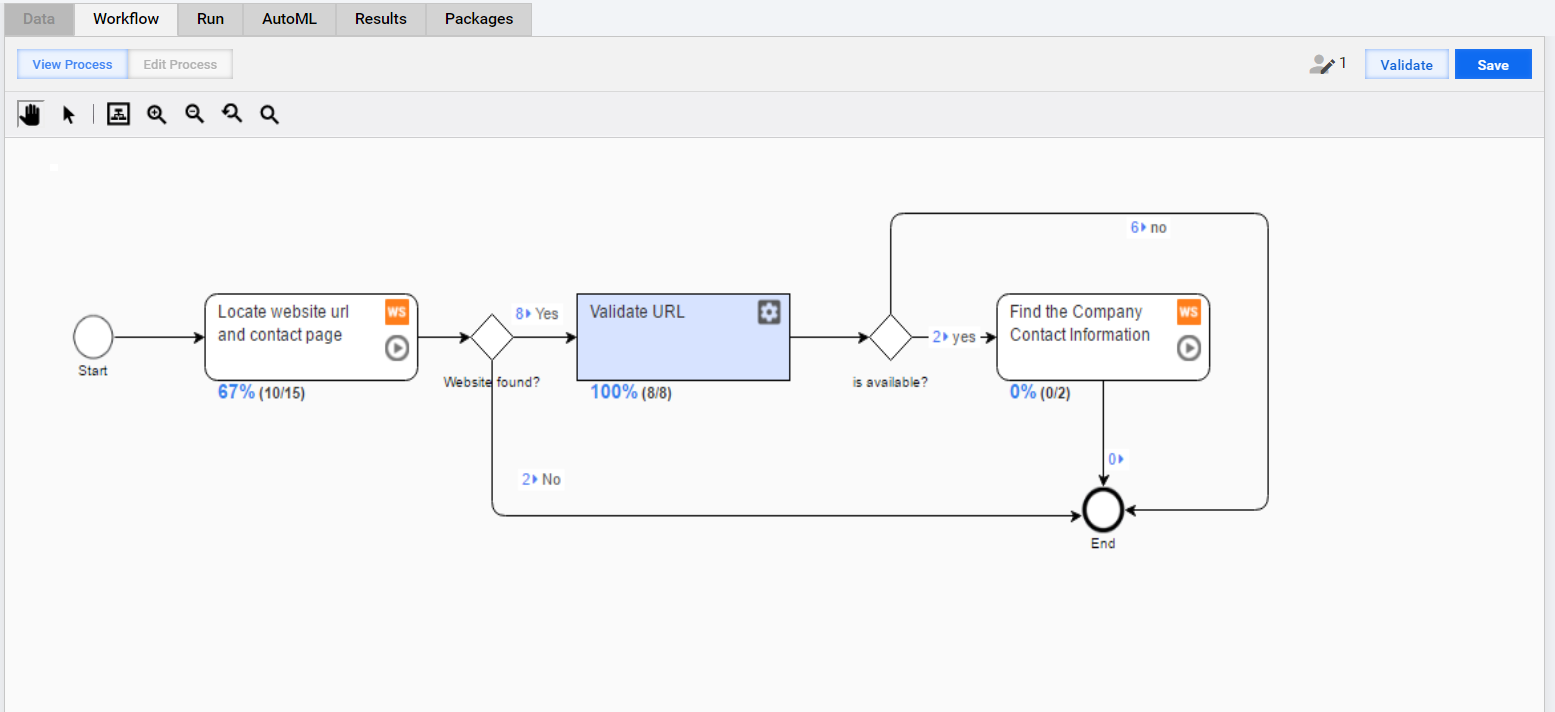
From the BP design scheme, you can get the following information:
Each task has an indicator with the percentage and number of Records handled in it. In the example below, it is 67% (10/15).

Each rule outcome has an indicator with the number of Records passing through it based on predefined conditions. In the example below, those are 8 → Yes and 2 → No.

These metrics are updated whenever new Records are submitted from different process steps by human workers or bots.
Check Manual Task
To check if you have any pending Manual Tasks in the BP, act as follows:
Go to the Results tab and click Steps. To find Manual Tasks in the displayed list of BP steps, look for the WS indication next to step names.
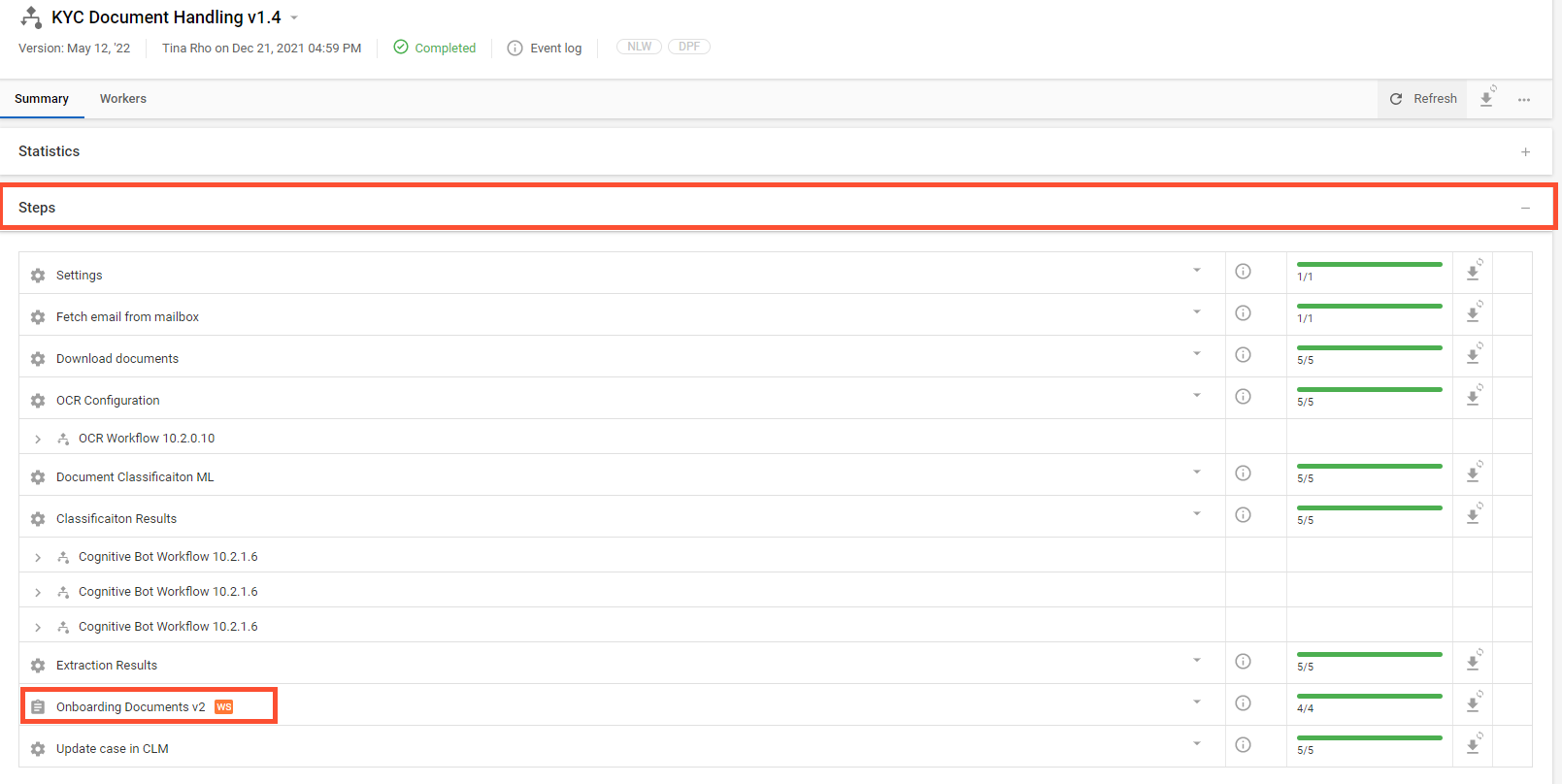
Click the manual step name to view the Statistics tab with the Manual Task details.
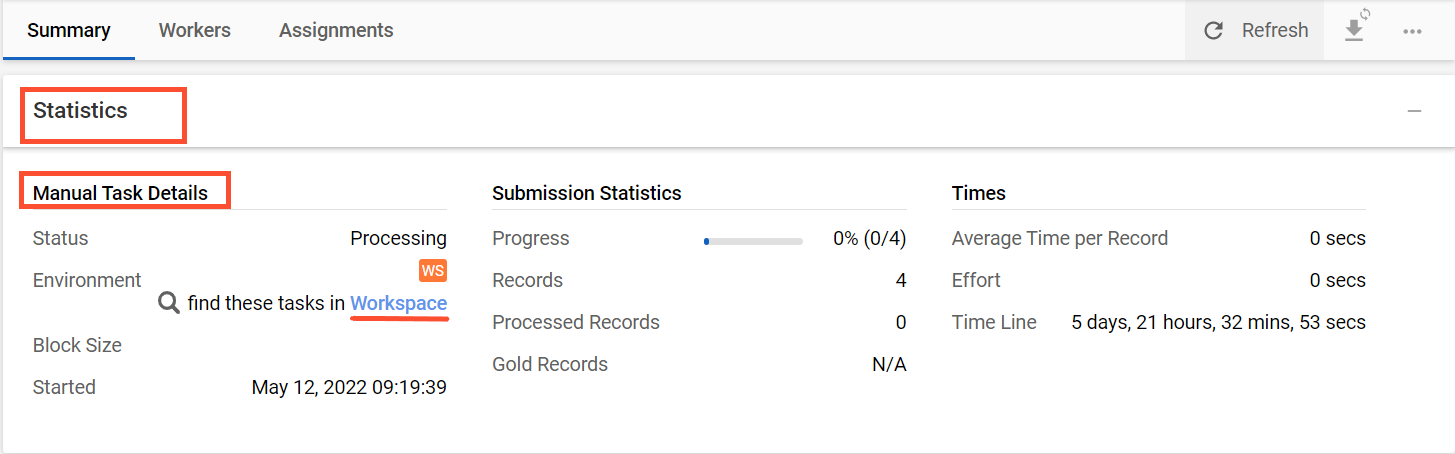
Click the Workspace link to get to Workspace from where you can start processing the Manual Task. For more details about Manual Task processing in Workspace, see the Workspace documentation.
Once you finish processing the Manual Task in Workspace, update the Results page of the BP you are working on. After that, the status of the Manual Task and the BP are updated accordingly.
View Business Process results
Once a BP is completed, its results appear on the Results tab.
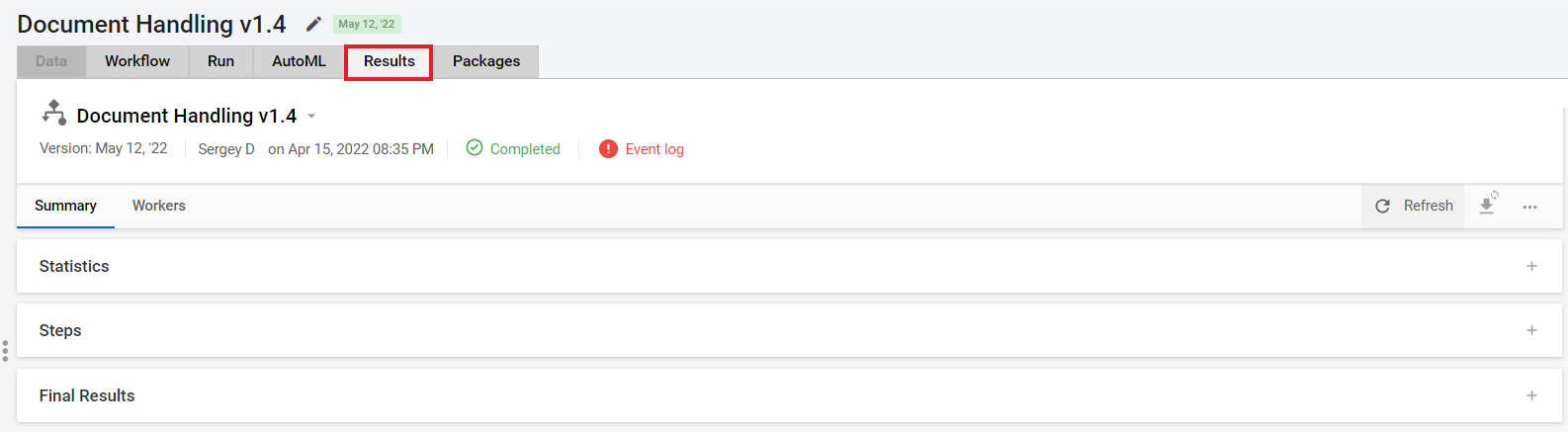
For the detailed information about the Results tab data, refer to the View Business Process results topic.
Rerun Business Process
To run a BP again, do as follows:
- Copy the required BP instance with data in accordance with the instruction.
- Run the BP or create a schedule to start the execution at the specified time.
To address the issues causing Business Process performance to degrade, review the Investigate Business Process performance degradation guides.
To address Business Process failures causing it to become non-operational, review the Verify symptoms of non-operational Business Process guides.
If a BP is stuck, read the support guide.