Manage Answer Types
The Answer Types tab allows creating and managing Answer Types in Control Tower. These Answer Types are used for the following actions:
- Create Manual Tasks.
- Create Field Schemes.
- Add Answers to Tasks, Configs, and Field Schemes.
Generally, an Answer is a form input field of a special type, but some Answer Types are designed as complex blocks, see the following topics:
To start managing Answer Types, go to System Settings > Answer Types.
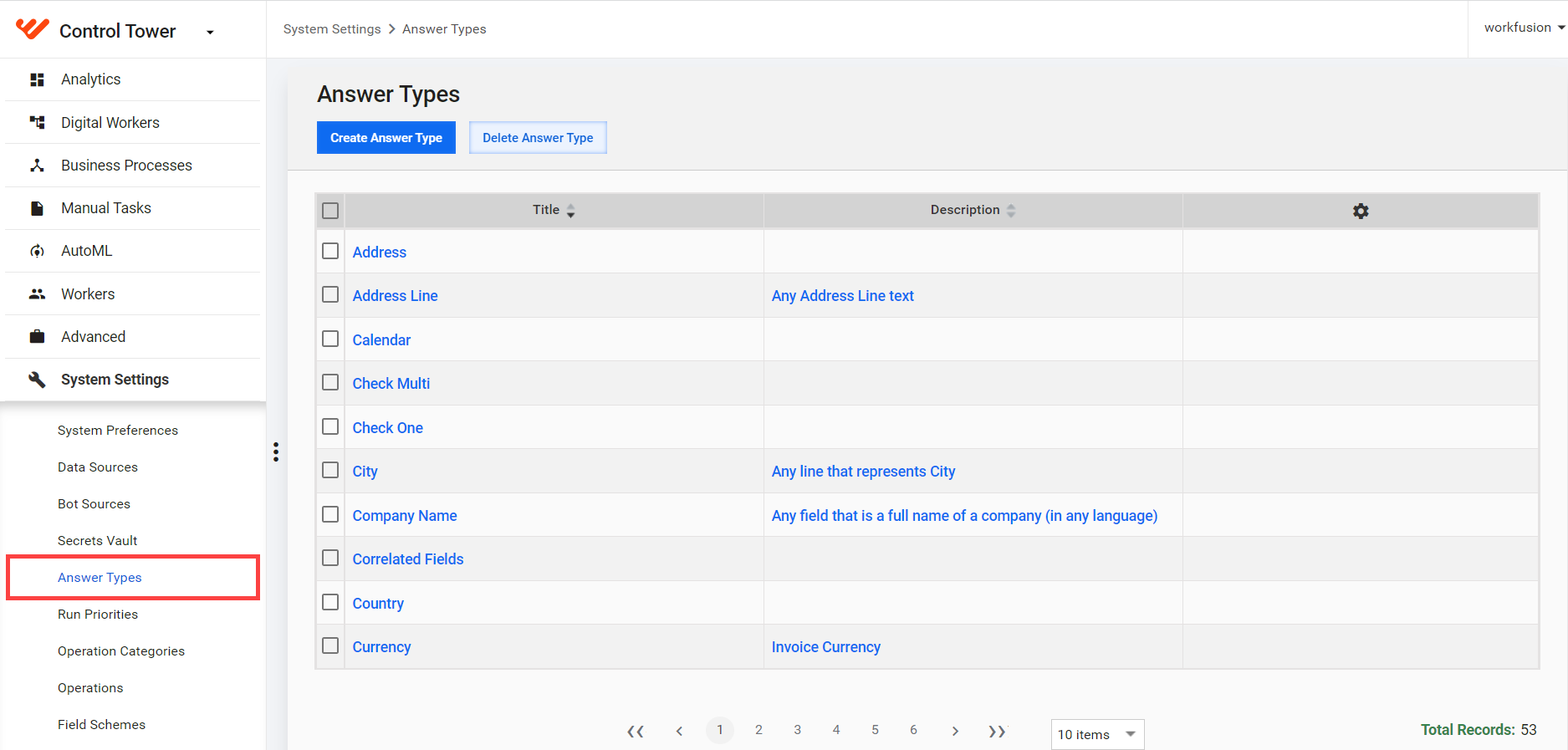
For the list of available Answer Types, see the Answer Types section.
On this page, you can perform the following actions:
- Create: you must know the Answer Type Code, for example, FREE_TEXT.
- Edit: you can change Title, Value Type (single, multi and separator, combined).
- Delete
Changes made to Answer Types affect all Tasks with appropriate Answers.
Add and edit Answer Type
Select System Settings > Answer Types from the main menu.
Click Create Answer Type or click the appropriate link in the Title column to edit.
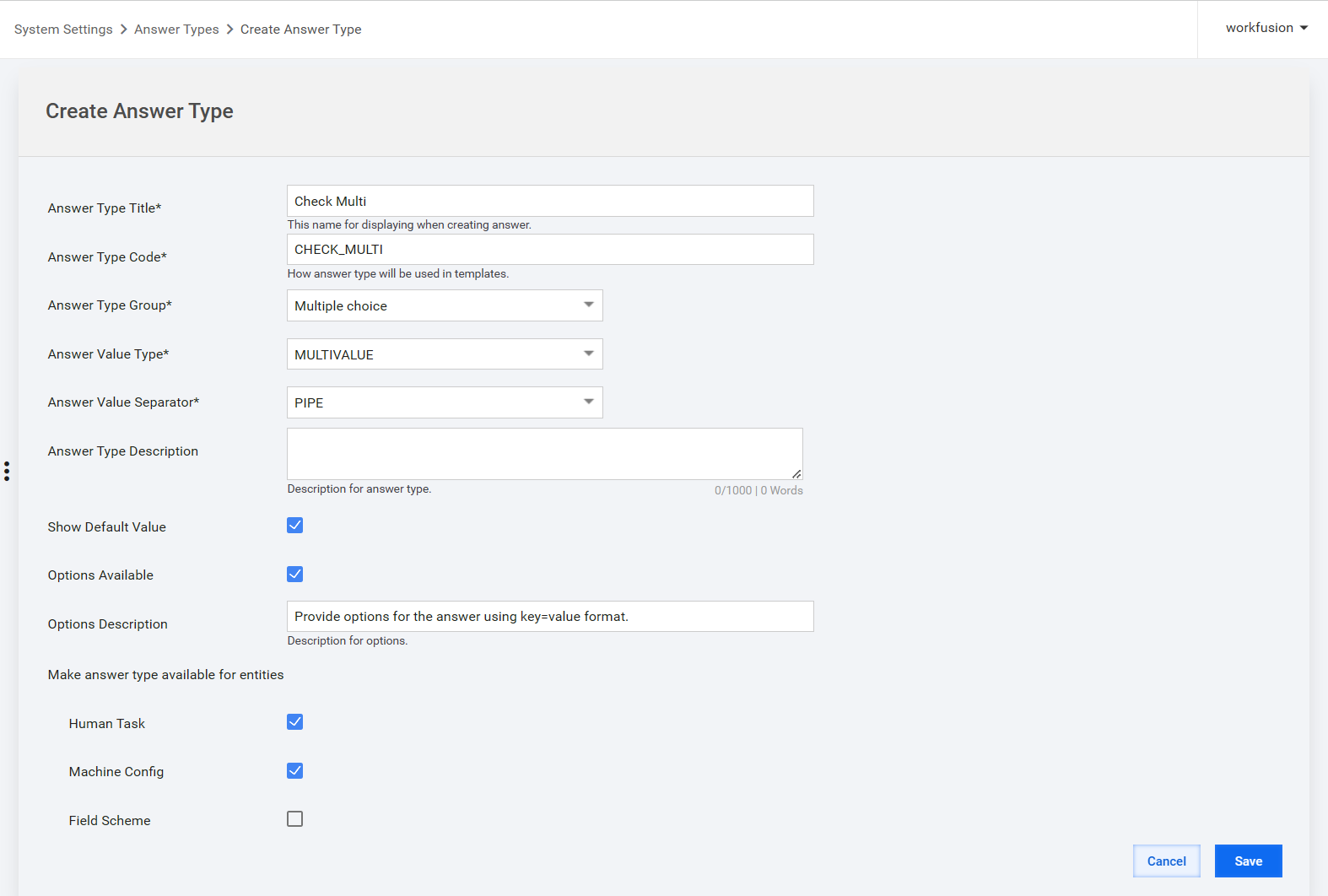
Complete the required fields as follows:
| Field name | Description |
|---|
-   **Answer Type Title**: enter the Answer Type title.

-   **Answer Type Code**: enter the code of the Answer Type. See [available Answer Types](/platform/docs/10.2.9/automate/control-tower/answer-types).

-   **Answer Type Group**: define the group in which the Answer Type is shown in the **Task Edit** dropdown.

-   **Answer Value Type**: choose `SINGLEVALUE`, `MULTIVALUE`, or `COMBINED`. See details in [Answer Types](/platform/docs/10.2.9/automate/control-tower/answer-types).

-   **Answer Value Separator**: choose `PIPE` or `COMMA` for Multivalue Answers.

-   **Answer Type Description**: enter additional information about the Answer Type.

-   **Show Default Value**: enable the option to display a default value.

-   **Options Available**: enable Answer options, for example, the number of rows for [Long Text](/platform/docs/10.2.9/automate/control-tower/answer-types#long-text).

-   **Options Description**: enter additional information for the **Options Available** section.

-   **Make answer type available for entities**: select where this Answer Type can be used: **Human Task** (Manual Tasks), **Machine Config** (Bot Configurations), or **Field Scheme**.
- Click the Save button.
You can select all the created Answer Types for Answers in Task Designer.