Manage Answer Types
The Answer Types tab allows creating and managing Answer Types in Control Tower. These Answer Types are used for the following actions:
- Create Manual Tasks.
- Create Field Schemes.
- Add Answers to Tasks, Configs, and Field Schemes.
Generally, an Answer is a form input field of a special type, but some Answer Types are designed as complex blocks, see the following topics:
To start managing Answer Types, go to System Settings > Answer Types.
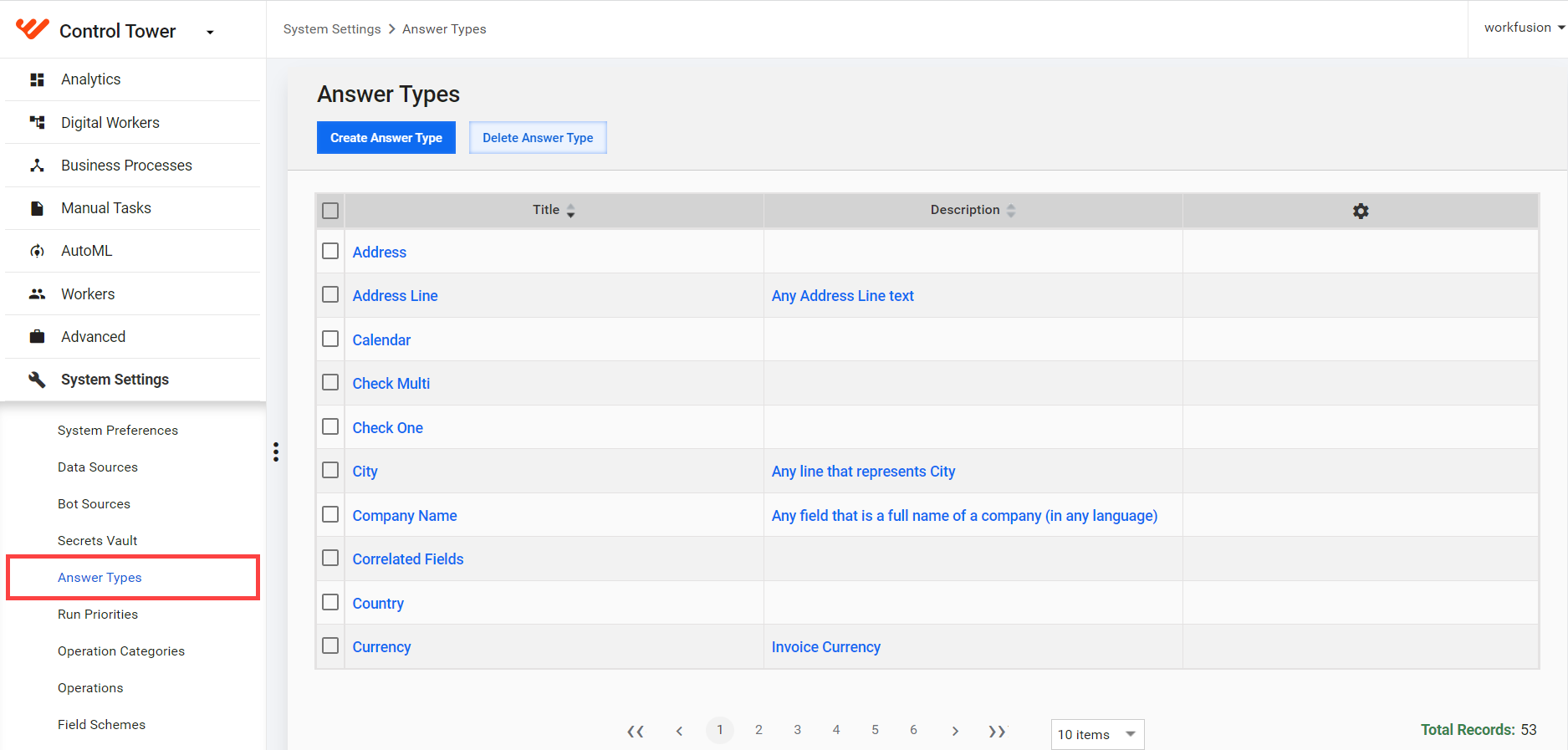
For the list of available Answer Types, see the Answer Types section.
On this page, you can perform the following actions:
- Create: you must know the Answer Type Code, for example, FREE_TEXT.
- Edit: you can change Title, Value Type (single, multi and separator, combined).
- Delete
Changes made to Answer Types affect all Tasks with appropriate Answers.
Add and edit Answer Type
Select System Settings > Answer Types from the main menu.
Click Create Answer Type or click the appropriate link in the Title column to edit.
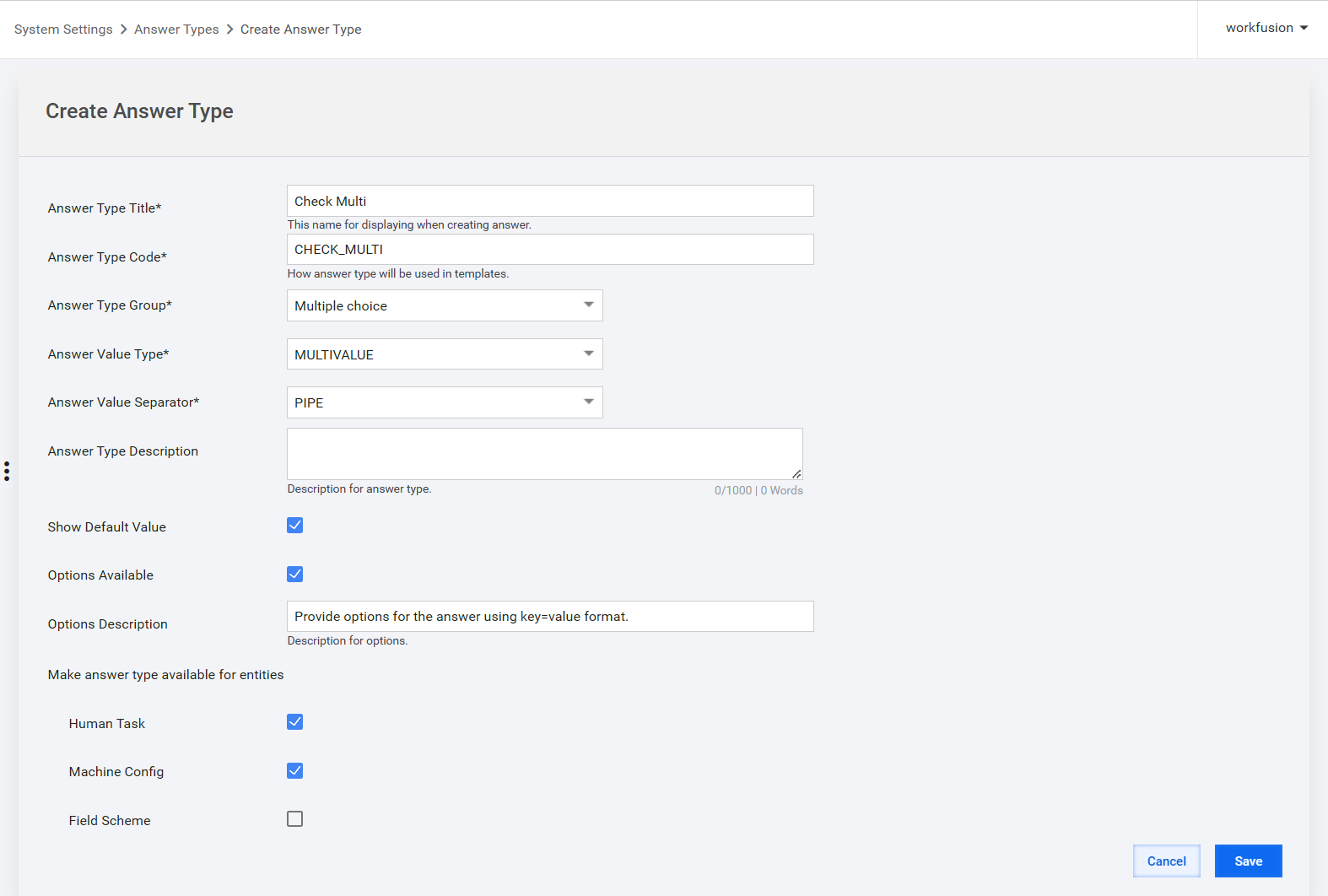
Complete the required fields as follows:
| Field name | Description |
|---|---|
| Answer Type Title | The title of the answer type will be shown in the dropdown list of the Edit Answer dialog. |
| Answer Type Code | See the list of available Answer Types here. |
| Answer Type Group | Answer Types are divided into groups when they are displayed in a dropdown of Task Edit dialog. |
| Answer Value Type | Single value, Multi value, or Combined. See details here. |
| Answer Value Separator | Comma, or Pipe for Multivalue Answers. |
| Answer Type Description | Additional information explaining the characteristics of the answer type. |
| Show Default Value | Enable default value displaying. |
| Options Available | Enable Answer options (for example, number of rows for Long Text) |
| Options Description | Additional information explaining the Answer Options section. |
| Make answer type available for entities | Tick the entities where this Answer Type can be used: Manual Task, Bot Config, Field Scheme |
- Click the Save button.
You can select all the created Answer Types for Answers in Task Designer.