Manage Answer Types
The Answer Types tab allows you to create and manage Answer Types. The Answer Types are used when creating Field Schemes or adding Answers Types to tasks or Bot Configurations.
Generally, an Answer is a form input field of a special type, but some Answer Types are more complex blocks, for example, Information Extraction or Taxonomy.
To manage Answer Types, go to System Settings > Answer Types.
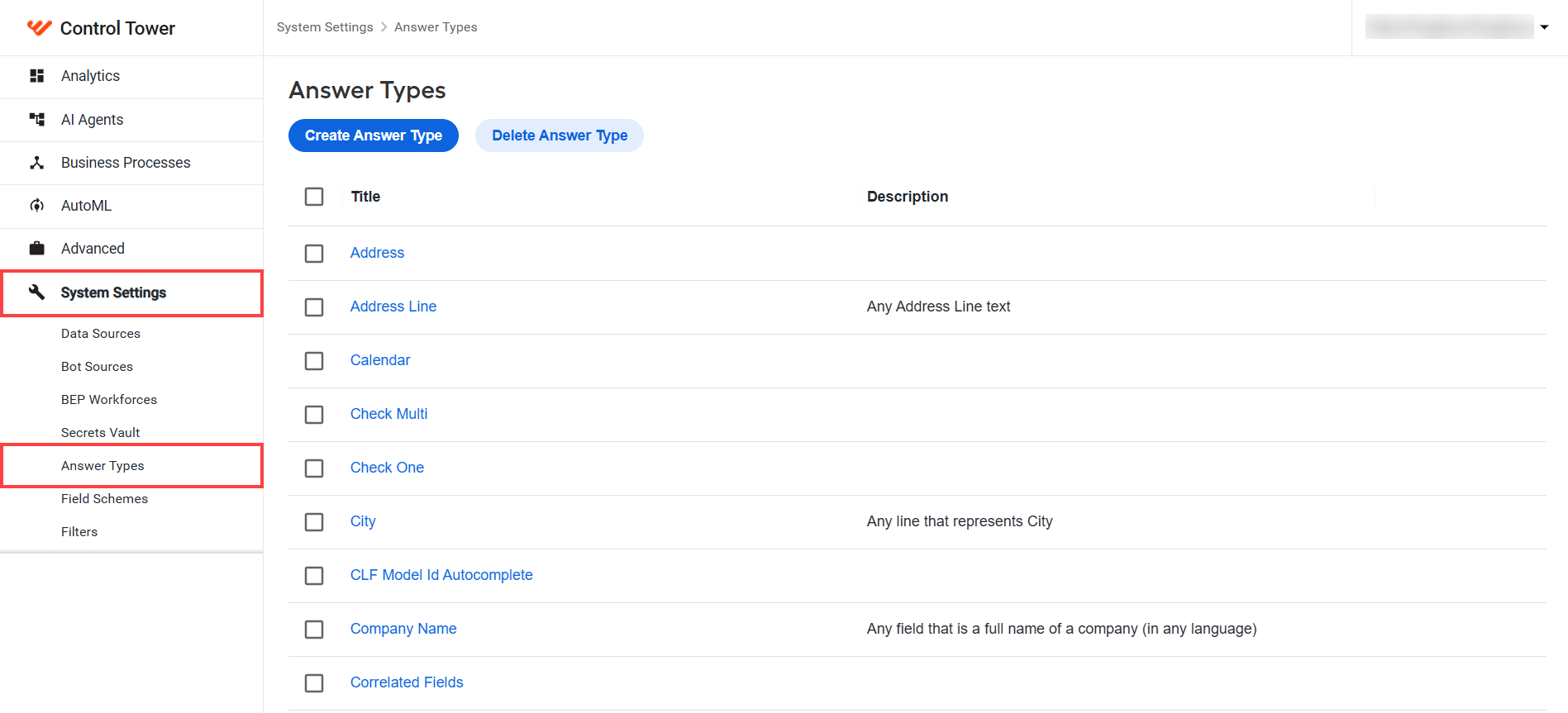
Changes to Answer Types affect all tasks that use those Answers.
Add Answer Type
To add an Answer Type, complete the following steps:
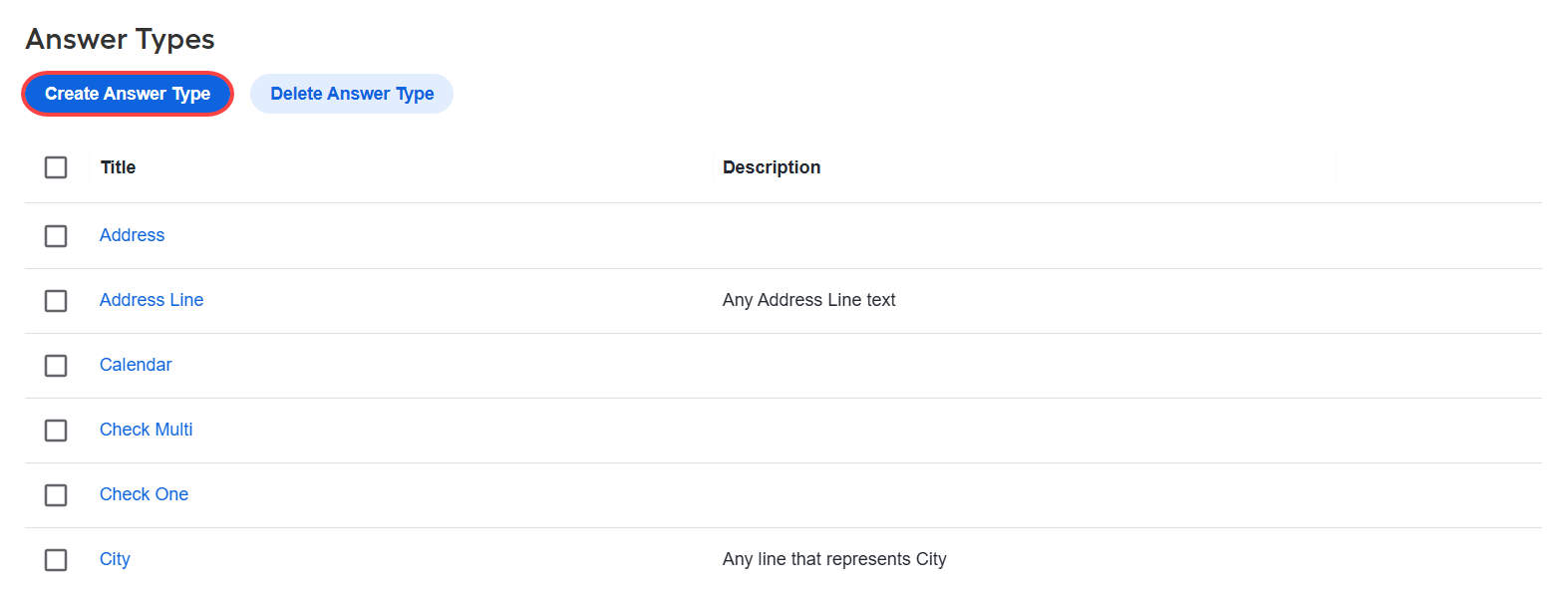
In Answer Types, click Create Answer Type.
Complete the required fields as follows:
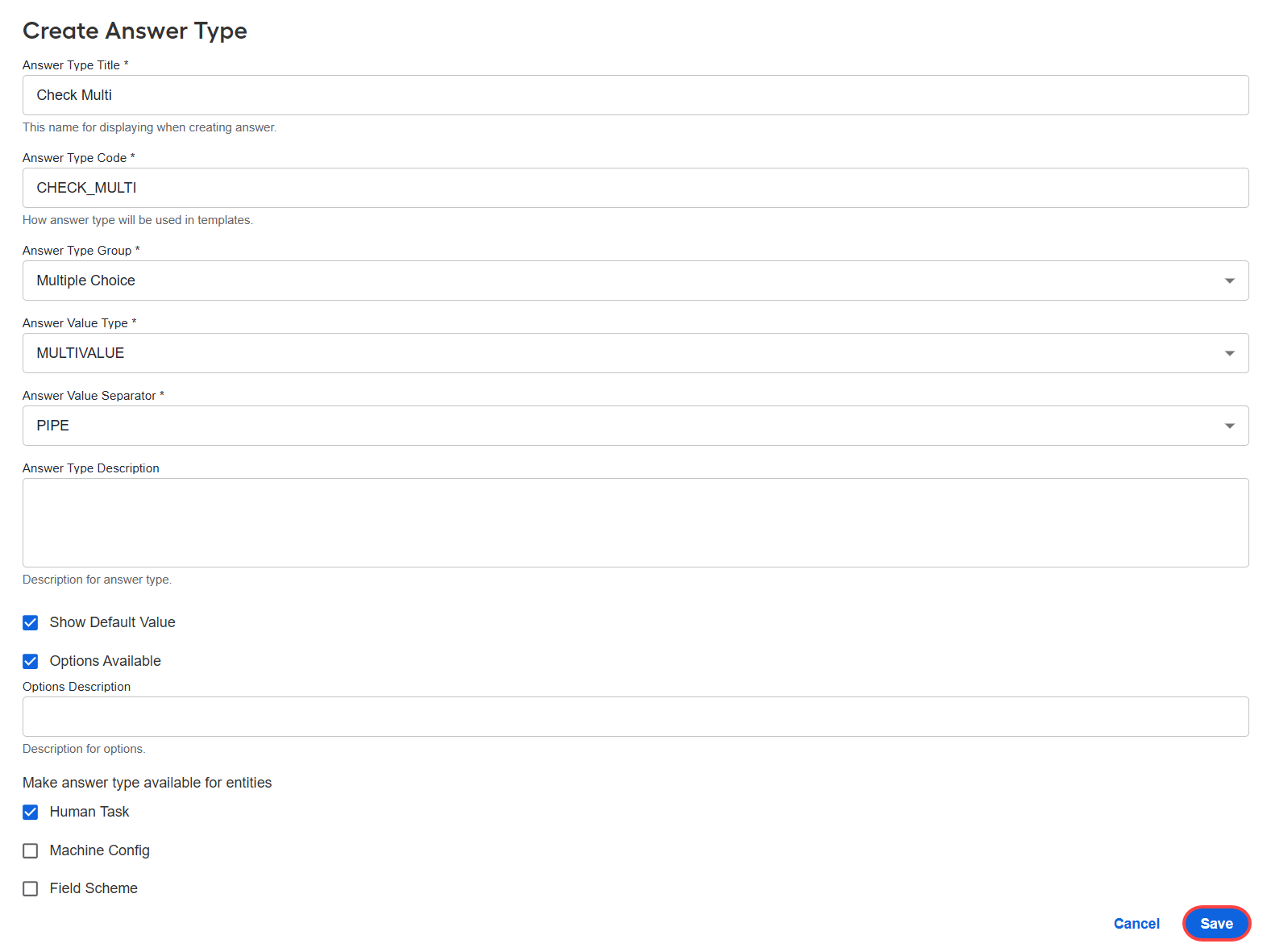
Field name Description Answer Type Title The title shown in the dropdown list of the Edit Answer dialog. Answer Type Code The code of the Answer Type. See available Answer Types. Answer Type Group Defines the group where the Answer Type is shown in the Task Edit dropdown. Answer Value Type Choose SINGLEVALUE,MULTIVALUE, orCOMBINED. See details in Answer Types.Answer Value Separator Choose PIPE or COMMA for Multivalue Answers. Answer Type Description Additional information about the Answer Type. Show Default Value Enable to display a default value. Options Available Enable Answer options, for example, number of rows for Long Text. Options Description Additional information for the Options Available section. Make answer type available for entities Select where this Answer Type can be used: Human Task (Manual Tasks), Machine Config (Bot Configurations), or Field Scheme. Click Save.
Edit Answer Type
To edit an existing Answer type, do as follows:
Select the required Answer Type in the list.
Modify the fields as needed.
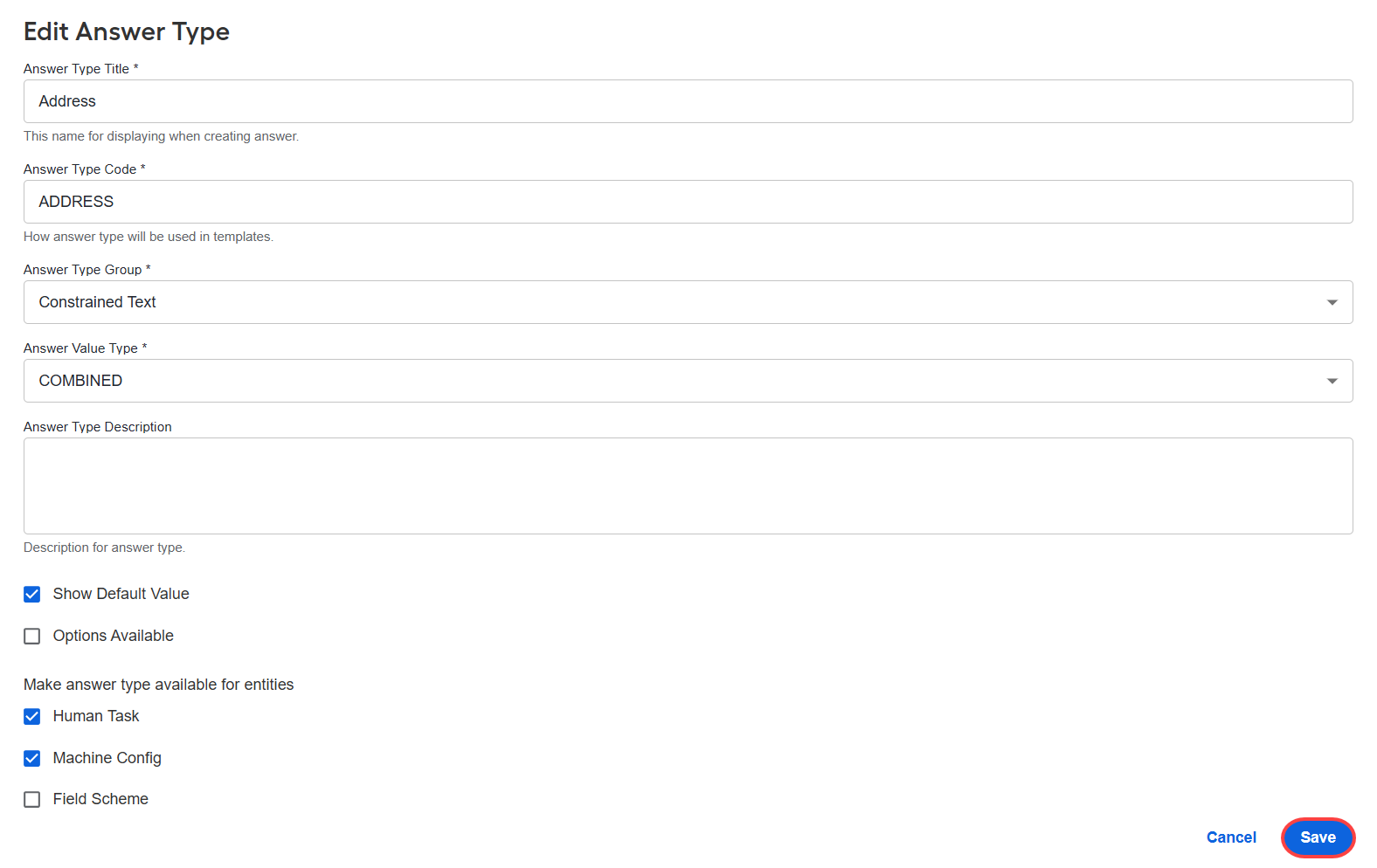
Click Save.
Delete Answer Type
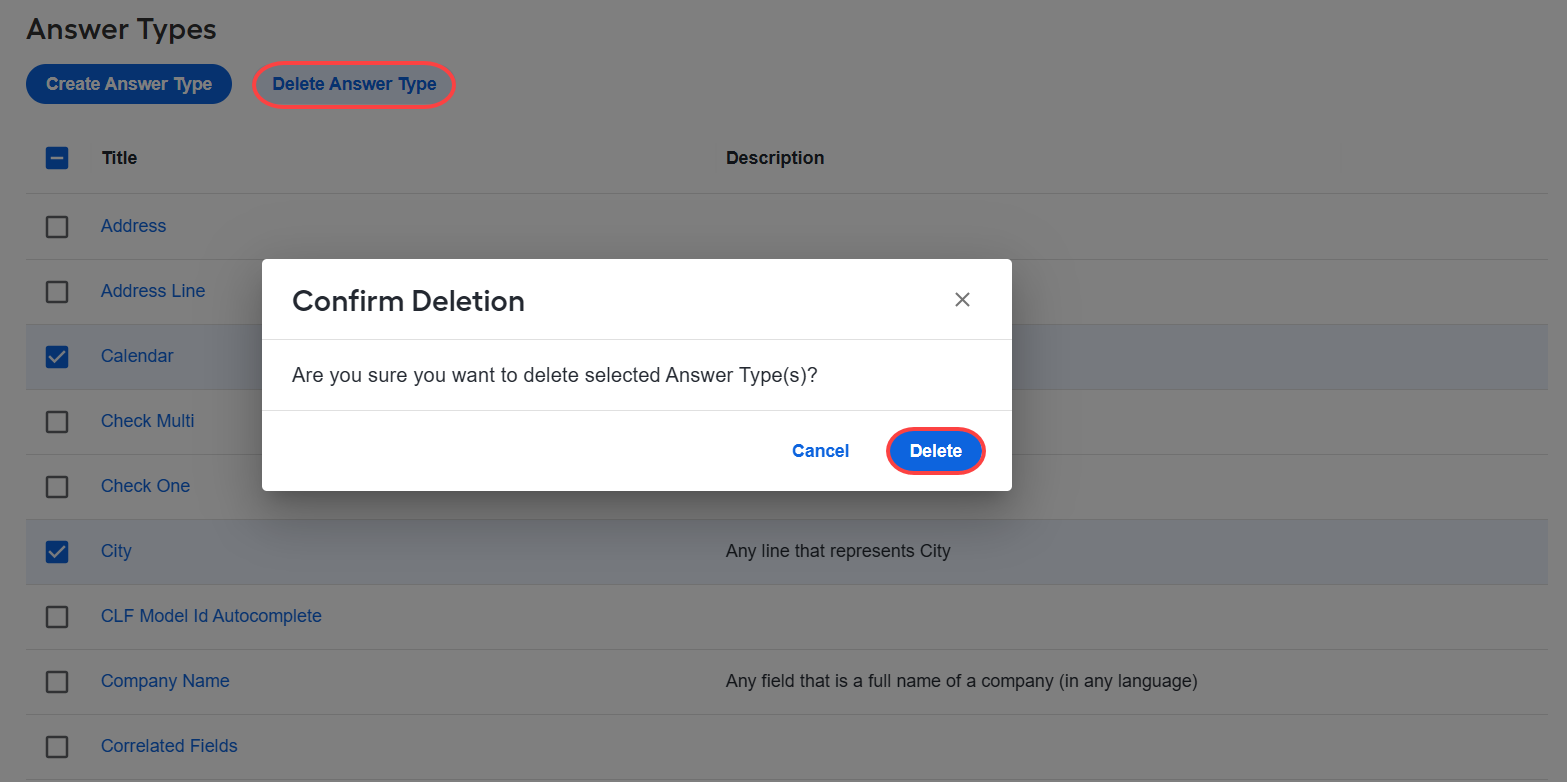
To delete one or more Answer Types, perform the following actions:
Select the Answer Types you want to remove.
Click Delete.
In the Confirm Deletion window, click Delete.