Configure two-factor authentication
You can set the two-factor authentication flow right after installation or at any time later. When you enable two-factor authentication after installation, make sure to set the flow before configuring user roles.
Enable and set two-factor authentification
To set the two-factor authentication flow, follow the steps below:
On the left menu, click Authentication and navigate to the Required actions tab.
For the Configure OTP option, switch on the Set as default action and Enabled toggles.
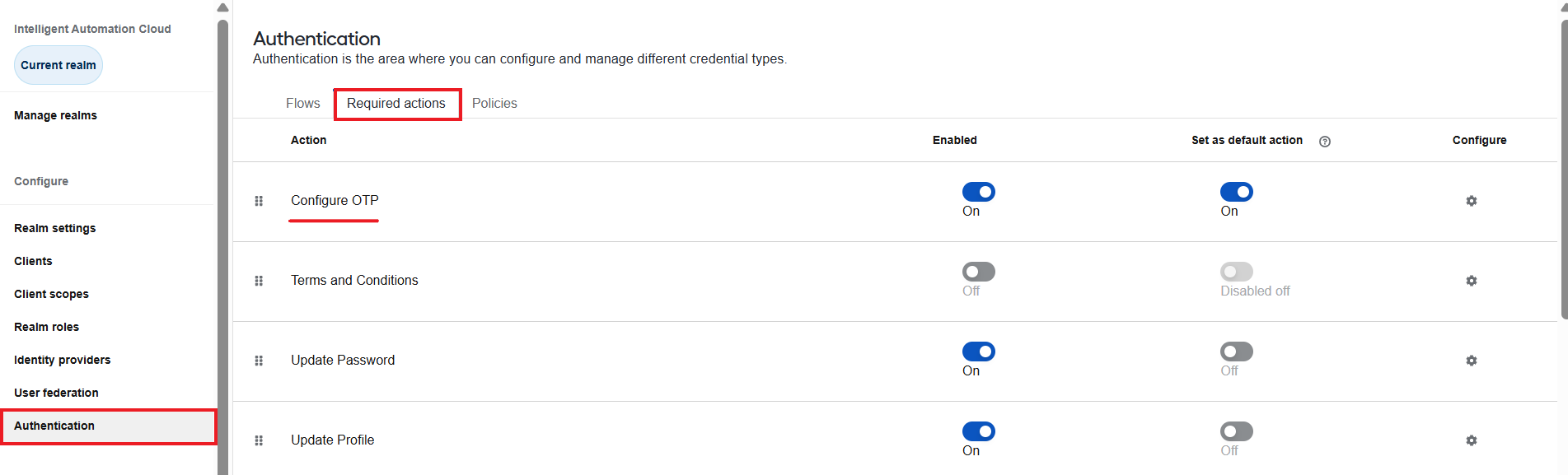
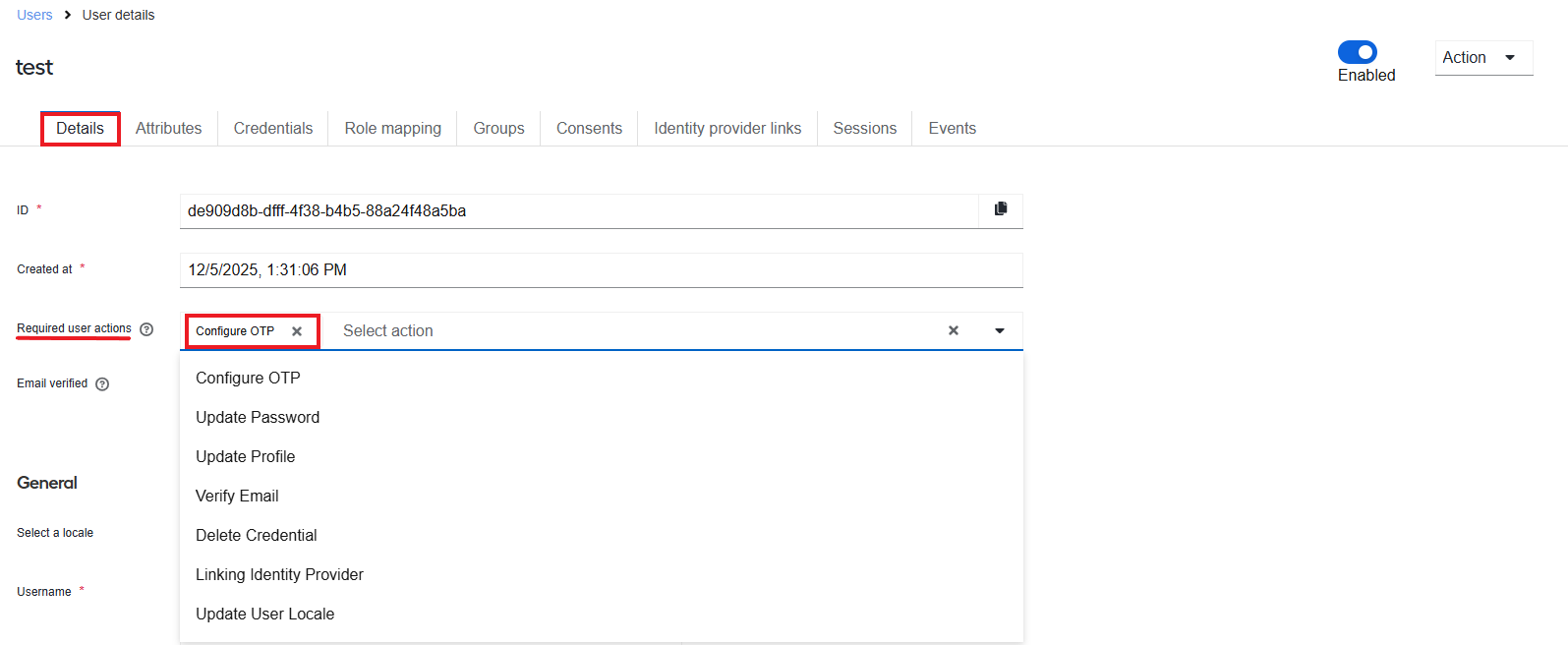
After that, the action becomes available as an option in the Required user actions field on the Details tab for each new user you create.
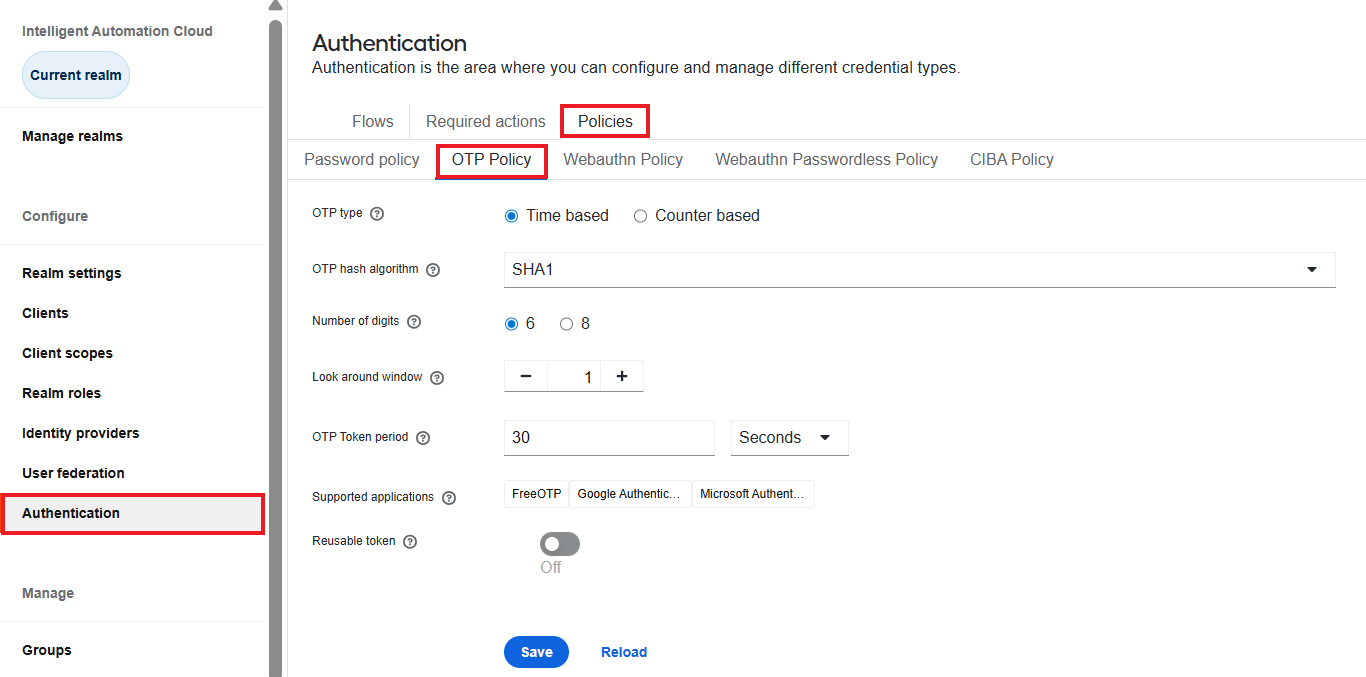
To configure the OTP policy, navigate to the Policies > OTP Policy tab. The recommended setup is shown below.
 info
infoIf you change any of the default settings shown above, the Google Authenticator application becomes unavailable for the two-factor authentication flow.
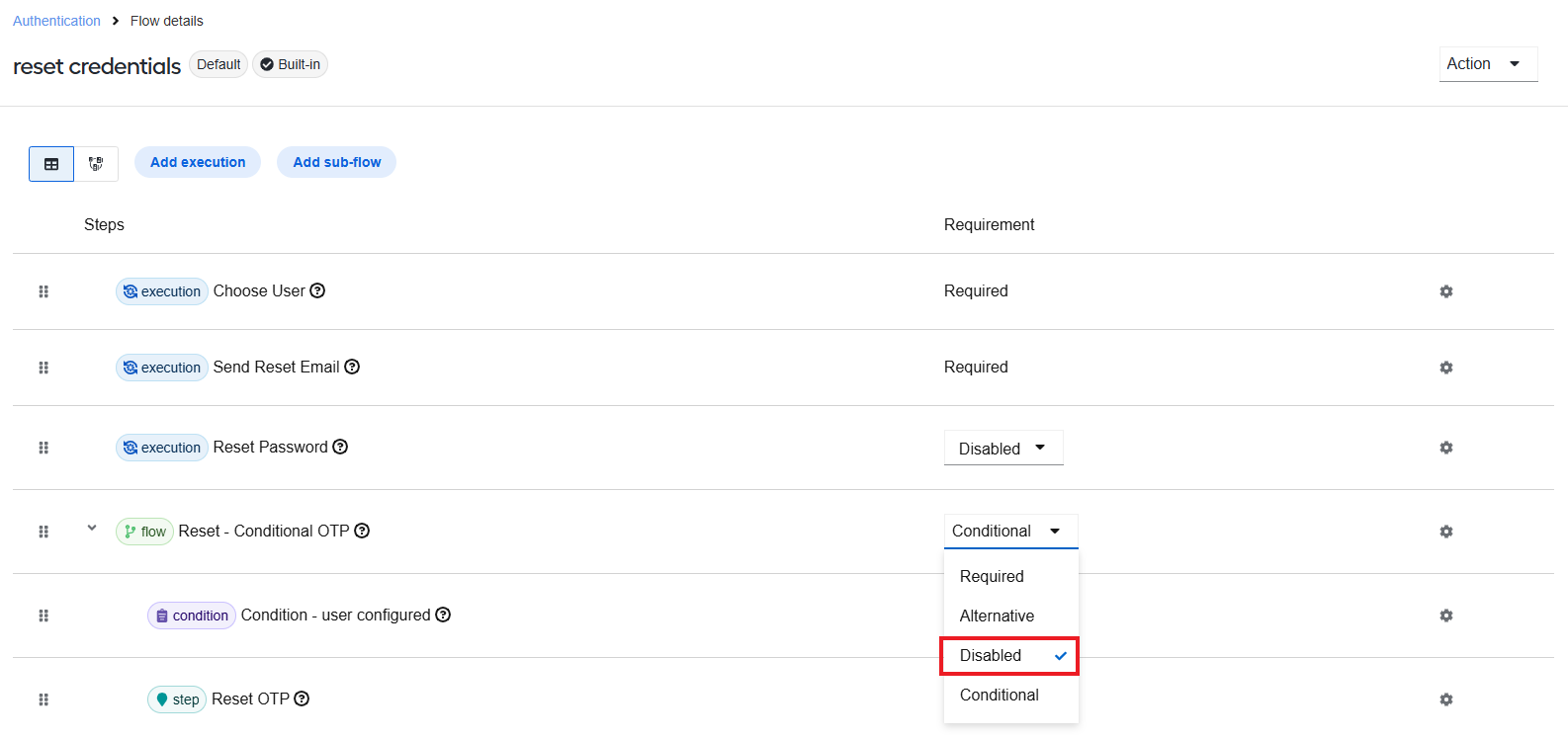
To disable two-factor authentication for the password reset flow, go to Authentication > Flows and do as follows:
In the list of flows, click reset credentials.
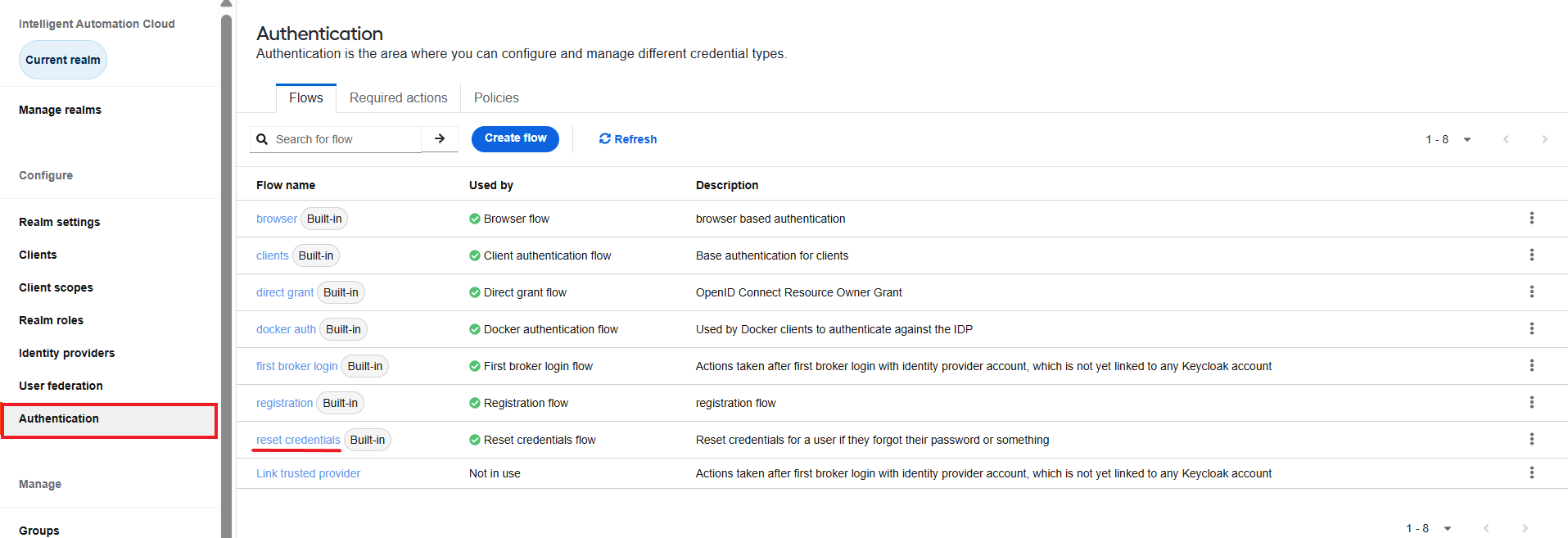
In the Reset - Conditional OTP row, select Disabled.
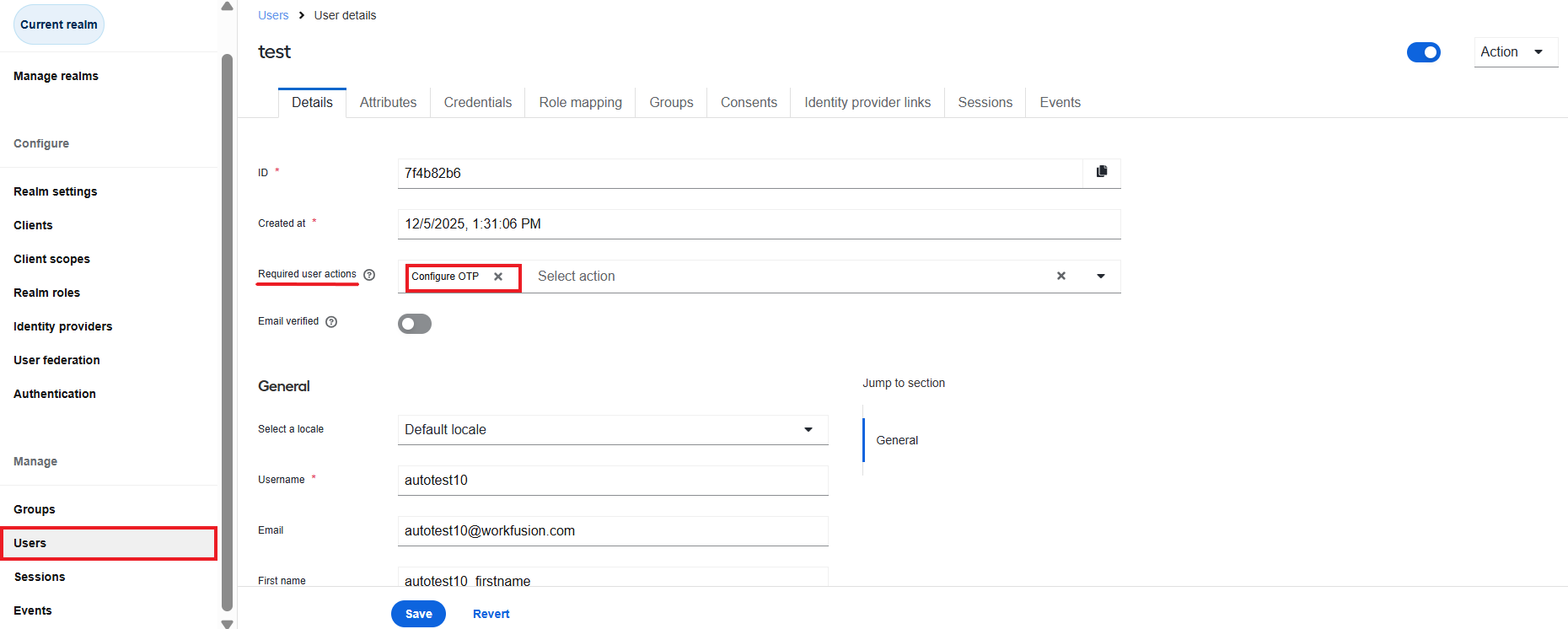
(Optional) To enable the two-factor authentication for an existing user (if any), navigate to Users and click the username. Then, navigate to the Details tab and, in the Required user actions field, select the Configure OTP option.
noteThe step is not needed when you configure the two-factor authentication flow before you create any users in the WorkFusion User Management or import them to it.
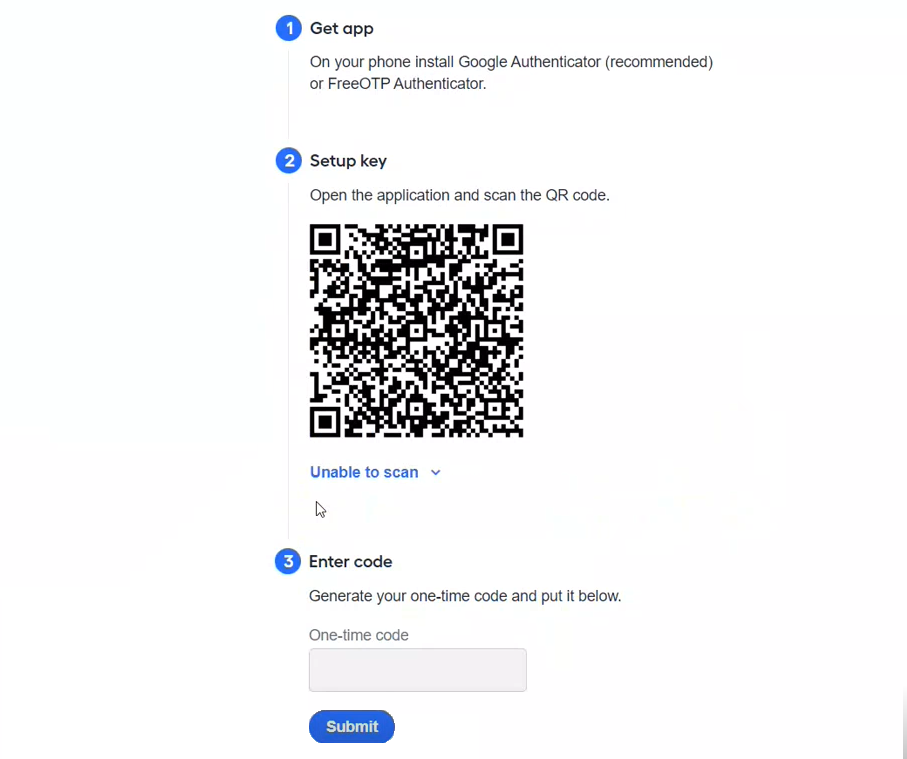
Once you have set the flow, at their first login, users are redirected to the two-factor authenticator screen:
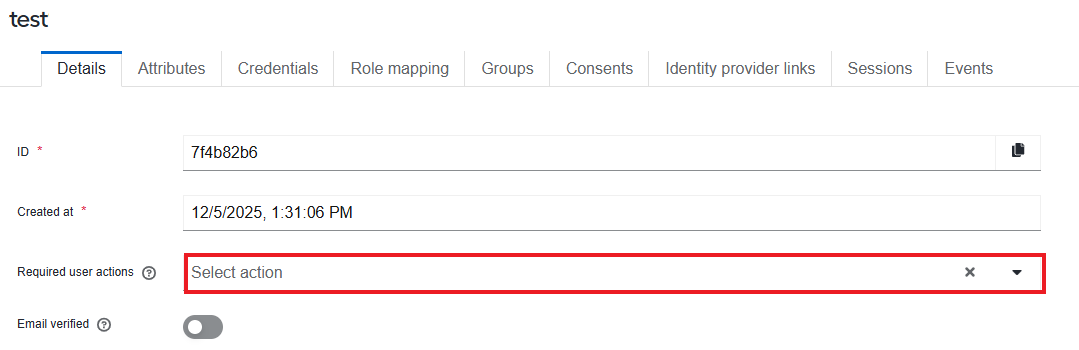
After users complete the two-factor authentication flow, they receive a confirmation email to the address associated with their account in Work.AI. The Configure OTP action is no longer shown in the Required user actions field on the Details tab for the particular user.
Also, the Credentials tab for the particular user will include an otp record.
Erase existing OTP credentials
In case a user loses their device, proceed this way:
Go to Users and click a username to access the user details page.
On the Credentials tab, delete the current otp record.
Go to the Details tab. In the Required user actions field, add the Configure OTP action.
As a result, when the user attempts to log in to Work.AI next time, they will have to go through the OTP setup procedure again.