Manage secret entries in Secrets Vault
The data stored in Secrets Vault is not shown in recordings, logs, system files, or Bot Configurations. This allows you to share scripts with other users without exposing confidential data.
To manage secret entries, go to Control Tower > System Settings > Secrets Vault.
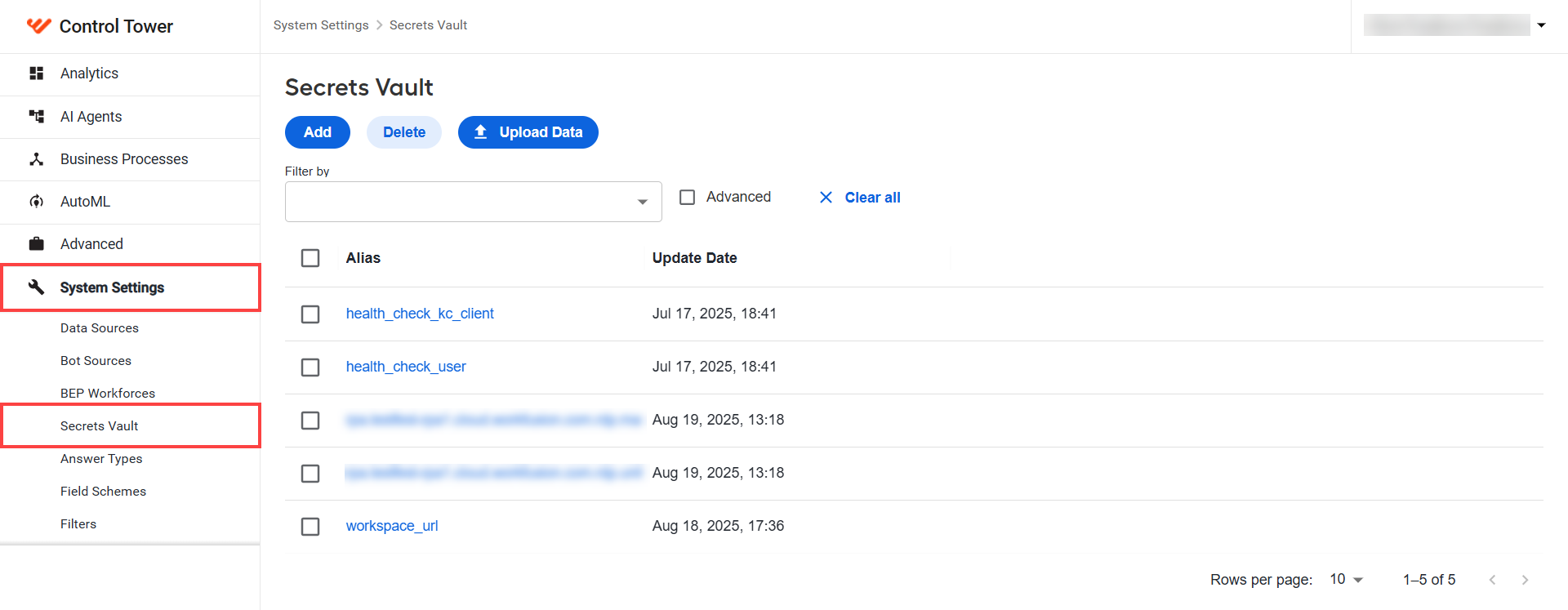
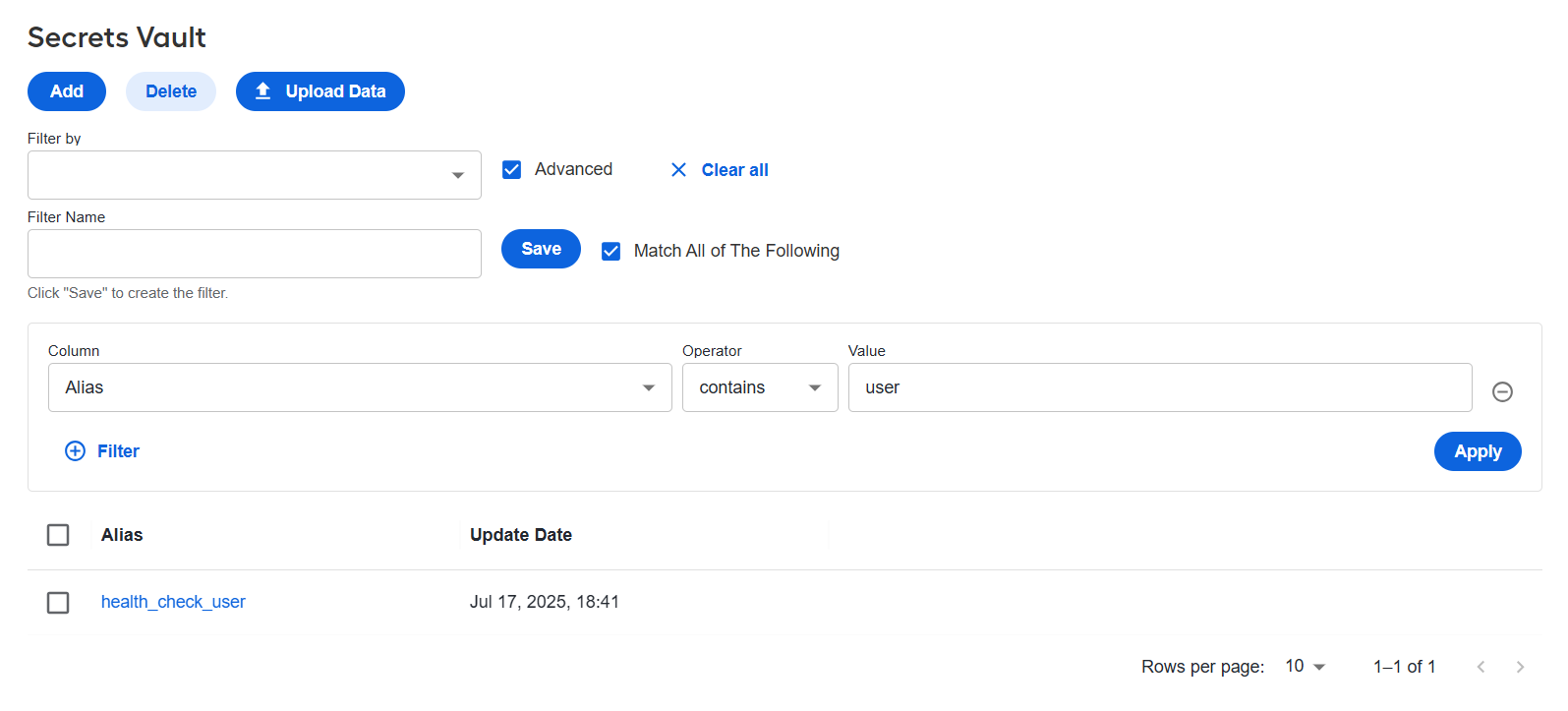
The standard filter in Secrets Vault allows you to filter specific aliases based on your rules.
You can assign granular permissions to users in Secrets Vault. Refer to the Manage Control Tower roles and permissions topic.
Add secret entry
Control Tower provides the Secrets Vault functionality to store sensitive data in the alias, key, and value format. To add a secret entry, do as follows:
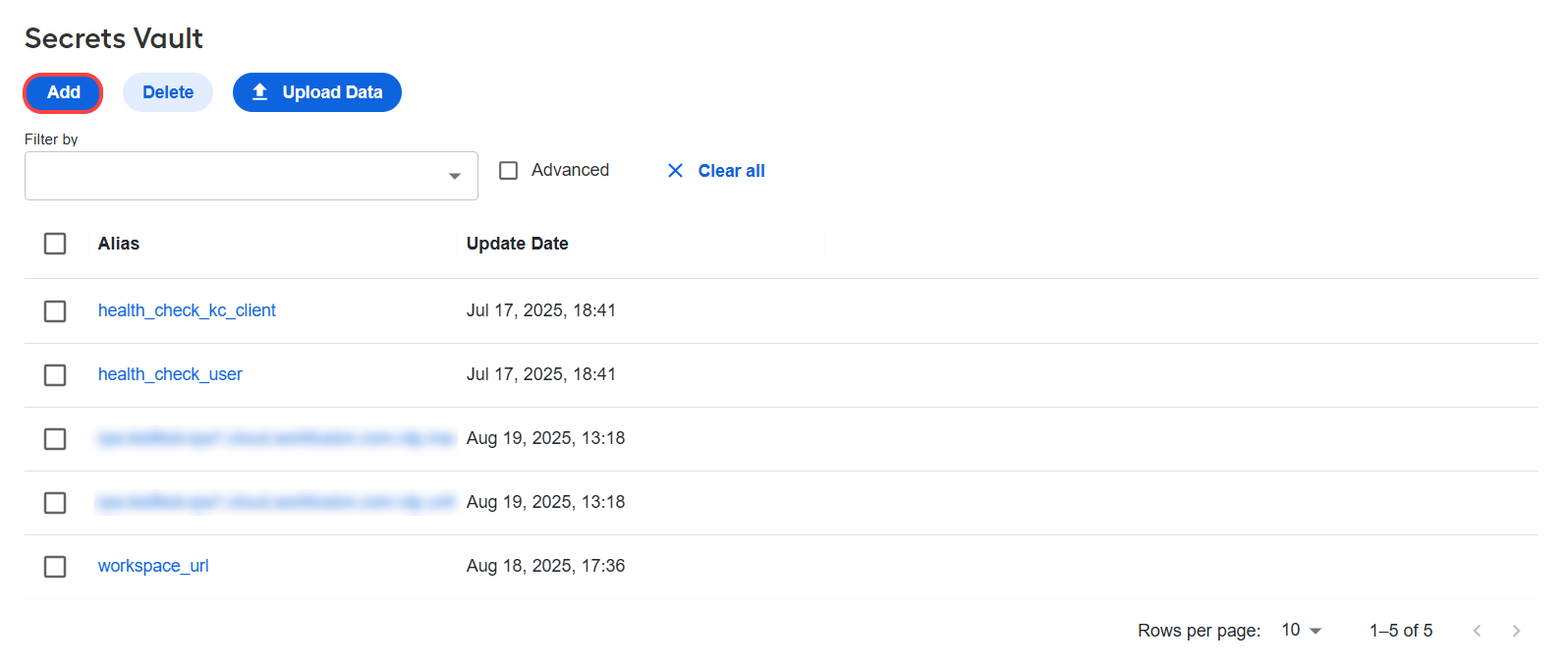
Click Add.
In the Add Secret Entry window, enter Alias, Key, and Value. The Alias value helps distinguish secret entries and must be unique.
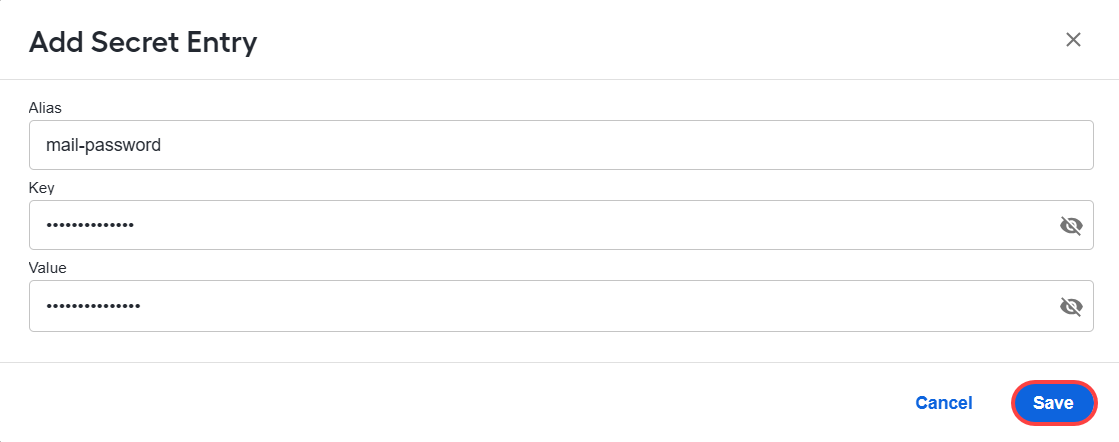
To view Key or Value, click the eye icon. Keys and values are automatically hidden when you leave or reload the page.
Click Save. The new entry appears in the list of secret entries.
Add bulk entries
If you want to create multiple entries at once, you can import them from a file.
Create a CSV file with three columns: alias, key, and value.

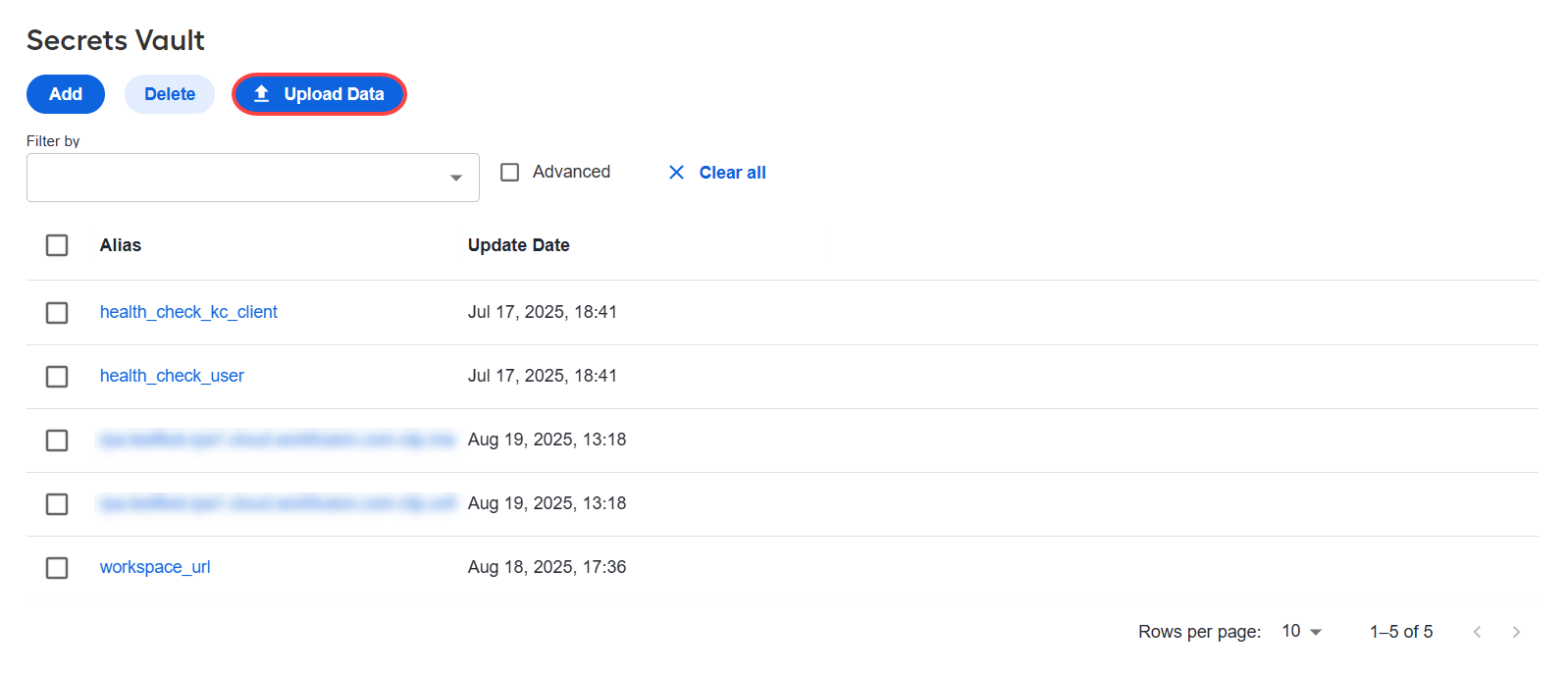
Click Upload Data.
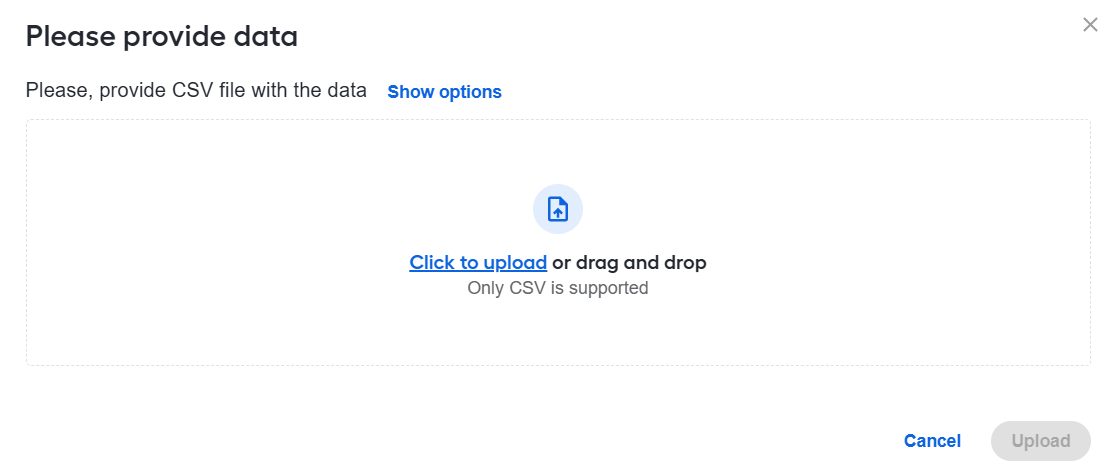
Click Add and select the CSV file from your local machine.
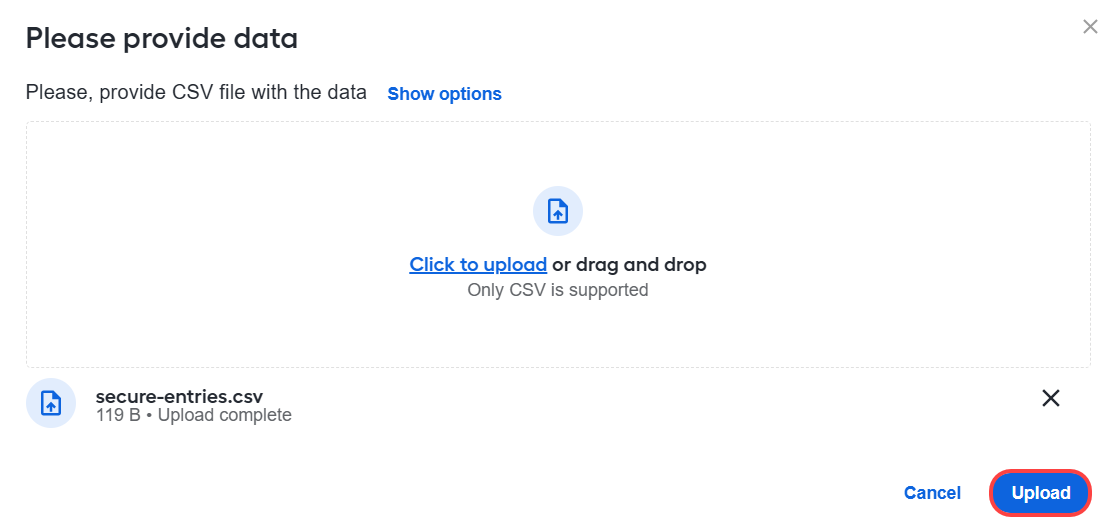
Click Upload.
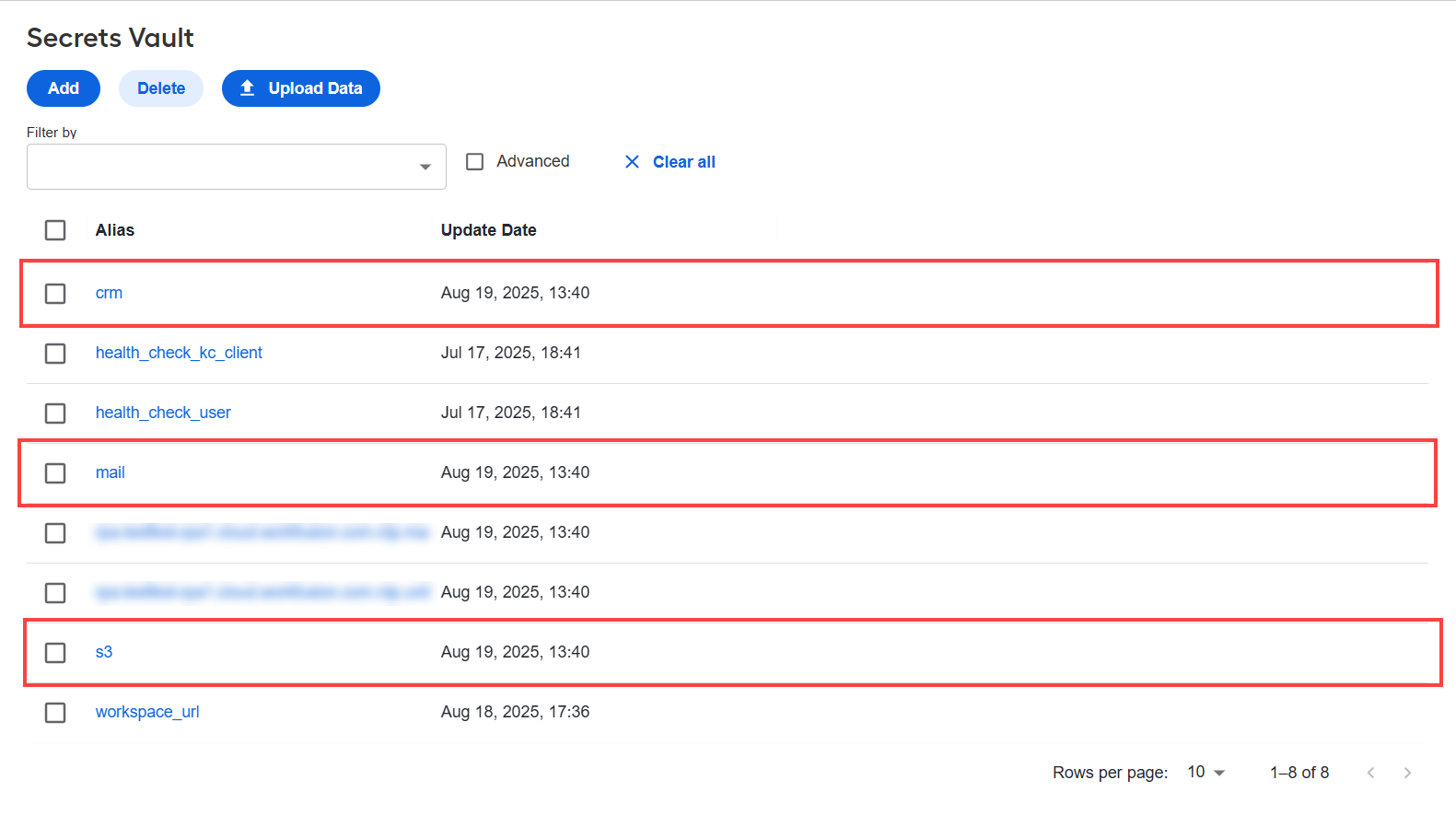
The entries are added and available in the list.
Edit secret entry
To edit an existing secret entry, proceed as follows:
Select the required secret entry.
In the Edit Secret Entry window, modify Key and Value. Alias cannot be modified.
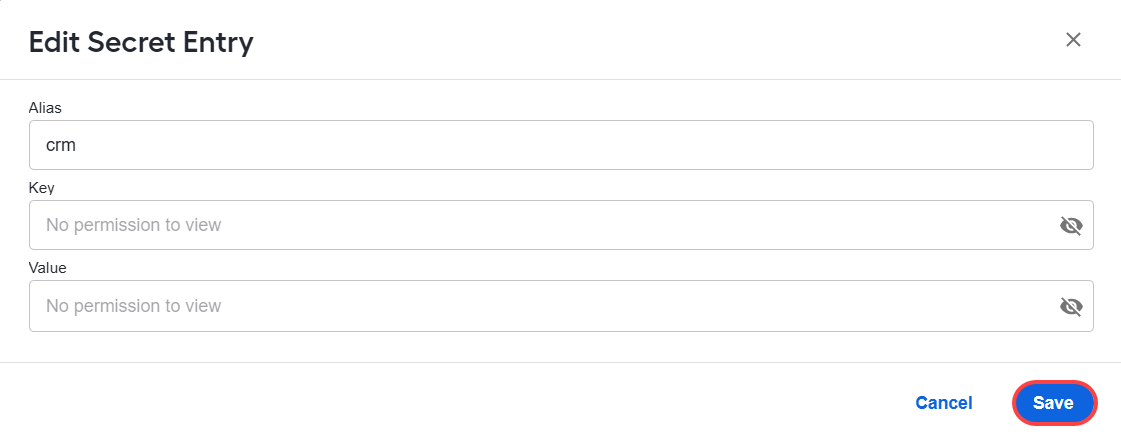
If you have the View Secrets Vault Aliases permission, you can click the eye icon to view the credentials while editing.
Click Save.
Delete secret entry
To delete one or more entries, perform the following actions:
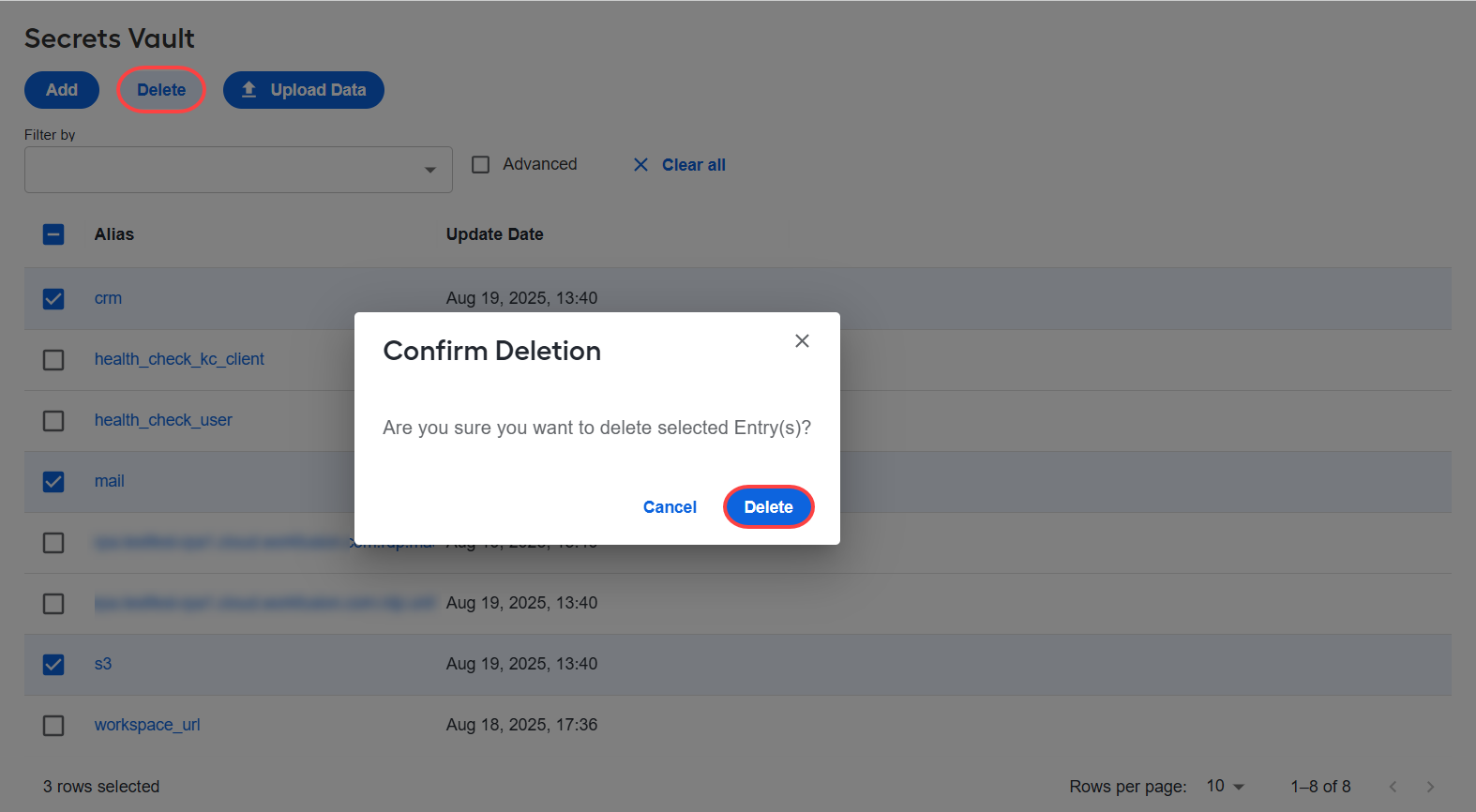
Select the entries you want to remove.
Click Delete.
In the Confirm Deletion window, click Delete.
You can read, write, and delete records from Secrets Vault using the Secrets Vault plugins.
Known issues
| Known issue | Workaround |
|---|---|
The !#! combination is not saved in Secrets Vault. | Do not use the combination. |
When you import the list of secret entries, the \ symbol is not recognized. | Do not use the combination. |
For support guides, refer to the following pages:
Additional security practices
See several common recommendations for ensuring data security regardless of your automation type.
Access management
It is important to define who will have access to sensitive data and how you can control this access. The common thing is not to provide complete access to data for any account except authorized ones, as this can cause problems. In RPA, a bot is often used to mimic user's actions, so it should have the same access as a user. In most cases, such behavior is blocked by corporate group policies or internal rules. In this case, it is recommended to have separate accounts for bots and real users and provide limited access to the bot accounts required for specific tasks. An additional benefit is that you can tell apart bot activities and employee's ones in the audit trail, which can help with troubleshooting and investigation.
Protected credentials
One of the basic security practices is using strong passwords. Even if you follow the access management approach, it is highly recommended to have a strong password for a bot and change it periodically. It may require additional changes in the bot code, but it helps to protect your data and reduce unauthorized access.
Audit
It is also useful to audit actions that any account performs in a separate system or a network. You can implement this in different ways: within a specific system or in a bot script.