Troubleshoot Eclipse and Recorder
Cannot launch bots locally because of duplicated dependencies
Expand to learn more
You can apply the solution to any version of the application.
Symptoms
In some cases, when you try to launch bots locally, the following issue can occur: even though the project is built without any errors, when a bot is launched, a duplicated dependencies error appears.
Resolution
To resolve the issue, follow the steps below:
Right-click the project.
Select the Properties menu item.
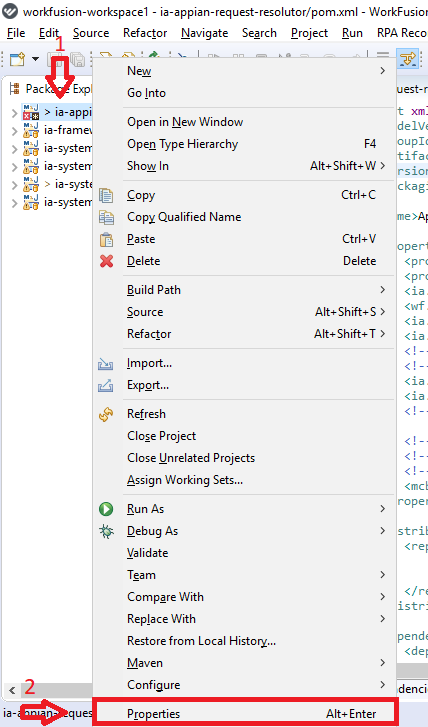
In the window that follows, click Maven.
On the right side of the window, deselect the Resolve dependencies from Workspace projects checkbox.
Click Apply and close.
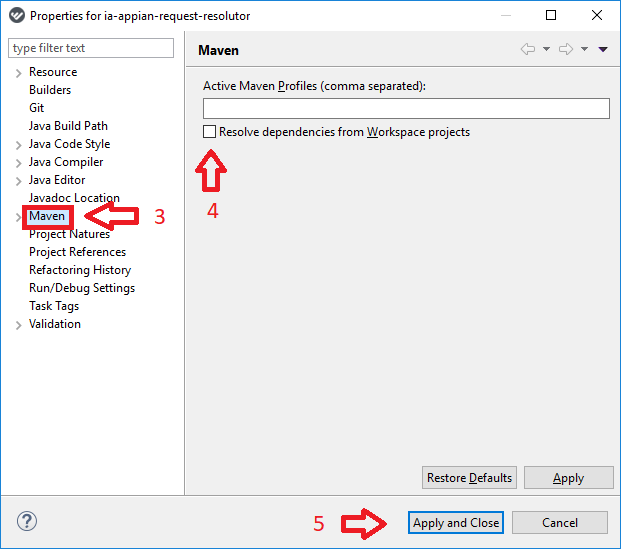
After deselecting the checkbox, you will be able to run bots locally.
Eclipse proxy settings
Expand to learn more
Symptoms
When executing Bot Task plugins that access external resources, you can get an error message similar to this one:
org.webharvest.exception.HttpException: IO error during HTTP execution for URL: https://workfusion.com/
Resolution
To resolve the issue, follow the steps below:
In the Eclipse installation folder, find the
eclipse.inifile.Add the proxy settings:
-Dorg.eclipse.ecf.provider.filetransfer.excludeContributors=org.eclipse.ecf.provider.filetransfer.httpclient
-Dhttp.proxyPort=8080
-Dhttp.proxyHost=XXX
-Dhttp.proxyUser=XXX
-Dhttp.proxyPassword=XXX
-Dhttp.nonProxyHosts=localhost|127.0.0.1
NullPointerException
Expand to learn more
Symptoms
When running a Bot Task configuration, you can get a NullPointerException in Eclipse.
Resolution
If Eclipse restart does not help, start it in the clean mode in the command prompt. The sample command is as follows:
D:\Eclipse folder>eclipse.exe -clean
For more information, see How to run Eclipse in clean mode.
OutOfMemoryError
Expand to learn more
Symptoms
When launching or editing an existing Bot Task configuration, you might get OutOfMemoryError:
!ENTRY org.eclipse.jdt.core 4 4 2016-08-22 10:59:46.260
!MESSAGE Background Indexer Crash Recovery
!STACK 0 java.lang.OutOfMemoryError: Java heap space at org.eclipse.jdt.internal.compiler.util.HashtableOfObject.<init>(HashtableOfObject.java:39) at org.eclipse.jdt.internal.compiler.util.HashtableOfObject.rehash(HashtableOfObject.java:165)
Resolution
To increase the maximum heap size, update eclipse.ini located in the Eclipse installation folder. To do this, open eclipse.ini and add or change the value of -Xmx to -Xmx1600m.
For more information, see How to increase the heap size available to Eclipse.
Find log files
Expand to learn more
In case of unexpected errors, you can attach logs to JIRA issues.
Find a log following this path: %way_to_current_workspase%/.metadata.log.
In addition to the log file, specify the full OS version (for example, Microsoft Windows 10 Pro x64) and installed Java version (for that, execute java -version in cmd).
To access the log, you can also go to Help > About Eclipse IDE > Installation Details > Configuration > View Error Log.
Run Eclipse with custom Java runtime environment
Expand to learn more
In case of several JRE installed in your environment, you can specify which one is to be used to run Eclipse.
Go to
%eclipse_installation_folder%/eclipse.ini.Insert the following text on two separate lines in the beginning of the file (before the line with
-vmargs).-vm %path-to-java-8-runtime%/bin/javaw
In this case, Eclipse will run using the specified JRE.
You can also copy the JRE folder directly to the Work.AI Developer installation directory and rename it to jre. Thus, Eclipse will use it automatically.
Unable to open recording
Expand to learn more
Symptoms
While opening a recording created with an older Work.AI version, migration fails with the following error:
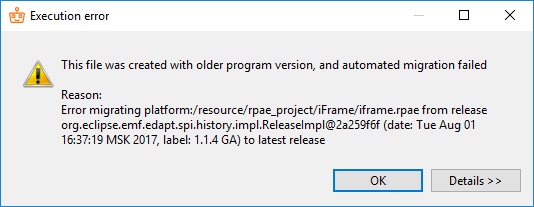
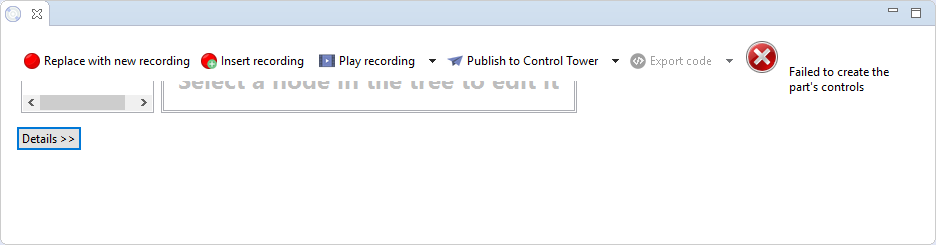
When you click OK, Recorder cannot open the recording.
Resolution
Your recording is created with an older version of Work.AI Developer and cannot migrate automatically due to changes in the action model. To resolve the issue, follow the steps below:
Close the tab that shows the error and close Recorder.
Go to your
workspacefolder (by default,C:/Users/%username%/workfusion-workspace/rpae_project).Find the RPAE file you want to run.
Open it with any text editor, for example, Notepad.
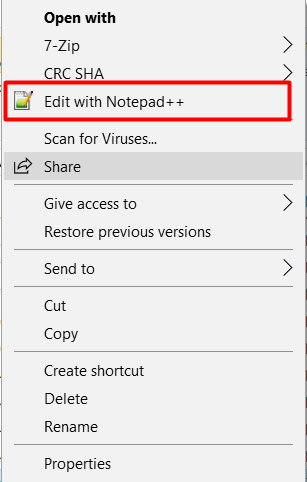
Find the string in the XML header that contains a wrong version number (see the example below).
xmlns:recorder="http://www.workfusion.com/recorder/v1.0.0"Change the namespace manually to the version currently installed on your machine.
xmlns:recorder="http://www.workfusion.com/recorder/v2.4.0"Save your changes and close the text editor.
Start Recorder and open the recording.
Repeat the procedure for all the recordings created with an older version that had not been migrated automatically.
Model does not contain namespace URI
Expand to learn more
Symptoms
When you launch a recording, you get this error as Recorder does not support migration from later to earlier versions.
Resolution
Open your recording with any text editor and manually change the version to the one installed on your machine. Follow the same steps described above for Unable to open recording.
Error executing WebElementAction
Expand to learn more
Symptoms
Error executing TemplateAction

\...

Caused by: org.openqa.selenium.WebDriverException: unknown error: call function result missing \'value\'
Resolution
If your RPA scripts stopped working after the browser update, you need to do the following:
For Chrome Driver:
- Download the newest driver.
- Replace the old driver in
IntelligentAutomationCloudDeveloper/RPA/rpa-grid/drivers/windows/x32.
For Firefox Driver:
- Download the newest drivers (both x32 and x64).
- Replace old drivers in the following directories:
geckodriver-vx-win32.zip> inIntelligentAutomationCloudDeveloper/RPA/rpa-grid/drivers/windows/x32geckodriver-vx-win64.zip> inIntelligentAutomationCloudDeveloper/RPA/rpa-grid/drivers/windows/x64
Bot cannot click required element in Internet Explorer
Expand to learn more
Symptoms
You use Internet Explorer as your browser for automating, but a Bot cannot click on the needed element, no matter what mouse click option you select.

Resolution
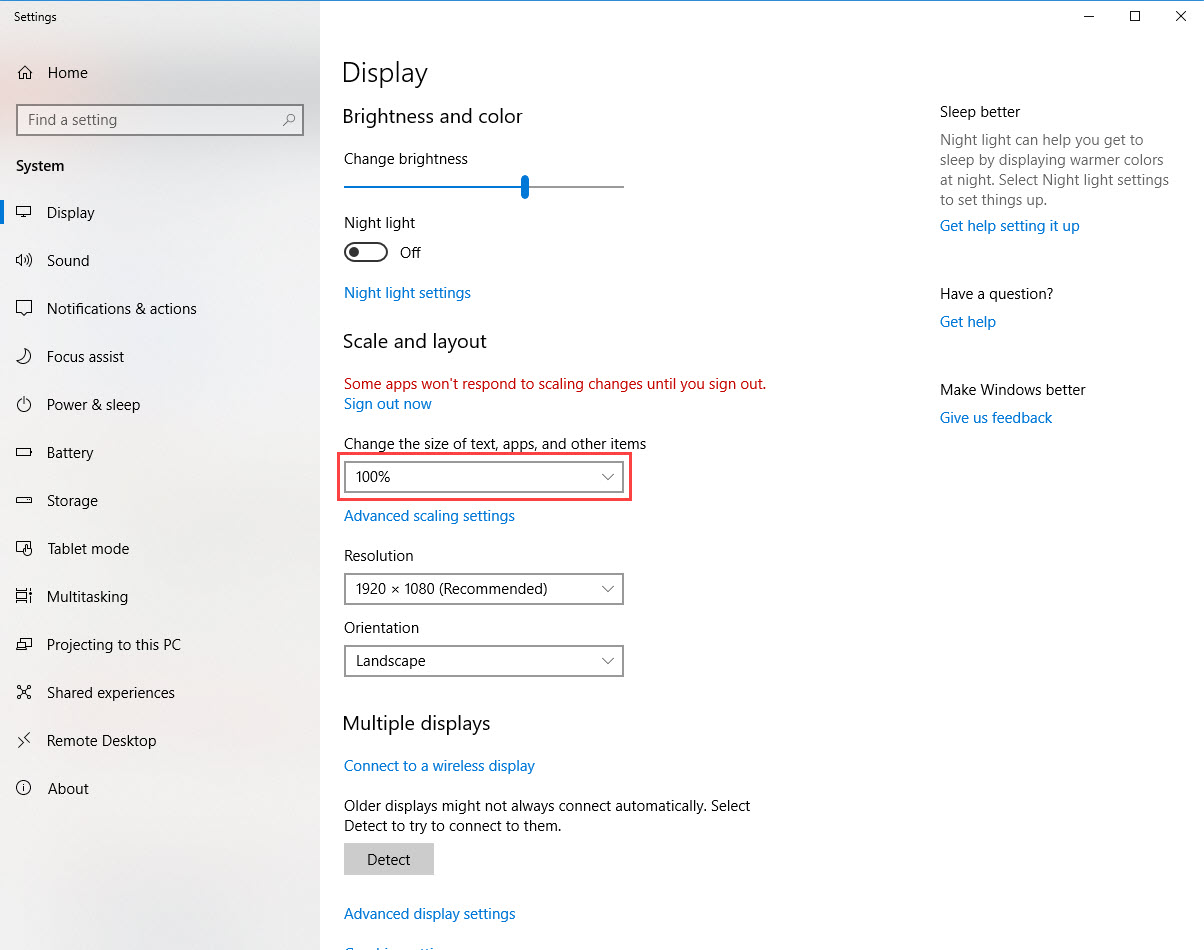
Make sure your Windows display scaling is set up to 100%. To perform the needed changes, do as follows.
- Go to Start > Settings > System > Display.
- In Scale and Layout, select 100% for Change the size of text, apps, and other items. The changes apply automatically.
Recording is not playing: java.net.MalformedURLException: no protocol
Expand to learn more
Symptoms
You click Play recording, but it fails with the following exception:

Resolution
Open Window > Preferences > WorkFusion Recorder > Server Profiles.
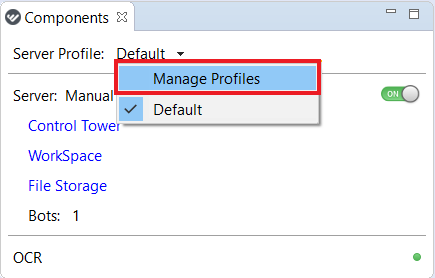
Check whether the default profile settings are populated as described in the Configure preferences guide.
If not, populate all necessary fields, then click Apply and Close.
Recording is not playing: cannot find active server profile
Expand to learn more
Symptoms
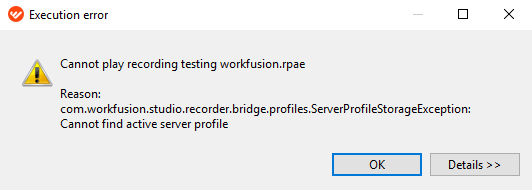
You click Play recording, but it fails with the following exception.
Resolution
Open Window > Preferences > WorkFusion Recorder > Server Profiles.
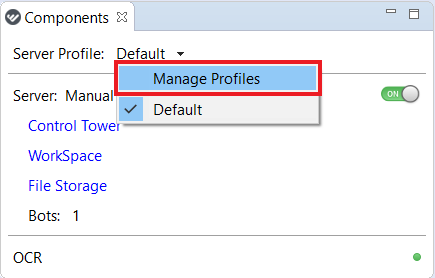
If you see the Cannot find active server profile error in Server Profile (see below), you need to delete the
C:/Users/%USER_NAME%/.eclipsefolder and check whether the server profile has been found and is not empty.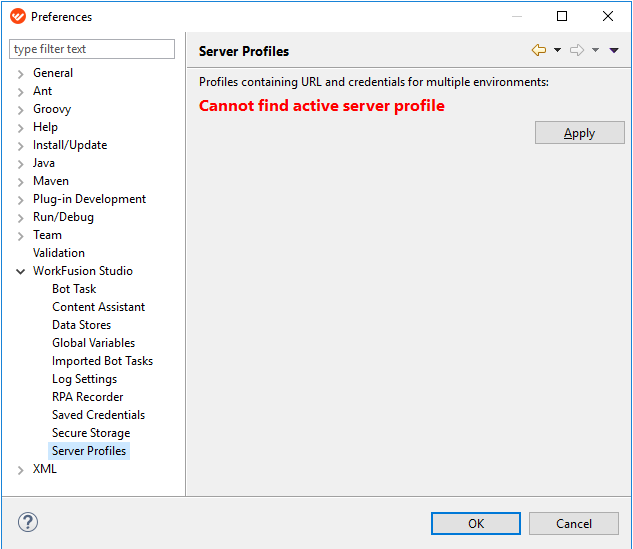
If the server profile is empty, populate the fields as described in the Configure preferences guide.
notePerform the steps below only in case the
C:/Users/%USER_NAME%/.eclipsefolder is absent. If you have it and can remove, see Steps 1-3 above.If the
C:/Users/%USER_NAME%/.eclipsefolder is absent or the server profile is not saved even after the manual entering of data, do as follows:- Open Window > Preferences > General > Security > Secure Storage.
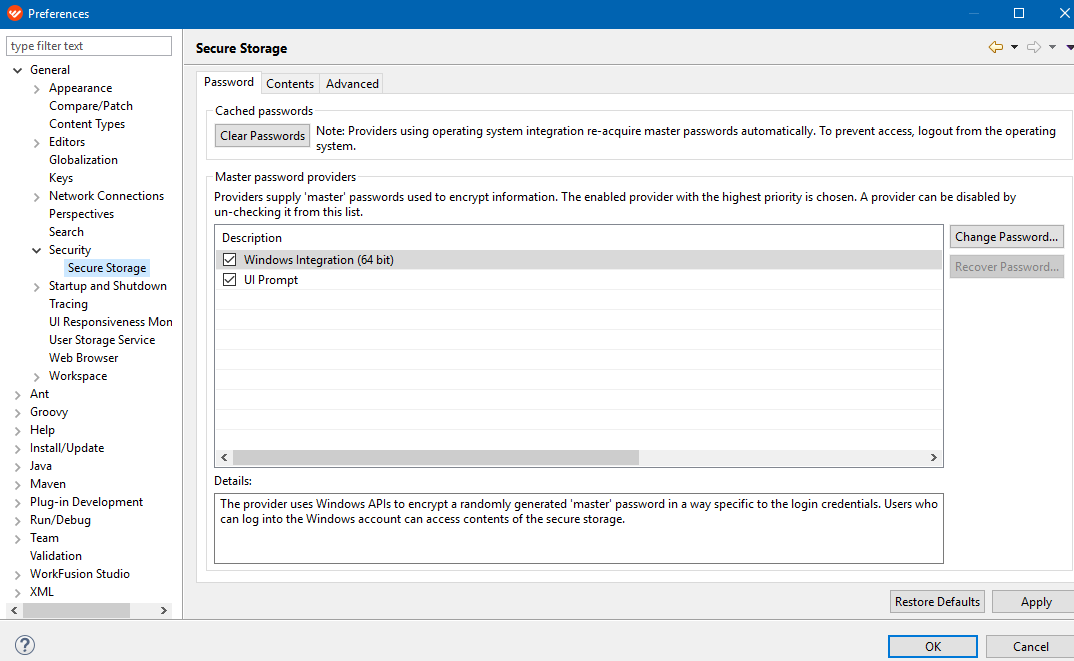
- Uncheck Windows Integrated (64 bit), click Apply, and then OK.
cautionDo not click the Change Password button.
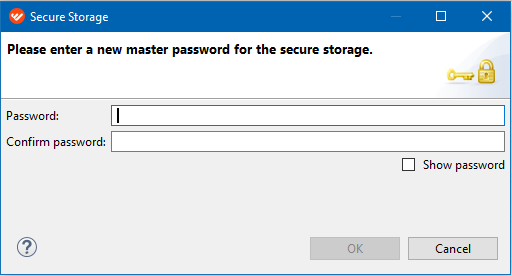
- Enter your own password and hints for recovering the password as shown below.
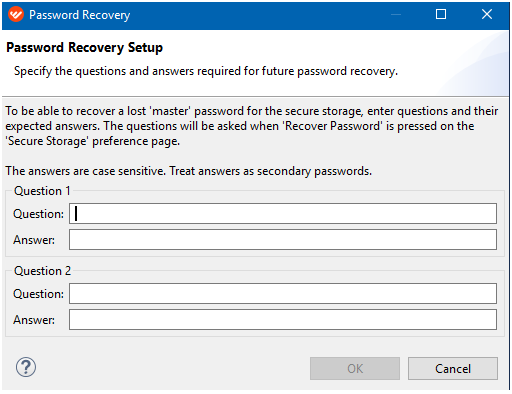
- Restart and launch Recorder.
- In the password window that appears, enter the password you have previously set, go to Recorder, and check if the default server profile is filled.
- Open Window > Preferences > General > Security > Secure Storage.
Recording is not playing: unable to read file
Expand to learn more
Symptoms
You click Play recording, but the "Unable to read file" message appears.
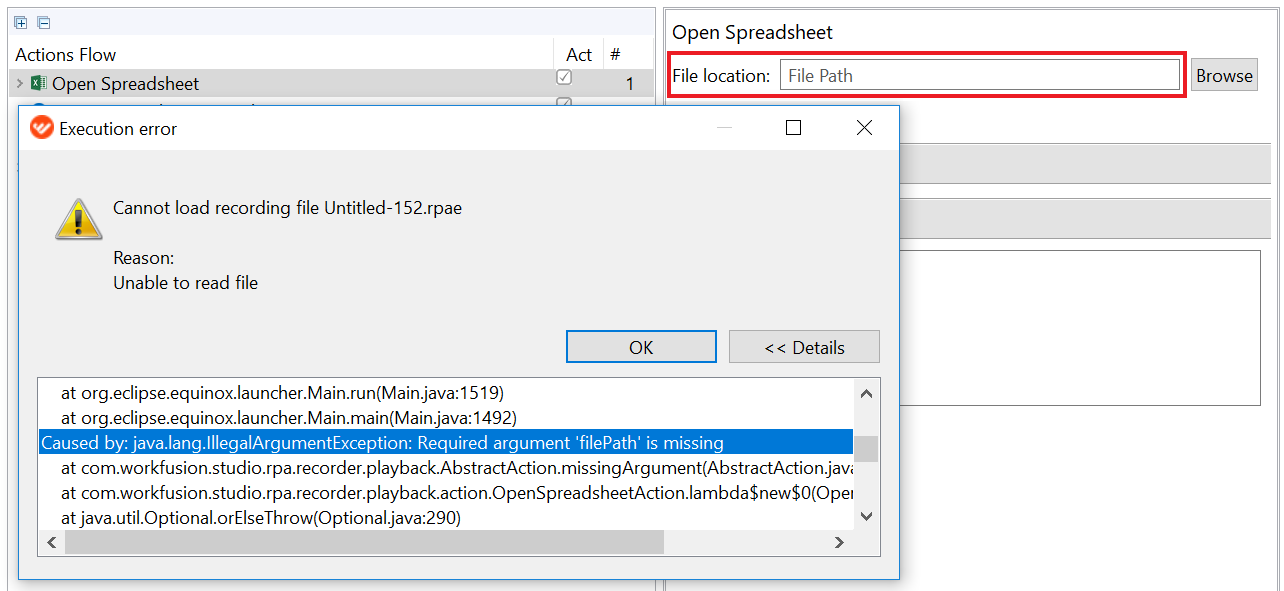
Resolution
Check that the details in all actions are filled in completely and there are no empty dropdown boxes, paths to files, folders, or conditions. You can see which element is missing in the error log by clicking the Details >> button.
Recording is not playing: unexpected error during execution. Secret entry not found
Expand to learn more
Symptoms
Right after the record starts playing, the bot fails with the following exception:

Resolution
This exception means that there is no secret entry for Secrets Vault variables in your script. Before playing your script, make sure you have the required secret entry in the guide. Mind that the secret entry name must be the same as in the exception. In this case, you must have the salesforce_cred secret entry as shown below.
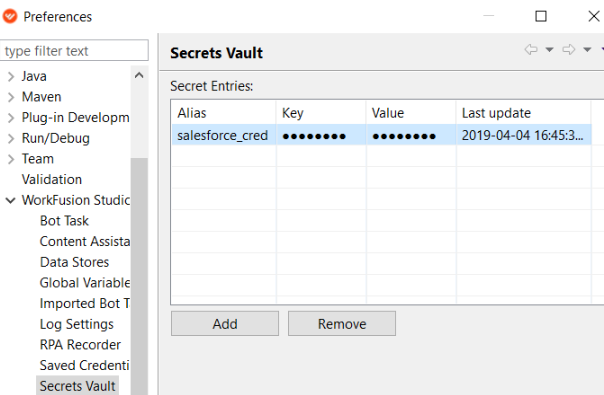
Recording is not playing: unexpected error during execution
Expand to learn more
Symptoms
After a bot starts playing, it fails with the following exception:
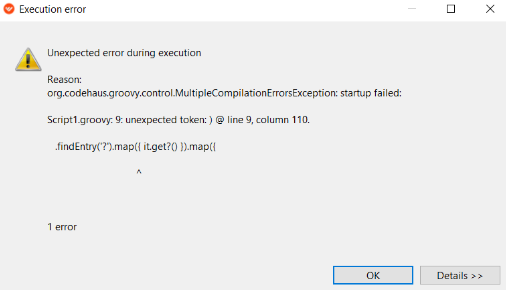
Resolution
This exception means that a Secrets Vault variable doesn't have any default secret entry. Before playing your script, make sure you have the required secret entry as described in the Configure preferences guide. Alternatively, you can remove the variable from the script.

Recorder gets too slow
Expand to learn more
Symptoms
Recorder is working extremely slow. The most probable reason is that the maximum memory allocation pool for Java Virtual Machine (JVM) has been exceeded by Recorder.
Resolution
To resolve the issue, follow the steps below:
Make sure that Recorder is closed.
Go to the Recorder folder. By default, it is
C:/IntelligentAutomationCloudDeveloper/Recorder.Find and open the
recorder.iniconfiguration file.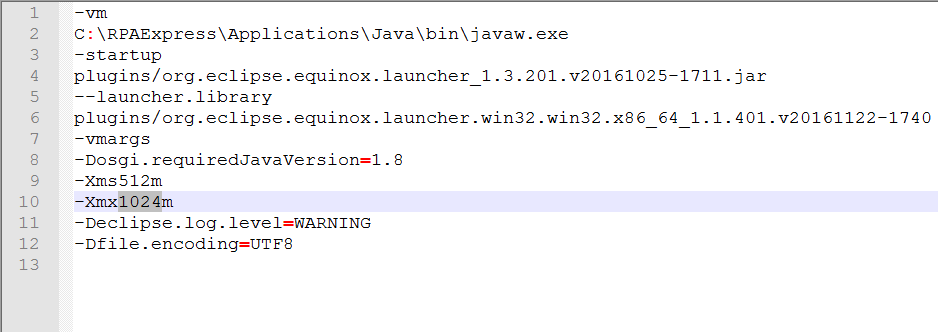
Find the
Xmxproperty. The default value is1024mthat equals to 1024 MB of memory.Change the value of the flag to
2048mto double the size of the memory pool.Save and close the configuration file.
Start Recorder.
Error executing OCR action: URL is not absolute
Expand to learn more
Symptoms
An OCR action fails and returns the following error: "Error executing OCR action: URL is not absolute".
Resolution
To resolve the issue, follow the steps below:
Check if the server profile is filled in. If not, you can fill it in manually as described in the Configure preferences guide.

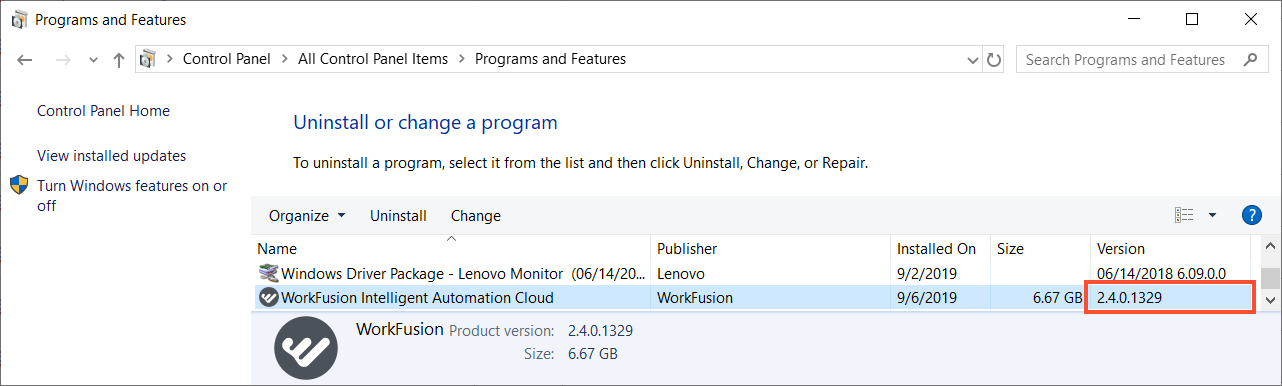
If the above step does not help, check your version as it might require an update. Go to Control Panel > Programs > Programs and Features.
Error executing OCR action: OcrException cannot be found
Expand to learn more
Symptoms
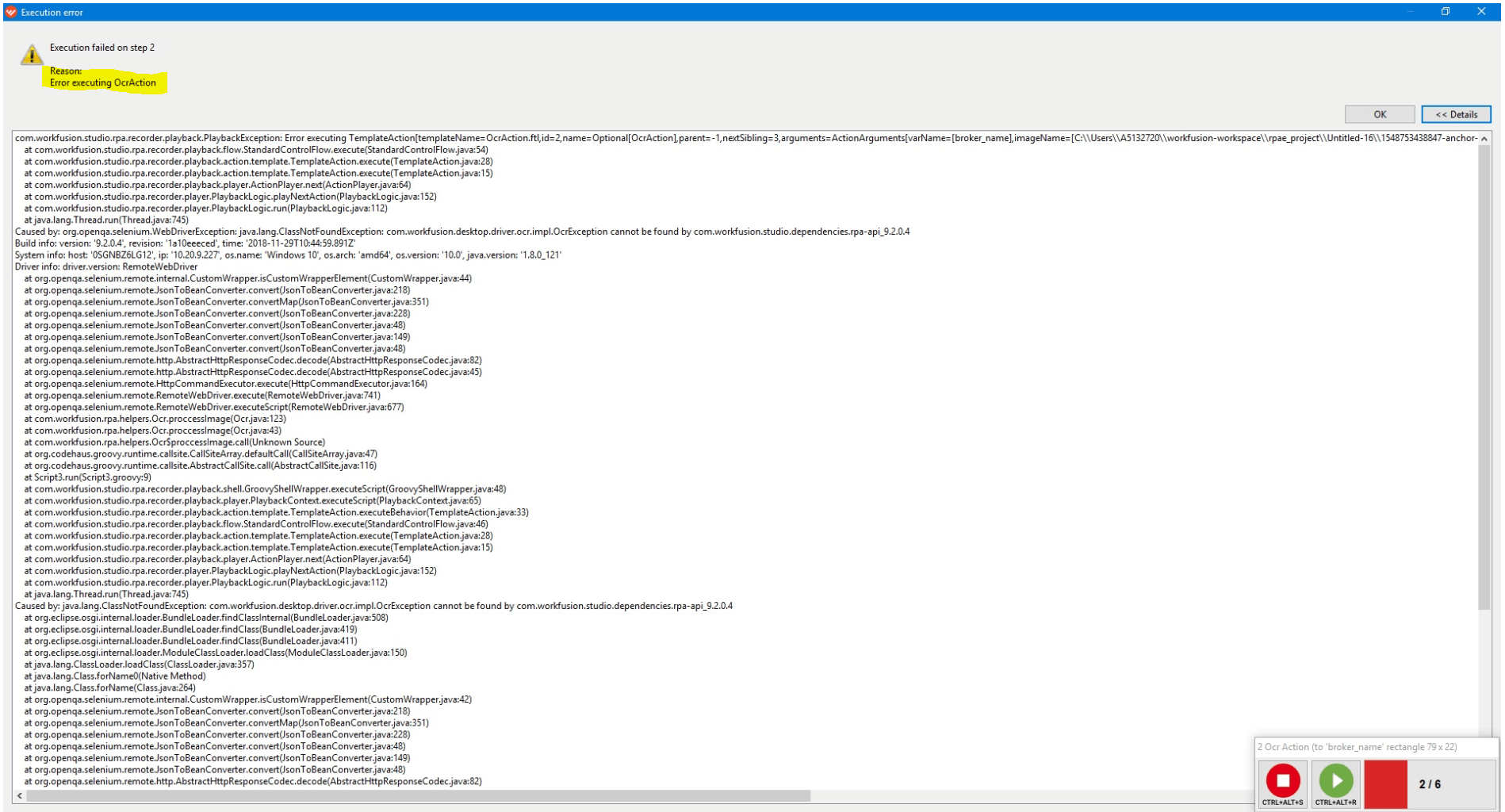
An execution error occurs:
Resolution
To resolve the issue, follow the steps below:
Check the OCR status and the remaining number of pages to be processed under the current OCR license.
If you see 0 pages left, you'll need to purchase an OCR license.
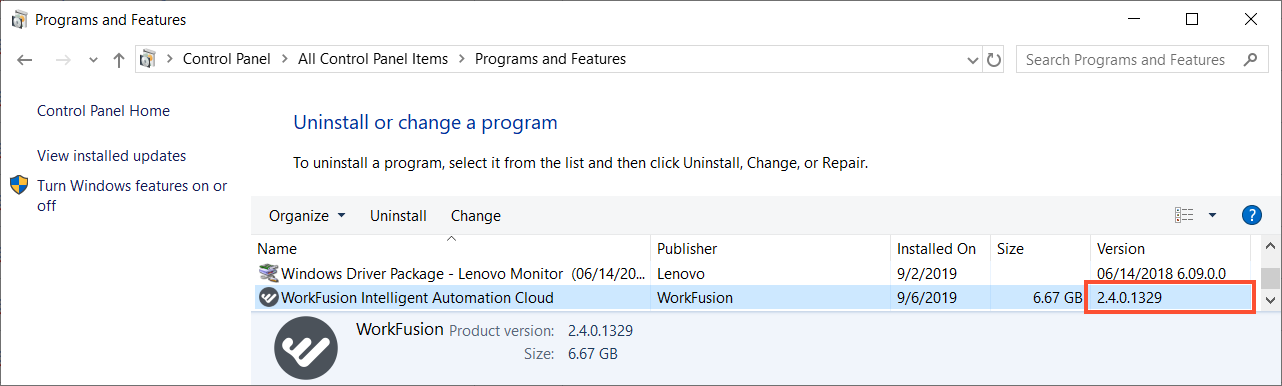
If you still have pages remaining, check your Intelligent Automation Cloud version as it might require an update. Go to Control Panel > Programs > Programs and Features as shown in the picture below.
Window cannot be recognized in SAP GUI
Expand to learn more
Symptoms
While automating SAP GUI, you use the Window action, but the window cannot be recognized. For example, you entered the selector of the Save As window using Inspector.
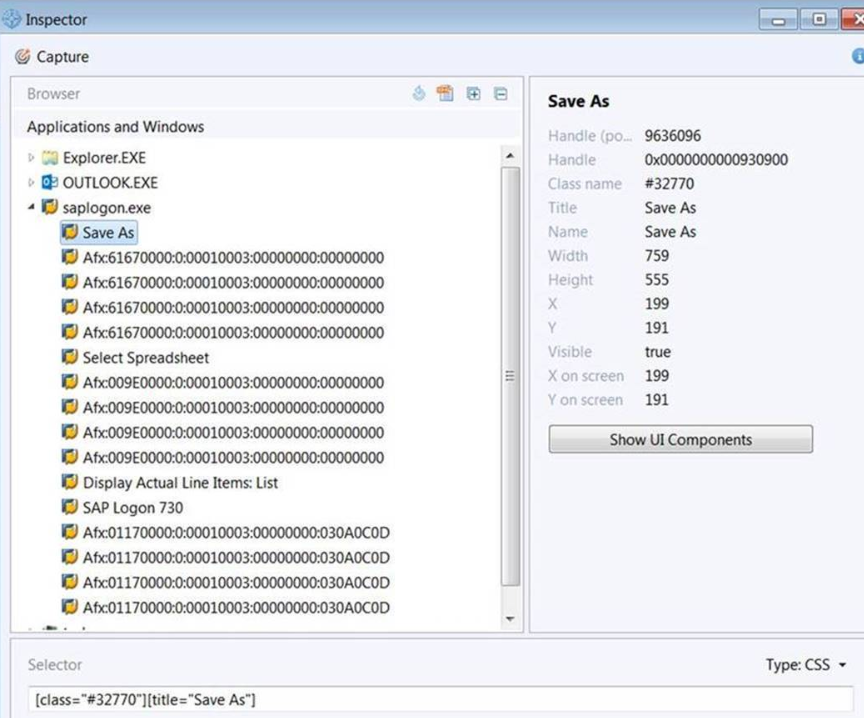
During script execution, an exception occurs:

Resolution
To resolve the issue, follow the steps below:
- Check your SAP GUI UI theme.
- Change your UI theme to Blue Crystal or Classical if you use any other.
- In case you use one of these themes or the solution doesn't help, collect and zip log files.
Exception on opening execution-result.log.csv
Expand to learn more
Symptoms
As you try to open execution-result.log.csv in Excel after script execution, the following exception appears:

The error occurs because the total length of the file name and path exceeeds the allowed limit.
Resolution
Make sure the whole file path to the execution-result.log.csv* file does not exceed:
- 200 characters for OneDrive, including spaces and slashes
- 260 characters for a local drive, including spaces and slashes
In case the path exceeds the above values, move your project or the entire workspace to a shorter path and remove the unnecessary folder hierarchy.
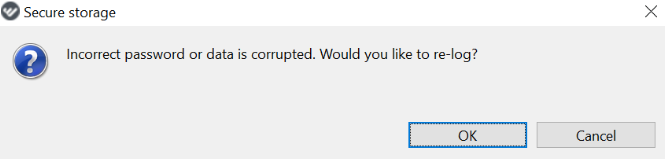
Oracle JInitiator version is too low. Please install version 1.1.8.2 or higher
Expand to learn more
Symptoms
As you try to log into a servlet (Oracle Form), a similar exception occurs:
Resolution
Usually, the exception means that the Java version is old, for example, 7. But our application has its own Java package with version 1.8, so this is not the issue in this case. To fix the exception, do as follows:
Open Java Control Panel and select the Java tab.

Open View and,in the Runtime Parameters field, enter -Djava.vendor="Sun Microsystems Inc.".
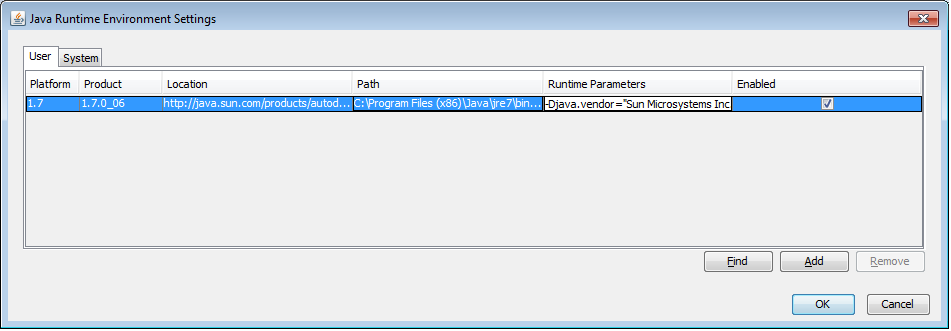
Click OK and close Java Control Panel.
Run your script.
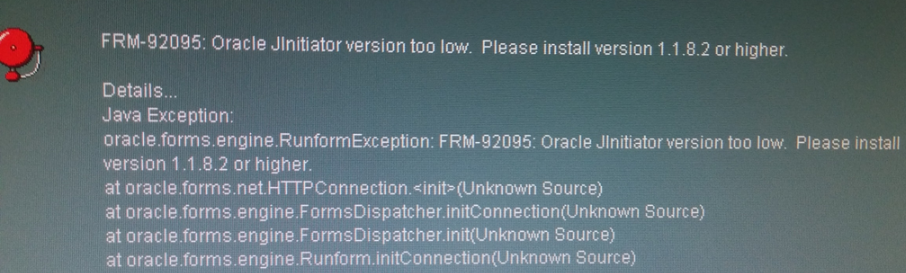
Secure storage password: Incorrect password or data is corrupted
Expand to learn more
Symptoms
After launching Eclipse IDE and entering the Secure Storage password, you receive the following message:
Resolution
To resolve the issue, follow the steps below:
- Close this message window and Eclipse completely. You may have to click the message window several times.
- Go to the
C:/Users/_your_user_name_folder and remove the.eclipsefolder. - In the same folder, remove the
profiles.propertiesfile. - Run the application again, enter a new password and hints if needed.