Work with ML Ops Platform
ML Ops Platform, built on top of Kubernetes, is an optional add-in to our core Product. For instructions on installing the add-in and modifying the cluster configuration, read the guide.
The add-in can give you more flexibility and power in working with models than AutoML SDK:
Access to deep learning pipelines to address more complex document processing use cases
Elastic scaling through Kubernetes for efficient utilization of computational resources and reducing costs
Access to real-time model performance data during training and in production with state-of-the-art analytics
Seamless integration with both on-premise and cloud deployments of the WorkFusion platform
Monitoring and detecting model drift and decay in production
Support of federated and transfer learning
Reduced maintenance effort to support the infrastructure and functionality
Compatibility with multiple languages (Python, Java, R, and C++) and frameworks (TensorFlow, PyTorch, scikit, Apache Spark, and other)
Acceleration tiers: CPU, GPU, and TPU-optimised deployment modes
You can use the ML Ops Platform capabilities to annotate datasets, train models, and run experiments via the AutoML user interface in Control Tower.
Meet requirements
To leverage ML Ops Platform to the best of its capabilities, read and comply with the following requirements.
Datasets
To train a model efficiently, a dataset should contain a sufficient and well-distributed number of documents. The general recommendation is to include five to ten documents per template.
A template is a unique layout shared by a group of documents representing a vendor or a specific document format from a vendor. The ideal number of documents per template depends on the complexity and variability of the documents within that template. For example, if the field locations and the context around them are consistent within the template, five documents should be adequate. Otherwise, it's better to include ten documents for that template. For more information, see Input document characteristics.
The training and test sets should have similar distributions of document templates. For example, if the dataset includes three templates, the training and test sets should have a proportional number of documents from each template.
If some documents have poor OCR quality, for example, only a few fields are recognized correctly, it is better to remove them from the dataset.
Labeling
For labeling, use the following functionality in Control Tower: AutoML > Datasets. For instructions, read Manage datasets.
Labelers should follow the Labeling requirements guide.
Train models
To launch model training, log in to Control Tower, navigate to the AutoML menu, and follow the instructions.
When setting a configuration for an information extraction model, you can choose an ML Ops deep learning pipeline. As the pipelines require extensive computational resources, you will not be able to leverage their benefits unless you have ML Ops Platform installed.
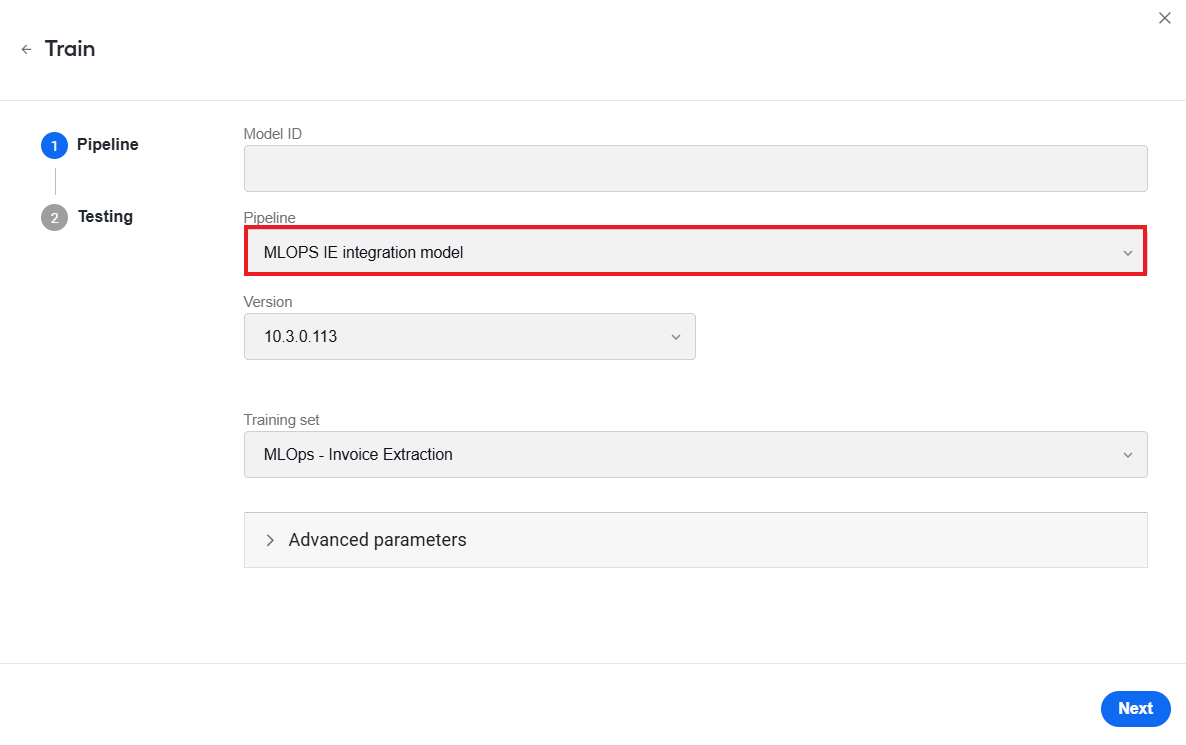
The deep learning pipeline is based on LayoutLM. The pipeline allows processing more complex document types (such as large multi-column Loss Run tables) and delivering more sophisticated information extraction models in a shorter time.
Unlike most natural language processing models focusing only on text-level manipulations, LayoutLM works with both the text and the layout dimensions. It is specifically tailored for tasks like extracting information from complex documents, such as invoices, forms, receipts, or any other structured or semi-structured document types. LayoutLM was introduced by Microsoft and is based on the Transformer architecture.
Test models
There are two ways how you can test models:
Apply cross-validation. In this case, the training set is divided into multiple smaller sets. A model is trained and tested several times, each time using a different combination of these sets. The process helps to make sure the model performs well on different parts of data, giving you a more reliable measure of its effectiveness.
Evaluate the model using a test set. You can choose test sets during training or on the Experiments page in Control Tower: in the upper right corner, click the plus (+) button and select Test new.
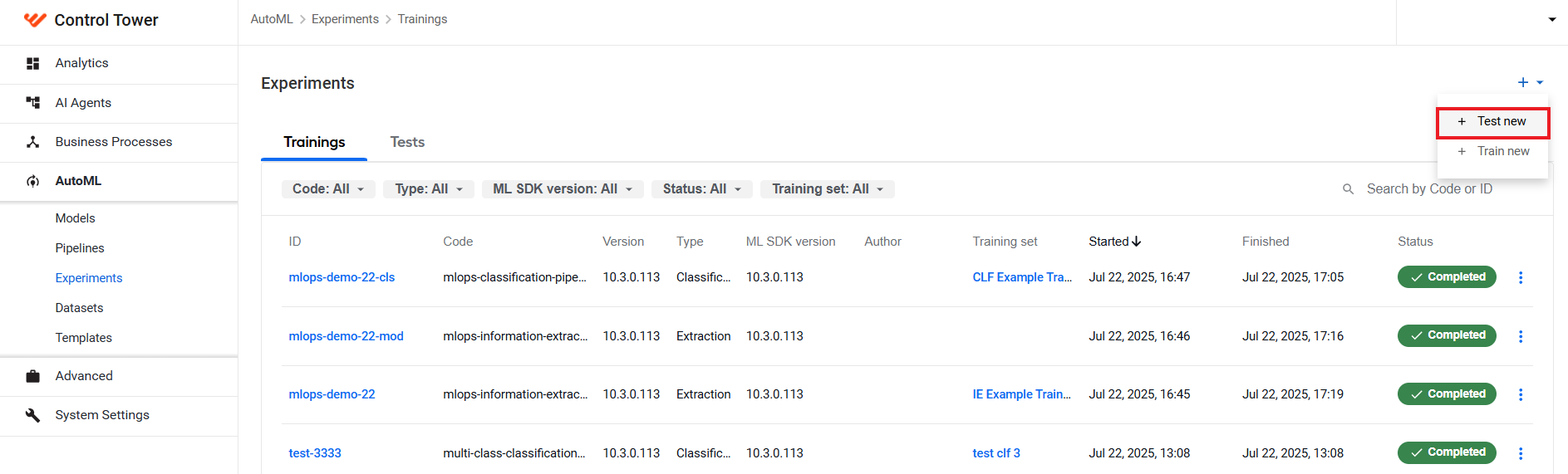
For more information on model testing and experiments, read the Run experiments topic.
View model results
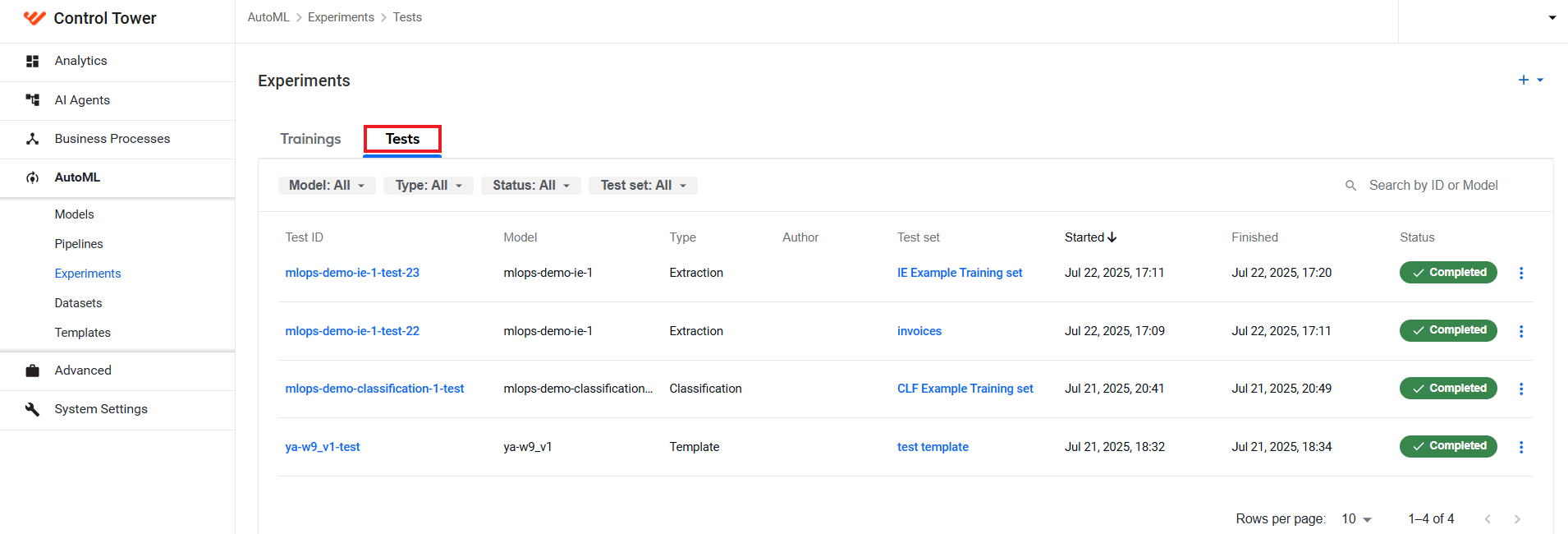
To view the results of a model test, go to AutoML > Experiments, navigate to the Tests tab, and click the corresponding test ID.
A page opens with test run details:
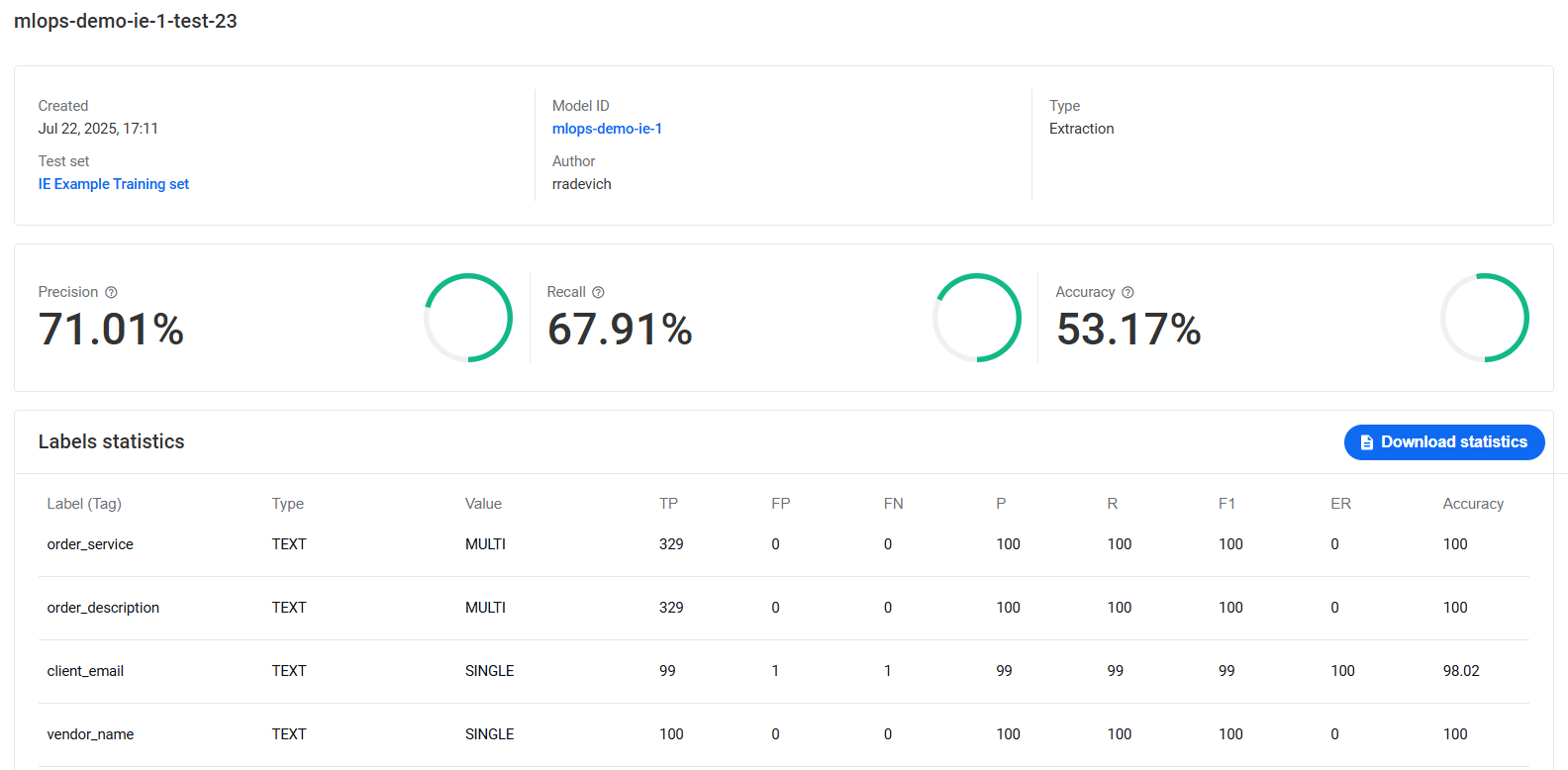
For more details on reviewing testing results, read the guide.
Improve models
If the results of a model test fail to meet your expectations, you can do the following:
Check that data is labeled correctly. Labels should be consistent, complete, and have correct data values. For more information, read the Labeling requirements guide.
Select appropriate normalizers for each field. If a specific field has low accuracy and it was normalized during labeling, verify that you have chosen a normalizer that converts the extracted value to the required format.
For instance, if a date appears in various formats but needs to match a specific expected format, apply a normalizer that transforms the extracted date to the correct format. For normalizer setup examples, see the tutorial.
Add more data. Increase the dataset size by adding more documents for more challenging templates or fields.
Import models
Integration with the ML Ops Platform allows you to import not only WorkFusion models but also third-party GenAI ones. For details and instructions, see Manage models | Import model with ML Ops Platform integrated.