Keyboard
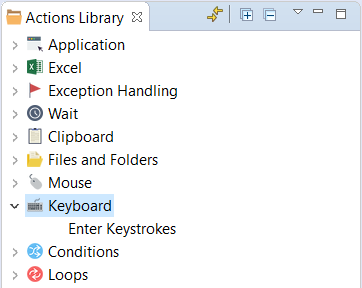
The Keyboard action group is intended for entering text and typing key combinations using the keyboard. The Enter Keystrokes action is automatically recorded when you type something during the recording process.
You can add the Enter Keystrokes actions manually when editing a recording by dragging it from Actions Library to Actions Flow.
There are three ways of using the Enter Keystrokes action.
- Press a key combination, for example, CTRL + HOME.
- Type text, for example,
Some input text string that cannot be changed at run-time. - Get text from a variable, for example,
${currentState}that is a dynamical value.
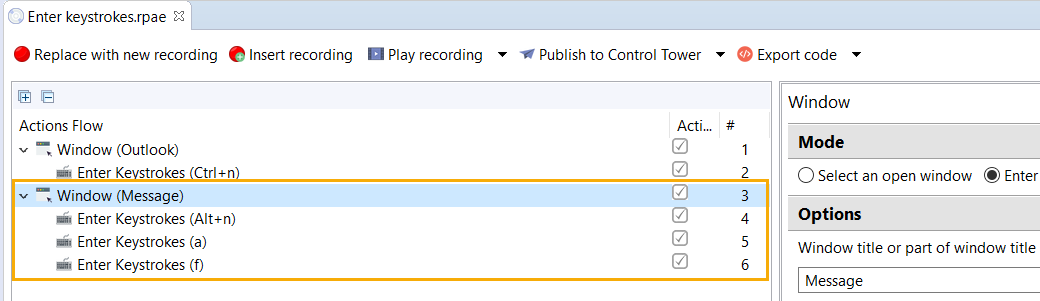
Before using the Enter Keystrokes action, you have to switch to the window you need to type the text. Using the Window action, a bot switches to the specified window and ignores any random popups.
Make sure that the Enter Keystrokes actions are nested underneath the actions they belong to.
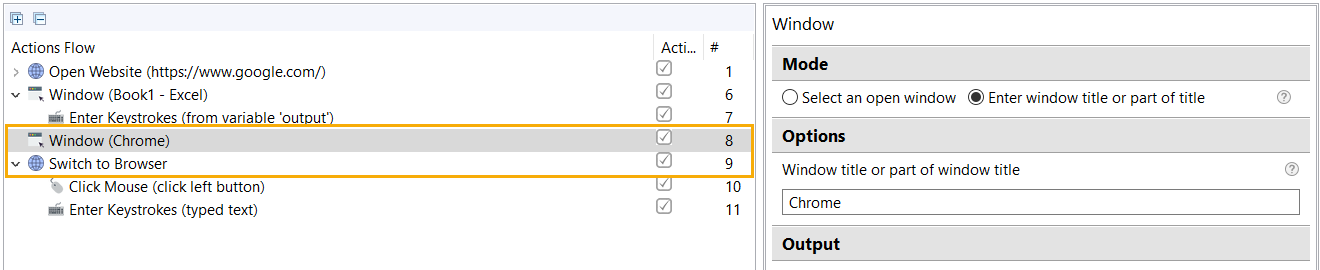
When typing in the web, it is recommended to use the Window action before Switch to browser, as this moves the focus from a desktop application to a browser window, thus allowing keystrokes to work in the browser.
Mind that the Switch to browser action is used only if the Open Website action has already been added to the flow.
If using Windows global shortcuts, for example, Win + R, Win + S, and so on, make sure to switch to the Windows Desktop window (Program Manager) beforehand. Use the Window action and then enter a needed key combination via Enter Keystrokes.

Key combination
A key combination is the use of two or more keys on a keyboard to generate a specific result. These keys are pressed either at the same time, or one after the other while holding down each key until the last key is pressed.
Many key combinations are also considered shortcuts to performing various actions within the operating system or a software program.
Some of the common key combinations include:
- CTRL + S: save a currently open file.
- CTRL + C: copy the highlighted text or an image.
- CTRL + V: paste the text or an image.
- CTRL + A: select all text and images (everything) in the current, active application.
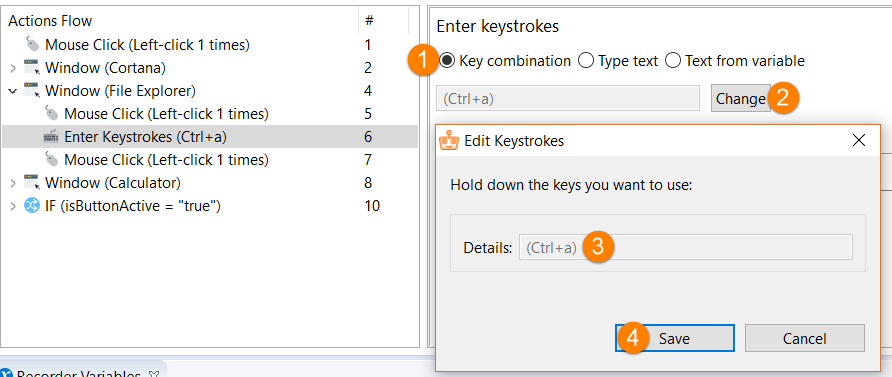
Key combinations are automatically captured and saved during the recording process, if you want to edit or create one from scratch, do as follows:
Select the Key combination option.
Click the Change button.
Enter the key combination using your keyboard. It should appear in the Edit Keystrokes window.
Click the Save button.
For key combinations in Windows and Windows applications and utilities, see Using keyboard shortcuts for automation.
Type text
If you want the Recorder bot to enter some unchangeable text, perform the following actions.
Select the Type text option.
Enter the text into the field below.

To type text, you can use Recorder variables even with combination of text entered directly in the input field, for example, New File ${recorder_variable_string}.
Text from variable
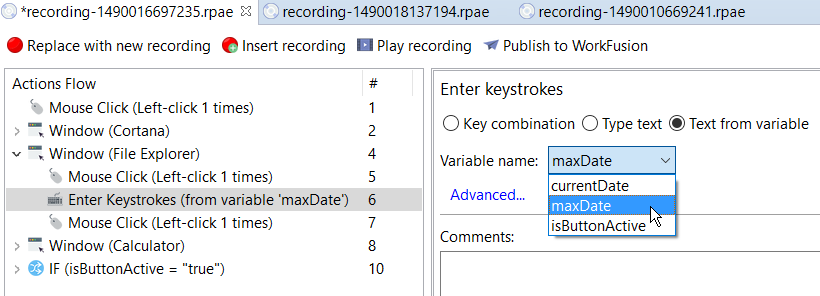
If you want the Recorder bot to enter some dynamic text from a variable, do as follows.
Select the Text from variable option.
Pick the right variable from the Variable name list.
To speed up the script execution, use the Clipboard action and the Ctrl + V key combination instead of Enter Keystrokes.