Work with Bot Manager
Bot Manager is an application installed on the Master Server and used to:
- Contain a cluster configuration
- Manage RPA Workers
- Maintain active RDP sessions
- Record videos of actions
- Collect analytics data
Get to know architecture
To see the interaction between RPA components, refer to RPA deployment.
The components act in the following way:
- Via an RDP connection, Bot Manager maintains active RDP sessions, enabling Bot Master to autostart and RPA Units to click through the active UI. That also allows Bot Manager to receive data from a Bot Agent, for example, fleet information, a Worker port, and so on.
- The Bot Manager UI allows sending commands to RPA Workers, viewing statistics, and tracking the number of RPA Units, servers, and processes. The communication is performed via the secured Nginx connection.
- Bot Manager gets data on RPA Unit statuses and performance from Bot Agent and transfers it to the MS SQL Server to be used by analytics.
- Bot Manager communicates with Secrets Vault to provide all RPA-related credentials. As soon as the credentials rotation is configured in Control Tower, new credentials are automatically applied to all RPA Units.
Migrate Bot Manager users to Keycloak
Access to Bot Manager is controlled by specific user roles and permissions. To gain access, you must set up at least one of the following permissions in Keycloak:
BM_VIEW_UI: the basic permission required for any user to access the Bot Manager UI. With this permission, you can view the UI, monitor the status of units (for example, whether they are running or not), but you cannot perform any execution actions on the RPA servers.
BM_EXECUTE_ACTIONS: the permission is required to send remote commands via the Bot Manager UI to the RPA server. With this permission, you can start, stop, or restart RPA Units on the RPA server.
Currently, there is no automated feature for migrating users with Bot Manager permissions to Keycloak. You must perform the migration manually. To do this, complete the following steps:
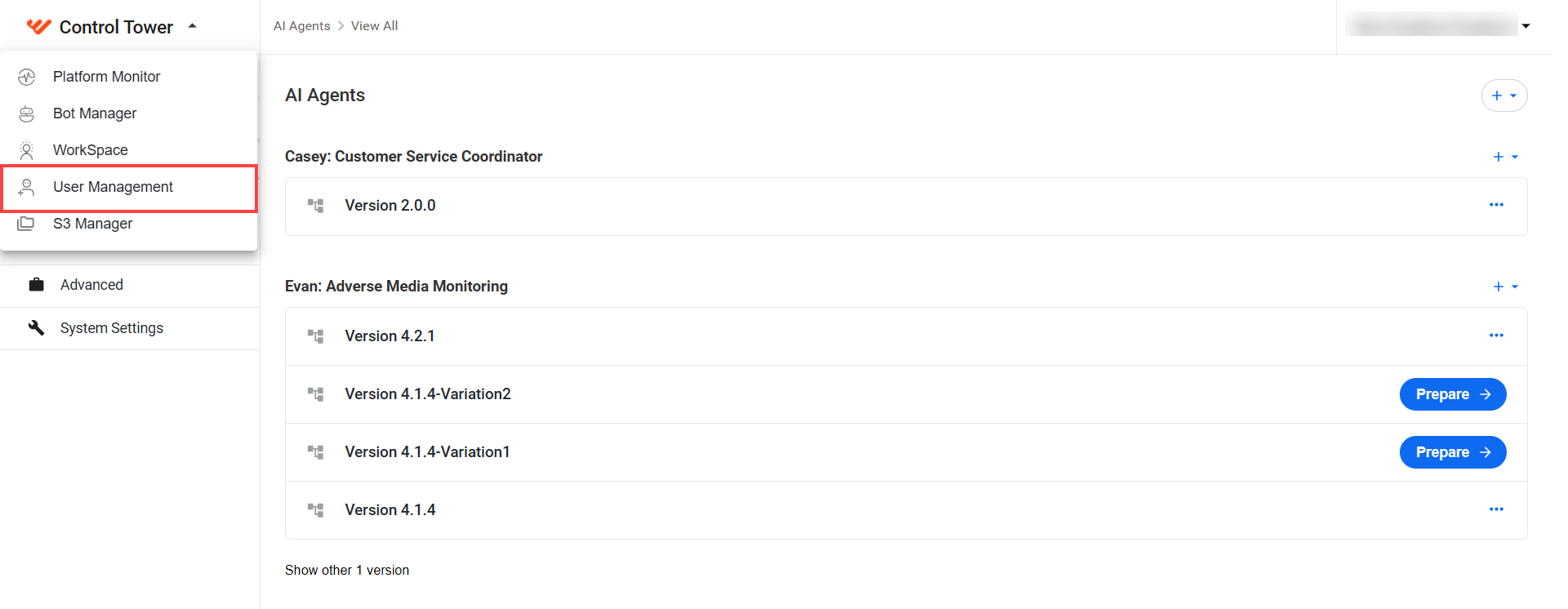
In Control Tower, go to User Management.
You will be redirected to the Users section, where you can find both custom and default users. For example, ninetwoten is a custom user.
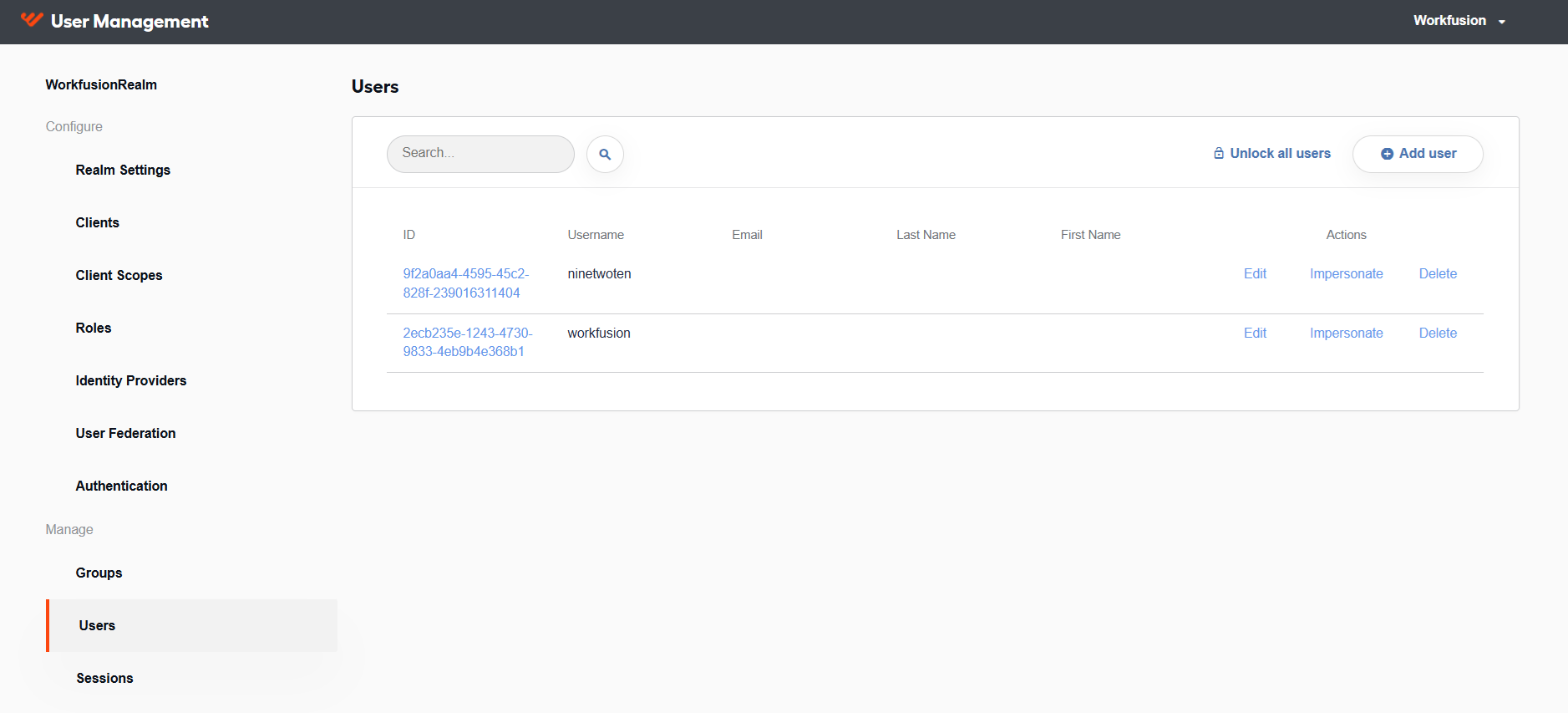
Click the user to whom you want to assign Bot Manager permissions, then navigate to the Role Mappings section.
In the Client Roles drop-down menu, select wf-bot-manager.
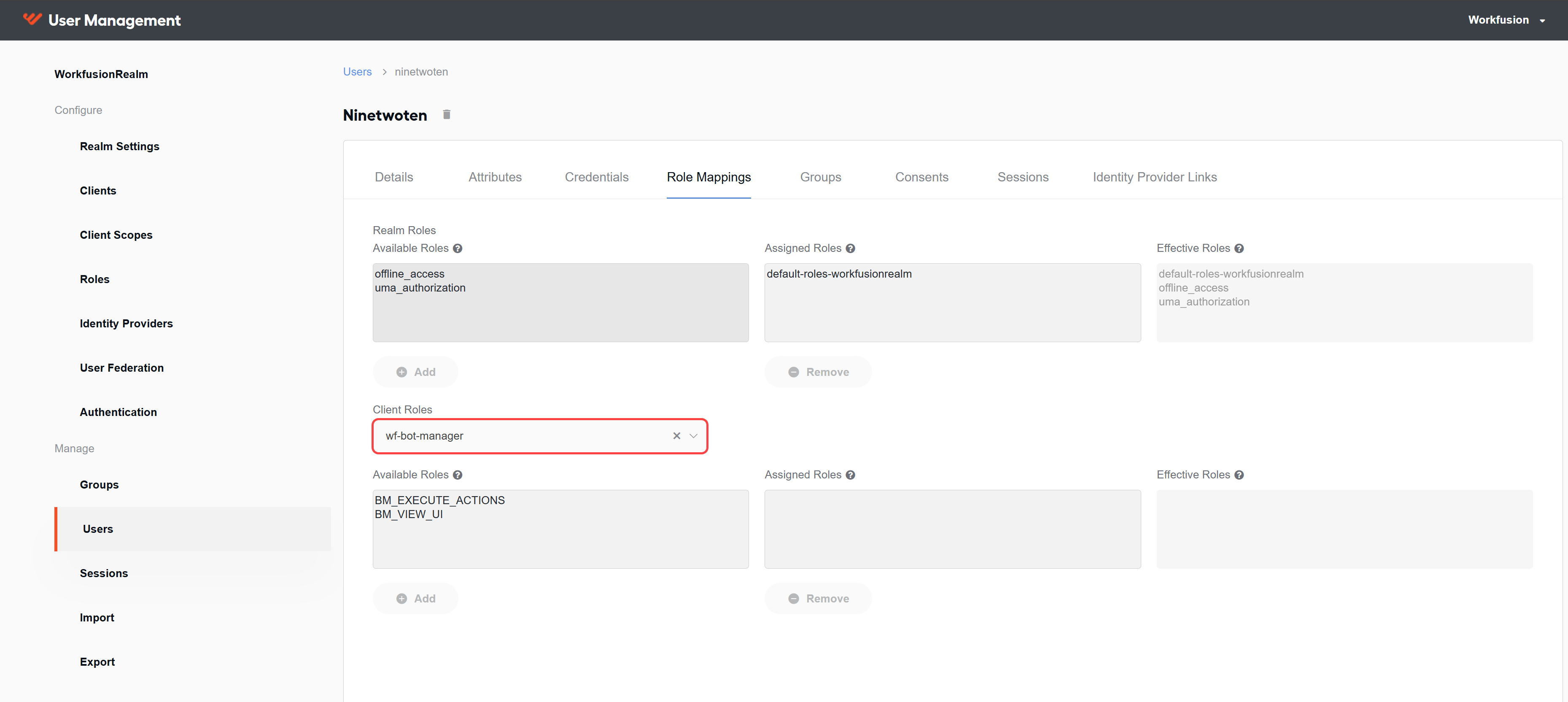
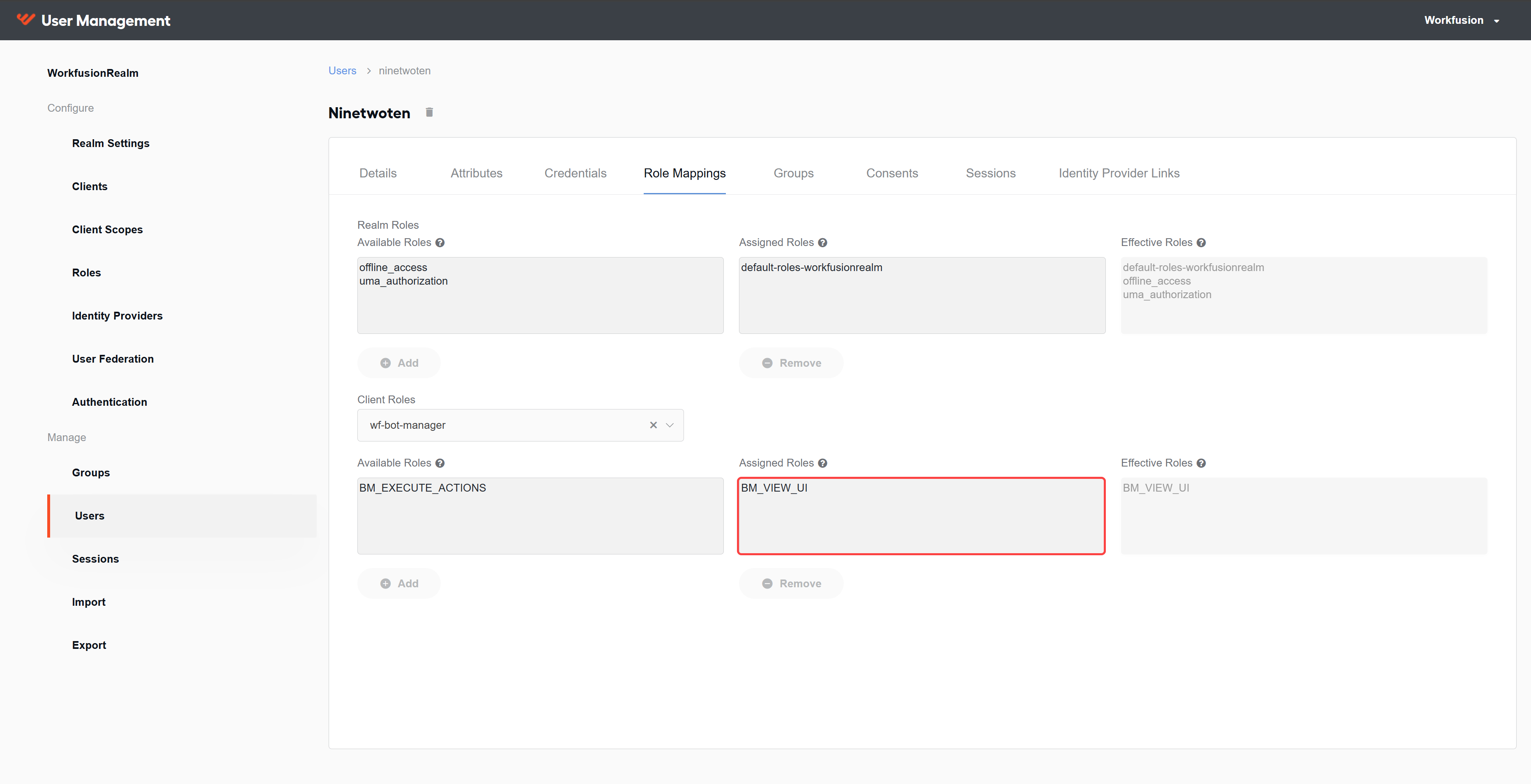
Choose the appropriate permission in the Available Roles section according to your requirements and click Add. The selected permission appears in the Assigned Roles section.
Now, if the user attempts to access the Bot Manager UI, it should be visible.
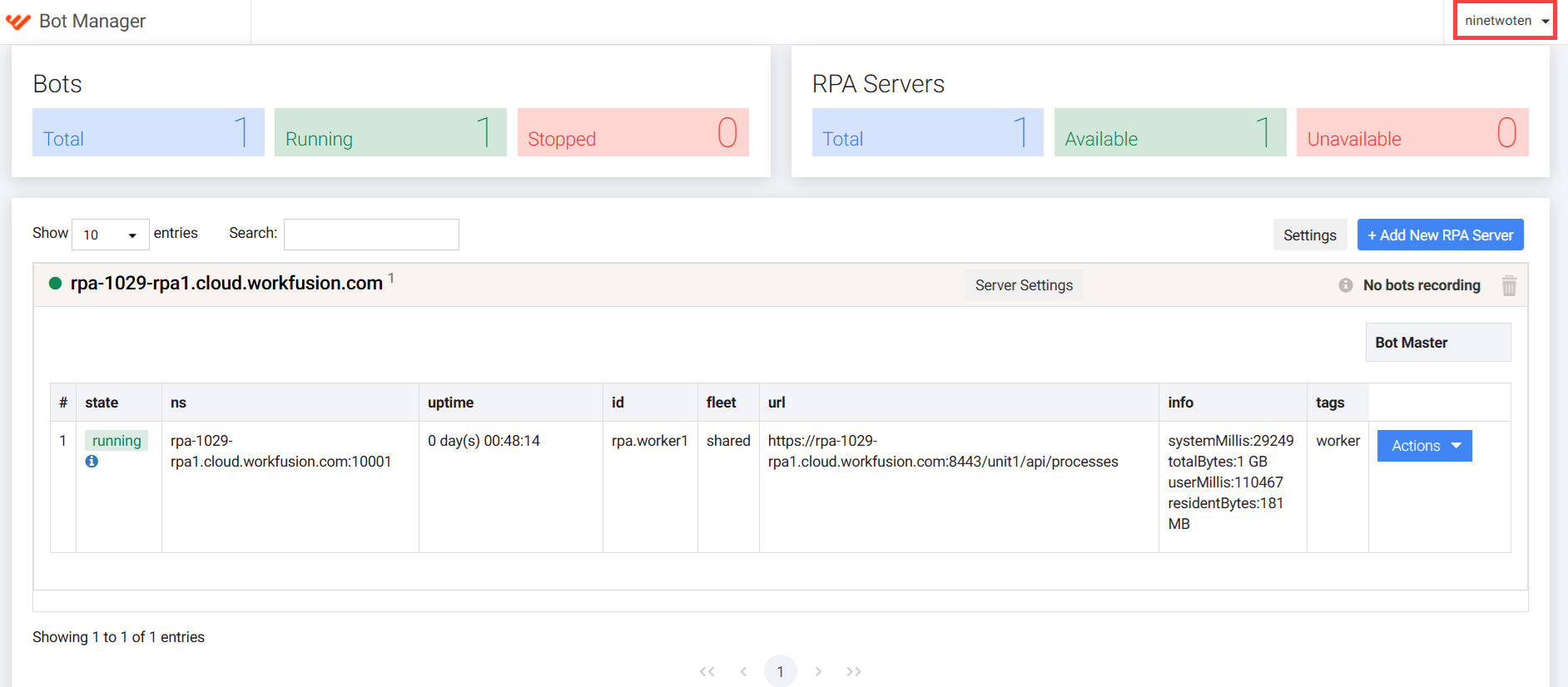
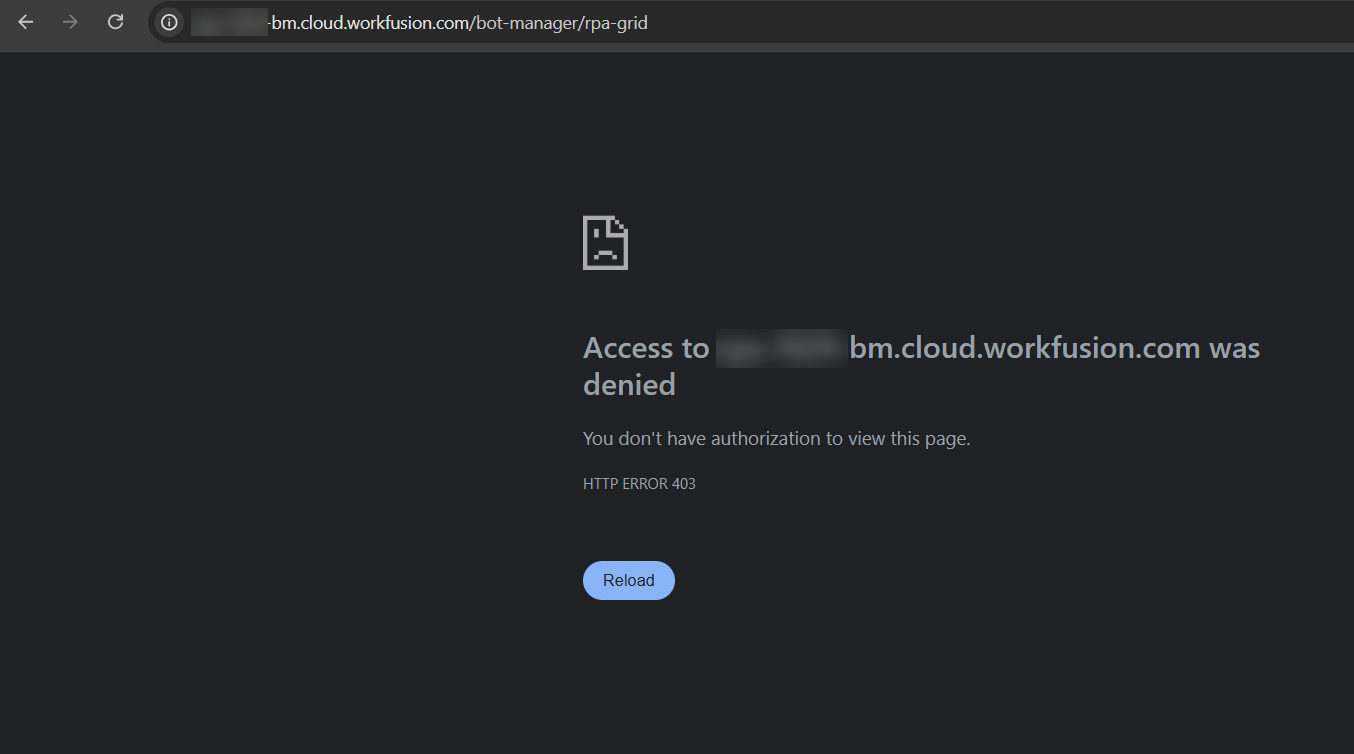
If access is not granted, the UI appears as follows:
View Bot Manager
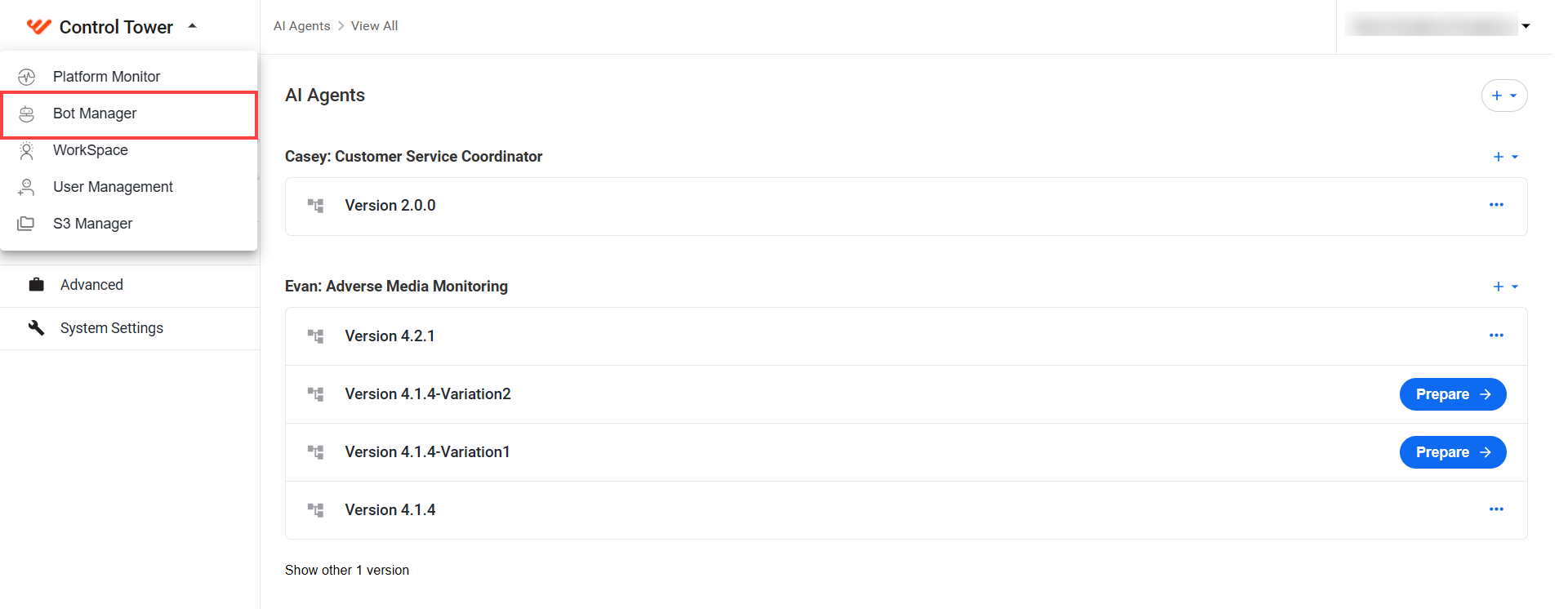
To open Bot Manager, click the dropdown in the upper left corner and select Bot Manager.
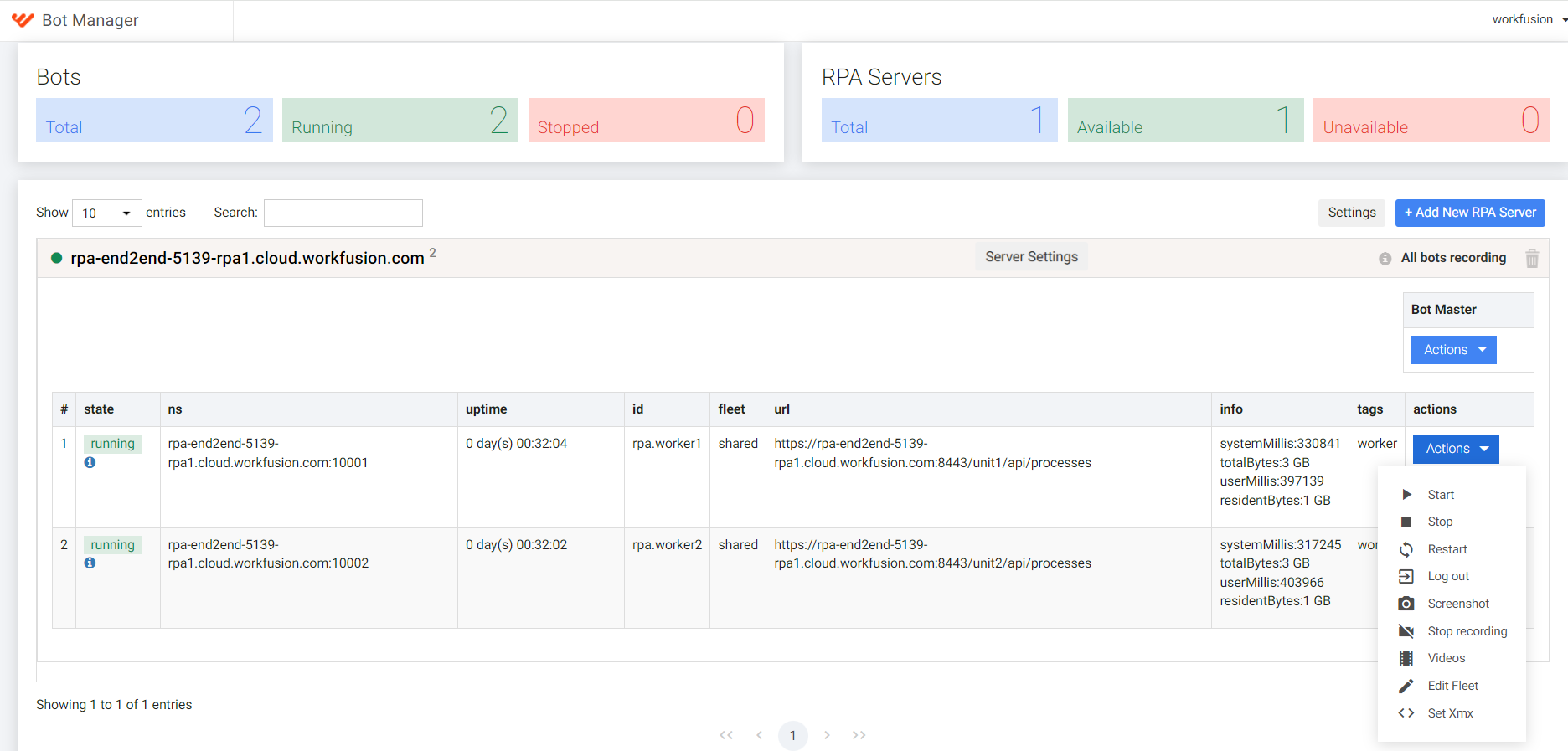
There are the following sections in the Bot Manager UI:
- Bots. Statistics for all RPA Units:
- Total
- Running
- Stopped
- RPA servers. Each RPA server has a list of managed processes:
- Total
- Available
- Unavailable
- Process metrics:
- state
- ns
- uptime
- id
- fleet
- url
- info
- tags
- RPA server actions:
- Switch web driver auto-update
- Start/Stop recording
- Videos
- RPA Worker actions:
- Start
- Stop
- Restart
- Log out
- Screenshot
- Start/Stop recording
- Videos
- Edit Fleet
- Set Xmx
Configure RPA server
Add RPA server
To add a new RPA machine, perform the following steps:
Click Add New RPA Server.
In the window that follows, enter the server hostname.
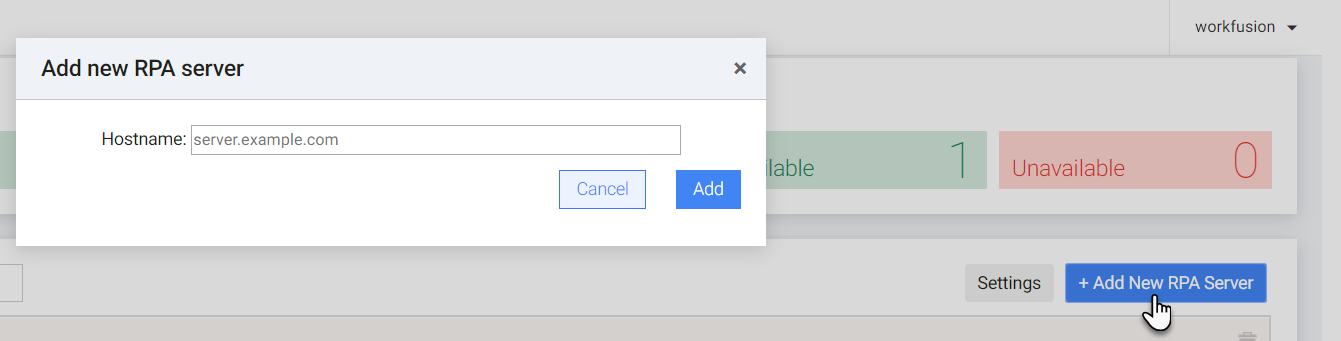
Click Add. The server appears in the list of RPA servers.
Enable web driver auto-update
You can enable automatic updates for browser driver software on your RPA server without stopping the environment. To do this, perform the following steps:
Open the Server Settings menu.

Switch on the Switch web driver auto-update toggle.
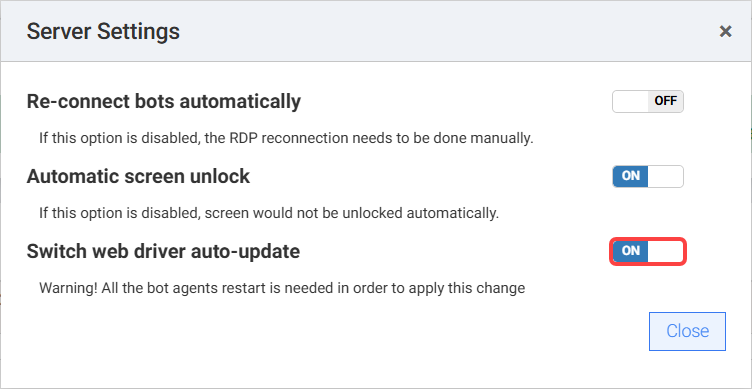
Restart the RPA infrastructure on the affected server. In the Auto-update driver window, click Yes to proceed with the restart.
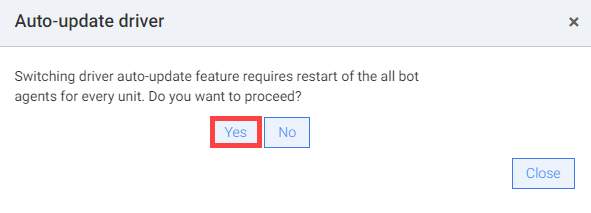
To disable automatic web driver updates, switch off the toggle. For more details, see Update web drivers.
Set up RDP auto-reconnect
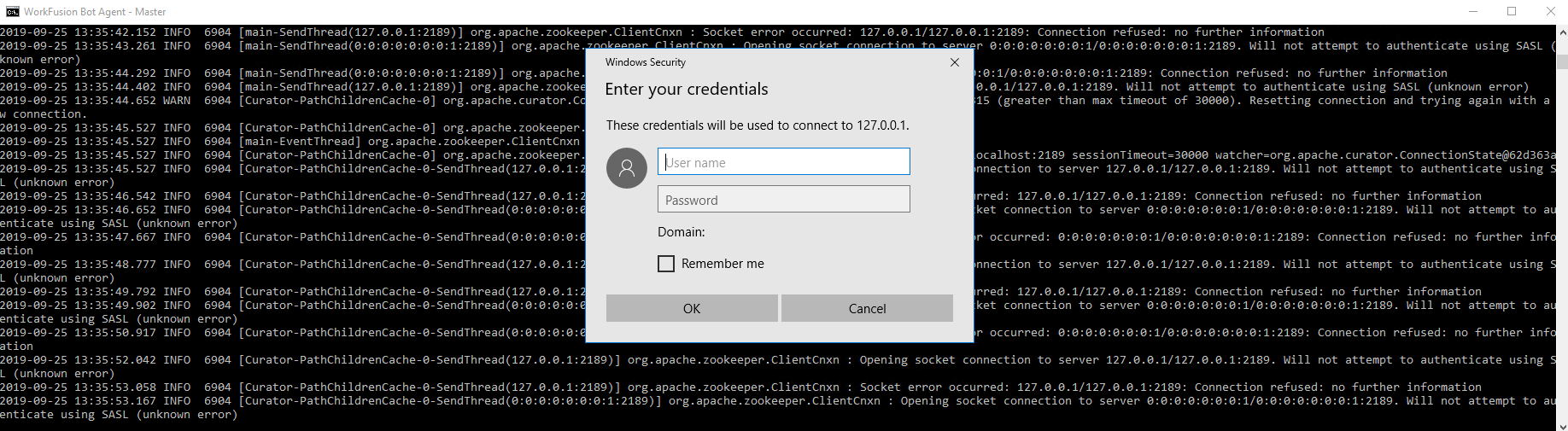
If Windows Credential Manager is unavailable, automatic reconnection is not possible because Bot Agent Master cannot auto-fill credentials. As a result, you must connect to the Bot Agent Master session and fill in credentials manually to start each RPA Unit session each time the RPA environment starts.
The Re-connect bots automatically setting configures automatic RDP session reconnection before each task execution but does not monitor screen lock in the middle of the execution.
To enable the auto-reconnect option, complete the following steps:
Open the Server Settings menu.
Switch on the Re-connect bots automatically toggle.
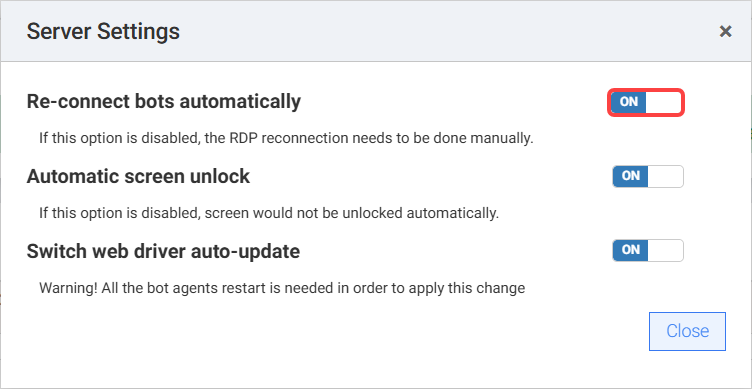
If the auto-reconnect option is not set to false, the RPA Unit attempts to reconnect when starting an RDP session but cannot fill in credentials, resulting in an exception.
If you switch off the toggle, you must manually reconnect to the Bot Agent Master session. To do that, connect to the Bot Agent Master session, enter the RPA Unit credentials, and start Unit sessions.
Enable automatic screen unlock
The Automatic screen unlock setting prevents the screen from locking during process execution by allowing real-time monitoring and unlocking.
To enable the feature, do as follows:
Open the Server Settings menu.
Switch on the Automatic screen unlock toggle.
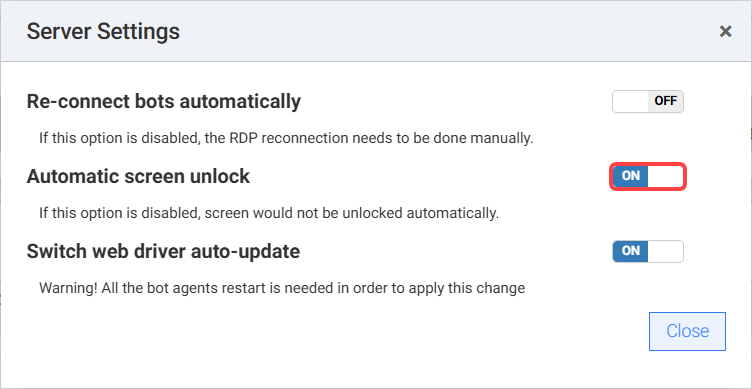
To disable the automatic screen unlock, switch off the toggle.
Remove RPA server
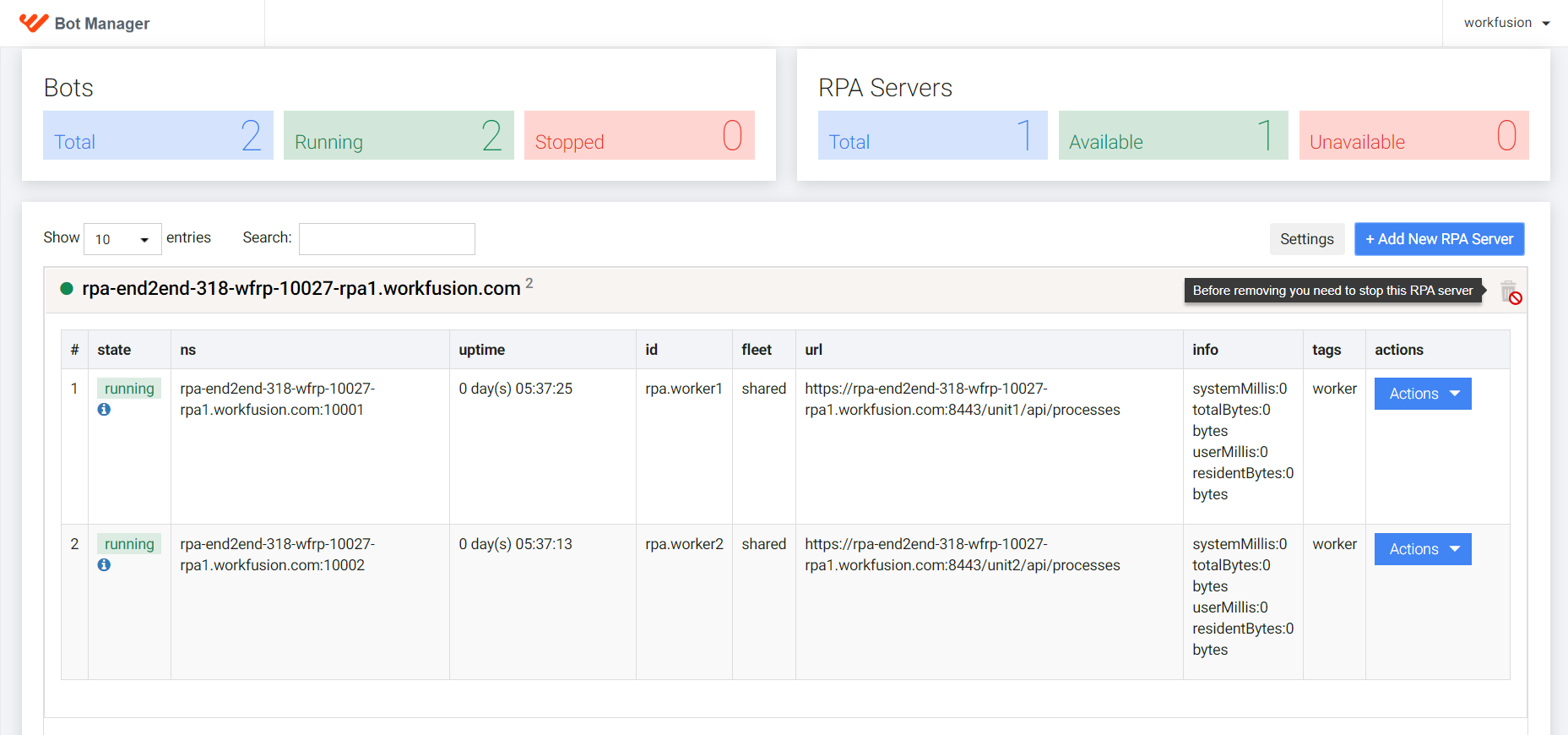
Make sure the RPA server you are going to delete has no processes running at the moment. Otherwise, the bucket button is unavailable. If you have any active processes, stop them manually. For that, select the server to expand and, in the Actions list, click Stop.
To remove an RPA machine, do as follows:
Click the bucket button next to it.
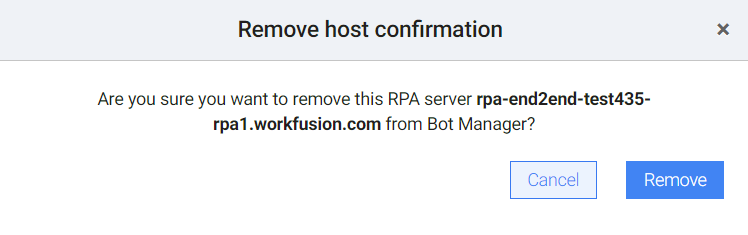
In the Remove host confirmation window, click Remove to confirm.
Configure RPA Worker
Each RPA server has a number of RPA instances. To run an action for a selected instance, click Actions next to it and choose a needed action.
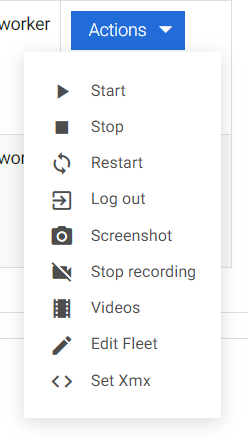
| Action | Description |
|---|---|
| Start | Launches a selected process. |
| Stop | Stops a selected process. |
| Restart | Stops and starts a selected process again. |
| Log out | Executes the logout command. The RDP session closes, and all processes are stopped. |
| Screenshot | Takes a screenshot. Works for active RDP sessions only. |
| Start/Stop recording | Starts or stops video recording for an RPA Unit. |
| Videos | Views the list of videos uploaded to S3 for the current Unit. |
| Edit fleet | Edits a fleet for an RPA Unit. |
| Set Xmx | Sets a maximum heap size value for an RPA Worker on the current Unit. |
Edit fleet
By default, each RPA Worker starts with the fleet defined on the RPA Server via the %RPAInstallDir%/bot-agent/conf/units/unit{unit_id} path:
fleet: shared
You can view the current fleet for each RPA Worker within the relevant section.
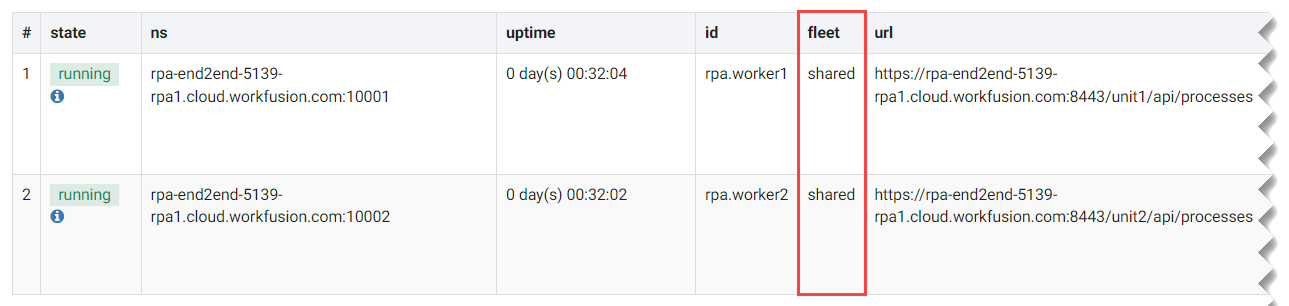
To edit a fleet for an RPA Unit, do as follows:
Select the server in the list to expand and view available options. Click Actions next to the needed instance and select the Edit Fleet action.
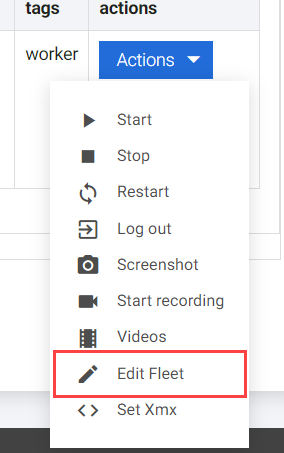
In the Edit Fleet window, select one of the options:
- Select existing: apply the already existing fleet.
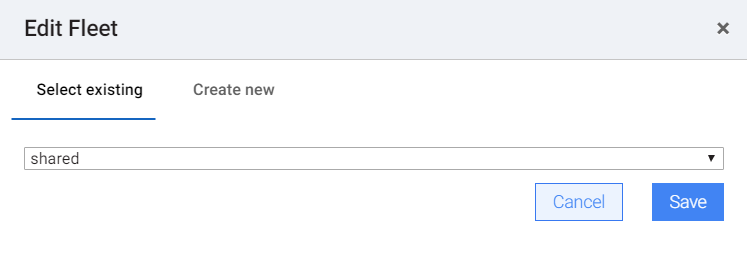
- Create new: apply a new fleet.
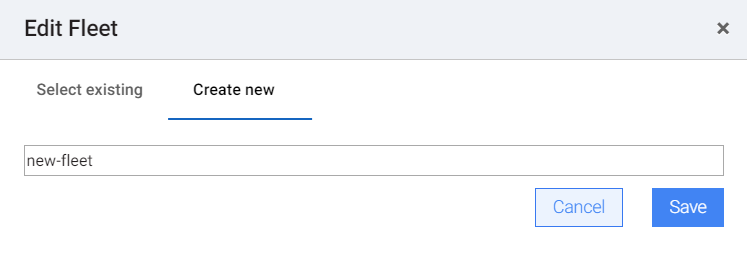
Select and enter the needed fleet value and click Save.
If the fleet updates successfully, the RPA Unit is restarted, with the pending update... value in the fleet column.

A new fleet value is displayed once the RPA Unit restarts, which can take several minutes. To see the updated fleet value, refresh the Bot Manager page.

Set Xmx value
You can specify the maximum heap size for RPA Workers on one RPA server so that they can process some large files. The default maximum heap size value is 1 GB. To change it, perform the following steps:
Select the server in the list to expand and view available options. Click Actions next to the needed instance and select the Set Xmx action.
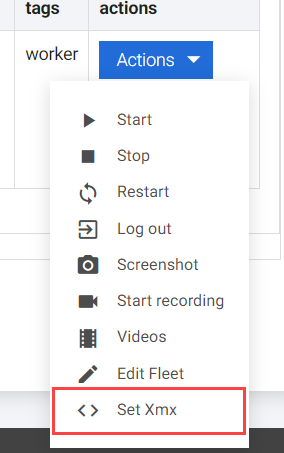
In the Set max heap size for worker window, specify the needed value and click Set. By default, 1024m (or 1 GB) is used.
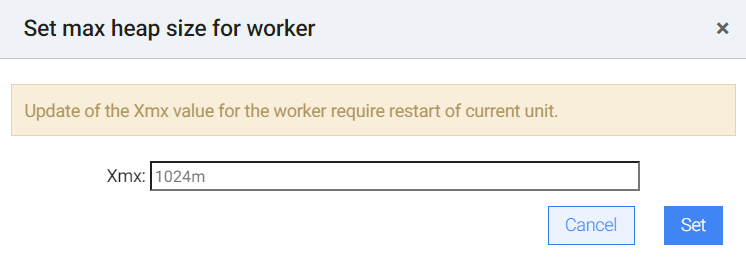
The value should not be less than 256m and should have the letter m (MB) at the end.
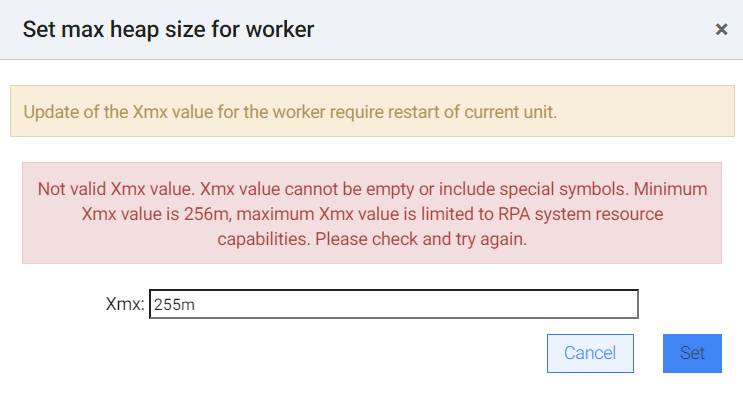
On setting a new Xmx value, the
rpa.<rpa_server_host>.unit<unit_id>.xmxZooKeeper node is updated or created.Restart the RPA Worker to apply the changes.
You can set the -Xmx value for a specific worker in the configuration file. To update the value, update the following files:
For the server or unified installation type:
RPA/conf/bot-agent-unit.ymlFor the VDI installation:
RPA/conf/bot-agent-nordp.yml
To set a new value, update the following section:
- id: rpa.worker${unit_id}
  expression: "cmd /c start 'Workfusion Worker CT' /min /wait cmd /c worker.bat ${worker.gavp} ${worker.client.id} ${server.address} ${fleet.${environment.agent.hostname}.${unit_id}:${fleet}} unit_nordp \"${environment.agent_zookeeper_connect_string}\" ${rpa.${environment.agent.hostname}.driver.auto-update:false} \"${apm-settings}\" \"${logging.logstash.endpoints}\" ${rpa.${environment.agent.hostname}.unit${unit_id}.xmx:1024m}"
  directory: "../worker"
  tag: "worker"
  healthCheckEndpoint: "http://localhost:${worker_port}/health"
In ${rpa.${environment.agent.hostname}.unit${unit_id}.xmx:1024m}, update the default value of 1024m with a new preferable value, for example, 2048m.
Record videos
You can record videos of actions currently performed on each RPA Unit screen. For more details, refer to Troubleshoot with RPA Unit screen video recording.
Start video recording
To start screen capturing on the Bot Master machine, follow the steps below:
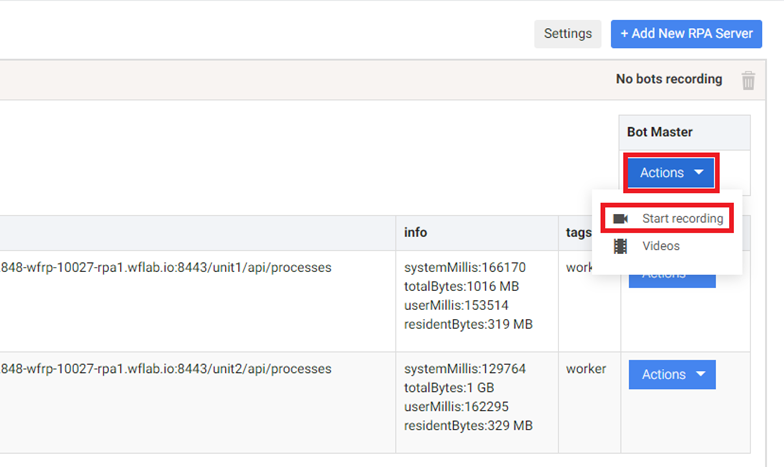
Click the Actions button under Bot Master and select Start recording.
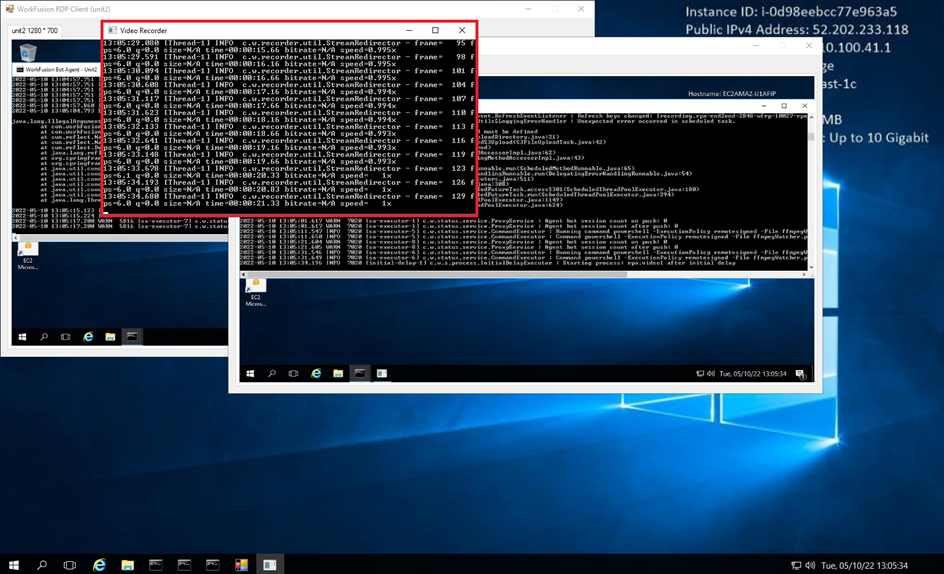
Connect to the Bot Master via RDP and check if the video recording process is displayed.
To start screen capturing on an RPA Unit machine, do as follows:
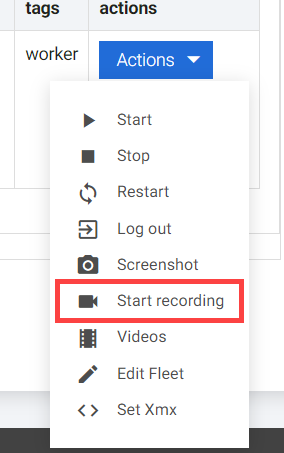
Click the Actions button next to the needed instance and select Start recording.
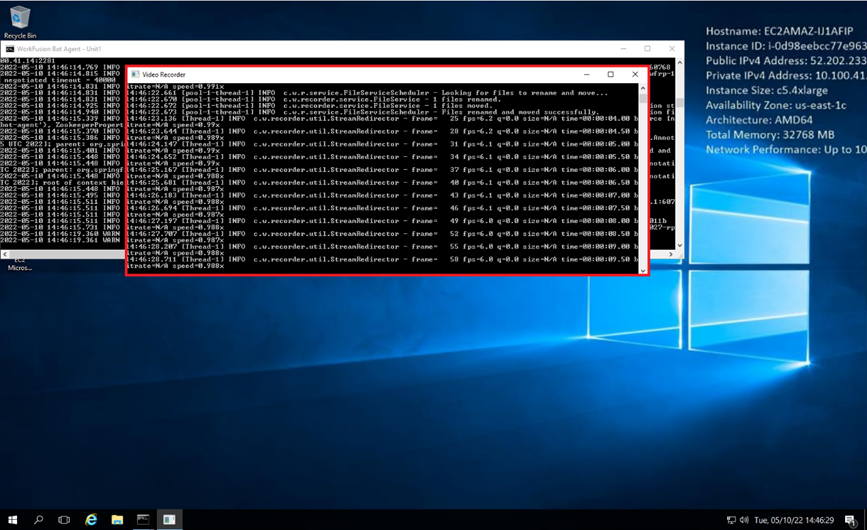
Connect to the RPA Unit via RDP and check if the video recording process is displayed.
Stop video recording
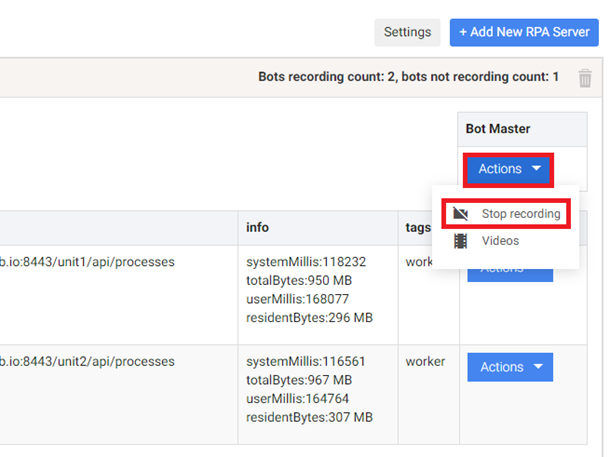
To stop the screen capturing on the Bot Master machine, click the Actions button under the Bot Master table and select Stop recording.
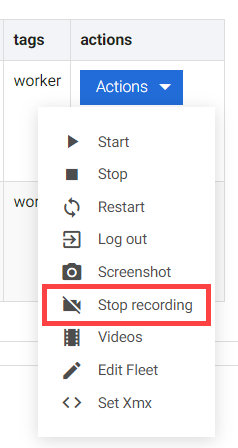
To stop the screen capturing on an RPA Unit machine, click the Actions button and select Stop recording.
Check video recording status
The current status of video recording processes is displayed next to the instance name:
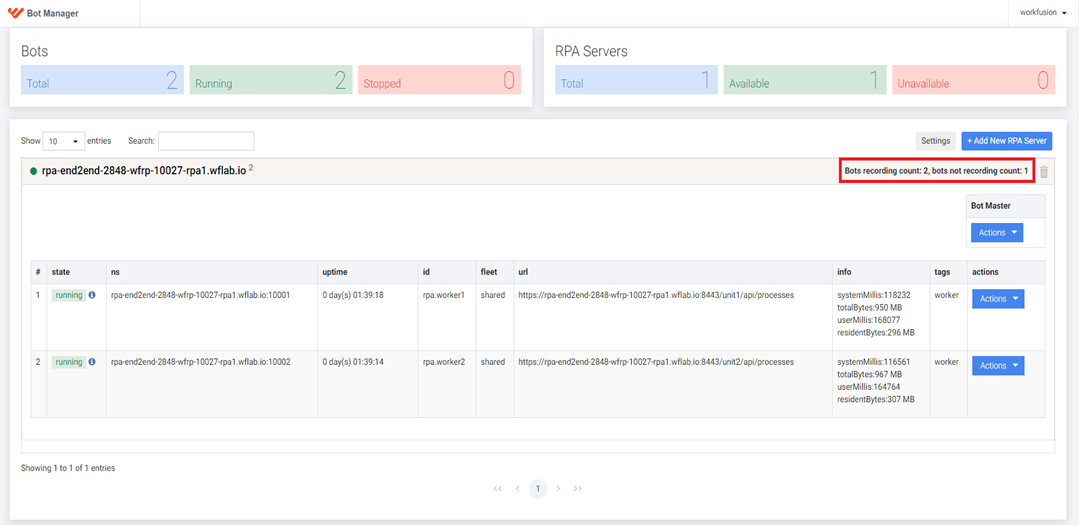
The video recording status label can have three values:
- All bots recording
- No bots recording
- Bots recording count: x, bots not recording count: y
Configure upload to S3 bucket
You can view recorded videos in Bot Manager only after they are uploaded to an S3 bucket. The upload takes place automatically if a dedicated bucket is configured. The configuration is optional.
You can configure the upload feature manually in several ways:
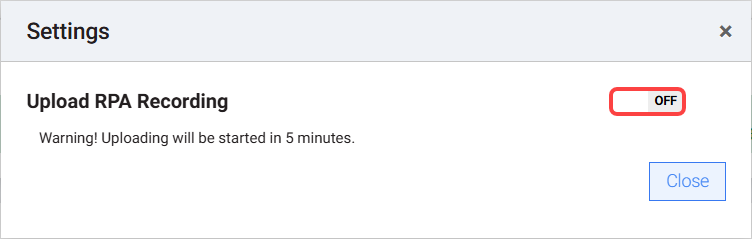
In ZooKeeper, set the
/config/bot-agent/rpa.upload.recording.s3flag totrue. To change a value in ZooKeeper, see Change settings in ZooKeeper.Go to Settings > Upload RPA Recording and switch on the toggle.
As video recording consumes much memory, use a service on the Bot Agent side to monitor free disk space and stop recording if free space exceeds a certain threshold. For configuration details, see Configure disk space limit
Access recorded videos
You can view recorded videos for Bot Master and each RPA Unit separately:
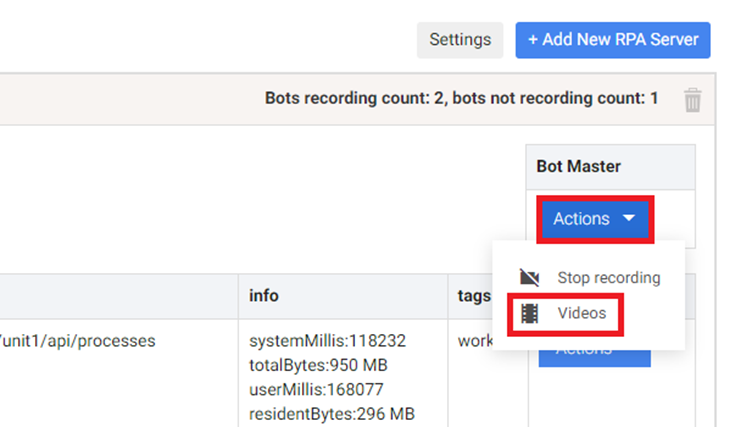
To access videos for Bot Master, click Actions under Bot Master and select the Videos option:
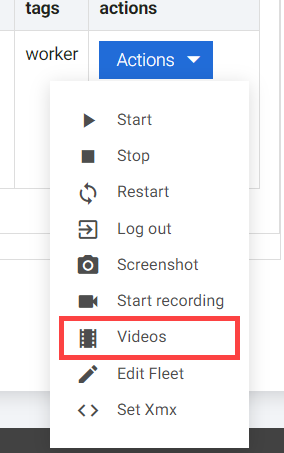
To access videos for a specified RPA Unit, click Actions next to the needed instance and select the Videos option:
The following popup appears with a list of recordings:
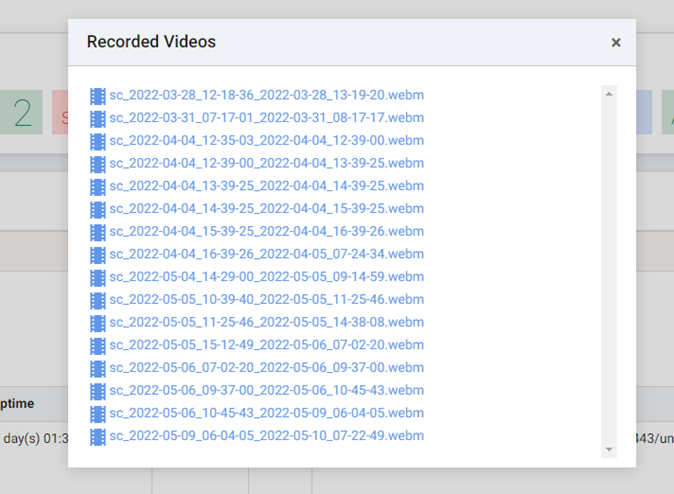
Each link redirects to the appropriate screen capture recording stored in an S3 bucket.
View statistics
Bot Manager collects statistics on RPA server and RPA Unit statuses and server performance and provides data storage for analytics.
Check RPA servers

| Statistics | Description |
|---|---|
| Total | All configured and available RPA servers |
| Available | RPA servers accessible through Bot Manager |
| Unavailable | Stopped or unavailable RPA servers |
Available RPA servers have the green indicator next to the server name, and those unavailable–the red one.
Check RPA Units

| Statistics | Description |
|---|---|
| Total | Amount of stopped and running RPA Unit processes |
| Running | Up and running RPA Unit processes; it doesn't matter if an RPA Unit is executing a task or not |
| Stopped | Crashed or manually stopped RPA Unit processes |
In case of any issues, look for troubleshooting tips in the following support guides: